
The Graphics Processing Unit (GPU) is the powerhouse behind every visual element on your screen, from the complex geometric rendering of modern AAA video games to the hardware acceleration required for professional video editing and high-level AI computations. However, even the most expensive hardware is only as effective as the software that instructs it. This software—the graphics driver—acts as the vital translator between your operating system, your applications, and your hardware. Keeping this driver updated is not merely a matter of routine maintenance; it is a critical practice for ensuring system security, maximizing frame rates, and maintaining overall digital health.

Why Keeping Your Graphics Driver Updated Matters
In the fast-evolving landscape of personal computing, software developers and hardware engineers are in a constant state of optimization. When a new high-end game or a professional suite like Adobe Premiere Pro is released, it often utilizes new technologies that the hardware was not originally programmed to handle efficiently. Drivers are the solution to this gap.
Performance Optimization and Frame Rate Stability
For gamers and creative professionals, the most immediate benefit of a driver update is a boost in performance. Manufacturers like NVIDIA and AMD frequently release “Game Ready” or “Day 0” drivers specifically timed with the launch of major software titles. These updates contain specific optimizations for the game’s engine, often resulting in double-digit percentage increases in frames per second (FPS). Beyond peak performance, updates often address “micro-stuttering” and frame-time inconsistency, leading to a much smoother visual experience even if the average FPS remains the same.
Compatibility and Bug Fixes
Software environments are incredibly complex. A Windows update or a patch to a specific application can suddenly cause a previously stable graphics card to crash, flicker, or produce visual artifacts. Graphics driver updates contain libraries of bug fixes that address these specific conflicts. If you have ever experienced a “Display driver stopped responding and has recovered” error, it is a clear sign that your current driver is struggling with a conflict that a newer version likely addresses.
Security and Vulnerability Patches
One often overlooked aspect of driver updates is digital security. Because graphics drivers operate at a very low level of the system—close to the kernel—they are high-value targets for malicious actors. Vulnerabilities in a GPU driver could potentially allow an attacker to gain elevated privileges or execute code remotely. Manufacturers regularly patch these security holes. Neglecting driver updates can leave your entire system exposed to exploits that traditional antivirus software might not catch.
Identifying Your Graphics Hardware
Before you can update your drivers, you must accurately identify the make and model of your GPU. While many users are aware of their brand, knowing the specific generation and model is essential for downloading the correct software package.
Using the Windows Device Manager
The quickest way to identify your hardware without third-party software is through the Windows Device Manager. By right-clicking the Start button and selecting “Device Manager,” you can navigate to the “Display adapters” section. Expanding this will show the exact name of your GPU. This is particularly useful for laptops that might use “hybrid graphics”—a system that switches between an integrated Intel or AMD chip for power saving and a discrete NVIDIA or AMD GPU for high-performance tasks.
Utilizing System Information and Third-Party Tools
For more granular detail, the “System Information” app (type msinfo32 in the run command) provides deep technical data. Under “Components” and then “Display,” you can find the driver version currently installed and the amount of dedicated video RAM (VRAM) available. For enthusiasts who want to know everything from clock speeds to BIOS versions, a lightweight tool like TechPowerUp’s GPU-Z is the industry standard. It provides a real-time look at the hardware’s specifications, which is invaluable if you are troubleshooting performance issues that might be related to thermal throttling rather than just software versions.
Automated Update Methods via Manufacturer Software
Modern GPU manufacturers have moved toward a “software suite” model. These applications handle everything from driver updates to gameplay recording and performance monitoring. This is the most recommended path for the average user, as it removes the guesswork from the process.
NVIDIA GeForce Experience and App
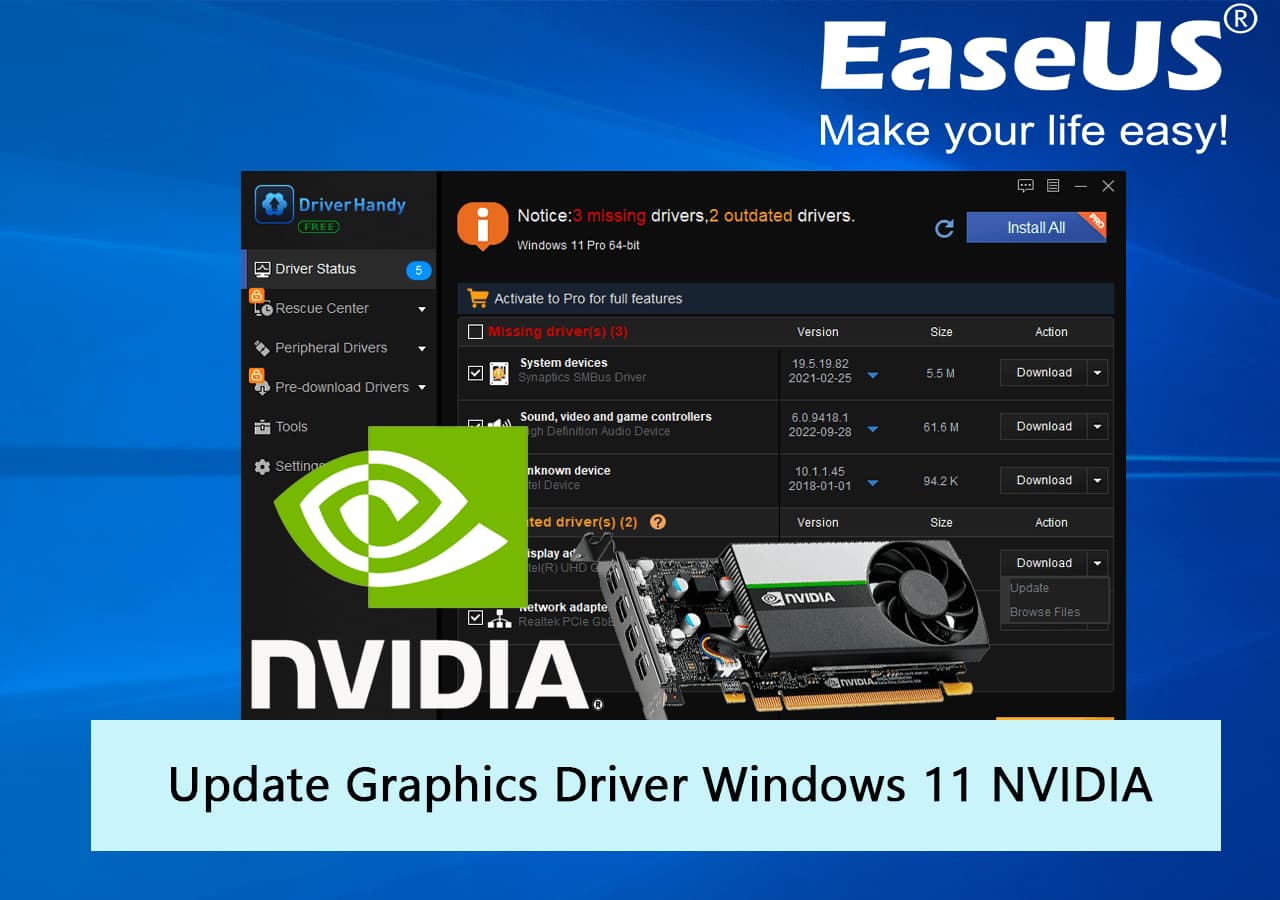
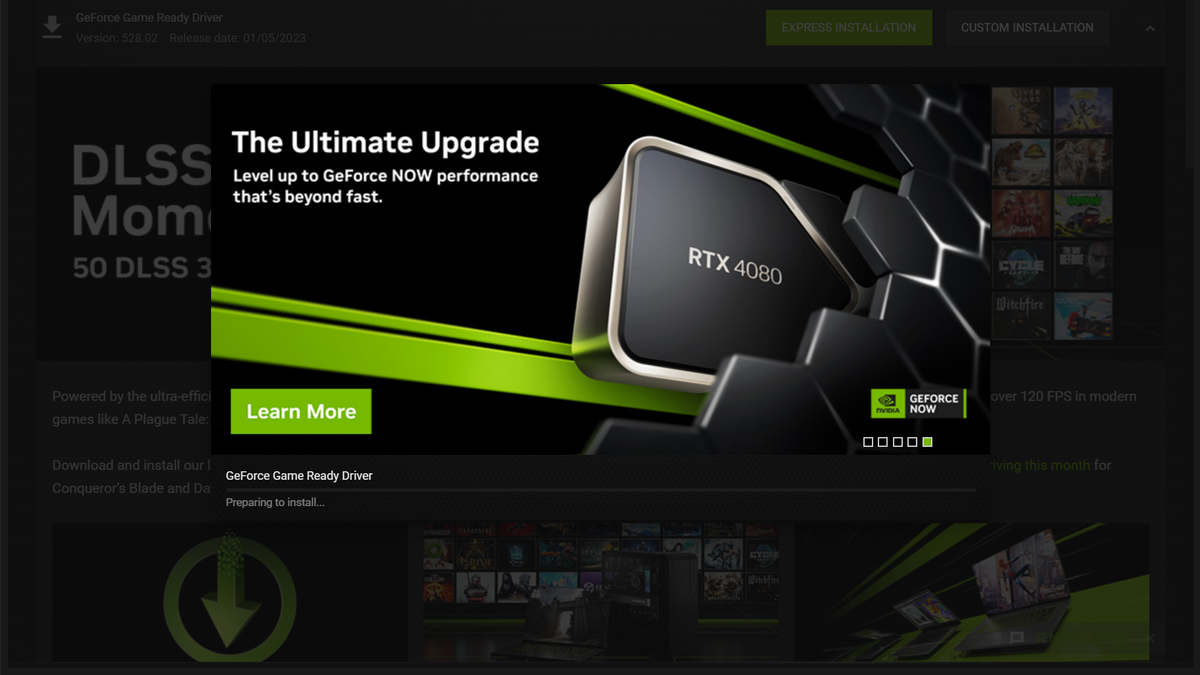
NVIDIA users primarily utilize GeForce Experience (currently transitioning to the unified “NVIDIA App”). These platforms automatically notify the user when a new driver is available. The process is streamlined: you simply click “Download,” and once finished, select “Express Installation.” The software handles the removal of temporary files and the registration of the new driver. For those who use their PCs for work rather than play, NVIDIA also offers “NVIDIA Studio Drivers.” These are updated less frequently but undergo more rigorous testing with creative applications like Maya, DaVinci Resolve, and AutoCAD to ensure maximum uptime.
AMD Software: Adrenalin Edition
AMD’s suite, known as Adrenalin Edition, is highly regarded for its integrated approach. It allows users to check for updates directly from the “Home” or “System” tab. One of the advantages of the AMD ecosystem is the “Recommended vs. Optional” toggle. Users can choose to stay on “Recommended” WHQL-certified drivers for maximum stability or opt into “Optional” drivers to get the very latest features and support for brand-new games. AMD also provides a “Factory Reset” option within the installer, which clears out old settings to prevent configuration conflicts.
Intel Graphics Command Center and Arc Control
With Intel’s entry into the high-performance GPU market with the Arc series, their driver game has accelerated significantly. For users with Intel Integrated Graphics or Arc discrete cards, the Intel Graphics Command Center or the newer Intel Arc Control app serves as the hub. Given that Intel is still rapidly optimizing its drivers for older DirectX 9 and 11 titles, staying updated is arguably more important for Intel users than any other brand, as performance jumps between versions can be massive.
The Manual Installation and Clean Install Process
While automated tools are convenient, they are not infallible. Sometimes the software fails to detect an update, or a corrupted installation leads to persistent crashes. In these scenarios, a manual “Clean Install” is the professional solution.
Downloading Directly from the Source
The most reliable way to get a driver is to go directly to the manufacturer’s website (NVIDIA.com, AMD.com, or Intel.com). You will be prompted to select your product type, series, and operating system. Always ensure you are downloading the 64-bit version if you are on a modern version of Windows. Manual downloads are also the only way to “roll back” to an older driver version if a new update causes unforeseen issues with a specific piece of legacy software.
The Power of Display Driver Uninstaller (DDU)
When a system suffers from severe graphical glitches or the driver installer refuses to complete, it is often because of “driver remnants”—leftover registry keys and files from previous versions that conflict with the new ones. Display Driver Uninstaller (DDU) is a niche but essential utility for these situations. It is best used in “Safe Mode.” DDU completely wipes every trace of the graphics driver from the system, essentially resetting the OS to a state where it treats the GPU as a “Standard VGA Adapter.” Once this clean slate is achieved, you can run the manual installer for the new driver. This process is the “gold standard” for troubleshooting.
Avoiding Windows Update for Graphics Drivers
A common mistake is relying on Windows Update to manage graphics drivers. While Windows Update is excellent for security patches and peripheral drivers (like keyboards or printers), it often serves “generic” versions of graphics drivers that are several months old. These drivers lack the control panels (like NVIDIA Control Panel or AMD Settings) required to adjust refresh rates, G-Sync/FreeSync settings, or power management. Always prioritize the manufacturer’s specific installer over the Windows Update version.
Post-Update Best Practices and Optimization
Updating the driver is only half the battle; ensuring the settings are optimized for your hardware is the final step in the process.
Verifying the Installation
After the screen flickers and the installation completes (which is normal as the display signal is handed over to the new driver), it is a best practice to restart your computer. Once back in the OS, open your GPU control panel to verify that your monitor’s refresh rate hasn’t been reset. High-refresh-rate monitors (144Hz and above) frequently default back to 60Hz after a clean driver installation, which can lead to a perceived loss in smoothness.
Adjusting Power Management and Texture Filtering
Inside the NVIDIA Control Panel or AMD Adrenalin settings, you can often find “Power Management Mode.” Setting this to “Prefer Maximum Performance” ensures the GPU clocks up immediately when a 3D load is detected. Additionally, you can adjust texture filtering quality. For those with high-end hardware, setting “Texture Filtering – Quality” to “High Quality” ensures the best visual fidelity, whereas those on older hardware might benefit from “Performance” settings to squeeze out a few extra frames.
Monitoring Stability with Stress Tests
If you have updated your drivers specifically to fix crashes, it is wise to run a synthetic benchmark or stress test. Tools like Unigine Superposition or 3DMark put the GPU under a sustained, heavy load. If the system can pass a 30-minute loop of these benchmarks without crashing, the driver update can be considered successful and stable. This proactive testing prevents the frustration of a crash occurring in the middle of a competitive match or a long rendering job.
By treating graphics driver updates as a regular part of your digital maintenance—much like changing the oil in a car—you ensure that your hardware remains capable, secure, and efficient. Whether through the ease of automated software or the precision of a manual clean install, staying current is the most effective way to protect your investment in your technology.
aViewFromTheCave is a participant in the Amazon Services LLC Associates Program, an affiliate advertising program designed to provide a means for sites to earn advertising fees by advertising and linking to Amazon.com. Amazon, the Amazon logo, AmazonSupply, and the AmazonSupply logo are trademarks of Amazon.com, Inc. or its affiliates. As an Amazon Associate we earn affiliate commissions from qualifying purchases.