
In the complex ecosystem of a modern computer, the hardware and software must speak a common language to function correctly. This translation is handled by device drivers—small but essential pieces of software that act as the intermediary between your operating system and your physical components. Whether it is your graphics card rendering a high-definition video, your Wi-Fi card connecting to a network, or your motherboard managing data flow, drivers are the silent architects of your digital experience.
Over time, manufacturers release updates to these drivers to patch security vulnerabilities, fix bugs, improve performance, and ensure compatibility with new software versions. Neglecting these updates can lead to system crashes, hardware malfunctions, and a significant dip in computing efficiency. This guide provides a comprehensive roadmap for identifying, updating, and managing all your drivers to ensure your system remains at peak performance.

Understanding the Critical Role of Device Drivers
To appreciate why driver updates are necessary, one must understand their position in the computing stack. When an application requests a specific action—such as printing a document—the operating system (OS) receives that request. However, the OS does not inherently know how to communicate with every specific model of printer on the market. It sends the request to the driver, which translates the OS’s generic command into a specific instruction that the hardware can execute.
Hardware and Software Communication
Drivers function at the kernel level of the operating system, meaning they have high-level access to the system’s hardware. Because of this proximity to the “metal,” a poorly written or outdated driver can cause catastrophic system failures, such as the infamous Blue Screen of Death (BSOD). When you update a driver, you are often replacing old, inefficient code with streamlined instructions that allow the hardware to process data faster and with fewer errors.
The Cost of Neglect: Performance and Security
Outdated drivers are more than just a performance bottleneck; they are a security risk. Hackers frequently exploit vulnerabilities in outdated driver code to gain unauthorized access to a system. Furthermore, as Windows or macOS updates their internal architecture, old drivers may become incompatible, leading to “ghost” issues where hardware components simply stop appearing or behave erratically. Keeping drivers current is a foundational pillar of digital hygiene.
The Native Approach: Windows Update and Device Manager
For the majority of users, the safest and most convenient way to manage drivers is through the tools built directly into the operating system. Microsoft has made significant strides in automating this process through Windows Update.
Utilizing Windows Update for Core Drivers
Windows Update is the primary delivery vehicle for “WHQL” (Windows Hardware Quality Labs) certified drivers. These are drivers that have been tested by Microsoft for stability and compatibility.
-
Open the Settings menu and navigate to Update & Security (or Windows Update on Windows 11).
-
Click Check for updates.
-
Often, driver updates are categorized as “Optional Updates.” To find these, look for a link labeled View optional updates or navigate to Advanced options > Optional updates.
-
Select the drivers you wish to install and click Download and install.
While Windows Update is excellent for general stability, it often lags behind the latest releases from manufacturers. For high-performance hardware, a more manual approach is required.
Precision Updating via Device Manager
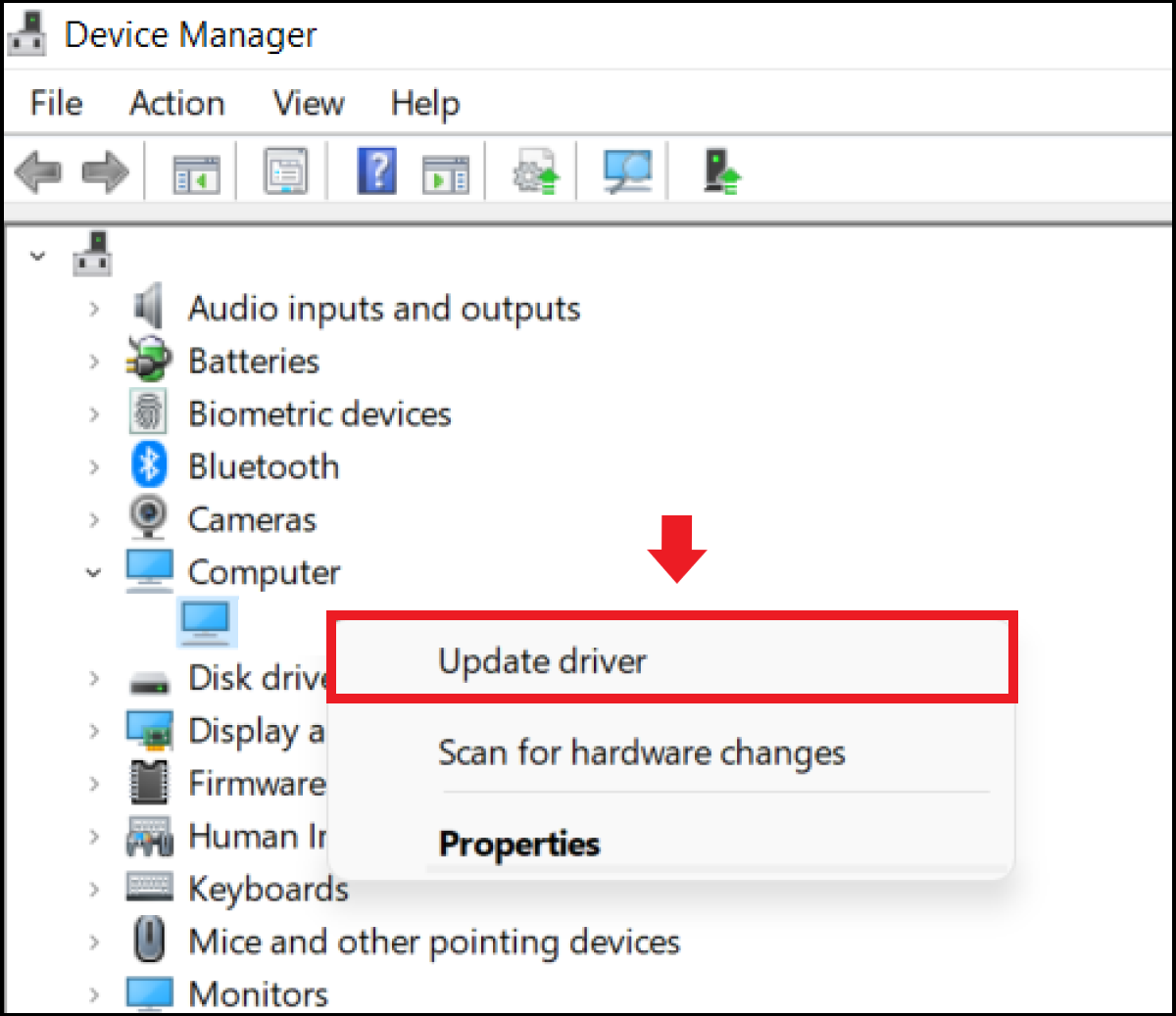
Device Manager is the most granular tool for managing individual components. It allows you to see every piece of hardware connected to your machine and check the status of its specific driver.
-
Right-click the Start button and select Device Manager.
-
Expand the categories to find the hardware you wish to update (e.g., “Display adapters” for your graphics card).
-
Right-click the component and select Update driver.
-
Choose Search automatically for updated driver software.
If Windows cannot find a new driver, it does not necessarily mean one does not exist; it simply means it is not in the Microsoft repository yet. In this case, you must go directly to the source.

Direct Manufacturer Updates for High-Performance Components
For components like Graphics Processing Units (GPUs), specialized audio interfaces, and high-end motherboards, relying on generic Windows drivers can lead to a loss of functionality. Manufacturers like NVIDIA, AMD, and Intel frequently release “Day 0” drivers optimized for the latest software and games.
Graphics Processing Units (GPU)
The GPU is often the most driver-dependent component in a computer. Both NVIDIA and AMD offer dedicated software suites—GeForce Experience and Radeon Software, respectively—that automatically notify you when a new driver is available. These tools allow for “one-click” updates and often include optimizations for specific games. If you prefer a manual approach, you can visit the manufacturer’s website, enter your specific model, and download the latest “Game Ready” or “Studio” driver.
Motherboards and Chipset Drivers
The chipset driver is the “brain” that manages communication between the CPU and all other peripherals. Updating this can resolve issues with USB ports, power management, and system sleep states. To update these:
-
Identify your motherboard model (using a tool like
msinfo32). -
Visit the manufacturer’s support page (e.g., ASUS, MSI, Gigabyte).
-
Download the latest Chipset, LAN, and SATA drivers.
-
Run the installers and restart your system.
Peripheral Drivers: Audio and Networking
High-fidelity audio cards and specialized networking gear (like 10Gb Ethernet cards) often require proprietary drivers to unlock features like spatial audio or advanced packet prioritization. Always check the manufacturer’s website if you notice dropouts in audio or inconsistent internet speeds.
Using Third-Party Driver Management Software
For users who manage multiple systems or those who find manual searching tedious, third-party driver update tools can be an effective solution. However, this category of software requires caution.
The Benefits of Automation
Reputable driver update utilities scan your entire system, compare your current driver versions against a cloud-based database of millions of drivers, and update everything in a single batch. This is particularly useful for identifying obscure “System Devices” that are difficult to track down manually. Tools like Driver Booster or Snappy Driver Installer Origin are popular choices in the tech community for their depth and ease of use.
Identifying Reliable Tools vs. Bloatware
The market for driver updates is unfortunately saturated with “scareware”—programs that claim your computer has hundreds of errors just to sell you a subscription. When choosing a third-party tool, look for software that:
-
Provides a clear source for the drivers it downloads.
-
Does not bundle unrelated software (bloatware).
-
Allows you to back up your existing drivers before updating.
-
Has a transparent privacy policy regarding your system data.
Best Practices for System Stability and Troubleshooting
Updating drivers is generally safe, but because they operate at such a deep level of the system, errors can happen. Following a few best practices will ensure that an update doesn’t turn into a headache.
Creating a System Restore Point
Before performing a mass update of drivers, always create a System Restore point. This allows you to “roll back” your entire operating system to its current state if a new driver causes instability.
-
Type Create a restore point in the Windows search bar.
-
Under the System Protection tab, click Create.
-
Name the point (e.g., “Pre-Driver Update”) and save it.
Clean Installations and Driver Rollbacks
Sometimes, a new driver can conflict with remnants of the old one. This is common with graphics drivers. Tools like Display Driver Uninstaller (DDU) can completely wipe old driver files from the registry and system folders, allowing for a “clean install” of the new version.
If you install a driver and immediately notice issues, you can roll it back in Device Manager:
-
Right-click the device in Device Manager and select Properties.
-
Go to the Driver tab.
-
Click Roll Back Driver.
Conclusion: A Proactive Maintenance Habit
Updating all your drivers is not a task that needs to be done daily, but it should be part of a quarterly maintenance routine. By combining the ease of Windows Update with the precision of manufacturer-specific downloads and the occasional assist from third-party tools, you can ensure that your hardware is always performing at its theoretical maximum. A well-updated system is faster, more secure, and significantly more reliable, allowing you to focus on your work and creativity rather than troubleshooting technical glitches.
aViewFromTheCave is a participant in the Amazon Services LLC Associates Program, an affiliate advertising program designed to provide a means for sites to earn advertising fees by advertising and linking to Amazon.com. Amazon, the Amazon logo, AmazonSupply, and the AmazonSupply logo are trademarks of Amazon.com, Inc. or its affiliates. As an Amazon Associate we earn affiliate commissions from qualifying purchases.