
In the ever-evolving landscape of digital entertainment, streaming services have become indispensable, and Amazon Prime Video stands as a prominent player. Far more than just a delivery service, an Amazon Prime membership unlocks a vast library of movies, TV shows, and original content accessible across a multitude of devices. For many, the question “how do I watch movies on Amazon Prime” is a gateway to understanding the technical intricacies and user-friendly features of this powerful platform. This guide delves deep into the technological aspects of accessing, navigating, and optimizing your viewing experience on Amazon Prime Video, ensuring you harness its full potential.
Getting Started with Amazon Prime Video: Access and Setup
Embarking on your Amazon Prime Video journey begins with understanding its foundation and ensuring your devices are properly configured. This initial setup is crucial for seamless streaming and access to the platform’s extensive content library.
Understanding Amazon Prime Membership
At its core, Amazon Prime Video is a significant component of the broader Amazon Prime subscription service. This means that if you’re an existing Prime member, you already have access to a substantial catalog of movies and TV shows at no additional cost beyond your annual or monthly Prime fee. Beyond the included content, Prime Video also functions as a digital storefront, allowing users to rent or purchase additional titles, often including the latest blockbusters and premium series, irrespective of their Prime membership status. Technically, the service leverages Amazon’s vast cloud infrastructure to host and deliver high-definition video streams globally, employing advanced content delivery networks (CDNs) to minimize latency and buffering.
Compatible Devices: Your Gateway to Entertainment
The flexibility of Amazon Prime Video is one of its most compelling tech features, ensuring that entertainment is available virtually wherever you are. The platform supports a remarkable array of devices, each interacting with the Prime Video application or website in specific ways:
-
Smart TVs and Streaming Devices: This category includes a broad spectrum of hardware such as Amazon Fire TV devices (Sticks, Cubes, Televisions), Roku players, Apple TV, Google Chromecast, and smart TVs from manufacturers like Samsung, LG, Sony, and Vizio. These devices typically run dedicated operating systems (e.g., Fire OS, Roku OS, tvOS, WebOS, Tizen) that host the Prime Video app, which is optimized for TV display and remote control navigation.
-
Game Consoles: Modern gaming consoles like PlayStation (PS4, PS5) and Xbox (One, Series X/S) feature robust media app support. The Prime Video app on these consoles leverages their powerful processors for smooth playback and often integrates with their user interfaces.
-
Mobile Devices and Tablets: Android and iOS smartphones and tablets utilize native Prime Video apps, which are designed for touch interaction and portability. These apps offer unique features like offline downloads and data-saving streaming options.
-
Web Browsers: On desktop or laptop computers, Amazon Prime Video is accessible directly through web browsers (Chrome, Firefox, Edge, Safari). This method relies on web standards like HTML5 video playback and DRM technologies (e.g., Widevine, PlayReady) to secure content.
-
Set-top Boxes: Various cable and satellite TV boxes have begun integrating streaming apps, including Prime Video, expanding its reach to traditional television setups.
The diverse compatibility is a testament to Amazon’s investment in multi-platform development, ensuring a consistent user experience despite the underlying hardware and software variations.
Setting Up Your Device: A Step-by-Step Technical Overview
The setup process is generally straightforward but varies slightly depending on the device:
-
For Smart TVs, Streaming Devices, and Game Consoles:
-
Install the App: Navigate to your device’s app store (e.g., Google Play Store, Roku Channel Store, Apple App Store, Xbox Store). Search for “Amazon Prime Video” and select “Install” or “Download.”
-
Launch the App: Once installed, open the Prime Video application.
-
Sign In: You will typically be presented with two sign-in options:
-
On-screen Code: The app will display a unique alphanumeric code. Go to
primevideo.com/mytvon a web browser on your computer or phone, sign in with your Amazon account, and enter the code. This method securely links your device without typing sensitive credentials directly onto the TV. -
Direct Login: Some devices allow you to enter your Amazon email and password directly using an on-screen keyboard. This is less secure for public devices but often quicker for private ones.
-
-
Profile Selection: If you have multiple user profiles set up on your Amazon Prime Video account, you’ll be prompted to select one.
-
-
For Mobile Devices and Tablets:
-
Download from App Store: Search for “Amazon Prime Video” in the Apple App Store (iOS) or Google Play Store (Android) and download the app.
-
Open and Sign In: Launch the app and sign in using your Amazon account credentials. The mobile app often integrates with your device’s biometric security (fingerprint/face ID) for quicker future logins.
-
-
For Web Browsers (Desktop/Laptop):
-
Visit the Website: Open your preferred web browser and go to
primevideo.com. -
Sign In: Click the “Sign In” button (usually in the top right corner) and enter your Amazon account details. The website will often remember your login for future visits, utilizing browser cookies for session management.
-
Once signed in, your device is authenticated, and you’re ready to explore the Prime Video library, with the platform leveraging secure HTTPS connections for all content requests and DRM key exchanges.
Navigating the Prime Video Interface: Discovering Content
The user interface (UI) of Amazon Prime Video is designed for intuitive content discovery, utilizing a blend of algorithmic recommendations and structured categories. Understanding its layout is key to finding exactly what you want to watch.
Exploring the Home Screen
Upon logging in, the home screen serves as your personalized gateway to content. It’s a dynamic feed primarily driven by Amazon’s recommendation engine, which analyzes your viewing history, ratings, and even your shopping habits on Amazon.com to suggest relevant titles. Key elements typically include:
-
Featured Carousels: Large, rotating banners at the top showcasing new releases, popular titles, and Prime Originals.
-
Curated Rows: Horizontally scrolling lists categorized by genre (“Action & Adventure,” “Comedy”), mood (“Feel-Good Movies”), theme (“Award-Winning Films”), or specific collections (“New to Prime,” “Included with Prime”).
-
“Continue Watching”: A crucial section that allows you to quickly resume playback from where you left off on any device linked to your account, thanks to server-side progress tracking.
-
“My Stuff” / “Watchlist”: A dedicated area for content you’ve manually saved to watch later or titles you’ve purchased/rented.
The UI’s design prioritizes visual browsing, with large thumbnails and brief descriptions to aid quick selection.
Search Functionality: Pinpointing Your Next Watch
While browsing is excellent for discovery, the search function is indispensable for finding specific movies or shows. The search bar, usually prominently located, offers robust capabilities:
-
Keyword Search: Enter titles, actors, directors, genres, or even specific keywords related to plot points. The search algorithm processes these queries against its extensive metadata database.
-
Predictive Text and Suggestions: As you type, the system often provides real-time suggestions, helping you refine your search and correct typos.
-
Filter Options: After a search, you can often apply filters to narrow down results by “Included with Prime,” “4K UHD,” “Genre,” “Year,” and more. This metadata-driven filtering is a powerful tool for tech-savvy users.
Understanding Content Types: Included, Rental, and Purchase
One of the most common points of confusion for new users is distinguishing between the different content monetization models within Prime Video:
-
Included with Prime: These titles are part of your Amazon Prime subscription and are available to stream without additional cost. They are typically marked with a “Included with Prime” banner or badge. The library of included content rotates, with new titles added and others removed periodically due to licensing agreements.
-
Rentals: Many newer releases or titles not included with Prime can be rented for a specific period (typically 30 days to start watching, and 48 hours once you begin playback). Once rented, the content is available offline on supported devices, with the digital rights management (DRM) system enforcing the time limit.
-
Purchases: You can buy digital copies of movies and TV show seasons/episodes. Once purchased, these titles are added to your digital library indefinitely and can be streamed or downloaded as often as you like, providing perpetual access under Amazon’s terms of service. This represents a license to view, not outright ownership of the digital file itself.
The platform clearly distinguishes these content types, usually through price tags, “Rent” or “Buy” buttons, or “Included with Prime” labels on the title’s detail page.
Creating Watchlists and Profiles: Tailoring the Experience
Prime Video offers features to personalize and manage viewing experiences, especially in multi-user households.
-
Watchlists: This feature allows you to bookmark movies and shows you’re interested in watching later. It’s an essential organizational tool, acting as a personal queue. You can add titles from any device, and they sync across your account.
-
User Profiles: You can create up to six user profiles (one primary and five secondary) within a single Amazon Prime Video account. Each profile maintains its own viewing history, recommendations, and watchlists. This segmentation is crucial for families, allowing personalized experiences and protecting children from inappropriate content via parental controls. Technically, each profile stores distinct user metadata linked to the main account.
Enhancing Your Viewing Experience: Tech Features and Settings
Beyond basic playback, Amazon Prime Video integrates advanced technological features designed to optimize and customize your viewing experience. Understanding these settings empowers you to get the most out of the platform.
Video Quality and Streaming Settings
The visual fidelity of your stream is paramount, and Prime Video offers controls to manage this:
-
Adaptive Bitrate Streaming: By default, Prime Video uses adaptive bitrate streaming (ABS). This technology constantly monitors your internet connection speed and adjusts the video quality (resolution and bitrate) in real-time to provide the best possible stream without buffering. If your connection slows, the resolution might temporarily drop from 4K to HD or even SD, then scale back up when conditions improve. This is handled by advanced codecs like H.264 and H.265 (HEVC).
-
Manual Quality Settings: On some devices (especially mobile), you can manually set a preferred streaming quality (e.g., “Good,” “Better,” “Best”) to conserve data or ensure a consistent experience over a limited connection. For downloads, you often have more explicit choices (e.g., “Standard Definition,” “High Definition”).
-
Data Saver Mode: Mobile apps often include a “Data Saver” option, which caps the streaming quality to reduce cellular data usage, a critical feature for users with limited data plans.
To adjust settings, navigate to the “Settings” or “Preferences” menu within the Prime Video app or website, looking for options related to “Stream & Download” or “Playback.”
Audio Options: Immersive Sound and Accessibility
Sound is half the experience, and Prime Video supports various audio formats:
-
Surround Sound: Many titles offer surround sound formats like Dolby Digital 5.1 or even more advanced object-based audio like Dolby Atmos. To experience this, you’ll need compatible audio equipment (e.g., a soundbar, AV receiver, and speaker system) connected to your streaming device.
-
Stereo Audio: If surround sound equipment isn’t detected, the platform defaults to stereo audio.
-
Subtitles and Closed Captions (CC): Essential for accessibility, subtitles provide on-screen text for dialogue. Closed captions also include descriptions of non-speech elements (e.g., “[door creaks],” “[music playing]”). You can often customize their appearance (font size, color) through playback settings.
-
Audio Descriptions: For visually impaired viewers, select titles offer audio descriptions, which narrate key visual elements of the scene during pauses in dialogue.
These options are usually accessible during playback by clicking an “Audio & Subtitles” or similar icon (often a speech bubble or gear icon).
Offline Viewing (Downloads): Entertainment Anywhere
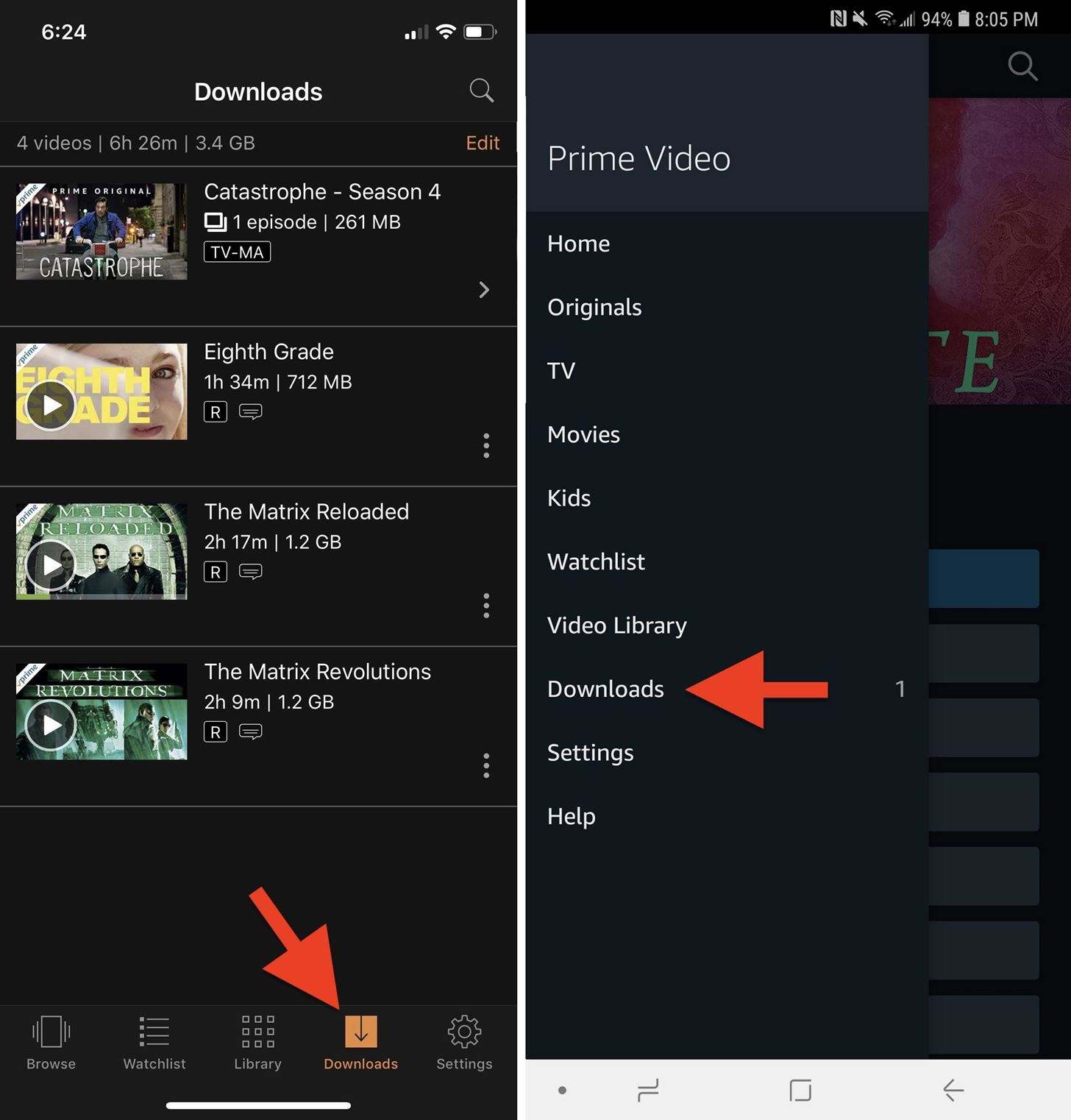
A standout feature for mobile users, offline viewing allows you to download selected movies and TV episodes to your mobile device or tablet for watching without an internet connection.
-
How it Works: Navigate to the title you wish to download. If it’s available for download (most “Included with Prime” titles are), you’ll see a “Download” button. Select your preferred video quality for the download.
-
Storage and DRM: Downloads are stored encrypted on your device and are subject to digital rights management (DRM) restrictions, meaning they have an expiration period (typically 30 days to watch, 48 hours once started), after which they are automatically deleted or require re-downloading.
-
Managing Downloads: The “Downloads” section within the mobile app allows you to view, manage, and delete downloaded content to free up storage space.
This feature leverages local device storage and secure content containers to provide a robust offline experience, making Prime Video ideal for travel or areas with poor connectivity.
Parental Controls: Safe Viewing for Families
For households with children, robust parental controls are a critical tech feature:
-
PIN Protection: You can set a 5-digit PIN that must be entered to bypass viewing restrictions or to make purchases. This is managed under “Account & Settings” on the Prime Video website.
-
Viewing Restrictions: Based on ratings (e.g., G, PG, PG-13, R, TV-G, TV-MA), you can restrict content access on specific devices. For example, you might set a profile or device to only allow G-rated content.
-
Purchase Restrictions: Prevent unauthorized purchases or rentals by requiring the PIN for all transactions.
These controls are enforced at the account level and can be applied to individual profiles or devices, leveraging your Amazon account’s security features.
X-Ray Feature: IMDb Integration
Unique to Amazon, the X-Ray feature leverages its ownership of IMDb (Internet Movie Database) to provide contextual information during playback.
-
How it Works: While watching a movie or show, simply tap or click the screen (or press an “info” button on some remotes). A sidebar or overlay will appear, showing:
-
Cast & Characters: Who is currently on screen, with links to their IMDb pages.
-
Music: The song playing in the current scene.
-
Trivia: Fun facts, behind-the-scenes insights, and plot details relevant to the exact moment in the show.
-
Scene Selections: A quick way to jump to different chapters or scenes.
-
X-Ray enhances the viewing experience by providing a rich layer of interactive metadata, turning passive watching into a more informative and engaging activity without interrupting the flow of the story.
Troubleshooting Common Issues: Tech Solutions
Even with the most advanced streaming technology, occasional glitches can occur. Understanding how to troubleshoot common issues can quickly resolve problems and get you back to your entertainment.
Connectivity Problems
The vast majority of streaming issues stem from your internet connection.
-
Slow Internet Speed: Prime Video requires a stable broadband connection. For SD, 1-2 Mbps is typically sufficient; for HD, 3-5 Mbps; and for 4K UHD, 15-25 Mbps is recommended. Test your internet speed using online tools (e.g., Speedtest.net).
-
Wi-Fi Interference: Other devices, physical obstructions, or distance from your router can degrade Wi-Fi signal strength. Try moving closer to the router or using a wired Ethernet connection for streaming devices where possible.
-
Router/Modem Issues: Like any electronic device, routers and modems can benefit from a reboot. Unplug them for 30 seconds, then plug them back in. This often resolves minor network glitches by refreshing IP addresses and connections.
-
DNS Problems: Sometimes, your internet service provider’s (ISP) DNS servers can be slow. Changing your device’s DNS settings to a public server like Google DNS (8.8.8.8 and 8.8.4.4) or Cloudflare (1.1.1.1 and 1.0.0.1) can sometimes improve routing efficiency.
App Glitches and Freezing
If the Prime Video app itself is misbehaving, these steps can help:
-
Force Quit and Restart the App: Close the app completely (swipe up on mobile, or use the “Force Stop” option in device settings) and then reopen it. This clears temporary data and restarts the application’s processes.
-
Restart the Device: A full device restart (phone, smart TV, streaming stick) can resolve underlying software conflicts or memory leaks that might be affecting the app.
-
Clear App Cache and Data: In your device’s app settings, you’ll often find options to “Clear Cache” or “Clear Data.” Clearing the cache removes temporary files that might be corrupted. Clearing data will effectively reset the app to its freshly installed state, requiring you to sign in again. Use this as a more aggressive troubleshooting step.
-
Update the App: Ensure your Prime Video app is running the latest version. App updates often include bug fixes and performance improvements. Check your device’s app store for available updates.
Login and Account Issues
Difficulties signing in often relate to account credentials or security.
-
Incorrect Credentials: Double-check your Amazon email address and password. Passwords are case-sensitive.
-
Password Reset: If you’ve forgotten your password, use the “Forgot Password” link on the Amazon sign-in page (
amazon.com/password). Follow the prompts to reset it, typically via email or SMS verification. -
Two-Factor Authentication (2FA): If you have 2FA enabled on your Amazon account, ensure you’re correctly entering the one-time code generated by your authenticator app or sent to your phone.
-
Account Security Lock: If there have been too many failed login attempts, Amazon might temporarily lock your account for security reasons. Contact Amazon customer service if you suspect this.
Playback Errors
Specific playback errors often indicate a problem with the content stream itself or DRM.
-
Error Codes: Prime Video may display specific error codes (e.g., 1060, 7031, 5004). Searching for these codes on Amazon’s help pages can provide targeted solutions.
-
DRM Issues: Digital Rights Management (DRM) ensures content protection. If your device’s DRM components are outdated or corrupted, playback may fail. Ensure your device’s operating system and browser (if watching on desktop) are up to date. Sometimes, browser extensions (like ad blockers) can interfere with DRM.
-
Content Licensing: Occasionally, a title might become temporarily unavailable due to licensing issues, leading to a playback error. Try watching a different title to see if the issue is specific to one piece of content.
When all else fails, consulting Amazon’s official customer support through their website or help section is always the recommended next step. They have access to diagnostic tools and can provide specific assistance.
Beyond the Basics: Advanced Tips for Prime Video Users
For those looking to dive deeper into the technological capabilities of Amazon Prime Video, there are several advanced features and integrations that can further enrich the experience.
Integrating with Smart Home Devices
Amazon’s ecosystem extends deeply into smart home technology, most notably with Alexa-enabled devices.
-
Voice Control: If you have an Amazon Echo device or a Fire TV Stick with an Alexa Voice Remote, you can use voice commands to control Prime Video playback. For example, “Alexa, play [movie title] on Prime Video,” “Alexa, pause,” “Alexa, fast forward 30 seconds,” or “Alexa, open Prime Video.” This leverages Amazon’s natural language processing and integration APIs.
-
Multi-Room Video: In certain setups, you can command Alexa to play content on a specific Fire TV device in another room, adding convenience to multi-room entertainment.
This integration transforms the user interface from purely visual to an auditory command system, showcasing the power of interconnected devices.
Utilizing Prime Video Channels: Expanding Your Library
Prime Video Channels are an innovative feature that allows you to subscribe to additional streaming services directly through your Prime Video account.
-
Consolidated Billing: Instead of managing separate subscriptions and logins, channels like HBO, Showtime, Starz, or Paramount+ are billed directly through your Amazon account, simplifying financial management.
-
Integrated Interface: Content from subscribed channels appears seamlessly within the Prime Video app alongside included Prime content, offering a unified viewing experience. You won’t need to open a separate app for each channel.
-
Variety of Content: This expands your available content significantly, offering niche services or premium networks without leaving the Prime Video environment. Each channel operates as a distinct streaming service but utilizes Prime Video’s tech backbone for delivery.
To add channels, navigate to the “Channels” section on the Prime Video website or app and browse the available options.
Leveraging Casting and Mirroring
For devices that don’t natively run the Prime Video app (or when you prefer to view on a larger screen), casting and mirroring technologies are invaluable.
-
Chromecast: If you have a Google Chromecast device connected to your TV, you can “cast” content from the Prime Video mobile app. Simply open the app, select the cast icon (a small rectangle with Wi-Fi waves), and choose your Chromecast device. The app then acts as a remote, sending the video stream directly from the internet to your Chromecast.
-
AirPlay (iOS/Apple TV): iOS users can use AirPlay to send Prime Video content from their iPhone or iPad to an Apple TV or AirPlay 2-compatible smart TV. Look for the AirPlay icon during playback.
-
Screen Mirroring: Most smartphones and many laptops offer a “screen mirroring” or “casting” function (e.g., Miracast on Android/Windows, or using a physical HDMI cable adapter). This duplicates your device’s entire screen onto your TV, including Prime Video content. While less optimized than direct casting, it’s a versatile alternative.
These technologies rely on various wireless protocols (Wi-Fi Direct, mDNS) to establish a connection between your source device and the display, providing flexible viewing options.
Exploring 4K UHD and HDR Content
For the ultimate visual experience, Prime Video offers a growing library of 4K Ultra High Definition (UHD) and High Dynamic Range (HDR) content.
-
Requirements: To enjoy 4K UHD/HDR, you need:
-
A compatible 4K HDR TV.
-
A 4K HDR-capable streaming device (e.g., Fire TV Stick 4K, Roku Ultra, Apple TV 4K, specific Smart TV models).
-
An HDMI 2.0 or newer cable (if using an external device).
-
A fast and stable internet connection (at least 15-25 Mbps, ideally more).
-
-
Finding Content: Look for “4K UHD” or “HDR” badges on title listings within Prime Video. The platform automatically detects your device’s capabilities and streams the highest possible quality.
-
HDR Formats: Prime Video supports various HDR formats, including HDR10 and HDR10+, which offer superior contrast, brightness, and color rendition compared to standard dynamic range (SDR) video.
Understanding and enabling these advanced display technologies can transform your viewing into a truly cinematic experience, showcasing the pinnacle of modern streaming technology.
Conclusion
Amazon Prime Video is a sophisticated streaming platform, rich with technological features designed to provide a high-quality, flexible, and personalized entertainment experience. From the foundational steps of device setup and account management to navigating its intuitive interface and leveraging advanced features like X-Ray, parental controls, and 4K HDR streaming, understanding the underlying tech unlocks its full potential. By troubleshooting common issues and exploring integrations with smart home devices or Prime Video Channels, you can transform your “how do I watch movies on Amazon Prime” query into an informed journey through the expansive world of digital streaming. Embrace these tools and settings, and elevate your Prime Video experience to new heights, ensuring endless hours of professional, insightful, and engaging entertainment.
aViewFromTheCave is a participant in the Amazon Services LLC Associates Program, an affiliate advertising program designed to provide a means for sites to earn advertising fees by advertising and linking to Amazon.com. Amazon, the Amazon logo, AmazonSupply, and the AmazonSupply logo are trademarks of Amazon.com, Inc. or its affiliates. As an Amazon Associate we earn affiliate commissions from qualifying purchases.