
In an increasingly connected world, the ability to disconnect without losing access to your favorite entertainment has become a prized feature. Amazon Prime Video, a titan in the streaming industry, understands this need profoundly, offering its subscribers the invaluable capability to download movies and TV shows for offline viewing. This feature transforms long commutes, flights, and internet-free zones into personal cinemas, ensuring that your entertainment is always at your fingertips, regardless of your connectivity status. For tech-savvy users and casual viewers alike, mastering the art of downloading on Prime Video is key to unlocking a truly versatile and uninterrupted streaming experience. This comprehensive guide will navigate you through every step, from understanding the benefits and limitations to troubleshooting common issues, ensuring you can leverage this powerful feature to its fullest potential.
Understanding Amazon Prime Video Downloads
The convenience of streaming has revolutionized how we consume media, yet it’s often tethered to a stable internet connection. Amazon Prime Video’s download feature liberates content from this constraint, offering unparalleled flexibility. Before diving into the technical steps, it’s crucial to grasp the ‘why’ and ‘how’ behind this functionality, ensuring you make the most of your Prime subscription.
Why Download? The Benefits of Offline Viewing
The primary allure of downloading content is, undoubtedly, the ability to watch it without an internet connection. This simple benefit cascades into a multitude of practical advantages:
-
Travel and Commuting: Long flights, train journeys, or daily commutes often involve periods with no Wi-Fi or unreliable cellular data. Pre-downloaded content makes these journeys fly by, turning dead time into entertainment time.
-
Saving Mobile Data: Streaming high-definition video can quickly deplete your mobile data allowance. By downloading content over Wi-Fi at home, you can enjoy your shows on the go without worrying about exceeding data caps or incurring extra charges.
-
Battling Unstable Internet: Even at home, Wi-Fi can be temperamental. Downloading ensures a buffer-free viewing experience, sidestepping the frustration of constant interruptions and quality degradation due to poor connectivity.
-
Remote Locations: Heading to a cabin in the woods, a beach house, or any area with limited internet infrastructure? Downloads are your best friend, guaranteeing access to your favorite titles no matter how off-grid you go.
Eligibility and Limitations
While the ability to download is a fantastic perk, it comes with certain parameters designed to respect content licensing agreements and platform policies. Understanding these is vital to avoid disappointment:
-
Content Availability: Not all content on Amazon Prime Video is available for download. This is primarily due to licensing agreements with studios and distributors. Generally, most titles included with your Prime subscription are downloadable, but some rentals, purchases, or specific licensed content may have restrictions.
-
Rental vs. Purchase vs. Prime Included:
-
Prime Included Titles: Most movies and TV shows included with your Amazon Prime subscription are downloadable. These typically have an expiration period once downloaded or after you start watching them.
-
Rented Titles: Rented movies usually have a specific viewing window (e.g., 30 days to start watching, then 48 hours to finish once started). Downloads adhere to these timelines.
-
Purchased Titles: Purchased content generally allows for unlimited downloads on eligible devices, offering the most flexibility, though device limits may still apply.
-
-
Device Limits: Amazon Prime Video has a limit on the number of devices you can download content to simultaneously. This typically ranges from two to four devices, depending on your account activity and the specific content. Attempting to download on too many devices will trigger an error message.
-
Download Expiration: Downloaded titles included with Prime will expire. This means they’ll automatically be removed from your device after a certain period (e.g., 30 days from download, or 48 hours after you start playing them, whichever comes first). You might need to renew the download if you haven’t watched it within the window. Purchased content generally does not expire but requires re-downloading if removed.
Supported Devices for Downloading
Amazon Prime Video offers downloading capabilities across a range of popular devices, catering to diverse user preferences. The core platforms supporting this feature include:
-
Mobile Devices (iOS and Android): Smartphones and tablets running iOS (iPhones, iPads) or Android are the most common platforms for downloading Prime Video content. The Prime Video app for these devices is robust and user-friendly for offline viewing.
-
Windows and macOS Desktops/Laptops: Amazon provides a dedicated Prime Video app for Windows 10/11 and macOS (available from the Microsoft Store and Mac App Store, respectively). This allows users to download content directly to their computers, a feature particularly useful for larger screens or when traveling with a laptop.
-
Fire Tablets: Amazon’s own Fire tablets are inherently designed to integrate seamlessly with Prime Video, offering excellent download functionality.
Notably, devices like smart TVs, streaming sticks (Roku, Fire TV Stick), gaming consoles (PlayStation, Xbox), and web browsers generally do not support direct content downloads for offline playback. These platforms are designed for online streaming.
Step-by-Step Guide to Downloading Content
Getting your favorite shows and movies onto your device for offline viewing is a straightforward process, regardless of whether you’re using a mobile device or a desktop computer. Follow these detailed instructions to ensure a smooth downloading experience.
On Mobile Devices (iOS & Android)
The Prime Video app on smartphones and tablets is arguably the most common interface for downloading. The steps are largely identical for both iOS and Android platforms.
-
Open the Amazon Prime Video App: Locate and tap the Prime Video app icon on your device’s home screen or app drawer.
-
Sign In: If you’re not already signed in, enter your Amazon account credentials.
-
Browse or Search for Content: Use the app’s navigation features to find the movie or TV show you wish to download. You can browse categories, check out featured titles, or use the search bar for specific content.
-
Select Your Title: Tap on the movie or TV show title to open its detail page.
-
Initiate Download:
-
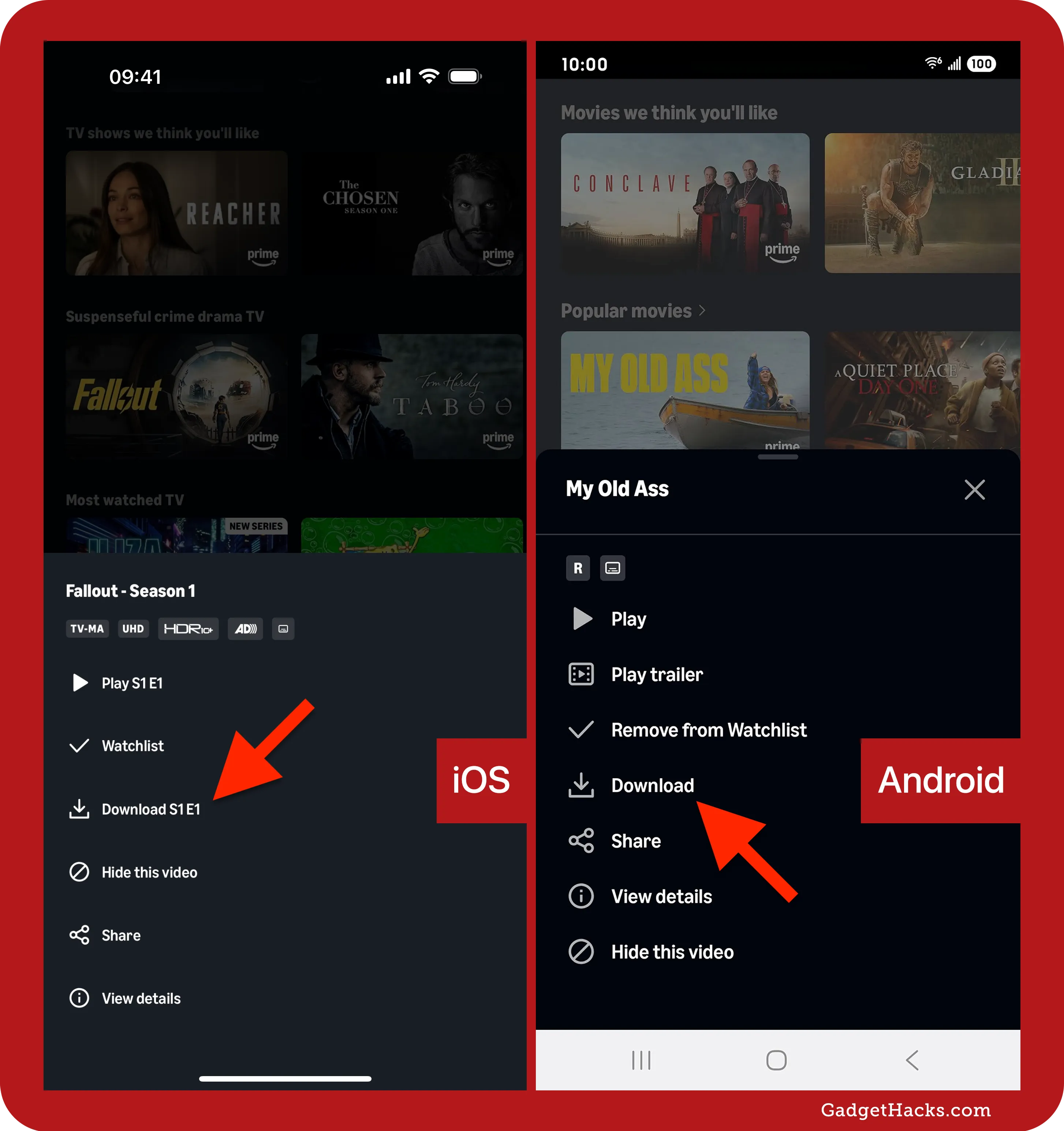
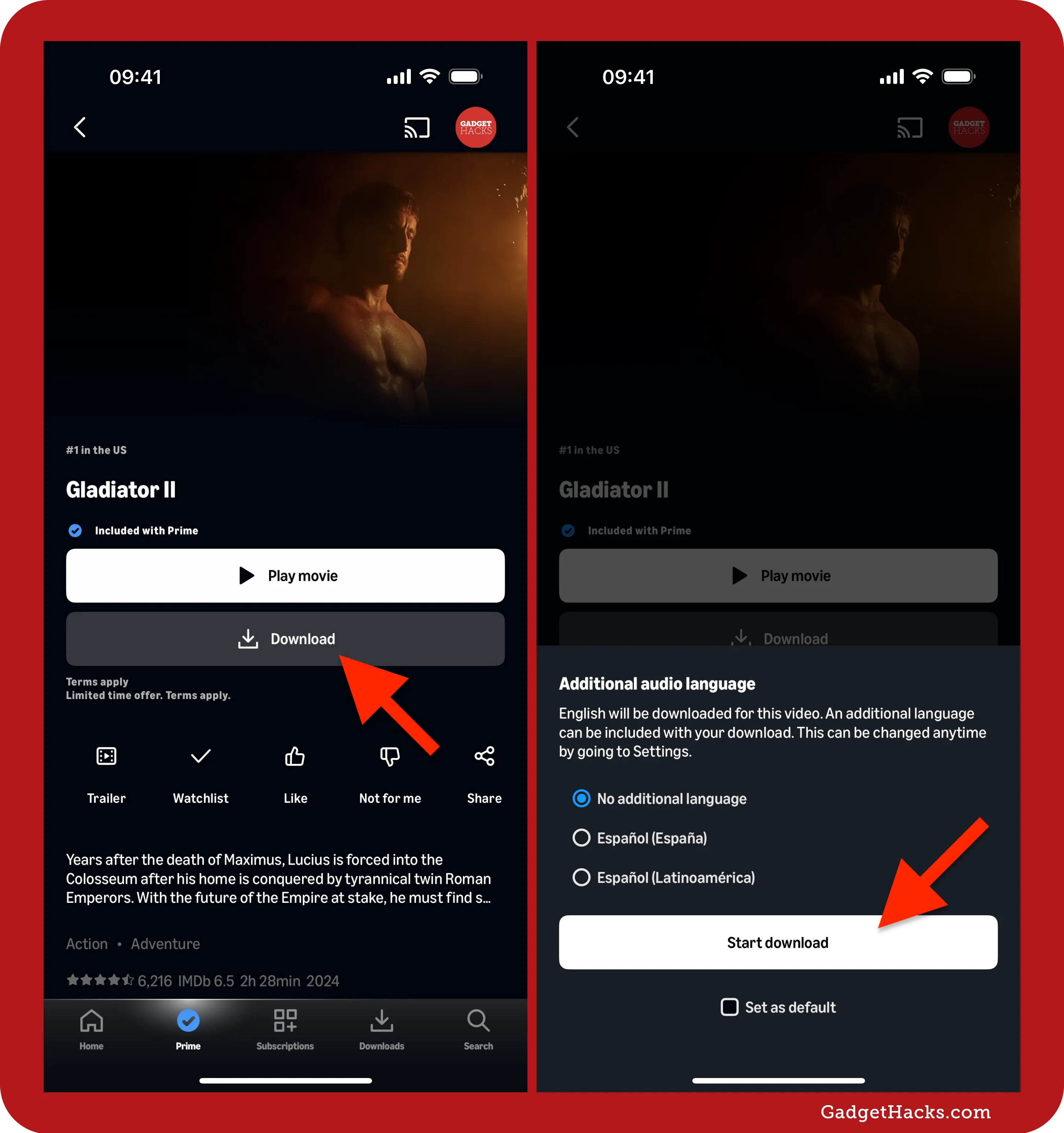
For Movies: Look for the “Download” button, usually represented by a downward-pointing arrow icon.
-
For TV Shows: Tap on the season you want, then individually select the episodes you wish to download. Each episode will have its own “Download” icon next to it. You might also see an option to “Download Season” for some shows.
-
-
Choose Download Quality (Optional): Before the download begins, the app might prompt you to select the download quality (e.g., “Good,” “Better,” “Best,” or specific resolutions like SD, HD). Higher quality consumes more storage space and takes longer to download. Select your preferred option.
-
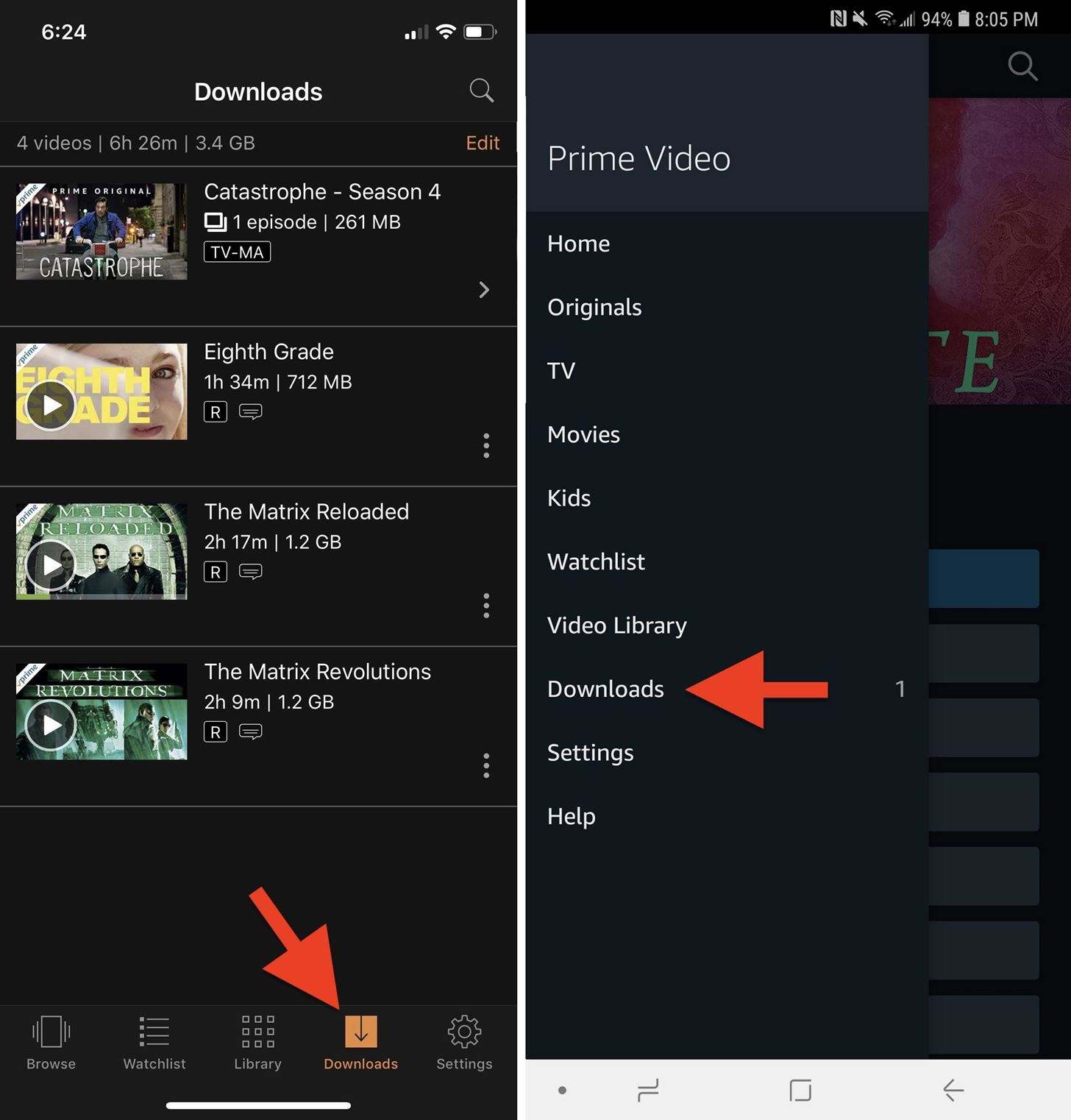
Monitor Download Progress: The download will begin immediately. You can often see a progress bar on the content’s detail page or by navigating to the “Downloads” section of the app (usually found in the bottom navigation bar or side menu).
-
Access Downloaded Content: Once complete, your downloaded titles will be available in the “Downloads” section of the app. You can play them from there even without an internet connection.
On Windows and macOS Desktops/Laptops
Downloading to your computer requires using the dedicated Amazon Prime Video desktop application, which provides a similar experience to the mobile app.
-
Install the Amazon Prime Video App:
-
Windows: Open the Microsoft Store, search for “Amazon Prime Video,” and click “Get” or “Install.”
-
macOS: Open the Mac App Store, search for “Amazon Prime Video,” and click “Get” or “Install.”
-
-
Launch and Sign In: Open the installed Prime Video app and sign in with your Amazon account.
-
Find Your Content: Browse or search for the movie or TV show you want to download.
-
Initiate Download:
-
For Movies: On the movie’s detail page, click the “Download” button (downward-pointing arrow icon).
-
For TV Shows: Navigate to the season, then click the “Download” button next to each episode.
-
-
Select Download Quality (Optional): Similar to mobile, you’ll likely be prompted to choose your desired download quality. Make your selection.
-
Monitor Progress and Access: The download will start. You can monitor its progress by clicking on the “Downloads” icon (usually a downward arrow or a section labeled “Downloads”) in the app’s navigation panel. Once downloaded, your content will appear in this section, ready for offline viewing.
Checking Download Status and Playback
Monitoring your downloads and ensuring they’re ready for offline viewing is straightforward across all platforms.
-
Download Progress: On both mobile and desktop apps, a progress bar or percentage indicator will show you how much of the content has been downloaded. You can usually pause or cancel downloads from this view.
-
“Downloads” Section: The dedicated “Downloads” section (often accessible from the main menu or a bottom navigation bar on mobile) is your hub for all offline content. Here, you’ll see a list of everything you’ve downloaded, its remaining expiry time, and playback options.
-
Offline Playback: To test or use your downloaded content offline, simply disable your Wi-Fi and mobile data. Then, open the Prime Video app, go to your “Downloads” section, and tap/click on the title you wish to watch. It should play without requiring an internet connection.
Optimizing Your Download Experience
While downloading on Prime Video is generally user-friendly, a few tips and tricks can help you optimize your experience, manage storage effectively, and troubleshoot common hurdles.
Managing Download Quality and Storage
Download quality directly impacts both the visual experience and the storage space consumed on your device.
-
Understanding Quality Tiers: Prime Video typically offers several quality options (e.g., Good, Better, Best, or SD, HD, UHD).
-
Good/SD: Smallest file size, lowest resolution, fastest download. Ideal for saving space or slow internet.
-
Better/HD: Medium file size, standard high definition. A good balance for most users.
-
Best/UHD: Largest file size, highest resolution. Offers the best visual quality but consumes significant storage and takes longer to download.
-
-
Changing Default Quality Settings: You can usually set a default download quality in the Prime Video app’s settings:
-
Go to Settings (gear icon) > Stream & Download > Download Quality.
-
Choose your preferred default. This is particularly useful for managing storage automatically.
-
-
Device Storage Implications: Downloads can quickly eat up your device’s internal storage. Regularly check your available space, especially on mobile devices with limited memory. You may need to delete older or watched content to make room for new downloads.
-
External Storage (Android Only): Some Android devices allow you to save Prime Video downloads directly to an SD card. Check your app settings under “Stream & Download” for an option like “Download to SD Card” if available. This is an excellent way to expand your download capacity.
Understanding Download Expiration and Re-downloading
The ephemeral nature of downloaded content is primarily due to licensing. Knowing how to handle it ensures continuous access.
-
Expiration for Prime Included Content: As mentioned, most Prime-included titles have an expiry. You might see a countdown timer on the downloaded title in your “Downloads” section.
-
Rental Expiry: Rented content follows its specific rental window. Once that window closes, the download becomes unavailable.
-
Re-downloading: If a downloaded Prime-included title expires, or if you accidentally delete a purchased title, you can usually re-download it as long as the content is still available on Prime Video and your subscription is active. Simply find the title again and initiate the download.
-
Manually Deleting Downloads: To free up space, go to your “Downloads” section, select the title, and look for an option to “Delete Download” or “Remove from Device.”
Troubleshooting Common Download Issues
Even with a smooth process, you might occasionally encounter issues. Here’s how to address some common problems:
-
“Not Enough Storage Space”: This is the most frequent issue.
- Solution: Delete other apps, photos, videos, or existing Prime Video downloads. Change your default download quality to a lower setting.
-
“No Internet Connection” or “Network Error”: While downloading, a stable internet connection is required.
- Solution: Check your Wi-Fi or mobile data connection. Restart your router or device. Try downloading again when your connection is stable.
-
“This Title Cannot Be Downloaded”: This usually relates to licensing restrictions.
- Solution: Confirm the content is eligible for download. Some titles are streaming-only. There’s no workaround for this, other than watching it online.
-
“Download Limit Reached”: You’ve exceeded the number of devices allowed for downloads.
- Solution: Remove downloads from another device or wait until a download on another device expires or is deleted. You can manage registered devices from your Amazon account settings online.
-
App Glitches: Sometimes the app itself can act up.
- Solution: Close the Prime Video app completely and reopen it. Restart your device. Check for app updates in your device’s app store and install any available updates.
-
Incorrect Region/VPN Issues: Using a VPN might interfere with content availability and download rights, as Prime Video content varies by region.
- Solution: Disable your VPN while trying to download and stream on Prime Video.
Maximizing Your Prime Video Offline Library
Downloading content from Amazon Prime Video isn’t just a convenience; it’s a strategy for smarter, more efficient entertainment consumption. By thinking proactively about what and when to download, you can significantly enhance your viewing experience.
Strategic Content Selection for Travel
When preparing for a trip, thoughtful content selection can make all the difference, especially during periods with limited connectivity.
-
Long-Haul Flights and Journeys: Prioritize longer movies, full seasons of TV shows, or documentaries that can fill many hours. Consider the duration of your travel and aim to download enough content to cover it comfortably.
-
Commutes: For daily commutes, download a few episodes of a favorite series or shorter films. This allows for focused viewing without needing to worry about data drops in tunnels or crowded areas.
-
Variety is Key: Mix genres and formats. Include a comedy for light entertainment, a drama for deeper engagement, and perhaps a documentary for educational viewing. This caters to different moods throughout your journey.
-
Finish What You Started: If you’re currently engrossed in a series or movie, make sure to download the next episodes or the rest of the film so you can continue seamlessly offline.
Using Downloads for Data Conservation
One of the most powerful aspects of the download feature is its ability to help you conserve precious mobile data, making your data plan stretch further.
-
“Wi-Fi Only” Strategy: Make it a habit to download all your desired content when you’re connected to a stable and unlimited Wi-Fi network (e.g., at home, work, or a trusted public Wi-Fi hotspot).
-
Avoid On-the-Go Streaming: Once content is downloaded, commit to watching it offline, especially when using mobile data. This prevents accidental streaming which can quickly consume gigabytes.
-
Monitor Data Usage: Keep an eye on your device’s data usage settings to see how much data Prime Video (and other apps) consumes. This feedback can reinforce your downloading habits.
-
Seasonal Downloads: If you’re going to be in an area with poor data coverage for an extended period, plan ahead and download a significant library of content to sustain you.
Organizing Your Downloaded Library
A cluttered downloaded library can be as frustrating as a disorganized physical media collection. Maintaining order ensures you can quickly find what you want to watch.
-
Regular Purging: After watching a downloaded movie or finishing a season of a show, promptly delete it from your device. This frees up valuable storage space for new content.
-
Prioritize New Downloads: If you have limited space, delete older or less frequently watched titles to make room for new releases or content you’re eager to see.
-
Keep Track of Expiry Dates: In the “Downloads” section, pay attention to any expiry timers on your Prime-included content. Watch them before they disappear, or be prepared to re-download if the option is available.
-
Utilize Search within Downloads: If your downloaded library grows large, use the search function within the “Downloads” section of the app to quickly locate specific titles.
Conclusion
The ability to download content from Amazon Prime Video is more than just a convenient add-on; it’s a fundamental feature that empowers subscribers to curate their entertainment experience on their own terms. From conquering data caps and unstable internet connections to transforming mundane travels into engaging viewing opportunities, offline access significantly elevates the value proposition of a Prime subscription. By understanding the eligible content, mastering the download process on various devices, and applying smart strategies for managing your downloaded library, you can ensure that your favorite movies and TV shows are always ready to accompany you, wherever life takes you. Embrace the freedom of offline entertainment and unlock the full potential of your Amazon Prime Video membership today.
aViewFromTheCave is a participant in the Amazon Services LLC Associates Program, an affiliate advertising program designed to provide a means for sites to earn advertising fees by advertising and linking to Amazon.com. Amazon, the Amazon logo, AmazonSupply, and the AmazonSupply logo are trademarks of Amazon.com, Inc. or its affiliates. As an Amazon Associate we earn affiliate commissions from qualifying purchases.