
In an increasingly mobile and connected world, the ability to access your favorite entertainment anytime, anywhere, regardless of internet availability, has become a premium feature. Amazon Prime Video, a titan in the streaming wars, understands this need implicitly. While streaming content directly relies on a stable internet connection, the platform offers a robust download feature, allowing subscribers to save movies and TV shows for offline viewing. This capability is invaluable for travelers, commuters, or anyone anticipating periods without reliable Wi-Fi or cellular data.
This comprehensive guide will demystify the process of downloading videos from Amazon Prime, ensuring you can enjoy your chosen content seamlessly, whether you’re soaring thousands of feet in the air, deep underground on a subway, or simply conserving your mobile data at home. We’ll delve into the mechanics, best practices, and troubleshooting tips to empower you to maximize your Amazon Prime Video experience.
Understanding Amazon Prime Video’s Download Feature
Before diving into the technical steps, it’s crucial to grasp the fundamental aspects of Amazon Prime Video’s download functionality. This feature is designed to enhance user convenience while adhering to content licensing agreements and digital rights management (DRM).
Why Download? The Benefits of Offline Viewing
The allure of downloading videos for offline consumption extends beyond mere convenience. It offers a multitude of practical benefits that significantly enhance the viewing experience:
-
Uninterrupted Entertainment During Travel: Long flights, train journeys, or road trips are often plagued by spotty or non-existent internet access. Downloading content beforehand ensures a steady stream of entertainment, turning potentially tedious travel times into enjoyable cinematic experiences.
-
Saving Mobile Data: Streaming high-definition video consumes a significant amount of data, which can quickly deplete monthly allowances, especially when on the go. Downloading over a Wi-Fi connection allows users to save precious mobile data, making their plans last longer.
-
Combatting Connectivity Issues: Even at home or in well-connected areas, internet outages or slow speeds can disrupt streaming. Offline downloads provide a reliable backup, guaranteeing that your show or movie will play smoothly, free from buffering delays.
-
Accessibility in Remote Areas: For those who live in or travel to regions with limited internet infrastructure, offline downloads are a game-changer, opening up a world of entertainment that would otherwise be inaccessible.
Eligibility and Limitations
While the download feature is a powerful tool, it comes with certain conditions and limitations enforced by Amazon and content providers:
-
Active Amazon Prime Subscription: To download Prime Video content, you must have an active Amazon Prime membership or a standalone Prime Video subscription. Without it, you can only download purchased or rented titles.
-
Device Compatibility: Downloads are primarily supported on Amazon’s own Fire tablets and devices, as well as on iOS (iPhone, iPad) and Android smartphones and tablets via the official Amazon Prime Video app. The desktop application for Windows and macOS also supports downloads. Browser-based viewing does not support downloading.
-
Content Rights: Not all titles available on Prime Video are eligible for download. Licensing agreements vary, so some movies and TV shows may only be available for streaming. Generally, content included with your Prime subscription, or titles you have purchased, are downloadable. Rented titles also usually permit download within their rental period.
-
Download Limits: Amazon may impose limits on the number of titles that can be downloaded simultaneously across all devices, or the total number of unique titles that can be downloaded over a specific period. These limits are typically high enough not to affect the average user but are in place for DRM purposes.
-
Expiry Dates for Downloads: Downloaded videos, especially those included with a Prime subscription or rented, come with an expiry date. Once you start watching a downloaded video, you usually have a limited time (e.g., 48 hours) to finish it before it expires. Prime subscription downloads may also expire if your subscription ends or if the content is removed from the Prime catalog. Purchased titles generally don’t expire from your downloaded library, but you might need to re-download them if the app is reinstalled or the device changes.
Step-by-Step Guide to Downloading on Different Devices
The process for downloading is largely intuitive across supported devices, though there are slight variations.
Downloading on Mobile Devices (iOS & Android)
The Prime Video app on smartphones and tablets offers the most straightforward download experience.
-
Open the Amazon Prime Video App: Ensure you are signed in with your Amazon account.
-
Find Your Desired Video: Browse or search for the movie or TV show you wish to download.
-
Navigate to the Title’s Details Page: Tap on the title to open its dedicated page, where you’ll find information, a synopsis, and viewing options.
-
Initiate Download:
-
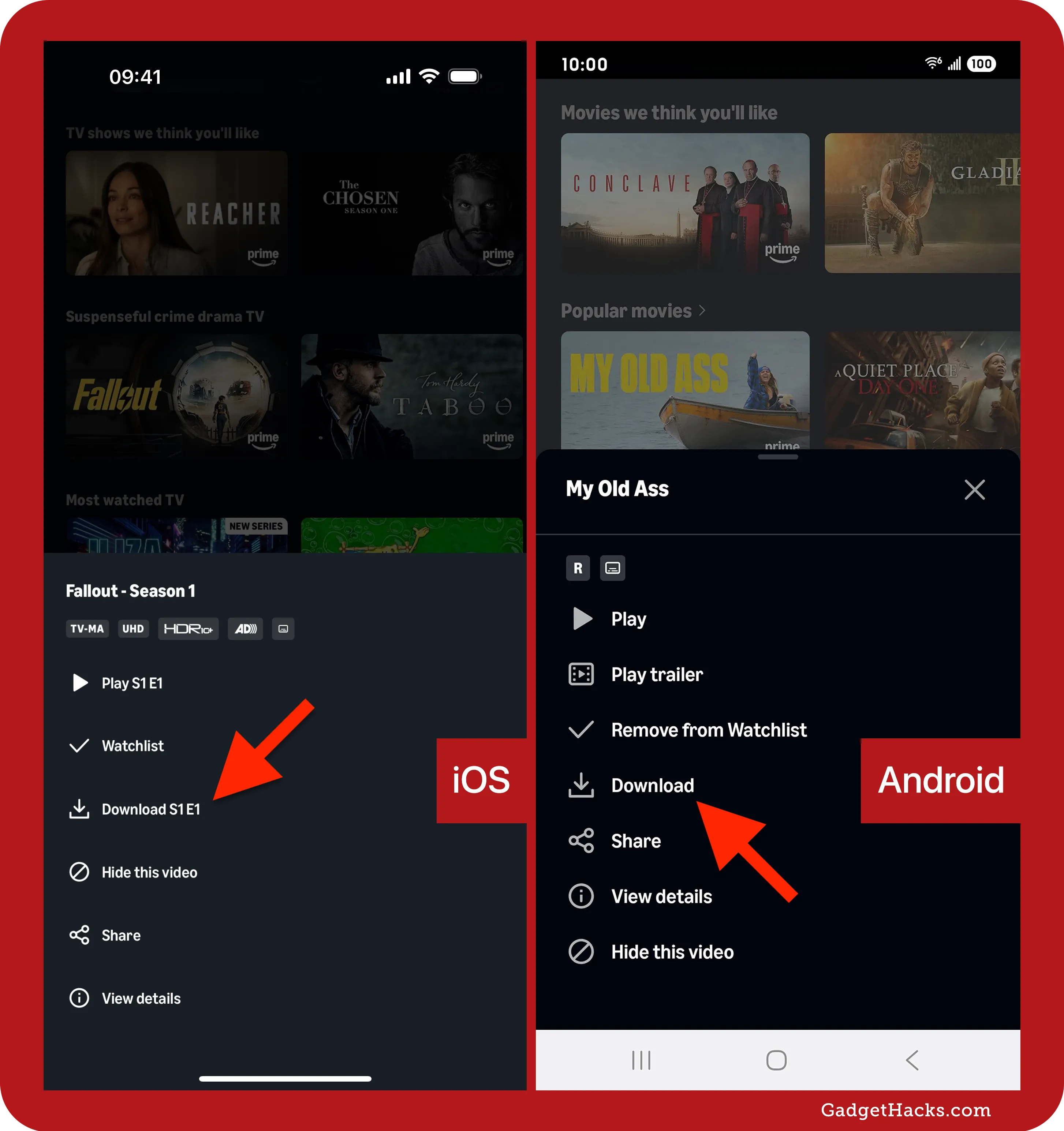
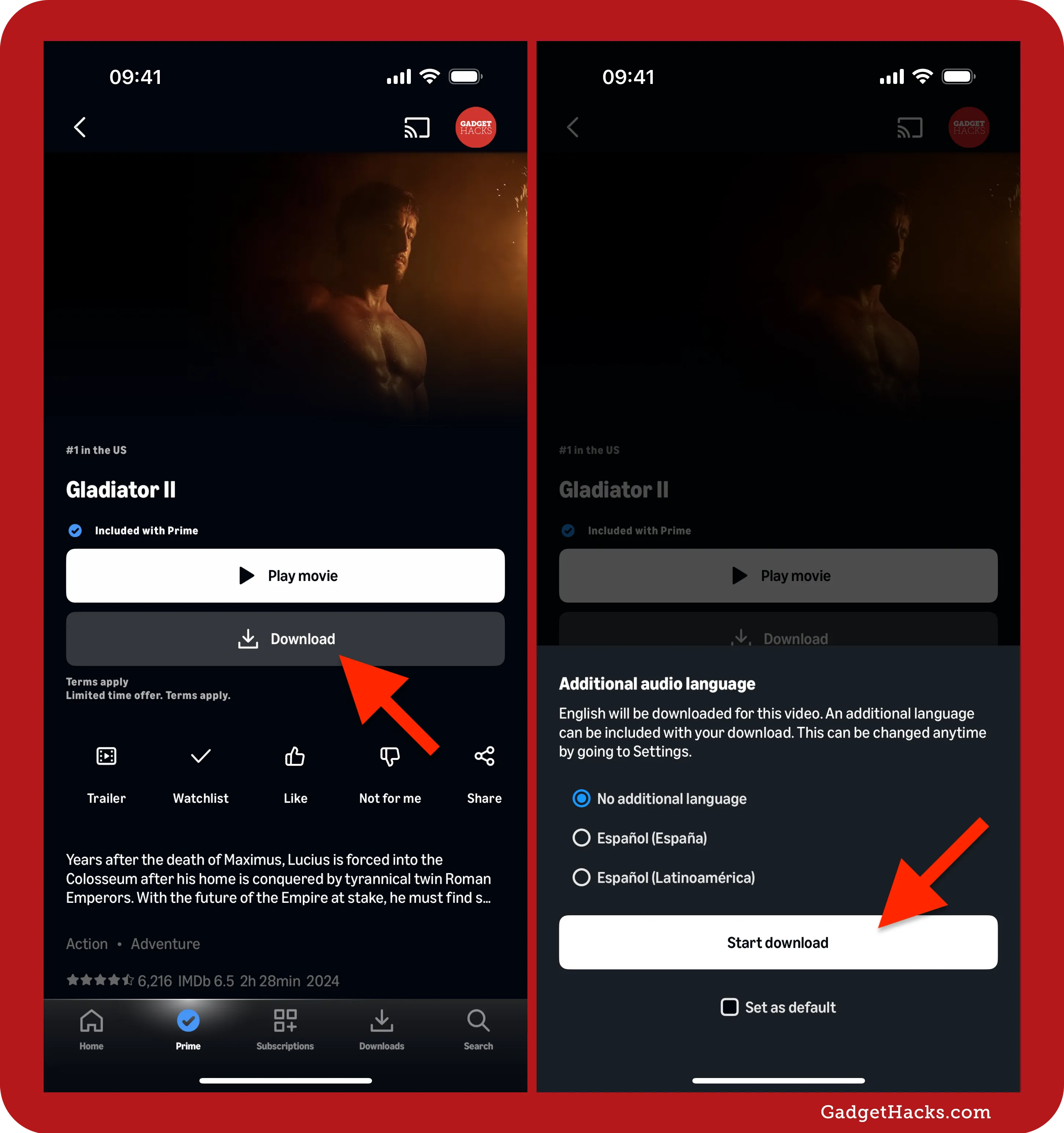
For Movies: Look for the “Download” button, typically represented by a down-arrow icon.
-
For TV Series: You’ll see a download icon next to each individual episode, or sometimes an option to download an entire season.
-
-
Select Download Quality: After tapping download, the app might prompt you to choose a download quality (e.g., Good, Better, Best). Higher quality consumes more storage space and takes longer to download. Select your preference and tap “Download.”
-
Monitor Progress: The download will begin. You can usually monitor its progress in a “Downloads” section within the app (often accessible from the main menu or a dedicated tab).
-
Access Offline Content: Once completed, the video will be available for offline viewing in the “Downloads” section of your app.
Downloading on Desktop (Windows & macOS)
Downloading to a desktop or laptop requires the dedicated Amazon Prime Video application, which is available from the Microsoft Store for Windows and the Mac App Store for macOS. Downloading through a web browser is not supported.
-
Install and Open the Prime Video App: Download and install the Amazon Prime Video app from your operating system’s app store. Sign in with your Amazon account.
-
Locate Content: Browse or search for the movie or TV show you want to download, just as you would on mobile.
-
Initiate Download:
-
For Movies: Click the “Download” button (down-arrow icon) on the title’s details page.
-
For TV Series: Click the download icon next to the individual episode you wish to save.
-
-
Choose Download Quality: A pop-up might appear asking you to select your preferred video quality. Make your selection and confirm.
-
View Downloads: The download process will begin. You can find all your downloaded content in the “Downloads” section, accessible from the left-hand navigation menu of the app.
Important Considerations for Downloading
-
Storage Space: Videos, especially in higher qualities, can take up significant storage. Before downloading, ensure your device has enough free space.
-
Wi-Fi Recommendation: Always connect to a stable Wi-Fi network when downloading to save mobile data and ensure a faster, more reliable download process.
-
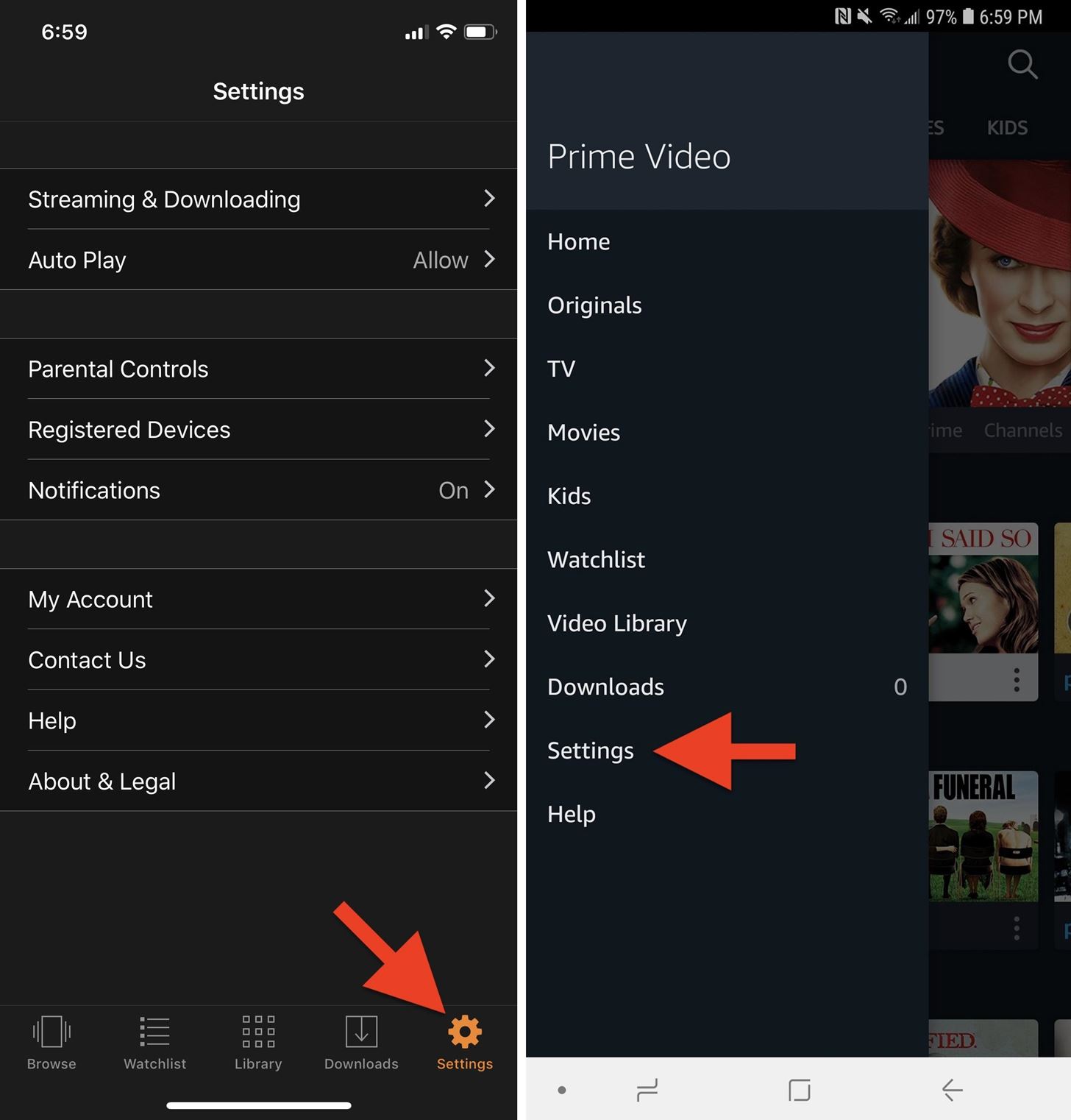
Download Quality Settings: You can usually set a default download quality in the app’s settings (under “Stream & Download” or similar), which can save you time from selecting it every time.
Managing Your Downloaded Videos
Effective management of your downloaded library is key to a smooth offline viewing experience, especially given device storage limitations and content expiry.
Locating and Watching Offline Content
Once a download is complete, accessing it is straightforward:
-
Mobile App: In the Amazon Prime Video app, tap the “Downloads” tab or navigate to “My Stuff” and then “Downloads.” Here you’ll find a list of all your downloaded movies and episodes. Tap on any title to start watching.
-
Desktop App: Within the desktop Prime Video application, click on “Downloads” in the left sidebar menu. Your downloaded library will be displayed, ready for playback.
Deleting Downloads to Free Up Space
To reclaim storage space on your device, you’ll need to delete downloaded videos you’ve finished watching or no longer need:
-
Mobile App: Go to the “Downloads” section.
-
For iOS: Tap “Edit” (usually in the top right), then select the videos you want to delete and tap “Delete.” Alternatively, swipe left on an individual title and tap “Delete.”
-
For Android: Tap and hold on a title, or tap the three-dot menu next to it, then select “Delete Download.”
-
-
Desktop App: In the “Downloads” section, hover over the video you wish to delete. A small “X” or a three-dot menu will appear. Click it and select “Delete Download.”
Understanding Download Expiry and Re-downloading
Downloaded content doesn’t last forever. Understanding expiry rules is vital:
-
Rental Expiry: Rented titles typically expire 30 days after download if not started, and 48 hours after you begin watching them.
-
Prime Subscription Content: Downloads included with your Prime subscription expire if the title leaves the Prime catalog, or if your Prime membership lapses. Once you start watching, you usually have a limited time (e.g., 30 days to start, 48 hours to finish).
-
Purchased Content: Purchased videos generally remain in your library indefinitely. While they might disappear from your device if you delete them or reinstall the app, you can always re-download them as long as the content is available on the Prime Video service.
If a download expires, you will need an active Prime subscription (for Prime content) or to re-rent/re-purchase the content to download it again.
Troubleshooting Common Download Issues
Even with the best preparation, technical glitches can occur. Here’s how to address common issues you might encounter while downloading from Amazon Prime Video.
“Download Failed” or “Not Enough Space” Errors
These are among the most frequent error messages, but they usually have straightforward solutions:
-
Not Enough Space: This is self-explanatory. Go to your device’s storage settings and delete unnecessary files, apps, or old downloads to free up space. Then, try downloading again. Consider selecting a lower download quality to save space.
-
Download Failed (General):
-
Check Internet Connection: Ensure you have a stable Wi-Fi connection. Intermittent connectivity is a common cause of failed downloads. Try restarting your router.
-
Restart App/Device: Close the Prime Video app completely and reopen it. If that doesn’t work, restart your entire device (phone, tablet, or computer).
-
Clear Cache (Android): On Android devices, clearing the app’s cache (Settings > Apps > Prime Video > Storage > Clear Cache) can resolve many issues.
-
Content Unavailable for Download
If you can stream a video but don’t see a download option, it’s likely due to licensing restrictions:
-
Licensing Restrictions: Not all titles are licensed for download. This is outside of your control. Check the title’s details page; if there’s no download button, it’s simply not available for offline viewing.
-
Geographical Limitations: Content availability can vary by region. If you’re traveling abroad, some content available in your home country might not be downloadable or even streamable in your current location due to geo-restrictions.
Connectivity Problems During Download
A strong, consistent internet connection is paramount for successful downloads.
-
Switch to a Stronger Wi-Fi Network: If your current Wi-Fi is weak or unstable, try moving closer to the router or connecting to a different, more reliable network.
-
Pause and Resume: Sometimes pausing a download and then resuming it can re-establish a stable connection and allow it to complete.
-
Disable VPN: If you are using a VPN, it might interfere with Amazon’s geo-location and download services. Try disabling it temporarily to complete your download.
App-Specific Glitches
Occasionally, the app itself might be the source of the problem.
-
Update the App: Ensure your Amazon Prime Video app is updated to the latest version. Developers frequently release updates to fix bugs and improve performance. Check your device’s app store for pending updates.
-
Reinstall the App: As a last resort, if all else fails, try uninstalling and then reinstalling the Prime Video app. This can resolve corrupted files or persistent bugs, but remember you will lose all existing downloads and will need to sign back in.
Maximizing Your Prime Video Download Experience
Beyond troubleshooting, a few proactive strategies can help you get the most out of Amazon Prime Video’s download feature.
Optimizing Download Settings for Quality vs. Storage
Amazon Prime Video typically offers several download quality options: “Good,” “Better,” and “Best.”
-
“Good” (Standard Definition): Uses the least amount of data and storage, ideal for devices with limited space or when you need to download many titles. The video quality is acceptable but not crisp.
-
“Better” (High Definition): A good balance between quality and file size. Most users will find this sufficient for tablets and phones.
-
“Best” (Full HD/Ultra HD, if available): Offers the highest video quality, but consumes the most data and storage. Best for larger screens or for users who prioritize visual fidelity above all else and have ample storage.
Adjust these settings in the app’s preferences to match your device’s storage capacity and your viewing preferences.
Planning Your Downloads for Travel or Offline Periods
Strategic pre-downloading can save you from boredom during offline periods.
-
Pre-load Before You Go: Whenever you anticipate being offline (e.g., before a flight, long commute, or vacation to a remote area), use a strong Wi-Fi connection to download all the content you expect to watch.
-
Consider Watch Time: Estimate how much content you’ll realistically watch. Downloading an entire season when you only need a few episodes for a short trip can unnecessarily hog storage.
-
Check Expiry Dates: Keep an eye on the expiry dates of downloaded content, especially if your trip is lengthy, to avoid losing access midway through.
Leveraging Other Prime Benefits
While downloading videos is a fantastic standalone feature, remember it’s part of a larger Amazon Prime ecosystem. Your Prime membership also grants you access to Prime Music, Prime Reading, faster shipping, and more. Understanding the full suite of benefits can enhance your overall digital lifestyle, making the subscription even more valuable.
Conclusion
The ability to download videos from Amazon Prime Video transforms how and where you can enjoy your favorite entertainment. By understanding the simple steps involved, being mindful of eligibility and limitations, and knowing how to troubleshoot common issues, you can unlock a world of seamless, offline viewing. Whether you’re a frequent traveler, a data-conscious user, or simply seeking uninterrupted movie nights, mastering this feature ensures that your Amazon Prime Video experience is always at its best. Embrace the freedom of offline access and take your entertainment wherever life takes you.
aViewFromTheCave is a participant in the Amazon Services LLC Associates Program, an affiliate advertising program designed to provide a means for sites to earn advertising fees by advertising and linking to Amazon.com. Amazon, the Amazon logo, AmazonSupply, and the AmazonSupply logo are trademarks of Amazon.com, Inc. or its affiliates. As an Amazon Associate we earn affiliate commissions from qualifying purchases.