
Amazon Video, now more commonly known as Amazon Prime Video, has cemented its place as one of the leading global streaming services. From blockbuster movies and critically acclaimed original series to live sports and niche documentaries, its vast library offers an unparalleled entertainment experience for millions worldwide. However, for newcomers or those looking to maximize their viewing pleasure, navigating the myriad ways to access and optimize content on this platform can sometimes feel daunting. This comprehensive guide will demystify the process, transforming you from a casual viewer into a savvy Prime Video user, ensuring you get the most out of your subscription across all your devices.
We’ll delve into everything from the different subscription tiers and account setup to accessing content on smart TVs, mobile devices, and web browsers. We’ll also cover advanced features like offline downloads, parental controls, and the unique X-Ray function, helping you unlock the full potential of Amazon Prime Video’s technological prowess.
Getting Started with Amazon Prime Video
Embarking on your Amazon Prime Video journey begins with understanding its foundational structure and setting up your access. Whether you’re a long-time Amazon customer or entirely new to the ecosystem, getting the basics right is crucial for a smooth streaming experience.
Understanding Prime Video and Its Tiers
At its core, Amazon Prime Video is intricately linked with Amazon’s broader Prime membership. Many users gain access to Prime Video as a perk of their full Amazon Prime subscription, which also includes benefits like expedited shipping, Prime Music, and Prime Reading. This is the most common way people access the service, offering the best value for frequent Amazon shoppers.
However, Amazon also offers a standalone Prime Video subscription for those who aren’t interested in the other Prime benefits but still want access to its extensive video library. This is typically a monthly subscription at a slightly lower cost than a full Prime membership.
Beyond the included content, Prime Video also functions as a digital storefront. You can rent or purchase movies and TV shows individually, even if they aren’t included with your Prime subscription. These purchases grant you permanent access to the content within your Amazon library, while rentals typically have a 30-day window to start watching and a 48-hour window to finish once started. Furthermore, Amazon offers “Prime Video Channels,” which are add-on subscriptions to third-party services like HBO, Showtime, Starz, or BritBox, all managed and billed through your Amazon account, consolidating your streaming services.
Creating or Logging into Your Amazon Account
To watch anything on Prime Video, you’ll need an Amazon account. If you’ve ever shopped on Amazon.com, you already have one. Simply use your existing Amazon login credentials (email or phone number and password).
If you’re new to Amazon, the process is straightforward:
-
Go to the Amazon website or open the Amazon Prime Video app.
-
Click or tap “Sign in” or “Create your Amazon account.”
-
Follow the prompts to enter your name, email address, and a secure password.
-
You may need to verify your email address or phone number via a one-time password (OTP).
-
Once your account is set up, you can then choose to sign up for a Prime membership (with a free trial often available) or a standalone Prime Video subscription. You’ll need to link a valid payment method to your account for subscriptions, rentals, or purchases.
Navigating the Prime Video Interface
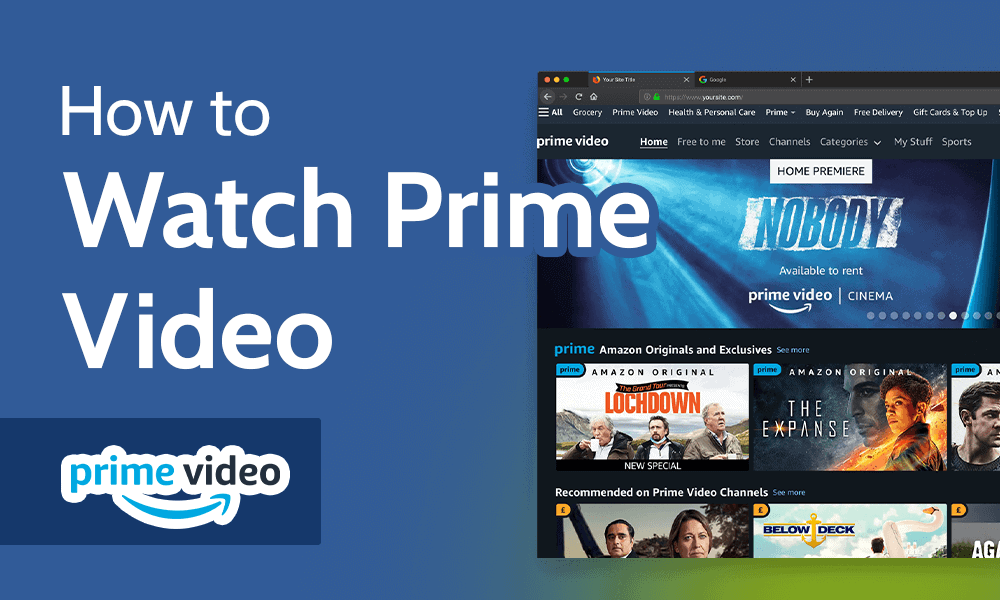
The Prime Video interface is designed for intuitive browsing, though its layout might vary slightly depending on the device you’re using. Generally, you’ll find:
-
Home Screen: Features a rotating carousel of featured titles, personalized recommendations, and curated carousels (e.g., “Trending Movies,” “Top TV Shows,” “Recently Added”).
-
Navigation Menu: Typically located at the top or side, offering categories like “Home,” “Store” (for rentals/purchases), “Live TV,” “Free with Prime,” “Channels,” and “My Stuff” (for your watchlist, purchases, and rentals).
-
Search Bar: A crucial tool for finding specific titles. You can search by title, actor, director, or genre.
-
Genre Browsing: Most interfaces allow you to filter content by genre (Action, Comedy, Drama, Sci-Fi, etc.) to help you discover new movies.
-
Content Details Pages: Clicking on a movie will take you to its dedicated page, showing a synopsis, cast, director, ratings, trailer, and options to play, add to watchlist, rent, or buy. This page also integrates IMDb’s X-Ray feature (more on this later).
Accessing Content Across Devices
One of Prime Video’s strengths lies in its ubiquitous availability. You can pick up where you left off almost anywhere, anytime, thanks to its extensive device compatibility.
Watching on Smart TVs and Streaming Devices
The living room experience is paramount for movie watching, and Prime Video excels here.
-
Smart TVs: Most modern smart TVs (Samsung, LG, Sony, Vizio, etc.) come with the Prime Video app pre-installed or available for download from their app store. Simply open the app, sign in with your Amazon credentials, and you’re ready to stream.
-
Streaming Devices: Dedicated streaming sticks and boxes offer a robust experience. This includes Amazon’s own Fire TV Stick/Cube, Roku devices, Apple TV, Google Chromecast, and Nvidia Shield. For these, download the Prime Video app from their respective app stores, open it, and sign in. Chromecast users can cast content directly from their phone or computer app.
-
Setup and User Experience: After signing in, these devices generally offer the most optimized large-screen experience, often supporting 4K UHD, HDR, and Dolby Atmos where available. You navigate using your TV remote or the streaming device’s dedicated remote.
Enjoying on Mobile Devices (Smartphones & Tablets)
For on-the-go entertainment, the Prime Video app for iOS and Android is indispensable.
-
App Download: Download “Amazon Prime Video” from the Apple App Store (for iPhones/iPads) or Google Play Store (for Android phones/tablets).
-
Features: The mobile app offers the full Prime Video library, personalized recommendations, and the ability to rent/buy content. Key mobile-specific features include:
-
Offline Viewing: You can download many movies and shows directly to your device, allowing you to watch them later without an internet connection, perfect for flights or commutes. Look for the “Download” icon on the content’s detail page.
-
Casting: Most mobile apps allow you to cast content to compatible smart TVs or Chromecast devices, effectively turning your phone into a remote control.
-
Picture-in-Picture: On supported devices, you can minimize the video player to a small window while performing other tasks on your phone.
-
-
User Interface: The mobile interface is touch-optimized, with gestures for skipping forward/back, adjusting volume, and brightness.
Streaming on Your Computer (Web Browser)
Sometimes, the simplest way to watch is through your computer’s web browser.
-
Website Access: Go to PrimeVideo.com (or Amazon.com and navigate to Prime Video).
-
Login: Sign in with your Amazon account.
-
Browser Compatibility: Prime Video is compatible with all major modern web browsers, including Chrome, Firefox, Edge, and Safari. Ensure your browser is up-to-date for optimal performance and security.
-
System Requirements: While most modern computers can handle streaming, ensure you have a stable internet connection and sufficient processing power for high-definition playback. Some features like 4K streaming might require specific browser/OS combinations or external monitor support.
Other Compatible Devices
Prime Video extends its reach to even more platforms:
-
Game Consoles: PlayStation (PS4, PS5) and Xbox (Xbox One, Series X/S) consoles have dedicated Prime Video apps, providing a full-featured streaming experience.
-
Set-Top Boxes: Legacy cable boxes or other internet-enabled boxes might offer the Prime Video app.
-
Blu-ray Players: Some smart Blu-ray players also support the app.
The key across all devices is to download the official “Amazon Prime Video” app and sign in with your correct Amazon account credentials.
Discovering and Managing Your Movie Library
With thousands of titles, finding your next movie can be an adventure in itself. Prime Video offers robust tools to help you discover new content and organize your favorites.
Finding Movies: Search, Browse, and Recommendations
-
Search Function: This is your primary tool. Use the search bar to look for specific movie titles, actors, directors, or even broad genres like “action thriller” or “sci-fi comedy.” The search is generally quite effective.
-
Browse by Category/Genre: On the main interface, you’ll find sections dedicated to genres, allowing you to explore films within categories like drama, horror, romance, documentary, etc. Some devices also offer curated lists like “Amazon Originals,” “Award Winners,” or “Recently Added.”
-
Personalized Recommendations: Prime Video’s algorithms learn from your viewing habits, watch history, and ratings to suggest movies you might enjoy. The “Recommended for You” section often provides surprisingly accurate suggestions.
-
Watchlists: A simple yet powerful feature. When you see a movie you’re interested in but don’t have time to watch immediately, add it to your Watchlist (“My Stuff” > “Watchlist”). This creates a personalized queue of films you intend to watch.
Renting vs. Buying: Understanding Your Options
As mentioned, not all content is “free with Prime.” Many new releases or premium titles are available for rent or purchase.
-
Renting:
-
Cost-Effective for One-Time Views: Ideal for movies you want to see once without committing to ownership.
-
Time-Limited Access: You typically have 30 days to start watching the rented movie. Once you start, you have 24-48 hours to finish it (and re-watch it as many times as you like within that window).
-
No Ownership: The movie disappears from your library after the rental period expires.
-
-
Buying:
-
Permanent Ownership: Once purchased, the movie is yours forever to stream as many times as you like, on any compatible device.
-
Higher Upfront Cost: More expensive than renting, but offers unlimited re-watches.
-
Digital Library: Purchased titles reside in your “My Stuff” > “Purchases & Rentals” section indefinitely.
-
Consider your viewing habits: if you anticipate re-watching a movie multiple times or want to build a digital library, buying is better. For a single viewing, renting is more economical.
Managing Your Watchlist and Library
Your “My Stuff” section is your personal hub on Prime Video.
-
Watchlist: Add movies to this list by clicking the “+ Add to Watchlist” button on a title’s detail page. You can easily remove titles once you’ve watched them or are no longer interested.
-
Purchases & Rentals: This section displays all the movies and TV shows you’ve either rented (during their active rental period) or purchased. It acts as your personal digital movie collection.
-
Continue Watching: The home screen prominently features a “Continue Watching” row, allowing you to pick up exactly where you left off on any device. Prime Video intelligently syncs your progress across all logged-in devices.
Parental Controls and User Profiles
For families, managing access to content is crucial.
-
User Profiles: You can create multiple user profiles within one Amazon account, allowing each family member to have their own personalized watch history, recommendations, and watchlist. You can designate profiles as “Kids Profiles” which have restricted access to age-appropriate content.
-
Parental Controls: Amazon offers robust parental controls:
-
Go to “Account & Settings” on the Prime Video website (or through the app).
-
Navigate to the “Parental Controls” tab.
-
Set “Viewing Restrictions” based on age ratings (e.g., G, PG, PG-13, R, NC-17 for movies). These restrictions can be applied to specific devices.
-
Create a “Prime Video PIN.” This PIN is required to bypass restrictions or to purchase/rent content, preventing unauthorized viewing or spending by children.
-
It’s advisable to set unique PINs and not share them.
-
Optimizing Your Viewing Experience
Beyond simply accessing content, Prime Video provides features to enhance your viewing pleasure, from picture quality to accessibility.
Understanding Streaming Quality and Bandwidth
The quality of your stream is directly related to your internet connection speed.
-
Standard Definition (SD): Basic quality, typically uses 0.5-1 Mbps.
-
High Definition (HD): Sharper picture, usually 1080p. Requires 3.5-5 Mbps for smooth streaming.
-
Ultra High Definition (UHD/4K): Four times the resolution of HD, offering incredible detail. Requires a stable 15-25 Mbps connection, a 4K compatible TV/device, and content specifically available in 4K.
-
HDR (High Dynamic Range): Enhances contrast and color vibrancy. Often available with 4K content and requires an HDR-compatible TV/device.
-
Bandwidth Management: Prime Video automatically adjusts quality based on your internet speed. If you experience buffering, your connection might be too slow for the selected quality. You can manually adjust streaming quality in the playback settings if needed, though this option isn’t always available on all devices. For best results, use a wired Ethernet connection for your streaming device whenever possible.
Customizing Subtitles, Audio, and Accessibility Features
Prime Video is committed to accessibility:
-
Subtitles/Closed Captions (CC): During playback, look for a speech bubble or “CC” icon. You can turn subtitles on/off, select different languages (if available), and often customize their appearance (size, color, font, background).
-
Audio Tracks: Many movies offer multiple audio tracks, including different languages or “Audio Description” (AD), which provides narration of visual elements for visually impaired viewers.
-
Audio Description: Look for the AD option in the audio settings during playback.
-
Language Settings: You can also set your preferred default audio and subtitle languages in your account settings.
Troubleshooting Common Issues
Even with advanced tech, issues can arise.
-
Buffering/Lagging:
-
Check your internet connection speed.
-
Restart your Wi-Fi router.
-
Close other bandwidth-heavy applications or devices on your network.
-
Try a wired Ethernet connection.
-
Clear the cache of your Prime Video app or web browser.
-
-
Login Problems:
-
Double-check your email/password.
-
Reset your Amazon password if forgotten.
-
Ensure your internet connection is active.
-
-
App Crashes/Freezes:
-
Restart the app.
-
Restart your device (TV, phone, streaming stick).
-
Ensure the app is updated to the latest version.
-
Reinstall the app if issues persist.
-
-
Device Compatibility: Ensure your device meets the minimum requirements for the app version you’re trying to run. Older devices may lose support over time.
Downloading for Offline Viewing
This feature is a lifesaver for travelers or those with limited data.
-
How to Download: On the Prime Video mobile app (iOS/Android) or desktop app (for Windows/Mac), navigate to the movie you want to download and look for the “Download” icon (a downward arrow).
-
Storage Considerations: Downloads consume storage space on your device. Ensure you have enough available before starting a download. You can usually choose the download quality (SD or HD) to manage file size.
-
Limitations: Not all titles are available for download due to licensing restrictions. Downloaded content typically expires after a certain period (usually 30 days) if not watched, and once started, may have a limited viewing window (e.g., 48 hours), similar to rentals. You also usually have a limit on the number of titles you can download at one time across all your devices.
Beyond Basic Viewing: Advanced Tips and Features
Prime Video offers several unique features that elevate the watching experience beyond simple playback.
X-Ray: Dive Deeper into Content
One of Prime Video’s standout features, powered by IMDb (which Amazon owns), is X-Ray.
-
How it Works: While watching a movie, simply tap the screen on mobile devices or press “up” on your TV remote.
-
What it Shows: X-Ray instantly displays information about the scene you’re watching, including:
-
Actors Currently On Screen: Identify actors in a particular scene with their names and images.
-
Soundtrack Information: Discover the song playing at that moment.
-
Trivia: Fun facts and behind-the-scenes tidbits related to the scene.
-
Scene Selections: Easily jump to different chapters or key moments in the movie.
-
-
Enhanced Engagement: X-Ray adds an insightful, interactive layer to your viewing, perfect for film enthusiasts or those curious about the specifics of a production.
Live Events and Channels
Prime Video isn’t just for on-demand movies; it’s also expanding into live content.
-
Live Sports: Prime Video has significantly invested in live sports broadcasting, notably NFL Thursday Night Football in the US, and various other sports events globally. These are often included with your Prime membership.
-
Live Concerts and Events: Occasional live music concerts, comedy specials, or other events are streamed exclusively on Prime Video.
-
Prime Video Channels: As discussed, you can subscribe to various live and on-demand channels like HBO, STARZ, Paramount+, MLB.TV, NBA League Pass, and more, all within the Prime Video app. This simplifies billing and access, allowing you to centralize your premium content.
Creating a Seamless Multi-Device Experience
The synchronization capabilities of Prime Video are a key convenience factor.
-
Watch Progress Sync: Start a movie on your smart TV in the living room, pause it, and then seamlessly continue watching from the exact same point on your tablet in bed, or your phone during your commute. Your watch history and progress are saved to your account, not just a single device.
-
Shared Watchlist and Library: Your watchlist, purchased content, and rental library are accessible from any device where you log in with your Amazon account, ensuring your personalized content is always at your fingertips. This technological integration makes Prime Video a truly versatile and user-friendly platform.
Conclusion
Amazon Prime Video offers a comprehensive and robust streaming experience, backed by the technological might of Amazon. From its extensive library of movies and original series to its flexibility across virtually every modern device, it provides an unparalleled entertainment hub. Whether you’re streaming in stunning 4K on your smart TV, downloading content for an offline journey, or using the interactive X-Ray feature to delve deeper into a film’s production, Prime Video is engineered to cater to diverse viewing preferences and technical requirements.
By understanding its various tiers, mastering device compatibility, utilizing discovery tools, and leveraging optimization and advanced features, you can transform your movie-watching habits. Dive into the world of Prime Video with confidence, knowing you have the tools to navigate its vast offerings and enjoy a truly personalized and immersive cinematic journey from the comfort of your home or on the go. Happy streaming!
aViewFromTheCave is a participant in the Amazon Services LLC Associates Program, an affiliate advertising program designed to provide a means for sites to earn advertising fees by advertising and linking to Amazon.com. Amazon, the Amazon logo, AmazonSupply, and the AmazonSupply logo are trademarks of Amazon.com, Inc. or its affiliates. As an Amazon Associate we earn affiliate commissions from qualifying purchases.