
Amazon Prime Video has cemented its position as a cornerstone of digital entertainment, offering a vast library of films, TV shows, and exclusive original content. For millions of subscribers worldwide, it’s not just a streaming service; it’s an integral part of their digital lifestyle, seamlessly integrated with the broader Amazon ecosystem. Navigating this expansive platform, however, especially for new users or those exploring its full potential, can sometimes present a learning curve. This comprehensive guide will demystify the process, providing a professional and insightful tutorial on how to effortlessly watch movies and make the most of your Amazon Prime Video experience across a multitude of devices. We will delve into the technical nuances of accessing content, optimizing playback, and troubleshooting common issues, ensuring that your journey from selection to screen is smooth and enjoyable.
Understanding Amazon Prime Video: Your Gateway to Entertainment
Before diving into the specifics of watching movies, it’s crucial to grasp what Amazon Prime Video entails and why it stands out in a crowded streaming landscape. It’s more than just a competitor to other services; it’s a value-added benefit deeply intertwined with Amazon’s flagship Prime membership.
What is Amazon Prime Video?
Amazon Prime Video is Amazon’s on-demand streaming service, offering thousands of titles for subscribers. While it operates as a standalone service available for a monthly fee, it is perhaps best known as a significant perk included with an Amazon Prime subscription. This bundled approach provides members with not only free expedited shipping on eligible Amazon purchases but also access to an extensive library of movies and TV shows at no additional cost beyond their Prime membership fee. The service features a blend of licensed third-party content, critically acclaimed Amazon Originals, and a growing collection of live events and sports in certain regions.
Key Features and Benefits
Beyond its core offering of movies and TV shows, Amazon Prime Video is packed with features designed to enhance the viewing experience. These include the ability to download content for offline viewing, a feature invaluable for travelers or those with inconsistent internet access. The innovative X-Ray feature, powered by IMDb (which Amazon owns), allows viewers to instantly identify actors, music, and trivia related to the scene they are watching. For audiophiles and cinephiles, support for 4K UHD resolution, HDR (High Dynamic Range), and Dolby Atmos audio on compatible devices delivers a premium visual and auditory experience. Furthermore, the platform supports multiple user profiles, enabling personalized recommendations and watchlists for each family member, alongside robust parental controls to manage content accessibility for younger viewers.
Getting Started: Accessing Prime Video Across Your Devices
Amazon Prime Video boasts broad compatibility, making it accessible on virtually any internet-connected device you own. The process of getting set up is generally straightforward, though specific steps can vary slightly depending on your chosen platform.
On Smart TVs and Streaming Devices
Smart TVs, streaming sticks (like Amazon Fire TV Stick, Roku, Google Chromecast), set-top boxes (Apple TV), and gaming consoles (PlayStation, Xbox) are among the most popular ways to enjoy Prime Video on a larger screen.
-
Installation and Login:
-
Smart TVs/Streaming Devices: Most modern smart TVs come with the Amazon Prime Video app pre-installed. If not, navigate to your TV’s app store (e.g., LG Content Store, Samsung Smart Hub, Roku Channel Store, Fire TV Appstore) and search for “Amazon Prime Video.” Select the app and choose “Install” or “Download.”
-
Gaming Consoles: Access the console’s store (e.g., PlayStation Store, Microsoft Store), search for the Prime Video app, and download it.
-
Once installed, open the app. You will typically be prompted to sign in using your Amazon account credentials. In some cases, you might see an activation code displayed on your TV screen. You’ll then need to visit a specific Amazon activation URL (e.g., amazon.com/mytv) on a separate device (computer or smartphone), enter the code, and log in to link your TV to your account.
-
-
Navigation Tips: The interface on smart TVs and streaming devices is designed for remote control navigation. Use your remote’s arrow keys to browse categories, scroll through carousels of content, and select titles. The “Home” screen usually displays personalized recommendations, trending movies, and quick access to different content categories. Look for sections like “Movies,” “TV Shows,” “My Stuff” (for your watchlist and purchases), and “Categories” to refine your search.
On Mobile Devices (iOS & Android Smartphones/Tablets)
Watching movies on the go is a core strength of Prime Video, thanks to its excellent mobile applications.
-
Downloading the App:
-
iOS (iPhone/iPad): Open the App Store, search for “Amazon Prime Video,” and tap “Get” to download and install.
-
Android (Phones/Tablets): Open the Google Play Store, search for “Amazon Prime Video,” and tap “Install.”
-
Once installed, open the app and sign in with your Amazon account.
-
-
Optimizing for Mobile Viewing:
-
Offline Downloads: A standout feature for mobile users. To download a movie, find the title you want, tap on its detail page, and look for the “Download” button. You can select the video quality to save space. Downloaded content is accessible from the “Downloads” section within the app, even without an internet connection.
-
Data Usage: Be mindful of your mobile data plan when streaming. Within the app’s settings, you can often adjust the streaming quality to consume less data, though this will result in a lower-resolution picture. Downloading over Wi-Fi is highly recommended to avoid excessive data charges.
-
On Web Browsers (Laptops & Desktops)
For those who prefer a larger screen without a dedicated streaming device, watching via a web browser on a laptop or desktop computer is simple and effective.
-
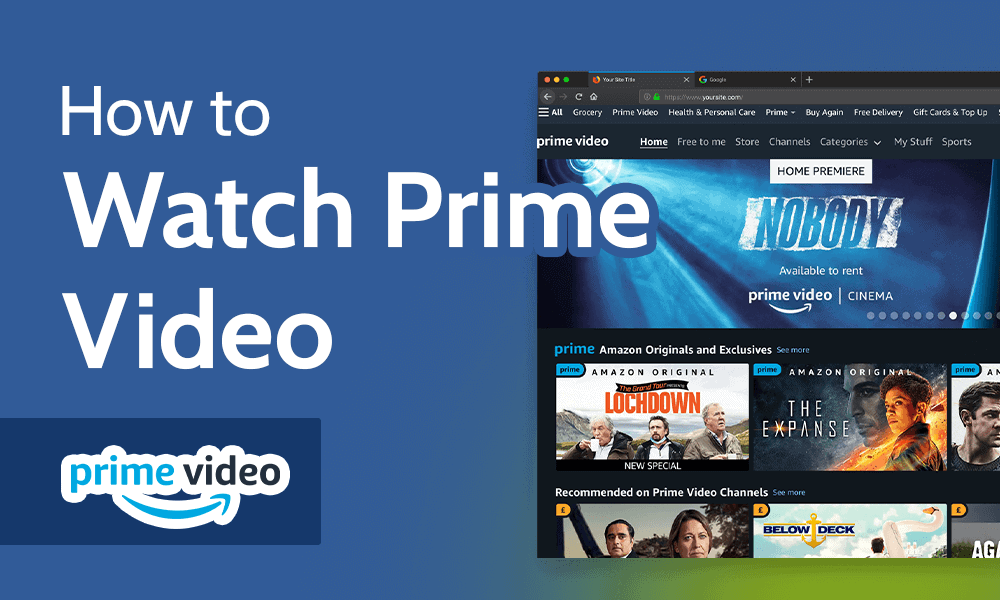
Navigating the Website: Open your preferred web browser (Chrome, Firefox, Edge, Safari) and go to primevideo.com. You will be prompted to sign in with your Amazon account credentials. Once logged in, the interface is intuitive, resembling a typical streaming service layout. You’ll find a homepage with recommendations, navigation menus for “Movies,” “TV Shows,” “Categories,” and a search bar at the top.
-
Browser Compatibility: While Prime Video is generally compatible with most modern web browsers, ensuring your browser is up-to-date can prevent playback issues. Some browsers might require specific plugins (though less common now) or have slightly different performance characteristics. Using a robust, up-to-date browser like Google Chrome or Mozilla Firefox typically offers the best experience.
Discovering Content: Navigating the Prime Video Library
With thousands of titles available, finding your next movie can be an adventure in itself. Prime Video offers several tools to help you sift through its extensive catalog.
Browsing and Searching
The most direct way to find content is through the platform’s intuitive browsing and search functions.
-
Categories and Genres: The main navigation typically includes sections for “Movies” and “TV Shows,” often further broken down into popular genres like Action, Comedy, Drama, Sci-Fi, Romance, Documentaries, etc. This allows you to explore broad categories of interest.
-
Search Bar: For specific titles, actors, or directors, the search bar (usually represented by a magnifying glass icon) is your best friend. Simply type in your query, and the platform will present relevant results from its library.
Identifying Included Content vs. Rentals/Purchases
An important distinction on Prime Video is between content included with your Prime membership and content available for rent or purchase.
-
Prime Badge: Movies and TV shows included with your Prime subscription will typically display a “Prime” badge or logo, or have an explicit “Included with Prime” tag on their detail page. These can be streamed at no extra cost.
-
Pricing: Titles available for rent or purchase will clearly display a price (e.g., “Rent for $3.99,” “Buy for $14.99”). These are separate transactions from your Prime membership and offer a way to access newer releases or content not included in the standard library. Always double-check the pricing and availability before committing to a purchase or rental.
Utilizing Watchlists and Recommendations
To streamline your viewing choices and discover new content, Prime Video offers personalized tools.
-
Watchlists: As you browse, you can add interesting movies or shows to your “Watchlist” (sometimes called “My Stuff” or “Library”). This creates a personalized queue of content you intend to watch later, making it easy to pick up where you left off or plan your next movie night.
-
Recommendations: Based on your viewing history and ratings, Prime Video’s algorithm generates personalized recommendations. These can be a great way to discover new titles that align with your tastes, often appearing on your homepage or in dedicated “Recommended for You” sections.
Exploring Amazon Channels
For those seeking even more specialized content, Amazon Channels offer an à la carte subscription model directly within the Prime Video app. These are optional, paid add-ons from third-party providers (e.g., HBO Max, Showtime, Starz, Paramount+) that allow you to consolidate your streaming subscriptions under one roof. Each channel offers its own unique library of movies and shows, expanding your entertainment options significantly.
Enhancing Your Viewing Experience: Advanced Features and Troubleshooting
Beyond the basics, Prime Video offers features to fine-tune your viewing and provides avenues for troubleshooting common technical glitches.
Optimizing Playback Settings
For the best experience, you might want to adjust playback settings to match your preferences and internet speed.
-
Video Quality: Within the player settings (often an icon resembling a gear or “settings” button), you can usually choose streaming quality. Higher quality (e.g., HD, UHD) requires more bandwidth, while lower quality uses less data, ideal for slower connections or mobile data.
-
Subtitles and Audio Tracks: Most titles offer multiple audio tracks (original language, dubbed versions) and extensive subtitle options in various languages. These can be accessed through the player controls, typically an icon resembling a speech bubble or a text box. You can also customize subtitle appearance (font size, color) for better readability.
Managing Profiles and Parental Controls
Prime Video supports up to six user profiles (one primary and five secondary) within a single Amazon account, allowing each family member to have a personalized experience.
-
Creating and Switching Profiles: You can create and switch between profiles from the Prime Video app’s main menu. Each profile maintains its own watchlist, viewing history, and recommendations.
-
Parental Controls: A crucial feature for families. Account holders can set up PIN protection for purchases and rentals, and restrict content based on age ratings (e.g., PG, R). These controls are configured in the Prime Video settings, often under the “Settings” or “Account & Settings” section, ensuring that children only access age-appropriate content.
Troubleshooting Common Issues
Even with the best technology, occasional hiccups can occur. Knowing how to troubleshoot can quickly resolve most issues.
-
Buffering: If your movie constantly pauses to load, it’s typically an internet connectivity issue.
- Internet Connectivity Checks: Test your internet speed using an online speed test. Ensure your Wi-Fi signal is strong, or consider connecting your streaming device directly to your router via an Ethernet cable. Restarting your router and modem can often resolve temporary network issues.
-
Login Problems: If you’re unable to log in, double-check your Amazon account credentials. Ensure you’re entering the correct email and password. If you’ve forgotten your password, use the “Forgot Password” link on the Amazon login page.
-
App Crashes/Freezes: If the Prime Video app is crashing or freezing, try closing the app completely and reopening it. On smart TVs or streaming devices, unplugging the device from power for 60 seconds (a “power cycle”) can often clear up minor software glitches.
-
App/Device Updates: Ensure both your Prime Video app and your device’s operating system are running the latest software versions. Developers frequently release updates to fix bugs and improve performance. Check your device’s settings for system updates and your app store for app updates.
-
Contacting Amazon Support: If you’ve tried all common troubleshooting steps and are still experiencing issues, Amazon’s customer support is available to provide further assistance. You can typically find support contact information on the Amazon website or within the Prime Video app’s help section.
Beyond Movies: The Broader Prime Video Ecosystem
While this guide focuses on watching movies, it’s worth acknowledging that Prime Video offers a much broader spectrum of entertainment.
TV Shows and Original Content
Amazon has invested heavily in creating its own compelling content. Award-winning Amazon Original series like “The Marvelous Mrs. Maisel,” “The Boys,” “Jack Ryan,” and “Lord of the Rings: The Rings of Power” rival the production quality and storytelling of traditional television networks. These series are a significant draw for Prime subscribers, often praised for their cinematic scope and engaging narratives.
Live Events and Sports
In certain regions, Prime Video is expanding into live events, including exclusive sports coverage. For instance, in the US, it’s the home of Thursday Night Football. In other territories, it offers unique access to specific sporting events or concerts. This move positions Prime Video not just as an on-demand library but also as a destination for real-time entertainment, further enhancing its value proposition.

The Future of Prime Video
The platform is continuously evolving, with Amazon consistently adding new features, expanding its content library, and experimenting with new technologies. From enhancing user interface designs to integrating more interactive elements and further personalizing recommendations, the future of Prime Video promises an even richer and more tailored streaming experience. Keeping your apps and devices updated ensures you always benefit from the latest innovations and content offerings.
In conclusion, watching a movie with Amazon Prime Video is a user-friendly and feature-rich experience, designed to cater to diverse viewing preferences and device ecosystems. By understanding the platform’s features, knowing how to navigate its extensive library, and leveraging its advanced settings, you can unlock a world of entertainment. Whether you’re at home on your smart TV or on the go with your smartphone, Prime Video provides a seamless gateway to your next cinematic adventure.
aViewFromTheCave is a participant in the Amazon Services LLC Associates Program, an affiliate advertising program designed to provide a means for sites to earn advertising fees by advertising and linking to Amazon.com. Amazon, the Amazon logo, AmazonSupply, and the AmazonSupply logo are trademarks of Amazon.com, Inc. or its affiliates. As an Amazon Associate we earn affiliate commissions from qualifying purchases.