
The transition from traditional linear cable to over-the-top (OTT) streaming services has redefined how households consume media. Among the leaders in this digital shift is YouTube TV, a service that combines the familiarity of live television with the sophisticated infrastructure of the Google ecosystem. One of the most significant technical advantages of YouTube TV over its competitors is its robust family sharing functionality. Unlike older models that required shared passwords or expensive hardware upgrades for every room, YouTube TV utilizes a cloud-based family group system.
Setting up a family group allows you to share your subscription with up to five other people at no additional cost. Each member receives their own unique profile, personalized recommendations, and—most importantly—their own private DVR cloud storage. This guide provides a deep dive into the technical process of adding family members, managing permissions, and optimizing your household’s digital streaming architecture.
Understanding the YouTube TV Family Sharing Architecture
Before diving into the “how-to,” it is essential to understand the underlying logic of the Google Family system. YouTube TV doesn’t just “share a login”; it integrates with Google’s broader “Family Link” and “Google Family” services. When you create a family group, you are designated as the Family Manager.
The Role of the Family Manager
The Family Manager is the administrative pillar of the account. This individual is responsible for the primary billing and has the exclusive authority to invite or remove members. From a technical standpoint, the manager’s account must be in good standing, and they must be 18 years of age or older. Importantly, a Family Manager cannot be part of another family group; Google’s architecture dictates a one-manager-per-group hierarchy to prevent complex recursive loops in billing and access.
Member Requirements and Limitations
To be added to a YouTube TV family group, a recipient must meet several criteria:
-
Google Account: Each member must have their own individual Google Account. This ensures that history and preferences remain siloed.
-
Geographic Syncing: All family members must live in the same household and reside in the same geographic territory as the Family Manager. YouTube TV uses IP addresses and device location services to verify that members periodically check in from the “Home Area.”
-
Age Restraints: Members must be at least 13 years old (or the applicable age in your country) to have their own managed profile within the group.
The 3-Stream Rule
While you can add up to five additional members (totaling six accounts), the software enforces a concurrency limit. YouTube TV allows for three simultaneous streams across the entire family group. If three people are watching on different devices, a fourth person attempting to log in will receive a notification that the stream limit has been reached. This is a critical technical constraint to keep in mind when planning your household’s usage.
Step-by-Step Guide to Adding Family Members
The process of adding family members is designed to be intuitive, yet it requires a few specific steps within the application settings to ensure the invitation is processed correctly through Google’s servers.
Setting Up via Web Browser
Using a desktop environment is often the most reliable way to manage account settings due to the expanded interface.
-
Navigate to YouTube TV: Open your preferred browser and log in to your YouTube TV account.
-
Access Settings: Click on your profile icon in the top-right corner and select “Settings” from the dropdown menu.
-
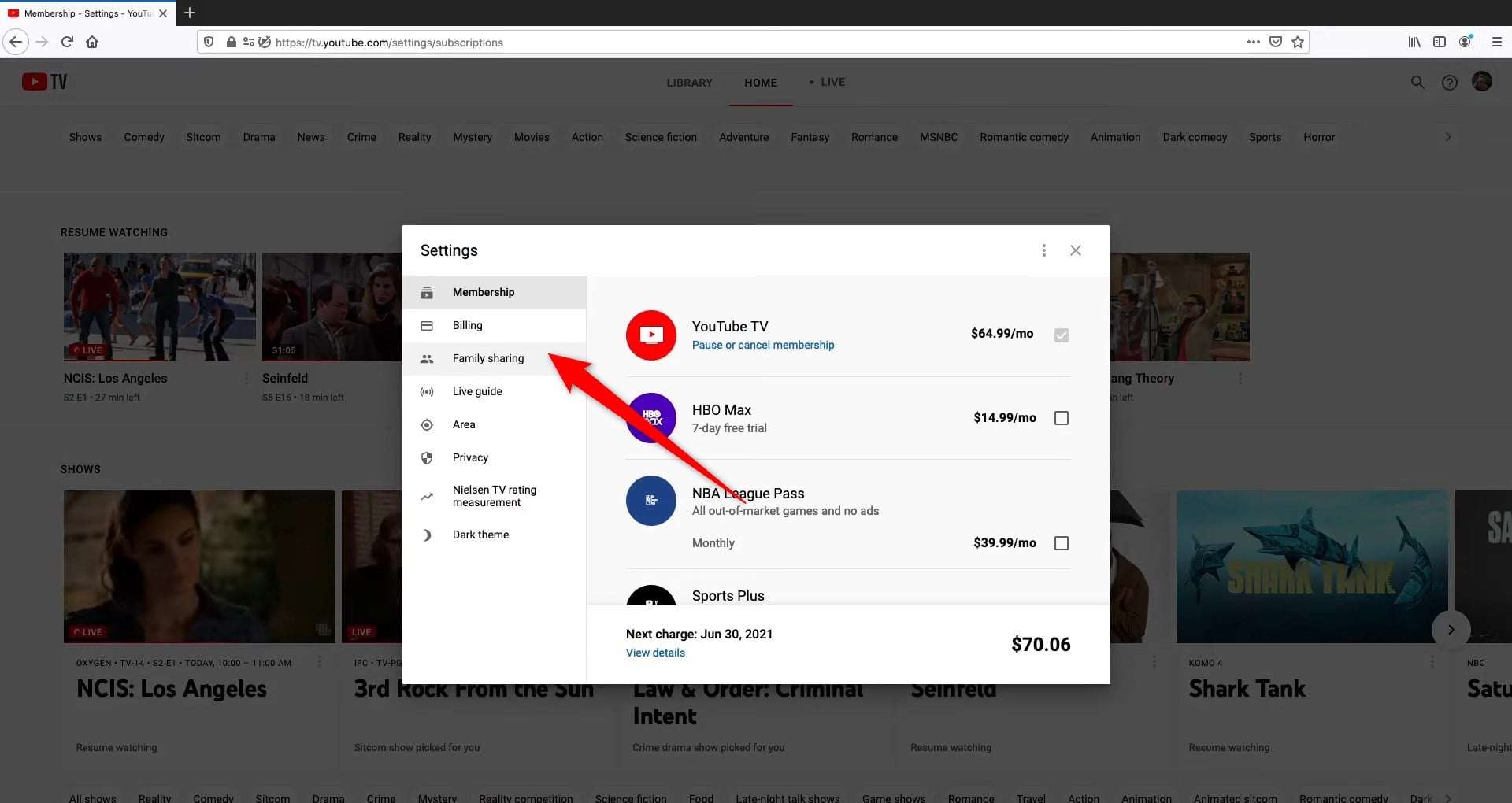
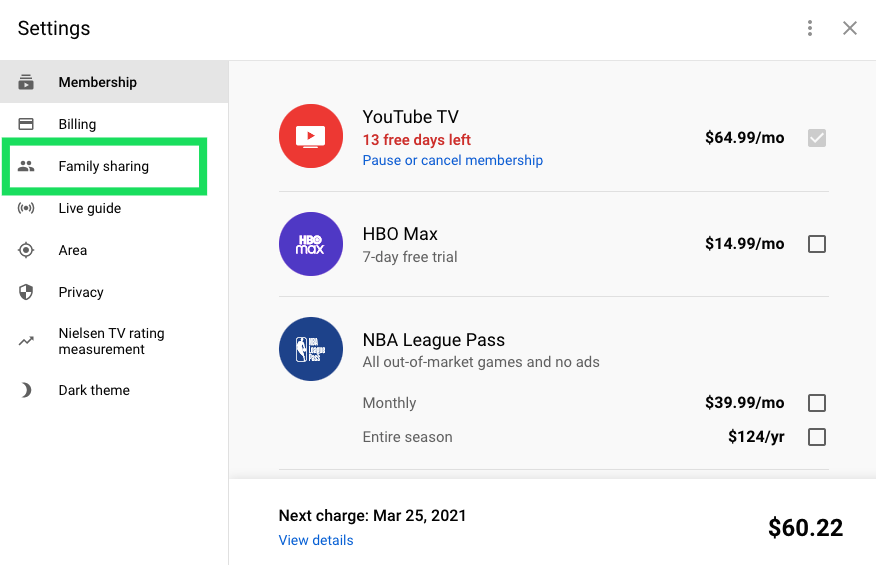
Family Sharing Menu: On the left-hand sidebar, locate the “Family sharing” tab.
-
Initiate Setup: Click “Manage.” This will redirect you to the Google Family management suite.
-
Send Invitations: Click on the “Invite family member” button. You can then enter the email addresses of the individuals you wish to add.
-
Confirmation: Once you send the invite, Google generates a unique tokenized link sent via email. The recipient must click this link to join.
Setting Up via the Mobile App
The process on mobile devices is streamlined for users on the go.
-
Open the App: Launch the YouTube TV app on your iOS or Android device.
-
Profile Icon: Tap your profile photo in the upper-right corner.
-
Settings and Family: Select “Settings,” then tap on “Family sharing.”
-
Manage Members: Follow the on-screen prompts to “Set up” or “Manage” your family group. The app will sync with your phone’s contact list, making it easier to select email addresses.
Accepting the Invitation: The Recipient’s Perspective
The process is not complete until the recipient takes action. The invited member will receive an email with the subject “You’re invited to join [Name]’s family group.”
-
The recipient must click “Accept Invitation.”
-
They will be prompted to sign in with their own Google Account.
-
Upon joining, they will see a confirmation screen detailing what they can access. At this point, they can download the YouTube TV app on their own devices and log in using their own credentials—never the manager’s password.
Managing Profiles and Privacy within the Family Group
One of the most significant technological advantages of YouTube TV’s family integration is the segregation of data. Unlike traditional apps where every user shares a single “Watch Next” queue, YouTube TV treats each family member as a completely distinct entity.
Personalized Recommendations and DVR Space
Each sub-account within the family group has its own dedicated “Library.” When a family member adds a show to their DVR, it does not appear in the Family Manager’s library. This is handled via cloud-based indexing, where the service records a single instance of a program but assigns access rights to multiple user IDs.
-
Unlimited Storage: Each profile enjoys unlimited cloud DVR storage.
-
AI-Driven Discovery: The “Home” tab uses machine learning to suggest content based on that specific profile’s viewing habits, ensuring that a parent’s news-heavy feed isn’t cluttered by a teenager’s sports or reality TV preferences.
Concurrent Streams and Device Management
Managing the “three-stream limit” is often the biggest challenge for tech-heavy households. To optimize this:
-
Mobile vs. Living Room: If a family member is watching on a mobile device using cellular data, it still counts toward the three-stream limit of the household.
-
Chrome Casting: Casting from a phone to a TV is a common way to utilize the service, but ensure that only one stream is active per person to avoid hitting the ceiling.
Troubleshooting Common Integration Issues
Even with a streamlined UI, technical hurdles can arise. These are usually related to Google’s security protocols or geographic licensing restrictions.
Geographic Restrictions and the “Home Area”
YouTube TV’s licensing agreements with local affiliates (ABC, NBC, CBS, Fox) require strict adherence to geographic boundaries.
-
The 90-Day Rule: Family members must physically use the YouTube TV app in the Family Manager’s home network at least once every 90 days to maintain access.
-
Traveling: If a family member is traveling, they can still watch YouTube TV, but they may see the local channels of the city they are visiting rather than their home city. If they do not “check in” from the home zip code within the three-month window, their access may be suspended until they return.
Verification Failures
Sometimes, an invitee may see an error stating they “Cannot join family group.” This usually happens for one of three reasons:
-
Different Countries: The invitee’s Google Account is set to a different country or region.
-
Existing Group: The invitee is already a member of a different Google Family group (for YouTube Premium, Google One, or Google Play). A user can only belong to one family group at a time.
-
G-Suite/Workspace Accounts: YouTube TV family sharing often does not work with professional Google Workspace accounts (e.g., yourname@company.com). It is highly recommended to use personal @gmail.com accounts for all family members.
Maximizing the Value of Your Tech Ecosystem
Integrating your family into YouTube TV is more than just sharing a cable bill; it’s about managing a cohesive digital environment.
Security Best Practices
Because you are linking accounts, it is vital to ensure that every member has Two-Factor Authentication (2FA) enabled on their Google Account. Since the Family Manager’s payment method is linked to the group, a compromised member account could theoretically lead to unauthorized digital purchases in other Google services like the Play Store. Utilizing the “Family Link” app (for younger members) allows managers to set content filters and monitor screen time, adding a layer of digital security and parental control.
Future-Proofing Your Home Theater
As 4K streaming and high-dynamic-range (HDR) content become more prevalent, the technical demands on your home network will increase. While YouTube TV offers a “4K Plus” add-on that allows for unlimited streams at home, the standard family plan remains the most cost-effective solution for most.
By correctly configuring your family group, you leverage the full power of Google’s cloud infrastructure, providing each member of your household with a customized, high-end television experience. The key is maintaining the integrity of the individual accounts while adhering to the geographic and concurrency rules set by the platform. This technical harmony ensures that everyone in the home has access to the content they want, exactly when they want it, on the devices they prefer.#
aViewFromTheCave is a participant in the Amazon Services LLC Associates Program, an affiliate advertising program designed to provide a means for sites to earn advertising fees by advertising and linking to Amazon.com. Amazon, the Amazon logo, AmazonSupply, and the AmazonSupply logo are trademarks of Amazon.com, Inc. or its affiliates. As an Amazon Associate we earn affiliate commissions from qualifying purchases.