
In the modern digital landscape, YouTube serves as more than just a video-sharing site; it is a massive repository of information, a social network, and a critical component of the global Google software ecosystem. Whether you are looking to curate your own viewing experience, interact with content creators, or begin your journey as a digital broadcaster, understanding the technical nuances of signing up is the first step. Because YouTube is owned by Google, the registration process is deeply integrated with Google’s Single Sign-On (SSO) architecture, making it a streamlined experience for those already using Google services while offering robust security protocols for new users.

Understanding the Google Account Integration
To sign up for YouTube, you must first understand that your YouTube identity is essentially a Google identity. In the early days of the platform, YouTube maintained a separate login system, but after its acquisition by Google, the two were unified to improve data synchronization and security across apps like Gmail, Drive, and Maps.
The Unified Identity Model
The technical foundation of a YouTube account is the Google Account. When you create a Google Account, you gain access to a suite of software tools. For the user, this means that signing up for YouTube is often as simple as logging in with an existing Gmail address. This unified identity model ensures that your preferences, search history, and security settings are centralized. This architecture allows for seamless transitions between devices; for instance, a video you start watching on your smartphone will appear in your “History” when you log in on a desktop browser.
Creating a New Digital Identity
If you do not already have a Google Account, the registration process begins at the Google sign-up portal. You will be required to provide a first and last name, choose a unique username (which becomes your @gmail.com address), and set a password. From a technical standpoint, this process generates a unique User ID (UID) in Google’s database, which YouTube then uses to track your subscriptions, playlists, and algorithmic recommendations. During this phase, it is vital to provide an alternative recovery email or phone number, as these are essential for account recovery and multi-factor authentication (MFA).
Step-by-Step Technical Setup Across Devices
The sign-up and login process varies slightly depending on the hardware and software environment you are using. YouTube is optimized for a variety of platforms, including web browsers, mobile operating systems, and smart home devices.
Desktop Browser Configuration
For users on Windows, macOS, or Linux, the desktop experience provides the most granular control over account settings.
-
Navigate to YouTube.com.
-
Click the “Sign In” button located in the top right corner of the interface.
-
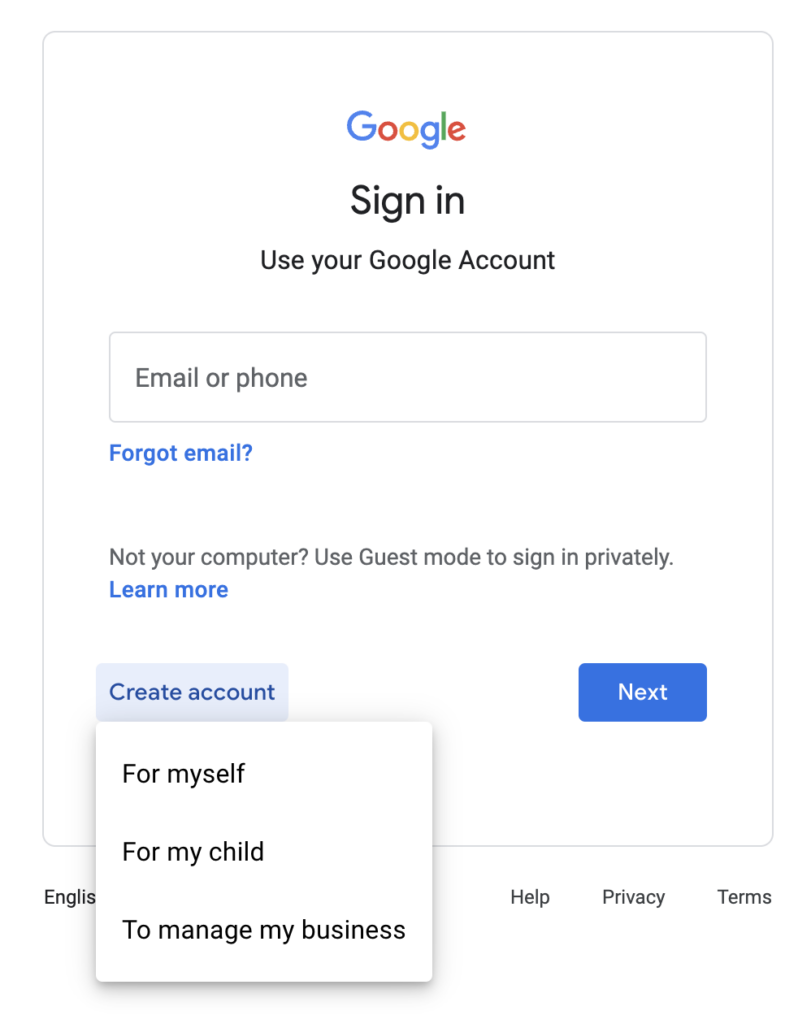
If you have a Google Account, enter your credentials. If not, click “Create account.”
-
You will be prompted to choose between a “Personal” account or a “Work or Business” account. For most individuals, the personal option is the standard choice, though business accounts offer different branding capabilities.
-
Once authenticated, the browser stores a session cookie that keeps you logged in, allowing the YouTube algorithm to begin tailoring the homepage UI to your interests.
Mobile App Initialization (iOS and Android)
On mobile devices, the sign-up process is typically handled through the device’s system settings.
-
Android: Since Android is a Google-developed OS, the YouTube app often automatically detects the Google Account associated with the phone. You can simply open the app and tap the profile icon to toggle between different accounts or add a new one.
-
iOS: On Apple devices, users must download the YouTube app from the App Store. Upon opening the app, you will be prompted to “Sign In.” The app uses a secure web view to allow you to enter your Google credentials without sharing your password directly with the iOS system.
Smart TV and Console Authentication
Signing up or logging in on a smart TV or gaming console (like a PlayStation or Xbox) often involves a process known as “Device Pairing.” Because typing complex passwords with a remote control is cumbersome, YouTube generates an alphanumeric code on the TV screen. You then navigate to a specific URL on your smartphone or computer (e.g., youtube.com/activate) and enter the code. This creates a secure handshake between the devices, authorizing the TV to access your YouTube profile via an OAuth token without needing your password on the television itself.
Optimizing Account Security and Digital Privacy
Once you have successfully signed up for YouTube, the focus must shift to digital security. As a major gateway to your personal data, a YouTube account must be hardened against unauthorized access.
Enabling Multi-Factor Authentication (MFA)
In the current cybersecurity climate, a password alone is insufficient. Within your Google Account security settings, you should enable Two-Step Verification. This adds an extra layer of software security, requiring a secondary confirmation via a text message, a push notification on your mobile device, or a hardware security key (like a YubiKey). This prevents attackers from gaining access to your account even if they manage to acquire your password through phishing or data breaches.
Managing Data and Privacy Settings
YouTube collects vast amounts of metadata to fuel its recommendation engine. Users who are concerned about digital privacy should navigate to the “Your data in YouTube” section of their profile. Here, you can toggle “Watch History” and “Search History” on or off. Technically, these histories are stored as logs linked to your UID. Disabling them prevents the platform from using your past behavior to influence future suggestions, effectively providing a “clean slate” experience every time you log in.
Incognito Mode and Permission Controls
The YouTube mobile app features an “Incognito Mode.” When activated, the software session becomes ephemeral; search queries and watch logs are not saved to your account. Additionally, when using the app, pay attention to the permissions requested. Modern versions of Android and iOS allow you to limit YouTube’s access to your location, contacts, and local network, which is a key practice in maintaining digital hygiene.
Transitioning from Viewer to Creator: Technical Fundamentals
Signing up for a YouTube account allows you to watch and subscribe, but it does not automatically create a public “Channel.” If you intend to upload content, you must take an additional step to initialize your creator space.
Channel Creation and Personal Branding
Within your account settings, you can select “Create a channel.” You will be given the choice to use the name associated with your Google Account or to create a “Brand Account.” Technically, a Brand Account is a separate entity that allows for multiple managers to log in without sharing the owner’s primary Google password. This is the preferred route for businesses or those who wish to maintain a pseudonym.
Understanding YouTube Studio’s Interface
Once a channel is created, you gain access to YouTube Studio, the platform’s primary software suite for content management. YouTube Studio provides a dashboard for uploading video files (supporting formats like .mp4, .mov, and .avi), managing metadata (tags, descriptions, and thumbnails), and viewing deep-dive analytics. The analytics tab is a powerful data visualization tool that tracks metrics such as Click-Through Rate (CTR), Average View Duration (AVD), and audience demographics, providing creators with the technical insights needed to optimize their digital presence.
Troubleshooting Common Technical Onboarding Issues
Despite the streamlined nature of Google’s ecosystem, users occasionally encounter technical hurdles during the sign-up or login process.
Resolution for Age Verification and Region Locks
YouTube is subject to various international digital regulations, such as the GDPR in Europe and COPPA in the United States. During sign-up, if you are flagged for being under the age of 13, the account may be restricted or required to be linked to a parent’s account via Google Family Link. Furthermore, certain content is geo-fenced. If you are unable to access the site or sign up, it may be due to IP-based regional restrictions. In these cases, verifying your location settings or checking for service outages in your specific territory is a necessary troubleshooting step.

Managing Multiple Identities and Cache Issues
For power users who manage multiple YouTube accounts (e.g., a personal account and a professional channel), browser cache and cookies can sometimes cause login loops or authentication errors. Clearing the browser’s “Application Data” or “Cache” forces the software to refresh its session tokens, usually resolving the issue. Additionally, using the “Switch Account” feature within the YouTube UI allows the software to maintain multiple active login states, allowing you to toggle between identities without fully logging out.
By understanding the technical infrastructure behind a YouTube account—from the Google SSO integration to the security protocols of MFA—you can ensure that your presence on the world’s largest video platform is both functional and secure. Whether you are consuming content or building a digital brand, the sign-up process is the gateway to a sophisticated suite of software tools designed for the modern internet user.
aViewFromTheCave is a participant in the Amazon Services LLC Associates Program, an affiliate advertising program designed to provide a means for sites to earn advertising fees by advertising and linking to Amazon.com. Amazon, the Amazon logo, AmazonSupply, and the AmazonSupply logo are trademarks of Amazon.com, Inc. or its affiliates. As an Amazon Associate we earn affiliate commissions from qualifying purchases.