
The transition from traditional cable to over-the-top (OTT) streaming services has fundamentally changed how we consume television. At the forefront of this digital transformation is YouTube TV, a service that has effectively rendered the physical digital video recorder (DVR) obsolete. Unlike the bulky hardware boxes of the past that were limited by hard drive capacity and tuner counts, YouTube TV utilizes a sophisticated cloud-based infrastructure. Understanding how to watch recorded shows on this platform requires more than just knowing where to click; it involves understanding the logic of a “Library-first” ecosystem and the technical nuances of cloud storage.

For users making the switch from legacy systems, the concept of the “Library” is the most significant shift. In the traditional sense, you “record” a specific program on a specific channel at a specific time. On YouTube TV, you “add” a show to your library. This subtle shift in terminology reflects a massive shift in underlying technology. This guide provides a deep dive into accessing, managing, and optimizing your recorded content to ensure a seamless viewing experience.
Understanding the YouTube TV Cloud DVR Infrastructure
The backbone of YouTube TV’s recording capability is its unlimited cloud DVR. From a technical standpoint, this is a feat of data management. While a home DVR might have 500 gigabytes of storage, YouTube TV offers infinite space for every subscriber. This is achieved through server-side indexing. When you tell the system to record a show, you aren’t necessarily triggering a unique recording just for your account; rather, you are gaining access to a high-quality stream of that broadcast stored on Google’s massive server arrays.
Infinite Storage and the Nine-Month Rule
The most prominent feature of the YouTube TV DVR is the lack of a storage cap. You can record every single game of the NFL season, every episode of a long-running procedural, and every nightly news broadcast without ever receiving a “storage full” notification. However, there is a temporal limitation: recordings are kept for nine months.
From a software perspective, the system automatically tracks the timestamp of each recording. Once an episode hits the nine-month mark, it is purged from your personal library unless it is rebroadcast. If a show is aired again and you still have that series in your library, the “recording” is essentially refreshed with the newer broadcast date, extending its life in your digital archive.
The Shift from Tuners to Streams
Traditional DVRs were limited by the number of tuners—if you had two tuners, you could only record two shows at once. Because YouTube TV operates in the cloud, there are no tuner constraints. You can record fifty programs airing at the same time across different networks. The limitation shifts from hardware capability to your internet bandwidth during playback. Since the recording happens on Google’s servers, your home internet speed has zero impact on the quality of the recording itself; it only affects your ability to stream that data back to your device.
Navigating the Library Tab: Your Digital Archive
To watch your recorded shows, you must navigate to the “Library” tab, which serves as the command center for all your saved content. The interface is designed to be consistent across various platforms, whether you are using a Roku, Apple TV, Android device, or a web browser, though the layout may shift slightly to accommodate different screen orientations.
Accessing Content Across Devices
One of the primary advantages of a cloud-based system is cross-device synchronization. If you begin watching a recorded episode of a documentary on your smartphone during a commute, the timestamp is synced to your account metadata. When you return home and open YouTube TV on your smart TV, the show will appear in the “Resume Watching” section of your library, allowing you to pick up exactly where you left off.
To find your recordings:
-
Open the YouTube TV app.
-
Navigate to the top of the screen (on TV interfaces) or the bottom (on mobile) and select “Library.”
-
Here, content is categorized into sections such as “New in your library,” “Most popular,” and “Scheduled.”
Sorting and Filtering for Efficiency
As your library grows, finding a specific recording can become challenging. YouTube TV utilizes algorithmic sorting to highlight what you are most likely to want to watch. The “New in your library” section focuses on recent broadcasts of shows you’ve added. However, for a more granular search, you can navigate to the “Series,” “Movies,” or “Sports” sub-categories.
The “Series” tab organizes shows alphabetically or by “recentness.” When you click into a specific show title, the UI displays a breakdown of seasons and episodes. This hierarchical structure is essential for binge-watching, as it allows you to toggle between the most recent season and older “Library” episodes that have been captured over the preceding months.
How to Record and Manage Your Favorite Programs

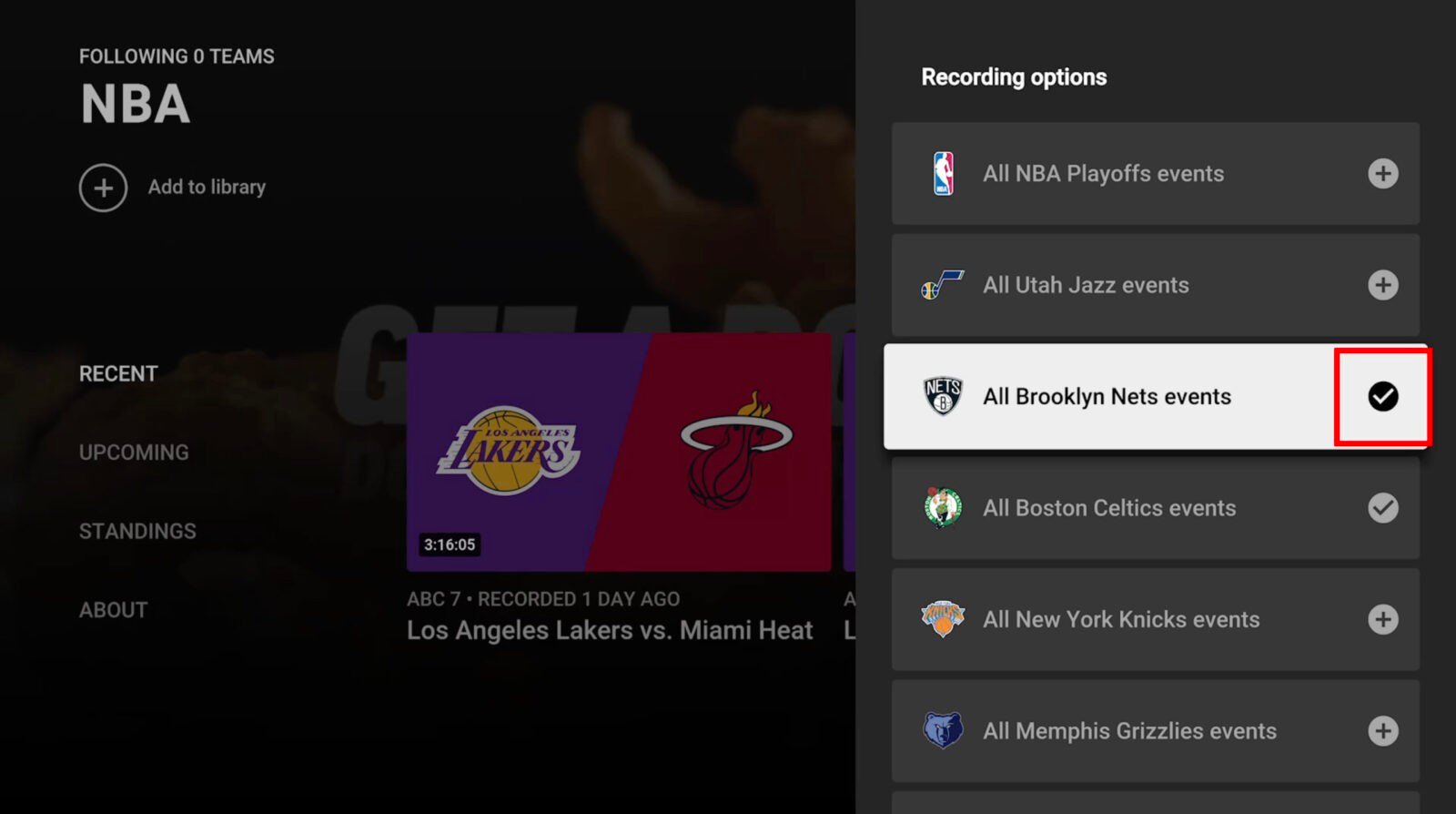
The process of “recording” on YouTube TV is simplified through the “Add to Library” function, represented by a plus (+) icon. This is a binary toggle: either a show is in your library, or it isn’t.
Adding Shows, Not Just Episodes
Unlike older tech where you might choose to record a single airing of a news program, YouTube TV’s default behavior is to record every instance of a show. When you add a series like “The Voice” to your library, the system will automatically record every new episode on its primary network, as well as any reruns appearing on syndicated channels.
This “all-in” approach ensures that you never miss a segment, but it does mean your library will populate quickly. From a user experience perspective, this removes the cognitive load of managing a recording schedule. You simply decide you like a show, and the cloud handles the rest.
Managing the “Scheduled” Queue
If you want to ensure a future event is set to record, the “Scheduled” section within the Library tab is your primary tool. This area displays everything set to be recorded in the next 24 to 48 hours. It is particularly useful for sports fans who want to verify that a specific game or tournament is flagged for capture. If you see a conflict or decide you no longer want to record a specific series, you can remove it from your library here, which will stop all future recordings of that title.
Troubleshooting and Optimizing the Viewing Experience
While the cloud DVR is robust, users may occasionally encounter issues ranging from playback quality to the presence of unskippable advertisements. Understanding the technical reasons behind these issues can help in resolving them.
DVR vs. VOD: The Ad Skipping Nuance
One of the most common points of confusion for YouTube TV users is the difference between a “DVR” recording and a “VOD” (Video On Demand) version of a show.
-
DVR version: This is a digital copy of the actual broadcast. It includes the original commercials, but crucially, it allows you to fast-forward through them.
-
VOD version: This is provided by the network (e.g., FX, AMC, or NBC). These versions often have higher visual fidelity but typically include “forced” advertisements that cannot be skipped.
When you go to watch a show in your library, YouTube TV will sometimes offer both versions. To ensure you can fast-forward through commercials, look for the version labeled “Recorded” rather than “VOD.” If only the VOD version is available, it usually means the broadcast version has expired or the network has replaced the recording with their own digital copy as part of a licensing agreement.
Handling Playback Buffering and Resolution
Since you are streaming your “recordings” from a remote server, your local network environment is critical. If you experience buffering while watching a recorded show, it is likely a matter of bitstream congestion. YouTube TV uses adaptive bitrate streaming, which scales the resolution (from 480p to 1080p or 4K) based on your current bandwidth. For the best experience, a stable connection of at least 25 Mbps is recommended for 4K content, while 13 Mbps is sufficient for HD.
Advanced Features for Power Users
To truly master recorded content on YouTube TV, one should look toward the platform’s advanced integration features, which leverage Google’s expertise in search and data organization.
Using Search and Voice Commands
Because YouTube TV is integrated into the broader Google ecosystem, its search functionality is superior to almost any other streaming service. Instead of scrolling through the Library, you can use the search bar (or Google Assistant voice commands on supported devices) to find a specific recording. Phrases like “Play the latest episode of Saturday Night Live” will bypass the menu navigation entirely and initiate the stream of your recording.
Personalized Libraries via Family Sharing
From a technical and organizational standpoint, mixing recording preferences in a single household can lead to a cluttered Library. YouTube TV solves this through “Family Sharing.” A single subscription allows for up to six individual accounts. Each account has its own private Library and personalized “Recordings” list. This means a parent’s library won’t be filled with children’s cartoons, and the “watched” status of episodes won’t be synced across different family members. Each user gets their own 9-month window and infinite storage, partitioned digitally to maintain a clean user interface.
The “Mark as Watched” Feature
As you accumulate hundreds of hours of recorded content, the UI can become cluttered with episodes you have already seen. To manage this, YouTube TV includes a “Mark as Watched” feature. On the mobile app or web interface, you can select the three-dot menu on any episode and flag it. This moves the content out of your “New” queue, helping you focus only on the content you have yet to consume.
By leveraging these cloud-based tools and understanding the distinction between local hardware and remote server indexing, users can transform their television experience into a highly curated, on-demand media powerhouse. The ability to watch recorded shows on YouTube TV is not just a feature; it is a sophisticated application of cloud computing that provides unprecedented freedom in how and when we watch our favorite programs.
aViewFromTheCave is a participant in the Amazon Services LLC Associates Program, an affiliate advertising program designed to provide a means for sites to earn advertising fees by advertising and linking to Amazon.com. Amazon, the Amazon logo, AmazonSupply, and the AmazonSupply logo are trademarks of Amazon.com, Inc. or its affiliates. As an Amazon Associate we earn affiliate commissions from qualifying purchases.