
In the early days of YouTube, the platform functioned much like a traditional social network where transparency was the default setting. Your subscriptions, your liked videos, and your playlists were often visible to anyone who stumbled upon your channel profile. However, as digital privacy concerns shifted into the mainstream and Google integrated YouTube more deeply into its ecosystem, the platform transitioned to a “private by default” model. Today, for many users, the list of creators they follow remains hidden behind a veil of privacy settings.
For creators, community managers, and power users, making subscriptions public is more than just a preference; it is a functional requirement for networking, social proof, and participation in the broader creator economy. Whether you are trying to show support for fellow creators, participate in “subscriber-only” giveaways that require verification, or simply build a transparent brand identity, understanding the technical steps to toggle these settings is essential.
Understanding YouTube’s Privacy Architecture
Before diving into the “how-to,” it is important to understand the technical architecture behind YouTube’s privacy settings. YouTube treats your account data in layers. There is your Google Account data, your YouTube channel data, and your public-facing profile. The subscription list falls under your channel’s metadata.
In 2020, YouTube implemented a significant update that automated the privacy of subscription lists for all users. This was part of a broader industry trend toward data protection. When your subscriptions are set to private, your account does not appear in the “Recent Subscribers” list of the channels you follow, and the “Channels” tab on your own profile remains empty or hidden from viewers.
Technically, when you toggle the privacy setting, you are modifying a boolean value in your channel’s configuration file on the YouTube database. Making this public allows the YouTube Data API to share this specific subset of your information with other users and third-party applications. This is why “sub-alerts” on platforms like Twitch or YouTube Live only work if the subscriber’s settings are public; the streaming software (like OBS or Streamlabs) queries the API to see who has performed the action, and if the data is restricted, the alert cannot trigger.
The Shift Toward User Autonomy
The move to private subscriptions was designed to protect users from “subscription shaming” or unintended data mining. However, for those in the tech and gaming niches, being a “public subscriber” is a badge of honor. It signals to the algorithm and the community that you are an active participant in a specific digital subculture. By choosing to make your subscriptions public, you are essentially opting back into the social discovery features that defined YouTube’s original mission.
Step-by-Step Guide: Making Subscriptions Public on Desktop
For most users, the desktop interface remains the most robust way to manage granular account settings. The web version of YouTube provides a direct path to privacy controls that are occasionally nested more deeply in mobile versions.
Navigating to the Settings Dashboard
To begin, ensure you are logged into the correct Google account associated with your YouTube channel.
-
Access Your Profile: Click on your profile picture (the avatar) in the top right-hand corner of the YouTube homepage.
-
Open Settings: From the dropdown menu, locate the “Settings” gear icon. This will take you to your general account overview.
-
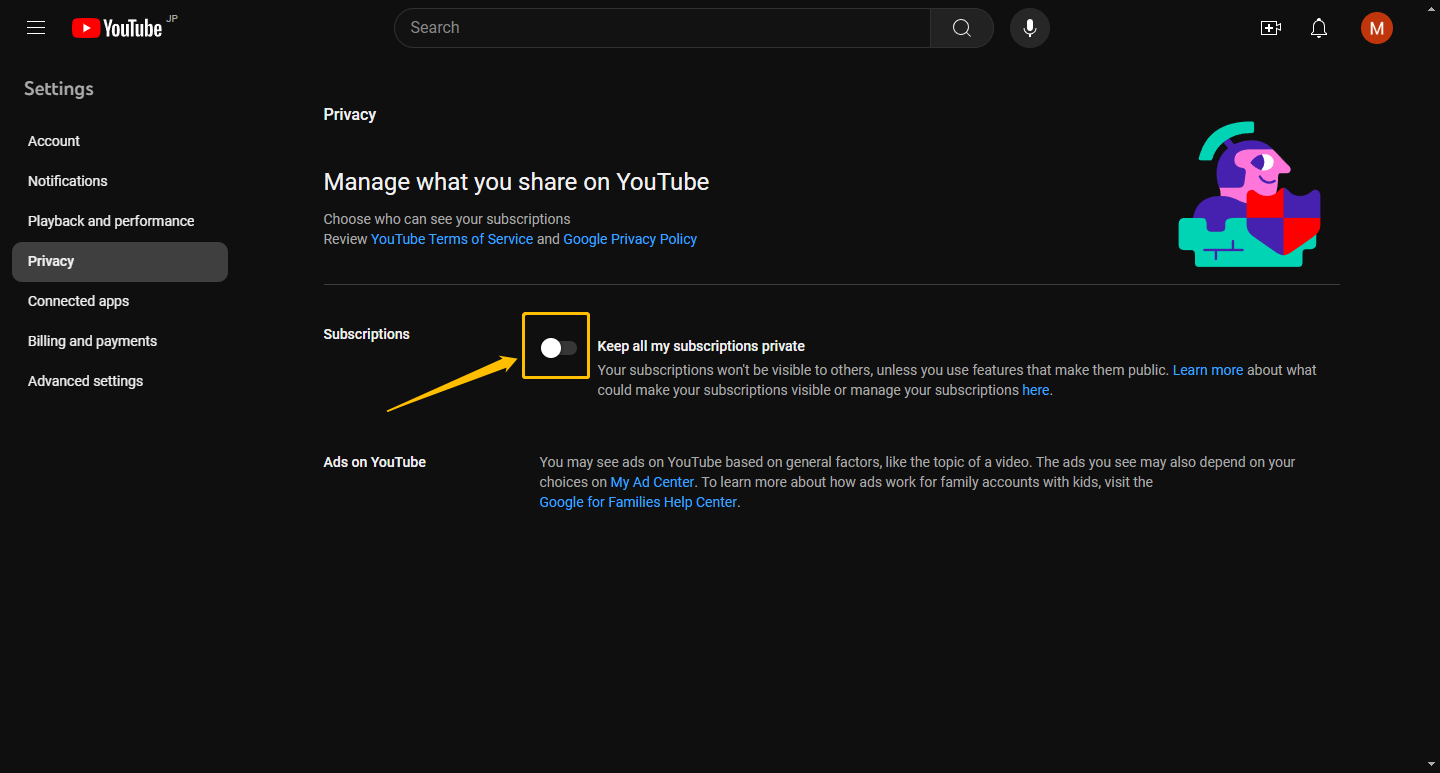
Privacy Tab: On the left-hand sidebar, you will see a list of categories including Account, Notifications, and Playback. Click on “Privacy.”
Modifying the Visibility Toggles
Once you are in the Privacy section, you will see a header titled “Playlists and subscriptions.”
-
The Specific Toggle: Look for the option labeled “Keep all my subscriptions private.” By default, this switch is toggled to the “on” position (usually highlighted in blue or showing a checked box).
-
The Action: Click the toggle to turn it off. Once it turns gray or the checkmark disappears, your changes are automatically saved by the system.
Verifying the Change
To ensure the technical change has propagated through YouTube’s servers, navigate back to your channel page. You can do this by clicking your avatar and selecting “Your channel.” Look for the “Channels” tab in the horizontal navigation bar. If the setting was successful, the creators you subscribe to should now be listed there for the public to see. Note that server-side propagation can sometimes take a few minutes, especially during peak traffic hours.
Managing Visibility via the YouTube Mobile App
Given that over 70% of YouTube’s watch time occurs on mobile devices, knowing how to adjust these settings on Android and iOS is critical. The mobile interface is streamlined, often combining “Edit Channel” functions with privacy settings.

The Android and iOS Workflow
The process is virtually identical across both major mobile operating systems:
-
Launch the App: Open the YouTube app and tap on your profile picture in the bottom right corner (the “You” tab).
-
View Channel: At the top of the screen, tap on your name or “View Channel” to enter your public-facing profile view.
-
The Edit Icon: Look for the pencil icon (Edit) located next to the “Manage Videos” and “Analytics” buttons. This opens the Channel Settings menu.
-
Privacy Section: Scroll down to the bottom of the Channel Settings. You will see a section dedicated to Privacy.
-
Toggle Off: Switch the “Keep all my subscriptions private” button to the off position.
Synchronizing Across Devices
One of the common technical hurdles users face is a lack of synchronization between the mobile app and the desktop site. If you change your settings on mobile but do not see the change reflected on your desktop browser, it is likely a caching issue. Clearing your browser cache or performing a hard refresh (Ctrl + F5 on Windows) usually resolves this. Because these settings are stored at the account level on Google’s servers, once the change is saved on one device, it applies globally to that specific channel.
The Technical Impact of Public Subscriptions on Your Channel
Making your subscriptions public is not just a cosmetic change; it has several technical implications for how your channel interacts with the YouTube ecosystem and third-party tools.
API Interactivity and Third-Party Tools
Many external websites, such as SocialBlade or various “Channel Audit” tools, rely on public data to provide analytics. If you are a budding creator using these tools to track your growth or the growth of others you network with, public subscriptions allow these platforms to index your “connections.”
Furthermore, if you participate in live streams, many streamers use “Subscriber Goal” overlays. When you subscribe to a channel while your settings are public, the YouTube Data API sends a “New Subscriber” event to the streamer’s broadcast software. If your settings are private, you remain anonymous to the software, and your name will not appear on the screen. For users who want to support their favorite streamers and receive a shout-out, making subscriptions public is a technical prerequisite.
Social Proof and the Discovery Algorithm
While YouTube’s recommendation algorithm primarily focuses on watch time and click-through rates, there is a secondary layer of “Social Discovery.” When a user visits your channel and sees that you subscribe to reputable or relevant creators in your niche, it builds immediate social proof.
From a technical standpoint, having public subscriptions can also help the algorithm understand your “user persona” more accurately. When you allow your subscriptions to be public, you are essentially categorizing yourself within a specific web of interests. This can indirectly influence the “Recommended for You” section for people who visit your channel, as YouTube’s graph database connects users through shared interests and subscriptions.
Troubleshooting and Security Considerations
While the process of making subscriptions public is straightforward, there are technical nuances and security considerations that every user should keep in mind.
Why Your Subscriptions Might Still Be Hidden
If you have toggled the setting to public but your list still isn’t appearing, consider the following:
-
The “Channel” Tab Visibility: Some channel layouts do not include the “Channels” tab by default. You may need to go into your “Customization” settings in the YouTube Studio and ensure that the “Featured Channels” or “Subscriptions” section is added to your homepage layout.
-
System Latency: Google’s Global Load Balancers and distributed databases take time to sync. While the change is usually instant, it can take up to 24 hours to reflect on all global servers.
-
Account Restrictions: If your account is managed via Google Workspace (formerly G Suite) or is a “Brand Account” with specific permissions, the primary administrator may have restricted the ability to change privacy settings.
Balancing Transparency and Digital Security
From a digital security perspective, making your subscriptions public does increase your digital footprint. Your interests, political leanings, and educational pursuits can be inferred by the list of channels you follow. For the average user, this is a non-issue. However, for high-profile individuals or those in sensitive industries, public subscriptions can be used for “doxing” or building a social engineering profile.
Always perform a “privacy audit” before making your subscriptions public. Ask yourself if the creators you follow align with the public image you wish to project. If you follow a mix of professional and personal content, you might consider moving your professional subscriptions to a dedicated “Brand Account” while keeping your personal account private.
Final Technical Takeaways
The ability to control the visibility of your YouTube subscriptions is a powerful feature that sits at the intersection of user privacy and community engagement. By navigating to the Privacy settings on either desktop or mobile, you can transition from a passive viewer to an active, visible member of the YouTube ecosystem.
Whether you are doing it to support a creator, to verify your status for a community event, or to enhance your channel’s social proof, the process is a simple toggle of a database flag. As platforms continue to evolve, staying informed about these settings ensures that you remain in control of your digital presence and how you interact with the world’s largest video-sharing platform.
aViewFromTheCave is a participant in the Amazon Services LLC Associates Program, an affiliate advertising program designed to provide a means for sites to earn advertising fees by advertising and linking to Amazon.com. Amazon, the Amazon logo, AmazonSupply, and the AmazonSupply logo are trademarks of Amazon.com, Inc. or its affiliates. As an Amazon Associate we earn affiliate commissions from qualifying purchases.