
The transition of YouTube from a desktop-centric video repository to a dominant force in living room entertainment has been one of the most significant shifts in the digital media landscape. As of recent metrics, a substantial portion of YouTube’s total watch time occurs on television screens, driven by the proliferation of high-definition displays and integrated smart features. Watching YouTube on a TV offers an immersive experience that smartphones and laptops simply cannot replicate, particularly for high-fidelity 4K content, long-form documentaries, and cinematic creator productions.
Navigating the various ways to bring YouTube to the big screen requires an understanding of hardware ecosystems, software integration, and network protocols. Whether you are using a state-of-the-art Smart TV, a legacy display with an external dongle, or a high-performance gaming console, there is a technical solution tailored to your setup.
Smart TVs and Native Applications: The Modern Standard
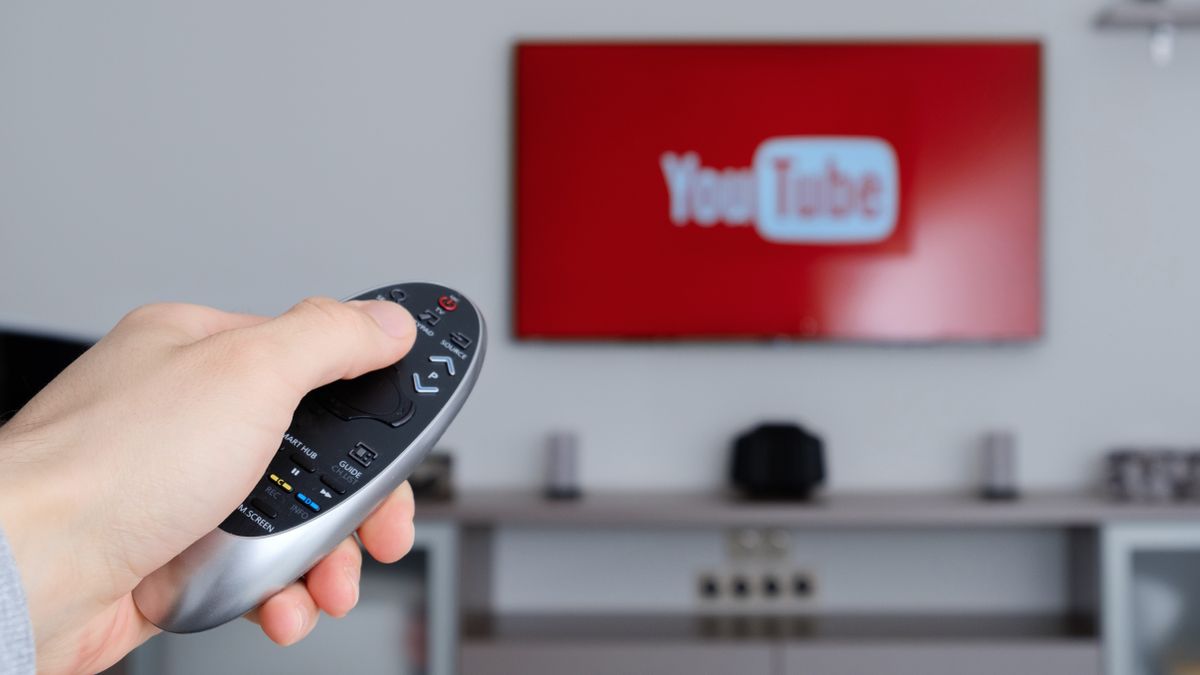
The most streamlined method for accessing YouTube today is through the native application built into modern Smart TVs. Most television manufacturers—including Samsung (Tizen OS), LG (webOS), Sony (Google TV/Android TV), and Vizio (SmartCast)—pre-install YouTube as a core utility. This integration is designed for the “leanback” experience, where navigation is optimized for a standard D-pad remote control rather than a mouse or touchscreen.
Identifying the App Ecosystem
Each Smart TV platform handles applications differently, but the underlying YouTube interface remains relatively consistent to ensure brand continuity. On Android TV and Google TV platforms, YouTube is deeply integrated into the operating system, often appearing on the home screen’s “Recommendations” row. For Samsung and LG users, the app resides in a dedicated app bar. The primary advantage of using a native app is the optimization for that specific hardware, often allowing for the smoothest 4K HDR playback and the fastest interface response times.
Activation and Account Syncing
To unlock the full potential of YouTube on a TV, signing in is essential. This synchronizes your subscriptions, watch history, and “Watch Later” playlists. Most smart platforms utilize a “code-based” login system to avoid the frustration of typing passwords with a remote. When prompted, the TV will display a alphanumeric code; you simply navigate to youtube.com/activate on a smartphone or computer logged into your Google account and enter the code. This handshake instantly authorizes the TV, bypassing the need for manual data entry on the television itself.
Optimization and Settings
Once logged in, users should explore the settings menu within the YouTube app to optimize their viewing experience. This includes toggling “Stats for Nerds” for those interested in technical metadata like connection speed and frame drops, as well as managing restricted mode for household safety. Furthermore, many high-end TVs support YouTube’s HDR (High Dynamic Range) formats, such as HLG or HDR10, which require a stable high-speed internet connection—typically 25 Mbps or higher—to maintain consistent 2160p resolution.
Dedicated Streaming Devices and Media Players
For users with older “dumb” TVs or those who find their Smart TV’s built-in interface sluggish, dedicated streaming devices are the premier alternative. These gadgets plug directly into an HDMI port and provide their own processing power and operating systems, often outperforming the hardware built into the television itself.
Google Chromecast and Google TV
The Google Chromecast has evolved from a simple “casting” receiver into a full-fledged media player with the “Chromecast with Google TV” lineup. This device offers a sophisticated interface that aggregates content from various services, including YouTube. It supports the latest video codecs and offers a voice-enabled remote with a dedicated YouTube button. Because it is a first-party Google product, it often receives the newest YouTube features and interface updates before other platforms.
Roku and Amazon Fire TV
Roku and Amazon Fire TV remain the most popular third-party streaming sticks in the global market. Both platforms offer robust YouTube applications available via their respective app stores. Amazon’s Fire TV devices are particularly useful for users within the Alexa ecosystem, allowing for voice commands like “Alexa, play cooking videos on YouTube.” Roku, known for its neutral and simplistic interface, provides a highly stable YouTube experience that focuses on ease of use and speed.
Apple TV and High-End Hubs
The Apple TV 4K represents the premium tier of streaming hardware. For YouTube users, the Apple TV offers a fluid, high-frame-rate interface and integration with the broader Apple ecosystem. While YouTube on Apple TV historically lagged behind in 4K support due to codec disagreements between Google (VP9) and Apple, current generations fully support 4K playback. The Apple TV’s powerful A-series chips ensure that the YouTube app remains responsive even when navigating through complex playlists or high-resolution thumbnails.

Gaming Consoles as Multimedia Hubs
For many households, the gaming console is the primary media hub connected to the television. Modern consoles are designed with significant graphical overhead, making them exceptionally capable of rendering the YouTube interface and handling high-bitrate video streams.
PlayStation (PS4 and PS5)
The Sony PlayStation 5 and its predecessor, the PS4, feature a dedicated “Media” tab where the YouTube app can be downloaded. On the PS5, the app is optimized to take advantage of the console’s hardware acceleration, providing virtually instantaneous load times. Additionally, the PS5 Media Remote includes a dedicated YouTube button, allowing users to launch the app without even powering on their DualSense controller.
Xbox Series X/S and Xbox One
Microsoft’s Xbox ecosystem treats YouTube as a core application. The Xbox Series X and Series S support YouTube in 4K with HDR10 support. One of the unique technical advantages of the Xbox platform is its integration with the Microsoft Store, allowing for seamless updates. Furthermore, users who utilize the Xbox “Quick Resume” feature may find that they can jump back into a YouTube video even after switching to a game, provided the system memory hasn’t been fully flushed.
Casting and Mirroring from Mobile Devices
If you prefer the tactile experience of browsing on a smartphone but want the visual scale of a TV, casting is the most efficient bridge. This method relies on a protocol that tells the TV to pull a specific stream directly from the cloud, rather than simply “mirroring” what is on the phone screen.
Casting via the YouTube App
Casting is supported by almost all modern Smart TVs and streaming devices. When your smartphone and TV are on the same Wi-Fi network, a “Cast” icon (a rectangle with a Wi-Fi symbol in the corner) appears at the top of the YouTube mobile app. Tapping this icon allows you to select your TV. The phone then acts as a sophisticated remote control; you can queue up videos, adjust volume, and browse for the next video without interrupting the current playback on the screen. This method is technically superior to mirroring because it preserves battery life and allows the TV to pull the highest possible resolution directly from YouTube’s servers.
Screen Mirroring (AirPlay and Miracast)
Screen mirroring is a different technical process where the phone’s entire screen is duplicated on the TV. Apple users can utilize AirPlay 2 to mirror their iPhone or iPad to compatible TVs (such as those from Sony, LG, and Samsung). Android users typically use Miracast or “Smart View.” While effective for showing photos or apps that don’t have a native TV version, mirroring is generally less optimal for YouTube playback than casting, as it often introduces latency and can be limited by the aspect ratio and resolution of the mobile device.
Advanced Connection Methods and Troubleshooting
Beyond wireless apps and dedicated sticks, there are “hardwired” and technical approaches that cater to specific needs, such as using a TV as a secondary monitor or ensuring peak performance in areas with poor wireless signals.
HDMI Connections for Laptops
The most “analog” way to watch YouTube on a TV is via a physical HDMI cable connected to a laptop or desktop computer. This transforms the TV into an external monitor. This method is foolproof for older televisions that lack internet connectivity or app support. By setting the laptop’s display settings to “Extend” or “Mirror,” you can use a web browser like Chrome or Firefox to access YouTube. This allows for the use of browser extensions, such as ad-blockers or cinema mode enhancers, which are not available on native TV apps.
Network Optimization for 4K Playback
To achieve the best possible quality, the underlying network infrastructure is critical. While Wi-Fi is convenient, it is susceptible to interference and signal degradation. For 4K (Ultra HD) streaming, an Ethernet (LAN) connection is highly recommended. Most Smart TVs and high-end streaming boxes (like the Apple TV or Shield TV) include an Ethernet port. A hardwired connection ensures a consistent bitrate, preventing the annoying “buffering” wheel or the sudden drop in resolution that occurs when a wireless signal fluctuates.
Security and Privacy on Shared Screens
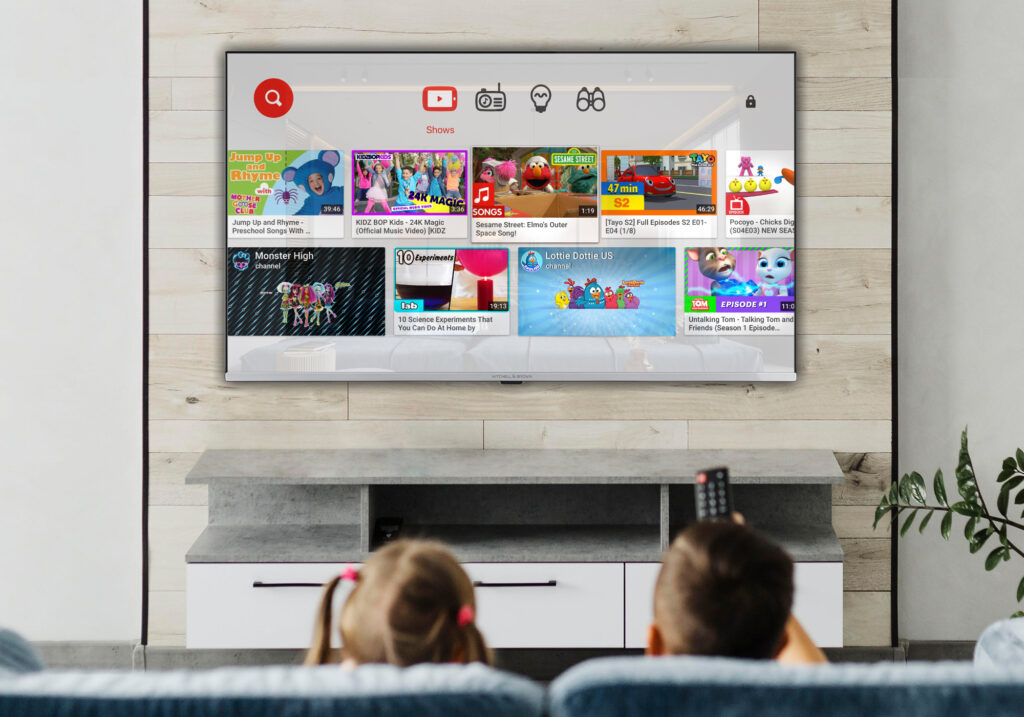
When watching YouTube on a television in a shared environment—such as a dorm, an office, or a vacation rental—privacy becomes a technical consideration. It is important to remember to sign out of your Google account or use “Guest Mode” if the app supports it. On many Smart TVs, the “Reset App” function in the settings menu will clear all user data and login credentials, ensuring that the next person to use the TV does not have access to your private watch history or recommendations. Additionally, managing the “Link with TV code” settings in your mobile app can prevent unauthorized users on the same network from accidentally (or intentionally) casting content to your screen.
aViewFromTheCave is a participant in the Amazon Services LLC Associates Program, an affiliate advertising program designed to provide a means for sites to earn advertising fees by advertising and linking to Amazon.com. Amazon, the Amazon logo, AmazonSupply, and the AmazonSupply logo are trademarks of Amazon.com, Inc. or its affiliates. As an Amazon Associate we earn affiliate commissions from qualifying purchases.