
The transition from linear television to on-demand digital content has fundamentally altered the home entertainment landscape. At the center of this revolution is YouTube, a platform that has evolved from a repository for short-form amateur clips into a powerhouse of high-definition professional content, live news, and educational series. While viewing on a smartphone or laptop offers portability, the cinematic experience of a large-screen television remains the gold standard for immersive consumption. Accessing YouTube on your TV involves a synergy of software ecosystems, hardware protocols, and network configurations. Whether you are using a cutting-edge Smart TV, a dedicated streaming peripheral, or a legacy television, understanding the technical pathways to connectivity is essential for an optimal viewing experience.
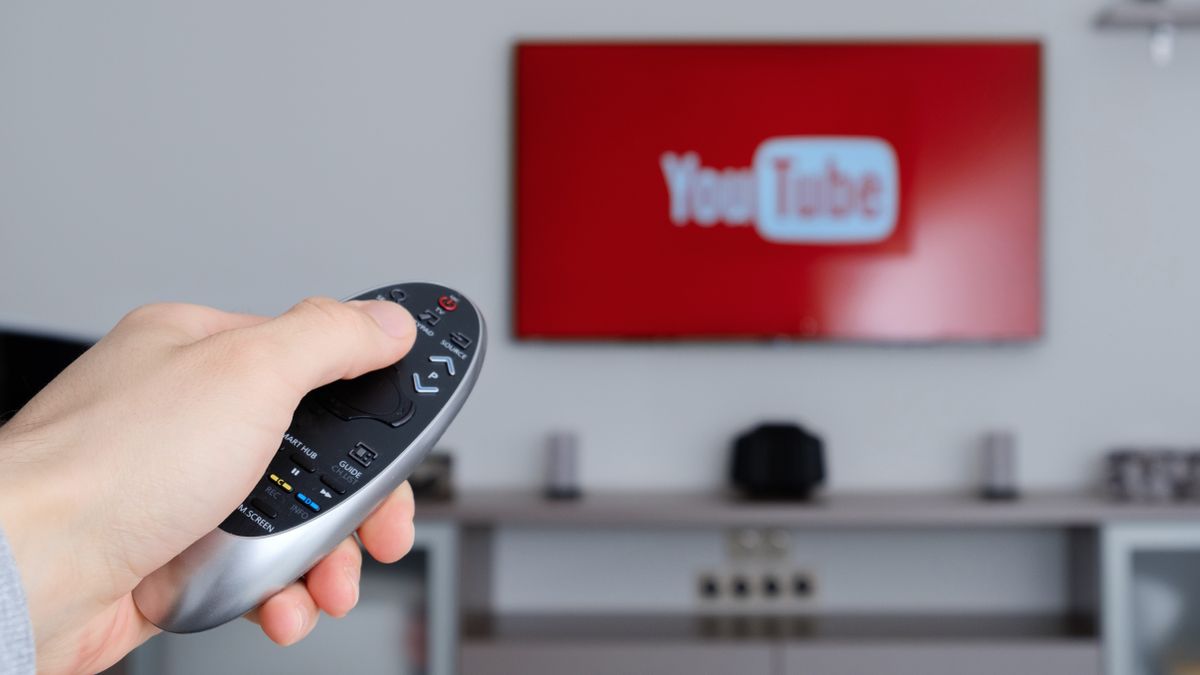
Understanding the Hardware Ecosystem: Smart TVs vs. External Devices
The first step in watching YouTube on your television is identifying the platform’s underlying operating system. Modern televisions are no longer just display panels; they are sophisticated computers designed to run complex applications. However, the method of access differs significantly depending on your specific hardware setup.
Native Smart TV Platforms
Most televisions manufactured within the last decade come equipped with a “Smart” interface. These systems, such as Samsung’s Tizen, LG’s webOS, and Sony’s integration of Google TV (formerly Android TV), feature a built-in app store where the YouTube application is typically pre-installed. The advantage of native apps is the deep integration with the TV’s remote control and hardware scaling. For instance, a native YouTube app on a 4K Sony Bravia is optimized to utilize the television’s specific upscaling processor to ensure that even 1080p content looks crisp on a 4K panel.
External Streaming Media Players
If your television lacks “Smart” capabilities or if its internal software has become sluggish over time, external streaming devices offer a superior alternative. Devices such as the Roku Ultra, Amazon Fire TV Stick 4K, Apple TV 4K, and Chromecast with Google TV provide dedicated processing power for video decoding. These devices plug into an HDMI port and bypass the TV’s native interface entirely. This is often the preferred method for tech enthusiasts because these peripherals receive more frequent software updates and support high-end codecs like AV1 or VP9, which YouTube uses to deliver high-quality video at lower bitrates.
Gaming Consoles and Set-Top Boxes
For many users, the primary gateway to YouTube on the big screen is already sitting in the living room: a gaming console. The PlayStation 5 and Xbox Series X|S offer robust YouTube applications that support 4K playback at 60 frames per second. Additionally, many cable and satellite providers have integrated YouTube into their set-top boxes (such as Xfinity X1 or Dish Hopper), allowing users to switch from live broadcast television to YouTube without changing inputs.
Setup and Connection Methods: From App Stores to Casting
Once the hardware is identified, the next phase is establishing the software link. There are three primary methods to get YouTube content onto your screen, each offering different levels of control and convenience.
The Direct App Method
The most common approach is using the native app. Navigate to your TV’s home screen, locate the YouTube icon, and launch it. To get the most out of the experience, you must sign in to your Google Account. While typing an email and password using a TV remote can be cumbersome, YouTube offers a “Sign in via Web” feature. This displays a code on your TV screen; you simply visit youtube.com/activate on your phone or computer, enter the code, and your TV is instantly synced with your subscriptions, watch history, and personalized recommendations.
Casting via Google Cast and AirPlay
“Casting” is a wireless protocol that allows you to “throw” a video from your mobile device to your TV. For Android users and those with Chromecast-enabled devices, this is handled via the Google Cast protocol. When your phone and TV are on the same Wi-Fi network, a small “Cast” icon appears in the YouTube mobile app. Tapping this icon transfers the video stream to the TV.
Apple users can utilize AirPlay 2 if they have an Apple TV or a compatible Smart TV (from brands like Vizio, LG, or Samsung). Unlike basic screen mirroring—which simply duplicates your phone screen—casting sends the URL of the video to the TV, which then fetches the stream directly from YouTube’s servers. This preserves battery life on your mobile device and allows you to use your phone for other tasks without interrupting the playback.
The “Link with TV Code” Protocol
In environments where Wi-Fi networks are complex (such as university dorms or hotels) or where discovery protocols fail, the “Link with TV Code” feature serves as a reliable manual override. By navigating to the “Settings” menu within the YouTube app on your TV and selecting “Link with TV Code,” a numeric sequence is generated. In the YouTube app on your smartphone, you can enter this code under “Watch on TV.” This establishes a direct handshake between the two devices, bypassing the need for traditional network discovery.
Optimizing the Viewing Experience: Quality, Sound, and Connectivity

Simply getting the image onto the screen is only half the battle. To truly enjoy YouTube on a high-end television, you must optimize the technical settings to match your hardware’s capabilities.
Resolution and High Dynamic Range (HDR)
YouTube is a pioneer in consumer 4K and 8K content. However, your TV will not automatically play at the highest resolution if your bandwidth is insufficient. Most YouTube TV apps allow you to view the “Stats for Nerds,” an overlay that shows the current resolution, frames per second, and “Connection Speed.” To maintain a stable 4K stream, a consistent download speed of at least 25 Mbps is required. Furthermore, look for content labeled “HDR.” High Dynamic Range provides better contrast and a wider color gamut, but it requires a compatible TV and a device that supports the YouTube HDR format (which typically uses the VP9-2 or AV1 codec).
Audio Configuration and Soundbars
While video quality is often prioritized, audio is critical for the “big screen” feel. Many modern YouTube videos are uploaded with 5.1 surround sound. If your TV is connected to an external soundbar or an A/V receiver via HDMI ARC (Audio Return Channel) or eARC, ensure that your TV’s digital audio output is set to “Auto” or “Pass-through.” This allows the YouTube app to send multi-channel audio data directly to your speakers rather than downmixing it to stereo.
Network Stability: Wired vs. Wireless
Wireless interference is the primary cause of buffering and resolution drops. While Wi-Fi 6 and 6E have improved stability, a hardwired Ethernet connection remains the gold standard for 4K streaming. If your TV or streaming stick is located far from the router, consider using a Powerline adapter or a Mesh Wi-Fi system to ensure that the YouTube app receives a high-bitrate stream without interruption.
Navigating Advanced Features and User Management
The YouTube interface on TV is designed for “lean-back” viewing, utilizing a UI pattern known as the “10-foot interface.” Mastering this interface involves more than just clicking play.
Voice Control and Search
Inputting text via an on-screen keyboard is notoriously slow. Most modern remotes feature a built-in microphone. By utilizing Google Assistant, Alexa, or Siri (depending on your hardware), you can launch the app and search for content using voice commands. Commands like “Play 4K nature documentaries on YouTube” or “Search for tech reviews” can save significant time.
Managing Multiple Profiles
If you share your home with family or roommates, a single YouTube account can quickly become cluttered with conflicting recommendations. The YouTube TV app supports multiple profiles. Upon launching the app, you can select your individual Google account, ensuring that your “Recommended” feed remains tailored to your specific interests while keeping children’s content or other genres separate. This is also where parental controls can be implemented through YouTube Kids, providing a curated and filtered environment for younger viewers.
The Impact of YouTube Premium
Watching on a TV highlights the intrusive nature of advertisements more than any other platform. YouTube Premium is particularly valuable for TV viewers as it eliminates mid-roll ads and allows for “Background Play” (though the latter is more relevant for mobile). More importantly for tech enthusiasts, Premium often provides access to a higher bitrate version of 1080p, which uses less aggressive compression and results in a cleaner image on large displays.
Troubleshooting Common Connectivity and Playback Issues
Even with the best hardware, technical glitches can occur. Understanding how to troubleshoot these issues is vital for maintaining a seamless experience.
App Crashes and Cache Management
If the YouTube app becomes unresponsive or fails to load videos, the first step is a soft reset. On many Smart TVs, holding the power button on the remote for 10 seconds will force the OS to reboot and clear the system cache. If the issue persists, you may need to navigate to the TV’s application settings and select “Clear Cache” or “Clear Data” for the YouTube app specifically.
HDMI Handshake and HDCP Errors
If you are using an external streaming stick and seeing a black screen or an error message regarding “HDCP,” it is likely a communication failure between the device and the TV’s HDMI port. High-bandwidth Digital Content Protection (HDCP) is a form of digital copy protection. Switching to a high-speed HDMI 2.0 or 2.1 certified cable or trying a different HDMI port on the TV often resolves these handshake issues.
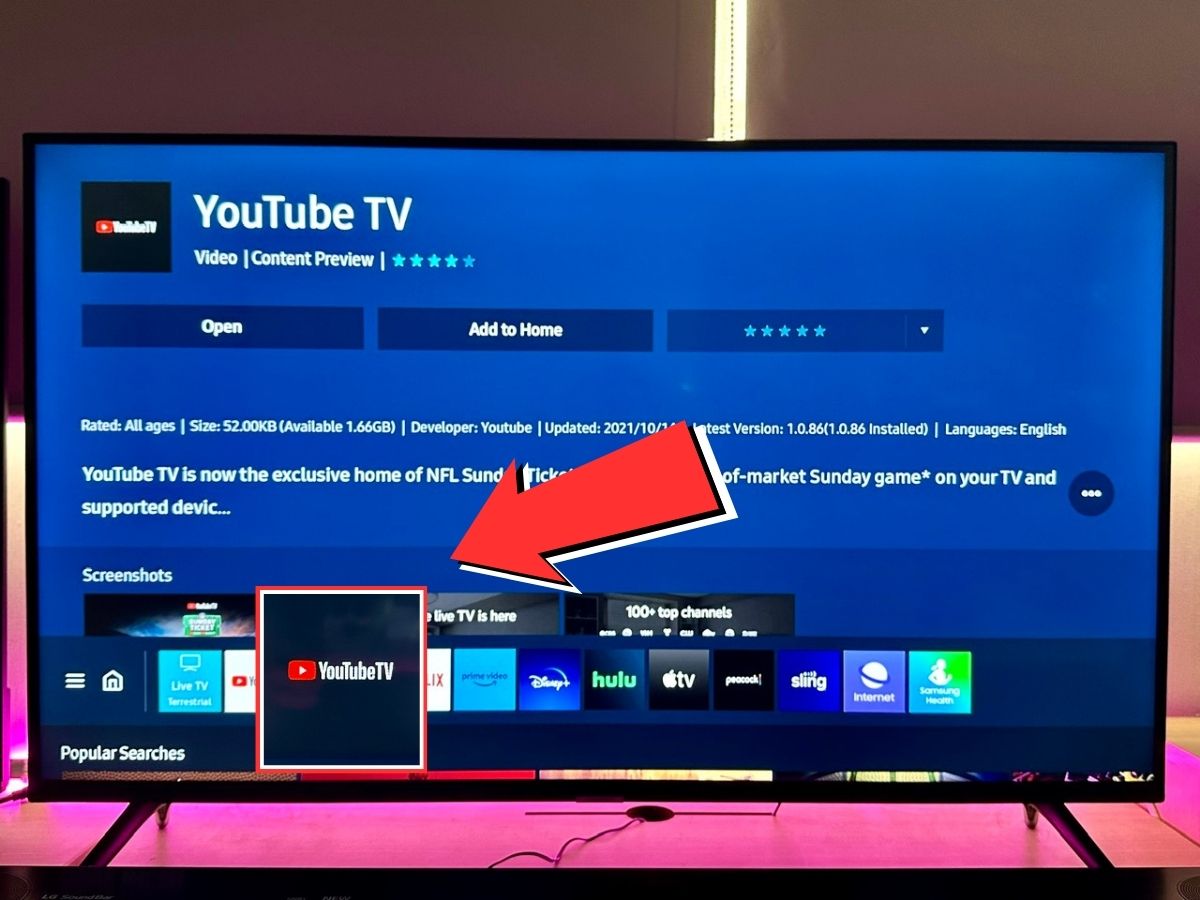
Update Cycles
Finally, always ensure that both the YouTube app and your TV’s firmware are up to date. Manufacturers frequently release patches that improve codec support and fix security vulnerabilities. In the fast-paced world of digital video standards, staying current with software updates is the best way to ensure that your “how do I watch” question is always answered with a high-quality, trouble-free experience.
aViewFromTheCave is a participant in the Amazon Services LLC Associates Program, an affiliate advertising program designed to provide a means for sites to earn advertising fees by advertising and linking to Amazon.com. Amazon, the Amazon logo, AmazonSupply, and the AmazonSupply logo are trademarks of Amazon.com, Inc. or its affiliates. As an Amazon Associate we earn affiliate commissions from qualifying purchases.