
The landscape of digital broadcasting has shifted dramatically from traditional coaxial cable systems to software-defined video delivery. At the forefront of this evolution is YouTube TV, a premium over-the-top (OTT) streaming service that replicates the linear television experience through a sophisticated cloud-based infrastructure. Accessing YouTube TV is not merely a matter of opening a website; it involves understanding a complex ecosystem of hardware compatibility, network requirements, and cross-platform synchronization. For those looking to migrate from legacy systems to a modern digital streaming environment, this guide provides a comprehensive technical overview of how to access, configure, and optimize YouTube TV across your entire digital architecture.
Understanding the YouTube TV Infrastructure and System Requirements
Before attempting to access the service, it is essential to understand the underlying technical requirements that ensure a high-quality user experience. YouTube TV operates as an internet-protocol television (IPTV) service, meaning its performance is strictly tied to your local area network (LAN) and wide area network (WAN) capabilities.
Minimum Hardware and Software Specifications
To access YouTube TV, your hardware must support modern video codecs and encryption standards (such as Widevine DRM). For desktop access, users should ensure they are running the latest versions of Google Chrome, Mozilla Firefox, or Microsoft Edge. Safari is supported but may occasionally face issues with certain DRM-protected content if the macOS version is significantly outdated.
On the mobile front, the YouTube TV application requires modern operating systems—typically Android 5.0 or later and iOS 14 or later. Using outdated firmware can lead to application crashes or the inability to authenticate the device through Google’s secure login protocols.
Internet Speed and Connectivity Standards
Bandwidth is the most critical factor in accessing YouTube TV without interruption. Unlike traditional cable, which has dedicated bandwidth, YouTube TV competes with other devices on your network.
-
Standard Definition (SD): A minimum of 3 Mbps is required for basic 480p streaming.
-
High Definition (HD): At least 7 Mbps is necessary for a single 1080p stream.
-
4K Ultra HD: For those utilizing the 4K Plus add-on, a consistent 25 Mbps per stream is required.
Beyond raw speed, latency and jitter play vital roles. High latency can cause delays in “channel surfing,” while jitter can lead to buffering even if the average speed seems sufficient. For the most stable access, connecting your primary streaming device via an Ethernet (Cat6) cable is highly recommended over a Wi-Fi connection, especially in high-density residential areas where 2.4GHz and 5GHz bands are saturated.
Supported Platforms and Device Integration
The versatility of YouTube TV lies in its multi-platform availability. Accessing the service varies slightly depending on the hardware ecosystem you inhabit.
Smart TVs and Dedicated Streaming Hardware
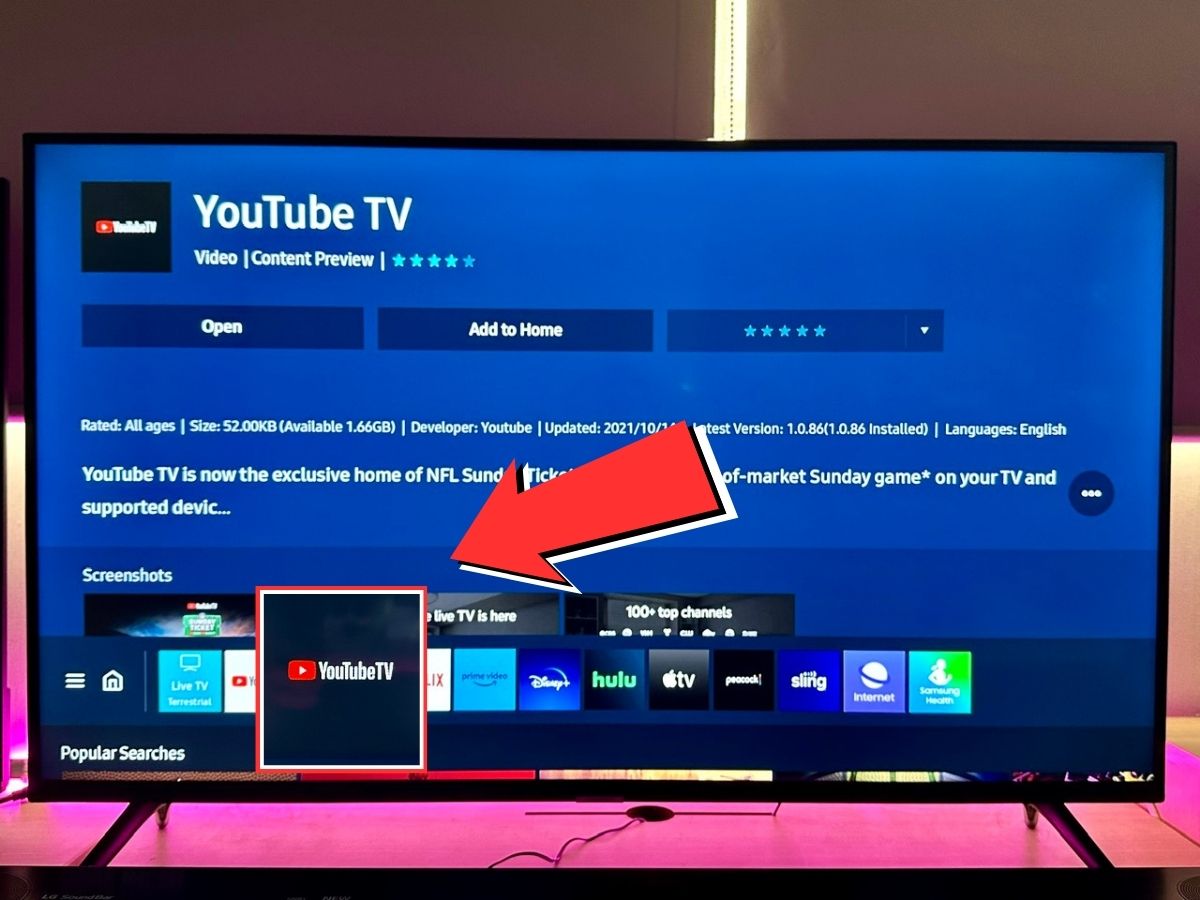
Most modern Smart TVs (manufactured after 2016) come with a native YouTube TV application available in their respective app stores (e.g., Samsung’s Tizen OS, LG’s webOS, and Vizio’s SmartCast). To access the service here, navigate to the app store, search for “YouTube TV,” and install the software.
Dedicated streaming players often provide a more fluid interface than built-in TV apps. These include:
-
Chromecast with Google TV: This offers the most integrated experience, allowing for voice-controlled channel switching via Google Assistant.
-
Roku and Amazon Fire TV: Both platforms feature robust YouTube TV apps. On Fire TV, the integration has improved significantly following historical carriage disputes, now offering a seamless “Live” tab integration.
-
Apple TV: The tvOS version of YouTube TV is highly regarded for its smooth framerate and integration with the Apple ecosystem, though it lacks some of the deep-link features found on Android-based devices.
Mobile Access: iOS and Android Ecosystems
Accessing YouTube TV on a smartphone or tablet is the primary method for users on the go. The application is available via the Google Play Store and the Apple App Store. One technical advantage of mobile access is the ability to “Cast” or “AirPlay” content. If you are in an environment where a Smart TV does not have the app installed, you can initiate the stream on your mobile device and broadcast the signal to the television over the local Wi-Fi network. This utilizes the DIAL (Discovery and Launch) protocol or the MDNS (Multicast DNS) protocol to pair the devices.
Web Browser Access and PC Integration
For users accessing the service on a PC or laptop, the URL is tv.youtube.com. This web-based portal offers the most granular control over account settings and billing. It is also an excellent way to manage your library (Cloud DVR) using a mouse and keyboard, which is often faster than using a remote control. It is worth noting that browser-based streaming is sometimes limited to 1080p even if you have the 4K Plus add-on, due to hardware-based DRM limitations in certain browser environments.
The Step-by-Step Configuration Process

Once you have the appropriate hardware and network stability, the process of gaining access involves a specific sequence of authentication and localization.
Account Creation and Verification
YouTube TV requires a Google Account. When you first access the service, you will be prompted to sign in. If you are setting this up on a television, the service typically uses a “cross-device authentication” method. A code will appear on your TV screen; you must then navigate to tv.youtube.com/start on a mobile device or computer to enter the code. This links the TV hardware to your digital identity without requiring the tedious entry of passwords via a remote control.
Location Services and Geo-fencing
One of the most technically unique aspects of YouTube TV is its use of geo-fencing to provide local broadcast stations (ABC, NBC, CBS, FOX). When you first access the service, the system uses your IP address and the GPS data from your mobile device to establish your “Home Area.”
-
Verification: You must occasionally “check-in” via a mobile device on your home network to maintain access to local channels.
-
Travel Access: When traveling, you can still access YouTube TV, but you will receive the local channels of the city you are currently in, while your DVR recordings will remain based on your Home Area. This is managed through the “Current Area” setting within the app’s privacy menu.
Customizing the User Interface
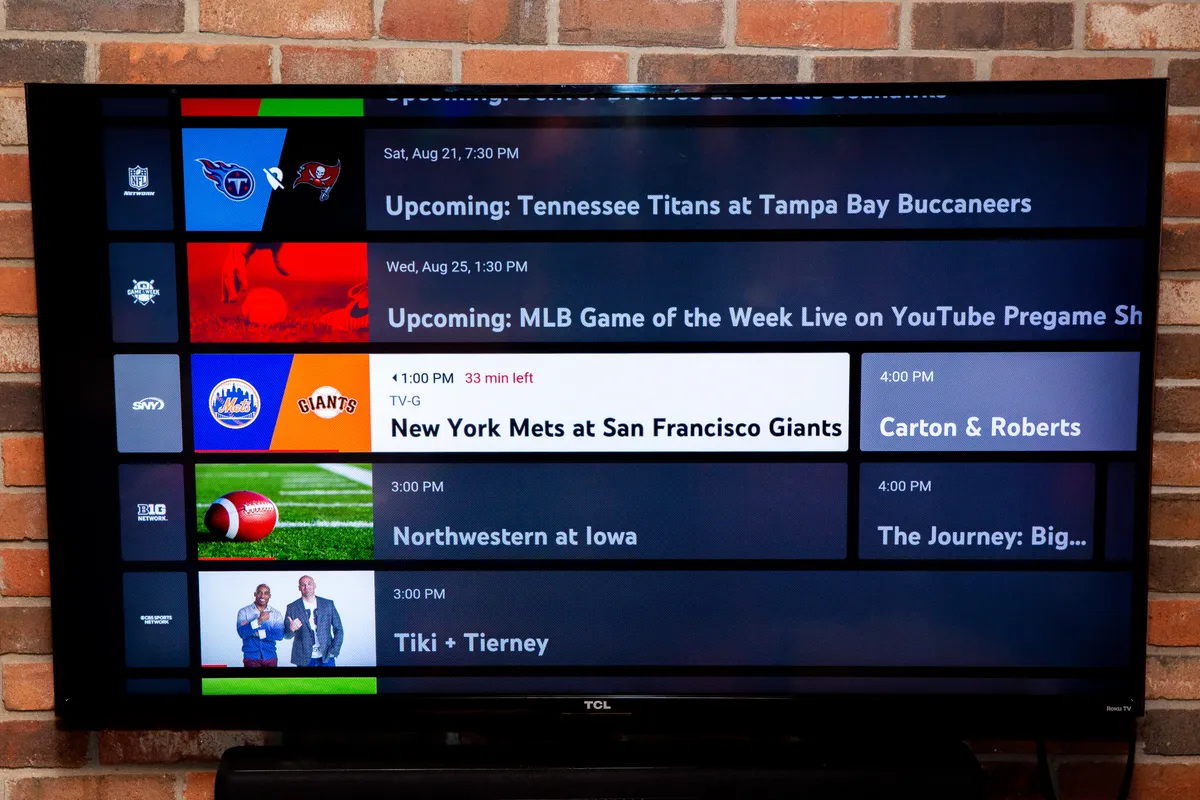
Accessing the service is only the first step; optimizing the interface is the second. Users can access the “Live Guide” and reorder channels. This is best done on a web browser. By navigating to Settings > Live Guide, you can hide channels you do not watch and move your favorites to the top. These changes sync instantly across all devices—from your smartphone to your living room television—thanks to the cloud-based profile management system.
Advanced Technical Features and Multi-User Management
YouTube TV is designed for households, which necessitates sophisticated multi-user management and high-end technical features.
Family Sharing and Privacy Controls
A single YouTube TV subscription can be shared with up to five additional family members (six total). Each member receives their own unique login, personal DVR library, and customized recommendations. To set this up, the primary account holder must create a “Google Family Group.” Each member then accesses the service using their own Google credentials. From a technical security standpoint, this ensures that individual viewing habits and passwords remain private, even though the billing is centralized.
Cloud DVR Mechanics and Storage Management
Unlike hardware-based DVRs of the past, YouTube TV uses a cloud-based storage system with no data limits. When you “add” a show to your library, you are essentially flagging that broadcast on Google’s servers to be associated with your account. This allows you to access recordings from any device simultaneously. The system also handles “padding”—automatically extending the recording time for live sporting events that go into overtime—a feature driven by real-time metadata updates from sports data providers.
4K Plus and Enhanced Technical Add-ons
For enthusiasts with high-end home theater setups, the “4K Plus” add-on provides access to ultra-high-definition streams and the ability to download recordings for offline viewing on mobile devices. Furthermore, it unlocks “Unlimited Streams” within the home network. Without this, YouTube TV is limited to three concurrent streams. The technical requirement for this is a robust internal network (preferably Wi-Fi 6 or wired Ethernet) to handle the massive increase in data throughput required for multiple 4K streams.
Troubleshooting Common Access Issues and Technical Glitches
Even with a perfect setup, technical hurdles can occur. Understanding how to diagnose these issues is key to maintaining access.
Resolving HDCP Errors and Connection Failures
One of the most common issues on TVs is the HDCP (High-bandwidth Digital Content Protection) error. This occurs when the handshake between your streaming device (like a Roku) and your TV fails. To fix this, ensure you are using an HDMI 2.0 or 2.1 cable and that the cable is securely seated. Power-cycling the hardware—unplugging it for 30 seconds—often forces a new handshake and resolves the error.
Optimizing Playback for High-Latency Environments
If you experience frequent buffering, you can manually adjust the “Stats for Nerds” feature. This is an overlay that provides real-time technical data, including:
-
Connection Speed: The current throughput.
-
Buffer Health: How many seconds of video are pre-loaded.
-
Dropped Frames: Indicates if the hardware is struggling to decode the video.
If the buffer health is low, you may need to go into the video quality settings and switch from “Auto” to a fixed resolution like “720p.” This reduces the demand on your network and ensures a continuous stream, albeit at a slightly lower visual fidelity.
Accessing YouTube TV is a straightforward process when approached with an understanding of modern tech standards. By ensuring hardware compatibility, maintaining a robust network, and properly configuring account settings, users can enjoy a high-performance television experience that far surpasses the limitations of traditional broadcast media.
aViewFromTheCave is a participant in the Amazon Services LLC Associates Program, an affiliate advertising program designed to provide a means for sites to earn advertising fees by advertising and linking to Amazon.com. Amazon, the Amazon logo, AmazonSupply, and the AmazonSupply logo are trademarks of Amazon.com, Inc. or its affiliates. As an Amazon Associate we earn affiliate commissions from qualifying purchases.