
In the rapidly evolving landscape of Software as a Service (SaaS), Zoom has become a cornerstone of digital communication. However, as organizational needs shift or individual requirements change, managing these subscriptions becomes a critical task for IT administrators and individual users alike. Whether you are transitioning to a different unified communications platform or simply streamlining your digital toolkit, understanding the technical nuances of canceling a Zoom subscription is essential for maintaining financial hygiene and data security.
Canceling a Zoom subscription is not merely a matter of clicking a button; it involves understanding billing cycles, user seat allocations, and the distinction between individual Pro accounts and managed Enterprise environments. This guide provides a deep dive into the technical procedures required to terminate Zoom services across various platforms while ensuring your data remains protected.
Navigating the Zoom Billing Infrastructure
Before initiating a cancellation, it is vital to understand how Zoom structures its accounts. Zoom operates on a tiered subscription model ranging from Basic (Free) to Pro, Business, and Enterprise. The method for cancellation depends heavily on how the account was initially provisioned—whether through a direct web purchase, a third-party app store, or a negotiated corporate contract.
Identifying Your Account Type and Billing Source
The first step in the cancellation process is identifying where your billing originates. Users often find themselves unable to cancel through the Zoom web portal because their subscription is managed by a third party.
-
Direct Sign-ups: These are managed through the Zoom web portal (zoom.us) using a credit card or PayPal.
-
App Store Subscriptions: If you upgraded via an iPhone or Android device, your billing is handled by Apple or Google.
-
Reseller Accounts: Larger organizations often purchase Zoom through a technology reseller. In these cases, the cancellation must be handled through the reseller’s account manager.
The Lifecycle of a Canceled Subscription
When you cancel a Zoom subscription, the service does not terminate immediately. Instead, the account enters a “pending cancellation” status. You will typically retain access to your paid features until the end of your current billing period—whether that is the end of the month or the end of the year. Upon the expiration of the term, the account reverts to a “Basic” (free) plan. Understanding this lifecycle is crucial for IT teams who need to schedule transitions to new software without experiencing a gap in service.
Step-by-Step Walkthrough: Terminating Your Zoom Paid Plan
For most professional users, management occurs through the web-based Zoom dashboard. This process requires administrative privileges if you are managing a multi-user account.
Terminating a Pro or Business Plan via the Web Portal
To cancel a direct subscription, follow these technical steps:
-
Authentication: Sign in to the Zoom web portal as an administrator or account owner.
-
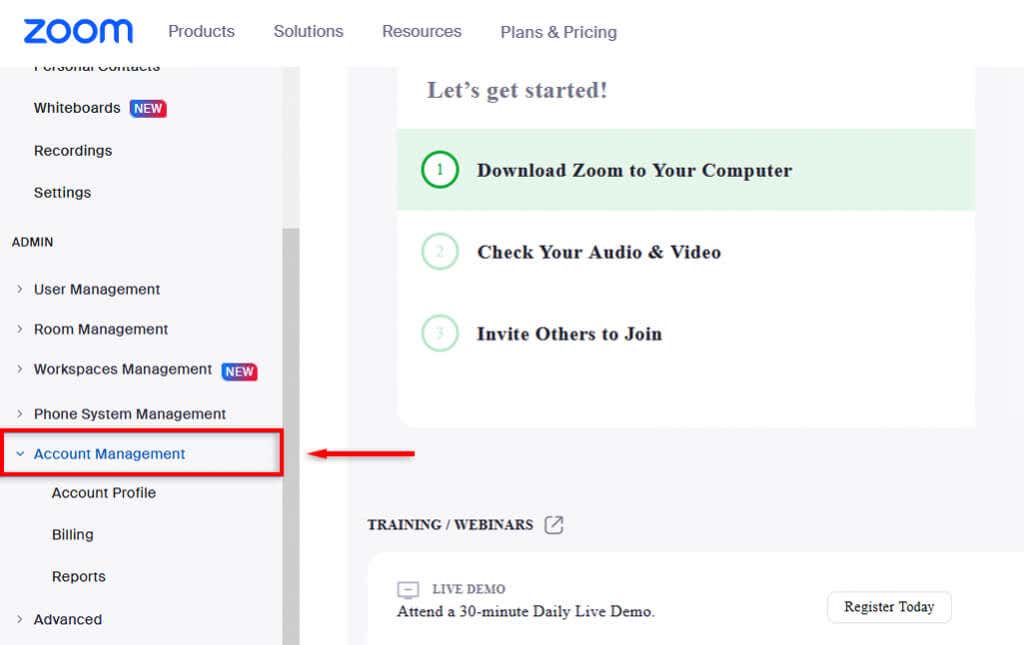
Navigation: In the navigation menu, click on “Account Management” and then select “Billing.”
-
Current Plans: Under the “Current Plans” tab, you will see a list of your active subscriptions (e.g., Zoom Meetings, Zoom Phone, Zoom Events).
-
Cancellation Initiation: Find the plan you wish to terminate and click “Cancel Subscription.”
-
Confirmation: Zoom will likely present a series of prompts asking for the reason for cancellation or offering a “downgrade” option. To proceed with the termination, you must confirm your choice.
If the “Cancel Subscription” button is replaced by “Contact Sales,” this indicates that your account is likely under an Enterprise contract or a multi-year agreement. In this scenario, cancellation requires formal notice to a Zoom account executive, often 30 to 60 days before the renewal date.
Deactivating Add-ons and Supplementary Licenses
It is a common technical oversight to cancel the primary “Meetings” plan while leaving paid add-ons active. Features such as Large Meeting capacity, Cloud Storage increases, and Zoom Phone licenses are often billed as separate line items. Ensure that you review the “Add-ons” section within the Billing tab to ensure all recurring costs are neutralized. If you wish to keep your Basic account but remove specific paid features, you can select “Cancel Subscription” specifically for those add-ons while leaving the base plan (if applicable) intact until a later date.
Managing Third-Party Billing: Apple and Google Integrations
Mobile ecosystems add a layer of abstraction to subscription management. If you initiated your Zoom Pro upgrade via the mobile app, the “Billing” section in the Zoom web portal will redirect you to the respective app store.
Canceling via Apple App Store (iOS/macOS)
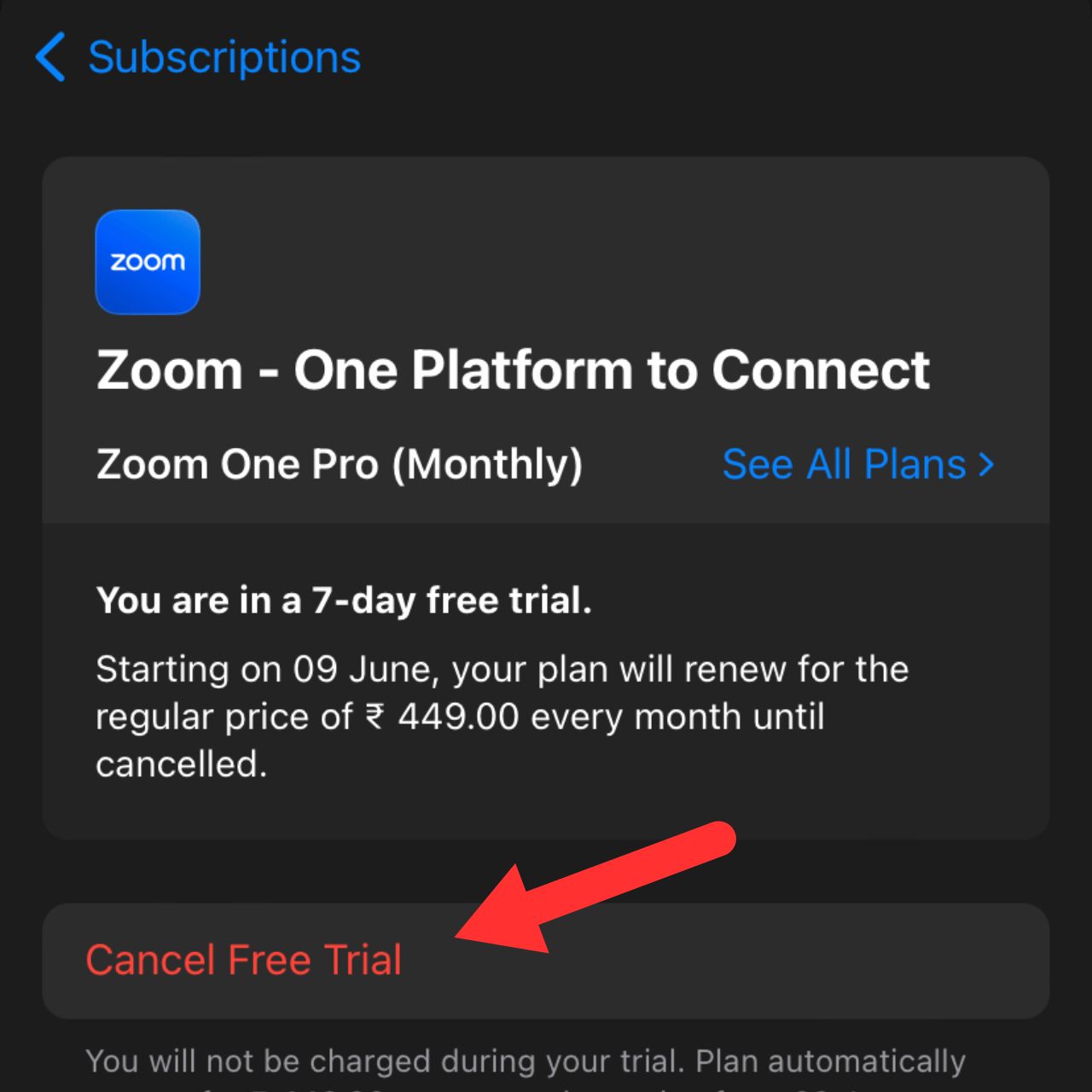
If your Zoom subscription is tied to an Apple ID:
-
Open the “Settings” app on your iPhone or iPad.
-
Tap your name at the top of the screen.
-
Navigate to “Subscriptions.”
-
Locate “Zoom” in the list of active services.
-
Select “Cancel Subscription.”
This process communicates directly with Apple’s billing API, ensuring that no further charges are applied to your Apple Pay or linked credit card.
Canceling via Google Play Store (Android)
For users on the Android ecosystem:
-
Open the Google Play Store app.
-
Tap the profile icon at the top right.
-
Select “Payments & subscriptions” and then “Subscriptions.”
-
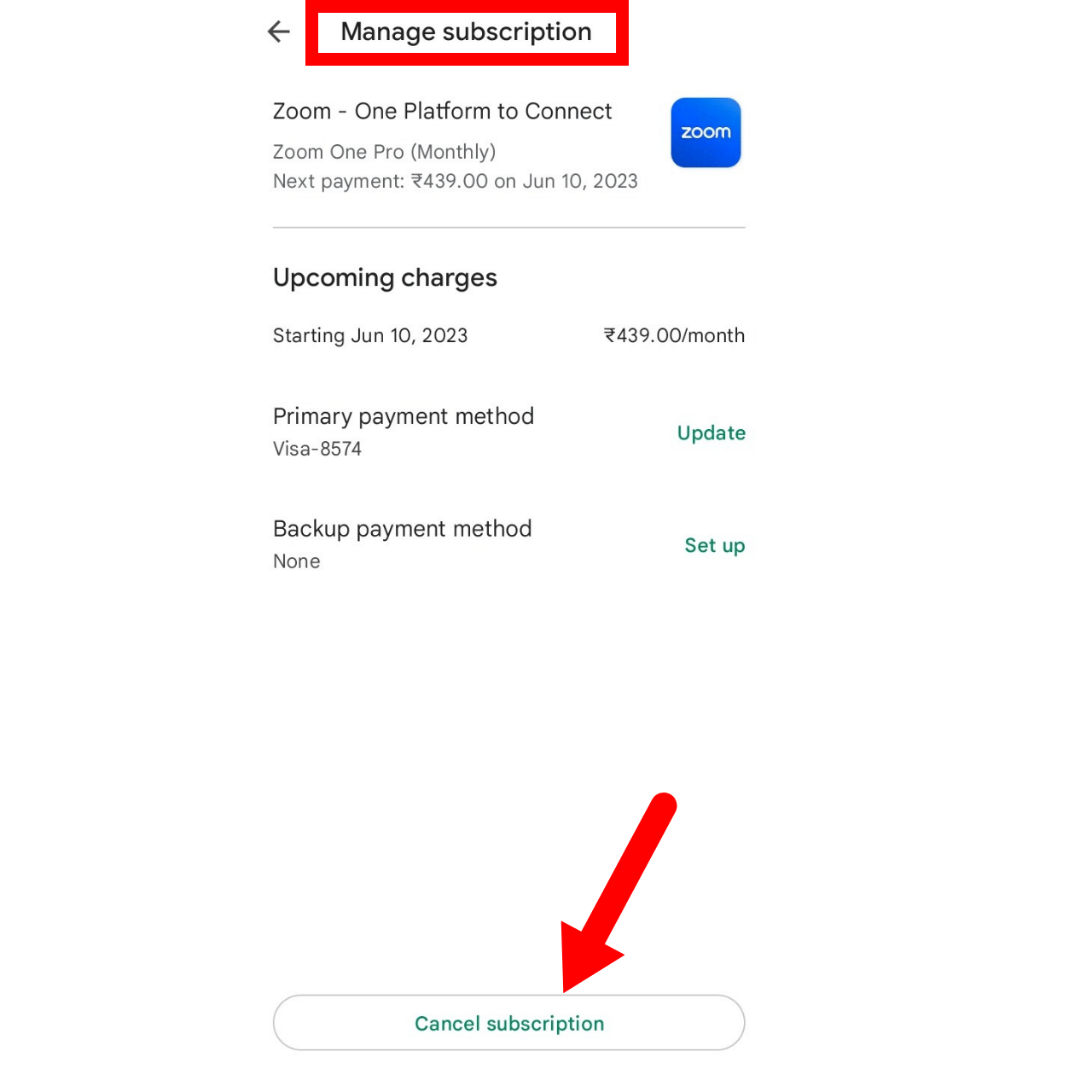
Find Zoom in the list and select “Cancel subscription.”
Technical note: Simply uninstalling the Zoom app from your device does not cancel the subscription. The background billing process remains active until the API call for cancellation is triggered through the store’s interface.
Data Sovereignty and Security After Cancellation
Canceling a subscription has significant implications for your data footprint. From a digital security and compliance perspective, you must consider what happens to your recordings, logs, and user data.
Cloud Storage and Recording Retention
Zoom’s cloud recording feature is a paid service. When an account reverts to the Basic tier, access to cloud recordings may be restricted or deleted after a specific grace period.
-
Actionable Step: Before the final date of your billing cycle, download all critical recordings to local storage or migrate them to a secure corporate repository (e.g., AWS S3, Google Drive, or OneDrive).
-
Security Protocol: If the account was used for sensitive internal meetings, ensure that all cloud links are deactivated so that unauthorized parties cannot access historical data via cached URLs.
Managing User Accounts and Deactivation
For Business and Enterprise accounts, canceling the subscription does not automatically delete the users within the account; it simply removes their paid licenses. As a technical administrator, you should decide whether to:
-
Unlink Users: This allows users to keep their own accounts, which will revert to Basic.
-
Deactivate Users: This prevents users from logging in but keeps their data on the system.
-
Delete Users: This permanently removes the user and all associated data from the Zoom infrastructure.
From a digital security standpoint, deleting accounts is the preferred method for offboarding when a platform is no longer in use, as it minimizes the attack surface and reduces the risk of credential stuffing attacks on legacy accounts.
Strategic Alternatives and Software Optimization
The decision to cancel Zoom often stems from a broader technical strategy to consolidate the “tech stack.” As organizations move toward integrated ecosystems like Microsoft 365 or Google Workspace, maintaining a standalone video conferencing tool can lead to “app fatigue” and redundant costs.
Evaluating the Competitive Landscape
If you are canceling Zoom to move to another platform, consider the technical integrations of the alternatives:
-
Microsoft Teams: Offers deep integration with Outlook and SharePoint, making it the standard for Windows-centric environments.
-
Google Meet: Ideal for organizations operating entirely within the Chrome and Google Workspace ecosystem, offering low-latency browser-based performance without the need for a desktop client.
-
Webex by Cisco: Often preferred by high-security sectors (finance, government) for its robust end-to-end encryption protocols and hardware integration.
When to Downgrade vs. Fully Deleting
If your goal is to reduce costs but maintain the ability to attend meetings, a downgrade to the Basic plan is the most efficient route. A Basic account still allows for 40-minute meetings and provides access to the Zoom API for integration with other tools.
However, if your intent is total data privacy, you must take the extra step of deleting the account entirely. This is found under “Account Management” > “Account Profile” > “Terminate my account.” This action is irreversible and will purge all meeting metadata, contact lists, and whiteboards from Zoom’s servers, satisfying “Right to be Forgotten” requests under GDPR and other privacy frameworks.
Optimizing Technical Spend
Before finalizing your cancellation, perform a final audit of your usage logs. Zoom provides detailed “Reports” in the dashboard showing how many licenses were actually utilized. In many cases, organizations find that they do not need to cancel the entire subscription but rather reduce the “seat count.” By moving from 100 licenses to 20, you can maintain corporate features while significantly reducing the monthly technical overhead.
By following these technical procedures, users and administrators can ensure a smooth transition away from Zoom’s paid services. Managing the cancellation process with precision protects your organization from unexpected billing cycles and ensures that your digital assets remain secure during the software lifecycle transition.
aViewFromTheCave is a participant in the Amazon Services LLC Associates Program, an affiliate advertising program designed to provide a means for sites to earn advertising fees by advertising and linking to Amazon.com. Amazon, the Amazon logo, AmazonSupply, and the AmazonSupply logo are trademarks of Amazon.com, Inc. or its affiliates. As an Amazon Associate we earn affiliate commissions from qualifying purchases.