
In the rapidly evolving landscape of digital transactions, convenience and security have become paramount. Cash App, a popular mobile payment service, has continually adapted to user demands by integrating features that streamline the payment process. Among its most appreciated innovations is the “tap to pay” functionality, which transforms your smartphone into a versatile payment tool, allowing for quick, contactless transactions at a wide array of retail locations. This guide delves into the technology, setup, and practical application of Cash App’s tap to pay, ensuring users can leverage this feature effectively and securely.
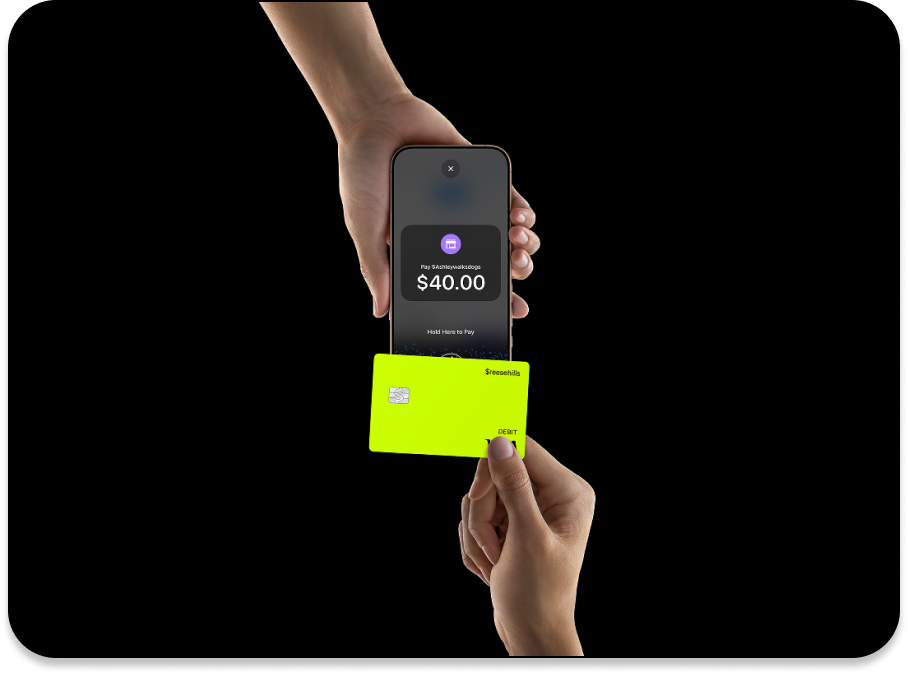
Understanding Cash App Tap to Pay: The Technology Behind It
Cash App’s tap to pay feature is a testament to the advancements in mobile payment technology. It fundamentally enables users to make purchases by simply tapping their compatible smartphone or device near a contactless payment terminal. This seamless interaction is not magic but rather the result of sophisticated underlying technologies working in concert.
NFC Explained
The core technology powering tap to pay is Near Field Communication (NFC). NFC is a short-range wireless technology that allows two electronic devices, one of which is typically a smartphone and the other a payment terminal, to establish communication when they are brought within a few centimeters of each other. Unlike Bluetooth, NFC is designed for very short distances and rapid connection, making it ideal for quick, secure transactions. When you tap your phone, the NFC chip inside it communicates with the NFC reader in the payment terminal. This communication exchanges encrypted payment information, authorizing the transaction without needing physical contact with buttons, cash, or traditional card swiping.
How Cash App Leverages Digital Wallets
Cash App integrates its tap to pay functionality by working with the digital wallet capabilities inherent in modern smartphones. For iOS users, this means Cash App can link to Apple Pay, while Android users will typically utilize Google Pay. Instead of directly processing the NFC transmission itself, Cash App acts as the financial backend, linking your Cash App balance or connected debit card to your device’s native digital wallet. When you set up Cash App as a payment method within Apple Pay or Google Pay, you are essentially telling your phone that when it performs an NFC transaction, it should draw funds from your Cash App account. This integration allows Cash App to leverage the robust security and widespread compatibility of existing digital wallet ecosystems, ensuring a smooth and secure transaction experience across various merchants.
Setting Up Tap to Pay on Cash App
Before you can enjoy the convenience of tap to pay, a few straightforward steps are necessary to configure the feature within your Cash App and device settings. Ensuring your account is verified and your device is properly set up are critical prerequisites.
Verifying Your Account and Card Information
For security and regulatory compliance, Cash App often requires users to verify their identity and link a valid payment source. To utilize tap to pay, you will typically need to have a Cash App Card (physical or virtual) or a linked bank account that can fund your Cash App balance. Ensure your Cash App profile is fully verified, which might involve providing personal details like your full name, date of birth, and the last four digits of your Social Security Number. While not always directly tied to tap to pay activation, a fully verified account enhances overall functionality and trust. Furthermore, confirm that your desired funding source within Cash App is active and has sufficient funds.
Activating the Tap to Pay Feature
The activation process for tap to pay generally involves adding your Cash App Card to your device’s native digital wallet (Apple Pay for iOS or Google Pay for Android).
-
For iOS (Apple Pay):
-
Open the Wallet app on your iPhone.
-
Tap the ‘+’ icon in the upper right corner to add a new card.
-
Select “Debit or Credit Card.”
-
You can either scan your Cash App Card or manually enter its details.
-
Follow the on-screen prompts to verify your card with Cash App, which may involve receiving a verification code via SMS or email.
-
Once added, your Cash App Card will appear in your Apple Wallet, ready for use with Apple Pay’s tap to pay functionality.
-
-
For Android (Google Pay):
-
Open the Google Pay app (or Wallet app, depending on your Android version).
-
Tap the ‘+’ icon or “Add card.”
-
Select “Payment card.”
-
You can either scan your Cash App Card or manually enter its details.
-
Follow the verification steps, which might involve a code sent to your phone or email registered with Cash App.
-
After successful verification, your Cash App Card will be available in Google Pay for tap to pay transactions.
-
Ensuring Device Compatibility
Not all devices are equipped for NFC payments. To use Cash App tap to pay, your smartphone must have NFC capabilities. Most modern smartphones (typically those released in the last 5-7 years) come with NFC embedded.
-
For iOS: All iPhones from iPhone 6 onwards support NFC for Apple Pay.
-
For Android: You can usually check for NFC compatibility in your phone’s settings under “Connected devices” or “NFC & payment.” Ensure NFC is turned on.
Beyond NFC, your device also needs to be running a sufficiently updated operating system to support the latest versions of Apple Pay or Google Pay, which seamlessly integrate with Cash App.
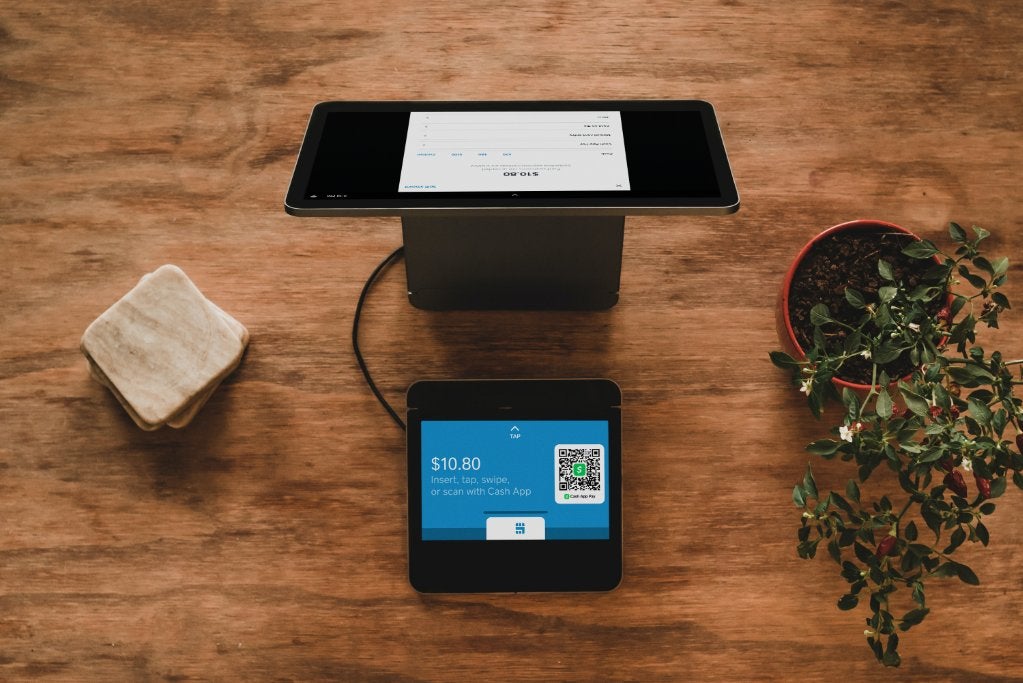
Making a Purchase: Step-by-Step Guide
Once Cash App tap to pay is set up, executing a transaction is incredibly straightforward and efficient. The process is designed for speed and minimal friction at the point of sale.
Initiating a Transaction at the Point of Sale
When you’re ready to make a purchase at a store that accepts contactless payments (look for the contactless payment symbol, which looks like four curved lines), inform the cashier you’d like to pay with your phone or credit card.
-
Activate your device’s payment mode:
-
For iPhone: Double-click the side button (or home button for older models) to bring up your default card in Apple Pay. You may need to authenticate with Face ID, Touch ID, or your passcode.
-
For Android: Unlock your phone and hold it near the payment terminal. For some devices, you might need to open the Google Pay app first, though many Android phones will automatically prompt you upon detection of an NFC terminal.
-
-
Hold your phone near the terminal: Place the top back of your smartphone (where the NFC chip is typically located) within a few centimeters of the contactless reader on the payment terminal. You don’t need to physically touch it, just get it close.
-
Wait for confirmation: The payment terminal will usually emit a beep, display a checkmark, or show a confirmation message indicating the transaction was successful. Your phone will also provide visual or haptic feedback.
Security Measures During Payment
Security is a cornerstone of digital payments, and tap to pay leverages multiple layers of protection to keep your financial information safe.
-
Tokenization: Instead of transmitting your actual card number, tap to pay uses a process called tokenization. A unique, encrypted “token” or device account number is generated for each transaction. This token is useless if intercepted, as it cannot be reverse-engineered to reveal your real card details.
-
Biometric Authentication: Requiring Face ID, Touch ID, or a passcode to authorize payments on your device adds a robust layer of security. Even if your phone is stolen, unauthorized individuals cannot make purchases without your unique biometric data or passcode.
-
No Card Information Sharing: Merchants never see your actual Cash App Card number during a tap to pay transaction, further protecting your financial privacy.
-
Short-range Communication: The very short range of NFC communication makes it extremely difficult for malicious actors to intercept data compared to longer-range wireless technologies.
Confirming Your Transaction
After a successful tap to pay transaction, you will typically receive immediate confirmation. The payment terminal will display a “Transaction Approved” or similar message. Your phone will also usually show a confirmation screen from Apple Pay or Google Pay. Furthermore, you can open your Cash App to view your transaction history, where the recent purchase should appear within moments, detailing the merchant, amount, and date. This instant visibility ensures you can track your spending and confirm that the correct amount was charged.
Benefits and Best Practices for Digital Payments
Embracing Cash App’s tap to pay feature offers more than just novelty; it brings significant advantages in terms of convenience, speed, and security. Understanding these benefits and adhering to best practices can enhance your overall digital payment experience.
Enhanced Convenience and Speed
The most immediate benefit of tap to pay is unparalleled convenience.
-
No Fumbling for Cards or Cash: Gone are the days of searching through wallets or counting out change. Your payment method is always with your phone, which most people carry constantly.
-
Faster Checkout: Tap to pay transactions are significantly quicker than swiping a card, inserting a chip card, or handling cash. This speeds up checkout lines and saves valuable time for both customers and merchants.
-
Contactless Hygiene: In an era where hygiene is a concern, contactless payments reduce physical contact with payment terminals, offering a more sanitary transaction method.
Security Features of Tap to Pay
As discussed, the security framework behind tap to pay is robust, offering superior protection compared to traditional payment methods.
-
Reduced Fraud Risk: Tokenization ensures your actual card details are never transmitted, making it exceedingly difficult for data breaches at merchant terminals to compromise your primary card number.
-
Strong Authentication: Biometric security (Face ID, Touch ID) or a secure passcode on your device acts as an additional layer of verification, ensuring that only you can authorize payments.
-
Encrypted Data Transmission: All data exchanged during an NFC transaction is heavily encrypted, safeguarding it from eavesdropping.
-
Lost/Stolen Phone Protection: If your phone is lost or stolen, the required authentication to use tap to pay means your Cash App balance and linked cards remain secure, unlike a lost physical wallet.

Troubleshooting Common Issues
While tap to pay is generally reliable, you might encounter occasional issues. Here are some common problems and their solutions:
-
“Card Not Read” or “Try Again”:
-
Check NFC: Ensure NFC is enabled in your phone’s settings.
-
Positioning: Adjust how you’re holding your phone. Try different angles or areas of the back of your phone near the terminal.
-
Terminal Issues: The terminal itself might be faulty or having a temporary hiccup. Try another payment method or ask the cashier for assistance.
-
Device Case: Thick phone cases or cases with metal components can sometimes interfere with NFC signals. Try removing your case if you consistently face issues.
-
-
Payment Declined:
-
Insufficient Funds: Check your Cash App balance or the linked funding source to ensure sufficient funds.
-
Account Verification: Ensure your Cash App account and card are fully verified and in good standing.
-
Daily Limits: Some payment methods or accounts have daily transaction limits.
-
Bank/Cash App Fraud Detection: Occasionally, Cash App or your linked bank might flag a transaction as suspicious and decline it for your protection. Check your Cash App notifications or contact support.
-
-
Difficulty Adding Card to Digital Wallet:
-
Internet Connection: Ensure you have a stable internet connection during the setup process.
-
Correct Information: Double-check that you’re entering your Cash App Card details correctly.
-
Cash App Support: If problems persist, reach out to Cash App support for specific assistance.
-
By understanding the underlying technology, diligently setting up your device, and being aware of best practices and troubleshooting steps, you can fully embrace the speed, security, and convenience offered by Cash App’s tap to pay feature, making your everyday transactions smoother than ever.
aViewFromTheCave is a participant in the Amazon Services LLC Associates Program, an affiliate advertising program designed to provide a means for sites to earn advertising fees by advertising and linking to Amazon.com. Amazon, the Amazon logo, AmazonSupply, and the AmazonSupply logo are trademarks of Amazon.com, Inc. or its affiliates. As an Amazon Associate we earn affiliate commissions from qualifying purchases.