
Cash App has become an indispensable tool for millions, simplifying peer-to-peer payments, investing, and even banking. However, encountering issues where the app isn’t performing as expected can be frustrating, especially when urgent transactions are involved. Understanding the common technical hurdles and systematic troubleshooting steps can help resolve most problems swiftly, restoring full functionality to your digital wallet.
Initial Checks: The Basics of Troubleshooting
Before diving into complex solutions, it’s essential to rule out the simplest causes. Many “app not working” scenarios stem from fundamental technical oversights or temporary service interruptions.
Is Cash App Experiencing an Outage?
Sometimes, the issue isn’t with your device or account but with Cash App’s own servers. Service outages, maintenance, or high traffic can temporarily prevent the app from functioning correctly.
-
Check Official Status Pages: Visit Cash App’s official status page (often found via a quick web search for “Cash App status” or on their support website) to see if there are any reported system-wide issues.
-
Monitor Social Media: Companies often use platforms like X (formerly Twitter) to announce outages or service disruptions. Check Cash App’s official social media accounts for real-time updates.
-
Consult Third-Party Downdetectors: Websites like DownDetector compile user reports of service issues, providing a broader picture of potential outages for various online services, including Cash App.
If an outage is confirmed, the only solution is patience until the service is restored.
Internet Connection Stability
Cash App, like any online service, requires a stable and robust internet connection to operate. A weak or intermittent connection can manifest as the app freezing, failing to load data, or transactions timing out.
-
Toggle Wi-Fi and Mobile Data: If you’re on Wi-Fi, try switching to mobile data (if available) and vice-versa. This helps determine if the issue is specific to one connection type.
-
Check Signal Strength: Ensure you have a strong Wi-Fi signal or adequate mobile data reception. Moving to a different location or restarting your router can sometimes improve connectivity.
-
Airplane Mode Reset: Toggling airplane mode on and off can reset your device’s network connections, resolving minor glitches.
-
Test Other Apps: Open another internet-dependent app (e.g., a web browser, social media) to see if it also struggles to connect. This helps isolate whether the problem is with Cash App specifically or your overall internet connection.
App Version and Updates
Running an outdated version of Cash App can lead to compatibility issues, bugs, and security vulnerabilities that prevent it from working correctly. Developers frequently release updates to fix bugs, improve performance, and add new features.
-
Enable Automatic Updates: Ensure your device is set to automatically update apps to always have the latest version.
-
Manually Check for Updates:
-
iOS: Open the App Store, tap your profile icon, and scroll down to see pending updates.
-
Android: Open the Google Play Store, tap your profile icon, select “Manage apps & device,” and check for updates.
-
-
Update Your Operating System: Sometimes, app functionality is tied to the underlying operating system (iOS or Android). Ensure your phone’s OS is also up to date, as newer app versions might require newer OS versions.
Device Compatibility and Operating System
While Cash App aims for broad accessibility, very old devices or extremely outdated operating systems might no longer be fully supported. Check Cash App’s official support documentation for minimum OS requirements. If your device or OS falls below these standards, the app may not function optimally or at all. Consider updating your device’s OS if available, or upgrading your device if it’s no longer receiving software updates.
Common Software and Application Glitches
Beyond basic connectivity and updates, software itself can develop minor glitches. These are often transient and can be resolved with simple app or device resets.
Force Quitting and Restarting the App
This is a universal first step for almost any app malfunction. Force quitting closes the app entirely, clearing its temporary memory and allowing it to restart fresh.
-
iOS: Swipe up from the bottom of the screen (or double-tap the Home button on older devices) to open the app switcher. Swipe Cash App’s preview card upwards to close it. Then, tap the Cash App icon to reopen.
-
Android: Go to your device’s Settings, navigate to “Apps” or “Apps & Notifications,” find Cash App, and select “Force Stop.” Then, reopen the app.
Clearing App Cache and Data
Over time, apps accumulate cache files (temporary data to speed up loading) and user data. Corrupted cache or excessive data can sometimes cause performance issues or prevent the app from launching.
-
iOS: Unfortunately, iOS doesn’t offer a direct way to clear cache for individual apps without deleting and reinstalling the app. If other steps fail, reinstalling (see below) will clear cache and data.
-
Android: Go to Settings > Apps > Cash App > Storage. Here, you’ll see options for “Clear Cache” and “Clear Data.” Start by clearing the cache. If the problem persists, try clearing data. Warning: Clearing data will log you out and remove any local settings or downloaded content, requiring you to sign back in.
Reinstalling Cash App
If force quitting and clearing cache don’t work, a full reinstallation can often resolve deeper software issues. This process ensures you have a clean, fresh copy of the app.
-
Before You Uninstall: Ensure you remember your Cash App login credentials (phone number/email and PIN/password). Cash App accounts are tied to your phone number or email, not the app installation itself, so your funds and transaction history are safe on their servers.
-
How to Reinstall:
-
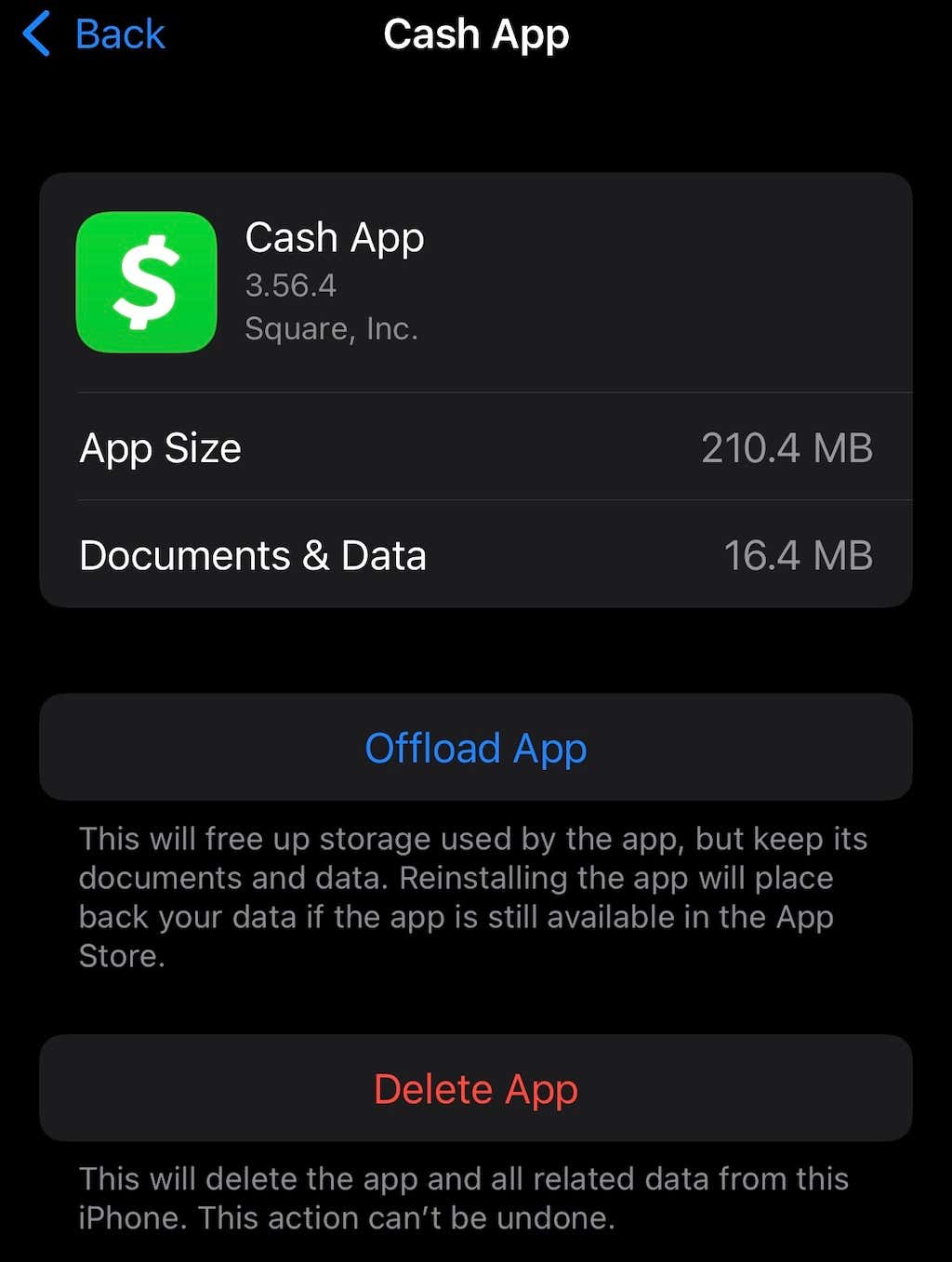
iOS: Long-press the Cash App icon, tap “Remove App,” then “Delete App.” Go to the App Store and re-download it.
-
Android: Long-press the Cash App icon, drag it to the “Uninstall” option, or go to Settings > Apps > Cash App > Uninstall. Go to the Google Play Store and re-download it.
-
-
After Reinstallation: Log back into your account using your registered phone number or email.
Device Restart
The classic “turn it off and on again” is a surprisingly effective solution for a wide array of technical problems. A full device restart can clear system memory, reset network connections, and resolve minor OS-level glitches that might be impacting app performance.
Transaction-Specific Roadblocks
Sometimes, Cash App itself is working, but specific transactions fail. These failures are often due to underlying account configurations or external factors rather than the app being “broken.”

Insufficient Funds or Account Limits
Cash App, like all financial tools, has built-in limits for sending and receiving money, especially for unverified accounts. Transactions exceeding these limits or attempting to send more than available funds will be rejected.
-
Check Balance: Verify your Cash App balance or linked bank account balance.
-
Understand Limits: Review Cash App’s stated sending/receiving limits. Unverified accounts have lower limits. Completing identity verification by providing your full name, date of birth, and the last four digits of your SSN can significantly increase these limits.
-
Fraud Prevention Limits: Occasionally, the app’s automated systems might temporarily flag a transaction as unusual, leading to a temporary hold or rejection, even if funds are available. This is a security feature, not a malfunction.
Card Linkage Issues
If you’re having trouble sending money from a linked debit card or bank account, the issue might lie with the external financial institution or the card details themselves.
-
Expired Card: Ensure your linked debit card has not expired.
-
Incorrect Details: Double-check the card number, CVV, and expiration date if you recently updated or re-added a card.
-
Bank Rejection: Your bank might decline a transaction for various reasons (e.g., fraud alert, daily limit, insufficient funds from their end, specific transaction blocking). Contact your bank directly if you suspect this.
-
Unsupported Card Type: Cash App primarily supports Visa, MasterCard, American Express, and Discover debit and credit cards. Prepaid cards or certain corporate cards might not be supported.
Verification Problems
Cash App requires varying levels of identity verification for full functionality. If your account is unverified or verification attempts have failed, certain features or transaction types may be restricted.
-
Incomplete Verification: Ensure all requested identity verification steps (name, DOB, SSN, photo ID) have been successfully completed.
-
Pending Review: Sometimes verification takes time to process. If it’s pending, certain actions might be temporarily unavailable.
-
Mismatch Information: Ensure the information you provide for verification exactly matches official documents.
Geographic Restrictions and VPN Usage
Cash App is primarily designed for use within the United States and the United Kingdom. Attempting to use the app in unsupported regions or with a VPN enabled can cause connectivity issues or transaction failures. Disable any active VPN services if you are experiencing problems.
Security Measures and Account Access
Cash App employs robust security protocols to protect user funds and data. These measures, while essential, can sometimes trigger temporary restrictions if unusual activity is detected or if login details are incorrect.
Suspicious Activity Flags
Cash App’s automated fraud detection systems are constantly monitoring transactions. If a transaction appears unusual (e.g., a very large sum, multiple rapid transactions, or activity from a new location), the system might temporarily flag or freeze the transaction or even the account as a security precaution. This is done to protect your funds. You might receive an in-app notification or email from Cash App if this occurs, guiding you through the steps to verify the activity.
Login and Authentication Challenges
Being unable to log into your account is a common “app not working” scenario.
-
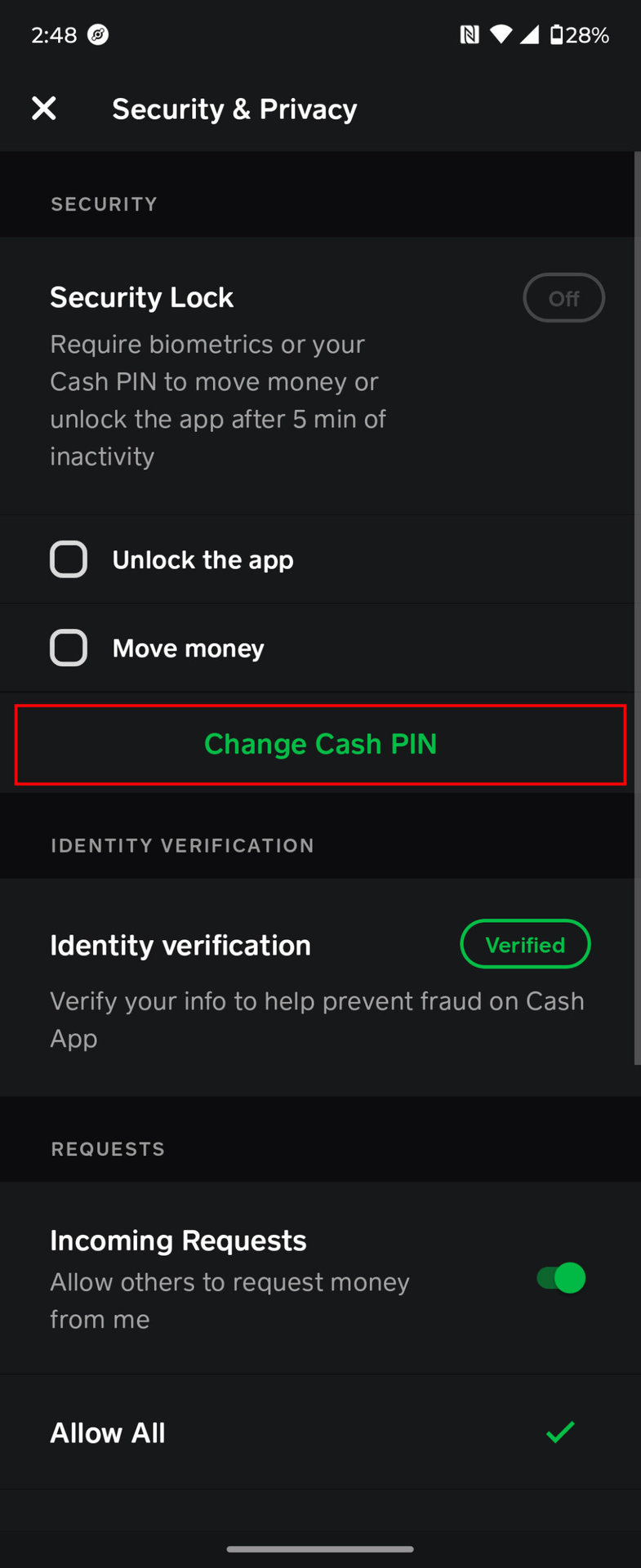
Incorrect PIN/Password: Double-check your PIN or password. If you’ve forgotten it, use the “Forgot PIN” or “Forgot Password” option to reset it via your registered phone number or email.
-
2-Factor Authentication (2FA) Issues: If you have 2FA enabled, ensure your authenticator app is working or that you are receiving SMS codes. Issues with your phone number (e.g., number change, porting issues) can disrupt SMS 2FA.
-
Temporary Lockouts: Multiple failed login attempts can temporarily lock your account to prevent unauthorized access. Wait for the specified lockout period to expire before trying again.
Device Security and Malware
A compromised device can impact any app’s functionality and security. Malware or viruses on your smartphone can interfere with app processes, steal data, or prevent apps from launching correctly.
-
Run Security Scans: Use reputable antivirus/anti-malware software on your device.
-
Review App Permissions: Regularly review the permissions granted to apps on your phone. If Cash App has unusually broad or unnecessary permissions, it could indicate a security risk.
-
Avoid Jailbreaking/Rooting: Modifying your phone’s operating system (jailbreaking iOS or rooting Android) can introduce security vulnerabilities that Cash App’s systems might detect, potentially limiting functionality or access.
When to Seek Direct Support
If you’ve exhausted all troubleshooting steps and your Cash App continues to malfunction, it’s time to contact Cash App’s official support team.
Gathering Information Before Contacting Support
To expedite the support process, have the following details ready:
-
Specific Problem: Clearly describe what isn’t working (e.g., “cannot send money,” “app crashes on launch,” “cannot log in”).
-
Error Messages: Note down any exact error messages or codes you receive.
-
Steps Taken: Detail all the troubleshooting steps you’ve already attempted (e.g., “restarted app, cleared cache, reinstalled app”).
-
Timestamps: Provide specific dates and times when the issue occurred, especially for failed transactions.
-
Device Details: Your phone model and operating system version.
Official Support Channels
Always use official Cash App channels for support to avoid scams.
-
In-App Support: This is often the most direct way to get help, accessible from your profile icon within the Cash App.
-
Cash App Website: Visit the official Cash App support page on their website, which offers FAQs and contact options.
-
Official Phone Number: If available, use the official support phone number listed on their website, not numbers found via generic web searches or social media.
Avoiding Scams and Unofficial Help
Be extremely wary of unofficial “Cash App support” numbers or websites. Never share your PIN, password, full SSN, or private key with anyone claiming to be Cash App support outside of their secured, official channels. Cash App support will never ask for your PIN or full sign-in code.
By systematically working through these technical troubleshooting steps, you can typically identify and resolve most issues preventing your Cash App from working, ensuring your digital finances remain accessible and functional.
aViewFromTheCave is a participant in the Amazon Services LLC Associates Program, an affiliate advertising program designed to provide a means for sites to earn advertising fees by advertising and linking to Amazon.com. Amazon, the Amazon logo, AmazonSupply, and the AmazonSupply logo are trademarks of Amazon.com, Inc. or its affiliates. As an Amazon Associate we earn affiliate commissions from qualifying purchases.