
Cash App has revolutionized peer-to-peer digital transactions, making it effortless to send, receive, and request money directly from a smartphone. For many users, mastering its various functionalities, especially the “request money” feature, is key to streamlining personal finances and managing shared expenses. Understanding the mechanics of this popular financial application and its inherent security protocols is crucial for a smooth and secure user experience. This guide delves into the step-by-step process of requesting money on Cash App, exploring its utility, and highlighting essential security considerations for all users.
Understanding Cash App’s Request Functionality
At its core, Cash App is a mobile payment service designed to facilitate instant monetary transfers between individuals. Its “request money” feature is a powerful tool, allowing users to initiate a prompt to another user for a specific amount, simplifying the process of collecting funds owed or managing shared financial responsibilities. This functionality leverages the app’s intuitive interface to bridge the gap between intent and action, making financial interactions more efficient and less awkward.
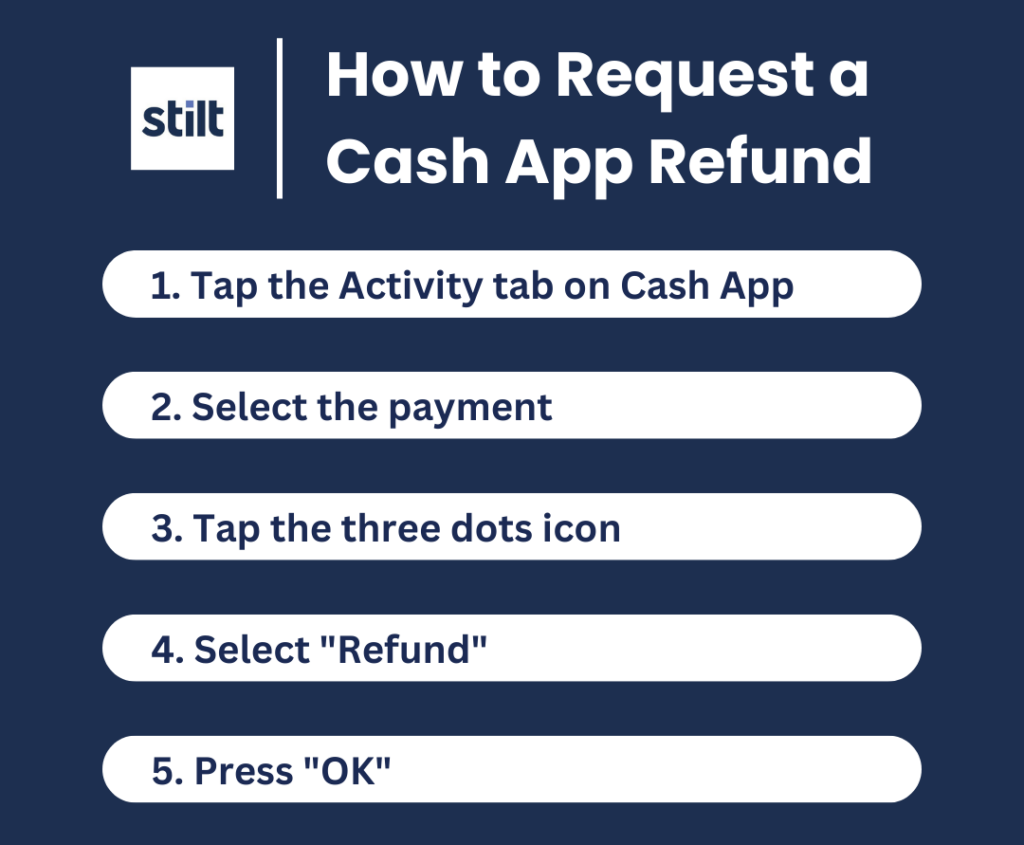
The Basics of Peer-to-Peer Payments
Cash App operates on a peer-to-peer (P2P) payment model, meaning it enables direct transactions between two individuals, often using unique identifiers like a $Cashtag, phone number, or email address. This system bypasses traditional banking intermediaries for instant transfers, making it incredibly convenient for everyday financial interactions. The request feature is an extension of this P2P framework, allowing one party to initiate a transaction that the other party then reviews and approves or declines. Unlike sending money, which is an immediate outflow, requesting money is an invitation for an incoming transfer, granting the recipient full control over the transaction’s completion.
When to Use the Request Feature
The “request money” feature proves invaluable in a multitude of scenarios where funds need to be collected from another individual. Common uses include:
-
Splitting Bills: Whether it’s a restaurant tab, utility bill, or rent, the request feature simplifies dividing costs among housemates or friends, ensuring everyone contributes their fair share without complex calculations.
-
Collecting Debts: If a friend borrowed money, sending a request serves as a polite and efficient digital reminder, specifying the exact amount owed.
-
Shared Expenses: For group activities, trips, or gifts, one person might front the cost, then request reimbursement from others involved.
-
Freelance or Small Business Payments: For individuals offering services or selling goods, requesting payment via Cash App can be a quick and easy method for clients, especially for smaller transactions where invoicing might be overkill.
-
Family Contributions: Gathering funds for family events or collective gifts becomes much more straightforward when requests can be sent to multiple family members simultaneously.
By clearly delineating the amount and purpose within the app, the request feature minimizes ambiguity and facilitates quicker resolution of financial obligations.
Step-by-Step Guide to Requesting Money
The process of requesting money on Cash App is designed to be straightforward and user-friendly, typically involving just a few taps. Familiarizing yourself with the interface and the precise steps ensures a smooth transaction.
Navigating the Cash App Interface
Upon opening the Cash App, you are typically greeted by the main screen, often referred to as the “Money” tab. This screen features a prominent numeric keypad in the center, flanked by options to “Request” and “Pay.” At the bottom of the screen, you’ll find navigation icons for your balance, investing, and other features. The “Money” tab, identifiable by a dollar sign icon, is your starting point for any send or request action.
Initiating a Request
-
Enter the Amount: On the main screen, use the numeric keypad to type in the exact dollar amount you wish to request. For instance, if you want to request fifty dollars, type “50.00.” The app will automatically format it as currency.
-
Tap “Request”: Once the amount is entered, locate and tap the “Request” button. It’s usually positioned to the left of the amount entered or below the keypad, depending on the app version. Tapping this button moves you to the next screen, where you specify the recipient.
Adding Details and Sending
-
Select Recipient(s): On the next screen, Cash App will prompt you to choose who you are requesting money from. You can typically do this in several ways:
-
From Contacts: The app may display a list of your phone contacts who are also Cash App users.
-
Search by Name, $Cashtag, Phone, or Email: Use the search bar at the top to manually enter the recipient’s $Cashtag, phone number, or email address. $Cashtags are unique identifiers (e.g., “$JohnDoe”) and are the most reliable method to ensure you’re requesting from the correct person, especially if they are not in your phone contacts.
-
-
Add a Memo (Optional but Recommended): Below the recipient selection, there’s usually a field labeled “For” or “Add a Note.” This is where you can type a brief description of the request (e.g., “Dinner last night,” “Rent for May,” “Your share of the concert tickets”). Adding a clear memo is highly recommended as it provides context for the recipient, making it easier for them to understand and approve the request. It also serves as a useful record for both parties.
-
Confirm and Send: After selecting the recipient(s) and adding a memo, review all the details – the amount, the recipient, and the memo – to ensure accuracy. Once everything is correct, tap the “Request” button (it might be colored green or a similar prominent color) to send the request.
The request will then be sent to the selected individual(s). They will receive a notification within their Cash App and potentially via SMS or email, depending on their notification settings.
Managing Incoming Requests and Ensuring Security
While requesting money is straightforward, understanding how to manage requests you receive, and critically, how to protect yourself from potential security threats, is paramount. Digital payment platforms, due to their instantaneous nature, can sometimes be targeted by malicious actors.

Accepting or Declining Requests
When you receive a money request on Cash App, you’ll typically get a notification. Tapping on this notification or navigating to the “Activity” tab (often represented by a clock icon) within the app will allow you to view the request.
On the request details screen, you’ll see:
-
The amount requested.
-
Who requested it (their $Cashtag, name, or phone number/email).
-
The memo explaining the purpose of the request.
You will then have two primary options:
-
Pay: Tapping this will process the payment from your Cash App balance or a linked debit card/bank account to the requester. Always verify the details before paying.
-
Decline: If you don’t recognize the request, disagree with the amount, or simply don’t wish to fulfill it, you can decline it. This will dismiss the request and notify the sender.
It’s crucial to always review every detail of an incoming request carefully before taking action.
Verifying Sender Identity
A fundamental security practice when dealing with any digital transaction, especially requests, is to verify the identity of the sender. While Cash App assigns unique $Cashtags, these can sometimes be deceptively similar to legitimate ones.
-
Check the $Cashtag: Always cross-reference the $Cashtag with what you know for the individual. Is it exactly what you expect?
-
Review the Name/Picture: Does the name and profile picture (if available) match the person you expect the request from?
-
Examine the Memo: Does the memo make sense in the context of your relationship with the sender? Is it for an amount and purpose you genuinely expect?
-
Out-of-App Verification: If there’s any doubt, communicate with the person outside of Cash App using a known phone number or email to confirm they indeed sent the request. Do not rely on communication within Cash App if you suspect foul play, as the scammer might be impersonating someone.
Understanding Potential Scams and Security Best Practices
Cash App, like any popular digital platform, is unfortunately a target for various scams. Being aware of these and adhering to best practices can significantly enhance your digital security:
-
Phishing Scams: Be wary of suspicious emails or texts claiming to be from Cash App support. They might ask for your login credentials, PIN, or other sensitive information. Cash App will never ask for your PIN or sign-in code outside of the app.
-
“Too Good to Be True” Offers: Avoid requests or offers that promise large sums of money in exchange for a small upfront payment or personal information. These are almost always scams.
-
Fake Customer Support: Scammers sometimes impersonate Cash App support on social media or through fake websites. Always use the official in-app support or visit the official Cash App website for help.
-
Impersonation: As discussed, scammers can impersonate friends, family, or businesses. Always verify the identity of the requester through an independent channel if anything feels off.
-
Use Strong, Unique Passwords: Ensure your Cash App password is complex and not reused on other sites.
-
Enable Two-Factor Authentication (2FA): This adds an extra layer of security, requiring a code from your phone in addition to your password for login.
-
Monitor Activity: Regularly review your transaction history in the app’s Activity tab for any unauthorized transactions.
-
Keep Your App Updated: Ensure your Cash App is always running the latest version to benefit from the newest security patches and features.
-
Do Not Share Login Information: Never give out your Cash App PIN, password, or sign-in codes to anyone. Cash App support will never ask for this information.
By integrating these security measures into your regular usage, you can significantly mitigate risks and maintain control over your digital finances.
Advanced Tips and Troubleshooting
While the request feature is straightforward, understanding how to link accounts, handle common issues, and access support can further enhance your experience with Cash App. These insights are crucial for leveraging the app’s full technological potential and resolving any bumps along the way.
Linking Bank Accounts and Debit Cards
For requesting and receiving money, having a linked bank account or debit card is essential for funding outgoing payments and cashing out received funds.
-
Adding a Bank Account: To link your bank account, navigate to the “Linked Banks” section within your profile (accessible by tapping the profile icon on the main screen). You’ll typically use your bank’s login credentials for instant verification or manually enter your account and routing numbers. This allows you to transfer funds to and from your bank.
-
Adding a Debit Card: Debit cards are usually linked for direct spending from your Cash App balance, or to instantly add money to your Cash App balance. The process is similar to linking a bank account, requiring the card number, expiration date, and CVV.
-
Credit Cards: While you can link a credit card to send money, be aware that Cash App typically charges a 3% fee for sending money via a credit card. This fee does not apply to debit card or bank transfers.
Common Issues and Resolutions
Despite its user-friendly design, users occasionally encounter issues. Here are some common problems and their tech-centric resolutions:
-
Request Not Going Through/Recipient Not Receiving Notification:
-
Check internet connection: Ensure both you and the recipient have a stable Wi-Fi or cellular data connection.
-
Verify recipient details: Double-check the $Cashtag, phone number, or email. Even a single character error can send the request to the wrong person or nowhere at all.
-
App Status: Occasionally, Cash App might experience temporary outages. Check Cash App’s official social media channels or their status page for any reported issues.
-
Notification Settings: Advise the recipient to check their phone’s notification settings and Cash App’s in-app notification preferences to ensure they are enabled.
-
-
“Pending” Status for a Request:
-
A pending status often indicates a delay in the recipient’s action. They may not have seen or acted upon the request yet.
-
Sometimes, it can also relate to the recipient’s linked bank or card issues.
-
If a request remains pending for an unusual amount of time, contact the recipient directly outside the app.
-
-
Account Verification Problems: If you’re having trouble sending or requesting money, ensure your Cash App account is fully verified. This usually involves providing personal information like your full name, date of birth, and the last four digits of your Social Security Number. Verification increases transaction limits and unlocks full functionality.
-
App Crashing or Freezing:
-
Restart the app: Close Cash App completely and reopen it.
-
Restart your device: A full phone restart can resolve many app-related glitches.
-
Clear app cache: On Android, you can clear the app’s cache in your device settings. On iOS, reinstalling the app (after ensuring you know your login details) can sometimes help.
-
Update the app: Ensure you’re running the latest version of Cash App from your device’s app store. Updates often include bug fixes and performance improvements.
-
Contacting Cash App Support
If you encounter an issue that you cannot resolve using the troubleshooting steps above, contacting Cash App’s official support is the next step.
-
In-App Support: This is the most recommended and secure way to get help. Tap the profile icon on your Cash App home screen, scroll down, and select “Support” or “Cash App Support.” This allows you to chat with a representative directly within the secure environment of the app.
-
Official Website: You can also find help articles and support contact information on the official Cash App website.
-
Phone Support (Limited): Cash App primarily uses in-app and web support. If a phone number is provided on their official site, use that. Be extremely cautious of any phone numbers found through search engines, as they might lead to scam lines.
By understanding these aspects of Cash App’s operation and security, users can confidently leverage its request functionality, ensuring efficient and safe digital financial interactions.
aViewFromTheCave is a participant in the Amazon Services LLC Associates Program, an affiliate advertising program designed to provide a means for sites to earn advertising fees by advertising and linking to Amazon.com. Amazon, the Amazon logo, AmazonSupply, and the AmazonSupply logo are trademarks of Amazon.com, Inc. or its affiliates. As an Amazon Associate we earn affiliate commissions from qualifying purchases.