
The iPhone, a marvel of mobile engineering, integrates a plethora of functionalities designed to simplify daily tasks. Among these, a fundamental utility often sought is the calculator. While seemingly straightforward, many new users, and even seasoned iPhone owners, occasionally find themselves wondering about the exact location or optimal use of this essential tool. The native Calculator app on iOS is a testament to Apple’s design philosophy: powerful, yet intuitively simple. However, its immediate visibility can sometimes be obscured by user habits, organizational preferences, or specific iOS settings. Understanding where it resides, how to access it swiftly, and its inherent capabilities can significantly enhance productivity and device utility.
Unearthing the Native Calculator App
The Calculator app is a standard feature of iOS, pre-installed on every iPhone. Unlike many other applications, it does not always have a prominent icon on the primary home screens, leading to the common question of its whereabouts. It is designed to be readily available but often requires a specific method of retrieval, especially if a user has customized their home screen layout or adopted newer iOS organizational features.
The Elusive Icon: Why Some Users Can’t Find It
For many users, the “missing” Calculator app isn’t truly gone; it’s just not where they expect it to be. On iPhones, especially those running more recent versions of iOS, app icons are no longer confined strictly to static home screens. They can be organized into folders, relegated to the App Library, or simply tucked away on a less-frequently accessed home screen page. The absence of a dedicated icon on the first few pages of the home screen can create the impression that the app is not present. Furthermore, some users might have accidentally removed it from their visible home screens without uninstalling it, a feature introduced in iOS 14 allowing users to declutter their main pages.
Standard Access Points: Spotlight, App Library, and Control Center
The most reliable and efficient methods to locate and launch the Calculator app leverage core iOS functionalities designed for quick access to apps and settings.
-
Spotlight Search: This is arguably the fastest way to open any app, including the Calculator. Simply swipe down from the middle of any home screen to reveal the Spotlight search bar. Typing “Calculator” will instantly bring the app to the top of the search results. Tapping its icon will launch it immediately. Spotlight Search also serves as a quick calculator itself; simply type an equation (e.g., “2+2”) directly into the search bar, and the answer will appear without needing to open the app.
-
App Library: Introduced in iOS 14, the App Library organizes all your apps into categorized folders at the very end of your home screen pages (swipe left until you can’t swipe anymore). The Calculator app is typically found within the “Utilities” folder, or it can be searched for using the App Library’s search bar at the top.
-
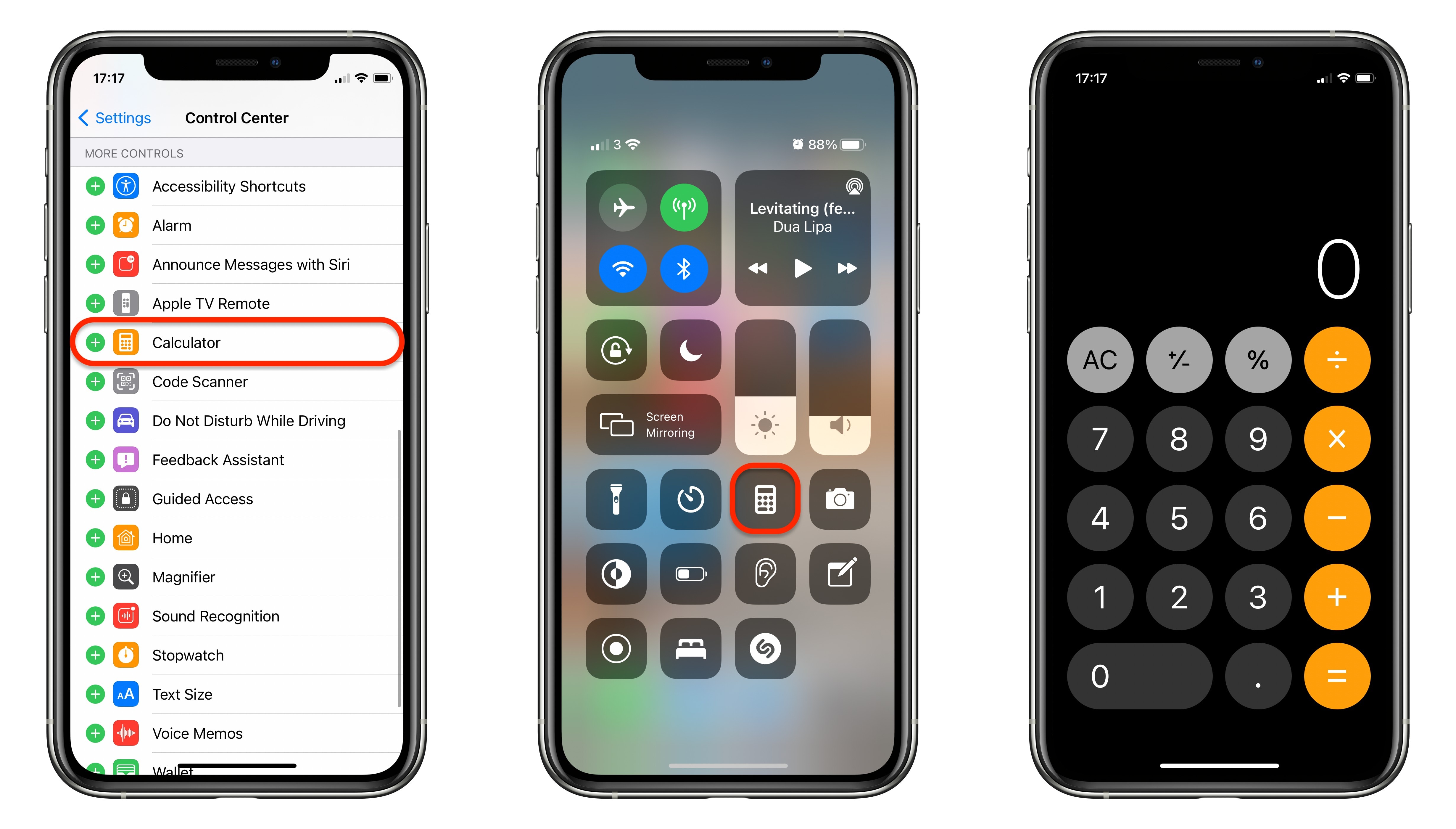
Control Center: For instant, one-tap access, the Control Center is an invaluable tool. To access Control Center, swipe down from the top-right corner of the screen on iPhones with Face ID, or swipe up from the bottom edge of the screen on iPhones with a Home button. The Calculator icon is often a default inclusion in Control Center, represented by a small calculator graphic. If it’s not there, it can be easily added through
Settings > Control Center. This method provides the quickest route for common calculations without navigating through home screens.
Beyond the Basics: Understanding its Features
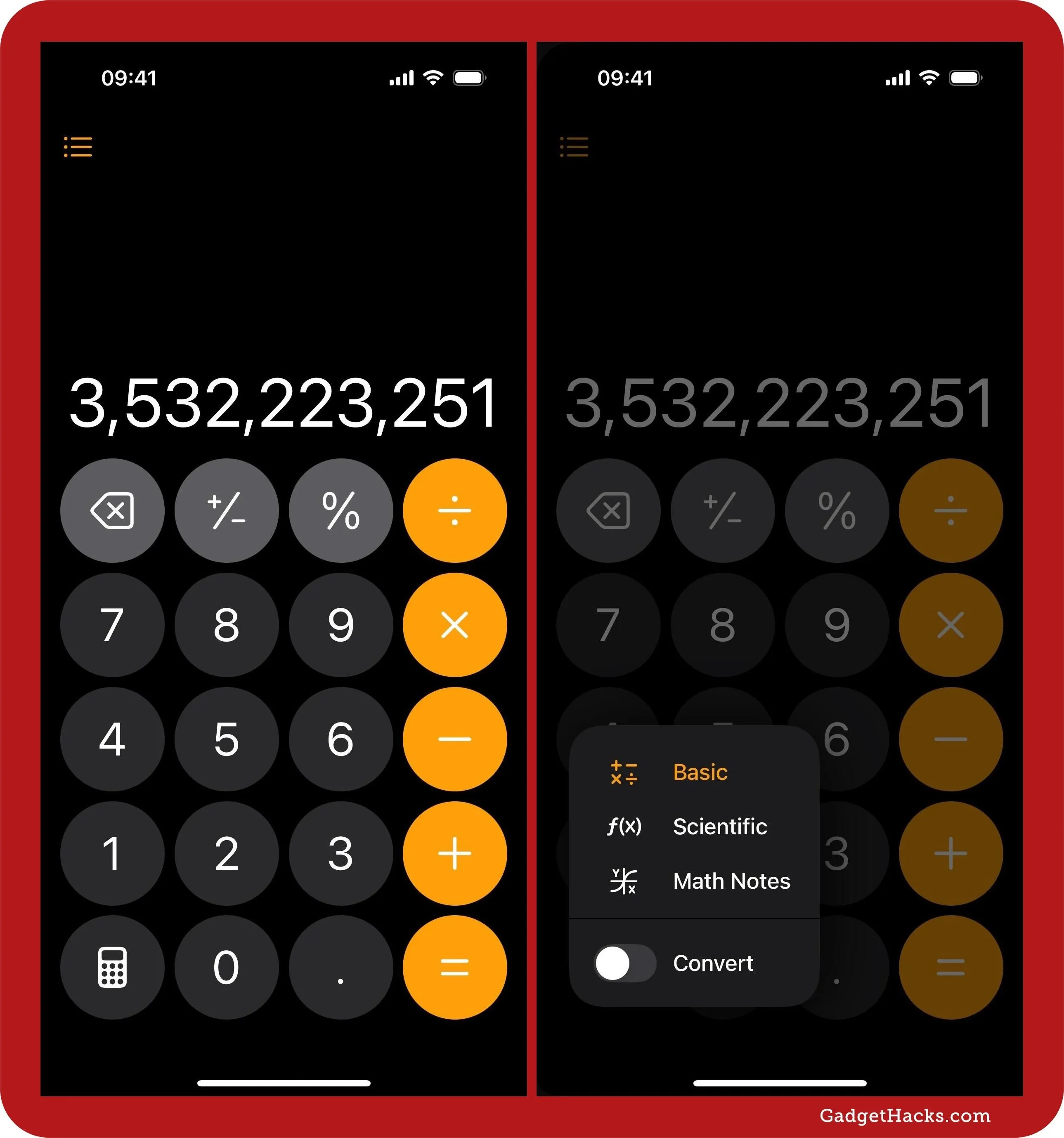
The native Calculator app offers more than just basic arithmetic. Turning your iPhone to landscape orientation while the Calculator app is open reveals the Scientific Calculator mode. This expanded interface includes functions for trigonometry (sin, cos, tan), logarithms (ln, log), exponents (x^y), square roots, constants (π, e), and more advanced operations. This hidden capability transforms the simple utility into a powerful scientific tool, essential for students, engineers, and anyone requiring complex computations on the go.
Optimizing Your Workflow with the Calculator
Integrating the Calculator into your daily digital habits involves more than just knowing where it is. It’s about streamlining access and maximizing its features to enhance efficiency, reducing friction for quick numerical tasks.
Quick Access via Control Center Customization
The Control Center stands out as the prime location for immediate calculator access. If the Calculator icon isn’t already present in your Control Center, adding it is a simple process:
-
Open the
Settingsapp. -
Scroll down and tap
Control Center. -
Under
More Controls, locateCalculatorand tap the green+icon next to it.
Once added, you can reorder its position within the Control Center by dragging the three horizontal lines next to it. This customization ensures that a quick swipe and tap are all that’s needed to launch the app, making it incredibly convenient for spontaneous calculations.
Leveraging Spotlight Search for Instant Calculations
Beyond simply opening the app, Spotlight Search offers a powerful, context-aware calculation feature. Users don’t even need to open the Calculator app for simple sums, subtractions, multiplications, or divisions.
-
Swipe down from the middle of any home screen to open Spotlight Search.
-
Type your mathematical expression directly into the search bar (e.g., “150/3”, “45*2+10”).
-
The result will appear instantly at the top of the search results, often formatted clearly with the original equation.
This functionality is particularly useful for quick, on-the-fly arithmetic when you don’t want to switch full contexts to an app, and it works for surprisingly complex expressions.
The Landscape Advantage: Scientific Mode
The transition from a standard calculator to a scientific one simply by rotating the device is an elegant piece of iOS design.
-
Ensure
Orientation Lock(the padlock icon in Control Center) is off. -
Open the Calculator app.
-
Rotate your iPhone horizontally to landscape mode.
The app instantly expands its interface, revealing a rich set of scientific functions. This feature allows users to perform advanced mathematical operations without needing a separate app or physical calculator, making the iPhone a versatile tool for academic or professional use involving complex equations.
Why the Calculator App Might Seem “Missing”
Sometimes, the difficulty in finding the Calculator app isn’t due to unfamiliarity with iOS features but rather specific user actions or device settings. Understanding these scenarios helps in troubleshooting and ensuring the app is always accessible.
Accidental Deletion: Recovering the Native App
Since iOS 10, Apple has allowed users to “delete” certain pre-installed apps from their home screen, including Calculator. While this doesn’t truly delete the app from the system files, it removes the icon and can make it seem gone. If you suspect the Calculator app icon was removed:
-
Open the App Store.
-
Search for “Calculator” (ensure it’s the official Apple one, published by Apple).
-
Tap the cloud icon with a down arrow to re-download (or rather, restore the icon for) the app.
This process brings the app icon back, usually placing it in the App Library or on an available home screen space, from where you can then move it to your preferred location.
Organizational Strategies: Folders and the App Library
Many users create folders on their home screens to categorize apps and reduce clutter. It’s common for the Calculator app to be placed inside a “Utilities,” “Tools,” or “Productivity” folder. If you can’t find it directly, check these folders across all your home screens. The App Library, as mentioned, is another common “hiding” spot if the app is not on any visible home screen. A quick visual scan or using the App Library’s search bar will reveal its location.
Parental Controls and Restrictions
In some cases, especially on devices managed for children or within corporate settings, access to certain apps might be restricted. Screen Time, Apple’s built-in parental control feature, allows users or administrators to disable specific apps.
-
Go to
Settings > Screen Time. -
Tap
Content & Privacy Restrictions. -
Tap
Allowed Apps. -
Ensure
Calculatoris toggledOn. If it’s off, it will be hidden from the device. A passcode might be required to make changes if Screen Time is configured.
Exploring Third-Party Calculator Alternatives
While the native Calculator app is highly functional, the App Store offers a vast array of third-party alternatives that cater to specialized needs or offer different user experiences. These can be particularly useful for those requiring advanced features beyond the native scientific mode.
Advanced Functionality for Specific Needs
Third-party calculators often excel in niche areas:
-
Graphing Calculators: Apps like
Desmos Graphing CalculatororGraphing Calculator by Mathlabturn your iPhone into a powerful graphing tool, essential for high school and university mathematics. -
Unit Converters: Dedicated apps such as
ConvertbotorUnit Converter Ultimateoffer comprehensive conversions for everything from currency and temperature to length and weight, often with more extensive categories than a basic calculator might integrate. -
Financial Calculators: For those in finance or managing complex personal budgets, apps like
PCalcorCalcbotprovide financial functions, RPN (Reverse Polish Notation) input, and customizable layouts. -
Programmer Calculators: These apps offer hexadecimal, octal, binary, and decimal conversions, along with bitwise operations, which are invaluable for developers and programmers.
User Interface and Experience Preferences
Beyond functionality, third-party apps often provide alternative user interfaces and experiences. Some users might prefer larger buttons, specific color themes, sound feedback, or unique input methods not available in the native app. Exploring these options can lead to a more personalized and comfortable calculation experience. Apps like PCalc, for instance, are renowned for their customizability and extensive feature set, appealing to power users.
Privacy and Permissions Considerations
When opting for third-party apps, it’s crucial to consider their privacy policies and requested permissions. Some apps might require access to data or features beyond what’s necessary for a calculator. Always review app permissions and read user reviews before downloading, especially for free apps that might rely on ads or data collection. Sticking with reputable developers and understanding what an app does with your data is paramount in maintaining digital security and privacy.
The iPhone Calculator’s Evolution and Future
The Calculator app, despite its apparent simplicity, has evolved alongside iOS, reflecting Apple’s commitment to subtle but impactful user experience enhancements. Its journey from a basic arithmetic tool to a versatile scientific instrument embedded deep within the OS showcases a continuous refinement process.
Design Philosophy and User Simplicity
Apple’s design ethos for the Calculator app emphasizes clarity, ease of use, and visual appeal. The clean interface minimizes clutter, allowing users to focus purely on the numbers. Buttons are large and responsive, with distinct colors for operations and numerical input. This commitment to simplicity ensures that the app remains accessible to users of all technical proficiencies, from children learning basic arithmetic to professionals performing complex equations. The seamless transition to scientific mode with a simple rotation further exemplifies this elegant design philosophy.
Integration with iOS Features
The Calculator app is not an isolated utility; it is deeply integrated into the iOS ecosystem. Its instant availability via Control Center, its role in Spotlight Search for quick calculations, and its adherence to system-wide themes (like Dark Mode) are prime examples. While not directly leveraging Handoff or Siri in the same way as some other apps, its foundational role means it often complements other apps and tasks. For instance, you might use it to quickly verify a figure before inputting it into a spreadsheet app or a messaging conversation.

Anticipating Future Enhancements
While a calculator app might seem feature-complete, future enhancements could focus on deeper integration with other Apple services or emerging technologies. Imagine direct integration with Notes for in-line calculations, or more advanced AI-driven features where Siri could process complex multi-step problems verbally. Haptic feedback could be refined for different operations, or perhaps accessibility features could be expanded to assist users with specific visual or motor impairments even further. As iOS continues to evolve, the humble Calculator app will likely receive subtle updates, ensuring it remains a reliable, efficient, and user-friendly tool at the core of the iPhone experience.