
Calculators, from basic scientific models to advanced graphing powerhouses, are indispensable tools for mathematics, science, and engineering. While many users are proficient with integers and decimals, handling fractions can sometimes pose a challenge due to varying input methods and display conventions. Mastering fraction input and manipulation on a calculator not only enhances efficiency but also ensures accuracy in complex calculations. This guide demystifies the process across different calculator types, providing a comprehensive tutorial for seamless fraction management.
Understanding Calculator Types and Their Fraction Capabilities
The approach to entering and working with fractions depends significantly on the type of calculator you are using. Each category offers a distinct set of features and user interfaces tailored to specific computational needs.
Basic Scientific Calculators
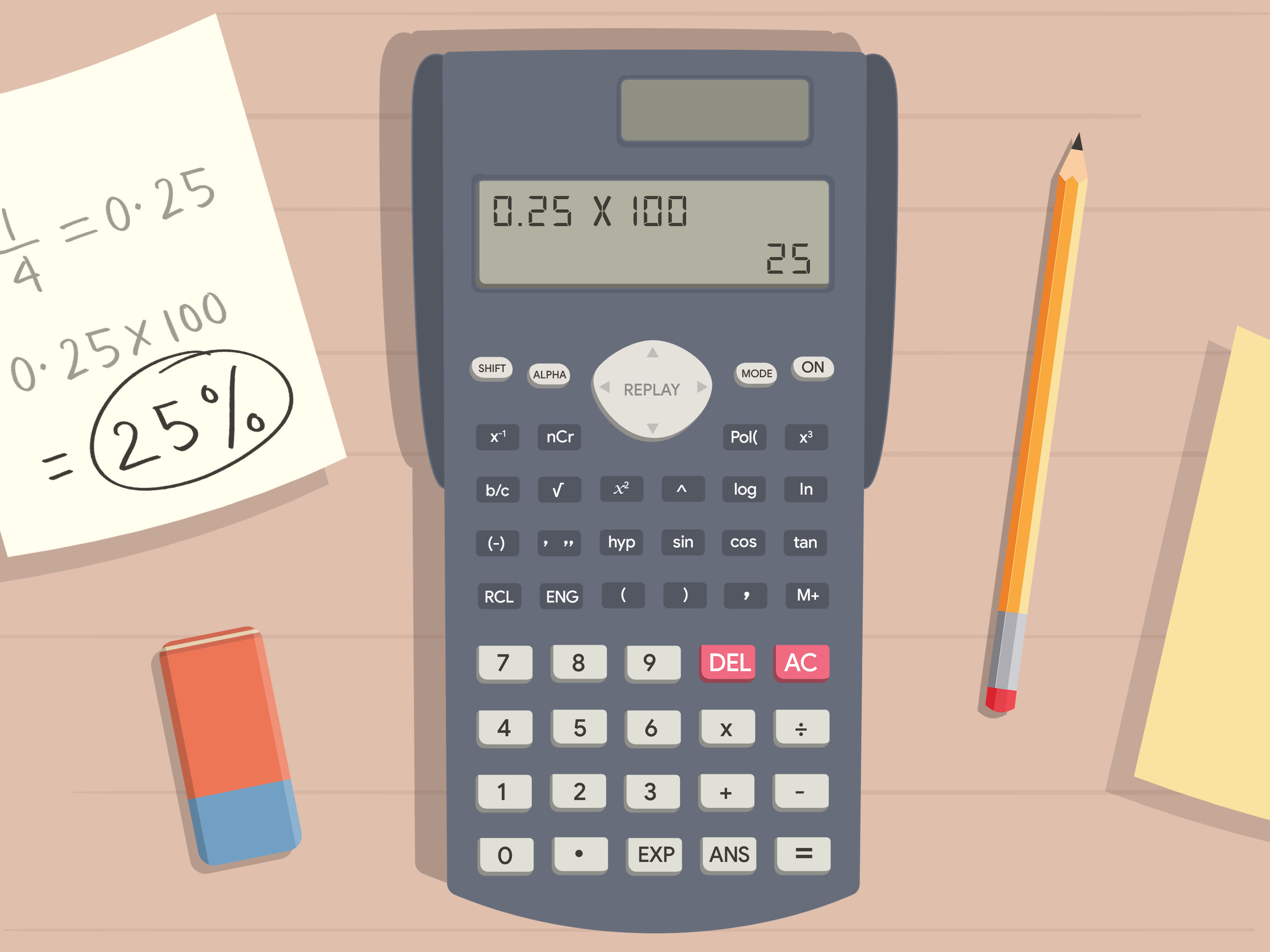
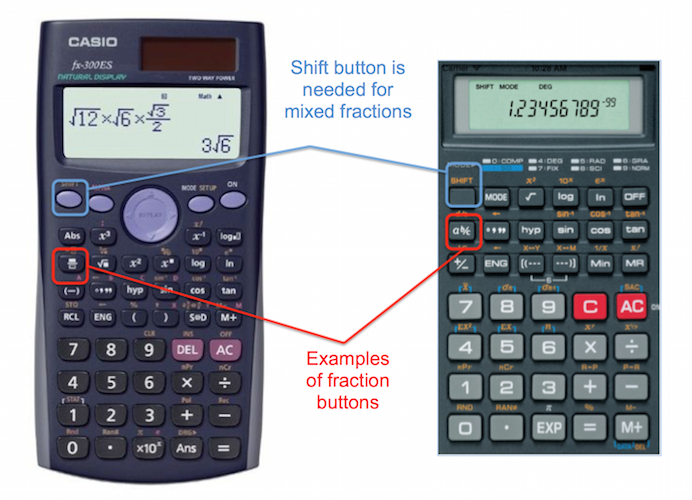
These are the most common calculators found in high schools and college introductory courses. They typically feature dedicated keys for fractions, often labeled a b/c, x/y, or a similar symbol. Their primary function is to perform arithmetic operations with fractions, convert between fraction and decimal forms, and sometimes simplify fractions. While generally straightforward, understanding the specific key layout and function on your model is crucial. Most scientific calculators display mixed fractions (e.g., 2_1/3) or improper fractions (e.g., 7/3) and can switch between these formats.
Graphing Calculators
Graphing calculators, such as those from Texas Instruments (TI) or Casio, offer significantly more advanced fraction capabilities. Beyond basic arithmetic, they often include dedicated “MATH” menus or similar functions that allow for symbolic fraction simplification, common denominator finding, and advanced conversions. They can handle complex expressions involving fractions, matrices with fractional elements, and even graph functions defined with fractional coefficients. Their larger screens often allow for a more intuitive display of fractions, sometimes in a natural input format that mirrors how fractions are written on paper.
Online Calculators and Apps
The digital realm provides a vast array of fraction calculators, from simple web-based tools to sophisticated smartphone applications. Many online calculators offer a user-friendly interface that accepts fractions as direct input, often using a visual representation. Apps frequently mimic the functionality of physical scientific or graphing calculators, sometimes enhancing it with touch-screen input, history logs, and integration with other mathematical tools. These digital solutions often simplify the process by handling formatting automatically and providing clear visual feedback.
Inputting Fractions on Standard Scientific Calculators
For most scientific calculators, the process of entering fractions revolves around a dedicated fraction key. Familiarity with this key is the cornerstone of fraction proficiency.
Using the Fraction Key (a b/c or x/y)
The dedicated fraction key is typically labeled a b/c, x/y, n/d, or a similar symbol, often depicted as two boxes stacked vertically or with an underscore. This key acts as a separator between the numerator, denominator, or the whole number part of a mixed fraction.
Step-by-step example (for 3/4):
-
Enter the numerator: Press
3. -
Press the fraction key:
a b/c(orx/y,n/d). -
Enter the denominator: Press
4. -
Press
=to display the fraction. The calculator screen should show3/4.
Step-by-step example (for mixed fraction 2_1/3):
-
Enter the whole number part: Press
2. -
Press the fraction key:
a b/c. -
Enter the numerator of the fractional part: Press
1. -
Press the fraction key again:
a b/c. -
Enter the denominator of the fractional part: Press
3. -
Press
=to display the mixed fraction. The calculator screen will likely show2_1/3or2 U 1/3.
It’s crucial to note that pressing the fraction key a second time after the whole number and first numerator part indicates you are entering a mixed fraction. If you only press it once, the calculator will assume you are inputting an improper fraction (e.g., 2 a b/c 1 would be interpreted as 2/1 on some models, or require careful use of parentheses if you intended 2 * 1/3). Always refer to your calculator’s specific manual for precise key sequence instructions.
Entering Improper and Mixed Fractions
Calculators often default to displaying fractions in their simplest form, which can be either improper or mixed, depending on the model and settings.
-
Improper Fractions: To enter an improper fraction like
7/3, simply follow the standard numerator-fraction key-denominator sequence:7thena b/cthen3then=. -
Converting between Mixed and Improper: Most scientific calculators have a function to convert between mixed numbers and improper fractions. This is often accessed by pressing
SHIFTor2nd Ffollowed by thea b/ckey. For example, if you have2_1/3displayed, pressingSHIFT+a b/cmight convert it to7/3.
Converting Decimals to Fractions
Many calculators provide a direct conversion function between decimal and fraction forms, typically labeled F↔D or DEC↔FRAC.
Step-by-step example (converting 0.75 to a fraction):
-
Enter the decimal: Press
0.75. -
Press the
F↔D(or similar) key. -
The calculator should display
3/4.
This function is incredibly useful for verifying answers or converting non-terminating decimals (within the calculator’s precision limits) to their fractional equivalents.
Performing Operations with Fractions
Once you know how to input fractions, performing operations like addition, subtraction, multiplication, and division is straightforward.
Example (3/4 + 1/2):
-
Enter the first fraction:
3a b/c4. -
Press the addition operator:
+. -
Enter the second fraction:
1a b/c2. -
Press
=. The result should be5/4or1_1/4depending on your calculator’s display mode.
Remember to use parentheses () when dealing with complex expressions to ensure the correct order of operations, especially when fractions are part of a larger calculation involving exponents or multiple operations.
Advanced Fraction Management on Graphing Calculators
Graphing calculators offer a richer environment for fraction manipulation, often integrating fraction functions within broader mathematical menus.
Utilizing Math Menus for Fraction Functions
Graphing calculators like the TI-83/84 Plus or Casio fx-CG series feature a dedicated MATH menu. This menu is a gateway to various mathematical operations, including specialized fraction functions.
Common MATH menu fraction functions:
-
Frac: Converts a decimal answer to its fractional equivalent (e.g.,0.75->3/4). -
>Frac: Similar toFrac, but often a direct conversion suffix applied to a result. -
n/dorF<->D: Allows for natural input/display of fractions or toggles between fraction and decimal forms. -
MixedFrac: Converts an improper fraction to a mixed number. -
Simplify: Simplifies a given fraction to its lowest terms.
Step-by-step example (using >Frac on a TI-84 Plus):
-
Perform a calculation that results in a decimal, e.g.,
1 / 4 + 1 / 2which yields0.75. -
With
0.75displayed (or immediately after the calculation), pressMATH. -
Select option
1: >Frac(or navigate to it). -
Press
ENTER. The calculator will display3/4.
For natural fraction input, many graphing calculators have a dedicated ALPHA + Y= (for TI) or similar key combination that brings up a “Fraction Template” menu, allowing you to visually enter fractions with a numerator over a denominator.
Storing and Manipulating Fractions in Variables
Graphing calculators allow you to store values, including fractions, into variables. This is particularly useful for multi-step problems or when dealing with complex fractional constants.
Example (storing 2/3 into variable A):
-
Enter the fraction:
2 / 3. -
Press the
STO>key. -
Press
ALPHAand then the letter key corresponding to your desired variable (e.g.,A). -
Press
ENTER. Now, whenever you useALPHA+A, the value2/3will be recalled.
You can then perform operations with these stored fractional variables, for instance, A + 1/4.
Symbolic Fraction Simplification
Some advanced graphing calculators offer symbolic manipulation capabilities, allowing them to simplify algebraic expressions involving fractions without converting them to decimals. This is a powerful feature for higher-level mathematics. For example, (x/2) + (x/3) might be simplified to (5x/6) directly, rather than requiring manual common denominator finding. Consult your calculator’s advanced algebra or CAS (Computer Algebra System) features for these capabilities.
Leveraging Online Tools and Smartphone Apps for Fractions
Digital tools offer convenience and often a more intuitive user experience for fraction calculations.
Dedicated Fraction Calculators
Numerous websites and apps specialize in fraction calculations. These tools often feature:
-
Visual Input: Users can input fractions using visual templates that resemble written fractions.
-
Step-by-Step Solutions: Many provide detailed explanations of how the calculation was performed, which is excellent for learning.
-
Automatic Simplification: Results are typically simplified to their lowest terms automatically.
-
Multiple Formats: They can easily convert between improper fractions, mixed numbers, and decimals.
These tools are invaluable for students and anyone needing quick, accurate fraction results without navigating complex calculator menus.
General Math Apps with Fraction Support
Comprehensive math apps like Photomath, WolframAlpha, or various scientific calculator emulators offer robust fraction capabilities alongside other mathematical functions.
-
Photomath: Allows you to scan a handwritten or printed fraction problem and provides a step-by-step solution.
-
WolframAlpha: A computational knowledge engine that can handle incredibly complex fraction-related queries, from basic arithmetic to solving equations and inequalities involving fractions.
-
Calculator Emulators: Apps that mimic the exact interface and functionality of physical graphing or scientific calculators, providing all the features discussed previously but on a mobile device.
Advantages and Disadvantages of Digital Fraction Tools
Advantages:
-
Accessibility: Available on any internet-connected device.
-
User-Friendly Interface: Often more intuitive than physical calculators, especially for visual input.
-
Learning Aid: Step-by-step solutions can reinforce understanding.
-
Convenience: Quick calculations on the go.
Disadvantages:
-
Dependency on Internet: Online tools require connectivity.
-
Exam Restrictions: Often not permitted during standardized tests or exams.
-
Screen Glare/Battery Life: Mobile devices can have limitations in certain environments.
-
Less Tactile: Some users prefer the physical feedback of buttons.
Troubleshooting Common Fraction Input Issues
Even with a good understanding of fraction input, users can encounter common issues.
Understanding Calculator Modes
Many calculators operate in different modes (e.g., MATH mode, LINE mode, CLASSIC mode). These modes dictate how expressions are input and displayed.
-
MATHmode (orNatural Display): Attempts to display fractions and other expressions as they would appear in a textbook, often with a horizontal fraction bar. This is generally preferred for clarity. -
LINEmode (orLinear Display): Displays fractions on a single line using a/symbol (e.g.,3/4).
If your fractions aren’t displaying as expected, check your calculator’s MODE settings and switch to a more natural display option if available.
Order of Operations and Parentheses
This is critical. When performing operations involving fractions and other numbers, remember PEMDAS/BODMAS. Always use parentheses () to group numerators, denominators, or entire fractional expressions to ensure the calculator interprets your input correctly.
Example:
-
To calculate
(2+3) / (4+1), you must input(2+3) / (4+1). -
If you type
2+3 / 4+1, the calculator will perform3/4first, then add2and1, yielding a different, incorrect result. -
For
2/3 + 1/4, thea b/ckey handles the grouping, but if it were(2+1)/(3+4), parentheses would be necessary around the sums in the numerator and denominator.

Display Limitations and Approximations
Some basic calculators may struggle with very complex fractions or might automatically convert a fraction to a decimal if the fractional part is too long to display. Graphing calculators generally have better display capabilities. Be aware that non-terminating decimals (like 1/3) will be displayed as an approximation (e.g., 0.333333333) when converted to decimal form. If you need exact results, ensure your calculator remains in fraction mode or use the >Frac function to convert decimals back.
Mastering fraction input and manipulation on your calculator is a fundamental skill that streamlines mathematical problem-solving. By understanding your calculator’s specific features and employing careful input practices, you can confidently tackle any calculation involving fractions, from basic arithmetic to advanced algebraic expressions.
aViewFromTheCave is a participant in the Amazon Services LLC Associates Program, an affiliate advertising program designed to provide a means for sites to earn advertising fees by advertising and linking to Amazon.com. Amazon, the Amazon logo, AmazonSupply, and the AmazonSupply logo are trademarks of Amazon.com, Inc. or its affiliates. As an Amazon Associate we earn affiliate commissions from qualifying purchases.