
In an increasingly digital world, the humble scientific calculator remains an indispensable device, serving as the cornerstone for students, engineers, scientists, and professionals across countless STEM fields. Far from being just a tool for basic arithmetic, a scientific calculator is a powerhouse of complex functions designed to simplify intricate mathematical, statistical, and trigonometric computations. While smartphones and advanced software can replicate many of its features, the dedicated scientific calculator offers unparalleled reliability, speed, and exam-appropriate functionality.
Mastering its operation is not merely about pressing buttons; it’s about understanding its logical architecture, recognizing its diverse capabilities, and leveraging its power to solve problems efficiently and accurately. This comprehensive guide will demystify the scientific calculator, transforming it from a perplexing array of symbols into a trusted companion for academic and professional endeavors.

The Anatomy of Your Scientific Calculator: Beyond Basic Buttons
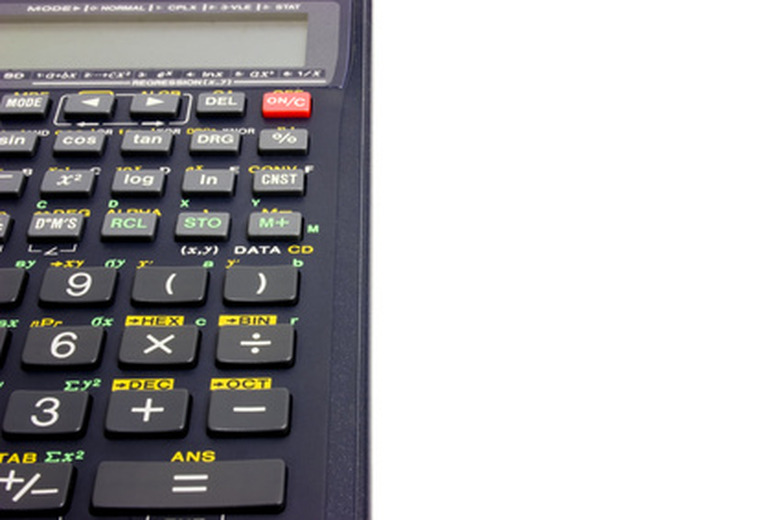
Before diving into complex operations, it’s crucial to familiarize yourself with the physical and functional layout of your scientific calculator. Despite variations between brands and models, a core set of features and buttons remains consistent, forming the universal language of these powerful gadgets. Understanding these fundamental components is the first step towards unlocking its full potential.
Key Components and Layout
At a glance, a scientific calculator can appear daunting, covered in a myriad of buttons, each often performing multiple functions. However, these are organized logically.
-
Display Screen: Typically a multi-line LCD, capable of showing inputs, intermediate results, and final answers, often in a natural mathematical display format (like fractions or roots as they appear on paper). Some advanced models feature larger, higher-resolution screens for graphing and more complex equation displays.
-
Numeric Keypad: The standard 0-9 digits, decimal point, and basic arithmetic operators (+, -, ×, ÷). These are usually located in a familiar telephone-style layout.
-
Function Keys (Primary): These are the most frequently used scientific functions, usually printed directly on the buttons. Examples include:
-
Trigonometric Functions:
SIN,COS,TAN(and their inverse functions,SIN⁻¹,COS⁻¹,TAN⁻¹). -
Logarithmic Functions:
LOG(base 10) andLN(natural logarithm, base e). -
Exponents and Roots:
x²(square),√(square root),yˣor^(power),³√(cube root),x!(factorial). -
Parentheses:
(and). Essential for controlling the order of operations. -
Constants:
π(pi) ande(Euler’s number). -
Memory Functions:
STO(store),RCL(recall),M+(add to memory),M-(subtract from memory).
-
-
Shift/Second Function Key: Usually labeled
SHIFT,2nd, orALPHA. This key is paramount. Most scientific calculators have buttons with two or even three functions printed on them. The primary function is directly on the button, while the secondary function is usually printed above or below it in a different color. PressingSHIFT(or2nd) before another button activates its secondary function. TheALPHAkey similarly activates alphabetic characters for variable input or program commands on more advanced models. -
Mode/Setup Key: This key allows you to change calculator settings such as angle units (degrees, radians, gradians), display format (fixed decimal, scientific notation), and statistical modes.
-
Answer Key (ANS): Recalls the result of the previous calculation, invaluable for multi-step problems.
-
Cursor/Navigation Keys: Used to move the cursor on the display, edit equations, or navigate menus.
Different Models and Their Nuances
While the core functionality is shared, significant differences exist between scientific calculator models, primarily from manufacturers like Casio, Texas Instruments, and Hewlett-Packard.
-
Entry-Level Models: Perfect for high school students. They cover basic scientific functions, often without complex graphing or programming capabilities. They prioritize ease of use and essential functions.
-
Mid-Range Models: Popular among university students in engineering and science. These offer more advanced statistical functions, matrix calculations, vector operations, and sometimes basic equation solving features. They often have more memory and more intuitive input methods (e.g., natural display).
-
Advanced/Graphing Calculators: While often categorized separately, many high-end scientific calculators blur the line with graphing calculators. These sophisticated gadgets boast large screens, symbolic computation, extensive programming capabilities, and the ability to plot graphs. They are crucial for advanced mathematics, calculus, and physics courses.
Familiarize yourself with your specific model’s manual. It’s the definitive guide to its unique features and operational quirks.
Essential Operations and Functions for Everyday Use
Once you understand the layout, the next step is to master the fundamental operations that underpin nearly all scientific calculations. Precision and correct input are paramount; a single misplaced digit or incorrect function can lead to wildly inaccurate results.
Basic Arithmetic & Order of Operations
This is the foundation. Your calculator adheres strictly to the order of operations (PEMDAS/BODMAS): Parentheses/Brackets, Exponents/Orders, Multiplication and Division (from left to right), Addition and Subtraction (from left to right).
-
Inputting Numbers: Simply type them in.
-
Operators: Use
+,-,×,÷. -
Parentheses: Always use
(and)to group terms and ensure calculations are performed in the desired order. For example,(5 + 3) × 2will yield 16, while5 + 3 × 2(without parentheses) will yield 11 due to multiplication precedence. -
Negative Numbers: Use the
(-)key (often distinct from the subtraction-key) to make a number negative, e.g.,(-5).
Scientific Notation & Powers
Scientific notation is vital for working with very large or very small numbers common in science and engineering.
-
Inputting Scientific Notation: Use the
EXPorEEkey. To input 6.022 × 10²³ (Avogadro’s number), you’d type6.022EXP23. -
Powers:
-
Squaring: Use the
x²button. -
Cubing: Often a
SHIFTfunction,x³. -
Arbitrary Powers: Use the
yˣor^button. To calculate 2 raised to the power of 5, type2yˣ5.
-
-
Roots:
-
Square Root: Use the
√button. -
Cube Root: Often
SHIFT³√. -
Nth Root: More complex, often
SHIFTandyˣor^in reverse, where you might input5SHIFTyˣ3to calculate the 3rd root of 5 (equivalent to 5^(1/3)).
-
Trigonometric Functions
SIN, COS, TAN and their inverse functions (SIN⁻¹, COS⁻¹, TAN⁻¹ or ASIN, ACOS, ATAN) are fundamental to geometry, physics, and engineering.
-
Angle Modes: Crucially, set your calculator to the correct angle mode (Degrees, Radians, or Gradians) using the
MODEorSETUPkey before performing trigonometric calculations. This is a common source of error. -
Direct Functions: To find sin(30°), ensure your calculator is in degree mode, then type
SIN30=. -
Inverse Functions: To find the angle whose sine is 0.5, type
SHIFTSIN0.5=.
Logarithmic and Exponential Functions
Logarithms and exponentials are critical in fields ranging from finance to chemistry.
-
Log (Base 10): Use the
LOGkey.LOG 100= 2. -
Ln (Natural Logarithm, Base e): Use the
LNkey.LN 2.71828(approx. e)= 1. -
eˣ (Natural Exponential): Often
SHIFTLN. To calculate e raised to the power of 2, typeSHIFTLN2=. -
10ˣ (Base 10 Exponential): Often
SHIFTLOG. To calculate 10 raised to the power of 3, typeSHIFTLOG3=.

Memory Functions and Constants
These features streamline multi-step calculations and reduce errors from re-entering numbers.
-
Store (STO): Allows you to store a number in a memory variable (usually A-F, X, Y, M). Type the number, then
STO, then the variable key. -
Recall (RCL): Retrieves a number from a memory variable. Type
RCL, then the variable key. -
M+, M-: Add or subtract the current display value from the main memory (M).
-
Constants:
πandeare usually accessible directly or viaSHIFT. Use these calculator-stored values for maximum precision rather than typing approximations.
Advanced Features for Complex Calculations
Beyond the essentials, scientific calculators pack a range of advanced features designed to tackle more specialized problems. Leveraging these can significantly speed up your work and enhance accuracy.
Statistical Calculations
Most scientific calculators offer dedicated modes for statistical analysis, indispensable for data interpretation in science, social studies, and business.
-
Entering Statistical Mode: Usually accessed via the
MODEorSETUPkey. Look for options likeSTATorSD. -
Data Entry: Once in stat mode, you’ll typically enter data points into lists or tables. Each model has a specific way to do this (e.g.,
DATA,M+). -
Calculations: After entering data, the calculator can compute:
-
Mean (x̄): Average of the data set.
-
Standard Deviation (σx, sx): Measures of data spread (population and sample standard deviation).
-
Sum of values (Σx) and Sum of squares (Σx²): Used in various statistical formulas.
-
Number of data points (n).
-
-
Regression Analysis: Some models can perform linear, quadratic, or exponential regression, calculating coefficients (a, b) for fitting a line or curve to data.
Unit Conversions and Engineering Functions
Many scientific calculators have built-in conversion factors for common units, saving time and preventing manual errors.
-
Accessing Conversions: Often found under
SHIFTor a dedicatedCONVmenu. You select the ‘from’ unit and the ‘to’ unit. -
Examples: Converting inches to centimeters, Fahrenheit to Celsius, joules to calories.
-
Engineering Notation: Some calculators can display results in engineering notation (powers of 10 that are multiples of 3, e.g., 10³, 10⁻⁶), which is useful for prefixes like kilo, mega, micro, nano.
Solving Equations and Inequalities
Higher-end scientific calculators, especially those leaning towards graphing functionalities, offer tools to solve algebraic equations.
-
Equation Solver: Many calculators have an
SOLVEfunction, which can numerically find the root(s) of a given equation (e.g.,ax+b=0orax²+bx+c=0). You typically input the equation and provide an initial guess for the solution. -
Simultaneous Equations: Some models can solve systems of two or three linear equations with multiple unknowns. This usually involves entering the coefficients of the variables.
Working with Fractions and Roots
Handling fractions and roots directly on a calculator can simplify complex expressions.
-
Fraction Key: Often
a b/cord/c. This key allows you to input and display fractions directly, performing arithmetic with them without converting to decimals.- Example:
1a b/c2+1a b/c4=will display3/4.
- Example:
-
Mixed Numbers: Use the same key to input mixed numbers, e.g.,
2a b/c1a b/c2for 2 ½. -
Simplifying Roots: While the
√key calculates a decimal approximation, some advanced calculators can simplify roots symbolically (e.g., displaying√8as2√2).
Best Practices and Troubleshooting Your Digital Companion
Even with a firm grasp of functions, maximizing the utility of your scientific calculator involves adopting smart habits and knowing how to troubleshoot common issues. This ensures longevity, reliability, and error-free computations.
Battery Management and Care
Like any electronic gadget, your scientific calculator requires proper care to function optimally.
-
Power Source: Most scientific calculators use a combination of button-cell batteries and solar power. Solar panels extend battery life significantly, but eventually, batteries will need replacement.
-
Battery Indicators: Pay attention to low battery warnings on the display. Replace batteries promptly to avoid data loss or calculator malfunction during critical moments.
-
Storage: Store your calculator in its protective case to prevent physical damage to the screen and keys. Avoid extreme temperatures and direct sunlight for prolonged periods, as this can damage the display or battery.
-
Cleaning: Use a soft, dry cloth to clean the screen and keypad. Avoid harsh chemicals or abrasive materials.
Common Error Messages and Solutions
Encountering an “Error” message is frustrating but often easily resolved. Understanding common error types is key.
-
Syntax Error: You’ve entered an equation incorrectly (e.g., unmatched parentheses, an operator without numbers, or an invalid function argument). Review your input carefully, using the cursor keys to navigate and correct.
-
Math Error: Attempting an impossible mathematical operation (e.g., dividing by zero, taking the square root of a negative number in real mode, or
log(0)). Check your numbers and the domain of the function. -
Stack Error / Overflow Error: Your calculation is too long, too complex, or involves numbers that exceed the calculator’s display or processing limits. Break down complex problems into smaller steps, or use scientific notation to handle very large/small numbers.
-
Memory Error: Usually occurs when you try to access non-existent memory or if the memory is full (less common in modern calculators).
-
Angle Mode Error: Incorrect trigonometric results are almost always due to the wrong angle mode (Degrees, Radians, Gradians). Check and change your
MODEsettings.
Practice and Mastery
Operating a scientific calculator effectively is a skill that improves with practice.
-
Work Through Examples: Consistently use your calculator when solving problems from textbooks, lecture notes, or online tutorials. Don’t just rely on mental math or external tools for complex steps.
-
Check Your Manual: Refer to your calculator’s user manual for specific instructions on advanced functions or for troubleshooting unique issues. Manufacturers often provide detailed guides and examples.
-
Understand the “Why”: Don’t just punch numbers blindly. Understand the mathematical principles behind the functions you’re using. This insight enhances both your calculation skills and your understanding of the underlying subject matter.
-
Regular Use: The more you use your calculator for various tasks, the more intuitive its operation will become, making you faster and more confident in high-stakes situations like exams or critical analysis.
By treating your scientific calculator as more than just a number-cruncher and truly understanding its technological capabilities, you unlock a powerful advantage in any STEM pursuit. It’s a testament to focused engineering design, providing a reliable and efficient digital tool for navigating the complexities of the quantitative world.
aViewFromTheCave is a participant in the Amazon Services LLC Associates Program, an affiliate advertising program designed to provide a means for sites to earn advertising fees by advertising and linking to Amazon.com. Amazon, the Amazon logo, AmazonSupply, and the AmazonSupply logo are trademarks of Amazon.com, Inc. or its affiliates. As an Amazon Associate we earn affiliate commissions from qualifying purchases.