
In the rapidly evolving landscape of digital entertainment, Amazon Prime Video stands as a colossal contender, offering an expansive library of content ranging from critically acclaimed original series to blockbuster movies. While a Prime membership unlocks a vast selection of included titles, many users are keen to access the latest releases and premium content that aren’t part of the standard subscription. This is where the movie rental feature comes into play, allowing subscribers and non-subscribers alike to pay a one-time fee to watch a specific title for a limited period. Understanding the technical nuances and user interface of this feature is key to a seamless entertainment experience. This guide will walk you through the entire process, from navigating the platform to understanding the underlying technology that powers your viewing.

I. Understanding Amazon Prime Video’s Digital Ecosystem
Amazon Prime Video is more than just a streaming service; it’s a sophisticated digital content platform integrated deeply into the broader Amazon ecosystem. For many users, their initial interaction comes through a Prime membership, which offers a suite of benefits, including free shipping, music, and of course, a curated selection of movies and TV shows. However, the platform extends far beyond these included titles, offering a robust digital storefront for rentals and purchases.
Prime Membership vs. A La Carte Options
The fundamental distinction within Amazon Prime Video is between content included with your Prime membership and content available for individual rental or purchase. A Prime membership grants access to thousands of movies and TV shows at no additional cost beyond the annual or monthly subscription fee. These titles are often rotated, with new content added and older content occasionally removed.
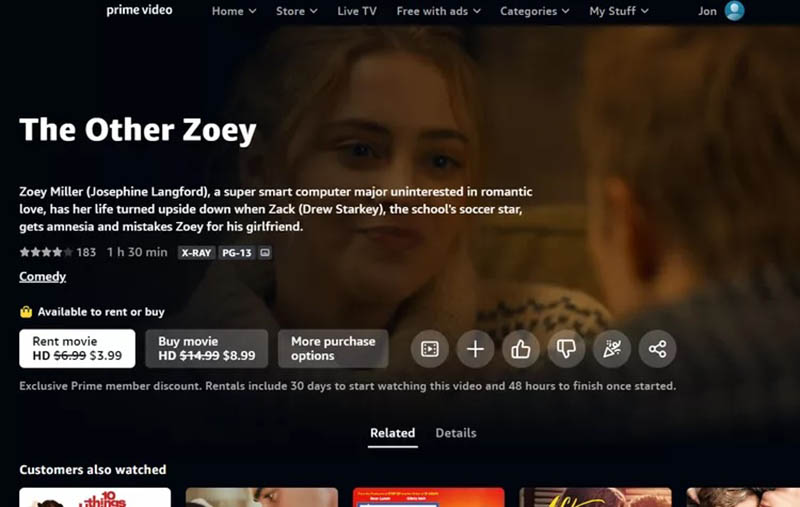
Conversely, newer releases, premium titles, and content from specific studios might not be included in the Prime library. For these, Amazon offers an “a la carte” model, allowing users to rent or purchase them individually. Renting typically provides a 30-day window to start watching the movie, and once started, a 48-hour period (though this can vary, always check specific terms) to finish watching it as many times as desired. Purchasing, on the other hand, grants indefinite access to the digital copy, allowing you to stream it whenever you wish. Understanding this duality is crucial to navigating the platform efficiently and managing your entertainment budget.
The Digital Library Concept
At its core, Amazon Prime Video operates on a digital library model. Whether you’re streaming included content, a rented movie, or a purchased title, you’re accessing a digital license rather than a physical copy. This digital license is stored in your Amazon account, making it accessible across various compatible devices. This concept relies on robust cloud infrastructure, ensuring that your content is available on demand, anywhere with an internet connection. Your “library” is a personal collection of digital rights, managed and served by Amazon’s powerful backend systems. This system simplifies content management, eliminates the need for physical media, and facilitates instant access.
Device Compatibility for Prime Video
One of Prime Video’s strengths lies in its extensive device compatibility, a testament to thoughtful software development and strategic partnerships. The platform is accessible across a multitude of devices, ensuring a consistent user experience regardless of your preferred viewing method.
-
Smart TVs: Most modern smart TVs (Samsung, LG, Sony, Vizio, etc.) have a pre-installed Prime Video app or offer it through their app stores. These apps are optimized for large screens, offering intuitive navigation with a remote control.
-
Streaming Devices: Dedicated streaming devices like Amazon Fire TV Stick, Roku, Apple TV, and Chromecast all support Prime Video. These devices act as intermediaries, bringing the Prime Video experience to any TV with an HDMI port.
-
Gaming Consoles: PlayStation (PS4, PS5) and Xbox (One, Series X/S) consoles also feature Prime Video apps, leveraging their powerful processing capabilities for smooth streaming.
-
Mobile Devices: The Prime Video app for iOS and Android offers full functionality, including renting, purchasing, and downloading content for offline viewing. These apps are designed with touch interfaces in mind, providing an optimized mobile experience.
-
Web Browsers: For desktop and laptop users, Prime Video is fully accessible through most modern web browsers (Chrome, Firefox, Edge, Safari), offering a convenient way to stream content without needing a dedicated app.
Each of these platforms runs a version of the Prime Video software tailored to its specific hardware and operating system, ensuring consistent feature sets and reliable performance. This broad compatibility underscores Amazon’s commitment to making its digital content accessible to as wide an audience as possible.
II. A Step-by-Step Guide to Renting a Movie
The process of renting a movie on Amazon Prime Video is designed to be user-friendly and intuitive, regardless of the device you’re using. While the exact button placements might vary slightly between the web interface, smart TV app, and mobile app, the core steps remain consistent.
Navigating the Prime Video Interface
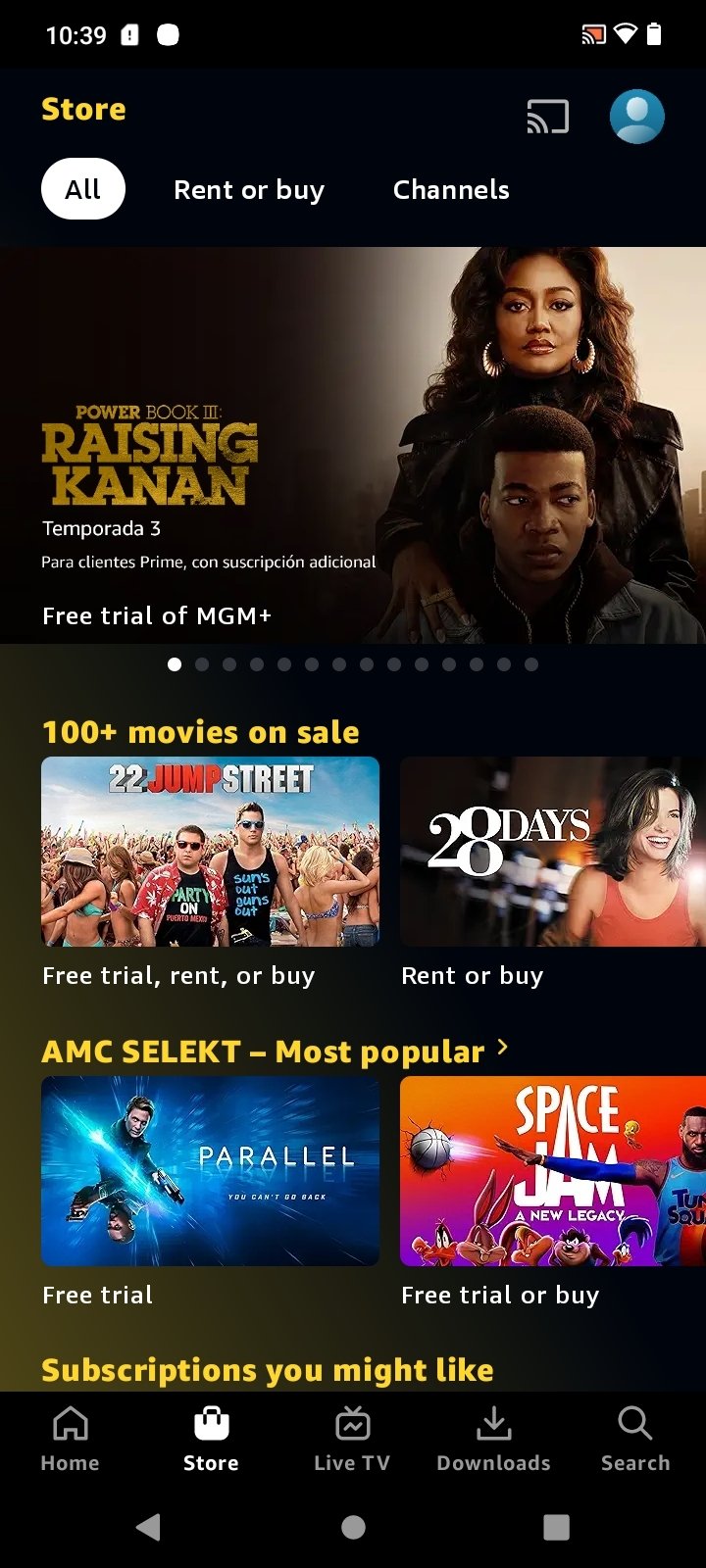
Upon opening the Prime Video app or website, you’ll be greeted by a homepage featuring carousels of recommended content, new releases, and categories. The interface is typically structured with a main navigation menu, often located at the top or side, providing access to sections like “Home,” “Movies,” “TV Shows,” “Live TV,” “Channels,” and “My Stuff” (your library).
-
Web Browser: On a desktop or laptop, navigate to primevideo.com. The navigation bar is usually at the top, and clicking on “Movies” will filter the content to show only films.
-
Smart TV App: Using your TV remote, select the Prime Video app. Navigation is typically done via directional arrows, with sections often presented horizontally or vertically.
-
Mobile App: Open the Prime Video app on your smartphone or tablet. A bottom navigation bar often provides quick access to “Home,” “Find” (search), “Downloads,” and “My Stuff.”
Familiarizing yourself with the layout of your chosen device will make the rental process smoother.
Searching for Your Desired Title
The easiest way to find a specific movie you want to rent is by using the search function.
-
Search Icon: Look for a magnifying glass icon, typically located in the top-right corner on web browsers and smart TV apps, or in the bottom navigation bar on mobile apps.
-
Inputting the Title: Type in the name of the movie you’re looking for. The search function is often predictive, suggesting titles as you type.
-
Browsing: Alternatively, you can browse through categories like “New Releases,” “Top Rentals,” or specific genres if you’re looking for inspiration rather than a specific film. Remember that not all movies listed in these categories are included with Prime; many will be available for rental or purchase.
Once you find the movie, select its poster to go to its dedicated detail page.
Identifying Rental Options and Pricing
On the movie’s detail page, you’ll find comprehensive information including a synopsis, cast and crew details, ratings, and crucially, the viewing options.
-
Rental vs. Purchase: Look for buttons clearly labeled “Rent Movie” and “Buy Movie.” If the movie is included with your Prime membership, you’ll likely see a “Watch with Prime” button instead.
-
Pricing: The rental price will be displayed prominently alongside the “Rent Movie” button. Prices typically range from $2.99 to $5.99, depending on the title’s newness and popularity.
-
Resolution Options: For some titles, you might have the option to rent in different resolutions, such as SD (Standard Definition), HD (High Definition), or 4K UHD. Higher resolutions often come with a slightly increased price, reflecting the larger data stream and superior visual quality. Always verify the resolution you’re selecting, especially if your device or internet connection has limitations.
The Rental Process: From Selection to Confirmation
Once you’ve decided on the rental option and resolution, the process is straightforward:
-
Select “Rent Movie”: Click or tap the “Rent Movie” button.
-
Confirm Purchase: A confirmation screen will appear, detailing the movie title, resolution, price, and the payment method linked to your Amazon account. This is your last chance to review before finalizing the rental.
-
Complete Order: Confirm the purchase. The movie will then be added to your digital library under “My Stuff” or “Purchases & Rentals.”
-
Start Watching: You’ll typically have 30 days to start watching the movie. Once you begin playback, you’ll have a limited viewing window (often 48 hours) to finish it. The remaining viewing time is usually displayed on the movie’s detail page within your library.
Amazon’s system ensures that your primary payment method on file is used, making the transaction seamless for existing customers.
Common Pitfalls and Troubleshooting
While the rental process is generally smooth, issues can arise. Here are some common pitfalls and technical troubleshooting tips:
-
Payment Method Issues: Ensure your linked payment method (credit card, debit card) is up-to-date and has sufficient funds. Amazon will decline rentals if there’s a payment issue.
-
Region Restrictions (Geo-blocking): Content availability, including rental options, can vary significantly by geographical region due to licensing agreements. If a movie isn’t available, it might be due to your current location. VPNs are generally detected and blocked by streaming services, so changing your virtual location is rarely a viable workaround.
-
Internet Connectivity: A stable and sufficiently fast internet connection is crucial for streaming. If you experience buffering or poor quality, check your Wi-Fi signal or internet speed. Amazon typically recommends 1-5 Mbps for SD, 3.5-10 Mbps for HD, and 15-25 Mbps for 4K UHD.
-
Device Software Updates: Ensure your Prime Video app and device’s operating system are updated to the latest versions. Outdated software can lead to performance issues or prevent access to certain features.
-
Clear Cache/Reinstall App: If the app is acting erratically, try clearing its cache (on mobile devices) or reinstalling it entirely. This can resolve corrupted data issues.
-
Contact Amazon Support: If all else fails, Amazon’s customer support is available to assist with rental issues, payment problems, or technical glitches.
III. Maximizing Your Rental Experience
Beyond the basic steps of renting, understanding some additional technical aspects can significantly enhance your viewing pleasure and help you get the most out of your rented content.
Understanding Rental Periods and Viewing Windows
As mentioned, there are two critical timeframes associated with renting:
-
Initiation Window: Once rented, you typically have 30 days to start watching the movie. If you don’t begin playback within this period, the rental expires.
-
Viewing Window: Once you start playing the movie, a countdown begins. This window is usually 48 hours (though it can sometimes be 24 or 72 hours, always check the specific terms on the movie’s page). During this time, you can watch the movie as many times as you like. After the viewing window closes, the movie will no longer be accessible as a rental. These windows are enforced by Digital Rights Management (DRM) technologies to comply with content licensing agreements.
Quality Settings and Bandwidth Considerations
Prime Video strives to deliver the best possible video quality, but this is heavily dependent on your internet bandwidth and device capabilities.
-
Adaptive Bitrate Streaming: Prime Video uses adaptive bitrate streaming, meaning it automatically adjusts the video quality based on your internet connection’s stability and speed. If your connection slows, the quality will drop to prevent buffering, and then increase again when bandwidth becomes available.
-
Manual Quality Settings: On some devices, particularly mobile apps, you might have the option to manually set the streaming quality to conserve data, especially if you’re on a limited mobile plan.
-
Data Usage: Be mindful of data usage, especially with higher resolutions. Streaming 4K UHD can consume significantly more data per hour than SD or HD, potentially impacting monthly data caps. Understanding your internet plan and estimated data consumption for various qualities is a smart tech habit.
Subtitles, Audio Tracks, and Accessibility Features
Amazon Prime Video is built with accessibility in mind, offering a range of options to cater to diverse viewer needs.
-
Subtitles/Closed Captions: Most titles offer subtitles or closed captions (CC). Look for a speech bubble or CC icon during playback. You can often customize the appearance (font size, color, background) of subtitles for better readability.
-
Audio Tracks: Many movies offer multiple audio tracks, particularly for different languages or descriptive audio (for visually impaired users). This option is usually found alongside the subtitle settings during playback.
-
Accessibility Technologies: Prime Video is designed to integrate with various assistive technologies, such as screen readers, ensuring that individuals with disabilities can navigate the app and enjoy content.
These features leverage metadata embedded within the video stream, allowing the Prime Video player software to dynamically offer these choices to the user.
Managing Your Rented Content
Your rented movies are typically found in the “My Stuff” or “Purchases & Rentals” section of the Prime Video app or website. This digital library acts as a centralized hub for all content you’ve acquired.
-
Tracking Remaining Time: Within this section, you can often see how much time remains on your 30-day initiation window or your 48-hour viewing window for active rentals.
-
Re-watching: During the active viewing window, you can re-watch the movie as many times as you like by simply selecting it from your library.
-
Expiring Content: Once a rental expires, it will typically remain listed in your purchase history but will no longer be playable.
IV. Beyond Renting: Exploring Prime Video’s Broader Features
While renting movies is a popular feature, Prime Video’s technical capabilities extend to several other areas that enrich the user experience and offer even more entertainment choices.
Purchasing vs. Renting: When to Buy
The decision between renting and purchasing often comes down to perceived value and anticipated re-watchability.
-
Renting (Temporary Access): Ideal for movies you want to see once or twice, perhaps a new release you’re curious about, or a film you’re not sure you’ll love. It’s a lower-cost, short-term commitment.
-
Purchasing (Permanent Digital Ownership): Best for movies you know you’ll want to watch multiple times, beloved classics, or titles you want to add to your permanent digital collection. While more expensive upfront, it offers indefinite access without time limits.
From a technical perspective, both involve acquiring a digital license. The difference lies in the terms of that license, which are enforced by Amazon’s DRM. The ability to “own” digital content without physical media is a cornerstone of modern digital distribution, leveraging cloud storage and robust content delivery networks.
Prime Video Channels: Expanding Your Options
Amazon Prime Video Channels are an innovative feature that allows users to subscribe to third-party streaming services (like HBO, Showtime, Starz, Paramount+, etc.) directly through the Prime Video interface.
-
Consolidated Billing: All subscriptions are managed and billed through your Amazon account, simplifying financial oversight.
-
Unified Interface: Content from these channels appears within the Prime Video app, creating a single point of access for a wide range of content. This eliminates the need to switch between multiple apps, streamlining the user experience.
-
Tech Integration: This feature showcases Amazon’s robust API integration capabilities, allowing seamless content delivery and user authentication across different content providers within a single software environment.
Downloading for Offline Viewing
For mobile users, the ability to download rented or purchased content for offline viewing is a significant technological advantage.
-
Data Saver: Downloads allow you to save bandwidth by pre-downloading content over Wi-Fi, which can then be watched without an internet connection, ideal for commutes, travel, or areas with poor reception.
-
Device Storage: Be mindful of your device’s available storage, as high-definition movies can consume several gigabytes. The Prime Video app usually allows you to select download quality (e.g., “Good,” “Better,” “Best”) to manage file sizes.
-
DRM Enforcement: Even downloaded content remains subject to DRM. Rentals will still expire after their viewing window, even if downloaded, and purchased content can only be accessed through the authorized Prime Video app on registered devices.
Watch Party and Social Viewing
Amazon’s Watch Party feature (available in some regions) leverages real-time synchronization technology to allow multiple users to watch a movie or TV show together virtually.
-
Synchronized Playback: The host controls playback (play, pause, fast forward), and it synchronizes for all participants.
-
Text Chat: A built-in text chat allows viewers to react and discuss the content in real-time.
-
Collaborative Experience: This feature transforms a solitary streaming experience into a social one, demonstrating the platform’s ability to integrate communication tools with its core media delivery.
V. The Technology Behind Your Prime Video Experience
Beneath the user-friendly interface and vast content library lies a complex web of technologies that make the Prime Video experience possible. Understanding these can provide a deeper appreciation for the platform’s capabilities.
Streaming Protocols and Content Delivery Networks (CDNs)
When you press play, a sophisticated process kicks into gear. Prime Video utilizes advanced streaming protocols like HTTP Live Streaming (HLS) or Dynamic Adaptive Streaming over HTTP (DASH). These protocols break down video content into small, manageable chunks, allowing them to be delivered efficiently over the internet.
-
Adaptive Bitrate (ABR): ABR technology dynamically switches between different quality versions of the video stream based on your network conditions, ensuring continuous playback with minimal buffering.
-
Content Delivery Networks (CDNs): Amazon Web Services (AWS) hosts Prime Video’s content on a massive global CDN. When you stream a movie, the data is delivered from a server geographically closest to you, reducing latency and improving loading times and stream quality. This distributed architecture is critical for serving millions of concurrent users worldwide.
Digital Rights Management (DRM) Explained
DRM is the technological backbone that protects copyrighted content and enforces licensing agreements. For rented movies, DRM dictates the 30-day initiation window and the 48-hour viewing window.
-
Encryption: Video files are heavily encrypted. When you rent a movie, your device receives a decryption key from Amazon’s servers. This key is time-limited and device-specific.
-
License Management: The DRM system constantly monitors and manages your viewing license. Once the viewing window expires, the decryption key becomes invalid, and your device can no longer play the encrypted content.
-
Anti-Piracy: DRM prevents unauthorized copying, redistribution, and circumvention of access controls, ensuring that content creators and distributors are compensated for their work. Prime Video typically uses industry-standard DRM systems like Widevine (Google) or PlayReady (Microsoft) to secure its content across various devices.
User Interface (UI) and User Experience (UX) Design
The intuitive nature of the Prime Video app is a result of meticulous UI/UX design.
-
Information Architecture: The way categories, search results, and movie details are organized is crucial for discoverability and ease of use.
-
Visual Design: The aesthetic appeal, font choices, and iconography contribute to a pleasant viewing environment.
-
Interaction Design: The responsiveness of buttons, smooth transitions, and logical workflows (like the rental confirmation steps) are all carefully crafted to minimize user frustration.
-
Personalization: Prime Video uses algorithms to analyze your viewing history and preferences, offering personalized recommendations that enhance your discovery experience.
Data Security and Privacy in Streaming
Given the volume of user data handled, data security and privacy are paramount.
-
Secure Transactions: All rental and purchase transactions are secured using industry-standard encryption protocols (like SSL/TLS) to protect your payment information.
-
Account Security: Amazon employs various measures, including multi-factor authentication, to protect your account from unauthorized access.
-
Privacy Policy: Amazon’s privacy policy outlines how user data (viewing habits, search queries, payment info) is collected, used, and protected. Users can often manage some privacy settings within their Amazon account.
The robust security infrastructure not only protects your personal and financial data but also ensures the integrity of the content delivery system against cyber threats.
Renting movies on Amazon Prime Video is a testament to the power and convenience of modern digital technology. From the moment you decide on a title to the final credits rolling, a complex symphony of software, network infrastructure, and security protocols works seamlessly in the background. By understanding the underlying tech, users can not only troubleshoot common issues more effectively but also appreciate the sophisticated engineering that brings cinema directly to their screens. Whether you’re a casual viewer or a dedicated cinephile, Prime Video’s rental feature offers a flexible and technologically advanced gateway to an ever-expanding universe of entertainment.
aViewFromTheCave is a participant in the Amazon Services LLC Associates Program, an affiliate advertising program designed to provide a means for sites to earn advertising fees by advertising and linking to Amazon.com. Amazon, the Amazon logo, AmazonSupply, and the AmazonSupply logo are trademarks of Amazon.com, Inc. or its affiliates. As an Amazon Associate we earn affiliate commissions from qualifying purchases.