
In an increasingly mobile and connected world, the ability to access your favorite entertainment on demand, regardless of internet connectivity, has become less of a luxury and more of an expectation. Amazon Video, a ubiquitous platform for streaming movies, TV shows, and original content, offers robust download capabilities that empower users to take their viewing experiences offline. Whether you’re preparing for a long flight, commuting through areas with spotty signal, or simply trying to conserve mobile data, downloading content from Amazon Video is a powerful feature that enhances convenience and accessibility.
This comprehensive guide will delve into the nuances of downloading from Amazon Video, covering everything from the fundamental principles to device-specific instructions and practical troubleshooting tips. We’ll explore the official methods, clarify what can and cannot be downloaded, and help you master this essential function to optimize your digital entertainment consumption.
Understanding Amazon Video Downloads: The Basics
Before diving into the specifics, it’s crucial to grasp the foundational concepts behind Amazon Video downloads. This understanding will help you navigate the platform more effectively and leverage its features to their fullest potential.
Why Download? Convenience and Offline Viewing
The primary benefit of downloading content from Amazon Video is the ability to watch it offline. This eliminates the need for a constant internet connection, making it ideal for travel, areas with unreliable Wi-Fi or cellular data, or environments where data usage is restricted. Downloading allows for uninterrupted viewing, free from buffering or quality drops, transforming your device into a portable entertainment hub. Furthermore, for those with limited data plans, downloading over Wi-Fi beforehand can significantly reduce mobile data consumption, leading to potential cost savings.
What Can Be Downloaded? Prime Video vs. Rented/Purchased Content
Not all content on Amazon Video is available for download, and the rules vary depending on how you access it.
-
Prime Video Content: A significant portion of the movies and TV shows included with an Amazon Prime subscription can be downloaded. This typically includes Amazon Originals, as well as a rotating selection of licensed titles. These downloads are available as long as your Prime membership is active and the specific title remains part of the Prime Video catalog. Once downloaded, you typically have a viewing window, after which you might need to connect to the internet to verify your Prime status or refresh the license.
-
Rented Content: Movies and TV shows you rent from Amazon Video can usually be downloaded. However, rented content comes with strict viewing windows, typically 30 days to start watching after rental, and then 48 hours to finish once you begin playback. Downloading does not extend these windows.
-
Purchased Content: Content you’ve bought outright from Amazon Video (digital ownership) is almost always available for download. Unlike Prime or rented content, purchased titles generally do not expire and can be downloaded multiple times across different compatible devices, offering the most persistent offline access.
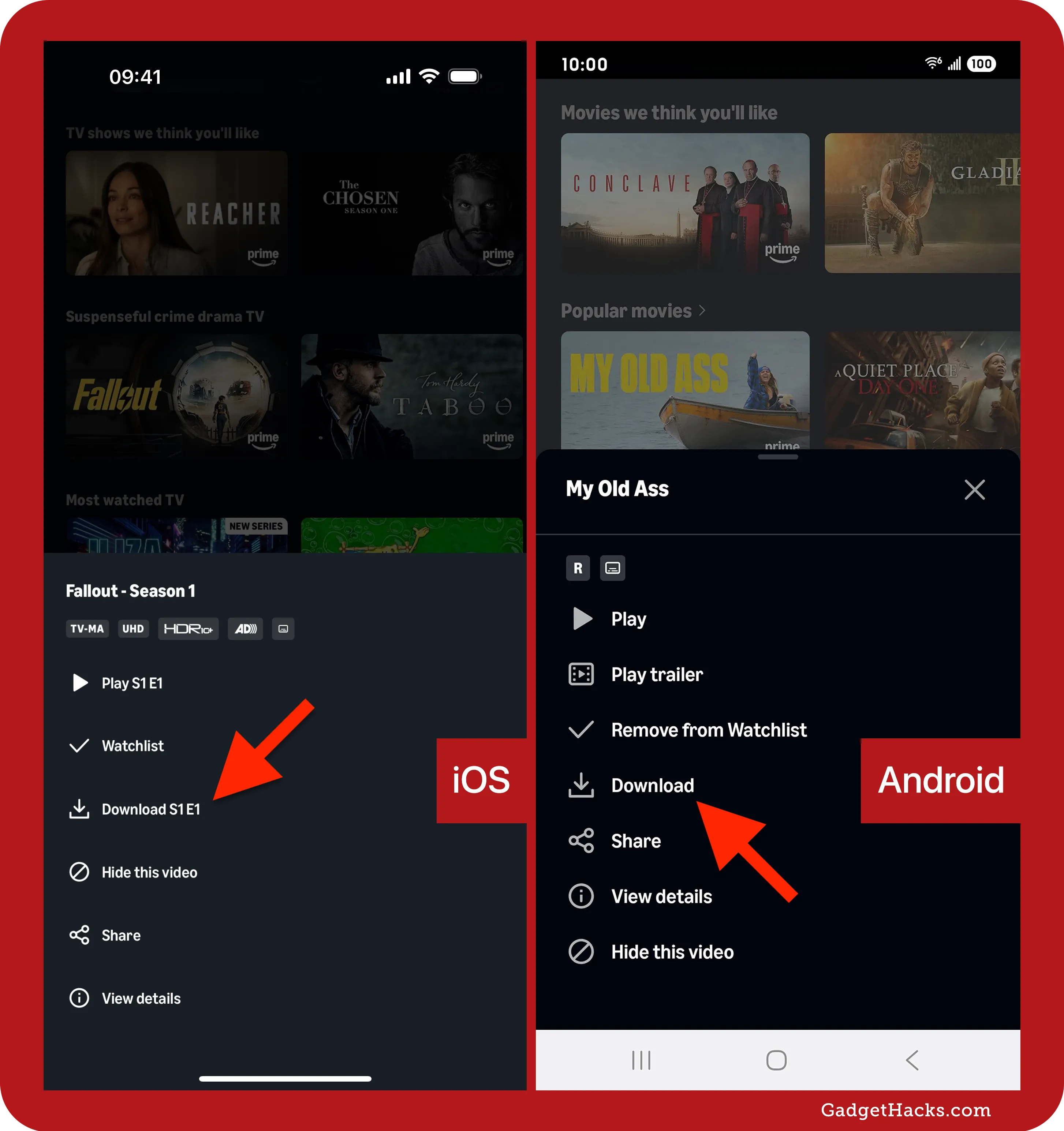
It’s important to note that certain licensing agreements may restrict specific titles from being downloaded, even if they fall under the Prime or purchased categories. The availability of a download icon (usually an arrow pointing downwards) next to a title is the definitive indicator of its download eligibility.
Device Compatibility: Where Can You Download?
Amazon Video’s download feature is primarily designed for mobile devices and specific Amazon hardware.
-
Mobile Devices: Both iOS (iPhones, iPads) and Android smartphones and tablets are fully supported. The Amazon Prime Video app, available on the App Store and Google Play Store, is the gateway for downloading on these platforms.
-
Amazon Fire Tablets: As Amazon’s own line of tablets, Fire devices offer a deeply integrated and optimized experience for downloading Prime Video content.
-
Windows 10/11 PCs: Amazon offers a dedicated Prime Video app for Windows, which allows users to download content directly to their computer. This is a relatively newer addition, addressing a long-standing request from PC users.
-
Macs and Older Windows Versions: Unfortunately, there is no official Amazon Prime Video app for macOS that supports downloads. Similarly, older versions of Windows (prior to 10) do not have official download support through an app. Users on these platforms are generally limited to streaming via a web browser.
Understanding these compatibility nuances is critical for setting realistic expectations and choosing the right device for your offline viewing needs.
Step-by-Step Guide: Downloading on Mobile Devices (iOS/Android)
Downloading content on your smartphone or tablet is arguably the most common use case for Amazon Video’s offline feature. The process is straightforward and largely consistent across both iOS and Android platforms.
Preparing Your Device and App
Before you begin, ensure your device is ready:
-
Install/Update the Prime Video App: Download the Amazon Prime Video app from your device’s app store (App Store for iOS, Google Play Store for Android). Make sure it’s updated to the latest version to ensure access to all features and bug fixes.
-
Log In: Open the app and log in with your Amazon account credentials. You’ll need an active Prime membership or to have purchased/rented content on that account.
-
Check Storage: Downloads consume storage space. Verify that your device has sufficient free space for the content you wish to download. You can usually check this in your device’s settings under “Storage.”
-
Connect to Wi-Fi: For efficiency and to avoid mobile data charges, it’s highly recommended to connect to a stable Wi-Fi network before initiating downloads, especially for larger files like movies or entire seasons.
Locating and Selecting Content
Once logged in and connected, finding downloadable content is simple:
-
Browse or Search: Navigate through the app’s various sections (Home, Movies, TV Shows, Kids, etc.) or use the search bar to find a specific title.
-
Look for the Download Icon: On the detail page of a movie or TV show, look for a download button, typically represented by a downward-pointing arrow icon. If this icon is present, the content is downloadable.
-
For TV Shows: If you’re downloading a TV show, you’ll usually see the download icon next to each individual episode. Some shows may also offer a “Download Season” option.
Initiating the Download Process
With your content selected, starting the download is just a tap away:
-
Tap the Download Icon: Tap the download icon next to the movie or episode you want.
-
Select Download Quality (Optional): The app may prompt you to choose a download quality (e.g., Good, Better, Best, or Data Saver). Higher quality uses more storage space. If not prompted, you can pre-set your preferred download quality in the app’s settings (My Stuff > Settings gear icon > Stream & Download > Download Quality).
-
Monitor Progress: The download will begin. You can monitor its progress by navigating to the “Downloads” section within the app (usually found under “My Stuff” or a dedicated “Downloads” tab).
Managing Your Downloads: Deletion and Storage
Downloaded content needs to be managed to free up space or remove watched titles:
-
Access Downloads: Go to the “Downloads” section in the Prime Video app.
-
Delete Content: To delete a single item, tap the three-dot menu next to it and select “Delete Download.” To delete multiple items, you might find an “Edit” or “Manage” option to select several items at once.
-
Change Storage Location (Android Only): On Android devices, if you have an SD card, you can often configure the Prime Video app to save downloads directly to the SD card, conserving internal storage. This option is usually found in the app’s settings under “Stream & Download” > “Download to SD Card.”
Downloading on Fire Tablets and Other Amazon Devices
Amazon’s own hardware, particularly Fire Tablets, provides a seamless and optimized experience for downloading content from Prime Video, thanks to its deep integration with Amazon services.
The Integrated Experience on Fire OS
Fire Tablets run on Fire OS, an Android-based operating system heavily customized by Amazon. This integration means the Prime Video app is a core part of the tablet’s functionality, often pre-installed and optimized for performance.
-
Intuitive Navigation: Finding Prime Video content is straightforward, often featured prominently on the home screen or through dedicated video tabs.
-
Resource Optimization: Fire Tablets are designed with media consumption in mind, offering efficient handling of video downloads and playback.
Specific Steps for Fire Tablets
The process on Fire Tablets mirrors that of other Android devices but with an even more streamlined feel:
-
Access Prime Video: Open the “Video” app or the “Prime Video” app on your Fire Tablet.
-
Browse and Select: Navigate through the available content or use the search function.
-
Identify Downloadable Content: Look for the download icon (downward arrow) on the movie or TV show detail page.
-
Initiate Download: Tap the download icon. For TV shows, select individual episodes or, if available, entire seasons.
-
Choose Quality: Select your preferred download quality. Fire Tablets also offer the option to save downloads to an inserted SD card, which is highly recommended for maximizing storage. This setting is usually found in the Prime Video app settings.
-
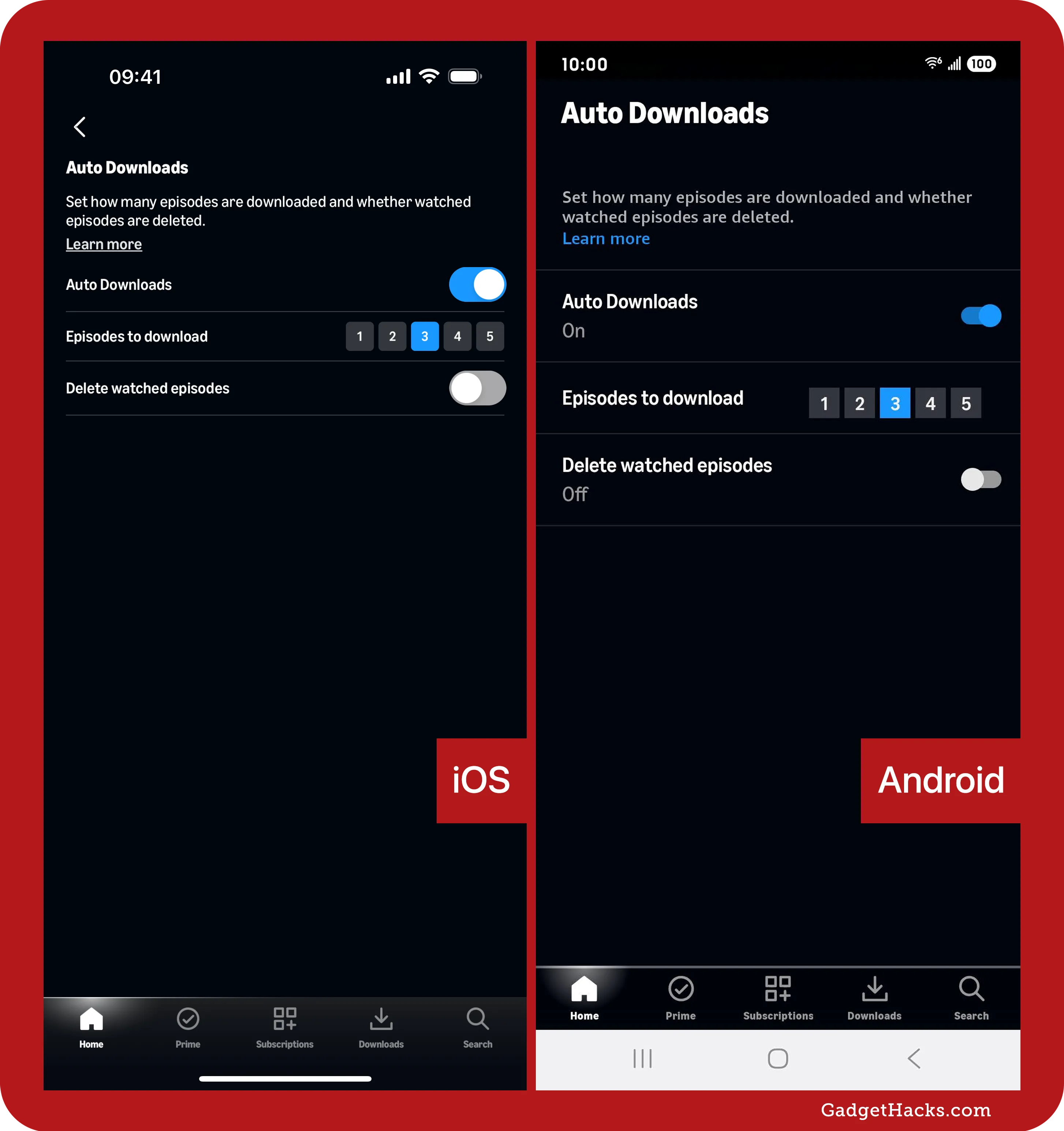
Manage Downloads: Access your downloaded content from the “Downloads” section within the Prime Video app. You can play, delete, or manage storage from here.
Considerations for Other Amazon Devices
While Fire Tablets excel at video downloads, other Amazon devices have different capabilities:
-
Echo Show Devices: Primarily designed for streaming and smart home control, Echo Show devices do not typically support downloading videos for offline viewing. They are intended for always-connected, real-time content access.
-
Fire TV Sticks/Cubes: These are streaming devices that require an active internet connection to function. They do not have local storage for downloading content from Prime Video. Their purpose is to stream content to a television, not store it.
Therefore, for offline viewing, Fire Tablets remain the go-to Amazon-branded solution.
The PC/Mac Conundrum: Official vs. Unofficial Methods
While mobile devices offer a straightforward download experience, desktop and laptop users have historically faced more hurdles, especially on macOS.
The Official Amazon Prime Video App for Windows 10/11
For Windows users running Windows 10 or 11, Amazon finally provided a dedicated solution: the Amazon Prime Video app available through the Microsoft Store. This app brings download capabilities to the PC, mirroring the mobile experience.
Downloading via the Windows App: A Detailed Walkthrough
-
Install the App: Search for “Amazon Prime Video” in the Microsoft Store and install the official app.
-
Log In: Open the app and sign in with your Amazon account.
-
Browse and Select: Navigate through the app’s interface to find your desired movie or TV show.
-
Check for Download Option: On the content detail page, look for the download icon (downward arrow).
-
Initiate Download: Click the download icon. For TV shows, you’ll select individual episodes.
-
Choose Download Quality: A prompt will appear allowing you to select the download quality (e.g., Good, Better, Best). You can also set a default quality in the app’s settings (click the gear icon, then “Downloads”).
-
Monitor and Access: Downloads will appear in the “Downloads” section of the app. You can play them offline from here.
-
Manage Downloads: Right-click on a downloaded title to reveal options like “Delete Download.”
This official app is the recommended and safest way to download Prime Video content on compatible Windows PCs.
Limitations and Workarounds for Mac Users (and older Windows versions)
This is where the “conundrum” truly comes into play.
-
No Official Mac App with Downloads: As of now, Amazon has not released an official Prime Video application for macOS that supports offline downloads. Mac users are typically limited to streaming content via a web browser (Safari, Chrome, Firefox).
-
No Official App for Older Windows: Similarly, users of Windows 7, 8, or older versions cannot use the Microsoft Store app, as it’s designed for Windows 10/11.
For these users, the only official method is streaming. This means no offline viewing capability directly from Amazon.
The Gray Area: Third-Party Downloaders (and why caution is advised)
Given the lack of official support for Mac and older Windows downloads, some users explore third-party applications. These tools claim to download Amazon Video content, often by recording the stream.
-
How They Work: Many of these tools act as sophisticated screen recorders or exploit browser-based streaming protocols to save the video file.
-
Risks and Caveats:
-
Legality: The legality of using such tools can be ambiguous and may violate Amazon’s terms of service, potentially leading to account issues.
-
Security: Third-party software can pose significant security risks, including malware, adware, or viruses. You are granting an unknown entity access to your system.
-
Quality and Reliability: Download quality may vary, and these tools can break with Amazon’s updates, rendering them useless.
-
Ethical Concerns: Using such tools circumvents the digital rights management (DRM) Amazon employs to protect copyrighted content.
-
Recommendation: While these options exist, exercising extreme caution is paramount. It is generally advisable to stick to official methods to ensure security, legality, and a consistent user experience. If offline viewing on a Mac or older PC is critical, consider using a compatible mobile device or a Windows 10/11 PC with the official app.
Optimizing Your Download Experience and Troubleshooting
To get the most out of Amazon Video downloads and address common issues, a few key optimization and troubleshooting strategies are essential.
Storage Management: SD Cards and Internal Memory
Downloads can quickly consume precious storage space.
-
Prioritize SD Cards (Android/Fire): If your Android phone or Fire Tablet has an SD card slot, configure the Prime Video app to save downloads there. This offloads large video files from your internal memory, preserving space for apps and photos.
-
Regularly Delete Watched Content: Make it a habit to delete movies and shows you’ve already watched. The “Downloads” section allows for easy management.
-
Monitor Storage Usage: Keep an eye on your device’s overall storage. If space is critically low, downloads may fail, or your device’s performance might suffer.
Download Quality Settings: Balancing Fidelity and Space
Amazon Video typically offers several download quality options, impacting both visual fidelity and file size.
-
Data Saver/Good: These options use the least amount of space and are suitable for smaller screens or when storage is extremely limited.
-
Better/Best: These provide higher resolution and bitrate, resulting in a clearer, sharper image, but consume significantly more storage.
-
Adjust as Needed: For a long flight with limited storage, “Data Saver” might be ideal. For a tablet with ample space and a desire for crisp visuals, “Best” is preferable. You can usually change the default download quality in the Prime Video app’s settings.
Common Download Issues and Solutions
Even with official methods, you might encounter issues.
-
“Download Failed” Error:
-
Check Internet Connection: Ensure you have a stable Wi-Fi connection.
-
Check Storage: Verify sufficient free space on your device.
-
Restart App/Device: Close the Prime Video app completely and reopen it. A device restart can also resolve temporary glitches.
-
Update App: Make sure your Prime Video app is updated.
-
-
Content Not Downloading:
-
Verify Download Availability: Double-check that the specific title has a download icon. Some content is streaming-only.
-
Check Prime Membership/Rental Status: Ensure your Prime membership is active or that your rental/purchase is valid.
-
Regional Restrictions: Occasionally, content availability (including downloads) can be geo-restricted.
-
-
Downloads Disappearing:
-
Prime Expiration: If a Prime title leaves the catalog or your Prime membership expires, the download will become unavailable.
-
Viewing Window Expired: For rented content, the download will expire once the viewing window passes.
-
App Glitch: Sometimes a simple app restart or re-login can refresh the download list.
-
-
Slow Downloads:
-
Internet Speed: Test your Wi-Fi speed. A slow connection will result in slow downloads.
-
Background Activity: Close other apps that might be consuming bandwidth or device resources.
-
Device Performance: Ensure your device isn’t overheating or struggling with other tasks.
-
Understanding Download Expiration and Viewing Periods
It’s crucial to remember that downloaded content isn’t always permanent.
-
Prime Video Downloads: These are tied to your active Prime membership and the content’s availability in the Prime catalog. If a show leaves Prime Video, your downloaded version will eventually become unplayable. Periodically, you may need to connect to the internet to verify your Prime status and refresh content licenses.
-
Rented Content: Downloads of rented movies or shows adhere strictly to the rental viewing window (e.g., 30 days to start, 48 hours to finish).
-
Purchased Content: These generally offer the longest access, but even then, occasional internet connection might be required to re-authenticate ownership or apply DRM updates, though this is less frequent.
Always be aware of these windows, especially if you plan extended periods without internet access.

Conclusion
The ability to download content from Amazon Video transforms the way we consume digital entertainment, offering unparalleled convenience and flexibility. By understanding the basics of download eligibility, navigating the platform on various devices, and applying effective storage and troubleshooting techniques, you can master this powerful feature. While official support for downloads varies across platforms, particularly for Mac users, the robust capabilities available on mobile devices, Fire Tablets, and Windows 10/11 PCs ensure that your favorite movies and shows are always just a tap away, ready to entertain you offline, anytime, anywhere. Embrace the freedom of offline viewing and elevate your Amazon Video experience.
aViewFromTheCave is a participant in the Amazon Services LLC Associates Program, an affiliate advertising program designed to provide a means for sites to earn advertising fees by advertising and linking to Amazon.com. Amazon, the Amazon logo, AmazonSupply, and the AmazonSupply logo are trademarks of Amazon.com, Inc. or its affiliates. As an Amazon Associate we earn affiliate commissions from qualifying purchases.