
In an era saturated with streaming options, Amazon Prime Video stands out as a colossal library of films, television series, and acclaimed original content, all bundled with an Amazon Prime subscription. However, the seemingly simple act of transitioning from watching on a phone or computer to the immersive experience of a big-screen TV can sometimes present a slight learning curve. This comprehensive guide will demystify the process, offering clear, step-by-step instructions and insightful tips to ensure you can seamlessly enjoy Amazon Prime Video on your television, irrespective of your current setup. From smart TVs to streaming sticks and clever connectivity tricks, we’ll explore every viable path to bringing your favorite Prime Video content to the comfort of your living room.

Understanding Amazon Prime Video’s Ecosystem
Before delving into the how-to, it’s essential to grasp what Amazon Prime Video is and what it offers. This foundational understanding will help you navigate the platform more effectively and leverage its full potential on your television.
What is Amazon Prime Video?
Amazon Prime Video is Amazon’s video on-demand streaming and rental service. It serves as a significant component of the broader Amazon Prime subscription, which also includes benefits like free expedited shipping, Amazon Music Prime, Prime Reading, and more. While many users associate Prime Video with the content included in their Prime membership, it also offers a vast catalog of movies and TV shows available for rent or purchase, often including new releases that are still in theaters or recently out on digital. This dual model provides immense flexibility, allowing subscribers to enjoy a rich library at no extra cost while also accessing premium, current content à la carte. Understanding this distinction is crucial as it impacts what content you can access directly through your Prime membership versus what might incur an additional charge.
Content Library and Accessibility
The content available on Amazon Prime Video is diverse and continually expanding. It features a robust collection of Hollywood blockbusters, critically acclaimed independent films, popular TV series from various networks, and a rapidly growing suite of Amazon Originals. These Amazon Original series and movies, such as “The Marvelous Mrs. Maisel,” “The Boys,” “Jack Ryan,” and major cinematic releases, are exclusive to the platform and often serve as a primary draw for subscribers. Beyond the included content, users can browse and subscribe to Prime Video Channels, which are add-on subscriptions to other streaming services like HBO Max, Showtime, Starz, and more, all managed within the Prime Video interface. This consolidates multiple streaming services into one convenient platform, simplifying billing and content discovery. The accessibility of this content on various devices is a hallmark of Amazon’s strategy, ensuring that users can pick up their viewing experience seamlessly across smartphones, tablets, computers, and, most importantly, televisions.
Account and Subscription Basics
To watch Amazon Prime Video, you first need an active Amazon account, and typically, an Amazon Prime membership. If you don’t have a Prime membership, you can sign up for a free trial or a paid subscription. Once you have an account, logging in is a straightforward process across all compatible devices. You’ll usually be prompted to enter your Amazon account email and password, or in some cases, visit a specific URL on a web browser and enter a unique activation code displayed on your TV screen. This two-factor authentication method enhances security and streamlines the login process, particularly on devices without easy text input. It’s also important to manage your subscription settings periodically, ensuring your payment methods are current and reviewing any Prime Video Channels you might have added or removed. All these account management functions are typically handled through the Amazon website, providing a centralized hub for your streaming experience.
Direct Methods: Smart TVs and Streaming Devices
The most straightforward and widely adopted methods for watching Amazon Prime Video on your television involve either using a smart TV with a built-in app or connecting a dedicated streaming device. These options offer the most integrated and user-friendly experiences.
Smart TVs with Built-in Apps
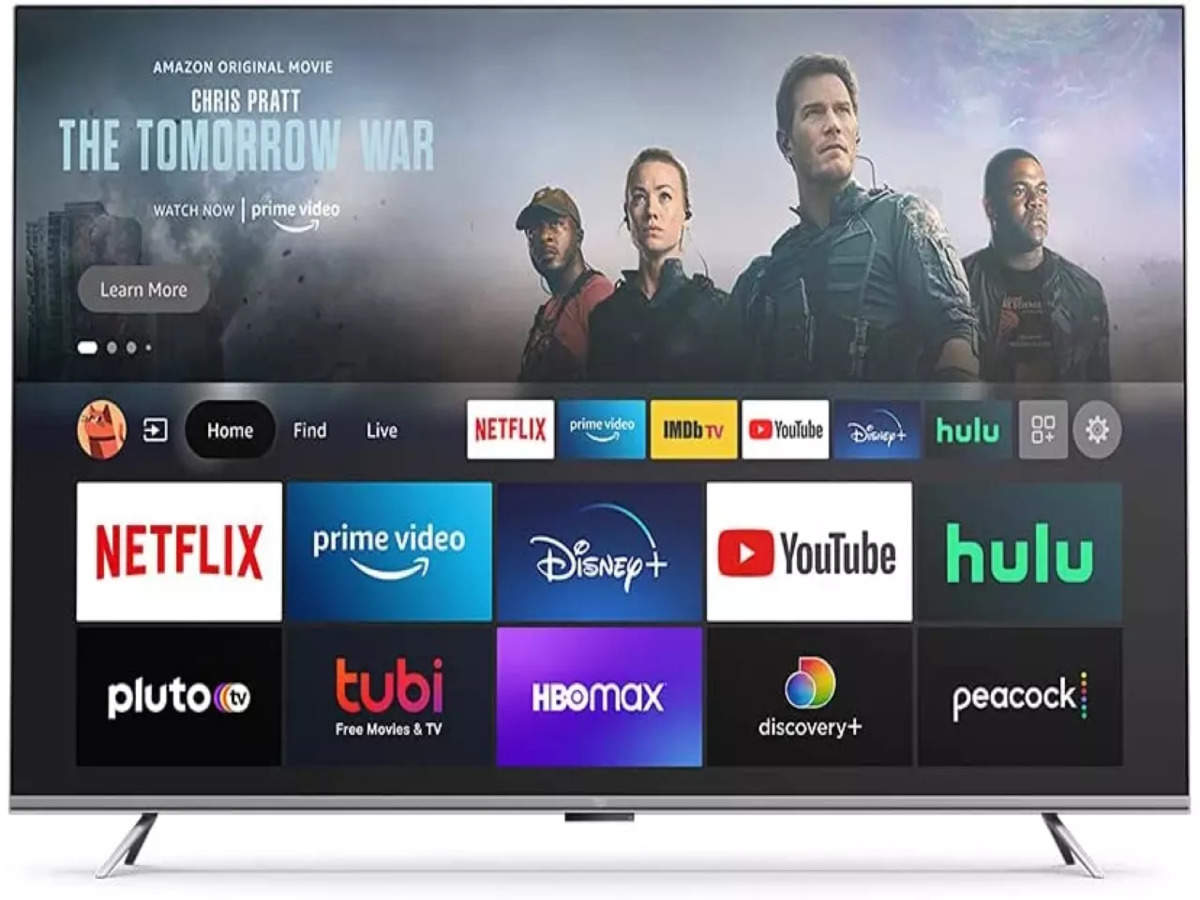
Many modern smart TVs come pre-installed with the Amazon Prime Video app, or allow for easy download from their respective app stores. Brands like Samsung, LG, Sony, Vizio, and TCL often include this functionality as standard. To access it, simply:
-
Turn on your Smart TV: Ensure it’s connected to the internet (Wi-Fi or Ethernet).
-
Navigate to the Smart Hub/App Store: This is usually accessible via a dedicated button on your remote control (e.g., “Home,” “Smart Hub,” “Apps”).
-
Locate the Prime Video App: It might be on your home screen, or you may need to search for it in the app store.
-
Open and Sign In: Launch the app. You’ll be prompted to sign in with your Amazon account credentials. Sometimes, an activation code will appear on your TV screen, which you’ll enter on a designated Amazon website (amazon.com/mytv or primevideo.com/mytv) using a computer or mobile device.
Once signed in, your TV will remember your credentials, allowing for immediate access to your Prime Video library whenever you open the app. The benefit of a smart TV is its seamless integration, often offering a smooth interface and direct access without additional hardware.
Dedicated Streaming Devices
For TVs that aren’t “smart” or whose built-in apps are outdated, dedicated streaming devices are an excellent solution. These small, powerful gadgets plug into your TV’s HDMI port and provide a full streaming interface. Popular options include:
-
Amazon Fire TV Stick/Cube: Unsurprisingly, Amazon’s own devices offer the most integrated Prime Video experience. They are designed to prioritize Prime Video content and often feature Alexa voice control for easy navigation and search. Setup involves plugging into HDMI, connecting to Wi-Fi, and signing in with your Amazon account.
-
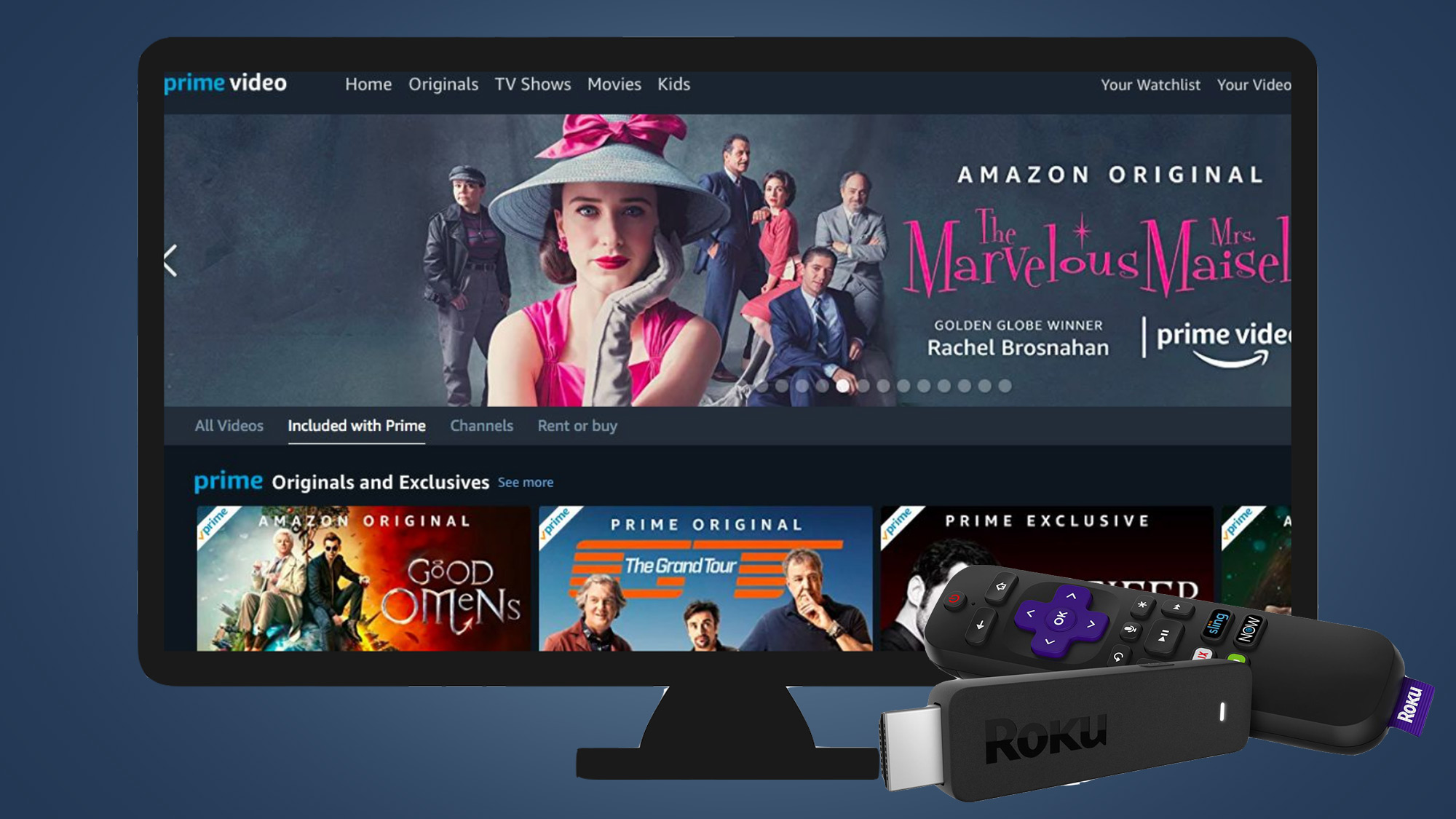
Roku Devices (Express, Streaming Stick, Ultra): Roku offers a wide range of affordable and user-friendly streaming players. The Prime Video app is readily available in the Roku Channel Store. Once downloaded, you’ll sign in using your Amazon credentials.
-
Apple TV: Apple’s premium streaming box provides a sleek interface and supports the Prime Video app. Download it from the App Store and sign in.
-
Google Chromecast with Google TV: While older Chromecasts rely on casting from a phone, the Chromecast with Google TV features its own interface and remote, allowing you to install the Prime Video app directly and browse content on your TV.
-
Nvidia Shield TV: A high-performance Android TV streaming box, popular among power users and gamers, also fully supports the Amazon Prime Video app.
The advantage of these devices lies in their consistent performance, regular updates, and often superior user interfaces compared to some integrated smart TV systems. They effectively upgrade any TV into a smart entertainment hub.
Gaming Consoles
Many modern gaming consoles double as robust media streamers, and most support the Amazon Prime Video app. If you own one of the following, you’re likely ready to stream:
-
PlayStation (PS4, PS5): Navigate to the PlayStation Store, search for “Amazon Prime Video,” download the app, and sign in.
-
Xbox (Xbox One, Xbox Series X/S): Go to the Microsoft Store, find and download the “Amazon Prime Video” app, then sign in with your Amazon account.
Gaming consoles often boast powerful processors, which can lead to very smooth streaming experiences, especially for 4K content, making them a viable and convenient option for many households.
Indirect Methods: Connecting External Devices
When direct app access isn’t an option, or if you prefer using a computer or mobile device as your primary interface, several indirect methods allow you to mirror or cast content to your TV screen. These methods leverage your existing tech to bridge the gap.
Laptops/PCs via HDMI
This is perhaps the simplest and most universal indirect method. If your TV has an HDMI input and your laptop or desktop computer has an HDMI output, you can directly connect them.
-
Connect an HDMI Cable: Plug one end into your computer’s HDMI port and the other into an available HDMI port on your TV.
-
Select the Correct Input: Use your TV remote to change the input source (sometimes labeled “Input,” “Source,” or “HDMI”) until you see your computer’s display.
-
Adjust Display Settings (Optional): On your computer, you might need to adjust display settings to “Duplicate” (mirror your laptop screen) or “Extend” (use your TV as a second monitor).
-
Open Prime Video in a Web Browser: Navigate to primevideo.com on your computer’s web browser (Chrome, Firefox, Edge, Safari), sign in, and start playing your desired content.
This method is reliable and provides full control over your viewing experience from your computer. Ensure your laptop’s audio is routed through the HDMI cable to your TV for the best sound.
Mobile Devices via Casting/Screen Mirroring
Mobile devices (smartphones and tablets) can also send Prime Video content to your TV using various casting or screen mirroring technologies.
-
Chromecast (Older Models): For older Chromecast devices without the Google TV interface, you’ll primarily use your phone or tablet to “cast.” Open the Prime Video app on your mobile device, start playing a video, and tap the “Cast” icon (a rectangle with a Wi-Fi symbol) in the top right corner. Select your Chromecast from the list of available devices. The video will then play on your TV, controlled from your phone.
-
Apple AirPlay: If you have an Apple device (iPhone, iPad) and an Apple TV or an AirPlay 2-compatible smart TV, you can use AirPlay. Open the Prime Video app, start playing a video, tap the AirPlay icon (a rectangle with an upward-pointing arrow), and select your Apple TV or compatible smart TV.
-
Miracast (for Android/Windows): Some Android phones and Windows PCs, along with certain smart TVs, support Miracast, which is a wireless display standard. The process varies by device but generally involves enabling “Screen Mirroring” or “Wireless Display” on your mobile device and selecting your TV.
These methods offer convenience as they leverage devices you already own, turning your phone or tablet into a powerful remote control.
USB-C to HDMI Adapters
For newer laptops and many modern Android smartphones that lack a standard HDMI port but feature a USB-C port with video output capabilities (often referred to as DisplayPort Alt Mode), a USB-C to HDMI adapter is an excellent solution.
-
Acquire an Adapter: Purchase a high-quality USB-C to HDMI adapter or a multi-port hub that includes an HDMI output.
-
Connect: Plug the USB-C end into your device and an HDMI cable from the adapter to your TV.
-
Select Input and Play: As with the direct HDMI connection, select the correct input on your TV and then play Prime Video content from your device’s browser or app.
This method is particularly useful for ultra-portable devices that have opted for USB-C as their primary port for data, power, and video.
Optimizing Your Viewing Experience
Beyond simply getting Prime Video onto your TV, optimizing your setup can significantly enhance your viewing pleasure, ensuring high-quality playback and a smooth, uninterrupted experience.
Internet Connection Requirements
A stable and sufficiently fast internet connection is paramount for streaming high-definition content. Amazon Prime Video, like other streaming services, dynamically adjusts video quality based on your internet speed.
-
Standard Definition (SD): Minimum 0.9 Mbps
-
High Definition (HD): Minimum 3.5 Mbps (for 1080p)
-
Ultra High Definition (4K UHD): Minimum 15 Mbps, but 25 Mbps or higher is recommended for a consistent experience, especially with HDR.
For the best results, especially with 4K content, consider connecting your streaming device or smart TV via an Ethernet cable directly to your router if possible. Wi-Fi is convenient, but wired connections are generally more stable and faster, reducing buffering. If using Wi-Fi, ensure your router is relatively close to your streaming device and consider upgrading to a newer Wi-Fi 5 (802.11ac) or Wi-Fi 6 (802.11ax) router for better performance.
Picture and Sound Settings
Many modern TVs and streaming devices support advanced picture and sound technologies that can be configured for optimal Prime Video playback.
-
4K HDR (High Dynamic Range): If you have a 4K HDR compatible TV and streaming device (and your internet speed is adequate), ensure HDR is enabled in both your TV’s picture settings and possibly within the Prime Video app settings if available. HDR provides brighter whites, deeper blacks, and a wider range of colors, making the picture much more vibrant.
-
Dolby Atmos/Dolby Digital Plus: For an immersive audio experience, if you have a soundbar or home theater system that supports Dolby Atmos or Dolby Digital Plus, ensure your streaming device is configured to pass through these audio formats to your audio receiver. Check your TV and receiver’s audio settings to enable features like “passthrough” or “bitstream” for external audio devices.
-
TV Picture Modes: Experiment with your TV’s picture modes (e.g., “Cinema,” “Movie,” “Filmmaker Mode”) as these are often calibrated to provide a more accurate and pleasing image than default “Vivid” or “Dynamic” modes.
Troubleshooting Common Issues
Even with an optimized setup, occasional hiccups can occur. Here are quick fixes for common problems:
-
Buffering or Poor Quality: Check your internet speed. Try restarting your router, then your streaming device/TV. Close other bandwidth-intensive applications or devices on your network.
-
App Crashes or Freezing: Try closing and reopening the Prime Video app. If that doesn’t work, clear the app’s cache and data (via your device’s settings menu), or uninstall and reinstall the app.
-
Login Problems: Double-check your Amazon credentials. If you’re using a TV activation code, ensure you’re entering it correctly on the specified Amazon website. Try resetting your Amazon password if issues persist.
-
No Sound/Video: Verify all cables are securely connected. Ensure your TV is on the correct input. Check volume levels on both your TV and external audio devices.
Parental Controls and Profiles
Amazon Prime Video offers robust parental control features, which are especially useful for families. You can set content restrictions based on age ratings, require a PIN for purchases, or even for playback of certain ratings. Additionally, creating user profiles allows each family member to have their own personalized watch history, recommendations, and watchlist, without interfering with others’ viewing preferences. These settings are typically managed through the Prime Video app or website in the “Settings” or “Profiles” section.
Exploring Advanced Features and Tips
Once you’re comfortably streaming, you might want to delve into some of Prime Video’s more advanced features to enrich your viewing and discovery experience.
Utilizing Voice Commands
Many streaming devices, especially Amazon’s Fire TV line, integrate seamlessly with Alexa. This allows for hands-free control of your Prime Video experience. You can say commands like:
-
“Alexa, open Prime Video.”
-
“Alexa, play The Lord of the Rings.”
-
“Alexa, search for comedies.”
-
“Alexa, pause/resume/fast forward.”
Similarly, Roku devices offer voice search through their remote controls, and Apple TV integrates with Siri. Leveraging voice commands can significantly speed up navigation and content discovery, making your streaming experience more effortless.
Amazon Prime Video Channels
As mentioned earlier, Prime Video Channels allow you to subscribe to other premium streaming services directly through Amazon. This centralizes your billing and provides a single interface for managing multiple subscriptions. It’s an excellent way to consolidate your entertainment and discover content from various providers without juggling different apps or payment methods. You can browse and subscribe to channels like HBO, Showtime, Starz, BritBox, and many more, directly within the Prime Video app or on the Amazon website.
The “Watch Party” Feature
For those who enjoy a shared viewing experience with friends and family who aren’t physically present, Amazon Prime Video offers a “Watch Party” feature. This allows multiple Prime members to watch a movie or TV show together in sync, with an integrated chat function. It’s a fantastic way to connect and share moments with loved ones, regardless of distance. Look for the “Watch Party” icon (a chat bubble with a play symbol) on eligible titles to start or join a session.
X-Ray Feature
One of Prime Video’s unique and often overlooked features is “X-Ray.” Available on most devices, including TVs, X-Ray provides instant access to information about the actors on screen, the song currently playing, trivia, and behind-the-scenes content – all without leaving your movie or show. Simply pause the video or sometimes just press up on your remote, and the X-Ray panel will appear, offering context and deeper insights into the content you’re watching. It’s a great way to satisfy curiosity about that familiar actor or that catchy song.
Conclusion
Watching Amazon Prime movies on your TV is an accessible and rewarding experience, with numerous options catering to different setups and preferences. Whether you have a cutting-edge smart TV, a dedicated streaming device, or simply a laptop and an HDMI cable, there’s a straightforward path to bringing the vast Prime Video library to your biggest screen. By understanding the ecosystem, leveraging the right hardware, optimizing your connection, and exploring the platform’s advanced features, you can unlock a premium home entertainment experience that is both engaging and seamless. So, pick your preferred method, sign in, and immerse yourself in the world of Amazon Prime Video from the comfort of your couch.
aViewFromTheCave is a participant in the Amazon Services LLC Associates Program, an affiliate advertising program designed to provide a means for sites to earn advertising fees by advertising and linking to Amazon.com. Amazon, the Amazon logo, AmazonSupply, and the AmazonSupply logo are trademarks of Amazon.com, Inc. or its affiliates. As an Amazon Associate we earn affiliate commissions from qualifying purchases.