
In an increasingly mobile world, the ability to access entertainment on the go, without relying on a constant internet connection, has become a cherished convenience. Amazon Prime Video, a titan in the streaming industry, understands this need, offering its subscribers the valuable feature of downloading content for offline viewing. Whether you’re embarking on a long flight, commuting through areas with patchy signal, or simply trying to conserve mobile data, knowing how to download your favorite movies and TV shows from Amazon Prime can transform your entertainment experience.
This comprehensive guide will demystify the process, walking you through the steps required to download Prime Video content across various devices. We’ll delve into the underlying technology, provide practical tips for managing your downloads, troubleshoot common issues, and equip you with the knowledge to make the most of Amazon Prime’s offline capabilities.
Understanding Amazon Prime’s Offline Viewing Capability
Before diving into the “how-to,” it’s crucial to grasp the technological framework that enables Amazon Prime’s offline viewing. This understanding will not only facilitate a smoother experience but also help in troubleshooting potential issues.
The Convenience of Downloads
The primary appeal of downloading videos is the freedom it offers. Imagine having access to an entire season of your favorite series during a transatlantic flight, or a selection of movies for a family road trip through areas with limited cellular data. Amazon Prime’s download feature liberates content from the confines of an internet connection, making entertainment truly portable. It also allows users to watch high-quality content without buffering, provided the download was completed over a stable and fast connection. For many, this capability is a significant value-add that distinguishes premium streaming services.
Licensing and Digital Rights Management (DRM)
The ability to download content is not a universal feature for all titles on Amazon Prime Video. This is primarily due to complex licensing agreements and Digital Rights Management (DRM) technologies. DRM is a systematic approach to copyright protection for digital media, used by content creators and distributors to control access to and usage of copyrighted material.
For Amazon Prime, DRM dictates several aspects:
-
Availability: Some titles may not be available for download due at all, depending on the rights held by Amazon or the content owner.
-
Viewing Period: Downloaded content often has an expiry period. Once you start watching a downloaded video, you typically have 48 hours to finish it before it expires. Unwatched downloads usually expire after 30 days. These durations can vary based on licensing.
-
Device Limits: There might be a limit to how many devices can have the same title downloaded simultaneously, or a total number of titles that can be downloaded across all your registered devices.
-
Regional Restrictions: Licensing also means that content available for download in one country might not be in another.
Understanding DRM helps manage expectations and explains why certain downloads behave differently from others.
Device Compatibility for Downloads
Amazon Prime Video supports downloads on a range of devices, primarily focusing on mobile and Amazon’s own hardware. The key platforms include:
-
iOS Devices: iPhones and iPads running a recent version of iOS.
-
Android Devices: Smartphones and tablets running a recent version of Android.
-
Amazon Fire Tablets: All models of Fire tablets.
-
Windows and macOS Computers: Through the dedicated Prime Video application, available from the respective app stores. Note that browser-based viewing on desktops typically does not support downloads; a standalone app is required.
It’s important to ensure your device meets the minimum system requirements for the Prime Video app to guarantee optimal performance and download functionality.
Step-by-Step Guide to Downloading Prime Video Content
Now that we understand the foundations, let’s walk through the practical steps to download your desired content. The process is intuitive across platforms, but minor variations exist.
On Mobile Devices (iOS & Android)
The experience on iOS and Android is largely similar:
-
Open the Prime Video App: Ensure you are logged into your Amazon Prime account.
-
Browse or Search: Navigate through the catalog to find the movie or TV show you wish to download.
-
Select Content: Tap on the title to open its detail page.
-
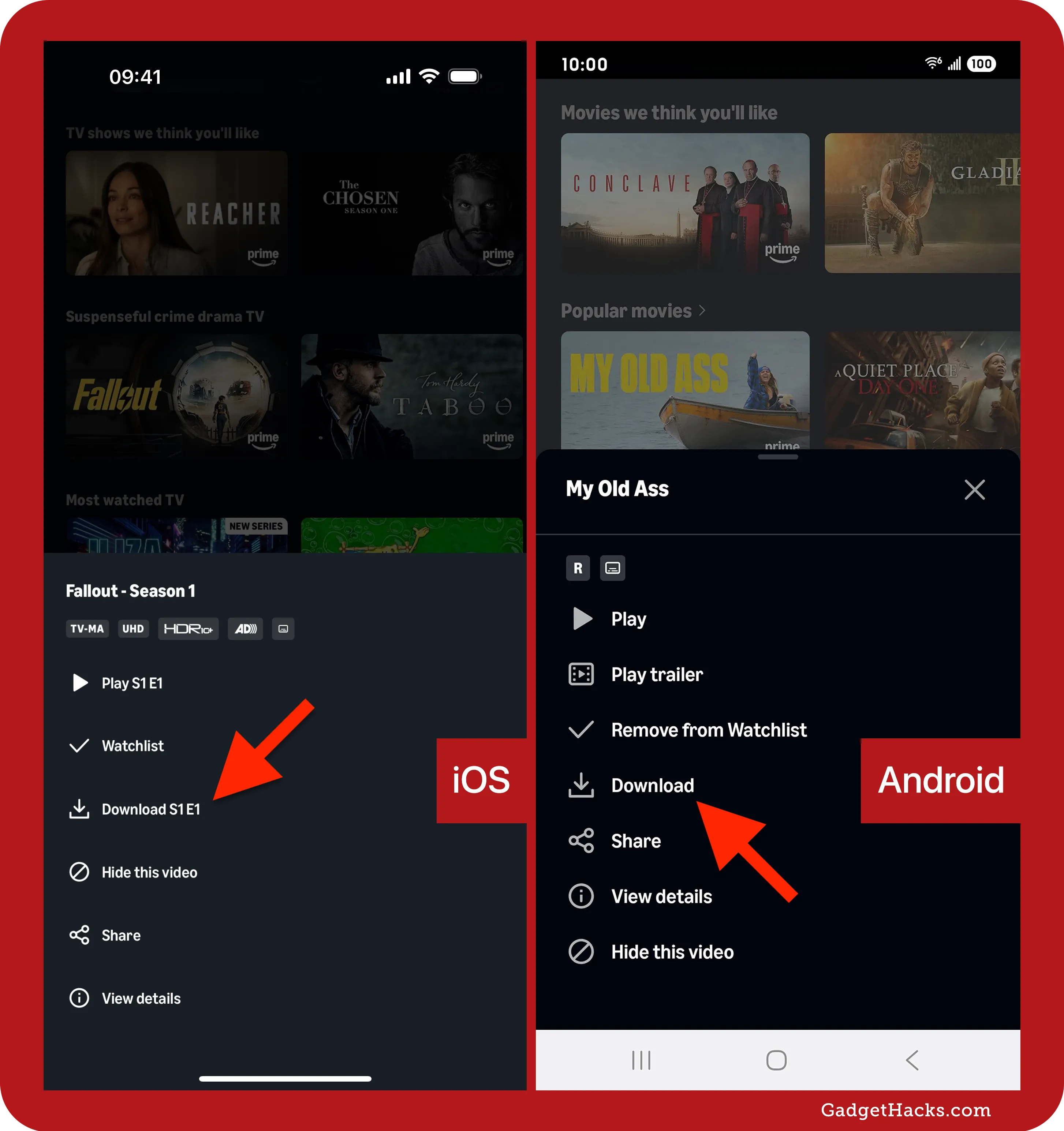
Initiate Download: For movies, you’ll typically see a “Download” button. For TV series, you’ll see a download icon (often an arrow pointing downwards) next to each episode or a “Download Season” option. Tap the appropriate button.
-
Choose Download Quality (Optional): The app may prompt you to select a download quality (e.g., Good, Better, Best). Higher quality consumes more storage space and takes longer to download. Make your selection.
-
Monitor Download: The download will begin. You can usually track its progress in the “Downloads” section of the app.
On Amazon Fire Tablets
Fire tablets are designed to integrate seamlessly with Amazon’s services, making downloads particularly straightforward:
-
Open the Prime Video App: This app is pre-installed on Fire tablets.
-
Find Your Content: Browse the Prime Video library or use the search function.
-
Tap to Download: Similar to other mobile devices, select the movie or episode and tap the “Download” icon.
-
Select Quality: Choose your preferred download quality.
-
Access Downloads: Your downloaded content will be accessible in the “Downloads” tab within the Prime Video app.
On Windows and macOS Using the Prime Video App
For desktop and laptop users, Amazon provides dedicated applications that enable downloads, a feature not available through web browsers.
-
Download and Install the Prime Video App:
-
Windows: Find it in the Microsoft Store.
-
macOS: Find it in the Mac App Store.
-
-
Log In: Open the app and sign in with your Amazon Prime credentials.
-
Browse and Select: Navigate through the content, just as you would on other platforms.
-
Click Download: On the detail page of a movie or episode, you’ll find a “Download” button. Click it.
-
Choose Quality: Select your desired download quality.
-
View Downloads: Downloaded content is stored within the app and can be accessed from the “Downloads” section in the navigation menu.
Managing Your Downloaded Videos
Once you’ve amassed a collection of downloaded content, effective management is key to ensuring you always have space for new titles and can easily find what you want to watch.
Locating and Playing Downloads
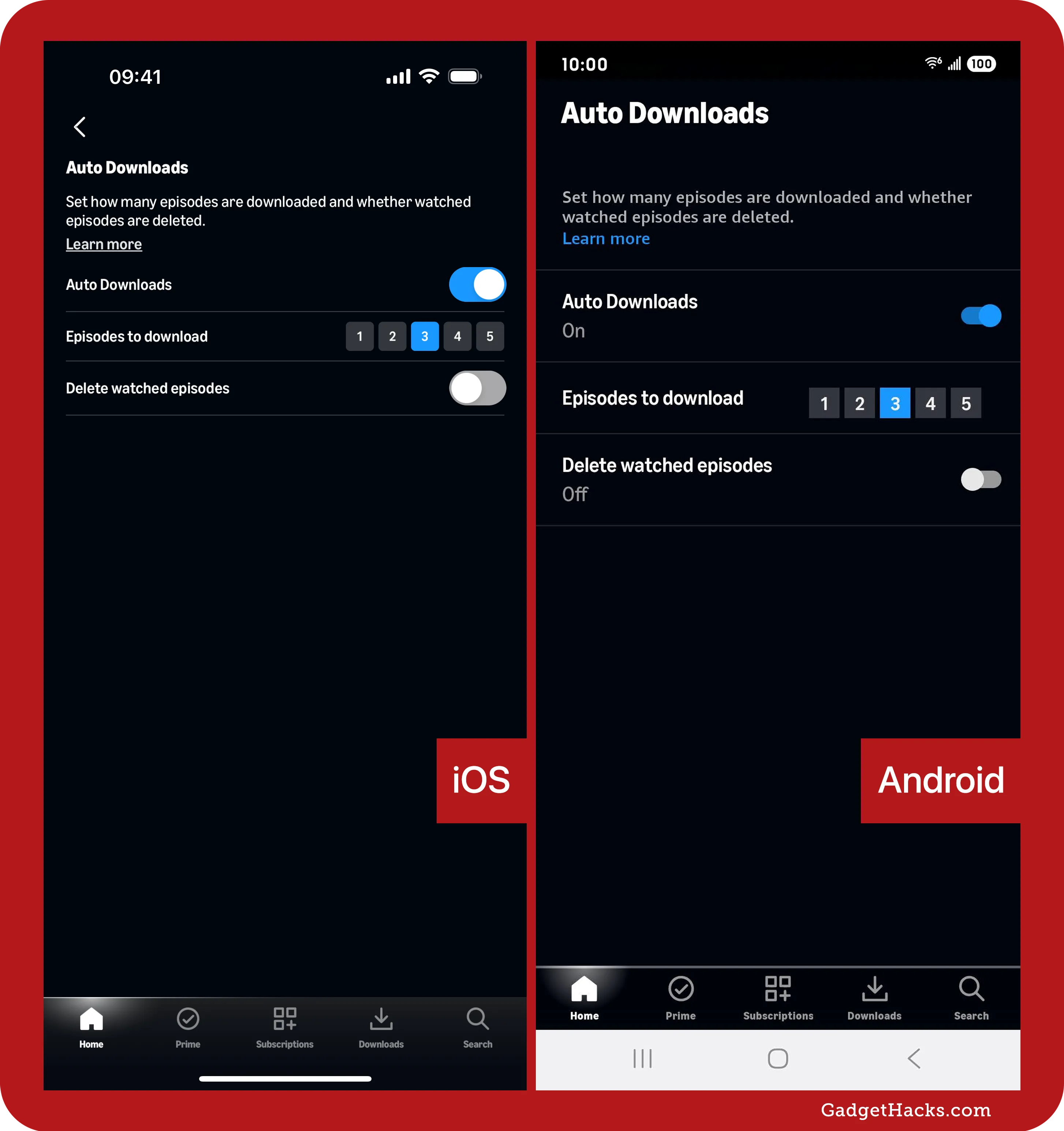
All downloaded content is consolidated in a specific section of the Prime Video app. On most devices, you’ll find a “Downloads” or “My Downloads” tab or icon in the navigation menu (often located at the bottom or accessible via a hamburger menu). Tapping this will display all your available offline content. To play a video, simply tap on its thumbnail.
Understanding Download Limits and Expiry
As mentioned earlier, downloaded videos from Amazon Prime come with specific usage rules:
-
Expiry after first play: Once you start playing a downloaded video, you typically have 48 hours to finish it before it expires and needs to be downloaded again (if still available).
-
Unwatched expiry: Unwatched downloads generally expire 30 days after download.
-
Device Limits: Amazon typically allows up to 25 titles downloaded across all registered devices at any given time. Some individual titles may have a stricter limit (e.g., allowing only two downloads of the same title across devices).
-
Concurrent Downloads: You might be restricted to downloading a limited number of titles simultaneously.
It’s wise to periodically check the status of your downloads within the app to avoid disappointment when you’re ready to watch.
Deleting Downloads to Free Up Space
Downloaded videos can consume a significant amount of storage on your device. Regularly clearing out watched or expired content is good practice:
-
Go to Downloads: Navigate to the “Downloads” section in your Prime Video app.
-
Edit/Delete:
-
On mobile: Look for an “Edit” option or a trash can icon. You might also be able to long-press a title to bring up options, including “Delete.”
-
On desktop app: Hover over a title, and an “X” or “Delete” option should appear.
-
-
Confirm Deletion: Select the videos you wish to remove and confirm the deletion.
Adjusting Download Quality Settings
You can often control the quality of your downloads, which directly impacts file size and therefore storage consumption and download time.
-
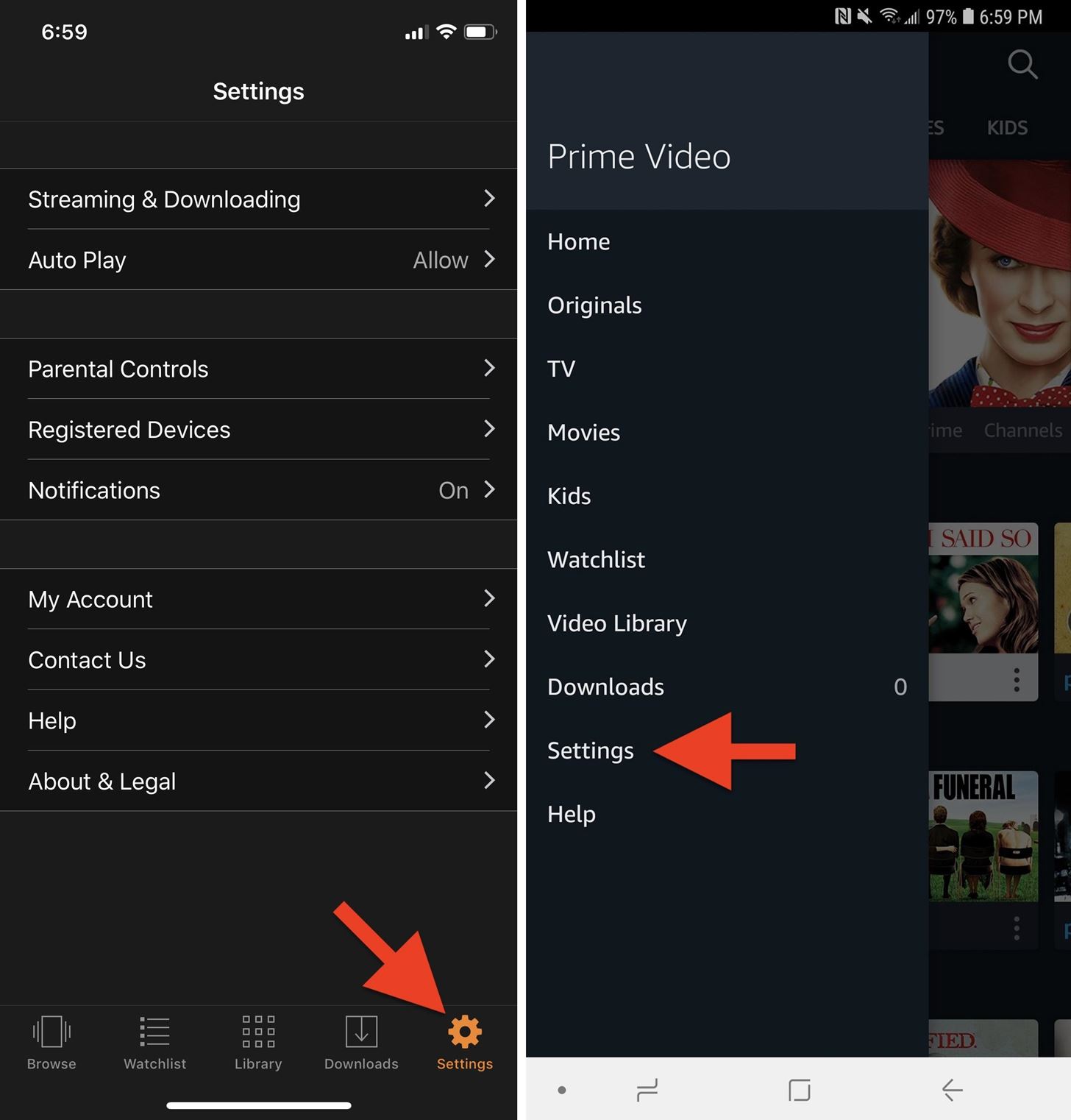
Access App Settings: In the Prime Video app, go to the “Settings” menu (often via a gear icon or through your profile icon).
-
Find Download Settings: Look for a section related to “Downloads” or “Stream & Download.”
-
Select Quality: Here you can typically choose between “Good,” “Better,” and “Best” quality, or specific resolutions. Opting for a lower quality is ideal when storage is tight or when you’re downloading over a slower connection.
Common Issues and Troubleshooting Tips
Despite the straightforward process, users can occasionally encounter hurdles. Here’s how to address some common problems.
“Download Not Available” Errors
This is frequently due to licensing restrictions.
-
Check Prime Eligibility: Ensure the title is included with your Prime subscription and not a rental/purchase that isn’t eligible for download.
-
Regional Restrictions: Confirm you are in a supported region for that content.
-
Content Owner’s Rights: Some studios simply do not allow their content to be downloaded.
-
Try Another Title: If one title isn’t working, try another to see if the issue is specific to the content or your app/device.
Insufficient Storage Space
This is a common culprit for failed downloads.
-
Check Device Storage: Go to your device’s settings to see how much free space you have.
-
Delete Unnecessary Files: Remove old photos, videos, apps, or other downloads to free up space.
-
Delete Old Prime Downloads: As described above, clear out watched Prime Video content.
-
Lower Download Quality: Adjust your Prime Video download settings to a lower quality to reduce file size.
Network Connectivity Problems
A stable internet connection is vital for successful downloads.
-
Check Wi-Fi/Data Connection: Ensure your Wi-Fi is strong or your mobile data connection is stable and has sufficient bandwidth.
-
Restart Router/Device: A simple restart of your Wi-Fi router or your downloading device can resolve connectivity glitches.
-
Try Different Network: If possible, try downloading on a different Wi-Fi network to rule out issues with your primary connection.
-
Disable VPN: VPNs can sometimes interfere with streaming and download services. Try disabling it temporarily.
App-Related Glitches
Software can sometimes act up.
-
Restart the App: Close the Prime Video app completely and reopen it.
-
Clear App Cache (Android): In your device settings, go to Apps > Prime Video > Storage > Clear Cache. This can resolve minor data corruption.
-
Update the App: Ensure your Prime Video app is updated to the latest version. Developers often release updates to fix bugs and improve performance.
-
Reinstall the App: As a last resort, uninstalling and then reinstalling the app can fix persistent issues, though you’ll lose any existing downloads.
Best Practices for an Optimal Offline Viewing Experience
To truly master the art of offline viewing with Amazon Prime Video, consider these best practices.
Plan Ahead and Prioritize
Don’t wait until the last minute before your trip or commute to download content. A stable, fast Wi-Fi connection is crucial for efficient downloads, especially for high-quality, long-form content. Prioritize what you truly want to watch, keeping in mind storage space and download limits.
Optimize Storage on Your Device
Regularly audit your device’s storage. Delete apps you no longer use, transfer old photos and videos to cloud storage or an external drive, and routinely clear out old Prime Video downloads. This ensures you always have enough room for new entertainment.
Secure a Stable Internet Connection for Downloading
Always endeavor to download content over a strong, reliable Wi-Fi connection. Not only will this speed up the process, but it also prevents interrupted downloads and potential data charges if you’re inadvertently using mobile data. Avoid public Wi-Fi networks if security or speed is a concern for large downloads.
Explore Beyond the Basics: Watchlists and Profiles
Leverage Prime Video features like “Watchlist” to queue up content you intend to download later. If multiple users share an account, utilize individual profiles to manage separate download lists and avoid hitting global download limits too quickly. This organized approach can significantly enhance your overall viewing experience, ensuring your favorite content is always just a tap away, even when you’re completely disconnected.
In conclusion, the ability to download videos from Amazon Prime Video is a powerful feature that enriches the streaming experience, offering unparalleled flexibility and convenience. By understanding the technology behind it, following the step-by-step guides, and implementing effective management and troubleshooting strategies, you can unlock a world of entertainment that travels with you, wherever you go. Happy watching!
aViewFromTheCave is a participant in the Amazon Services LLC Associates Program, an affiliate advertising program designed to provide a means for sites to earn advertising fees by advertising and linking to Amazon.com. Amazon, the Amazon logo, AmazonSupply, and the AmazonSupply logo are trademarks of Amazon.com, Inc. or its affiliates. As an Amazon Associate we earn affiliate commissions from qualifying purchases.