
In an era defined by digital convenience and ubiquitous connectivity, the ability to access entertainment on demand, anytime and anywhere, has become a fundamental expectation. Amazon Prime Video stands as a titan in the streaming landscape, offering a vast library of movies, TV shows, and critically acclaimed original content. While large-screen viewing on smart TVs remains popular, the agility and personal nature of mobile streaming on your phone have carved out an indispensable niche. This guide delves into every facet of bringing Amazon Prime Video to your pocket, transforming your smartphone into a portable entertainment hub. From initial setup to advanced features and troubleshooting, we’ll equip you with the knowledge to optimize your mobile Prime Video experience, ensuring seamless and enjoyable viewing on the go.

Setting Up Your Mobile Device for Amazon Prime Video
Embarking on your mobile streaming journey begins with ensuring your device is ready and the necessary application is correctly installed. This foundational step is crucial for a smooth and uninterrupted viewing experience.
Ensuring Compatibility and System Requirements
Before you even think about downloading, it’s vital to confirm that your smartphone meets the basic prerequisites for the Amazon Prime Video app. Generally, the app is widely supported across both major mobile operating systems: iOS (for iPhones) and Android. For optimal performance and access to the latest features, it’s always recommended to keep your device’s operating system updated to a recent version. Typically, iOS devices require iOS 14 or later, and Android devices generally need Android 7.0 (Nougat) or newer. Beyond the operating system, a stable internet connection is paramount. While Wi-Fi is ideal for high-definition streaming and conserving mobile data, a robust 4G or 5G cellular connection can also provide a satisfactory experience, albeit with potential data usage concerns. Adequate storage space on your device is also important, especially if you plan to download content for offline viewing. A few gigabytes of free space are usually sufficient to start.
Downloading and Installing the Amazon Prime Video App
Once compatibility is confirmed, the next step is acquiring the app. The process is straightforward and consistent with downloading any other mobile application.
-
For iOS Devices (iPhone/iPad): Open the Apple App Store, tap the “Search” icon, type “Amazon Prime Video” into the search bar, and select the official app from the results (look for the distinct Amazon Prime Video logo). Tap “Get” and then “Install.” You might need to authenticate with Face ID, Touch ID, or your Apple ID password.
-
For Android Devices: Open the Google Play Store, tap the search bar, type “Amazon Prime Video,” and select the official app. Tap “Install.” The app will download and automatically install on your device.
After installation, the Prime Video icon will appear on your home screen or in your app drawer, ready for launch.
Logging In and Managing Your Account
With the app installed, it’s time to sign in and personalize your experience. Launch the Prime Video app, and you will be prompted to sign in with your Amazon account credentials. This will be the same email address and password you use for Amazon.com or your existing Prime subscription.
-
Signing In: Enter your registered email address or phone number and password. If you have two-factor authentication enabled, you’ll need to complete that step as well.
-
User Profiles: Amazon Prime Video supports multiple user profiles within a single account, allowing family members to have their own personalized watchlists, recommendations, and viewing history. After logging in, you can typically access and manage profiles from the app’s settings or the home screen. You can create new profiles, edit existing ones (including designating them as Kids profiles with restricted content), and switch between them seamlessly. This feature is particularly useful for families sharing an account, ensuring a tailored experience for each viewer.
Navigating the Amazon Prime Video Mobile Interface
The Prime Video app is designed for intuitive use, yet understanding its layout and features can significantly enhance your content discovery and viewing pleasure.
Exploring the Home Screen and Content Categories
Upon logging in, you’ll be greeted by the app’s home screen, a dynamic hub featuring recommended content, recently added titles, and curated collections. The interface is typically divided into several key sections accessible via navigation bars (often at the bottom or top of the screen):
-
Home: Your personalized starting point, showcasing a mix of popular titles, recommendations based on your viewing habits, and new releases.
-
Store: Here you can rent or buy movies and TV shows that are not included with your Prime subscription, or subscribe to Prime Video Channels.
-
Live TV: Access to live sports, news, and other real-time programming if you have relevant subscriptions.
-
Downloads: A dedicated section where all your downloaded content for offline viewing resides.
-
My Stuff: Your personal library, including your watchlist, purchases, rentals, and viewing history.
Within these sections, content is further categorized by genre (action, comedy, drama), type (movies, TV shows, kids), and specific collections (Amazon Originals, IMDb TV, etc.), making it easy to browse diverse offerings.
Utilizing Search and Discovery Features
Finding something specific to watch is effortless thanks to robust search and discovery tools. The search icon (often a magnifying glass) is a crucial feature. You can type in movie titles, show names, actor names, or even genres to quickly filter the vast library.
-
Watchlist: A fundamental discovery tool, the watchlist allows you to save titles you’re interested in watching later. Simply tap the “Add to Watchlist” button on any content’s detail page. This helps curate your viewing queue and ensures you don’t forget compelling titles.
-
Personalized Recommendations: The app continuously learns from your viewing habits, generating tailored recommendations that appear on your home screen and within various categories. The more you watch, the smarter these suggestions become.
-
IMDb Integration: Prime Video seamlessly integrates with IMDb (Internet Movie Database), allowing you to tap on actors or titles to view their IMDb pages, read trivia, and explore their filmographies, deepening your insight into the content.
Understanding Playback Controls and Settings
During playback, the mobile interface provides a suite of controls to manage your viewing experience. Tapping the screen during a show or movie will reveal these options.
-
Basic Playback: Play/pause, fast-forward, rewind (often by tapping the screen edges or using specific buttons).
-
Volume Control: Usually managed by your phone’s physical volume buttons or an on-screen slider.
-
Subtitles and Audio Tracks: The speech bubble icon typically allows you to select from available subtitle languages and audio tracks (e.g., original language, dubbed versions, audio descriptions).
-
Picture-in-Picture (PiP): On compatible devices and OS versions, you can minimize the playing video into a small, floating window, allowing you to use other apps while still watching.
-
Casting Options: The cast icon (a TV screen with a Wi-Fi signal) enables you to wirelessly stream content to a compatible smart TV or casting device (like a Chromecast or Fire TV Stick).
-
Video Quality Settings: While often auto-adjusted, some apps allow manual selection of streaming quality to conserve data or improve resolution based on your connection.
Optimizing Your Mobile Streaming Experience
Mobile streaming offers unparalleled flexibility, but it comes with unique considerations, particularly concerning data usage and performance. Optimizing these aspects ensures a smooth and cost-effective experience.
Managing Data Usage and Offline Downloads
Streaming high-definition video consumes significant amounts of data, which can quickly deplete mobile data allowances or lead to extra charges.
-
Data Saving Settings: Within the Prime Video app settings, you can often find options to control streaming quality on mobile networks. Lowering the quality (e.g., from Best to Better or Good) can drastically reduce data consumption. For instance, streaming in “Good” quality might use around 0.5 GB per hour, while “Best” quality can consume 3-5 GB or more per hour.
-
Prioritize Wi-Fi: Always connect to a Wi-Fi network when available, especially for extended viewing sessions or when starting a new show. This prevents your cellular data from being used.
-
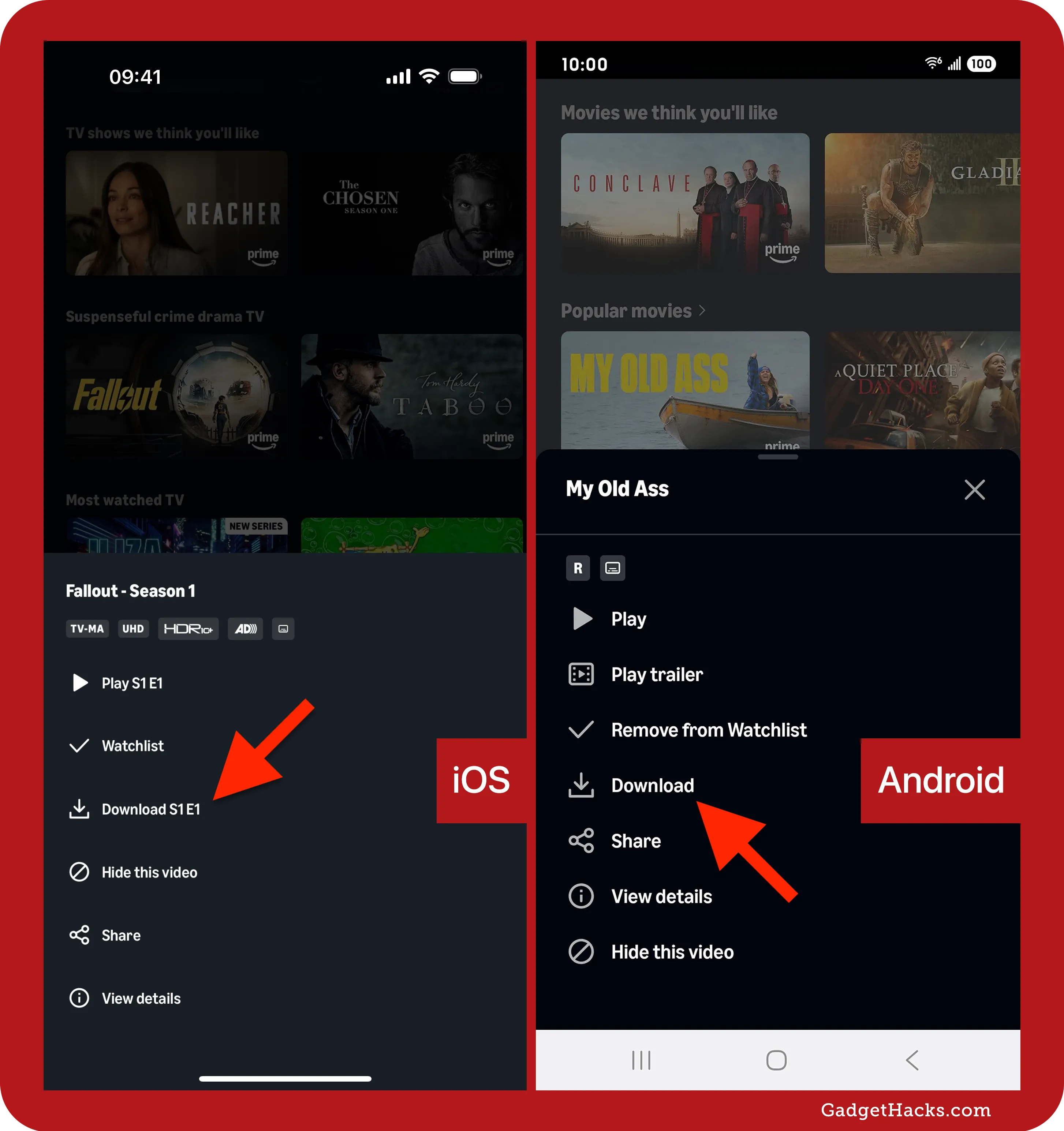
Offline Downloads: One of Prime Video’s most valuable mobile features is the ability to download content for offline viewing. This is perfect for commutes, flights, or areas with poor internet connectivity. On any movie or show’s detail page, look for a “Download” button. You can often choose the download quality, which impacts the file size and therefore the storage space it consumes on your phone. To manage downloads, navigate to the “Downloads” section in “My Stuff,” where you can delete content you’ve finished watching to free up space. This is an excellent strategy to watch content without using any mobile data.

Enhancing Video Quality and Performance
The quality of your streaming experience is directly tied to your internet connection and device capabilities.
-
Internet Speed: For HD streaming, a consistent speed of at least 5-10 Mbps is recommended. For 4K UHD, 15-25 Mbps or more is necessary. Using a strong, stable Wi-Fi connection is usually the best way to achieve these speeds. When relying on mobile data, ensure you have a strong signal (4G/5G) for optimal performance.
-
Troubleshooting Buffering: If you experience frequent buffering, try the following: move closer to your Wi-Fi router, close other apps consuming bandwidth, restart your Wi-Fi router, or temporarily lower the video quality within the Prime Video app settings. Sometimes, simply restarting the Prime Video app or your phone can resolve minor performance glitches.
-
Device Performance: Ensure your phone isn’t overloaded with too many background apps, which can consume RAM and processing power, potentially affecting streaming performance. Clear app caches periodically for better responsiveness.
Leveraging Accessibility Features
Prime Video is committed to providing an inclusive viewing experience, offering various accessibility features that can be adjusted from within the app.
-
Subtitles and Closed Captions (CC): As mentioned, the subtitle icon allows you to enable subtitles, choose languages, and sometimes even customize their appearance (size, color, background). Closed captions provide additional non-speech information for viewers who are deaf or hard of hearing.
-
Audio Descriptions: For visually impaired viewers, audio descriptions narrate key visual elements of a scene, providing context that might otherwise be missed. This option is available for select titles.
-
Dark Mode: Many mobile operating systems and apps offer a “dark mode” or “night mode” setting. While not exclusive to Prime Video, enabling your phone’s dark mode can reduce eye strain, especially during extended viewing sessions in low-light environments, and can sometimes conserve battery life on OLED screens.
Advanced Features and Troubleshooting Tips
Beyond basic streaming, Prime Video offers a suite of advanced features and tools to enhance your experience, alongside practical troubleshooting advice for common issues.
Casting and Mirroring to Larger Screens
While mobile viewing is convenient, sometimes you want to share the experience on a larger display. Prime Video seamlessly integrates with several casting technologies.
-
Google Cast (Chromecast/Android TVs): If you have a Chromecast device or an Android TV with built-in Chromecast, simply tap the cast icon in the Prime Video app while watching content. Your phone will then serve as a remote control, sending the stream directly to your TV.
-
Apple AirPlay (Apple TV/AirPlay 2 compatible TVs): For iPhone users, AirPlay allows you to stream content to an Apple TV or other AirPlay 2-enabled smart TVs. Tap the AirPlay icon within the app’s playback controls and select your desired device.
-
Direct HDMI Connection: For a wired solution, some Android phones support MHL (Mobile High-Definition Link) or USB-C to HDMI adapters. You can connect your phone directly to an HDMI port on your TV for a high-quality mirrored display, though this is less common with modern wireless options.
Prime Video Channels and Additional Subscriptions
Amazon Prime Video isn’t just about the content included with your Prime membership; it’s also a hub for a multitude of premium channels.
-
Adding Channels: Within the “Store” section of the app (or via the Amazon website), you can browse and subscribe to Prime Video Channels like HBO, Showtime, Starz, Paramount+, and many more. These channels offer additional content for a separate monthly fee, all managed conveniently within your Prime Video account.
-
Managing Subscriptions: You can view, add, or cancel your Prime Video Channels subscriptions directly from your Amazon account settings, ensuring full control over your expanding entertainment portfolio. This consolidation simplifies billing and access.
Common Issues and Quick Fixes
Even with advanced technology, minor glitches can occur. Here are solutions to some common problems:
-
App Crashing or Freezing: Try closing the app completely and reopening it. If the issue persists, restart your phone. As a last resort, uninstalling and reinstalling the app can often resolve persistent crashes.
-
Login Problems: Double-check your Amazon account credentials. If you’ve forgotten your password, use the “Forgot Password” link on the Amazon login page to reset it. Ensure your Prime membership is active.
-
Playback Errors (e.g., “Video Unavailable”): This can sometimes be due to content licensing restrictions based on your location (geo-blocking), or a temporary server issue. Try playing a different title. If it’s a specific title, try updating the app.
-
Poor Video Quality: As discussed, check your internet connection speed. Toggle Wi-Fi on and off, or switch between Wi-Fi and mobile data to see if the connection improves. Adjust the streaming quality setting in the app.
-
Downloads Not Working: Ensure you have enough storage space on your device. Check your internet connection (downloads require a connection to initiate). Some content may not be available for download due to licensing.
Beyond Basic Viewing: Making the Most of Prime Video on Mobile
To truly master your mobile Prime Video experience, delve into features that enhance family viewing and provide deeper insights into the content.
Parental Controls and Family Sharing
For households with children, robust parental controls are essential to ensure age-appropriate viewing.
-
Setting Up Profiles: As mentioned, creating dedicated Kids Profiles is the first step. These profiles automatically filter content suitable for children based on age ratings.
-
PIN Protection: Within the Prime Video settings (often accessible via the Amazon website or within the app’s settings for profile management), you can set up a PIN. This PIN can be required for purchases, for starting content with specific age ratings, or for switching profiles out of a Kids Profile. This provides an additional layer of security, preventing unauthorized access to mature content or accidental purchases.
-
Purchase Restrictions: Prime Video allows you to restrict purchases entirely or require a PIN for every rental or buy, which is crucial for preventing unexpected charges on your account.
Interactive Features and X-Ray Integration
One of Prime Video’s standout features, particularly on mobile devices, is its seamless integration with IMDb’s X-Ray technology.
-
Instant Information: While watching a movie or show, simply tap the screen, and the X-Ray panel often appears (usually in the top left corner). This panel provides real-time information about the actors currently on screen, the music playing in the background, trivia related to the scene, and even background information on characters or locations.
-
Deeper Engagement: This interactive feature transforms passive viewing into an engaging, educational experience, allowing you to quickly identify that familiar face, discover the name of an intriguing song, or learn interesting facts about the production without ever leaving the playback screen. It’s an excellent tool for film enthusiasts and casual viewers alike.
Staying Updated with New Content and Features
The world of streaming is constantly evolving, with new content added regularly and app features frequently updated.
-
App Updates: Always keep your Amazon Prime Video app updated to the latest version. App updates often bring performance improvements, bug fixes, new features, and security enhancements. Enable automatic app updates on your phone’s app store settings, or manually check for updates periodically.
-
Notifications and “What’s New”: The Prime Video app can send notifications about new releases, additions to your watchlist, or special offers. You can manage these notification preferences in your phone’s app settings or within the Prime Video app itself. Additionally, the “Home” screen often highlights “New Releases” or “Recently Added” sections, making it easy to discover fresh content.
-
Following Social Media/Blogs: For deeper insights into upcoming titles and feature rollouts, following Amazon Prime Video’s official social media channels or tech news blogs can keep you informed ahead of time.
Conclusion
Watching Amazon Prime Video on your phone offers an unparalleled level of flexibility and convenience, transforming your daily commute, waiting times, or quiet evenings into personal cinematic experiences. By understanding how to properly set up the app, navigate its extensive interface, optimize for data and performance, and leverage its advanced features, you can unlock the full potential of mobile streaming. From managing data usage with offline downloads to exploring content with X-Ray and ensuring a safe viewing environment with parental controls, your smartphone is more than just a communication device—it’s your personal portal to a world of entertainment. Embrace the freedom and insight that mobile Prime Video provides, and never miss a moment of your favorite shows and movies, wherever life takes you.
aViewFromTheCave is a participant in the Amazon Services LLC Associates Program, an affiliate advertising program designed to provide a means for sites to earn advertising fees by advertising and linking to Amazon.com. Amazon, the Amazon logo, AmazonSupply, and the AmazonSupply logo are trademarks of Amazon.com, Inc. or its affiliates. As an Amazon Associate we earn affiliate commissions from qualifying purchases.