
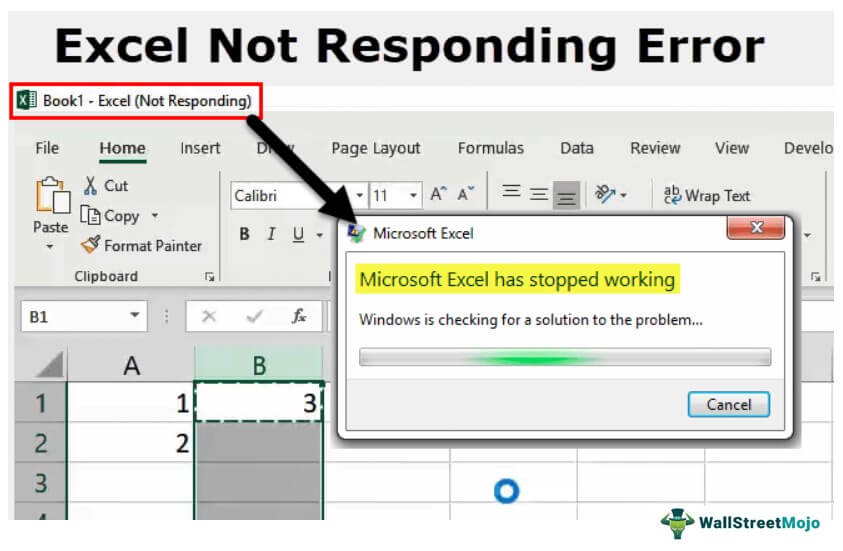
Microsoft Excel remains the backbone of data management, financial modeling, and administrative workflows worldwide. However, because it is such a resource-intensive application, it is prone to the dreaded “Not Responding” hang. This freezing typically occurs when Excel is overwhelmed by complex calculations, conflicting third-party add-ins, or insufficient system resources. When the screen pales and the cursor turns into a spinning circle, the immediate priority is to salvage your work and restore functionality without losing hours of progress.
Understanding the hierarchy of troubleshooting—from immediate “first aid” to deep-system optimization—is essential for any professional who relies on spreadsheets. This guide provides a comprehensive roadmap for resolving Excel freezes and preventing them from recurring.
Immediate Recovery and Emergency Steps
When Excel freezes, your first instinct might be to click frantically, but this often exacerbates the problem by flooding the application’s message queue. The first step is patience. Give the software sixty seconds to finish processing. If the application remains unresponsive, you must move into active recovery mode.
Utilizing the Windows Task Manager
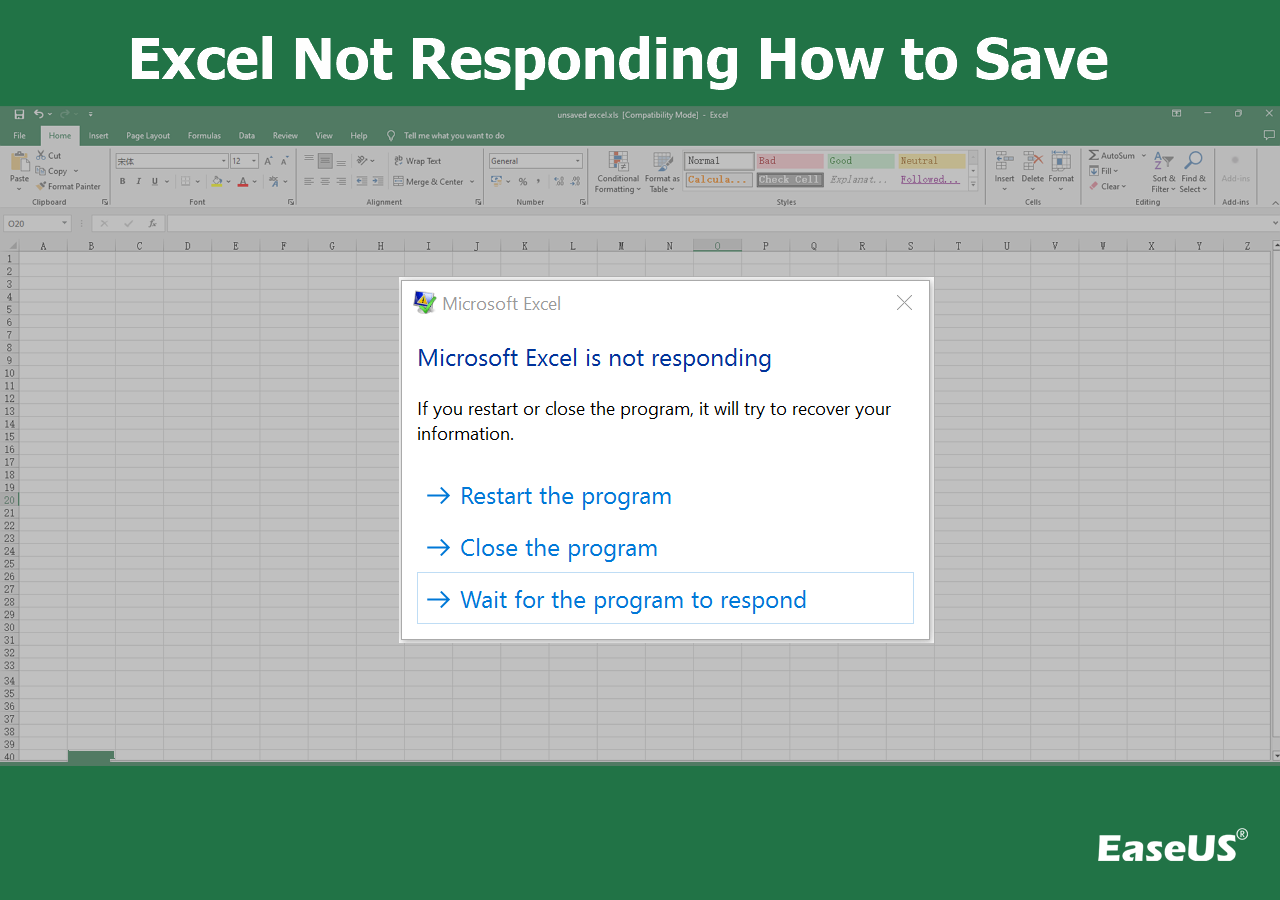
If Excel remains frozen, the most direct way to regain control of your system is through the Task Manager. Press Ctrl + Shift + Esc to open the Task Manager directly. Locate Microsoft Excel in the “Processes” tab. Before you click “End Task,” look at the CPU and Memory columns. If the CPU usage is still fluctuating, Excel might actually be working through a massive calculation. If the numbers are static and “Not Responding” is listed, right-click and select “End Task.”
Windows will attempt to shut down the process. While this may result in the loss of unsaved data, Excel’s “AutoRecover” feature is generally robust. Upon restarting the application, check the “Document Recovery” pane on the left side to see if a recent version was cached.
Launching in Safe Mode
If Excel consistently freezes upon startup or while opening a specific file, you should attempt to open it in Safe Mode. This mode bypasses all custom settings, toolbars, and—most importantly—add-ins.
- Hold the
Ctrlkey and double-click the Excel shortcut. - A prompt will appear asking if you want to start in Safe Mode. Click “Yes.”
- If Excel works perfectly in Safe Mode, the issue is almost certainly a corrupt setting or a faulty add-in rather than the core software itself.
Diagnostic and Software Repair Techniques
Once you have regained access to your computer, the next phase is identifying the root cause of the instability. Often, the software itself requires an update or a “repair” to its internal registry files.
Investigating Third-Party Add-ins
Add-ins are the most frequent culprits behind Excel crashes. Many users install data connectors, PDF converters, or specialized financial tools that run as COM (Component Object Model) add-ins. Over time, these can become incompatible with Windows updates or newer versions of Office.
To troubleshoot this:
- Navigate to File > Options > Add-ins.
- At the bottom of the window, select COM Add-ins from the “Manage” dropdown and click Go.
- Uncheck all add-ins and restart Excel.
- If the freezing stops, re-enable them one by one to identify the specific plugin causing the conflict.
Running the Office Repair Tool
If Excel is crashing across multiple different files, the installation files themselves may be corrupted. Microsoft provides a built-in utility to scan and fix the Office suite.
- Open the Control Panel and go to Programs and Features.
- Find Microsoft Office (or Microsoft 365) in the list.
- Right-click it and select Change.
- You will be presented with two options: Quick Repair and Online Repair.
- Start with “Quick Repair,” which fixes most issues without an internet connection. If the problem persists, “Online Repair” performs a more thorough reinstallation of the software components.
Checking for Update Conflicts
Microsoft regularly pushes “Quality Updates” and “Feature Updates.” Occasionally, a mismatch between your Windows version and your Office build can cause resource deadlocks. Ensure both Windows and Office are fully updated. In Excel, go to File > Account > Update Options > Update Now. If you recently updated Windows and Excel began freezing immediately afterward, you may need to check the Microsoft support forums for known bugs related to that specific build.
Optimizing Workbook Performance and File Health
Often, the software isn’t the problem—the file is. “Heavy” workbooks laden with legacy data, excessive formatting, and inefficient formulas can trigger the “Not Responding” state during calculation cycles.
Managing Calculation Options
Excel’s default behavior is “Automatic Calculation,” meaning every time you change a cell, the entire dependency tree of formulas updates. In a massive workbook with hundreds of thousands of rows, this can cause the software to hang.
If you are working on a particularly heavy file, go to the Formulas tab, select Calculation Options, and switch to Manual. This prevents Excel from recalculating until you manually press F9. This single change can often stop Excel from freezing during data entry.
Cleaning Up Excessive Formatting
A common cause of “file bloat” is formatting applied to entire columns or rows (e.g., highlighting all 1,048,576 rows). This forces Excel to track metadata for millions of empty cells.
- Clear Excess Cells: Go to the end of your actual data, select the empty rows below it, and use the “Clear All” command. Repeat this for empty columns to the right.
- Conditional Formatting: Excessive conditional formatting rules can drastically slow down rendering. Use the “Conditional Formatting Rules Manager” to delete redundant or overlapping rules.
Transitioning to the XLSB Format
If you are dealing with massive datasets that frequently cause Excel to hang, consider saving your file as an Excel Binary Workbook (.xlsb) rather than the standard .xlsx. The binary format is much faster for the computer to read and write, significantly reducing the time it takes to open and save files. It also results in smaller file sizes, which places less strain on your system’s RAM.
Advanced System and Hardware Troubleshooting
If software repairs and file optimization do not solve the issue, the problem likely resides at the system level. Excel interacts heavily with graphics drivers and system memory management.
Disabling Hardware Graphics Acceleration
Modern versions of Excel use the computer’s Graphics Processing Unit (GPU) to render the user interface and animations. However, outdated video drivers or hardware incompatibilities can cause Excel to freeze when it tries to offload tasks to the GPU.
To test this:
- Go to File > Options > Advanced.
- Scroll down to the Display section.
- Check the box for “Disable hardware graphics acceleration.”
- Restart Excel. Many users find that this immediately resolves flickering and “Not Responding” errors, especially on laptops with integrated graphics.
Printer Driver Conflicts
It may seem counterintuitive, but Excel’s “Page Layout” view communicates constantly with the default printer driver to calculate margins and page breaks. If the default printer is a network printer that is offline or has a corrupted driver, Excel may hang while waiting for a response from the printer.
Try changing your default printer to “Microsoft Print to PDF” or “OneNote.” If Excel stops freezing after this change, you need to reinstall your primary printer’s drivers.
Antivirus and Security Software
Some antivirus programs perform real-time scanning of Excel files every time a formula pulls data from an external source. This “deep inspection” can lock the file and prevent Excel from writing to it, leading to a hang. As a diagnostic step, temporarily disable your antivirus software and open the problematic file. If it works smoothly, you may need to add an exception for Excel or the specific folder where your workbooks are stored.

Preventive Habits for Power Users
The best way to handle an unresponsive Excel instance is to prevent it from happening in the first place through better workflow hygiene.
- Audit Your Formulas: Replace volatile functions like
OFFSET,INDIRECT, andTODAYwhere possible, as they trigger a recalculation every time any cell is changed. UseINDEX/MATCHorXLOOKUPinstead ofVLOOKUPto reduce the computational load. - Utilize Power Query: Instead of performing complex data manipulations with nested formulas, use Power Query (Data > Get Data). Power Query processes data outside of the main grid, which is significantly more stable and efficient for large datasets.
- Regular Cache Clearing: Over time, Excel accumulates temporary files. Periodically clearing your Windows “Temp” folder (
%temp%in the Run command) can help ensure there is plenty of scratch space for Excel to operate. - Monitor RAM Usage: Excel is a 64-bit application in most modern installations, meaning it can use as much RAM as your system provides. If you frequently work with “Big Data” in Excel, ensure your machine has at least 16GB of RAM to prevent the OS from having to swap data to the slower hard drive.
By combining these technical fixes with better file management habits, you can transform Excel from a source of frustration into a stable, high-performance tool for your digital environment. When “Not Responding” does occur, you now have the technical framework to diagnose whether the culprit is a rogue add-in, a corrupted installation, or a poorly optimized workbook.
aViewFromTheCave is a participant in the Amazon Services LLC Associates Program, an affiliate advertising program designed to provide a means for sites to earn advertising fees by advertising and linking to Amazon.com. Amazon, the Amazon logo, AmazonSupply, and the AmazonSupply logo are trademarks of Amazon.com, Inc. or its affiliates. As an Amazon Associate we earn affiliate commissions from qualifying purchases.