
In the modern ecosystem of networked hardware, the seamless interaction between a computer and a peripheral device is often taken for granted. When you connect a new printer to your home or office Wi-Fi, and it miraculously appears in your list of available devices without requiring a manual driver search or a physical cable, you are likely witnessing the work of Web Services for Devices, or WSD. This technology has become a cornerstone of the Windows printing experience, yet it remains one of the most misunderstood components of local area networking (LAN).
WSD is a Microsoft API that facilitates the discovery and use of devices over a network. It serves as a bridge, allowing hardware to announce its presence and capabilities to other machines using standardized web service protocols. While it has revolutionized the “Plug-and-Play” experience for the wireless era, it also introduces a unique set of technical considerations that every IT professional and tech enthusiast should understand.
Understanding the Core Mechanics of WSD
To understand what WSD does on a printer, one must first look at the protocols that preceded it. Historically, adding a network printer required knowing its static IP address and manually configuring a Standard TCP/IP port. This was a cumbersome process that required administrative knowledge. WSD was developed to modernize this workflow by implementing the Devices Profile for Web Services (DPWS).
The Role of DPWS in Network Discovery
DPWS is essentially the “language” that WSD-enabled devices speak. It is built upon established web standards, including XML, SOAP, and HTTP. When a WSD-capable printer is connected to a network, it broadcasts a “Hello” message using the WS-Discovery protocol. Your Windows computer, listening for these broadcasts, intercepts the message and recognizes that a new device is available.
This discovery process is dynamic. Unlike the static configurations of the past, WSD allows for a “handshake” between the PC and the printer. The printer provides metadata—such as its model number, manufacturer, and supported functions (printing, scanning, faxing)—and the PC automatically matches this information with the appropriate drivers.
How Communication Layers Work
WSD operates through a stack of protocols. At the base is the UDP and TCP transport layers. Discovery typically happens over UDP port 3702, while the actual data exchange and control messages occur over TCP ports 5357 or 5358. Because WSD uses these standard web protocols, it can negotiate firewalls and complex network topologies more gracefully than older, proprietary discovery methods. This architectural choice makes WSD highly scalable, moving beyond simple home networks into enterprise-grade environments where managed switches and VLANs are common.
The Practical Benefits of Using WSD for Printing
The primary goal of WSD is simplicity. In a tech landscape where user experience is paramount, WSD removes the friction of hardware integration. However, the benefits extend beyond mere ease of use; they include enhanced functionality and real-time feedback loops that were difficult to achieve with legacy protocols.
Simplified Installation and Automatic Discovery
The most immediate benefit of WSD is the elimination of the “Add Printer” wizard’s more technical steps. For the average user, WSD means they can unbox a printer, connect it to the router, and find it immediately available in their applications. Windows identifies the device, fetches the basic “Class Driver” from its internal database or Windows Update, and sets up the port automatically. This “zero-configuration” networking is essential for the proliferation of mobile devices and laptops that move between different network environments frequently.
Bi-directional Communication and Real-time Status Updates
Unlike older protocols like LPR (Line Printer Remote), which were largely one-way streets, WSD is inherently bi-directional. Because it is based on web services, the printer can “push” notifications to the computer.
This leads to a more “intelligent” printing experience. For example, if a printer runs out of paper, experiences a carriage jam, or is low on ink, it can send an asynchronous notification to the Windows desktop. WSD enables the “Printer Status” window to display accurate, real-time data about the hardware’s physical state. Furthermore, for multi-function printers (MFPs), WSD facilitates the “Scan to PC” feature, allowing the printer to initiate a data transfer to a specific computer on the network—a feat that traditionally required complex software suites.
Common Challenges and Troubleshooting WSD Connectivity Issues
Despite its convenience, WSD is not without its flaws. Tech support forums are filled with users complaining that their printer is “Offline” or that print jobs are stuck in the queue, even though the printer is powered on and connected to the network. Understanding why these failures occur is the first step toward building a more stable printing environment.
Why Your Printer Frequently Shows as “Offline”
The most common issue with WSD is its reliance on consistent network discovery. If a printer’s IP address changes (which happens frequently on networks using dynamic DHCP), the WSD port on the computer may lose track of the device. While WSD is supposed to resolve these changes automatically via its discovery protocol, network interference, sleep modes, or router settings can prevent the computer from “finding” the printer at its new address.
Furthermore, aggressive power-saving features on modern printers often cause the WSD service to time out. If the printer enters a deep sleep state, it may stop responding to the WS-Discovery pings sent by Windows. The computer then flags the device as offline, and often fails to “wake” it when a print job is sent, leading to frustration and ghosted print queues.
Resolving Driver Conflicts and Metadata Synchronization Errors
Because WSD often relies on generic “Class Drivers” to ensure immediate compatibility, users may find that some advanced features of their printer—such as specific tray selections, high-resolution photo modes, or specialized finishing options—are missing.
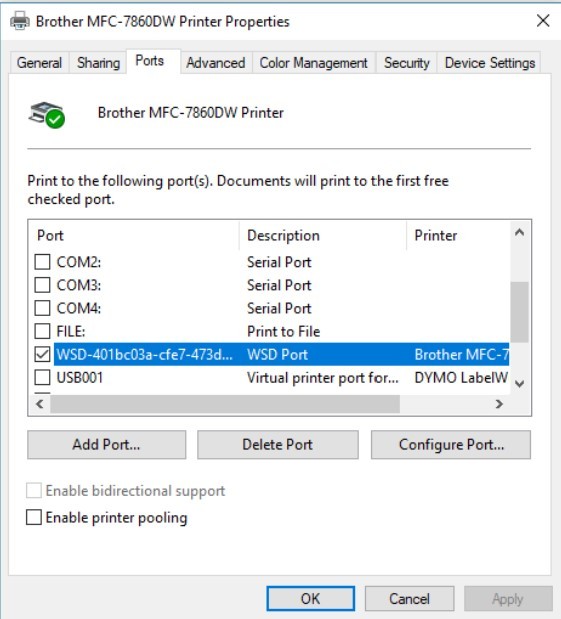
There are also instances where the WSD metadata becomes corrupted in the Windows registry. When this happens, Windows may believe the printer is a different model or may fail to communicate with the scanning sub-system. Troubleshooting these issues often requires clearing the print spooler and, in some cases, deleting the WSD port entirely to force a fresh discovery cycle.
WSD vs. Standard TCP/IP Ports: Which Should You Use?
For tech-savvy users and system administrators, the choice between using a WSD port and a Standard TCP/IP port is a frequent point of debate. While WSD is the consumer standard, the Standard TCP/IP port remains the professional standard for reliability.
The Case for Manual TCP/IP Port Configuration
If you require a “set it and forget it” connection, the Standard TCP/IP port is generally superior. By assigning your printer a static IP address (either on the device itself or through a DHCP reservation on your router) and manually creating a TCP/IP port in Windows, you bypass the discovery phase entirely.
The computer no longer needs to “find” the printer; it knows exactly where it is located at all times. This eliminates the “Offline” errors associated with WSD discovery failures. For office environments where uptime is critical, bypassing WSD in favor of a direct IP connection is the most effective way to ensure consistent performance across multiple workstations.
Security Considerations in Corporate Network Environments
From a digital security perspective, WSD introduces additional “attack surfaces.” Because WSD relies on open ports (3702, 5357) and active broadcasting, it can theoretically be exploited by malicious actors on a local network to gather information about hardware or to intercept unencrypted print data.
In high-security environments, IT administrators often disable WSD on the printer’s firmware level and block the associated ports at the firewall. This forces all printing traffic through controlled, monitored TCP/IP channels. While WSD is perfectly safe for a standard home network, its “chatty” nature can be a liability in a corporate setting where network visibility must be strictly controlled.
The Future of Printer Networking and WSD Integration
As we move toward an increasingly cloud-centric world, the role of WSD is evolving. Technologies like Universal Print by Microsoft and AirPrint by Apple are shifting the focus from local discovery to cloud-based management. However, WSD remains a vital fallback and a local-standard protocol that ensures hardware remains usable even without an active internet connection.
The integration of WSD has also paved the way for “Driverless” printing. As web services become more standardized, the need for model-specific drivers is decreasing. We are approaching a future where any WSD-compliant device can be used to its full potential by any operating system using a universal set of instructions.
In conclusion, WSD is a powerful tool that has significantly lowered the barrier to entry for network printing. By leveraging web service protocols to handle discovery and communication, it provides a user-friendly, feature-rich experience. However, its reliance on dynamic network conditions makes it prone to occasional instability. Whether you choose to embrace the convenience of WSD or opt for the rock-solid reliability of a manual TCP/IP configuration depends entirely on your technical needs and your tolerance for troubleshooting. Understanding the mechanics of WSD empowers you to make that choice, ensuring that your hardware works for you, rather than against you.
aViewFromTheCave is a participant in the Amazon Services LLC Associates Program, an affiliate advertising program designed to provide a means for sites to earn advertising fees by advertising and linking to Amazon.com. Amazon, the Amazon logo, AmazonSupply, and the AmazonSupply logo are trademarks of Amazon.com, Inc. or its affiliates. As an Amazon Associate we earn affiliate commissions from qualifying purchases.