
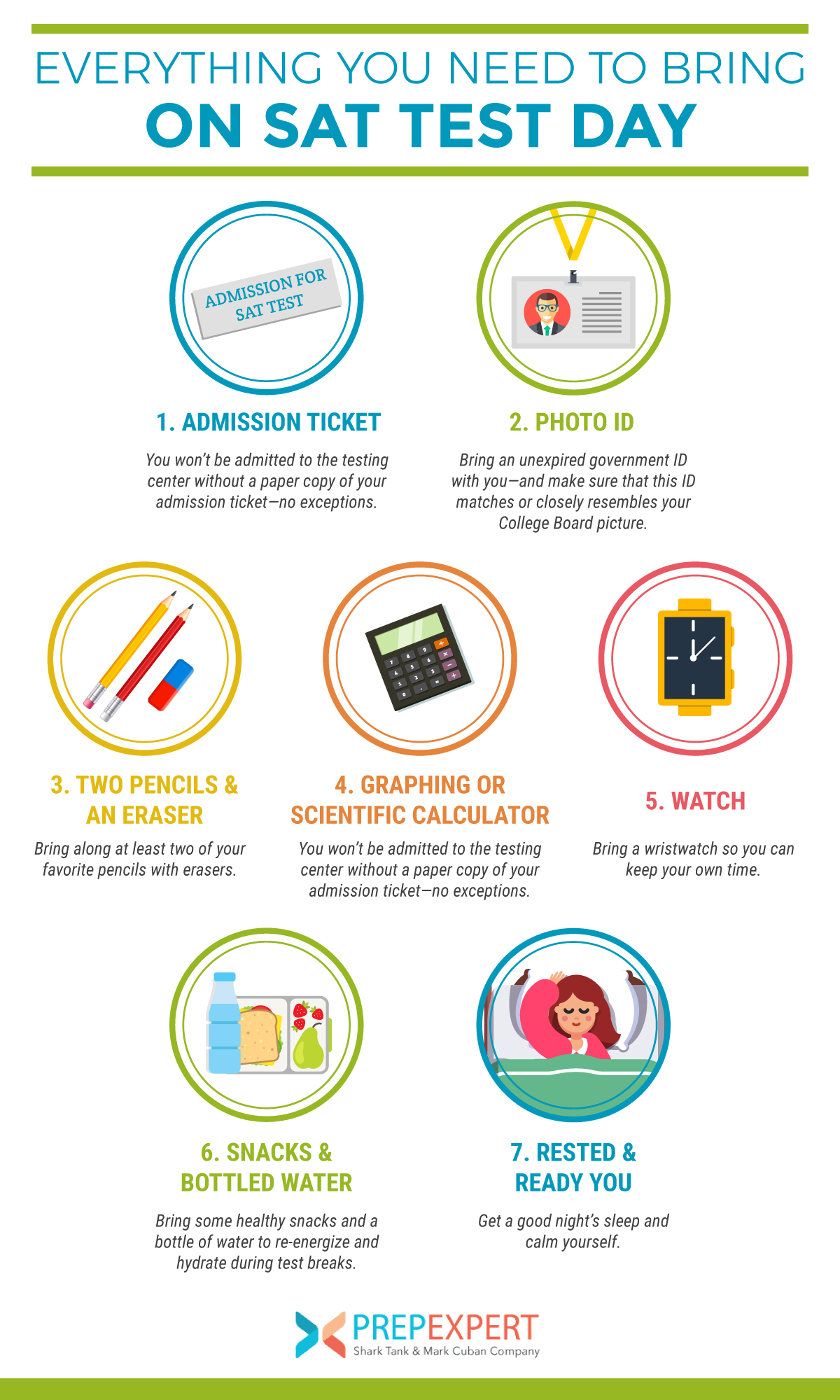
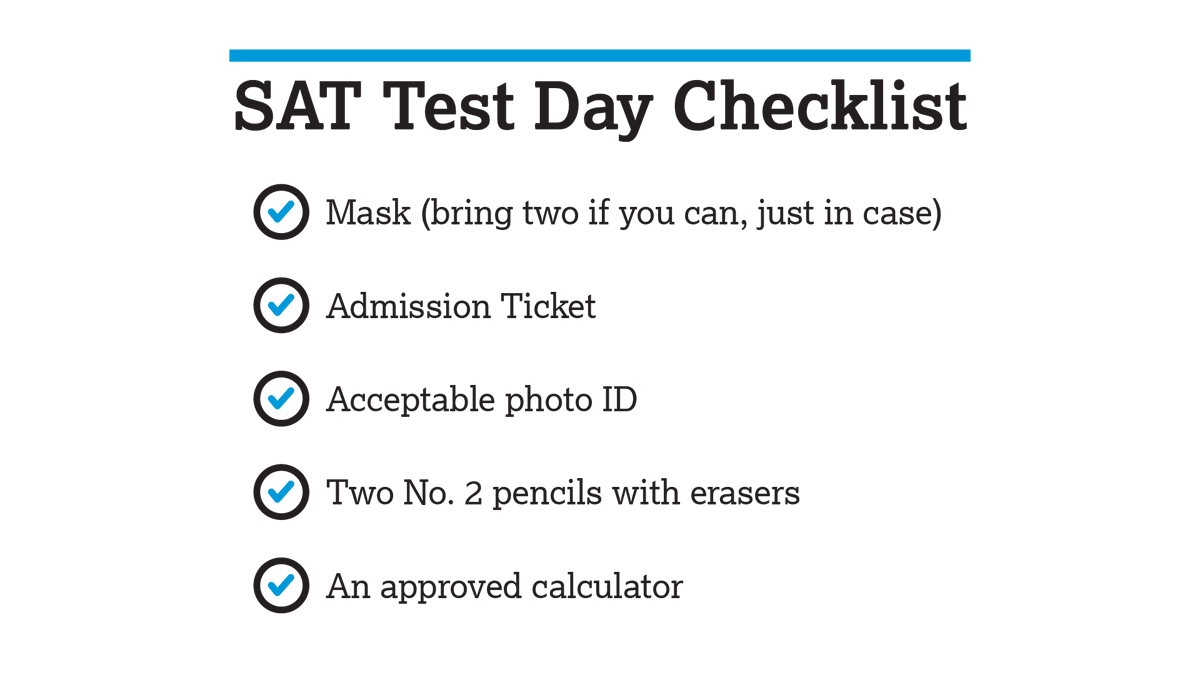
The transition of the SAT from a paper-and-pencil format to a fully digital experience marks one of the most significant shifts in the history of standardized testing. For decades, the checklist for “what to bring to the SAT” remained static: No. 2 pencils, a manual sharpener, and a high-quality eraser. Today, the landscape is entirely different. As the College Board implements the Digital SAT (dSAT), the focus has shifted from graphite and paper to hardware specifications, software compatibility, and digital security.
To succeed in this modern testing environment, students must treat the exam not just as an academic challenge, but as a technical deployment. Failing to bring the correct device or neglecting a critical software update can be just as detrimental as missing a study session. This guide explores the essential tech stack every student needs for the Digital SAT, ensuring that the only thing you have to worry about on test day is the content of the questions.
1. Hardware Requirements: Selecting the Optimal Device for Exam Stability
The Digital SAT is delivered via a proprietary application, which means the physical hardware you bring to the testing center is the foundation of your performance. Unlike a paper test, where the medium is uniform, students now use a variety of devices, each with its own set of technical considerations.
Laptop Specifications: Windows and macOS Compatibility
Most students opt for a traditional laptop, which provides the stability of a physical keyboard and a familiar operating system. If you are bringing a Windows laptop, it must be running Windows 10 or 11 (in Home, Pro, or Education editions). For Mac users, macOS 11.4 Big Sur or later is the minimum requirement.
From a tech perspective, the “insightful” choice involves more than just meeting minimum specs. You should ensure your laptop has at least 4GB of RAM and a processor capable of handling the Bluebook™ application without lag. While the app is designed to be lightweight, background system processes can hog resources. Bringing a machine with a solid-state drive (SSD) rather than a traditional hard drive will also ensure that the application loads and transitions between modules as quickly as possible.
Tablet Integration: Using the iPad for High-Stakes Testing
The College Board allows the use of iPads (running iPadOS 14.5 or later), but this comes with specific caveats. If you choose an iPad, ensure it is a model that supports a stable Bluetooth or smart-connector keyboard. While on-screen keyboards are technically allowed, they occupy valuable screen real estate, making it difficult to read long passages and solve complex geometry problems simultaneously.
Tech-savvy students often prefer the iPad for its high-resolution Retina display, which can reduce eye strain over the course of the three-hour exam. However, if you choose this route, you must bring your own external keyboard, as the testing center is not required to provide peripherals for personal devices.
Battery Management and Longevity Standards
The most critical “gadget” rule for the Digital SAT is power management. Your device must be able to hold a charge for at least three to four hours. While testing centers are encouraged to provide power outlets, access is not guaranteed for every student.
To optimize your tech for the exam, disable high-drain features like “Always-On” displays or keyboard backlighting. Furthermore, ensure your battery health is at a level where it doesn’t experience “voltage sag”—a common issue in older lithium-ion batteries where the device shuts down unexpectedly under load. Bringing a portable power bank is often prohibited in the testing room itself, so the internal battery is your primary lifeline.
2. Software Ecosystem: Mastering the Bluebook™ Application
The center of the Digital SAT universe is the Bluebook™ app. This is the custom-built software designed by the College Board to deliver the exam, provide tools, and lock down the device. Understanding the tech behind this software is essential for a smooth experience.
Pre-Exam Installation and Updates
The SAT is no longer a “show up and sit down” event. Students are required to download the Bluebook app onto their testing device days before the exam. This is not merely an administrative task; it is a critical tech synchronization. Upon installation, the app runs a “System Check” to verify that your hardware meets the security and performance thresholds.
One of the most common tech failures on test day is a version mismatch. Software updates for Bluebook can be pushed out shortly before a testing window. It is vital to open the app 24 to 48 hours before the exam to ensure it has updated to the latest build. A failed update at the testing center can lead to connectivity errors that prevent the exam from launching.
Managing Background Processes and Notifications
The Bluebook app functions as a “locked-down” environment. From a software perspective, it takes control of your operating system to prevent cheating. However, certain third-party apps can interfere with this lockdown.

Before heading to the testing center, students should manually disable “Disturb” modes, automated updates for other software (like Steam, Adobe Creative Cloud, or Windows Update), and any screen-recording or communication software (like Discord or Slack). In some cases, aggressive antivirus software may flag Bluebook as a threat because of how it hooks into the system to lock the screen. Whitelisting the application or temporarily disabling non-essential security layers can prevent a mid-test crash.
Exploring Built-in Tools: The Digital Desmos Calculator
One of the most significant tech upgrades in the Digital SAT is the integration of the Desmos Graphing Calculator directly into the testing interface. While you are allowed to bring a physical graphing calculator, mastering the digital version is a strategic advantage.
The integrated Desmos tool is optimized for the SAT’s specific question types. It allows for rapid plotting of functions and solving of equations that would take much longer on a handheld TI-84. Bringing a “tech-first” mindset means practicing with this specific software interface during your prep phase so that on test day, the tool feels like an extension of your thought process rather than a foreign gadget.
3. Digital Security and Compliance Protocols
The move to digital testing necessitated a massive overhaul of security protocols. The “what to bring” list now includes compliance with high-level digital integrity standards designed to prevent the digital distribution of test content.
Understanding Lock-Down Browser Technology
When you launch the Bluebook app, it employs lock-down browser technology. This tech prevents you from switching tabs, opening other applications, or taking screenshots. It essentially turns your high-powered laptop into a single-purpose testing terminal.
It is important to understand that any attempt by the OS to “break out” of this lock—such as a system notification or a software update pop-up—can sometimes be flagged as a security violation. Ensuring your device is in a “clean” state (rebooted just before the test with only essential services running) is the best way to maintain digital compliance.
Prohibited Digital Tools and External Hardware
While the SAT is now tech-forward, there are strict limits on what gadgets can enter the room. Standard digital security protocols prohibit:
- Wearable Tech: Smartwatches (Apple Watch, Pixel Watch) and fitness trackers are strictly banned. The tech niche here is clear: even if you use your watch purely for timing, its communication capabilities make it a security risk.
- External Monitors and Privacy Screens: You cannot bring an external monitor, and some testing centers may even prohibit certain types of thick privacy filters if they interfere with the proctor’s ability to see your screen from an angle.
- Non-Standard Input Devices: While a basic mouse is usually allowed, programmable gaming mice with macro buttons may be scrutinized or prohibited.
4. Tech Accessories: Enhancing Precision and Ergonomics
Beyond the core device, several tech accessories can significantly improve your testing experience. These “extras” bridge the gap between basic functionality and high-performance testing.
The Mouse vs. Trackpad Debate
For many students, the precision of an external mouse is superior to a laptop trackpad, especially when interacting with the Desmos graphing interface or highlighting specific lines of text in the reading section. If you bring a mouse, ensure it is a basic optical mouse. If it is wireless, bring a fresh set of batteries or ensure it is fully charged. Avoid “silent” mice that have a mushy feel; the tactile feedback of a standard click can actually help with focus during high-pressure moments.
Stylus and External Keyboards for Tablet Users
For those using iPads, an Apple Pencil or a compatible stylus can be a game-changer. While you cannot “write” directly on the test questions, you can use the stylus for the digital scratchpad or for more precise navigation of the interface. As mentioned earlier, a physical keyboard is non-negotiable for efficiency. The tech strategy here is to ensure all Bluetooth peripherals are paired correctly before entering the room, as “pairing mode” can sometimes be blocked by the testing center’s local interference or security rules.
5. Connectivity and Infrastructure: Ensuring a Seamless Sync
The final piece of the “what to bring” tech puzzle is the bridge between your device and the College Board servers.
Network Reliability and the Testing Center Environment
While the Digital SAT is designed to be “interruption-tolerant,” it still requires a connection to start and submit the exam. You will be provided with a Wi-Fi login at the testing center. Tech-savvy students should know their device’s MAC address and how to toggle Wi-Fi settings quickly if the initial connection fails.
Offline Resiliency: How the Digital SAT Handles Outages
One of the most impressive tech features of the Bluebook app is its ability to handle internet drops. If the Wi-Fi goes out mid-test, the app continues to function, saving your progress locally on the device’s encrypted cache. Once the connection is restored, it syncs the data back to the cloud. Knowing this should alleviate “tech anxiety.” Your primary responsibility is bringing a device with a functional Wi-Fi card and ensuring your OS isn’t set to “Randomize MAC Address,” which can sometimes cause issues with campus-style Wi-Fi authentication.
In conclusion, “what to bring to the SAT” is now a question of digital readiness. By preparing your hardware, mastering the software ecosystem, and adhering to digital security protocols, you ensure that your technology serves as a tool for success rather than a barrier to entry. Treat your testing device with the same care a professional treats their equipment, and you will be well-positioned to conquer the Digital SAT.
aViewFromTheCave is a participant in the Amazon Services LLC Associates Program, an affiliate advertising program designed to provide a means for sites to earn advertising fees by advertising and linking to Amazon.com. Amazon, the Amazon logo, AmazonSupply, and the AmazonSupply logo are trademarks of Amazon.com, Inc. or its affiliates. As an Amazon Associate we earn affiliate commissions from qualifying purchases.