
Resetting a computer, often referred to as a factory reset or system restore, is a powerful troubleshooting tool that can bring your device back to its original state. While it can be a lifesaver for resolving software glitches, performance issues, or preparing a device for sale or donation, it’s not a decision to be taken lightly. Understanding the process, its implications, and the necessary preparations is crucial to ensure a smooth and successful outcome. This guide aims to demystify the computer reset, providing you with the knowledge to approach this task with confidence and clarity, all within the realm of Tech.
Understanding the Reset Process and Its Implications
At its core, a computer reset is a process that returns your operating system to its default settings. This typically involves reinstalling the operating system, removing installed applications, and deleting user files. The specific outcome, however, can vary depending on the options available within your operating system and the type of reset performed.
The Difference Between a Refresh, Reset, and Full Reinstall
It’s important to distinguish between similar-sounding but functionally different operations.
Refresh or Restore: Preserving Your Files
Many modern operating systems offer a “refresh” or “restore” option that is less drastic than a full reset. This process typically reinstalls the operating system while attempting to keep your personal files and data intact. Applications that were pre-installed by the manufacturer or installed from the app store are usually preserved, while applications you downloaded and installed manually will need to be reinstalled. This is an excellent first step if you’re experiencing minor software glitches or slowdowns, as it can often resolve issues without the significant data loss associated with a full reset. The underlying system files are replaced with fresh copies, effectively wiping away any corrupted or misbehaving components.
Reset: A Clean Slate with Options
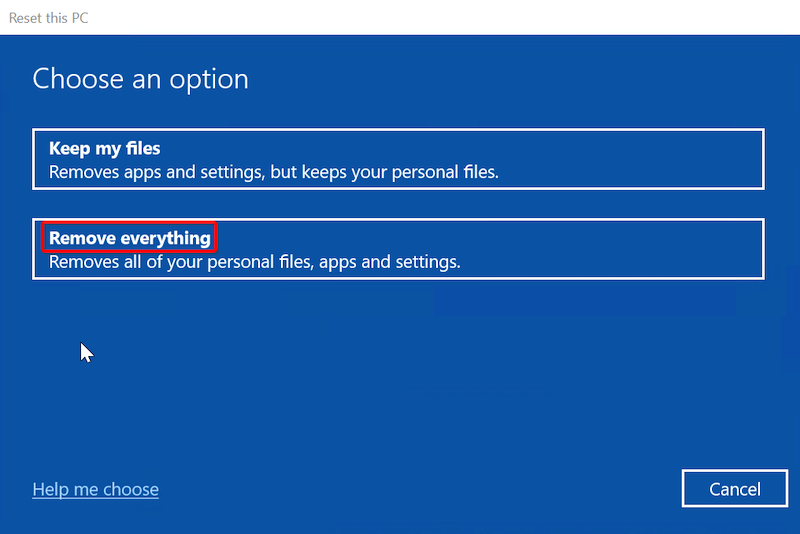
A “reset” is a more comprehensive operation. It typically involves wiping your drive and reinstalling the operating system. However, most reset functions provide you with a critical choice: to keep your files or remove everything.
-
Keep My Files: This option aims to remove applications and settings but preserve your personal documents, photos, music, and other user data. It’s a good middle ground if you want to start fresh with your software environment but don’t want to risk losing your important data. The operating system is reinstalled, and your user accounts are retained, but all installed programs are uninstalled, and system settings are returned to their defaults.
-
Remove Everything: This is the most thorough reset option. It completely wipes your hard drive, deleting all user files, installed applications, and operating system settings. This is equivalent to a clean installation of the operating system and is the recommended option if you are selling or donating your computer, or if you suspect deep-seated malware or persistent software corruption that even a “keep my files” reset might not resolve. This option ensures that no personal data remains on the device.
Full Reinstall: The Most Comprehensive (and Sometimes Manual) Approach
A full reinstall, often performed from installation media (like a USB drive or DVD) or through advanced recovery partitions, is the most definitive way to start over. While a built-in “reset” function can achieve a similar outcome, a manual reinstall offers more control. This involves booting from the installation media, formatting the drive, and then installing the operating system from scratch. This is the ultimate solution for severe hardware or software issues that prevent the operating system from booting or functioning correctly. It’s also often the preferred method for IT professionals seeking a completely pristine system.
What Gets Removed and What Stays
The impact of a reset on your data and software is a primary concern.
Personal Files and Data
As mentioned, the “Remove Everything” option will delete all your personal files, including documents, pictures, music, videos, and downloads. The “Keep My Files” option will attempt to preserve these. However, it’s paramount to remember that no reset is guaranteed to preserve all your data. There’s always a small risk of data loss due to unforeseen errors or issues during the process. This is why backing up your data is the single most important preparatory step.
Installed Applications
All applications you have manually installed will be removed during a reset, regardless of whether you choose to keep your files or remove everything. This includes programs like Microsoft Office, Adobe Creative Suite, web browsers other than the default, games, and utility software. You will need to reinstall these applications after the reset is complete.
Operating System and Settings
The operating system itself will be reinstalled or refreshed. All custom settings, such as desktop backgrounds, personalization options, network configurations, and user account preferences, will be reset to their default values.
Drivers and Peripherals
While the operating system is reinstalled, it typically includes a comprehensive set of generic drivers for common hardware. However, you may need to manually reinstall specific drivers for your graphics card, sound card, printer, or other peripherals to ensure they function optimally. Windows Update often helps with this, but sometimes manufacturer-specific drivers offer better performance or features.
Preparing for a Computer Reset: The Crucial First Steps
Before initiating a reset, thorough preparation is essential to avoid data loss and ensure a smooth transition to a fresh system.
The Undeniable Importance of Data Backup
This cannot be stressed enough: Back up everything you care about. Before you even consider resetting your computer, create a comprehensive backup of all your important files.
Strategies for Effective Data Backup
-
External Hard Drives: These are a reliable and cost-effective solution for storing large amounts of data. Connect an external drive and copy all your documents, photos, videos, music, and any other crucial files. Consider using backup software that can automate this process and create incremental backups.
-
Cloud Storage Services: Services like Google Drive, OneDrive, Dropbox, and iCloud offer convenient ways to back up your files online. You can sync entire folders or manually upload specific files. This also provides accessibility to your data from any device with an internet connection. Be mindful of storage limits and consider a paid plan if you have a significant amount of data.
-
Network Attached Storage (NAS): For more advanced users or businesses, a NAS device provides centralized storage on your local network. It acts like a private cloud and can be configured for automatic backups from multiple devices.
-
USB Flash Drives: Suitable for smaller, critical files that you need to access quickly. However, they are generally not ideal for backing up entire systems due to their limited capacity and susceptibility to physical damage or loss.
What to Back Up
- Personal Documents: Word files, spreadsheets, presentations, PDFs, and any other work-related or personal documents.
- Photos and Videos: Your cherished memories are irreplaceable.
- Music and Media Libraries: If you have extensive digital music or movie collections.
- Download Folders: Sometimes crucial installers or files are tucked away here.
- Browser Bookmarks and Passwords: Most browsers allow you to export bookmarks. For passwords, consider using a reputable password manager that can sync across devices.
- Application Settings and Configurations: Some applications allow you to export their settings. This is more advanced but can save time upon reinstallation.
Gathering Necessary Software and Drivers
Once your data is secure, it’s time to think about what you’ll need after the reset.
Reinstallation Media and Product Keys
If you are performing a full manual reinstallation, you will need installation media for your operating system (e.g., a bootable USB drive). For Windows, you can usually create this using the Media Creation Tool provided by Microsoft. Ensure you have your Windows product key readily available, although in most modern Windows versions, the license is tied to your Microsoft account or hardware, and activation is often automatic. For other software, have your product keys or license information accessible.
Manufacturer-Specific Drivers
While Windows Update will install many generic drivers, it’s often beneficial to download the latest drivers directly from your computer manufacturer’s website (e.g., Dell, HP, Lenovo) or the component manufacturer’s website (e.g., NVIDIA, AMD for graphics cards). This ensures optimal performance and compatibility. Look for drivers for your graphics card, sound card, network adapter, and any other specialized hardware.
Essential Applications
Make a list of all the applications you regularly use. Before resetting, download the installers for these applications and save them to an external drive or a cloud storage folder. This will save you the time and frustration of searching for them after your system is reset. Common examples include:
- Web Browsers (Chrome, Firefox, etc.)
- Office Suites (Microsoft Office, LibreOffice)
- Media Players (VLC Media Player)
- Image Editors (GIMP, Photoshop)
- Communication Apps (Zoom, Skype)
- Antivirus Software (if you don’t plan to rely solely on Windows Defender)
Understanding Your Operating System’s Recovery Options
Each operating system has built-in tools that facilitate the reset process. Familiarizing yourself with these options before you begin is crucial.
Windows Recovery Options
-
Settings > Update & Security > Recovery: This is the primary gateway to Windows reset options. Here, you’ll find “Get started” under “Reset this PC.” You can choose between “Keep my files” and “Remove everything.” Windows will also guide you through options like “Clean install of Windows” which can be more thorough.
-
Advanced Startup Options: You can access advanced startup options by restarting your PC and holding down the Shift key, or by navigating through Settings > Update & Security > Recovery > Advanced startup > Restart now. This menu provides access to System Restore, Startup Repair, Command Prompt, and the option to reset your PC from a recovery environment, which can be useful if your system won’t boot normally.
macOS Recovery Options
- macOS Recovery: To access macOS Recovery, restart your Mac and immediately press and hold Command (⌘)-R until you see the Apple logo or a spinning globe. From here, you can choose “Reinstall macOS” (which essentially performs a clean install), “Restore from Time Machine Backup,” or “Disk Utility” to erase your drive before reinstalling.
Linux Recovery Options
- Distribution-Specific Tools: Linux distributions vary, but most offer recovery modes accessible during boot-up (often by pressing F11 or ESC). This usually provides options to repair the bootloader, access a terminal, or perform a fresh installation from the existing installation media or a separate recovery partition.
Executing the Computer Reset: A Step-by-Step Approach
With thorough preparation, the actual reset process can be executed with relative ease. The specific steps will vary slightly depending on your operating system.
Performing a Reset on Windows
- Access Reset Options: Navigate to Settings > Update & Security > Recovery.
- Initiate Reset: Click Get started under “Reset this PC.”
- Choose Your Option: Select either Keep my files or Remove everything.
- If you choose “Remove everything,” you may be presented with further options to just remove your files or to thoroughly clean the drive, which is recommended if you’re selling the computer.
- Follow On-Screen Prompts: Windows will guide you through the remaining steps, which may include downloading the necessary files from the cloud if you don’t have them locally.
- Confirm and Reset: Review the summary of what will happen and click Reset.
The process can take anywhere from 30 minutes to several hours, depending on the speed of your computer and the size of your drive. Your computer will restart multiple times.
Performing a Reset on macOS
- Enter macOS Recovery: Restart your Mac and hold down Command (⌘)-R until the Apple logo appears.
- Select Disk Utility: From the macOS Utilities window, choose Disk Utility.
- Erase Your Drive: Select your startup disk (usually named “Macintosh HD”) and click Erase. Choose a format (APFS for modern Macs, Mac OS Extended (Journaled) for older ones) and scheme (GUID Partition Map).
- Reinstall macOS: Close Disk Utility and select Reinstall macOS from the macOS Utilities window.
- Follow On-Screen Prompts: The installer will guide you through the rest of the process. You’ll need to connect to Wi-Fi if prompted.
This process also involves significant download and installation time.
Post-Reset Procedures: Setting Up Your Fresh System
Once the reset is complete, your computer will boot into a setup screen, much like when you first unboxed it.
Initial Setup and Account Configuration
Follow the on-screen instructions to:
- Select Your Region and Language.
- Connect to a Wi-Fi Network.
- Create or Log In to Your User Account: For Windows, you’ll typically be prompted to sign in with your Microsoft account. For macOS, you’ll create a new user account.

Reinstalling Applications and Restoring Data
This is where your preparation pays off:
- Install Essential Applications: Use the installers you saved to reinstall your preferred software.
- Restore Your Data: Connect your external drive or access your cloud storage and copy your backed-up files back to your computer.
- Install Drivers: Run any driver installers you downloaded from manufacturer websites.
- Run System Updates: Ensure your operating system and all installed applications are up to date. This is crucial for security and stability.
- Reconfigure Settings: Personalize your desktop, set up your email accounts, and adjust other system settings to your preferences.
By following these steps, you can effectively reset your computer and set yourself up with a clean, stable, and efficient system, ready for whatever you need to accomplish.
aViewFromTheCave is a participant in the Amazon Services LLC Associates Program, an affiliate advertising program designed to provide a means for sites to earn advertising fees by advertising and linking to Amazon.com. Amazon, the Amazon logo, AmazonSupply, and the AmazonSupply logo are trademarks of Amazon.com, Inc. or its affiliates. As an Amazon Associate we earn affiliate commissions from qualifying purchases.