
For Mac users, the seamless integration of hardware and software is a cornerstone of the Apple experience. This extends to external storage solutions. Whether you’re a creative professional juggling massive video files, a photographer archiving a lifetime of memories, a student backing up crucial coursework, or simply someone who’s running out of space on their sleek MacBook, an external hard drive is an indispensable tool. But with a bewildering array of options on the market, pinpointing the “best” external hard drive for your Mac can feel like navigating a labyrinth.
This guide will cut through the noise, offering a comprehensive look at what makes an external hard drive ideal for macOS, exploring the key considerations, and highlighting top recommendations. We’ll delve into the technical specifications that matter, the brands that consistently deliver reliability, and even touch upon the financial aspects of investing in storage that truly serves your needs.
Understanding Your Mac Storage Needs
Before we dive into specific drive recommendations, it’s crucial to understand what you’ll be using your external hard drive for. This initial assessment will significantly narrow down your choices and prevent you from overspending or undershooting your requirements.
Assessing Capacity: How Much Space Do You Really Need?
This is perhaps the most critical question. Think about the types of files you intend to store:
- Photos and Videos: High-resolution images and 4K video footage can consume enormous amounts of space. A single hour of 4K ProRes video, for instance, can easily exceed 200GB.
- Music Libraries: Large lossless audio collections can also add up quickly.
- Documents and Projects: While individual documents are small, extensive projects, especially those involving design software or large datasets, can accumulate.
- Backups: This is a primary function for many. Apple’s Time Machine backs up your entire system, so you’ll want ample space for your current data plus room for historical versions. A good rule of thumb is to have at least twice the capacity of your Mac’s internal drive for Time Machine backups.
- Bootable Clones: Creating a bootable clone of your system for emergencies or testing requires a drive at least as large as your internal drive.
General Capacity Guidelines:
- 250GB – 500GB: Suitable for light backups, transferring smaller files, or extending the storage of a very basic Mac with limited internal space.
- 1TB – 2TB: A good sweet spot for most users, offering ample space for regular backups, a decent media library, and general file storage.
- 4TB – 8TB: Ideal for photographers, videographers, and users with extensive media collections or who need to store large project files.
- 10TB+: For professionals dealing with massive datasets, extensive video editing projects, or those who want an all-encompassing backup solution for multiple devices.
Speed vs. Portability: Finding the Right Balance
The speed at which your external drive can read and write data directly impacts your workflow. For Macs, this often boils down to the connection interface and the internal drive technology.
Connection Interfaces: The Gateway to Speed
- USB-C (Thunderbolt 3/4): This is the modern standard for Macs. Thunderbolt 3 and 4 offer the highest speeds, approaching the performance of internal SSDs. If you have a newer MacBook Pro, MacBook Air, iMac, or Mac mini, you’ll likely have Thunderbolt ports. Drives utilizing Thunderbolt offer blazing-fast data transfer, crucial for video editing, large file transfers, and running applications directly from the external drive.
- USB 3.0/3.1/3.2 (Type-A and Type-C): These are still widely supported and offer respectable speeds. While not as fast as Thunderbolt, USB 3.x is perfectly adequate for most backup tasks, general file storage, and even light creative work. Ensure the drive you choose is advertised as USB 3.0 or higher for optimal performance.
Drive Technology: HDD vs. SSD
This is a fundamental distinction that significantly impacts price, speed, and durability:
-
Hard Disk Drives (HDDs): These are the traditional spinning platter drives.
- Pros: Offer the highest capacities for the lowest cost per gigabyte. Excellent for bulk storage and backups where speed isn’t the absolute priority.
- Cons: Slower read/write speeds compared to SSDs. More susceptible to damage from drops and vibrations due to their mechanical nature. Can be noisier.
- Best for: Large capacity backups, archiving, and general file storage where budget is a primary concern.
-
Solid State Drives (SSDs): These use flash memory, similar to what’s found in your Mac’s internal storage.
- Pros: Significantly faster read/write speeds, leading to quicker file transfers, faster application loading, and a more responsive experience when working directly from the drive. More durable, shock-resistant, and silent.
- Cons: Higher cost per gigabyte compared to HDDs. Capacities are generally lower for the same price point.
- Best for: Working directly with large files (video editing, photo editing), running applications from the drive, bootable backups, and users who prioritize speed and portability.
For Mac users who value performance and a seamless experience, SSD external drives with Thunderbolt connectivity are the gold standard. However, if your primary need is simply vast, affordable storage for backups or archiving, a high-capacity HDD is still a very viable and cost-effective option.
Top Considerations for Mac External Hard Drives
Beyond capacity and speed, several other factors contribute to making an external hard drive the “best” choice for your Mac.
1. Compatibility and Formatting
- macOS Native Formatting: While many external drives come pre-formatted for Windows (NTFS), macOS can read NTFS drives but cannot write to them without third-party software. To use a drive fully with your Mac, including writing files, you’ll need to format it for macOS.
- APFS (Apple File System): The modern file system designed for SSDs. It offers enhanced performance, space management, and security features. Highly recommended for SSD external drives used with macOS High Sierra and later.
- Mac OS Extended (Journaled) / HFS+: The older file system. Still perfectly functional for HDDs and for compatibility with older macOS versions.
Recommendation: When purchasing, look for drives advertised as Mac-compatible. Many manufacturers offer drives pre-formatted for Mac or clearly state they are easily format-able. If you plan to use the drive with both Windows and Mac machines, consider formatting it as exFAT, which is compatible with both operating systems without requiring third-party software.
2. Reliability and Brand Reputation
When it comes to storing your valuable data, reliability is paramount. Investing in a reputable brand with a history of producing dependable storage solutions can save you a lot of heartache down the line.
Key Brands to Consider:
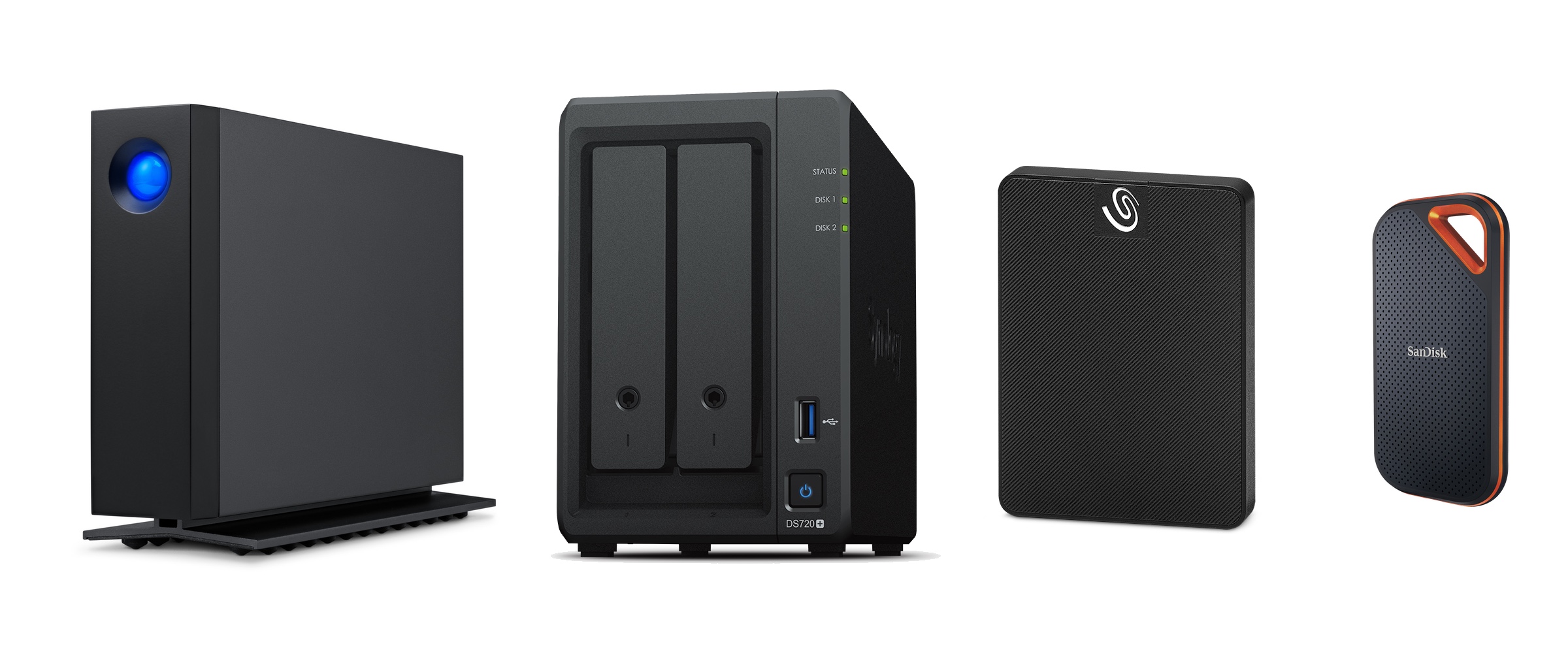
- LaCie: Often a top choice for creative professionals. Known for robust build quality, high-performance Thunderbolt drives, and sleek designs. They offer a range of SSDs and HDDs, often geared towards demanding workflows.
- G-Technology (Western Digital): Another brand favored by professionals. They offer a wide spectrum of drives, from portable SSDs to high-capacity desktop HDDs, with a strong emphasis on performance and reliability.
- Samsung: A leader in SSD technology, Samsung’s portable SSDs are renowned for their speed, compact size, and durability. Excellent for users who prioritize portable SSD performance.
- Crucial (Micron): Known for their high-quality internal SSDs, Crucial also offers reliable portable SSD solutions that offer excellent value.
- Western Digital (WD): A major player in the storage market, WD offers a broad range of external HDDs and SSDs under various product lines (e.g., My Passport, Elements). They provide dependable solutions for everyday users and professionals alike.
- Seagate: Similar to WD, Seagate offers a vast selection of external drives, from budget-friendly HDDs to high-performance SSDs. Their Barracuda and FireCuda lines are particularly well-regarded.
- SanDisk (Western Digital): While known for flash memory cards, SanDisk also offers excellent portable SSDs that are compact, fast, and durable.
What to Look For:
- Warranty: A longer warranty period (3-5 years) indicates the manufacturer’s confidence in their product’s longevity.
- Reviews: Always check user reviews for consistent reports of drive failures or performance issues.
3. Portability and Design
The physical characteristics of your external hard drive might be more important than you think, depending on your usage.
- Portable Drives: These are typically smaller, lighter, and powered via the USB or Thunderbolt connection. They are ideal for users who need to transport their data regularly, work on the go, or have limited desk space. SSDs excel here due to their compact size and lack of moving parts.
- Desktop Drives: These are larger, often require their own power adapter, and generally offer higher capacities at a lower cost per terabyte. They are best suited for stationary use, such as a primary backup solution at home or in an office.
Aesthetics: For Mac users, the design often plays a role. Many brands offer drives with sleek, minimalist designs that complement Apple’s aesthetic. While this is subjective, it can be a deciding factor for some.
Recommended External Hard Drives for Mac Users
Based on the considerations above, here are some types of external hard drives that often rank highly for Mac users:
High-Performance Thunderbolt/USB-C SSDs (For Professionals and Power Users)
These drives offer the pinnacle of speed and are ideal for demanding tasks like 4K video editing, large photo library management, and running virtual machines.
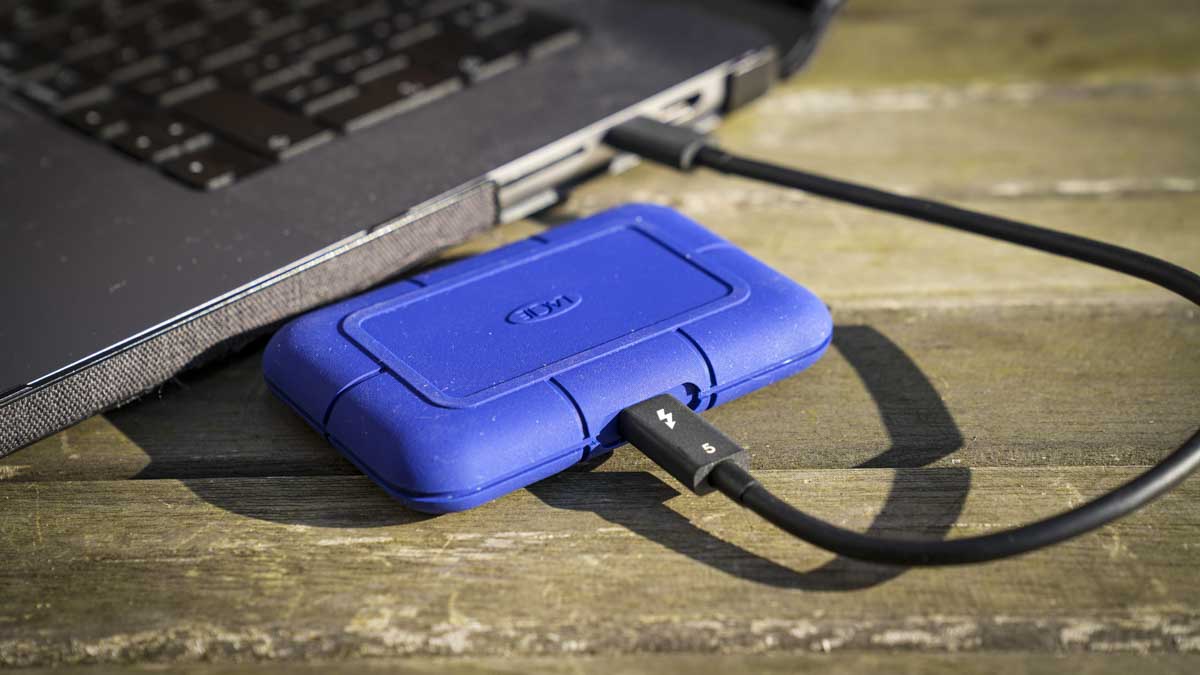
- LaCie Rugged SSD Pro / Thunderbolt Series: Renowned for their durability and blistering speeds, these are a favorite among video professionals. They often feature ruggedized casings for protection in harsh environments.
- G-Technology G-DRIVE SSD: Offers excellent Thunderbolt and USB-C performance with sleek designs and reliable operation.
- Samsung T7 / T7 Shield: A fantastic balance of speed, portability, and price for USB-C SSDs. The Shield version adds ruggedness.
- SanDisk Extreme Portable SSD: A highly popular choice for its speed, compact size, and durable design, all at a competitive price point.
Fast and Reliable USB-C SSDs (For Everyday Speed and Portability)
If Thunderbolt is overkill for your needs or your Mac doesn’t have it, a fast USB-C SSD still offers a significant upgrade over traditional HDDs.
- Crucial X8 / X10 Pro SSD: Offers excellent performance for their price, making them great all-rounders.
- WD My Passport SSD: A stylish and fast portable SSD that’s perfect for backing up laptops and everyday file transfers.
High-Capacity HDDs (For Bulk Storage and Backups)
When budget and sheer storage volume are the primary concerns, traditional HDDs are the way to go.
- WD Elements Desktop / My Book: These offer massive storage capacities at an affordable price, making them ideal for Time Machine backups and archiving large media libraries.
- Seagate Expansion Desktop / Backup Plus: Similar to WD’s offerings, Seagate provides reliable and high-capacity external HDDs that are cost-effective for bulk storage needs.
- LaCie d2 Professional: A more premium HDD option, often featuring faster internal drives and robust enclosures, favored by some professionals for its blend of capacity and performance.

Conclusion: Investing in Your Digital Life
Choosing the best external hard drive for your Mac isn’t just about buying a box that stores files; it’s about investing in the security, accessibility, and efficiency of your digital life. By understanding your specific needs, considering the crucial factors of capacity, speed, compatibility, and reliability, and exploring reputable brands, you can make an informed decision that will serve you well for years to come.
Whether you opt for the lightning-fast speeds of a Thunderbolt SSD for your creative endeavors or the vast, affordable storage of an HDD for comprehensive backups, the right external hard drive will empower your Mac experience. Don’t underestimate the value of a robust backup strategy – it’s the ultimate safeguard against the unexpected.
aViewFromTheCave is a participant in the Amazon Services LLC Associates Program, an affiliate advertising program designed to provide a means for sites to earn advertising fees by advertising and linking to Amazon.com. Amazon, the Amazon logo, AmazonSupply, and the AmazonSupply logo are trademarks of Amazon.com, Inc. or its affiliates. As an Amazon Associate we earn affiliate commissions from qualifying purchases.