
The seemingly innocuous error message “filter failed” on your printer can be a source of immense frustration, bringing productivity to a screeching halt. In today’s interconnected digital landscape, where technology underpins everything from personal tasks to complex corporate operations, a printer malfunction can disrupt workflows, delay critical documents, and even impact the bottom line. This common yet often perplexing error message is more than just a fleeting glitch; it’s a signal that something fundamental in your printing process has gone awry. Understanding its meaning and the steps to resolve it isn’t just about getting a document printed; it’s about maintaining operational efficiency, safeguarding your digital workflow, and ensuring that your tech investments continue to serve your needs effectively.
This comprehensive guide will unpack the intricacies of the “filter failed” error. We’ll delve into its technical underpinnings, walk you through a detailed troubleshooting process, explore its broader implications for productivity and financial health, and equip you with strategies for long-term printer reliability. Whether you’re a home user battling a stubborn print job, a small business owner relying on seamless document output, or an IT professional seeking to optimize system performance, grasping the nuances of this error is crucial for maintaining a smooth and productive digital environment.
Unpacking the ‘Filter Failed’ Error: A Technical Deep Dive
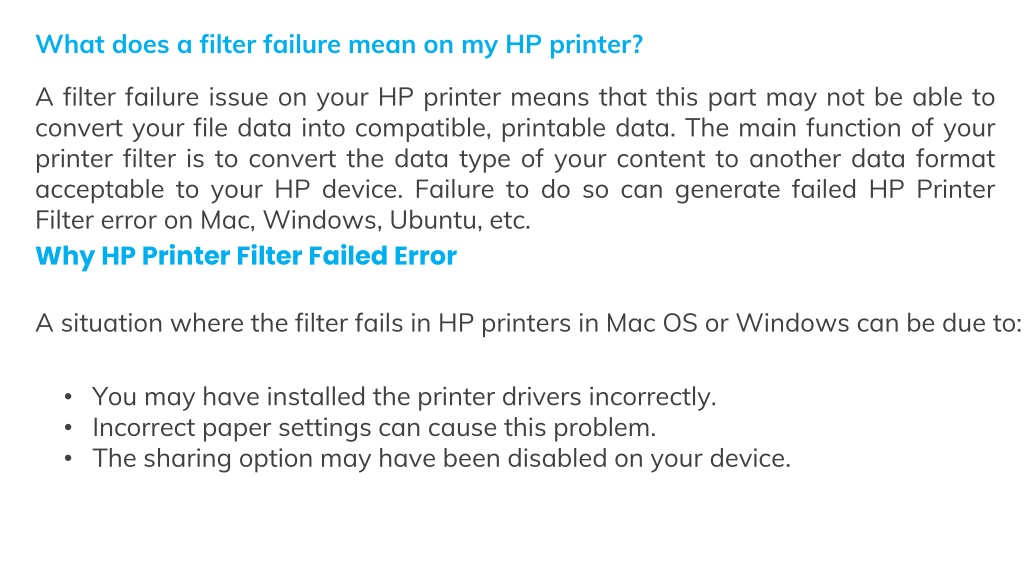
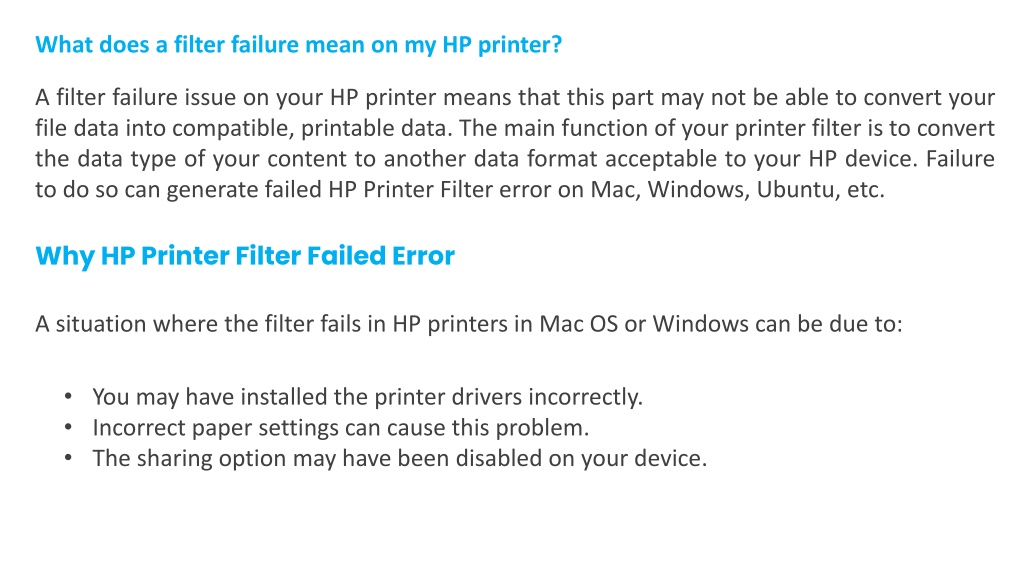
At its core, the “filter failed” message indicates a breakdown in communication or processing during the print job. When you send a document to your printer, it doesn’t just receive raw data. Instead, your computer’s operating system and printer driver work together to “translate” the document into a language your specific printer model can understand. This translation process involves a series of “filters.” These filters convert the document’s original format (e.g., PDF, Word document, image file) into a printer-specific page description language (like PCL or PostScript), optimize it for the printer’s capabilities, and prepare it for rendering onto paper.
The Role of Print Filters in Modern Printing
Think of print filters as a crucial part of the software pipeline between your application and your physical printer. When you hit ‘print,’ your document goes through several stages:
- Application Rendering: The application (Word, Chrome, Photoshop) generates the document’s content.
- Print Spooler: The operating system’s print spooler service temporarily stores the print job and manages its queue.
- Printer Driver Processing: The printer driver takes the job and begins applying filters. These filters handle tasks like converting fonts, compressing data, scaling images, and ensuring color accuracy.
- Printer Language Conversion: Finally, the filtered data is converted into the specific command language that your printer hardware understands.
A “filter failed” error means that one of these essential filtering steps could not be completed successfully. The data couldn’t be correctly processed, leading to an incomplete or corrupted print job that the printer cannot interpret or execute. This failure can stem from various points in the process, making it a tricky error to diagnose without a systematic approach.
Common Scenarios Leading to Filter Failure
While the message itself is generic, several specific scenarios commonly trigger a “filter failed” notification:
- Corrupted Print Job Data: Sometimes, the document itself might be corrupted, or the data stream sent to the printer gets garbled during transmission.
- Outdated or Corrupted Printer Drivers: The most frequent culprit. Drivers are the software bridge between your OS and printer. If they’re old, incompatible with a recent OS update, or damaged, they can’t perform their filtering duties correctly.
- Operating System Updates: Major OS updates (like Windows 10 to 11, or a new macOS version) can sometimes introduce incompatibilities with existing printer drivers or services, leading to filter failures.
- Print Spooler Issues: The Windows Print Spooler service, or its macOS equivalent, is responsible for managing print jobs. If it crashes, hangs, or accumulates corrupted jobs, it can prevent new jobs from being filtered properly.
- Network Connectivity Problems: For network printers, intermittent or unstable network connections can cause data packets to be lost or corrupted during transmission, leading to filtering errors.
- Software Conflicts: Other installed software, particularly security suites (antivirus, firewalls), can sometimes interfere with the printing process, mistakenly identifying print job data as a threat or blocking essential communication.
- Insufficient System Resources: While less common today, low disk space or insufficient RAM on the printing computer can occasionally hinder the processing of large print jobs.
- Specific Printer Brand Quirks: Certain printer brands or models might have unique sensitivities or common issues related to their proprietary drivers or firmware. For instance, some HP or Canon printers might exhibit this error more frequently with specific driver versions or operating system builds.
Beyond the Error Message: Underlying Causes
The “filter failed” message, therefore, points to a fundamental disruption in the digital chain of command that prepares your document for printing. It signifies that the instructions being sent to your printer are either incomplete, incorrectly formatted, or unable to be processed by the printer’s internal software or the computer’s printing subsystem. Understanding this allows us to move beyond simply seeing an error and instead focus on the specific points of failure within this complex digital interaction.
Comprehensive Troubleshooting: Step-by-Step Solutions to Get You Printing Again
Resolving a “filter failed” error requires a systematic approach, addressing the most common causes first before moving to more complex solutions. Each step aims to isolate and rectify the point of failure in the print pipeline.
Initial Checks and Basic Resets
Before diving into deeper software diagnostics, start with the fundamentals:
- Restart Your Printer: Power off your printer completely, unplug it from the wall, wait 30 seconds, then plug it back in and power it on. This clears its internal memory and resets its network connection.
- Restart Your Computer: A simple reboot can often resolve temporary software glitches or memory issues that might be affecting the print process.
- Check Cables and Connections: For wired printers, ensure the USB cable is securely connected to both the computer and the printer. Try a different USB port or even a different cable if available. For network printers, confirm your computer is connected to the same network as the printer, and that the printer itself has a stable network connection (check its display for Wi-Fi status or network port lights).
- Try Printing a Different Document: Attempt to print a different, simple document (e.g., a blank notepad file, a test page). If this prints successfully, the original document might be corrupted or complex.
Driver Diagnostics and Updates
Printer drivers are the most frequent cause of filter failures.
- Update Your Printer Driver:
- Windows: Go to
Settings > Bluetooth & devices > Printers & scanners. Select your printer, then clickPrinter properties(orManage > Printer properties). Go to theAdvancedtab and check the driver version. More effectively, visit your printer manufacturer’s official website (e.g., HP Support, Canon Drivers, Epson Support) and download the latest driver for your specific printer model and operating system. Install it. - macOS: macOS generally manages drivers automatically. Ensure your macOS is up to date (
System Settings > General > Software Update). For stubborn issues, you might need to manually check the manufacturer’s website for specific macOS drivers or utilities.
- Windows: Go to
- Reinstall Your Printer Driver: If updating doesn’t work, a clean reinstallation might be necessary.
- Windows: Go to
Settings > Bluetooth & devices > Printers & scanners. Select your printer and clickRemove. Then, openDevice Manager(search for it in the Start menu), expandPrint queues, right-click on your printer, and selectUninstall device. Tick the box toDelete the driver software for this deviceif available. Restart your computer, then download and install the latest driver from the manufacturer’s website. - macOS: Go to
System Settings > Printers & Scanners. Select your printer and click the-(minus) button to remove it. You might also need to reset the printing system by right-clicking (or Control-clicking) in thePrinters & Scannerslist area and selectingReset Printing System. Then, add the printer again or install drivers from the manufacturer.
- Windows: Go to
Taming the Print Spooler Service
The Print Spooler service is vital for managing print jobs.
- Restart the Print Spooler (Windows):
- Press
Win + R, typeservices.msc, and press Enter. - Scroll down and find “Print Spooler.”
- Right-click it and select
Restart. If it’s not running, clickStart. - You might also need to clear the print queue manually: While the Print Spooler is stopped, navigate to
C:WindowsSystem32spoolPRINTERSand delete all files in this folder. Then restart the Print Spooler.
- Press
- Clear Print Queue (macOS): Go to
System Settings > Printers & Scanners, click your printer, and use theOpen Print Queue...button to cancel any pending jobs.
Network and Connectivity Solutions
For networked printers, issues can arise from the network itself.
- Check Network Configuration:
- Ensure your printer has a valid IP address. You can usually find this on the printer’s display menu or by printing a network configuration page from the printer itself.
- Ping the printer’s IP address from your computer (open Command Prompt/Terminal and type
ping [printer IP address]). If you get no response, there’s a network communication issue.
- Router/Wi-Fi Reset: Power cycle your Wi-Fi router by unplugging it for 30 seconds and plugging it back in. This can resolve network address conflicts or temporary glitches.
- Firewall/Antivirus Settings: Temporarily disable your computer’s firewall or antivirus software to see if it’s blocking communication with the printer. If printing works, you’ll need to create an exception for your printer’s port or IP address in your security software settings.

OS-Specific Fixes (Windows, macOS, Linux Considerations)
- Windows Troubleshooter: Run the built-in printer troubleshooter in Windows (
Settings > System > Troubleshoot > Other troubleshooters > Printer). - macOS Permissions: Ensure the user account has appropriate permissions for printing. Sometimes, repairing disk permissions (though less common in newer macOS versions) or checking system integrity can help.
- Linux (CUPS): For Linux users, the Common Unix Printing System (CUPS) manages printing. You can access CUPS via a web browser (usually
http://localhost:631) to manage printers, queues, and drivers. Restarting the CUPS service (sudo systemctl restart cups) can often resolve issues. Ensure yourcups-filterspackage is installed and up-to-date.
Security Software and System Interference
Modern operating systems and security suites are robust, but can sometimes overzealously protect against perceived threats.
- Antivirus/Firewall Interference: As mentioned, temporarily disabling your security software can help identify if it’s the cause. If it is, delve into its settings to whitelist your printer or print processes.
- Background Apps: Close unnecessary applications running in the background, especially those that consume significant resources, as they might conflict with the print process.
- System File Checker (Windows): Run
sfc /scannowin an elevated Command Prompt to check for and repair corrupted Windows system files that might be affecting printing components.
By systematically working through these troubleshooting steps, you significantly increase your chances of diagnosing and resolving the “filter failed” error, getting your printer back online and functional.
The Broader Impact: Productivity, Brand Integrity, and Financial Implications
While a “filter failed” error might seem like a minor technical hiccup, its reverberations can extend far beyond a single failed print job. For individuals and especially for businesses, the inability to print reliably touches upon critical aspects of productivity, brand reputation, and financial stability.
The Cost of Downtime: Productivity and Deadlines
In any professional setting, time is money. When a printer fails, particularly with a persistent error like “filter failed,” the immediate consequence is a loss of productivity. Employees waste valuable time troubleshooting, searching for solutions, or finding alternative printing methods. This lost time translates directly into missed work, delayed projects, and potentially missed deadlines. For a small business, a non-functional printer can halt the creation of essential documents like invoices, shipping labels, marketing materials, or client presentations. The cumulative effect of these delays can ripple through operations, impacting client satisfaction and internal efficiency. Even for individuals, needing to print an urgent document for school, a job application, or a financial record can cause significant stress and inconvenience, turning a simple task into a major time sink.
Maintaining Brand Professionalism in a Digital Age
In an era where digital presence is paramount, the ability to produce high-quality, professional physical documents still holds significant weight for brand integrity. Imagine a business struggling to print a critical proposal for a client meeting, or a designer unable to present a portfolio due to a printer error. Such visible inefficiencies can undermine a brand’s image of reliability and professionalism. A “filter failed” error, if it recurs frequently, suggests an underlying tech instability that can erode trust – both internally among employees and externally with clients who expect seamless operations. Reliable printing contributes to the perception of a well-oiled machine, reinforcing a positive brand identity. Conversely, consistent printing issues can subtly chip away at that image, sending signals of disorganization or technical incompetence.
Smart Printer Management for Financial Health
The financial implications of printer errors are multifaceted. There’s the direct cost of troubleshooting time, as mentioned, but also potential expenditures on professional repair services if DIY solutions fail. Furthermore, frequent breakdowns or the need to replace a printer prematurely due to persistent issues can represent a significant unplanned capital expenditure.
From a proactive financial perspective, investing in reliable printer brands known for stable drivers and good support can mitigate future “filter failed” scenarios and contribute to a lower total cost of ownership (TCO). Businesses should consider not just the purchase price but the long-term operational costs, including maintenance, consumables, and the potential for downtime. For individuals, effective troubleshooting means avoiding expensive trips to repair shops or unnecessary printer replacements. Understanding common errors like “filter failed” empowers users to perform self-maintenance, saving money and extending the lifespan of their devices. In a broader sense, by ensuring your technology tools, like your printer, are consistently operational, you’re safeguarding the flow of income-generating activities and protecting your investments in productivity.
Proactive Measures and Long-Term Printer Health
Preventing errors like “filter failed” is far more efficient than constantly troubleshooting them. By adopting a proactive approach to printer management, you can enhance reliability, extend the lifespan of your devices, and ensure seamless operation for both personal and professional needs.
Best Practices for Driver and Software Management
The foundation of a healthy printing environment lies in diligent software management.
- Regular Driver Updates: Make it a habit to periodically check your printer manufacturer’s website for the latest drivers. Don’t wait for an error to prompt an update. Manufacturers often release driver updates to improve compatibility with new operating systems, fix bugs, and enhance performance. Subscribe to email notifications from your printer’s brand if available.
- Only Use Official Drivers: Always download drivers directly from the printer manufacturer’s official support website. Avoid third-party driver sites, as they can distribute outdated, incompatible, or even malicious software that could worsen your printing problems or compromise your system’s digital security.
- Maintain Operating System Updates: Keep your operating system (Windows, macOS, Linux) up to date. While major OS updates can sometimes cause temporary driver issues, they often include critical security patches and system-level improvements that enhance overall stability and compatibility, including for peripherals.
- Avoid Unnecessary Printer Software: Many printer installers bundle extra utilities and bloatware. During installation, opt for a custom installation to deselect any software you don’t need, as excess software can consume resources and potentially create conflicts.
- Clean Print Environment: Periodically clear your print queue and ensure there are no lingering corrupted print jobs. For Windows, consider occasionally restarting the Print Spooler service to keep it fresh.
Choosing Reliable Printer Brands for Peace of Mind
The brand of your printer can significantly influence your experience with errors like “filter failed.” Reputable brands generally offer:
- Robust Driver Development: Brands with a strong focus on R&D often produce more stable and frequently updated drivers, reducing compatibility issues.
- Comprehensive Support: Good brands provide extensive online resources (knowledge bases, FAQs, forums), reliable customer support channels, and clear instructions for troubleshooting common errors.
- Quality Hardware and Firmware: While “filter failed” is primarily a software issue, quality hardware with stable firmware can contribute to overall system stability, reducing instances where hardware glitches might corrupt print job data.
- Ecosystem Integration: Some brands offer better integration with specific operating systems or cloud services, leading to a more streamlined and error-free printing experience.
When making a printer purchase, especially for business use, look beyond just print speed and cost. Research reviews on long-term reliability, driver stability, and the quality of customer support. This strategic decision can save you significant time and money in troubleshooting down the line.
When to Call for Professional Help
While most “filter failed” errors can be resolved with DIY troubleshooting, there are instances where professional intervention is warranted:
- Persistent Issues After Extensive Troubleshooting: If you’ve tried all the recommended steps and the error keeps recurring, or you’re unable to isolate the cause, it might indicate a more complex software conflict or even an underlying hardware fault.
- Network-Specific Problems: For complex office networks, if the issue seems confined to network printing and other devices on the network are functioning fine, a network specialist might be needed to diagnose router configurations, firewall settings, or server-side print queues.
- Lack of Technical Comfort: If you’re uncomfortable navigating system settings, managing drivers, or altering network configurations, seeking professional assistance is safer than potentially causing further damage or data loss.
- Business Criticality: For businesses where continuous printing is absolutely critical and downtime is expensive, engaging IT support quickly can minimize financial losses.
In conclusion, the “filter failed” error, while frustrating, is a resolvable issue that sheds light on the intricate relationship between software, hardware, and network components in modern printing. By understanding its technical roots, systematically applying troubleshooting steps, and adopting proactive maintenance strategies, you can minimize its occurrence, safeguard your productivity, maintain brand professionalism, and ensure your tech investments deliver consistent value. A well-maintained printer is not just a convenience; it’s a pillar of efficient digital operations.
aViewFromTheCave is a participant in the Amazon Services LLC Associates Program, an affiliate advertising program designed to provide a means for sites to earn advertising fees by advertising and linking to Amazon.com. Amazon, the Amazon logo, AmazonSupply, and the AmazonSupply logo are trademarks of Amazon.com, Inc. or its affiliates. As an Amazon Associate we earn affiliate commissions from qualifying purchases.