
In the intricate world of modern computing, where every click, every line of code, and every digital interaction relies on the flawless operation of our systems, maintaining the health of our operating system is paramount. Windows, the ubiquitous backbone for billions of users worldwide, is a complex ecosystem. Over time, due to various factors like software installations, updates, unexpected shutdowns, or even malicious attacks, its core components can become corrupted. This silent degradation can lead to a host of frustrating issues: slow performance, application crashes, system instability, and even critical boot failures. It’s a problem that impacts not just personal productivity but also professional output, brand reputation, and ultimately, financial stability.

Enter a powerful, yet often underutilized, command-line utility known as DISM – Deployment Image Servicing and Management. Among its many capabilities, one particular command stands out as a frontline defender against system corruption: dism /online /cleanup-image /restorehealth. This isn’t just a string of characters typed into a black window; it’s a vital diagnostic and repair mechanism, a digital immune system designed to restore the integrity of your Windows installation. Understanding what this command does, how it operates, and why it’s so critical provides a deeper insight into maintaining a robust and reliable computing environment, touching upon key aspects of technology, brand management, and financial prudence.
The Core Functionality: Unpacking DISM and System Health
At its heart, dism /online /cleanup-image /restorehealth is a comprehensive repair operation for your Windows operating system image. It’s designed to address underlying corruption that might not be fixable by simpler tools like the System File Checker (SFC).
Understanding DISM: Your Windows Doctor
DISM, or Deployment Image Servicing and Management, is a command-line tool that system administrators and advanced users employ to prepare, modify, and repair Windows images. These images are essentially snapshots of a Windows installation, whether it’s the one currently running on your PC or an offline image used for deployment. DISM can be used to install, uninstall, configure, and update Windows features, packages, drivers, and international settings in a .wim or .vhd file, or an offline VHD. When applied to an online system, as in our command, it acts as a deep diagnostic and repair utility, capable of reaching core components that other tools might miss. Think of it as a specialized surgeon, equipped to diagnose and fix profound issues within the operating system’s fundamental structure.
Deconstructing the Command: /Online, /Cleanup-Image, /RestoreHealth
Each part of the command dism /online /cleanup-image /restorehealth plays a distinct and crucial role:
dism: This is the executable that invokes the Deployment Image Servicing and Management tool itself. It’s the gateway to a powerful suite of image management functions./online: This switch is critical because it tells DISM to run the command against the currently running operating system. Instead of targeting an offline Windows image file (like one on a USB drive or network share),/onlinedirects the utility to scan and repair the live system you are actively using. This makes it incredibly convenient for troubleshooting issues on your primary workstation without needing external media or a complex setup./cleanup-image: This is a subcommand that instructs DISM to perform operations related to cleaning up or repairing the Windows image. It’s a broader category under which specific operations like/restorehealthfall. Other operations under/cleanup-imagemight include removing old components or temporary files, but in this context, it sets the stage for repair./restorehealth: This is the star of the show. When combined with/cleanup-image,/restorehealthcommands DISM to scan the Windows component store for corruption. The component store is where all the files needed for Windows operations are stored. If corruption is found, DISM will attempt to automatically repair it. By default, it tries to obtain the necessary healthy files from Windows Update. If Windows Update isn’t a viable source (e.g., due to connectivity issues or specific corporate environments), you can optionally specify an alternative source path, such as a mounted Windows installation ISO or a network share containing the correct files. This process ensures that your core Windows files are pristine and functional, preventing a cascade of issues that stem from corrupted system components.
Common Scenarios: When to Deploy This Powerful Tool
Knowing when to use dism /online /cleanup-image /restorehealth is as important as knowing what it does. This command is particularly useful in several scenarios:
- After Running SFC /Scannow: Often, the System File Checker (
sfc /scannow) is the first line of defense for detecting and repairing corrupted system files. However, sometimes SFC reports that it found corrupted files but was unable to fix them, or it might struggle to run if its own source files are damaged. In such cases, DISM is the next logical step, as it can repair the underlying component store that SFC relies upon. - Persistent System Instability: If your Windows system experiences frequent crashes, freezes, blue screens of death (BSODs), or inexplicable errors despite normal troubleshooting, deep-seated image corruption could be the culprit.
- Problems with Windows Features or Updates: If you’re having trouble installing Windows updates, enabling or disabling Windows features, or if certain built-in apps are misbehaving, it could indicate issues with the system image that DISM can resolve.
- Poor Performance Without Clear Cause: While slow performance can stem from many issues (hardware, malware, too many startup programs), if other optimizations don’t help, image corruption might be degrading system efficiency.
- Proactive Maintenance: For critical systems, running this command periodically (e.g., every few months) can act as a proactive measure to catch and fix minor corruption before it escalates into major problems, ensuring continuous reliability.
By understanding these fundamentals, users gain a powerful tool in their digital arsenal, capable of restoring confidence in their operating system’s integrity.
Beyond the Command Line: The Impact on Tech Productivity and Security
The implications of a healthy, stable operating system extend far beyond simply avoiding error messages. For anyone operating in the fast-paced digital world, whether as a tech enthusiast, a professional, or a digital creator, system stability directly translates into productivity, security, and peace of mind.
Maintaining Peak Performance for Seamless Workflows
A corrupted Windows image is like a car with a misfiring engine; it might still run, but it won’t perform optimally. Applications will launch slower, tasks will take longer, and the overall user experience will be marred by glitches and delays. For individuals involved in technology, where speed and efficiency are paramount, such degradation can cripple productivity. Imagine a software developer facing compilation errors due to corrupted system libraries, a graphic designer experiencing constant crashes in their editing suite, or a content creator struggling with slow video rendering. Each instance of system instability or reduced performance means lost time, increased frustration, and a direct hit to output.
By using dism /online /cleanup-image /restorehealth, you’re not just fixing errors; you’re restoring the operating system to its intended, optimal state. This translates to faster boot times, smoother application launches, more stable operations, and fewer interruptions. For anyone relying on their computer as their primary tool for work, learning, or creation, this translates directly into a more efficient and enjoyable workflow, allowing them to focus on their tasks rather than battling their machine. It’s an investment in a seamless digital experience, which is the cornerstone of high productivity in the modern tech landscape.
A Proactive Stance Against Digital Threats and Corruption
While dism /restorehealth isn’t an antivirus, it plays a crucial role in digital security by ensuring the integrity of the operating system itself. Malware, ransomware, and other digital threats often exploit vulnerabilities or corrupt system files to establish persistence or compromise system functions. A compromised or corrupted Windows component store can create a less resilient environment, potentially hindering the effectiveness of security software or making the system more susceptible to further damage.
By regularly restoring the health of the Windows image, you’re essentially reinforcing the system’s foundational defenses. This ensures that the core components of Windows, including those responsible for security updates and features, are intact and functioning correctly. It helps to revert any unintended modifications caused by malicious software that might attempt to alter system files for nefarious purposes. In essence, it helps to close potential backdoors created by corruption and ensures that your security solutions have a strong, uncompromised base to work from. In the realm of digital security, where prevention is always better than cure, a healthy Windows image is a fundamental proactive measure.
The DIY Approach to System Reliability: Saving Time and Hassle
In a world increasingly reliant on IT support, the ability to troubleshoot and resolve common system issues independently is a valuable skill. Professional tech support can be costly and time-consuming, leading to significant downtime. Tools like DISM empower users to take control of their system’s health, offering a do-it-yourself solution for complex problems that might otherwise require expert intervention.
Learning to effectively use dism /online /cleanup-image /restorehealth reduces dependency on external help. This self-sufficiency not only saves money on potential repair services but also minimizes downtime, which is crucial for maintaining continuous operation. Whether you’re managing your personal workstation, handling IT for a small business, or simply being a responsible digital citizen, mastering this command offers immediate, on-demand resolution to a category of systemic issues. It turns potential hours or days of frustration and inactivity into a manageable, often quick, fix, reaffirming the user’s role as the primary guardian of their digital environment. This independence is a key aspect of maximizing productivity and ensuring reliable operations in the tech sphere.
The Brand Imperative: How System Stability Upholds Your Digital Identity
In today’s interconnected world, where digital presence is synonymous with brand identity, the reliability of underlying technology directly impacts how a brand is perceived and how effectively it operates. A stable, high-performing computer system, maintained through tools like DISM, isn’t just a technical nicety; it’s a strategic asset that safeguards a brand’s reputation, efficiency, and ability to engage.
Operational Efficiency: Fueling Your Brand’s Momentum
Every business, whether a solopreneur, a startup, or a large corporation, relies on technology for its daily operations. From creating marketing content to managing client databases, processing transactions, or communicating with stakeholders, system uptime and performance are critical. A computer system plagued by corruption, slow performance, or frequent crashes directly impedes operational efficiency. Imagine a marketing team unable to meet a campaign deadline because their design software keeps crashing, or a customer service representative struggling to access client information dueaming to a slow system.
These seemingly minor technical glitches can ripple through an organization, causing delays, missing deadlines, and reducing overall productivity. For a brand, this means lost opportunities, reduced output, and a decline in responsiveness. By ensuring the health of the operating system with dism /online /cleanup-image /restorehealth, businesses safeguard their operational momentum. They minimize downtime, ensure that essential software runs smoothly, and empower their teams to work without technical impediments. This unbroken workflow is vital for maintaining consistent output, launching initiatives on schedule, and ultimately, keeping the brand’s engine running at full power.
Protecting Your Digital Assets and Reputation
A brand’s digital assets – its website, social media profiles, proprietary data, client information, and creative content – are invaluable. System corruption can threaten the integrity and accessibility of these assets. While DISM doesn’t protect against direct data loss from a hard drive failure, it ensures the stability of the operating system that hosts and interacts with these critical files. A compromised or unstable OS could inadvertently lead to data integrity issues, difficulties in accessing cloud services, or even challenges in performing regular backups.
Beyond data, a brand’s reputation is inextricably linked to its reliability and professionalism. A brand that consistently delivers high-quality content, responds promptly to inquiries, and maintains a seamless online presence projects an image of competence and trustworthiness. Conversely, if technical issues stemming from system instability cause delays, garbled communications, or visible errors in digital content, it can erode trust and damage brand perception. Proactive system maintenance, including the use of DISM, helps prevent these scenarios by ensuring that the technology infrastructure supporting the brand is robust and dependable, thereby safeguarding both tangible digital assets and intangible reputational capital.
Seamless Client and Audience Engagement
In an age dominated by digital communication, customer experience is paramount to brand success. Whether it’s through a website, social media, email, or video conferencing, brands are constantly engaging with their audience and clients. Any technical hiccup can disrupt this engagement, leading to frustration for both parties. A slow website that’s hard to update due to system issues, delayed email responses because of a frozen application, or choppy video calls resulting from an unstable OS can leave a negative impression.
Maintaining a healthy operating system ensures that all digital touchpoints remain fluid and professional. Content creators can upload high-definition videos without rendering issues. Marketing teams can deploy campaigns without software crashes. Sales professionals can conduct seamless presentations. Customer support can respond without technical interruptions. Each smooth interaction reinforces the brand’s commitment to quality and professionalism, fostering positive relationships and loyalty. By using dism /online /cleanup-image /restorehealth, a brand is not just maintaining its computers; it’s investing in its ability to connect effectively, engage reliably, and build lasting relationships with its audience and clientele.
Financial Implications: Safeguarding Your Investments in Technology and Income
The adage “time is money” holds particularly true in the digital realm. Every hour lost to technical difficulties, every dollar spent on preventable repairs, and every missed opportunity due to system failure directly impacts personal finances, business profitability, and the potential for online income generation. Tools like DISM offer a cost-effective method to protect these crucial financial aspects.
Avoiding Costly Repairs and Downtime
The most direct financial benefit of using dism /online /cleanup-image /restorehealth is the avoidance of costly professional computer repair services. When Windows systems become severely corrupted, users often resort to paying technicians to diagnose and fix the problem, or in worst-case scenarios, reinstall the entire operating system, which can be time-consuming and expensive. These services can range from tens to hundreds of dollars, depending on the complexity of the issue.
Beyond the repair costs, the financial impact of downtime can be far greater. For a freelancer, a small business owner, or anyone relying on their computer for income, every hour the system is unusable translates directly to lost earnings. A day of downtime could mean missed deadlines, unbilled hours, or a halt in online sales. Even for personal users, downtime translates to lost productivity, whether it’s managing finances, learning new skills, or simply enjoying digital entertainment. By proactively using DISM to prevent and resolve system corruption, individuals and businesses can significantly reduce the likelihood of needing expensive external repairs and minimize unproductive downtime, thus safeguarding their financial resources.
Maximizing ROI on Your Tech Infrastructure
Computers, software, and peripherals represent a significant investment for individuals and businesses alike. To maximize the Return on Investment (ROI) of this technology infrastructure, it must be reliable and perform optimally for as long as possible. A computer that constantly struggles with corrupted files, crashes, or slow performance delivers a poor ROI because its effective lifespan is shortened, and its utility is diminished. Users might be forced to replace hardware prematurely or invest in new software licenses, incurring additional, avoidable costs.
By maintaining the health of your Windows operating system with dism /online /cleanup-image /restorehealth, you extend the life and efficiency of your existing hardware and software. A stable OS ensures that applications run as intended, updates install smoothly, and the overall system remains responsive. This means your computer can continue to serve your needs effectively for a longer period, postponing the need for costly upgrades or replacements. Maximizing the utility of your current tech assets ensures that every dollar invested in your hardware and software provides a greater, longer-lasting return, contributing positively to your financial bottom line.
Powering Your Online Income and Side Hustles
The digital economy thrives on reliable technology. Online income streams, whether through e-commerce, content creation, remote work, trading, or freelancing, are inherently dependent on a fully functional computer system. For individuals engaged in side hustles or aspiring to build an online business, system stability is not just convenient; it’s a non-negotiable requirement. A corrupted OS can disrupt a trading platform, prevent a freelancer from delivering work, halt an e-commerce store’s operations, or even hinder the creation of valuable online content.
Consider an investor whose trading software crashes during a critical market movement, a graphic designer unable to export a client’s project, or a blogger who can’t access their content management system. These scenarios directly impact their ability to generate income and can lead to financial losses or missed opportunities. By diligently using dism /online /cleanup-image /restorehealth, you ensure that the digital tools you rely on for your financial endeavors are always available and performing reliably. This foundational stability empowers you to pursue and grow your online income streams without the constant threat of technical disruptions, making it an essential practice for anyone leveraging technology for financial gain.
A Step-by-Step Guide: How to Use DISM /RestoreHealth Effectively
While the command itself is relatively straightforward, executing dism /online /cleanup-image /restorehealth correctly and understanding its context ensures maximum effectiveness and avoids potential pitfalls. This guide will walk you through the process.
Prerequisites and Best Practices
Before you run the command, consider these important points:
- Administrator Privileges: DISM commands require elevated privileges. You must run the Command Prompt or PowerShell as an administrator. Without this, the command will fail.
- Internet Connection: By default,
restorehealthattempts to fetch repair files from Windows Update. A stable internet connection is therefore highly recommended to allow the system to download any necessary replacement files. - Backup (Recommended): While DISM is generally safe, it’s always good practice to have a recent backup of your important data before performing any significant system repair operations. Although highly unlikely, an unexpected issue during the repair could lead to data loss.
- Close Unnecessary Programs: Close any non-essential applications to free up system resources and ensure the DISM operation has full access to the necessary files.
- Patience: The process can take anywhere from a few minutes to over an hour, depending on the extent of corruption, system specifications, and internet speed. Do not interrupt the process once it has started.
Executing the Command
Follow these steps to run the DISM restore health command:
-
Open Command Prompt or PowerShell as Administrator:
- For Command Prompt: Type
cmdinto the Windows search bar. Right-click on “Command Prompt” and select “Run as administrator.” Click “Yes” if prompted by User Account Control (UAC). - For PowerShell: Type
powershellinto the Windows search bar. Right-click on “Windows PowerShell” and select “Run as administrator.” Click “Yes” if prompted by UAC. - (You can use either; the command syntax is the same.)
- For Command Prompt: Type
-
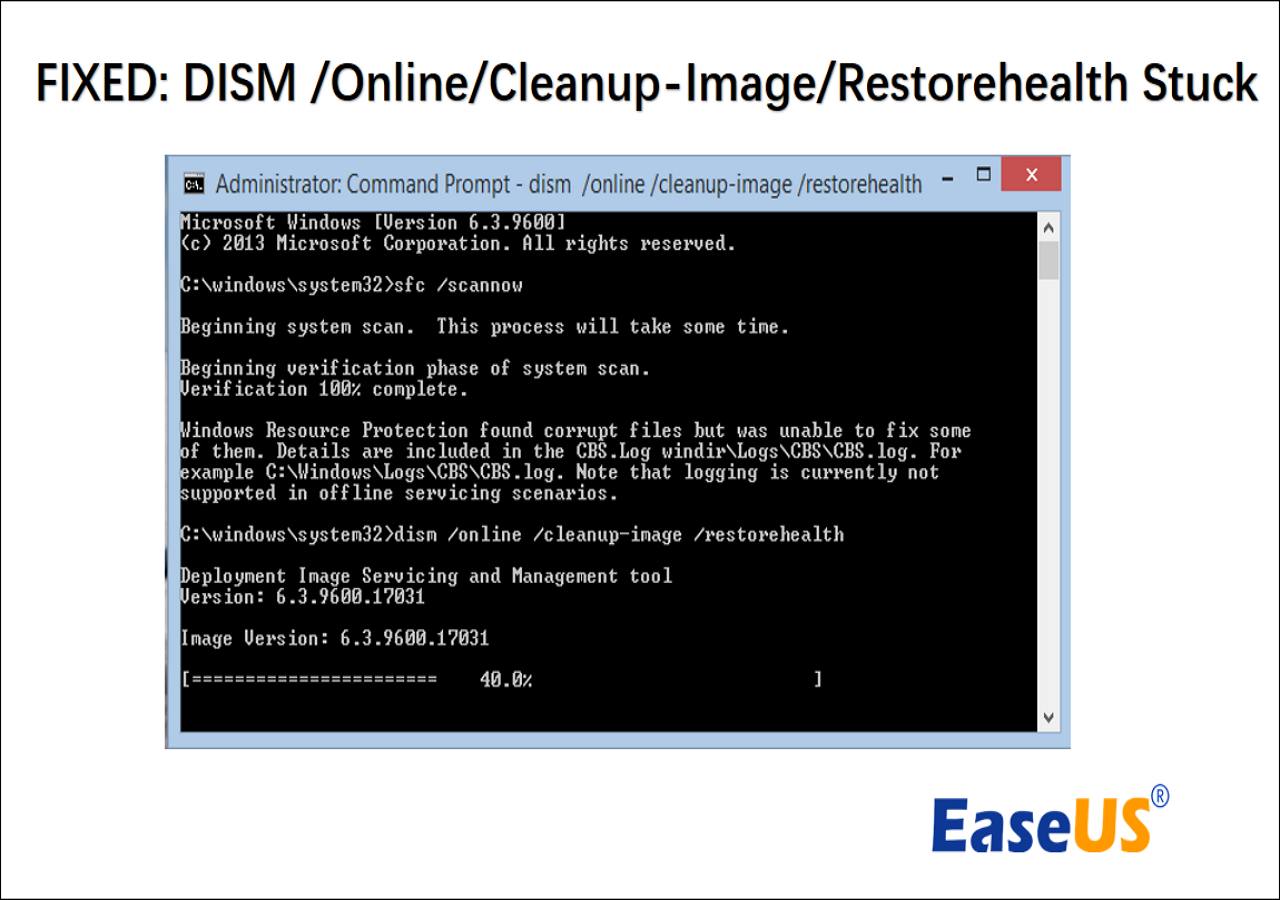
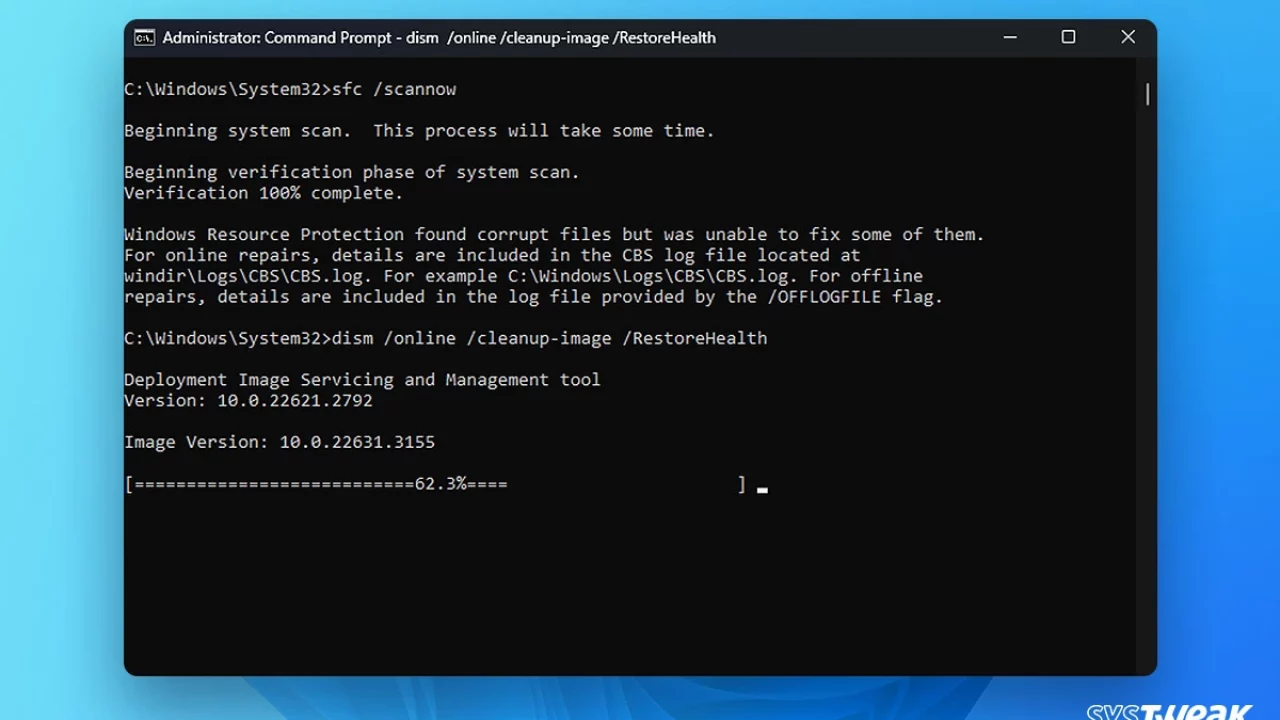
Run the SFC Scan (Optional but Recommended First Step): Before using DISM, it’s often a good idea to run the System File Checker to attempt basic repairs.
- In the administrator Command Prompt/PowerShell, type:
sfc /scannow - Press Enter. Let this process complete. It might take some time. If it reports that it found corruption but couldn’t fix it, or if you still suspect issues, proceed to the DISM command.
- In the administrator Command Prompt/PowerShell, type:
-
Execute the DISM Restore Health Command:
-
In the same administrator Command Prompt/PowerShell window, type:
dism /online /cleanup-image /restorehealth -
Press Enter.
-
Note on Source: If you don’t have an internet connection or if Windows Update isn’t providing the necessary files, you can specify a source (e.g., from a mounted Windows ISO). For example:
dism /online /cleanup-image /restorehealth /source:WIM:X:SourcesInstall.wim:1 /limitaccess
(ReplaceXwith the drive letter of your mounted ISO or USB, and ensure the path toInstall.wimis correct.) The/limitaccessswitch prevents DISM from using Windows Update. For most users, the simpler command relying on Windows Update is sufficient.
-
Interpreting the Results and Next Steps
Once the DISM command finishes, you will see a message indicating its status.
- “The restore operation completed successfully.”: This is the ideal outcome. It means DISM found corruption and was able to fix it.
- “No component store corruption detected.”: This indicates your system image was already healthy, or DISM couldn’t find any issues to fix.
- “Error: 0x800F081F” or similar: This error often means DISM couldn’t find the necessary source files to perform the repair. This is where specifying a local source (like an ISO) becomes relevant if Windows Update isn’t working or accessible.
After the DISM command completes, it’s highly recommended to:
- Run
sfc /scannowagain: Even if DISM reports success, running SFC afterward helps to ensure that any files that SFC previously couldn’t repair (because its component store was corrupted) can now be fixed using the restored healthy components. - Restart your computer: A reboot allows the system to fully integrate the changes and ensure all components are loaded from the newly repaired image.
- Monitor system behavior: Pay attention to whether the issues you were experiencing have been resolved.
By following these steps, you can effectively leverage dism /online /cleanup-image /restorehealth to maintain a robust and reliable Windows environment, bolstering your tech productivity, protecting your digital brand, and securing your financial investments in technology.
In conclusion, the command dism /online /cleanup-image /restorehealth is far more than just a technical utility; it’s a cornerstone of digital resilience. In a world increasingly reliant on stable technology, understanding and utilizing this powerful tool empowers individuals and businesses to maintain peak performance, safeguard their digital presence, and protect their financial well-being. From ensuring seamless workflows in the tech sphere to upholding brand integrity and preventing costly downtime, a healthy Windows operating system, meticulously maintained with DISM, is an indispensable asset for navigating the complexities of the modern digital landscape. Regularly integrating this command into your maintenance routine is not just good practice; it’s a strategic move towards a more secure, productive, and financially sound digital future.