
The world of computing is often peppered with acronyms, and “BIOS” is one that frequently surfaces. For anyone venturing beyond basic computer usage, understanding what BIOS stands for and its fundamental role is crucial. It’s the silent conductor of your computer’s startup symphony, a foundational piece of technology that ensures everything else can follow. But what exactly is BIOS, and what does it do? Let’s delve into this essential component of your computer system.
Understanding the Acronym: Basic Input/Output System
At its core, BIOS stands for Basic Input/Output System. This name itself offers a significant clue into its primary function. Think of it as the very first set of instructions your computer executes when you press the power button. Before your operating system (like Windows or macOS) even has a chance to load, the BIOS is hard at work, performing a series of critical tasks to get your hardware ready and checked.
The “Basic” in BIOS highlights its foundational nature. It’s not a complex operating system in itself, but rather a rudimentary set of programs embedded directly onto a chip on your computer’s motherboard. This chip is typically a ROM (Read-Only Memory) chip, or more commonly today, a flash memory chip that can be updated. This ensures that the BIOS program is non-volatile, meaning it retains its data even when the computer is powered off.
The “Input/Output” part of the name refers to its fundamental role in managing the flow of data between your computer’s internal components and external devices. This includes everything from your keyboard and mouse (input) to your monitor and printer (output). The BIOS acts as an intermediary, providing a standardized way for the operating system to communicate with these peripherals.
The Bootstrapping Process: Bringing Your Computer to Life
The most significant function of the BIOS is to initiate the bootstrapping process. This is the sequence of events that takes your computer from a powered-off state to a fully operational system ready to run software. It’s a multi-step procedure, and the BIOS orchestrates the initial critical stages.
Power-On Self-Test (POST)
The very first thing the BIOS does upon receiving power is to perform a Power-On Self-Test (POST). This is a diagnostic process that checks if all the essential hardware components of your computer are present and functioning correctly. This includes:
- CPU (Central Processing Unit): The brain of the computer is checked for basic functionality.
- RAM (Random Access Memory): The system checks if the memory modules are installed and accessible.
- Graphics Card: It verifies if the graphics card is detected and capable of displaying output.
- Keyboard: The BIOS checks if a keyboard is connected and can be recognized for input.
- Other Essential Peripherals: Depending on the system, it may also check for hard drives, optical drives, and other vital components.
If the POST encounters any critical errors (e.g., a missing RAM stick, a faulty graphics card), it will typically signal this to the user through a series of beep codes or by displaying an error message on the screen. These codes are like a diagnostic language for hardware failures, and their specific patterns can often help technicians pinpoint the problem.
Locating and Loading the Operating System
Once the POST is successfully completed, the BIOS then moves on to the next crucial task: locating and loading the operating system. The BIOS has a pre-configured boot order, which is a list of devices it will attempt to boot from, in a specific sequence. This order typically includes:
- Hard Drive: The most common place for the operating system to reside.
- Solid State Drive (SSD): Increasingly popular for faster boot times.
- Optical Drive (CD/DVD): Used for booting from installation media.
- USB Drive: Often used for installing operating systems or running diagnostic tools.
- Network Boot: For booting from a server on a network.
The BIOS sequentially checks each device in the boot order until it finds a bootable partition containing the necessary boot loader files. Once found, the BIOS hands over control of the system to the operating system’s boot loader, which then takes over the process of loading the OS into memory.
The BIOS Setup Utility: Configuring Your Hardware
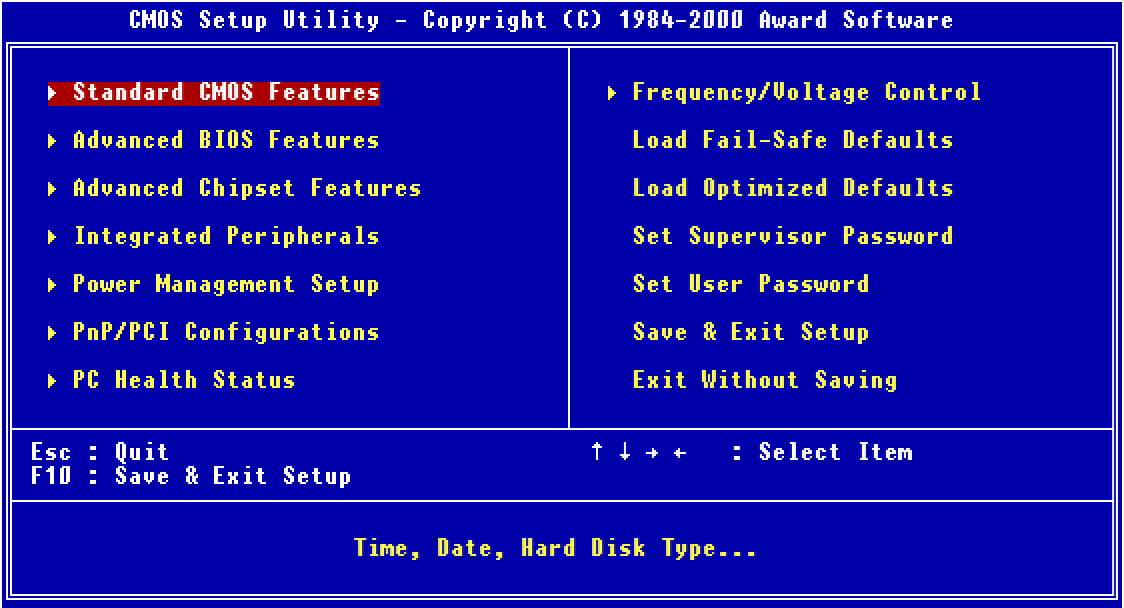
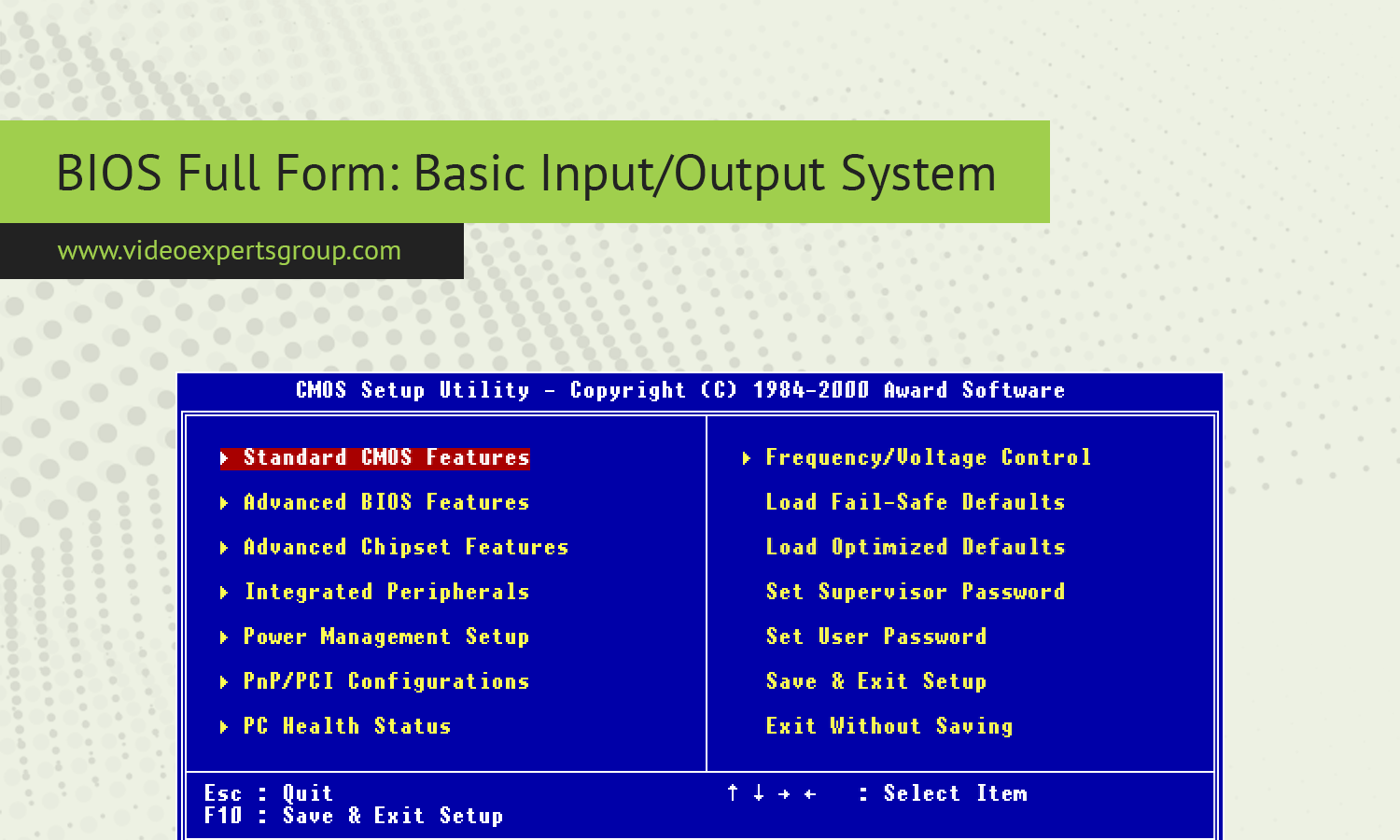
Beyond its role in the boot process, the BIOS also provides access to a BIOS Setup Utility (often referred to as the CMOS Setup or BIOS Configuration). This is a text-based or graphical interface that allows users to configure various hardware settings of their computer. Accessing this utility is typically done by pressing a specific key combination (like Del, F2, F10, or F12) during the initial stages of the boot process, just after powering on the computer.
Within the BIOS Setup Utility, users can:
Adjusting Boot Order and Boot Devices
As mentioned earlier, the boot order is a critical setting. The BIOS Setup Utility allows users to rearrange the boot order to prioritize specific devices. For instance, if you need to install a new operating system from a USB drive, you would change the boot order to make the USB drive the first device the computer attempts to boot from.
Managing Hardware Settings
The BIOS controls many fundamental hardware settings. This can include:
- System Time and Date: Setting the internal clock of the computer.
- CPU and RAM Settings: In some systems, advanced users can adjust clock speeds and timings for performance tuning. This is often referred to as overclocking (though it carries risks).
- Integrated Peripherals: Enabling or disabling onboard devices like sound cards, network cards, or USB ports.
- Security Settings: Setting passwords to prevent unauthorized access to the BIOS or the computer itself.
- Power Management: Configuring how the computer manages power consumption, including sleep and hibernation settings.
Overclocking and Performance Tuning (for Advanced Users)
For enthusiasts and power users, the BIOS Setup Utility can be a gateway to tweaking system performance. By adjusting parameters related to the CPU, RAM, and other components, users can potentially overclock them – pushing them to operate at speeds higher than their rated specifications. While this can lead to significant performance gains, it also increases the risk of system instability, overheating, and hardware damage if not done carefully. It’s a feature best left to those who understand the potential consequences and have the knowledge to manage them.
The Evolution of BIOS: From Legacy to UEFI
While “BIOS” is the widely recognized term, modern computers have largely transitioned to a more advanced firmware interface known as UEFI (Unified Extensible Firmware Interface). UEFI serves many of the same purposes as BIOS but offers significant improvements and new capabilities.
What is UEFI?
UEFI is a modern replacement for the traditional BIOS. It’s a specification that defines a software interface between the operating system and the platform firmware. Essentially, it’s a more sophisticated and flexible system that acts as the first piece of software your computer runs when you power it on.
Key Advantages of UEFI over Traditional BIOS
UEFI brings several advantages to the table, making it a superior choice for modern computing:
- Faster Boot Times: UEFI can initialize hardware much more efficiently than BIOS, leading to noticeably quicker boot sequences.
- Support for Larger Hard Drives: Traditional BIOS has limitations on the size of hard drives it can manage (typically around 2TB). UEFI, with its GPT (GUID Partition Table) partitioning scheme, supports vastly larger storage capacities.
- Enhanced Security Features: UEFI includes features like Secure Boot, which helps prevent malicious software from loading during the startup process by verifying the digital signatures of boot loaders and operating system kernels.
- Graphical User Interface and Mouse Support: Unlike the text-based, keyboard-only BIOS setup, many UEFI interfaces offer a more user-friendly graphical environment that supports mouse input, making configuration more intuitive.
- Networking Capabilities: UEFI can include networking drivers, allowing for network booting and remote diagnostics even before the operating system loads.
- Modularity and Extensibility: UEFI is designed to be modular, allowing manufacturers to add custom functionalities and drivers.
Despite the prevalence of UEFI, the term “BIOS” is still widely used colloquially to refer to the firmware that initializes a computer at startup. When people talk about accessing the “BIOS” on a modern computer, they are almost always referring to the UEFI interface.
In conclusion, the acronym BIOS stands for Basic Input/Output System. It’s a fundamental piece of hardware firmware that initiates your computer’s startup sequence, performs essential hardware checks (POST), and loads the operating system. While traditional BIOS is being replaced by the more advanced UEFI, its legacy and the term itself remain deeply ingrained in computer terminology, representing the critical initial steps that bring your digital world to life. Understanding its role provides valuable insight into the inner workings of your computer, empowering you with greater knowledge about its operation and configuration.
aViewFromTheCave is a participant in the Amazon Services LLC Associates Program, an affiliate advertising program designed to provide a means for sites to earn advertising fees by advertising and linking to Amazon.com. Amazon, the Amazon logo, AmazonSupply, and the AmazonSupply logo are trademarks of Amazon.com, Inc. or its affiliates. As an Amazon Associate we earn affiliate commissions from qualifying purchases.