
In the modern digital landscape, data is the most valuable currency we possess. Whether it is a decade’s worth of family photographs, critical corporate databases, or the massive installation files for high-end video games, the need for reliable storage has never been greater. While many users simply ask, “What do you call an external hard drive?” the answer has become increasingly complex as technology evolves. The terminology we use often lags behind the engineering inside these devices, leading to confusion when consumers attempt to upgrade their digital toolkits.
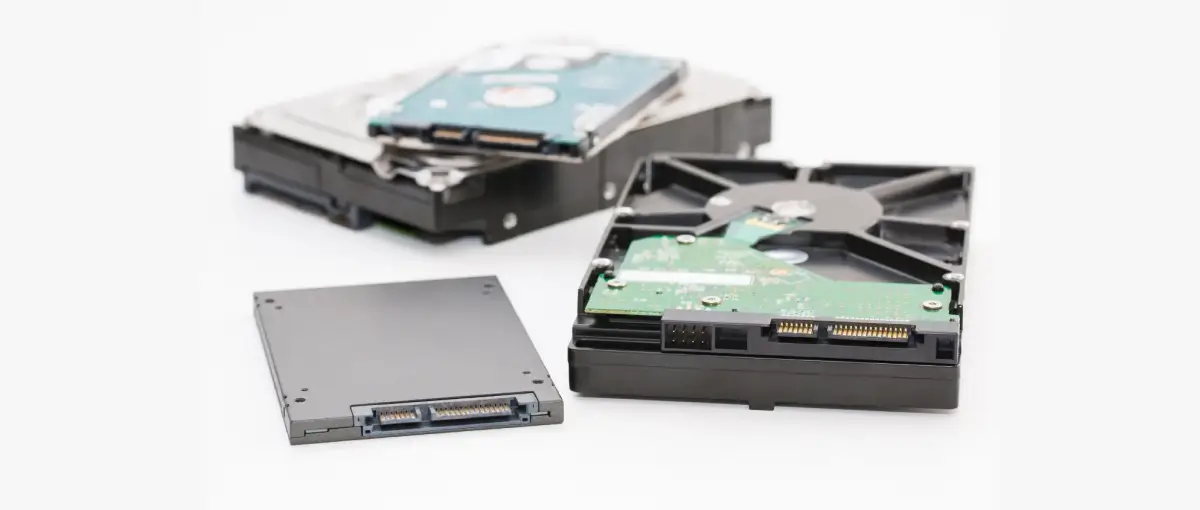
Understanding the nomenclature of external storage is not merely a linguistic exercise; it is a technical necessity. From the mechanical platters of the past to the lightning-fast flash memory of the present, the “external hard drive” has branched into several distinct categories. This article explores the technical distinctions, the specific use cases for different drive types, and the maintenance protocols required to keep your data safe.
The Many Names of External Storage: HDDs vs. SSDs
The term “external hard drive” is frequently used as a catch-all phrase, but in the tech world, accuracy matters. Depending on the underlying technology, what you are holding might be a traditional spinning disk or a modern solid-state circuit.
Standard Hard Disk Drives (HDD)
The traditional Hard Disk Drive (HDD) is the progenitor of the external storage market. These devices use magnetism to store data on rotating platters. When you refer to an “external hard drive” in the strictest sense, you are likely talking about an HDD. Inside the casing, a mechanical arm with a read/write head moves across the spinning disks to access data. Because they rely on moving parts, these drives are generally slower and more fragile than their modern counterparts. However, they remain the king of “cost-per-gigabyte,” making them the ideal choice for high-capacity backups where speed is not the primary concern.
Solid State Drives (SSD)
In recent years, the industry has shifted toward Solid State Drives (SSDs). Unlike HDDs, SSDs have no moving parts. They store data on interconnected flash-memory chips (NAND flash). Calling an external SSD a “hard drive” is technically a misnomer, though the term persists in common parlance. Tech professionals often refer to these simply as “External SSDs” or “Portable Flash Storage.” They are significantly faster, more durable, and smaller than HDDs, making them the preferred choice for professionals who need to edit video directly from a drive or for travelers who might accidentally drop their equipment.
Portable vs. Desktop External Drives
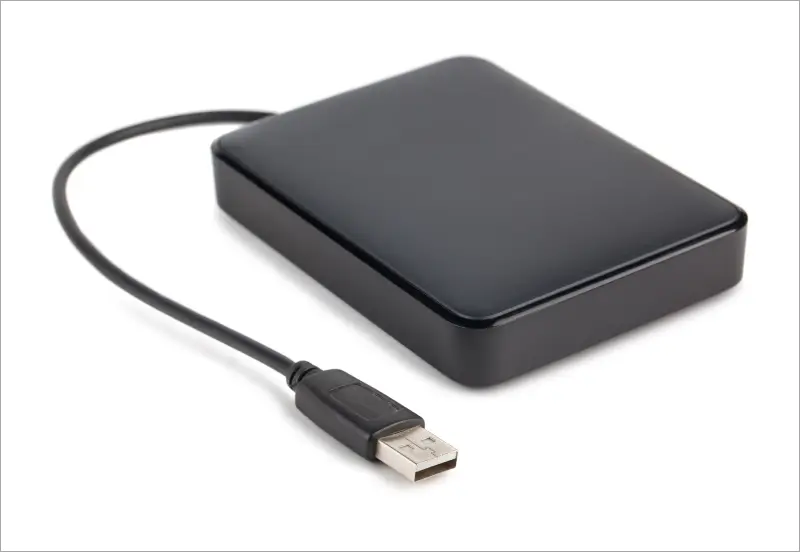
Beyond the internal technology, external drives are often categorized by their form factor and power requirements. “Portable drives” are typically 2.5-inch units that are “bus-powered,” meaning they draw all the electricity they need through the USB cable connected to your computer. “Desktop drives,” on the other hand, usually utilize 3.5-inch internal components and require a dedicated wall outlet for power. Desktop drives often offer much higher capacities (reaching 20TB or more) and are designed to sit permanently on a workstation rather than being tossed into a laptop bag.
Key Technical Specifications and Connectivity
Once you have identified the type of drive you need, the next step is understanding the technical specifications that dictate performance. The way a drive connects to your computer is often just as important as the drive itself.
Interface Standards: USB-A, USB-C, and Thunderbolt
The physical connector and the protocol it uses are the primary bottlenecks for data transfer. Most modern external drives utilize USB-C connectors, but the speed varies wildly depending on the generation. USB 3.0 (now often rebranded as USB 3.2 Gen 1) offers speeds up to 5Gbps. Newer USB 3.2 Gen 2×2 can reach 20Gbps.
For high-end professional workflows, “Thunderbolt” is the gold standard. While Thunderbolt 3 and 4 use the same USB-C shape, they offer a massive jump in bandwidth—up to 40Gbps. When purchasing an external drive, it is crucial to ensure that your computer’s port matches the drive’s capabilities; otherwise, you may be paying for speed you cannot actually utilize.
Form Factors and Internal Controllers
The size and shape of an external drive often hint at the controller technology inside. Traditional external SSDs were often just SATA-based drives in a fancy box, capping speeds at around 550MB/s. However, the rise of NVMe (Non-Volatile Memory express) technology has revolutionized external storage. NVMe drives communicate directly with the system’s PCIe lanes, allowing external drives to achieve speeds upwards of 1,000MB/s to 3,000MB/s. When you see a “mini” or “pocket-sized” SSD, it is likely utilizing an M.2 NVMe stick inside.
Transfer Speeds and IOPS
When reading a spec sheet, you will see “Sequential Read/Write speeds.” This refers to how fast the drive can move large files, like a 4K movie. However, tech-savvy users also look at “IOPS” (Input/Output Operations Per Second). This metric defines how well the drive handles many small files simultaneously. If you are running an operating system or a complex database from an external drive, high IOPS is more important than raw sequential speed.
Use Cases and Specialized External Hardware
Not all external storage is created equal. Depending on your professional or personal needs, you might require specialized hardware that goes beyond a simple plug-and-play USB stick.
Network Attached Storage (NAS) Enclosures
If you need to share files across multiple devices in a home or office, you don’t call it an external drive; you call it a “NAS.” A Network Attached Storage device is essentially a dedicated computer filled with hard drives that stays connected to your router. It allows for wireless backups, media streaming (using tools like Plex), and private cloud storage. While more expensive and complex to set up, a NAS provides a level of data redundancy and accessibility that a single external drive cannot match.
RAID Arrays for Professionals
For video editors and data scientists, “RAID” (Redundant Array of Independent Disks) is a critical term. An external RAID enclosure houses multiple drives working in tandem. Depending on the configuration (RAID 0, 1, 5, or 10), the device can either combine the speed of all drives to create a super-fast volume or mirror the data across drives so that if one fails, your work remains safe. Professionals rarely rely on a single external drive; they rely on RAID systems to ensure “zero-downtime” workflows.
Rugged and Encrypted Drives
For those working in extreme environments—such as field researchers or travel photographers—”Ruggedized” drives are the standard. These feature silicone sleeves, internal shock absorbers, and IP67 ratings for water and dust resistance. Conversely, for those handling sensitive data, “Hardware-Encrypted” drives are the priority. These often feature a physical keypad on the exterior of the drive, requiring a PIN to unlock the data before the computer can even see the files. This ensures that even if the drive is stolen, the data remains inaccessible.
Maintenance, File Systems, and Longevity
An external drive is an investment in your digital history. To ensure that your “external hard drive”—whatever you choose to call it—lasts as long as possible, you must understand how to manage it at the software and hardware levels.
Managing File Systems (NTFS, exFAT, APFS)
One of the most common tech support issues involves a drive not showing up when plugged into a different computer. This is usually a “File System” conflict. Windows natively uses NTFS, while modern Macs use APFS. Neither is fully compatible with the other out of the box. For an external drive to work seamlessly between a PC and a Mac, it should be formatted as exFAT. However, exFAT lacks the “journaling” features of NTFS or APFS, making it slightly more prone to data corruption if the drive is unplugged without being “ejected” properly.
Predicting Drive Failure (S.M.A.R.T. Data)
All drives eventually die. HDDs suffer from mechanical wear, and SSDs have a finite number of “write cycles” before the memory cells wear out. Insightful users utilize S.M.A.R.T. (Self-Monitoring, Analysis, and Reporting Technology) software to monitor the health of their external drives. By checking these attributes, you can see if your drive is developing “bad sectors” or if the controller is overheating, giving you enough time to move your data to a new device before a total failure occurs.

The Future of External Connectivity
As we look toward the future, the distinction between internal and external storage is blurring. With the advent of USB4 and the integration of PCIe 5.0, external drives will soon reach speeds that are indistinguishable from the storage soldered onto your motherboard. We are also seeing the rise of “Cloud-Hybrid” external drives that automatically sync their contents to a remote server, ensuring that even if you lose the physical device, your data lives on.
In conclusion, while we may still call it an “external hard drive” for the sake of simplicity, the reality is a diverse ecosystem of HDDs, SSDs, NAS, and RAID arrays. By understanding the tech behind the terminology, you can make informed decisions that protect your digital life and optimize your professional performance. Whether you prioritize the massive capacity of a spinning disk or the blistering speed of an NVMe SSD, the right “box” is out there to meet your needs.
aViewFromTheCave is a participant in the Amazon Services LLC Associates Program, an affiliate advertising program designed to provide a means for sites to earn advertising fees by advertising and linking to Amazon.com. Amazon, the Amazon logo, AmazonSupply, and the AmazonSupply logo are trademarks of Amazon.com, Inc. or its affiliates. As an Amazon Associate we earn affiliate commissions from qualifying purchases.