
In an era dominated by digital content, YouTube stands as an undisputed titan, a vibrant ecosystem where billions worldwide converge to learn, laugh, and be entertained. From educational tutorials and insightful documentaries to music videos, gaming streams, and viral comedy, YouTube offers an unparalleled breadth of content accessible on virtually any device. Yet, for all its omnipresence, fully harnessing the platform’s capabilities – from basic viewing to advanced features – can transform a casual browsing experience into a deeply personalized and engaging journey. This guide will walk you through everything you need to know about watching YouTube, ensuring you can navigate its vast digital landscape with confidence and efficiency, unlocking its full potential as your ultimate source of online video entertainment.
The Ubiquitous Platform: Getting Started with YouTube
YouTube isn’t just a website; it’s a global phenomenon, revolutionizing how we consume video content. Understanding its essence and how to initially access it is the first step to becoming a savvy viewer.
What is YouTube?
At its core, YouTube is a free online video-sharing platform owned by Google. Launched in 2005, it quickly evolved from a simple video hosting site to a comprehensive media hub. It serves as a repository for user-generated content, official music videos, movie trailers, live streams, and professionally produced shows. Its success lies in its accessibility, allowing anyone with an internet connection to upload and watch videos, fostering a massive global community of creators and viewers. Beyond entertainment, YouTube has become a significant resource for education, news, and even commerce, embedding itself into the fabric of modern digital life. Its recommendation algorithm, constantly learning from user behavior, ensures a personalized stream of content, making discovery an integral part of the watching experience.
Accessing YouTube: Devices and Browsers
One of YouTube’s greatest strengths is its pervasive availability across a multitude of devices, ensuring you can watch your favorite content wherever and whenever you choose.
- Desktop/Laptop Computers: The most traditional way to access YouTube is through a web browser. Simply open your preferred browser (Chrome, Firefox, Edge, Safari, etc.) and navigate to
www.youtube.com. The desktop interface offers a full-screen experience, comprehensive controls, and ease of typing for searches and comments. - Mobile Devices (Smartphones & Tablets): The YouTube mobile app is incredibly popular and optimized for touchscreens. Available for free download on both Android (Google Play Store) and iOS (Apple App Store), the app offers a streamlined experience, push notifications for subscribed channels, and features like picture-in-picture viewing, allowing you to multitask while watching.
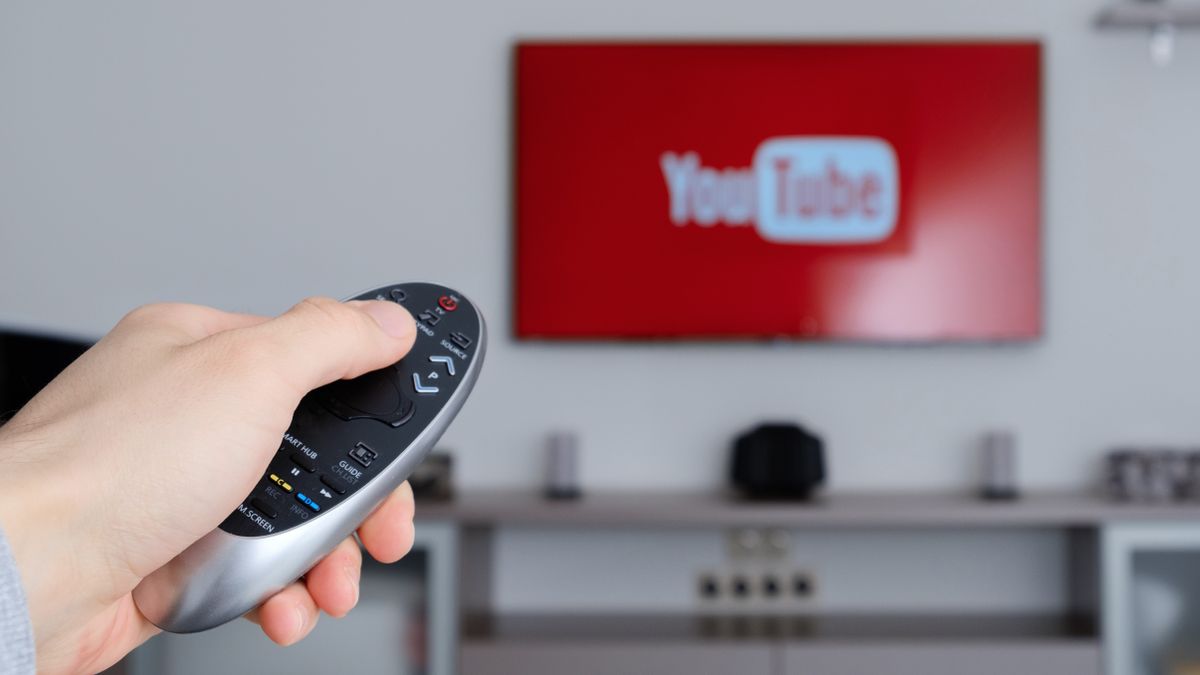
- Smart TVs and Streaming Devices: Modern smart TVs often come with the YouTube app pre-installed or available for download from their respective app stores (e.g., Samsung Tizen, LG webOS, Android TV). Dedicated streaming devices like Roku, Amazon Fire TV Stick, Apple TV, and Google Chromecast also offer robust YouTube app experiences, transforming your television into a giant YouTube screen, perfect for family viewing or immersive entertainment.
- Gaming Consoles: PlayStation and Xbox consoles also feature the YouTube app, allowing gamers to switch seamlessly from gameplay to video content on the same screen.
Creating an Account vs. Watching Anonymously
While you can watch nearly all public YouTube content without an account, signing in with a Google account significantly enhances your viewing experience.
- Watching Anonymously: Without logging in, you can browse, search for, and watch videos. However, your watch history won’t be saved, you won’t receive personalized recommendations, and you cannot subscribe to channels, like videos, leave comments, or create playlists. It’s ideal for quick, casual viewing without any commitment.
- Benefits of a YouTube Account (Google Account): Signing in links your viewing activity to your Google account, unlocking a host of personalized features:
- Personalized Recommendations: The algorithm learns from your watch history and likes, suggesting videos tailored to your interests.
- Subscriptions: Follow your favorite channels to get updates and new videos in your personalized feed.
- Watch History & Playlists: Keep track of videos you’ve watched, easily re-watch them, and create custom playlists for different moods or topics.
- Likes, Comments & Sharing: Engage with the content and community, sharing your thoughts and reactions.
- Upload Videos: If you ever decide to become a creator, an account is essential for uploading your own content.
- YouTube Premium: Access ad-free viewing, background play, and downloads with a subscription.
Navigating and Discovering Content on YouTube
With millions of hours of content uploaded every day, finding what you want can feel like searching for a needle in a haystack. Fortunately, YouTube provides powerful tools to help you navigate its vast library and discover new content.
The YouTube Interface: Home, Trending, Subscriptions
Understanding the main sections of the YouTube interface is key to efficient navigation:
- Home Feed: This is your personalized starting point, filled with recommended videos based on your viewing history, subscriptions, and popular content. The algorithm is constantly refining these suggestions to keep you engaged.
- Trending (Explore Tab): Located within the “Explore” section, the Trending tab showcases videos that are currently popular across the platform, regardless of your personal interests. It’s an excellent way to see what’s hot, discover new creators, or catch up on viral phenomena. Categories within “Explore” also include Music, Gaming, Movies & TV, Learning, and more, offering curated collections.
- Subscriptions Feed: If you’re signed in and subscribed to channels, this feed displays the latest uploads from those creators in chronological order. It’s your go-to for keeping up with your favorite content producers.
- Library: This section houses your Watch History, “Watch Later” playlist, custom playlists you’ve created, and videos you’ve purchased. It acts as your personal archive on the platform.
Effective Searching: Keywords, Filters, and Channels
YouTube’s search bar is incredibly powerful, but knowing how to use it effectively makes all the difference.
- Keywords: Be specific with your search terms. Instead of “cooking,” try “vegan pasta recipe for beginners.” You can also use quotation marks for exact phrases (e.g., “how to tie a bow tie”).
- Filters: After performing a search, look for the “Filters” option (usually above the search results). This allows you to narrow down results by upload date, duration, video type (video, playlist, film, channel, live), features (4K, HDR, VR180, subtitles), and more. For example, if you want a recently uploaded tutorial, filter by “This week” and “Video.”
- Channels: If you know the name of a specific creator or organization, search for their channel directly. You’ll typically find their channel page as one of the top results, allowing you to browse all their content.
Understanding Recommendations and Algorithms
YouTube’s recommendation system is a sophisticated algorithm designed to keep you watching. It analyzes a multitude of factors, including:
- Your Watch History: Videos you’ve watched, liked, and commented on.
- Videos You’ve Skipped: What you didn’t click on is also important data.
- Interactions: Likes, dislikes, comments, and shares.
- Channel Subscriptions: Videos from channels you follow.
- Similar Viewers: What other people with similar viewing habits are watching.
- Video Performance: How a video performs with a broader audience (watch time, click-through rate).
While generally helpful, sometimes recommendations can go awry. You can influence the algorithm by using the “Not interested” or “Don’t recommend channel” options available via the three-dot menu next to videos in your feed.
Subscribing to Channels and Managing Your Feed
Subscribing is the best way to curate your YouTube experience and ensure you never miss content from your favorite creators.
- Subscribing: When you find a channel you love, simply click the “Subscribe” button (usually red, below the video or on the channel page). You can also click the bell icon next to it to receive notifications for new uploads, live streams, or posts from that channel.
- Managing Subscriptions: Your Subscriptions feed gathers all new videos from channels you follow. You can also view a list of all your subscribed channels in the left-hand sidebar (on desktop) or in the Library tab (on mobile). Regularly review your subscriptions to ensure your feed remains relevant and clutter-free. Unsubscribing is as simple as clicking the “Subscribed” button again.
Enhancing Your Viewing Experience
Beyond simply finding and playing a video, YouTube offers numerous controls and settings that allow you to optimize your viewing experience to your personal preferences and internet connection.
Playback Controls: Resolution, Speed, Captions, Picture-in-Picture
When a video is playing, a series of controls become visible, usually by hovering your mouse over the player (desktop) or tapping the screen (mobile).
- Resolution/Quality (Gear Icon): This is crucial for video clarity. YouTube automatically adjusts resolution based on your internet speed, but you can manually select higher qualities (e.g., 1080p, 4K) for sharper images, or lower qualities (e.g., 360p, 144p) to save data or reduce buffering on slow connections.
- Playback Speed (Gear Icon): Speed up or slow down videos. Options range from 0.25x to 2x. This is particularly useful for tutorials (slowing down complex steps) or lectures (speeding up slow speakers).
- Captions/Subtitles (CC Icon): Toggle captions on or off. Many videos offer creator-provided captions, while others rely on YouTube’s auto-generated captions, which can sometimes be inaccurate but are a valuable accessibility feature. You can often customize caption size, color, and background.
- Picture-in-Picture (Mobile/Desktop Browsers): On mobile, this allows the video to float in a small window while you use other apps. On some desktop browsers (like Chrome), a dedicated PiP button allows the video to pop out into a small, movable window that stays on top of other applications.
- Full Screen: The square icon in the bottom right corner expands the video to fill your entire screen. Press
Escor click the icon again to exit full screen. - Miniplayer: On desktop, clicking the miniplayer icon (next to the full-screen button) shrinks the video to a small window in the bottom-right corner, allowing you to browse YouTube while the video continues to play.

Customizing Settings: Autoplay, Dark Theme, Restricted Mode
YouTube’s general settings (accessed via your profile icon) offer broader customization options.
- Autoplay: This toggle (located next to the Up Next list on desktop, or in video settings on mobile) determines if YouTube automatically plays the next recommended video after your current one ends. Turn it off to prevent endless viewing sessions.
- Dark Theme/Mode: Available across all platforms, Dark Theme changes the background of the YouTube interface from white to dark gray or black. This is easier on the eyes in low-light conditions and can save battery on OLED screens.
- Restricted Mode: This optional setting helps screen out potentially mature content. While not foolproof, it can be useful for family viewing or in environments where content filtering is desired. It’s usually found at the bottom of the left-hand sidebar on desktop or in General settings on mobile.
- Location: Changing your country in settings can alter the trending videos and content available, as some videos are geo-restricted.
Offline Viewing and Downloads
For those with YouTube Premium subscriptions, or specific videos allowed by creators, offline viewing is a significant advantage.
- YouTube Premium: A paid subscription service that offers ad-free viewing, background playback on mobile (meaning audio continues even if you switch apps or lock your phone), and the ability to download videos for offline playback. Downloaded videos are stored within the app and can be watched without an internet connection, ideal for travel or areas with poor reception.
- Standard YouTube App (Mobile): Some creators allow their videos to be downloaded by free users in specific regions. Look for a “Download” button below the video. These downloads are still within the YouTube app and may expire after a certain period.
- YouTube Go (Specific Regions): A lighter version of the YouTube app designed for emerging markets with limited data or internet access, offering more control over data usage and direct download options.
Interacting with Content: Likes, Comments, Sharing
YouTube is a social platform, and interacting with content enhances the community experience.
- Likes/Dislikes: Thumbs up or down to express your sentiment. This helps creators understand what content resonates and influences YouTube’s recommendations.
- Comments: Share your thoughts, ask questions, or engage with other viewers and the creator in the comment section. Be mindful of community guidelines and maintain respectful discourse.
- Sharing: The “Share” button provides options to copy a direct link to the video, share it on various social media platforms, or embed it on a website. You can also specify a start time if you want to share a particular segment of a video.
Advanced YouTube Features and Tips
Beyond the basics, YouTube offers several features that can significantly streamline your viewing habits and expand your content horizons.
Creating Playlists for Organization
Playlists are powerful tools for organizing your favorite videos, categorizing content, or queuing up a series of videos for continuous playback.
- How to Create: While watching a video, click the “Save” button below it. You’ll then have the option to add it to an existing playlist or create a “New playlist.” You can make playlists public, unlisted (shareable via link but not discoverable), or private.
- Uses: Create playlists for educational courses, workout routines, music genres, favorite cooking recipes, or even a collection of videos to watch later. This keeps your “Watch Later” queue from becoming overwhelming and ensures you can easily revisit curated content.
- Collaborative Playlists: Some playlists can be made collaborative, allowing multiple users to add videos, perfect for group projects or shared entertainment.
Casting and Mirroring to Larger Screens
Watching YouTube on a small phone screen or even a laptop can be limiting. Casting or mirroring allows you to enjoy content on your big-screen TV.
- Casting (Chromecast/Smart TVs): Look for the “Cast” icon (a rectangle with a Wi-Fi symbol) within the YouTube app or website. If you have a Google Chromecast device, a compatible smart TV, or certain streaming devices, you can “cast” the video. This sends the video stream directly to your TV while your phone or computer acts as a remote control, freeing up your device for other tasks.
- Screen Mirroring (AirPlay/Miracast): For Apple devices, AirPlay allows you to mirror your screen to an Apple TV or AirPlay 2 compatible smart TV. Android devices often have a “Screen Cast” or “Smart View” feature (using Miracast technology) to mirror to compatible TVs. Unlike casting, mirroring duplicates your device’s entire screen, meaning your device remains dedicated to showing the video.
Exploring YouTube Shorts and Live Streams
YouTube continually evolves, introducing new content formats to cater to diverse viewing preferences.
- YouTube Shorts: YouTube’s answer to TikTok, Shorts are vertical, short-form videos (up to 60 seconds). They have their own dedicated section in the mobile app and are often surfaced in the main feed. Shorts offer quick, engaging content – from comedy skits and dance challenges to quick tips and DIY hacks.
- Live Streams: Many creators and organizations host live broadcasts on YouTube, ranging from gaming sessions and Q&As to news coverage and concerts. Live streams offer real-time interaction through live chat and a sense of immediacy. You can find live streams on the home page, within the “Explore” tab, or by subscribing to channels that frequently go live.
Leveraging Keyboard Shortcuts (Desktop)
For desktop users, keyboard shortcuts can dramatically speed up your navigation and playback control without needing to click around.
- Spacebar/K: Play/Pause
- J/L: Rewind/Fast Forward 10 seconds
- M: Mute/Unmute
- Left/Right Arrow Keys: Rewind/Fast Forward 5 seconds
- F: Toggle Full-screen
- T: Toggle Theater mode (expands video player to fill browser width)
- C: Toggle Captions
- Shift + , (<) / Shift + . (>): Decrease/Increase Playback Speed
- Home/End: Go to the beginning/end of the video
- 0-9 (Number Keys): Jump to 0-90% of the video duration
Troubleshooting Common YouTube Issues
While YouTube is generally reliable, occasional issues can arise. Knowing how to troubleshoot common problems can save you frustration.
Resolving Playback Problems
- Buffering/Lagging: This is often due to a slow internet connection. Try reducing the video quality (see Playback Controls), closing other bandwidth-heavy applications, or restarting your router.
- Video Won’t Play: Clear your browser’s cache and cookies, try a different browser, update your browser, or restart your device. Ensure your internet connection is stable.
- Black Screen: This could be a browser extension conflict, an outdated graphics driver, or a browser issue. Try disabling extensions, updating drivers, or switching browsers.
- Audio Issues: Check your device’s volume, YouTube’s internal volume control, and try different videos to determine if the issue is isolated or system-wide.
Addressing Account and Access Issues
- Login Problems: Double-check your Google account credentials. If you’ve forgotten your password, use Google’s account recovery tools. Ensure your internet connection is stable.
- Account Suspended/Terminated: If you believe your account has been wrongly suspended, YouTube has an appeal process. Review their community guidelines to understand potential violations.

Privacy and Safety Considerations
YouTube is generally safe, but it’s important to be aware of privacy and safety settings.
- Managing Watch History: You can pause your watch history (so YouTube stops tracking what you watch for recommendations) or delete specific videos or your entire history from your Library.
- Restricted Mode: As mentioned, this filters potentially mature content.
- Reporting Inappropriate Content: If you encounter videos, comments, or channels that violate YouTube’s community guidelines (e.g., hate speech, harassment, violence), use the “Report” feature (usually via the three-dot menu) to flag it for review by YouTube staff.
- Comment Moderation: If you’re a creator, you can moderate comments on your own videos. As a viewer, be mindful of what you post and avoid sharing personal information.
YouTube is more than just a platform; it’s a dynamic, ever-evolving medium that offers a window into countless worlds. By understanding how to effectively navigate its interface, leverage its powerful discovery tools, and customize your viewing experience, you can transform your interaction with online video from passive consumption into an active, enriched, and personalized journey. Whether you’re seeking to learn, be entertained, or connect with creators, mastering “how to watch YouTube” is your key to unlocking a universe of digital content.
aViewFromTheCave is a participant in the Amazon Services LLC Associates Program, an affiliate advertising program designed to provide a means for sites to earn advertising fees by advertising and linking to Amazon.com. Amazon, the Amazon logo, AmazonSupply, and the AmazonSupply logo are trademarks of Amazon.com, Inc. or its affiliates. As an Amazon Associate we earn affiliate commissions from qualifying purchases.