
iCloud has become an indispensable part of the Apple ecosystem, seamlessly integrating with iPhones, iPads, Macs, and even Windows PCs. For millions of users worldwide, it serves as the central hub for storing photos, documents, backups, contacts, and much more, ensuring that vital information is always accessible and synchronized across all devices. Yet, despite its ubiquity, many users aren’t fully aware of what exactly is stored in their iCloud account, let alone how to effectively view and manage it.
Understanding how to access and navigate your iCloud storage is crucial not only for data management and security but also for optimizing your device’s performance and enhancing your overall digital productivity. Whether you’re trying to free up space, locate a lost document, or simply curious about what Apple is holding for you in the cloud, this comprehensive guide will walk you through every method of viewing your iCloud content.
Understanding the iCloud Ecosystem
Before diving into the practical steps, it’s beneficial to grasp the fundamental role iCloud plays in your digital life and why proactively viewing its contents is more important than you might realize.
What is iCloud?
At its core, iCloud is Apple’s cloud service, designed to store your data securely online and keep it updated across all your Apple devices automatically. It’s more than just a storage locker; it’s an intelligent synchronization platform. When you take a photo on your iPhone, save a document on your Mac, or add an event to your calendar, iCloud springs into action, ensuring that data is backed up and accessible from any of your linked devices. This includes:
- iCloud Photos: Stores your entire photo and video library, keeping them in their original format at full resolution.
- iCloud Drive: A cloud-based file storage service, much like Dropbox or Google Drive, for documents, PDFs, presentations, and any other file types.
- Device Backups: Automatically backs up your iPhone, iPad, and iPod touch, making device restoration or setup of a new device remarkably simple.
- App Data: Stores data from various apps, ensuring continuity across devices.
- Mail, Contacts, Calendars, Reminders, Notes: Keeps your personal information synchronized.
- Messages in iCloud: Syncs your iMessages across all your devices.
- Find My: Helps locate lost devices and friends.
Each Apple ID comes with 5GB of free iCloud storage. For many, this quickly fills up, prompting the need to understand what’s taking up space and how to manage it.
Why View Your iCloud Content?
The reasons for wanting to view your iCloud content are numerous and extend beyond mere curiosity. Proactive management of your cloud storage offers significant benefits in terms of digital security, efficiency, and peace of mind.
- Data Management and Organization: Just like a physical filing cabinet, digital storage can become cluttered. Viewing your iCloud content allows you to organize files, delete duplicates, and ensure important documents are easily retrievable. This proactive approach boosts productivity, saving valuable time searching for misplaced items.
- Freeing Up Storage Space: The notorious “iCloud storage full” notification is a common frustration. By seeing exactly what’s stored, you can identify large files, old device backups, or unnecessary photos and videos that are consuming precious space. Deleting these can prevent future storage warnings and ensure your devices continue to back up successfully.
- Digital Security and Privacy: Knowing what data resides in your iCloud account is a fundamental aspect of digital security. It allows you to ensure that no sensitive or unwanted information is inadvertently stored in the cloud. Regularly reviewing your content can also help you spot any unauthorized data or potential vulnerabilities.
- Peace of Mind: Understanding your digital footprint and having control over your data provides a significant sense of peace. You’ll know that your cherished memories and crucial documents are safely stored and accessible, while also being confident that obsolete or private information isn’t floating around unnecessarily.
- Troubleshooting and Recovery: If a file seems missing from one device, checking iCloud can often reveal its location. In cases of device loss or damage, knowing how to access your iCloud backup is paramount for data recovery.
Step-by-Step Guide: Accessing Your iCloud Data
Accessing your iCloud content is straightforward, regardless of whether you’re using an Apple device, a Windows PC, or even an Android phone. The method varies slightly depending on the device and the type of data you wish to view.
Viewing iCloud on Your Apple Devices (iPhone, iPad, Mac)
Apple devices offer the most integrated experience for viewing and managing iCloud data.
On iPhone and iPad:
-
Check Overall Storage:
- Go to Settings.
- Tap on your Apple ID at the very top (your name and picture).
- Tap iCloud.
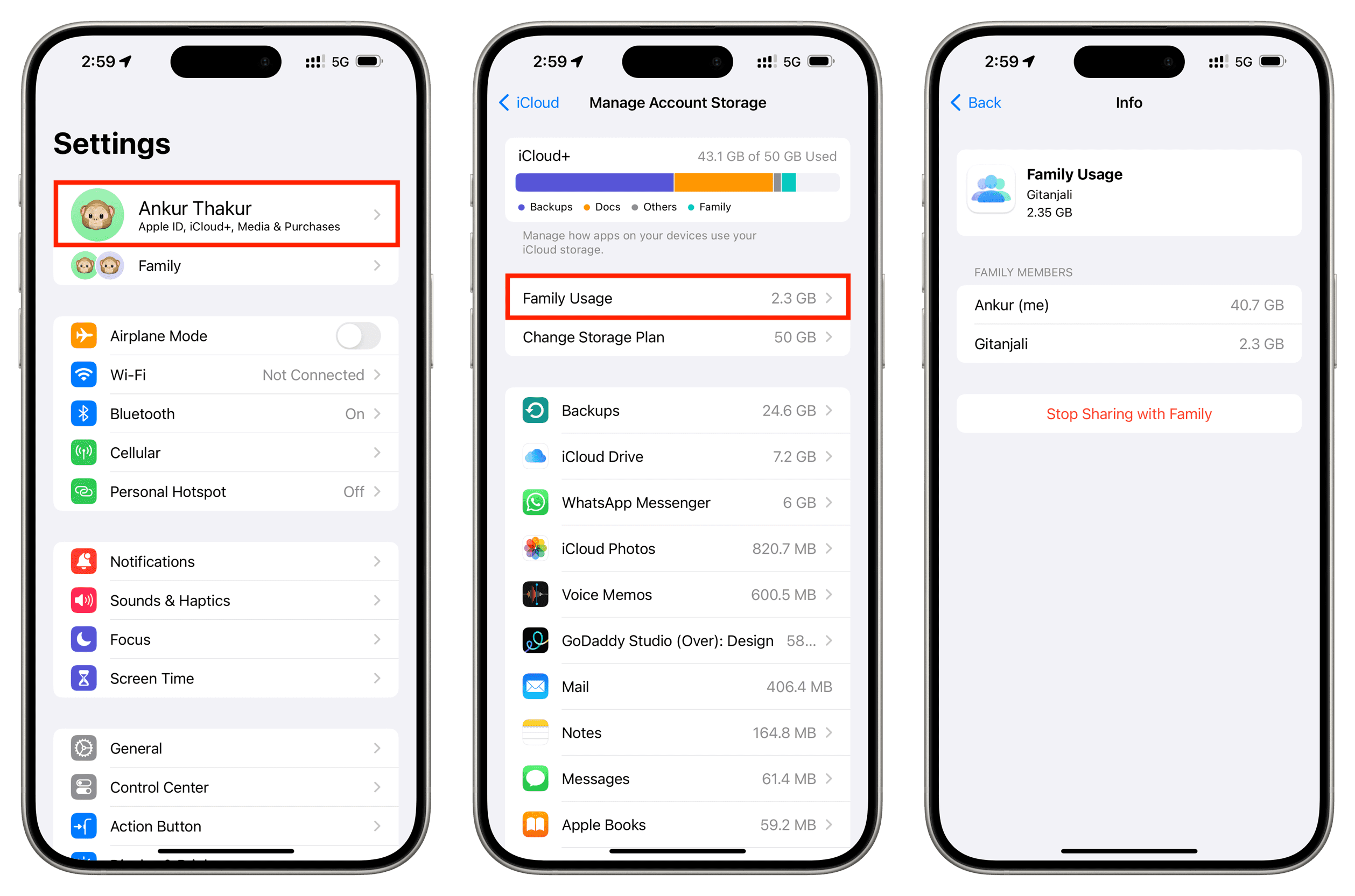
- At the top of this screen, you’ll see a bar graph illustrating your iCloud storage usage, broken down by category (Photos, Backups, Documents, Mail, etc.).
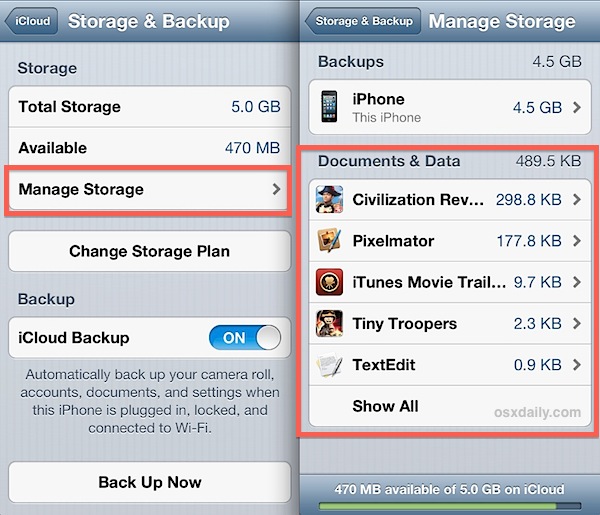
- Tap Manage Account Storage to see a detailed breakdown. Here, you can tap on individual app categories (e.g., Photos, Backups) to see more details and options to delete or offload data. For example, under “Backups,” you can see backups for all your devices and delete old ones.
-
View Specific App Data:
- Photos: Open the Photos app. If iCloud Photos is enabled, all your photos and videos (even those not stored locally on your device if “Optimize iPhone Storage” is on) will be visible here.
- Files: Open the Files app. Under “Locations,” you’ll see iCloud Drive. Tap on it to browse all files and folders stored in iCloud Drive, just like on a computer. You can open, move, and organize files directly from here.
- Notes, Reminders, Calendar, Contacts: These apps natively sync with iCloud. Simply open the respective app, and you’ll see your iCloud-synced content. Ensure that “iCloud” is selected as the account source within the app settings if you have multiple accounts (e.g., Gmail).
- Messages: If “Messages in iCloud” is enabled (Settings > Apple ID > iCloud > Messages), your entire iMessage history is stored and synced. You can view it directly within the Messages app.
On Mac:
-
Check Overall Storage:
- Click the Apple menu () in the top-left corner of your screen.
- Select System Settings (macOS Ventura or later) or System Preferences (older macOS versions).
- Click on your Apple ID (your name).
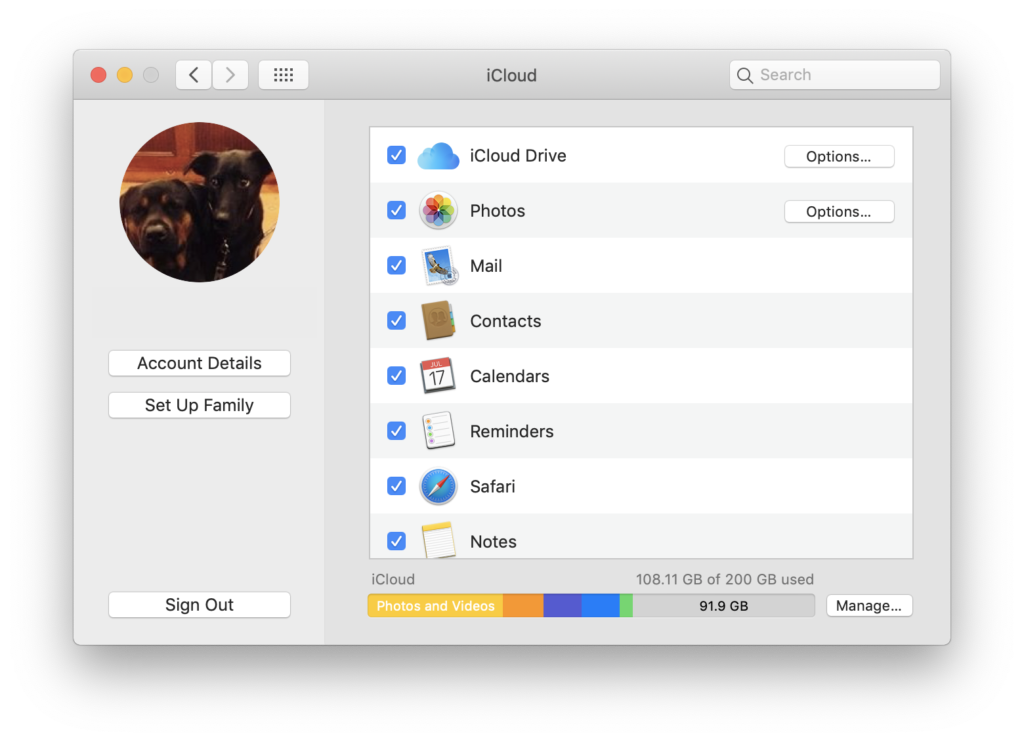
- In the sidebar, click iCloud.
- You’ll see a visual breakdown of your iCloud storage. Click Manage (or “Manage Storage” on older macOS) to get a detailed view of what’s consuming space, similar to iOS/iPadOS. From here, you can manage backups, photos, Mail, and other app data.
-
View Specific App Data:
- iCloud Drive: Open Finder. In the sidebar, click iCloud Drive. This will display all your files and folders stored in iCloud Drive, accessible just like any other folder on your Mac. You can drag and drop, open, edit, and organize files here.
- Photos: Open the Photos app. If iCloud Photos is enabled, your entire photo and video library will be accessible here.
- Mail, Contacts, Calendar, Reminders, Notes: These dedicated apps on your Mac will automatically display content synced via iCloud, provided you’re signed in with your Apple ID and iCloud sync is enabled for these services in System Settings/Preferences.
Accessing iCloud via a Web Browser (Windows, Android, Linux, or any device)
The iCloud.com website provides a comprehensive portal to your iCloud data, accessible from any web browser on any device. This is particularly useful for non-Apple users or when you’re away from your personal devices.
- Open a Web Browser: Launch your preferred web browser (Safari, Chrome, Firefox, Edge, etc.).
- Go to iCloud.com: Type
www.icloud.cominto the address bar and press Enter. - Sign In: Enter your Apple ID and password. If you have two-factor authentication enabled (which you absolutely should!), you’ll need to enter the verification code sent to one of your trusted devices.
- Explore the Web Interface: Once signed in, you’ll see a dashboard with icons for various iCloud services:
- Photos: Click on the Photos icon to view your entire iCloud Photo Library. You can browse, search, download, and delete photos and videos.
- iCloud Drive: Click on the iCloud Drive icon to access your files and folders. You can upload new files, download existing ones, create new folders, and manage your documents.
- Notes, Reminders, Calendar, Contacts: Each of these apps has its own icon, allowing you to view and manage your synchronized data just as you would on an Apple device.
- Mail: If you use an iCloud email address, you can access your inbox, send emails, and manage your mail.
- Find My: Locate your Apple devices on a map, play a sound, mark them as lost, or erase them remotely.
- Pages, Numbers, Keynote: Access and edit documents created with Apple’s productivity suite.
- Manage Storage: In the bottom-left corner of the iCloud.com dashboard, you’ll see a “Storage” indicator. Click on Account Settings (or your name in the top right, then “iCloud Settings”) to get a detailed breakdown of your storage usage and options to upgrade or manage data.
Using iCloud for Windows App
For Windows PC users, Apple offers a dedicated iCloud for Windows application that integrates iCloud Drive and iCloud Photos directly into File Explorer, mimicking the experience on a Mac.
- Download and Install:
- Open the Microsoft Store on your Windows PC and search for “iCloud.”
- Download and install the iCloud for Windows app.
- Alternatively, you can download it from Apple’s support website.
- Sign In: Launch the iCloud for Windows app and sign in with your Apple ID and password.
- Select Services: Choose which iCloud services you want to sync with your PC. Typically, this includes:
- iCloud Drive: Creates an “iCloud Drive” folder in File Explorer, where you can access, upload, and download your cloud-stored documents.
- Photos: Creates an “iCloud Photos” folder, which automatically downloads photos from iCloud Photos and can also upload photos from your PC to iCloud.
- Bookmarks: Syncs your Safari bookmarks with Chrome, Firefox, or Edge.
- Mail, Contacts, Calendars: Integrates these with Microsoft Outlook.
- Access Data:
- Once synced, open File Explorer. You’ll see “iCloud Drive” and “iCloud Photos” listed under “Quick Access” or “This PC.”
- Click on them to browse your files and photos as if they were stored locally on your PC.
Managing Your iCloud Storage and Data Effectively
Viewing your iCloud content is only the first step. Effective management is key to maintaining digital hygiene, securing your data, and ensuring you get the most out of Apple’s cloud service.
Understanding Your Storage Quota
Every Apple ID comes with 5GB of free iCloud storage. For most users, especially those with numerous photos, videos, and device backups, this quickly proves insufficient.
- Checking Usage: As demonstrated above, you can check your current iCloud storage usage on any Apple device (Settings > Apple ID > iCloud > Manage Account Storage) or via iCloud.com (bottom left corner or Account Settings). This graphical breakdown helps identify the biggest storage consumers.
- Upgrading Storage: If you consistently hit your storage limit, Apple offers affordable upgrade plans (e.g., 50GB, 200GB, 2TB) that are often a worthwhile investment. These can be managed directly from your device’s iCloud settings or iCloud.com.
Identifying and Deleting Unnecessary Data
The most effective way to free up space and declutter your iCloud is by judiciously deleting old or redundant data.
- Old Device Backups: These are often the biggest culprits. Go to “Manage Account Storage” and select “Backups.” You’ll see a list of all devices backed up to your iCloud. Delete backups for old iPhones or iPads you no longer own or use.
- Large Files in iCloud Drive: Browse your iCloud Drive (via Files app, Finder, or iCloud.com) and sort files by size to pinpoint large documents, videos, or archives that are no longer needed.
- Duplicate Photos and Videos: While iCloud Photos is generally efficient, duplicates can arise. Review your photo library for similar shots or unwanted videos. Consider using third-party apps to help identify duplicates, though always proceed with caution.
- Messages Attachments: Over time, attachments in your iMessages can accumulate. On iOS, go to Settings > General > iPhone Storage > Messages. Here you can review and delete large attachments like photos and videos.
- App Data: Under “Manage Account Storage,” you can see which apps are storing data in iCloud. Some apps might be storing large amounts of data you no longer need. You can disable sync for these apps or delete their data directly from this screen.
Organizing Your iCloud Drive and Photos
Beyond deletion, good organization enhances productivity and makes finding files effortless.
- Folders and Subfolders: In iCloud Drive, create a logical folder structure. Categorize files by project, year, type, or client. This applies whether you’re managing personal finances, work documents, or creative projects. A well-organized system can significantly reduce search time.
- Albums in Photos: Use albums in the Photos app to group related pictures. Smart Albums (on Mac) can automatically organize photos based on criteria like date, location, or keywords.
- Consistent Naming Conventions: Adopt a consistent naming convention for your files and folders (e.g., “ProjectXReportDate,” “ClientYInvoiceMonth”). This helps with searching and ensures clarity, particularly when collaborating or handing off work.
iCloud Security and Privacy Considerations
Digital security is paramount. When dealing with cloud storage, understanding how to protect your data is just as important as knowing how to view it.
- Two-Factor Authentication (2FA): Always enable 2FA for your Apple ID. This adds an extra layer of security, requiring a code from a trusted device in addition to your password when signing in on a new device or browser.
- Strong, Unique Passwords: Use a strong, unique password for your Apple ID that you don’t reuse anywhere else. A password manager can help.
- Review Authorized Devices: Regularly check which devices are signed into your Apple ID. You can do this on your iPhone/iPad (Settings > Apple ID) or Mac (System Settings/Preferences > Apple ID) by scrolling down. Remove any unrecognized or old devices.
- Understand Data Encryption: Apple encrypts data stored in iCloud, both in transit and at rest. While this provides a high level of security, be aware that certain data types (like iCloud Mail, Contacts, Calendars, Photos, etc.) are generally not end-to-end encrypted by default in a way that prevents Apple from accessing them if legally compelled. For truly sensitive documents, consider client-side encryption before uploading to any cloud service.
Beyond Viewing: Leveraging iCloud for Productivity and Collaboration
Once you master viewing and managing your iCloud content, you can fully leverage its capabilities to boost your productivity and streamline collaboration, aligning perfectly with modern digital workflows.
Seamless Sync Across Devices
The real power of iCloud lies in its automatic synchronization. A document saved on your Mac immediately appears on your iPhone, ready for review. A photo taken on your iPad is instantly available on your Mac. This seamless continuity eliminates the need for manual transfers, saving significant time and reducing friction in your workflow.
- Always Up-to-Date: For professionals, this means always having the latest version of a presentation, report, or design file at hand, whether in the office, at home, or on the go.
- Start Anywhere, Finish Anywhere: Begin drafting an email on your iPhone during your commute, then seamlessly pick it up and finish it on your Mac when you reach your desk. This flexibility is a huge productivity booster.
Sharing Files and Folders with iCloud Drive
iCloud Drive isn’t just for personal storage; it’s also a powerful tool for collaboration, enabling you to share files and even entire folders with others, whether they use Apple devices or not.
- Share Files: In the Files app (iOS/iPadOS), Finder (Mac), or iCloud.com, select a file, tap/click the Share icon, and choose “Add People.” You can invite specific individuals via email or messages, or generate a shareable link. You can set permissions to allow them to view only or make changes.
- Share Folders: Similar to files, you can share entire folders in iCloud Drive. This is invaluable for team projects, family photo albums, or sharing resources with clients. When someone is invited to a shared folder, any changes they make are instantly updated for everyone with access.
- Professional Branding: For consultants, freelancers, or small businesses, using iCloud Drive for secure and easy sharing of portfolios, proposals, or project documents can enhance professionalism and efficiency.
Utilizing Specific iCloud-Integrated Apps
Beyond generic file storage, Apple’s native apps harness iCloud’s sync capabilities to their fullest, significantly improving personal and professional organization.
- Notes: No longer just a simple text editor, Notes can handle sketches, checklists, tables, and attachments. All notes sync across your devices, making it perfect for brainstorming, creating shopping lists, or drafting quick ideas. You can even collaborate on notes with others.
- Reminders: Create location-based reminders (“Remind me to buy milk when I get home”), time-based reminders, or shared lists for family or team projects. All sync via iCloud, ensuring you never miss a beat.
- Pages, Numbers, Keynote: Apple’s iWork suite leverages iCloud to keep your documents synchronized. You can start a presentation on your Mac, refine it on your iPad, and even share it for real-time collaboration with colleagues, regardless of their device. This is particularly useful for professional tasks, allowing for agile document management and teamwork.
Conclusion
Mastering how to view what’s stored in iCloud is far more than a technical exercise; it’s about taking control of your digital life. By understanding the various access points – be it your iPhone, Mac, the iCloud.com website, or the iCloud for Windows app – you empower yourself to manage your data efficiently, safeguard your privacy, and reclaim valuable storage space.
Beyond mere viewing, proactive management through organization, timely deletion of unnecessary files, and robust security practices ensures that iCloud remains a valuable asset rather than a perplexing digital attic. Moreover, by leveraging its deep integration with Apple’s ecosystem, you can unlock powerful productivity and collaboration features that streamline your personal tasks and professional workflows. Take the time to explore your iCloud content, organize it, and secure it; the benefits in terms of peace of mind and digital efficiency are immeasurable.
aViewFromTheCave is a participant in the Amazon Services LLC Associates Program, an affiliate advertising program designed to provide a means for sites to earn advertising fees by advertising and linking to Amazon.com. Amazon, the Amazon logo, AmazonSupply, and the AmazonSupply logo are trademarks of Amazon.com, Inc. or its affiliates. As an Amazon Associate we earn affiliate commissions from qualifying purchases.