
In an era increasingly dominated by cord-cutters and on-demand entertainment, YouTube TV has emerged as a formidable player in the live TV streaming landscape. Offering a compelling alternative to traditional cable and satellite services, YouTube TV provides a vast array of live channels, an impressive cloud DVR, and a user-friendly interface, all accessible across a multitude of devices. This guide delves into the intricacies of YouTube TV, equipping you with the knowledge to navigate its features, optimize your viewing experience, and fully leverage its capabilities. Whether you’re a newcomer looking to make the switch or an existing subscriber seeking to unlock hidden potential, understanding the “how-to” of YouTube TV is key to maximizing your entertainment value.
Getting Started with YouTube TV: Setup and Subscription Essentials
Embarking on your YouTube TV journey is a straightforward process, designed to get you up and running with minimal hassle. However, a clear understanding of the initial steps, from account creation to device compatibility, is crucial for a smooth onboarding experience.
Signing Up and Account Creation
The gateway to YouTube TV is your Google account. If you already have one (which is likely if you use Gmail, YouTube, or Android), you’re halfway there. The sign-up process typically involves visiting the YouTube TV website (tv.youtube.com) or downloading the app on a compatible device. You’ll be prompted to sign in with your Google account. This integration ensures a seamless experience, leveraging your existing Google profile for personalized recommendations and settings. During this stage, YouTube TV will often offer a free trial period, giving you an excellent opportunity to explore the service before committing to a subscription. It’s advisable to take advantage of this trial to ensure the channel lineup and features meet your expectations.
Choosing Your Base Plan and Add-ons
YouTube TV simplifies its core offering with a single, comprehensive base plan that includes a wide array of popular live channels from major networks, news, sports, and entertainment. Unlike some competitors that offer tiered base plans, YouTube TV bundles most of its core content upfront. Once you select the base plan, you’ll have the option to enhance your subscription with various add-on packages. These can include premium networks like HBO Max, Showtime, or Starz, as well as specialized sports packages or international channel bundles. Carefully review these options based on your viewing preferences to avoid unnecessary costs while ensuring access to all your desired content. The flexibility to add and remove these extensions on a monthly basis is a significant advantage, allowing you to tailor your subscription as your interests evolve.
Supported Devices and Compatibility
One of YouTube TV’s strengths lies in its broad device compatibility, ensuring you can watch your favorite shows almost anywhere. The service is available on:
- Smart TVs: Many modern smart TVs from brands like Samsung, LG, Vizio, and others have the YouTube TV app pre-installed or available for download.
- Streaming Media Players: Popular devices such as Roku, Apple TV, Amazon Fire TV, Chromecast, and Google TV are fully supported.
- Gaming Consoles: PlayStation and Xbox consoles also offer the YouTube TV app.
- Mobile Devices: Android and iOS smartphones and tablets provide a robust mobile viewing experience.
- Web Browsers: You can access YouTube TV directly through a web browser on your computer or laptop.
Before subscribing, it’s prudent to confirm that your primary viewing devices are compatible. While most contemporary devices are covered, checking the official YouTube TV support page can prevent any compatibility surprises.
Navigating the Initial Setup Process
After signing up and selecting your plan, the initial setup typically involves a brief guided tour of the interface. This will introduce you to key sections like the Live Guide, Library, and Home tab. You’ll also confirm your home location, which is crucial for determining local channel availability and complying with regional broadcast rights. YouTube TV uses your home location to ensure you receive the correct local CBS, ABC, NBC, and Fox affiliates. While you can watch YouTube TV on the go, the service requires you to “check in” from your home location periodically (usually once every three months) to verify your residence and maintain access to local channels. This mechanism ensures fair usage and adherence to licensing agreements.
Mastering the YouTube TV Interface: Navigation and Discovery
Once your account is active, the real fun begins: exploring the vast content library and intuitively navigating the YouTube TV interface. Designed for user-friendliness, the platform provides several distinct sections, each serving a specific purpose in content discovery and management.
The Live Guide: Finding and Watching Channels
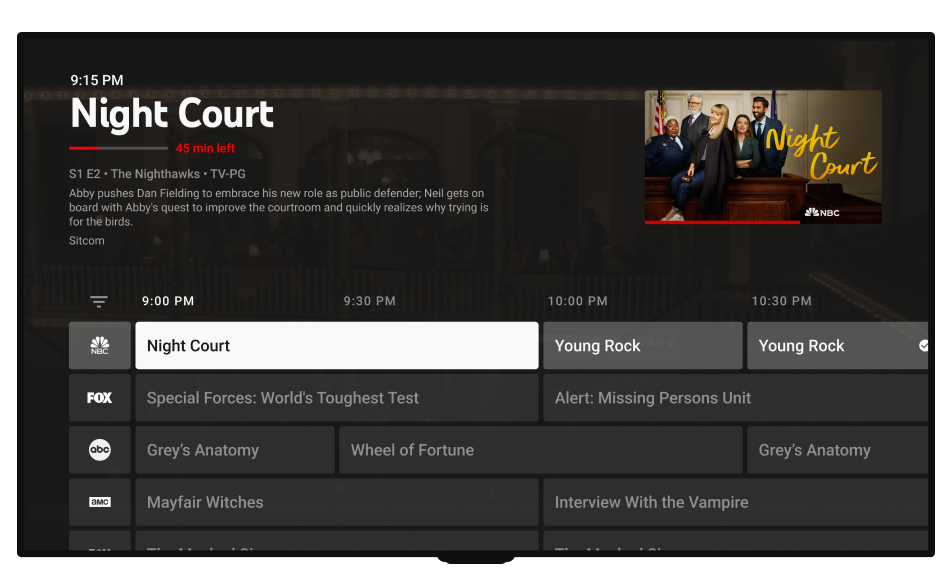
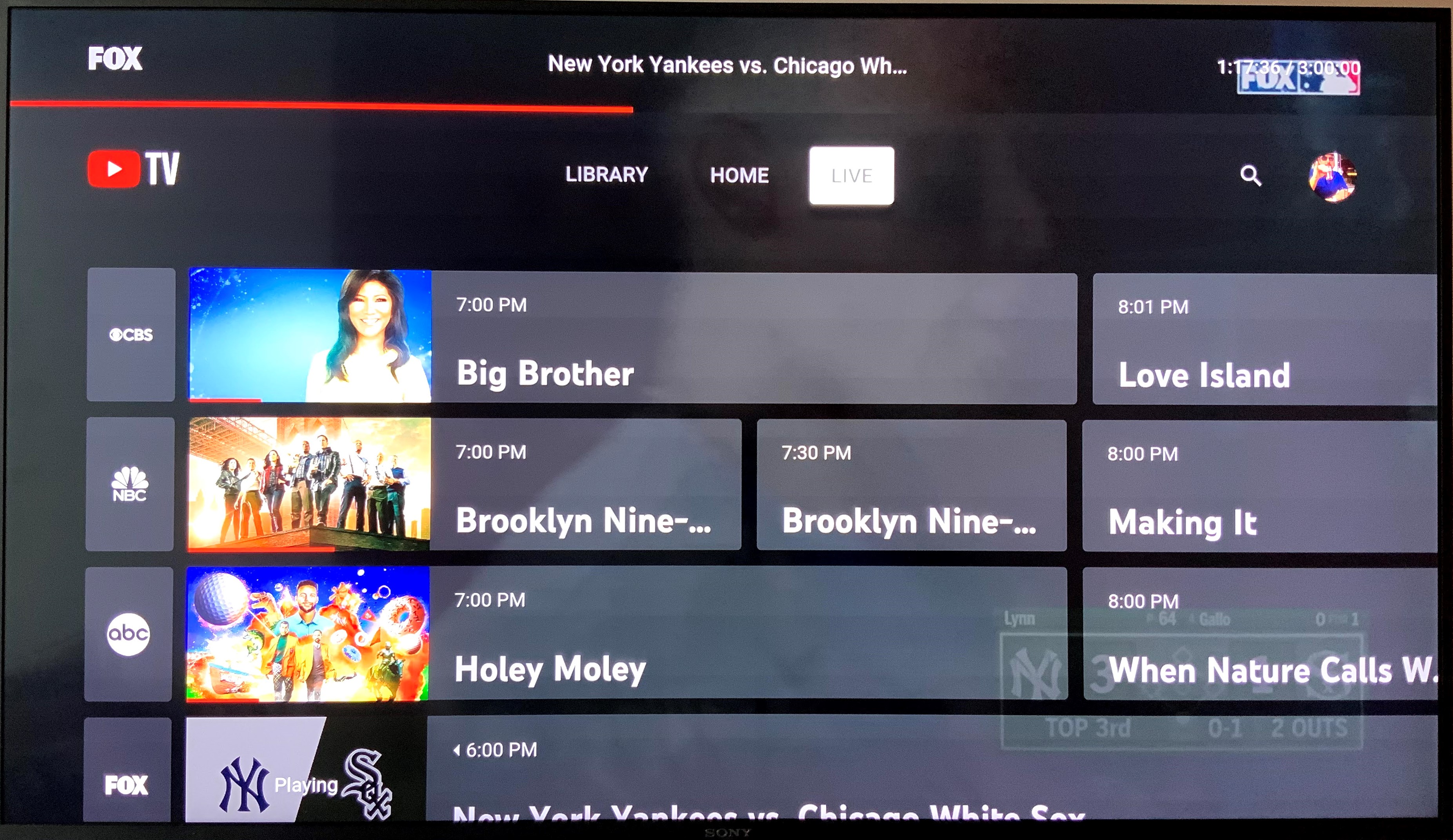
The Live Guide is the heart of YouTube TV, replicating the familiar electronic program guide (EPG) experience found on traditional cable boxes. It presents a chronological listing of currently airing and upcoming programs across all your subscribed channels. You can scroll horizontally to view future programming and vertically to browse different channels. Tapping or clicking on a program will instantly tune you into that channel. The guide is highly responsive, allowing for quick channel surfing. Many users customize the order of their channels in the Live Guide, placing their most frequently watched networks at the top for even faster access. This customization feature elevates the user experience, making the Live Guide a powerful tool for real-time viewing.
The Library: DVR Functionality and On-Demand Content
YouTube TV’s Cloud DVR is a standout feature, offering unlimited storage space with recordings saved for nine months. This means you can record as many shows, movies, and sports events as you want, without worrying about storage limits. The Library tab is where all your recordings reside. When you “add” a show, movie, or sports team to your Library, YouTube TV will automatically record all future airings, including new episodes and reruns. It also often includes any available on-demand versions of those programs, giving you flexibility in how you watch. Within the Library, you can easily manage your recordings, categorize them by show or movie, and delete content you no longer wish to keep. This robust DVR functionality sets YouTube TV apart from many competitors.
Home Screen: Personalized Recommendations and Quick Access
The Home screen acts as your personalized hub, designed to help you discover new content and quickly access shows you’ve started or might enjoy. It employs sophisticated algorithms to suggest programs based on your viewing history, what’s popular, and what’s currently trending. You’ll find sections like “Continue Watching” for shows you’ve paused, “Top Picks for You,” and curated rows featuring new movies, trending live events, and popular shows across genres. This intelligent curation helps prevent decision fatigue, ensuring there’s always something engaging to watch. The Home screen also often highlights live events that are about to start or are currently in progress, making it easy to jump into breaking news or a live sports game.
Search Functionality: Locating Shows, Movies, and Events
For specific content, the search function is your most efficient tool. Located prominently within the interface (often represented by a magnifying glass icon), the search bar allows you to type in the name of a show, movie, actor, director, or even a sports team. YouTube TV’s search is powerful and comprehensive, pulling results from live broadcasts, your DVR recordings, and available on-demand content. It provides instant results as you type, making it quick to pinpoint exactly what you’re looking for, even if you only remember a partial title. This feature is particularly useful when trying to find a specific episode of a show or tracking down a movie without having to scroll endlessly through guides or menus.
Advanced Features and Customization for an Enhanced Experience
Beyond the basic navigation, YouTube TV offers a suite of advanced features and customization options that significantly enhance the viewing experience. These tools empower users to tailor the service to their specific preferences and needs.
Cloud DVR: Unlimited Storage and Recording Management
As mentioned, the unlimited cloud DVR is a cornerstone of YouTube TV. But its utility extends beyond just recording. When you add a show to your Library, YouTube TV generally records all airings, giving you options. If a show has multiple airings that you’ve recorded, the system intelligently groups them. You can typically choose to watch the “newest” recording or select from older versions. Furthermore, YouTube TV often allows you to skip commercials on DVR recordings, a major convenience not always available with on-demand content (which may still have forced ads). Managing your recordings is straightforward within the Library, allowing you to quickly delete watched episodes or prioritize what you want to keep.
User Profiles: Personalized Viewing for the Whole Family
YouTube TV understands that families or multiple household members have diverse viewing habits. It supports up to six individual user accounts per household, each with its own personalized Library, recommendations, and viewing history. This means every family member can maintain their own DVR recordings, track their favorite shows, and receive tailored suggestions without interfering with others’ preferences. Switching between profiles is simple, typically accessible from the main menu or a profile icon. This multi-profile support is essential for households where different members have distinct tastes in entertainment.
Customizing Your Live Guide and Channel Order
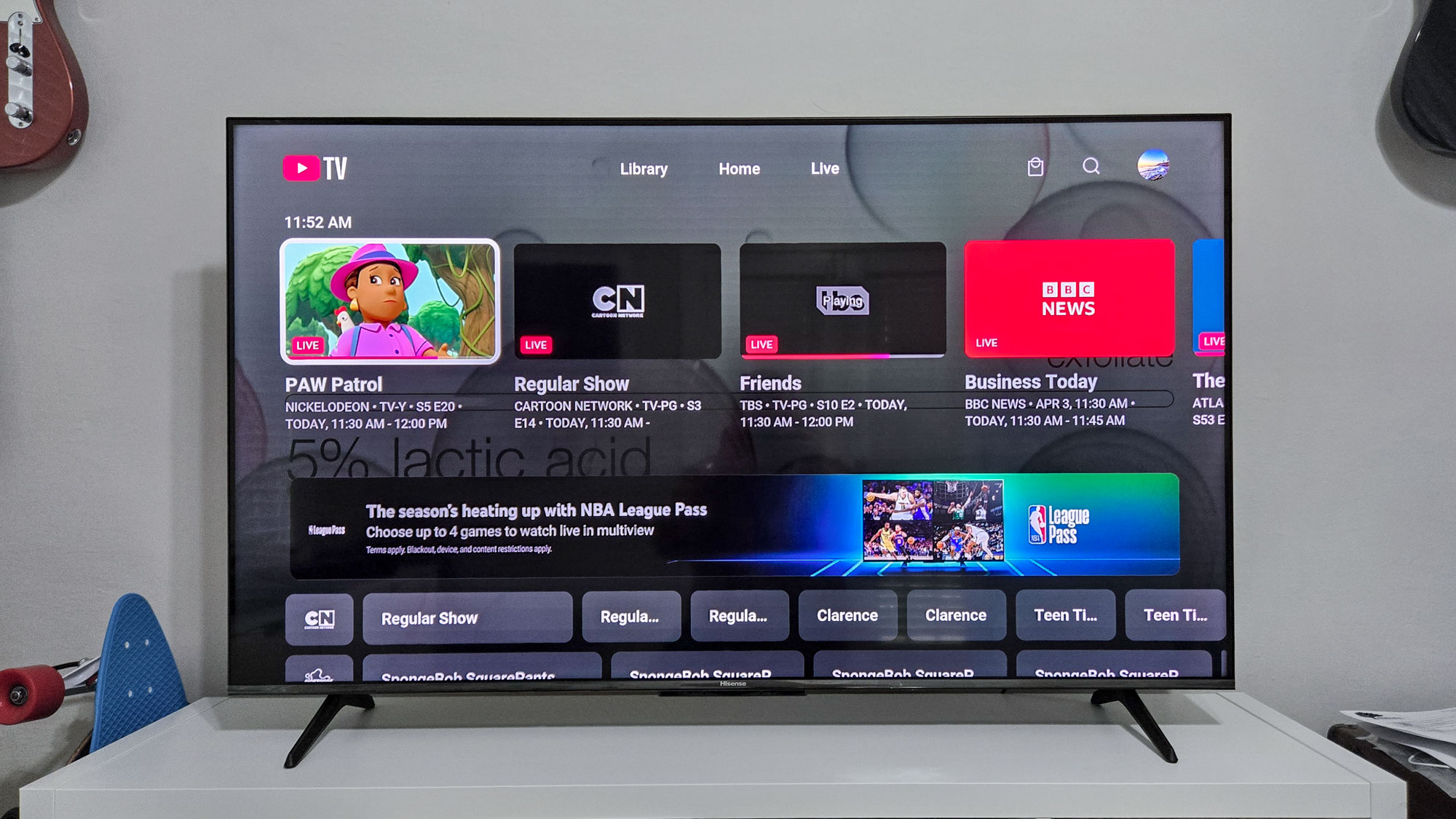
While the default Live Guide is functional, YouTube TV provides the power to personalize it. Within the settings, you can reorder the channels in your Live Guide, placing your most-watched networks at the top for quicker access. You can also hide channels you never watch, decluttering the guide and making it more efficient. This level of customization ensures that your primary viewing interface is optimized precisely for your habits, making channel surfing a much more pleasant experience than sifting through dozens of irrelevant channels.
Parental Controls and Content Restrictions
For households with children, robust parental controls are paramount. YouTube TV offers settings that allow you to restrict content based on ratings (G, PG, PG-13, R, NC-17, TV-G, TV-PG, TV-14, TV-MA). You can set specific content restrictions for individual user profiles, ensuring that younger viewers only access age-appropriate programming. This usually involves creating a PIN that must be entered to bypass the restrictions, giving parents peace of mind and control over what their children can watch. These controls are vital for maintaining a family-friendly viewing environment.
Picture-in-Picture and Multi-View Options
Depending on your device and location, YouTube TV offers advanced viewing features like Picture-in-Picture (PiP) and Multi-View. PiP allows you to minimize the YouTube TV player into a smaller, floating window while you use other apps on your device, perfect for multitasking on a tablet or computer. Multi-View, primarily available on select devices like Apple TV 4K, allows you to watch up to four live streams simultaneously on a single screen. This is a game-changer for sports fans who want to keep an eye on multiple games at once, or for news junkies tracking different breaking stories. These features demonstrate YouTube TV’s commitment to cutting-edge viewing experiences.
Optimizing Your YouTube TV Experience: Tips and Troubleshooting
To truly get the most out of YouTube TV, it’s beneficial to understand not just its features but also how to optimize your setup and address common issues. A smooth streaming experience often hinges on a few key factors.
Internet Speed Requirements and Buffering Solutions
YouTube TV is an internet-dependent service, and stable broadband connectivity is essential for high-quality streaming. For standard definition, a minimum of 3 Mbps is recommended, while 7 Mbps is advised for a single stream of high definition. For multiple streams or 4K content (if available via an add-on), 13+ Mbps is typically required per stream. If you experience frequent buffering, consider:
- Upgrading your internet plan: Ensure your ISP plan meets the recommended speeds.
- Using a wired connection: Ethernet offers more stability than Wi-Fi.
- Moving closer to your router or using a mesh Wi-Fi system: Improves Wi-Fi signal strength.
- Reducing network congestion: Disconnect other devices from your network that might be consuming bandwidth.
- Restarting your modem and router: A simple reboot can often resolve connectivity issues.
Consistent internet speed is the backbone of a seamless streaming experience.
Managing Your Subscription and Billing
Managing your YouTube TV subscription is straightforward and done primarily through the YouTube TV website or the app’s settings section. Here, you can:
- View your billing cycle and payment method.
- Add or remove premium add-ons: This allows for monthly flexibility to customize your plan.
- Pause your membership: If you’re going on an extended vacation or won’t be using the service for a while, you can pause your subscription for a period, preventing charges while retaining your Library content.
- Cancel your membership: The cancellation process is designed to be simple and can be done at any time without long-term commitments.
Regularly reviewing your subscription ensures you’re only paying for what you need and are aware of any changes to your billing.
Troubleshooting Common Issues
While YouTube TV is generally reliable, you might occasionally encounter minor issues. Here are some quick troubleshooting tips:
- App not loading or freezing: Try force-closing the app and reopening it, or uninstalling and reinstalling it.
- Picture quality issues: Check your internet speed. If it’s sufficient, try lowering the video quality setting within the YouTube TV player to see if it improves.
- “Location not available” error: Ensure your device’s location services are enabled, or try accessing YouTube TV from your designated home area. Remember the periodic “check-in” requirement.
- Audio out of sync: Restart the stream or try another channel. Check your device’s audio settings.
- Black screen: Try switching channels and then switching back, or restart the app/device.
For persistent issues, the YouTube TV help center offers extensive articles and a live chat support option, providing direct assistance from their team.
Beyond the Basics: Integrating YouTube TV with Other Services
YouTube TV’s utility extends beyond its standalone app, offering seamless integration with other technologies to enhance convenience and accessibility.
Google Assistant and Voice Commands
As a Google product, YouTube TV is deeply integrated with Google Assistant. If you have a Google Assistant-enabled device (like a Google Home speaker, smart display, or even your Android phone), you can control YouTube TV with voice commands. This includes:
- “Hey Google, open YouTube TV.”
- “Hey Google, tune to ESPN on YouTube TV.”
- “Hey Google, record The Tonight Show.”
- “Hey Google, play the latest episode of [Show Name] on YouTube TV.”
This hands-free control adds a layer of convenience, especially when your remote is out of reach or you’re multitasking.
Casting and Mirroring to Larger Screens
Chromecast integration is a core strength of YouTube TV. If you have a Chromecast device connected to your TV, or a smart TV with built-in Chromecast (Google Cast), you can easily “cast” content from your mobile device or web browser to the larger screen. Simply open the YouTube TV app on your phone or computer, select the Cast icon, and choose your desired casting device. This allows you to browse on your mobile device while the content plays seamlessly on your TV. Similarly, AirPlay (for Apple devices) also allows mirroring or casting to Apple TV.
Third-Party App Integrations
While YouTube TV provides the core viewing experience, it also allows for authentication with certain third-party apps. For instance, if you’re a sports fan, many sports network apps (like the ESPN app or specific league apps) require a TV provider login to access their live streams or exclusive content. Your YouTube TV credentials can often be used to log into these apps, expanding your access to specific content that might not always be directly available within the YouTube TV app itself, or offering alternative viewing interfaces. This integration leverages your YouTube TV subscription to unlock content across a broader digital ecosystem.
In conclusion, YouTube TV offers a powerful, flexible, and feature-rich live TV streaming experience that successfully bridges the gap between traditional television and modern digital consumption. By understanding its setup, mastering its intuitive interface, leveraging its advanced features, and knowing how to troubleshoot common issues, users can unlock the full potential of this dynamic service. As technology continues to evolve, YouTube TV stands as a prime example of how digital platforms are reshaping the future of entertainment, putting viewers in control of when, where, and how they watch.
aViewFromTheCave is a participant in the Amazon Services LLC Associates Program, an affiliate advertising program designed to provide a means for sites to earn advertising fees by advertising and linking to Amazon.com. Amazon, the Amazon logo, AmazonSupply, and the AmazonSupply logo are trademarks of Amazon.com, Inc. or its affiliates. As an Amazon Associate we earn affiliate commissions from qualifying purchases.