
In an increasingly digital world, the graphing calculator remains an indispensable piece of technology for students, educators, engineers, and scientists. Far more than a simple arithmetic device, it is a sophisticated, portable computing tool designed to visualize mathematical functions, solve complex equations, analyze data, and even run programs. Mastering its functionalities can unlock deeper understanding in mathematics, physics, engineering, and statistics, transforming abstract concepts into tangible, visual representations.
This comprehensive guide will demystify the graphing calculator, turning what might seem like an intimidating piece of tech into an intuitive aid for problem-solving and exploration. We will delve into its core components, navigate its intricate interface, explore its powerful graphing capabilities, and uncover advanced features that extend its utility far beyond basic computations. By the end, you’ll be equipped to leverage this technological marvel to its fullest potential, enhancing your analytical skills and efficiency in diverse academic and professional pursuits.

Understanding Your Graphing Calculator: The Essential Hardware
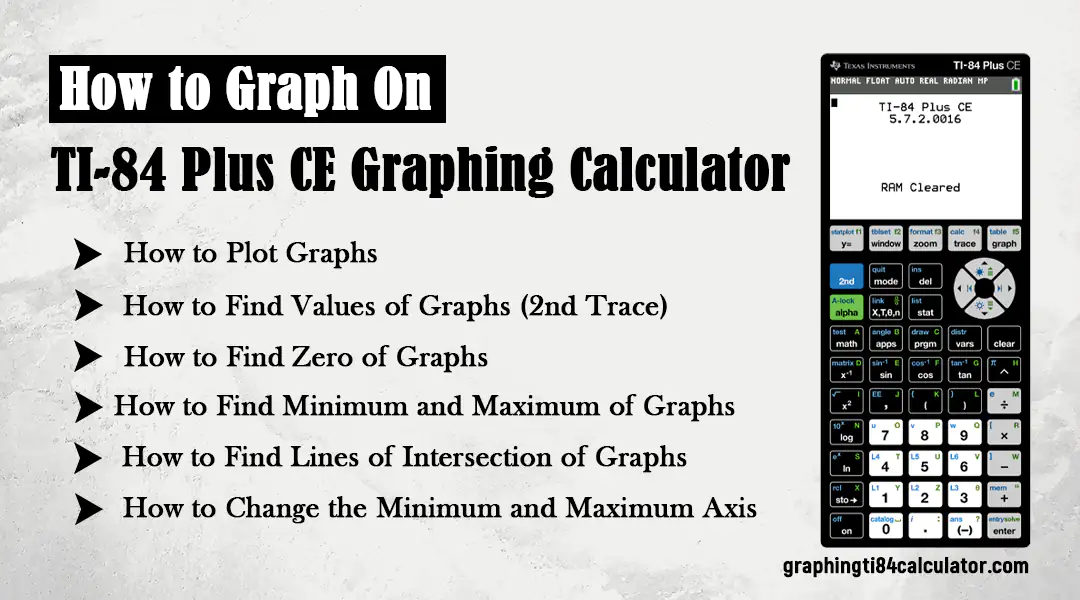
Before diving into the complex operations, it’s crucial to familiarize yourself with the physical attributes and basic setup of your graphing calculator. While specific models (like those from Texas Instruments or Casio) may vary in exact layout, the fundamental components remain consistent across most devices. Understanding these will lay the groundwork for effective usage.
Key Components and Layout
At its core, a graphing calculator is a specialized computer. Its primary hardware components include:
- The Screen (Display): This is where all your inputs, outputs, graphs, and menus are displayed. Modern graphing calculators often feature high-resolution, backlit LCD screens, some even offering color displays, enhancing clarity and user experience, especially when dealing with multiple graphs or complex data sets.
- The Keypad: This is your primary interface for input. It’s typically divided into several sections:
- Number Pad: Standard numerical keys (0-9) and basic arithmetic operators (+, -, *, /).
- Function Keys: Dedicated keys for common mathematical functions like
sin,cos,tan,(logarithm),ln(natural logarithm),x^2(square),sqrt(square root), and^(exponentiation). - Navigation Keys (Arrow Keys/Directional Pad): Used to move the cursor on the screen, navigate through menus, or adjust graph windows.
- Menu/Mode Keys: Keys like
MODE,2nd(orSHIFT),ALPHA(orFN),VARS,TRACE,GRAPH,TABLE, andSTATthat access various menus, secondary functions printed above keys, or specific calculator modes. - Enter/Execute Key: Confirms commands, executes calculations, or selects menu options.
- Ports: Most graphing calculators come equipped with:
- USB Port: For connecting to computers to transfer data (programs, lists, screenshots), update firmware, or sometimes for charging.
- Link Cable Port: Older models and some current ones use a proprietary cable for connecting two calculators, allowing data transfer between peers.
- Battery Compartment: Graphing calculators are typically powered by standard AAA batteries or rechargeable battery packs. Always ensure you have fresh batteries or a charged pack before important calculations or exams.
Powering On and Basic Settings
Upon powering on your calculator (usually by pressing an “ON” button), you’ll often be greeted by a blinking cursor on the home screen. Before engaging in complex tasks, a few fundamental settings should be configured:
- Contrast Adjustment: If the display is too dim or too dark, use the contrast adjustment keys (often accessed via
2nd+ arrow keys) to optimize visibility. This is crucial for comfortable viewing and preventing eye strain during prolonged use. - Mode Settings: The
MODEkey is one of the most important on your calculator. It controls crucial operational parameters that dictate how calculations are performed and displayed. Key settings include:- Angle Units:
DEGREE(degrees) orRADIAN(radians) for trigonometric functions. Select the appropriate unit based on your current mathematical context. - Number Format:
NORMAL,SCIENTIFIC(e.g., 1.23E4), orENGINEERING(e.g., 12.3E3) for displaying results. - Decimal Places/Float: Controls the number of decimal places shown in results.
- Function Type:
FUNC(function graphing, Y=),PARAM(parametric equations),POL(polar equations),SEQ(sequence graphing). This dictates the type of equations you’ll be inputting for graphing.
- Angle Units:
- Resetting the Calculator: If your calculator behaves erratically or you wish to clear all data and settings, a factory reset is often possible through a
MEMorRESETmenu (usually2nd++or2nd+MEM). Be cautious, as this will erase any saved programs or data.
Navigating the Interface: Getting Started with the Software
Once the hardware is understood and basic settings are configured, the next step is to master the calculator’s operating system and command structure. This involves understanding how to input expressions, interpret outputs, and navigate the various menus that unlock the calculator’s true potential.
The Home Screen and Basic Operations
The home screen is your primary workspace for direct computations. Here, you can perform standard arithmetic operations.
- Entering Expressions: Simply type in your numbers and operators. The calculator respects the order of operations (PEMDAS/BODMAS), so
2 + 3 * 4will yield14, not20. - Parentheses: Use parentheses
()liberally to group terms and ensure calculations are performed in the desired order, especially for fractions, exponents, or complex expressions. For example, to calculate(2+3)/4, you must use parentheses. - Negative Numbers: Use the dedicated negative sign key
(-)for negative numbers, not the subtraction key-. Using the subtraction key in front of a number will often result in a syntax error. - Memory Functions (ANS, STO):
ANS(Answer): Pressing2nd+(-)or a dedicatedANSkey will recall the result of the previous calculation. This is incredibly useful for chained calculations.STO(Store): TheSTO>key allows you to store a number into a variable (e.g.,5 -> Astores5into variableA). Variables can then be used in subsequent calculations, simplifying complex multi-step problems.
Variable Storage and Recall
Graphing calculators excel at handling variables. Beyond the ANS function, you can store values to alphanumeric variables (A-Z, θ, etc.) for later retrieval.
- Storing a Value: To store the number 10 into variable X, you would type
10thenSTO>thenX(oftenALPHA+X). PressENTER. - Recalling a Value: To use the stored value of X, simply type
X(again,ALPHA+X) into an expression. For instance,X + 5would result in15. - Accessing Variable Lists: Most calculators have a
VARS(Variables) menu that allows you to view and select stored values, functions, or statistical results. This is crucial for utilizing outputs from one calculation as inputs for another.
Graphing Functions: Visualizing Mathematical Relationships
The ability to graph functions is the cornerstone of a graphing calculator’s utility. It allows users to visualize equations, understand their behavior, and analyze their properties in a dynamic way. This feature bridges the gap between abstract algebra and concrete geometry.
Entering and Viewing Functions
The primary interface for graphing is typically the “Y=” editor.
- Accessing the Y= Editor: Press the
Y=key. You’ll see a list of function slots, usuallyY1, Y2, Y3, etc. - Entering Equations: In a chosen
Yslot, type your function usingXas the independent variable (theX,T,θ,nkey is usually used for this). For example,Y1 = X^2 - 4orY2 = sin(X). - Selecting/Deselecting Functions: You can toggle functions on or off by moving the cursor to the
=sign and pressingENTER. This allows you to graph multiple functions simultaneously or focus on one at a time. - Graphing: Once functions are entered, press the
GRAPHkey to display them.
Adjusting the Viewing Window
The viewing window defines the section of the coordinate plane that your calculator displays. Setting an appropriate window is critical for seeing the relevant parts of your graph.
- Accessing Window Settings: Press the
WINDOWkey. You’ll see parameters likeXmin,Xmax,Ymin,Ymax,Xscl, andYscl.Xmin/Xmax: The minimum and maximum values displayed on the x-axis.Ymin/Ymax: The minimum and maximum values displayed on the y-axis.Xscl/Yscl: The distance between tick marks on the x and y-axes, respectively.
- Determining an Appropriate Window: This often requires some foresight based on the function. For
Y = X^2 - 4, you might start withXmin = -10, Xmax = 10, Ymin = -10, Ymax = 10(the “standard” window). For trigonometric functions, you might setXmaxto2π. - Zoom Features: The
ZOOMkey offers several automated window settings:ZoomStandard (ZStandard): Sets the window to[-10, 10]for both x and y axes.ZoomFit (ZFit): Adjusts the y-axis to show all calculated function values for the current x-axis range.ZoomIn/ZoomOut: Allows you to magnify or shrink the view around a cursor-defined point.ZoomBox: Lets you draw a box around a specific area to zoom in on it precisely.

Tracing and Analyzing Graphs
Once a graph is displayed, various tools allow for detailed analysis.
- Trace Function: Press the
TRACEkey. A cursor will appear on one of your plotted functions. Use the left/right arrow keys to move the cursor along the graph, displaying the corresponding (x, y) coordinates at the bottom of the screen. Up/down arrows switch between functions if multiple are plotted. - CALC Menu (2nd + TRACE): This menu provides powerful analytical tools:
- Value: Input an x-value to find the corresponding y-value on a chosen function.
- Zero: Finds the x-intercepts (roots) of a function. You’ll need to set a “Left Bound,” “Right Bound,” and “Guess.”
- Minimum/Maximum: Locates local minima or maxima of a function within a specified interval.
- Intersect: Finds the intersection points of two plotted functions.
- dy/dx (Derivative): Calculates the numerical derivative at a given x-value.
- ∫f(x)dx (Integral): Calculates the definite integral of a function between two x-values.
Advanced Features and Applications: Beyond Basic Graphing
The utility of a graphing calculator extends far beyond simple function plotting. It serves as a powerful computational engine for various advanced mathematical and scientific applications, making it a truly versatile tech tool.
Solving Equations and Inequalities Graphically
While the CALC menu’s “Zero” and “Intersect” functions are direct methods for solving equations, you can also solve inequalities graphically. For example, to solve x^2 - 4 > 0, you could graph Y1 = x^2 - 4 and observe where the graph is above the x-axis. Alternatively, you can graph Y1 = x^2 and Y2 = 4 and find where Y1 is above Y2.
Statistics and Data Analysis
Graphing calculators are formidable tools for statistics. They can handle data entry, calculate various statistical measures, and create visual representations.
- Entering Data (STAT Edit): Press
STATthen selectEdit. You’ll see lists (L1, L2, L3, etc.) where you can input numerical data. For example,L1might be your independent variable, andL2your dependent variable. - Calculating Statistics (STAT CALC): After entering data, press
STAT, then navigate toCALC. Here you’ll find options for:1-Var Stats: Calculates mean, standard deviation, median, quartiles, etc., for a single list of data.2-Var Stats: For two lists (x and y values).- Regression Analysis: Linear Regression (
LinReg), Quadratic Regression (QuadReg), Exponential Regression (ExpReg), etc. These functions fit a curve to your data and provide the equation of the best-fit line or curve, along with the correlation coefficient (rorr^2).
- Plotting Data (STAT PLOT): Press
2nd+Y=(STAT PLOT). Here you can set up various types of plots:- Scatter Plot: To visualize the relationship between two variables (
L1vs.L2). - Box Plot: To show the distribution of a single dataset.
- Histogram: To display the frequency distribution of data.
- Scatter Plot: To visualize the relationship between two variables (
Matrix Operations
Many scientific and engineering problems involve matrices. Graphing calculators have dedicated matrix editors and functions.
- Defining Matrices (MATRIX EDIT): Access the matrix menu (often
2nd+x^-1or a dedicatedMATRIXkey), then navigate toEDIT. You can define matrices by specifying their dimensions (rows x columns) and entering elements. - Matrix Arithmetic: Once defined, you can perform addition, subtraction, multiplication, and scalar multiplication of matrices directly on the home screen using the matrix names.
- Advanced Matrix Functions (MATRIX MATH): The matrix menu also provides functions for finding the determinant (
det), inverse (^-1), transpose (T), row operations, reduced row echelon form (rref), and solving systems of linear equations.
Programming Your Calculator
For repetitive tasks, custom formulas, or interactive learning tools, graphing calculators support basic programming. While not as powerful as modern programming languages, it allows users to automate sequences of commands.
- Accessing the Program Editor: Press the
PRGMkey, then navigate toNEWto create a new program. - Writing Code: Programs are written using a command-line interface, combining calculator functions, input/output commands (
Disp,Input), control structures (If/Then,For,While), and jumps (Goto). - Executing Programs: Once saved, programs can be run from the
PRGMmenu, providing instant results for complex calculations or simulations. This feature is particularly useful for creating specialized tools for specific courses or research.
Tips for Mastery and Troubleshooting
Mastering a graphing calculator is an ongoing process that benefits from consistent practice and strategic learning. Like any piece of advanced tech, occasional issues may arise, but most are easily resolved.
Practice Makes Perfect
The best way to become proficient is through regular, hands-on practice. Don’t just use it for homework; explore its features proactively. Try to:
- Graph different types of functions and experiment with window settings.
- Input various datasets and perform different statistical analyses.
- Work through examples in your textbooks using the calculator as a tool for verification and visualization.
- Challenge yourself to solve problems in multiple ways (algebraically and graphically) to deepen your understanding.
Utilizing Online Resources and Manuals
No one learns everything about a graphing calculator overnight. Leverage available resources:
- Manufacturer Websites: Texas Instruments (TI) and Casio provide comprehensive user manuals, tutorials, and support forums specific to their models. These are invaluable for learning advanced features or troubleshooting.
- Educational Websites and Forums: Many academic institutions and online communities offer guides, example problems, and discussion boards dedicated to graphing calculator usage.
- YouTube Tutorials: Visual learners can benefit immensely from video tutorials that walk through specific functions step-by-step.
Common Issues and Quick Fixes
Even reliable technology can experience hiccups. Here are some common issues and their solutions:
- “Error” Messages: Don’t panic. The calculator usually provides an error code (e.g.,
SYNTAX ERROR,DOMAIN ERROR). Check your input carefully for typos, incorrect function syntax, or values outside a function’s domain. Consult your manual for a list of error codes. - Blank Screen: Check battery levels. If batteries are good, adjust the contrast. If still unresponsive, a hard reset (removing batteries for a few minutes, then reinserting) might be necessary.
- Slow Performance: Running complex programs or graphing highly intricate functions can slow down older models. Clearing memory or reducing the number of simultaneously plotted functions can help.
- Graph Not Appearing: Verify that your function is enabled (
=sign highlighted in Y= editor). Check yourWINDOWsettings – is the relevant part of the graph within yourXmin/XmaxandYmin/Ymaxrange? UseZoomStandardorZoomFitto get a general view. - Unexpected Results: Double-check your
MODEsettings (e.g., Radians vs. Degrees). Ensure you’re using the correct negative sign(-)vs. subtraction-.
Keeping Your Device Updated
Like other tech gadgets, graphing calculators occasionally receive firmware updates from manufacturers. These updates can fix bugs, improve performance, or even add new features. Check your manufacturer’s website periodically for new firmware versions and follow their instructions for installation via a computer connection.
In conclusion, the graphing calculator stands as a testament to practical technological innovation in education and analytical fields. Its robust capabilities, from basic arithmetic to advanced calculus, statistics, and programming, make it an indispensable companion for anyone navigating the complexities of mathematics and science. By dedicating time to understand its interface, explore its functionalities, and practice regularly, you can transform this powerful gadget from a mere calculator into a dynamic tool that not only solves problems but also illuminates the underlying mathematical principles, fostering deeper learning and greater analytical confidence. Embrace its power, and unlock a new dimension of understanding in your studies and professional endeavors.
aViewFromTheCave is a participant in the Amazon Services LLC Associates Program, an affiliate advertising program designed to provide a means for sites to earn advertising fees by advertising and linking to Amazon.com. Amazon, the Amazon logo, AmazonSupply, and the AmazonSupply logo are trademarks of Amazon.com, Inc. or its affiliates. As an Amazon Associate we earn affiliate commissions from qualifying purchases.