
In the modern computing landscape, the Graphics Processing Unit (GPU) has evolved from a simple component that renders images on a screen into a powerhouse of parallel processing. Whether you are a competitive gamer seeking the highest frame rates, a creative professional rendering 4K video, or a developer exploring the frontiers of Artificial Intelligence, your GPU is the heart of your machine’s visual and computational output. However, the hardware is only as good as the software that instructs it.
Updating your GPU drivers is one of the most critical maintenance tasks for any PC user. Drivers act as the translator between your operating system and your hardware; without the latest instructions, your high-end graphics card may underperform, crash, or fail to support new software features. This guide provides a comprehensive, professional walkthrough on how to identify, update, and optimize your GPU to ensure peak performance.
Understanding Your Graphics Hardware and Software Environment
Before diving into the update process, it is essential to understand exactly what hardware you are running. The “one size fits all” approach does not apply to GPU drivers. Installing the wrong software can lead to system instability or installation failures.
Identifying Your GPU Model and Manufacturer
The three primary players in the GPU market are NVIDIA, AMD, and Intel. Each uses proprietary software ecosystems. To identify your specific model, you can use the built-in Windows Device Manager. Right-click the Start button, select “Device Manager,” and expand the “Display adapters” section. Here, you will see the specific model, such as an NVIDIA GeForce RTX 3080 or an AMD Radeon RX 6700 XT.
For a more detailed technical overview, many professionals use third-party tools like GPU-Z. This utility provides insights into your GPU’s clock speeds, memory size (VRAM), and current driver version. Knowing your current driver version is vital for determining if an update is even necessary or if you are already running the latest stable build.
The Difference Between Game Ready and Studio Drivers
If you are using an NVIDIA card, you will often encounter a choice between “Game Ready Drivers” and “Studio Drivers.” This is a crucial distinction in the tech world. Game Ready Drivers are optimized for the latest titles, providing day-one patches and performance tweaks for new releases. Studio Drivers, on the other hand, prioritize stability and are extensively tested against creative suites like Adobe Premiere Pro, DaVinci Resolve, and Autodesk Maya. If your workstation is used primarily for professional rendering, the Studio Driver is the superior choice, even if it lacks the absolute latest gaming optimizations.
Step-by-Step Methods for Updating GPU Drivers
There are several ways to update your drivers, ranging from automated software solutions to manual installations. The method you choose often depends on how much control you want over your system environment.
Using Manufacturer Software (GeForce Experience and AMD Adrenalin)
The most user-friendly method is utilizing the proprietary software provided by the manufacturer. For NVIDIA users, this is GeForce Experience; for AMD users, it is AMD Software: Adrenalin Edition.
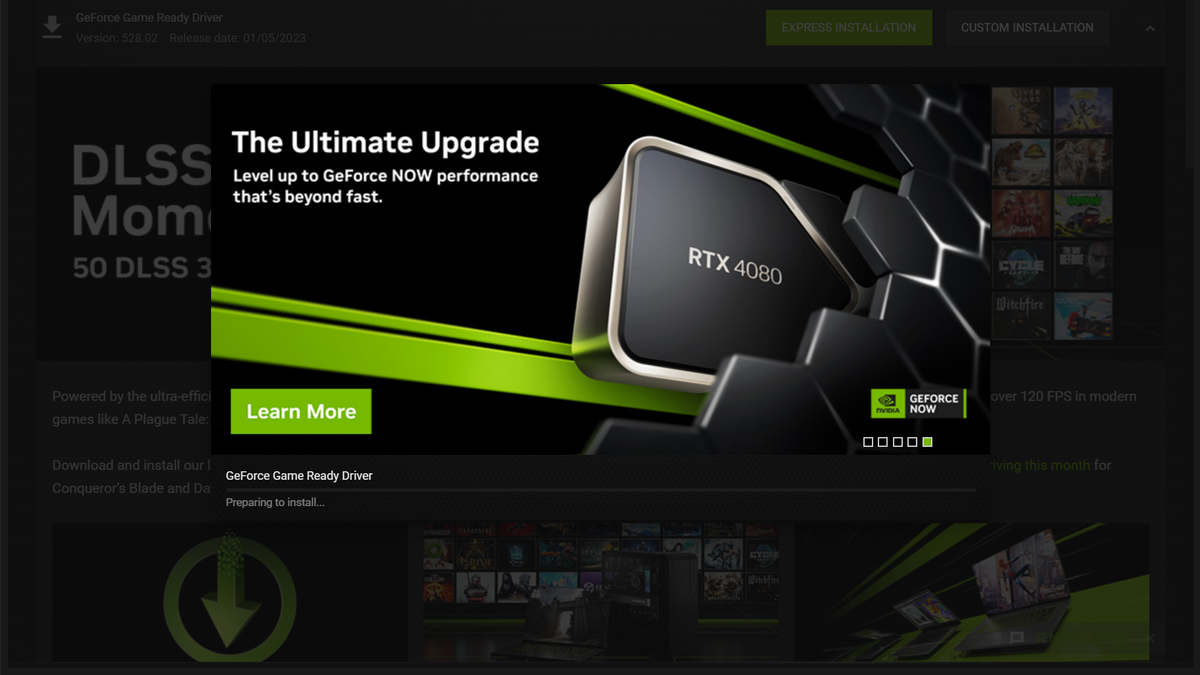
- NVIDIA: Open GeForce Experience, click the “Drivers” tab, and select “Check for Updates.” If a new version is available, click “Download.” Once finished, you can choose “Express Installation” for a quick update or “Custom Installation” to perform a clean install.
- AMD: Open the Adrenalin software. The home screen usually displays a “Drivers & Software” section on the right. Click “Check for Updates” and follow the prompts to install the latest “Recommended” or “Optional” (Beta) drivers.
These tools are beneficial because they also offer feature sets like in-game overlays, performance monitoring, and one-click game optimization.
Manual Installation via Official Websites
System administrators and power users often prefer manual installations to avoid the overhead of background applications like GeForce Experience.
- Navigate to the official download page (e.g., NVIDIA.com/drivers or AMD.com/en/support).
- Manually select your product type, series, and operating system.
- Download the standalone executable (.exe) file.
- Run the installer as an administrator.
Manual downloads are particularly useful when you need to roll back to a specific previous driver version if a new update causes unforeseen bugs in your specific workflow.

Utilizing Windows Update for Basic Functionality
Windows Update can automatically fetch graphics drivers, but it is generally the least preferred method for gamers and professionals. Microsoft’s repository often contains “WHQL” (Windows Hardware Quality Labs) certified drivers that are several months old. While these are stable, they lack the performance optimizations for the latest software. Use Windows Update only if you require a basic display output and do not intend to run intensive 3D applications.
Advanced Maintenance: The “Clean Install” Strategy
Over time, repeated driver updates can leave behind “ghost” files, registry entries, and conflicting configurations. This “driver bloat” can lead to micro-stuttering in games or sudden crashes in creative applications. A clean installation ensures that the old driver is completely purged before the new one is introduced.
When to Use Display Driver Uninstaller (DDU)
Display Driver Uninstaller (DDU) is a niche but essential tool in the tech community. It is a lightweight utility that removes all traces of previous display drivers. It is highly recommended to use DDU when:
- Switching from an NVIDIA card to an AMD card (or vice-versa).
- Experiencing persistent “TDR” (Timeout Detection and Recovery) errors.
- Dealing with a “corrupt” driver installation that refuses to update.
The Safe Mode Procedure
To use DDU effectively, you must boot Windows into Safe Mode. This prevents the OS from loading the active GPU driver, allowing DDU to delete the files without interference. Once in Safe Mode, run DDU, select your GPU brand, and choose “Clean and Restart.” After the reboot, your system will use a basic Microsoft display driver, at which point you can install the fresh driver package you previously downloaded manually. This process provides a “factory fresh” software environment for your hardware.
Troubleshooting and Post-Update Optimization
An update doesn’t always go perfectly. Sometimes, a new driver introduces a bug that wasn’t present in the previous version. Tech-savvy users must know how to mitigate these risks.
Handling Installation Failures and Black Screens
If your screen goes black and does not return after several minutes during an update, do not panic. The driver installation process involves disabling the display output momentarily. If the system hangs, you may need to hard-reboot. If the driver fails to install repeatedly, check for conflicting background processes like antivirus software or monitoring tools like MSI Afterburner, which can sometimes interfere with the writing of new firmware or driver files.
Rolling Back Drivers
If you find that your favorite application is crashing after an update, Windows provides a “Roll Back Driver” option.
- Go to Device Manager.
- Right-click your GPU under Display adapters and select Properties.
- Navigate to the Driver tab and click Roll Back Driver.
If the button is greyed out, it means the previous driver files have been deleted, and you will need to manually reinstall the older version from the manufacturer’s archive.
Verifying the Update
After a successful update, it is wise to verify that your settings haven’t been reset. Check your refresh rate (Settings > System > Display > Advanced Display) to ensure your monitor is still running at its maximum capability (e.g., 144Hz). Additionally, check your GPU control panel (NVIDIA Control Panel or AMD Software) to re-enable features like G-Sync, FreeSync, or specific power management modes.
The Future of GPU Drivers: AI and System Integration
As we look toward the future of technology, GPU updates are becoming more than just bug fixes; they are delivery mechanisms for advanced AI features.
AI-Driven Upscaling (DLSS and FSR)
Updates now frequently include improvements to AI-driven upscaling technologies like NVIDIA’s Deep Learning Super Sampling (DLSS) or AMD’s FidelityFX Super Resolution (FSR). These technologies use machine learning to render frames at a lower resolution and upscale them, providing a massive boost in performance without a significant loss in visual quality. Keeping your GPU updated ensures you have the latest AI models to run these features efficiently.

GPU Acceleration in Non-Gaming Sectors
The importance of the GPU has expanded into the world of General-Purpose computing on Graphics Processing Units (GPGPU). Modern drivers optimize “CUDA” cores for NVIDIA and “Stream Processors” for AMD to handle tasks like cryptocurrency mining, scientific simulations, and local AI large language models (LLMs). By maintaining the latest drivers, you ensure that your system can leverage the hardware acceleration required for the next generation of digital tools.
In conclusion, updating your GPU is a fundamental pillar of digital maintenance. It bridges the gap between raw silicon power and the sophisticated demands of modern software. By identifying your hardware correctly, choosing the right driver type, and occasionally performing a clean installation, you ensure that your investment continues to deliver a seamless, high-performance experience. Keep your drivers current, and your hardware will remain ready for whatever the tech world evolves into next.
aViewFromTheCave is a participant in the Amazon Services LLC Associates Program, an affiliate advertising program designed to provide a means for sites to earn advertising fees by advertising and linking to Amazon.com. Amazon, the Amazon logo, AmazonSupply, and the AmazonSupply logo are trademarks of Amazon.com, Inc. or its affiliates. As an Amazon Associate we earn affiliate commissions from qualifying purchases.