
In the modern digital landscape, the Graphics Processing Unit (GPU) has evolved from a simple component used for displaying desktop windows into a powerhouse of computational logic. Whether you are a hardcore gamer seeking the highest frame rates, a creative professional rendering 8K video, or an office worker utilizing AI-accelerated productivity tools, your GPU is the engine driving your visual experience. However, the hardware is only as capable as the software that instructs it. Graphics drivers serve as the essential translator between your operating system and your hardware. Keeping these drivers updated is not merely a maintenance task; it is a critical strategy for ensuring system stability, security, and peak performance.

Understanding the Role of Graphics Drivers in Modern Computing
To appreciate the necessity of regular updates, one must first understand what a graphics driver actually does. At its core, a driver is a specialized piece of software that allows the operating system (like Windows or macOS) and specific applications (like Photoshop or Call of Duty) to communicate with the GPU hardware. Without an optimized driver, the computer cannot leverage the full architectural capabilities of the graphics card.
The Bridge Between Software and Hardware
Think of the GPU as a high-performance sports car and the driver as the professional pilot. No matter how powerful the engine is, the car cannot perform without skilled input. Modern graphics drivers manage complex tasks such as memory allocation, shader compilation, and power management. When a new game or high-end software is released, it often uses new programming techniques that the old driver might not understand. Updates bridge this gap, providing the instructions necessary to execute these new commands efficiently.
Performance Optimization and “Game Ready” Enhancements
For gamers, driver updates are synonymous with performance gains. Major manufacturers like NVIDIA and AMD release “Game Ready” drivers timed specifically with the launch of major titles. These updates contain specific optimizations for those games, often resulting in double-digit percentage increases in frame rates. They also address “micro-stuttering” and frame-time inconsistencies, leading to a much smoother visual experience.
Security and Stability Fixes
Beyond performance, drivers are a critical layer of digital security. Because the GPU has deep access to system memory, vulnerabilities in driver code can be exploited by malicious actors. Furthermore, outdated drivers are one of the leading causes of the “Blue Screen of Death” (BSOD) and system crashes. Manufacturers constantly patch these stability issues and security loopholes through their regular update cycles.
How to Identify Your Graphics Hardware
Before you can update your drivers, you must precisely identify what hardware is inside your machine. Using the wrong driver can lead to installation failures or, in rare cases, system instability.
Utilizing Windows Device Manager
The quickest way to identify your GPU is through the built-in Windows Device Manager. By right-clicking the Start button and selecting “Device Manager,” you can navigate to the “Display adapters” section. This will list your GPU—common entries include “NVIDIA GeForce RTX 4070,” “AMD Radeon RX 7800 XT,” or “Intel Iris Xe Graphics.” Knowing the exact model is the first step in the manual update process.
Advanced Diagnostics with DirectX Diagnostic Tool (DxDiag)
For a more detailed look at your graphics environment, the DirectX Diagnostic Tool is invaluable. Press Windows + R, type dxdiag, and hit Enter. Navigate to the “Display” tab. This tool provides not just the model name, but the current driver version, the date of the last update, and the specific VRAM (Video RAM) capacity. This information is crucial when troubleshooting whether your current driver is actually out of date.
Third-Party Monitoring Tools
Professional users and enthusiasts often turn to third-party tools like GPU-Z or Speccy. These lightweight applications provide “under the hood” details that the OS might hide, such as the specific BIOS version of the GPU, the fabrication process (nanometers), and real-time clock speeds. While not strictly necessary for a simple update, these tools are excellent for verifying that a driver update has successfully enabled specific hardware features like Resizable BAR or high-speed clock profiles.
The Step-by-Step Guide to Updating Drivers
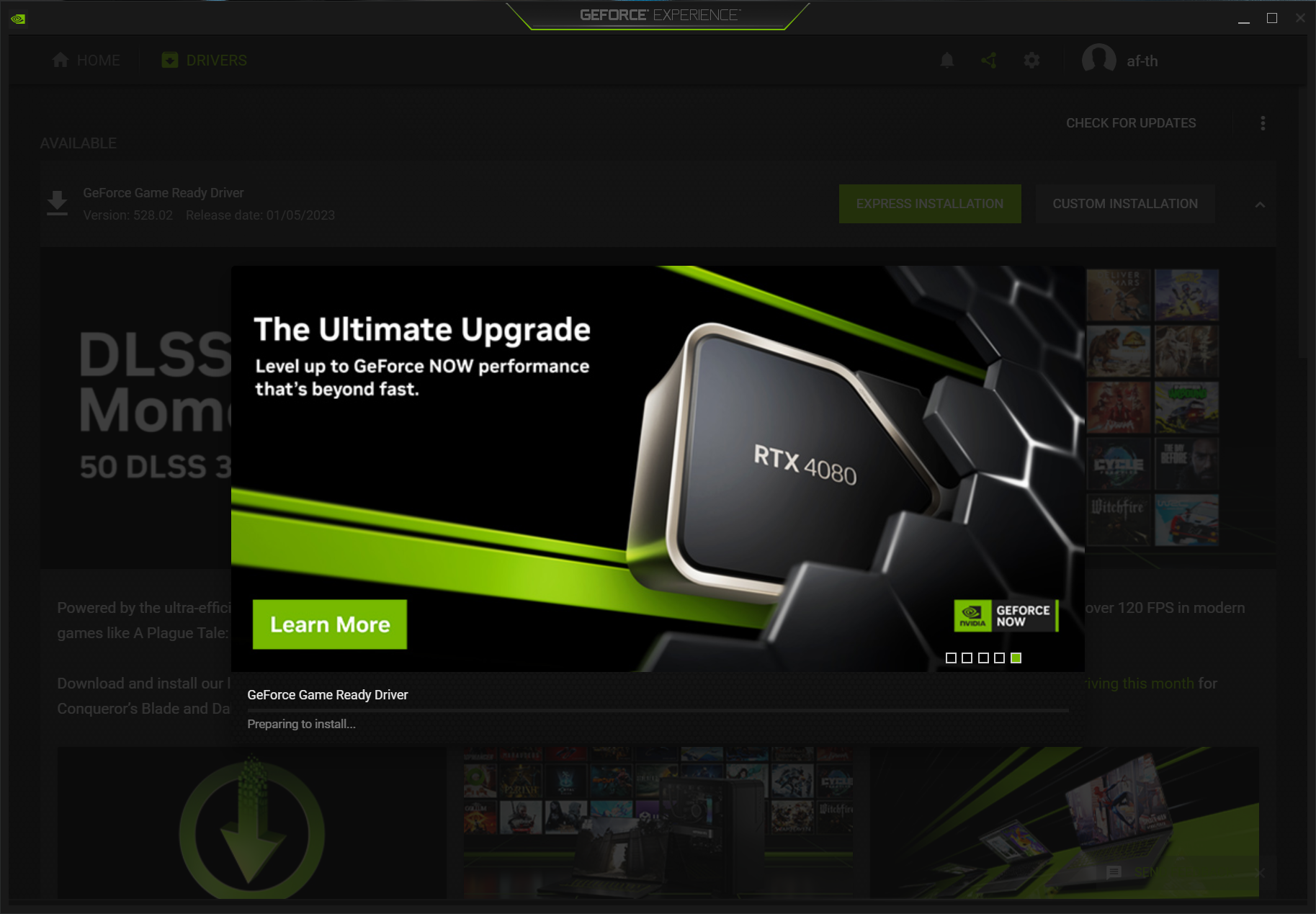
There are several paths to updating your graphics drivers, ranging from fully automated systems to manual “expert” installations. The right choice depends on your level of comfort with technology and your specific performance needs.
Method 1: Manufacturer-Specific Software Suites
The most recommended method for the average user is using the official software provided by the GPU manufacturer.
- NVIDIA GeForce Experience / NVIDIA App: This software automatically notifies you when a new driver is available. It allows for a “One-Click” installation and can even optimize your game settings based on your hardware.
- AMD Software: Adrenalin Edition: AMD’s suite is highly robust, offering not only driver updates but also performance tuning and recording tools. It features an “Auto-Detect” tool that simplifies the entire process.
- Intel Driver & Support Assistant (DSA): For those using integrated Intel graphics or the new Arc discrete GPUs, the DSA is a web-based tool that scans your system and provides the latest drivers directly.
Method 2: Manual Installation via Official Websites
If you prefer not to have extra background software running, you can download drivers directly from the source. This involves visiting the NVIDIA, AMD, or Intel download pages, selecting your specific product series and operating system, and downloading the executable file.
- Tip: Always ensure you are downloading from the official
.comdomain of the manufacturer. Avoid third-party “driver update” websites, as these often bundle adware or outdated, modified files.
Method 3: Windows Update (The “Set It and Forget It” Route)
Windows Update automatically downloads graphics drivers that have been certified by Microsoft (WHQL – Windows Hardware Quality Labs). While this is the safest and easiest method, these drivers are often several months behind the latest releases. For casual office work, this is sufficient. For gaming or professional creative work, this method is generally discouraged as you will miss out on the latest performance optimizations.
Advanced Maintenance: Clean Installs and Troubleshooting
Sometimes, a standard update isn’t enough. If you are experiencing persistent flickering, crashes, or are switching from one GPU brand to another (e.g., moving from AMD to NVIDIA), a “clean install” is mandatory.
Using Display Driver Uninstaller (DDU)
Display Driver Uninstaller (DDU) is the industry-standard tool for removing all traces of old graphics drivers. Standard uninstallers often leave behind registry keys and stray files that can conflict with new drivers.
- Download the latest driver for your new card.
- Boot Windows into Safe Mode.
- Run DDU to wipe the existing display drivers.
- Restart and install the new driver.
This process ensures that the new driver is operating on a “clean slate,” eliminating 99% of software-related GPU issues.
Rolling Back Drivers
Occasionally, a new driver version might introduce a bug specific to your favorite application. In this case, you may need to “roll back.” Within the Windows Device Manager, you can right-click your GPU, go to “Properties,” and under the “Driver” tab, select “Roll Back Driver.” This reverts the system to the previously functioning version while you wait for a hotfix from the manufacturer.
Handling Installation Errors
If a driver fails to install, the most common culprits are background anti-virus software or a pending Windows update. Always ensure your OS is fully updated before attempting a manual GPU driver install. Additionally, disabling your anti-virus temporarily can prevent the installation of system-level files from being blocked.
The Future of Graphics Optimization: AI and Cloud Integration
As we look toward the future of tech, the way we interact with graphics drivers is shifting from manual maintenance to intelligent, AI-driven optimization.
AI-Driven Performance Enhancements
We are seeing the integration of AI directly into the driver stack. Features like NVIDIA’s DLSS (Deep Learning Super Sampling) and AMD’s FSR (FidelityFX Super Resolution) rely heavily on driver-level instructions to use AI to upscale lower-resolution images. Future driver updates will likely focus less on “bug fixes” and more on “AI model training,” where the driver actually gets “smarter” at rendering specific types of visual data over time.

Cloud-Based Driver Management and Proactive Healing
The next frontier is cloud-integrated drivers. Imagine a system where the driver monitors your GPU’s health and performance in real-time. If it detects a specific type of crash occurring across thousands of users with the same hardware, the cloud could push a transparent, “micro-patch” to your driver without requiring a full download or a system restart. This proactive approach will eventually make the manual “driver update” a relic of the past, as our systems become increasingly self-healing.
In conclusion, maintaining your graphics drivers is a fundamental aspect of digital literacy in the modern age. By understanding the hardware you own, choosing the right update method, and knowing how to perform advanced troubleshooting, you ensure that your computer remains a reliable and powerful tool. In the fast-paced world of technology, a driver update is the simplest way to get a “free” hardware upgrade, unlocking potential that was already sitting inside your machine.
aViewFromTheCave is a participant in the Amazon Services LLC Associates Program, an affiliate advertising program designed to provide a means for sites to earn advertising fees by advertising and linking to Amazon.com. Amazon, the Amazon logo, AmazonSupply, and the AmazonSupply logo are trademarks of Amazon.com, Inc. or its affiliates. As an Amazon Associate we earn affiliate commissions from qualifying purchases.