
In the modern computing landscape, the Graphics Processing Unit (GPU) has evolved from a mere component that renders desktop windows into a powerhouse of parallel processing. Whether you are a hardcore gamer seeking the highest frame rates, a creative professional rendering complex 3D scenes, or a data scientist training machine learning models, the GPU is the heart of your machine’s visual and computational capability. However, the hardware is only as capable as the software that instructs it. This is where GPU drivers come into play.
Updating your GPU drivers is one of the most essential maintenance tasks for any PC user. Far beyond a simple “bug fix,” these updates act as the vital bridge between your operating system and your hardware, unlocking performance potential that was previously dormant. In this comprehensive guide, we will explore why these updates are critical, how to identify your specific hardware, and the step-by-step methodologies for maintaining peak performance across all major manufacturers.
The Vital Role of GPU Drivers in System Stability and Performance
To understand why updating is necessary, one must first understand what a driver actually does. At its core, a driver is a translator. Your operating system (Windows, Linux, or macOS) and your applications (like Adobe Premiere or Cyberpunk 2077) speak a different language than the silicon on your graphics card. The driver translates those high-level software commands into low-level instructions the hardware can execute.
Performance Optimization and “Day-0” Support
For gamers, the most visible benefit of updating drivers is the “Game Ready” or “Day-0” support. Major manufacturers like NVIDIA and AMD work closely with game developers months before a title is released. They optimize the driver code specifically for that game’s engine. Updating your drivers can lead to immediate increases in frames per second (FPS), reductions in input latency, and the elimination of graphical “artifacts” or glitches that plague launch-day titles.
Security and System Longevity
Graphics drivers are incredibly complex pieces of software, often consisting of millions of lines of code. Like any software, they can contain vulnerabilities. Malicious actors can sometimes exploit driver flaws to gain kernel-level access to a system. Regular updates ensure that these security holes are patched, protecting your data and your digital identity. Furthermore, drivers often include power management tweaks that can help your card run cooler, extending the physical lifespan of the hardware.
Unlocking New Features
Driver updates frequently introduce entire new technologies at no cost to the user. For instance, NVIDIA’s DLSS (Deep Learning Super Sampling) or AMD’s FSR (FidelityFX Super Resolution) are often refined through driver updates, providing better image quality or better performance in supported games. Similarly, updates might introduce new “Studio” features for creators, such as improved hardware acceleration for video encoding (AV1) or enhanced noise removal for microphones.
Identifying Your Graphics Hardware and Current Software Version
Before you can update, you must know exactly what you are updating. The PC market is saturated with different generations of hardware, and installing the wrong driver can lead to system instability or a failure to boot.
Utilizing Windows Built-in Tools
The quickest way to identify your GPU is through the Device Manager. By right-clicking the Start button and selecting Device Manager, you can navigate to the “Display adapters” section. This will list your GPU model—for example, “NVIDIA GeForce RTX 4070” or “AMD Radeon RX 7800 XT.”
For a more detailed view, you can use the DirectX Diagnostic Tool. Press Windows Key + R, type dxdiag, and hit Enter. Under the “Display” tab, you will find not only the name of your card but also the current driver version and date. This allows you to cross-reference your current version with the latest version available on the manufacturer’s website.
Third-Party Diagnostic Software
For power users, tools like GPU-Z or HWiNFO provide a deep dive into the specifics of your hardware. These tools show the exact BIOS version, memory type (GDDR6 vs. GDDR6X), and even the manufacturing process (nanometers). Knowing these details is particularly useful when troubleshooting specific hardware-software conflicts or when looking for “Beta” drivers that might offer experimental features.
Step-by-Step Guide to Updating Drivers Across Major Manufacturers
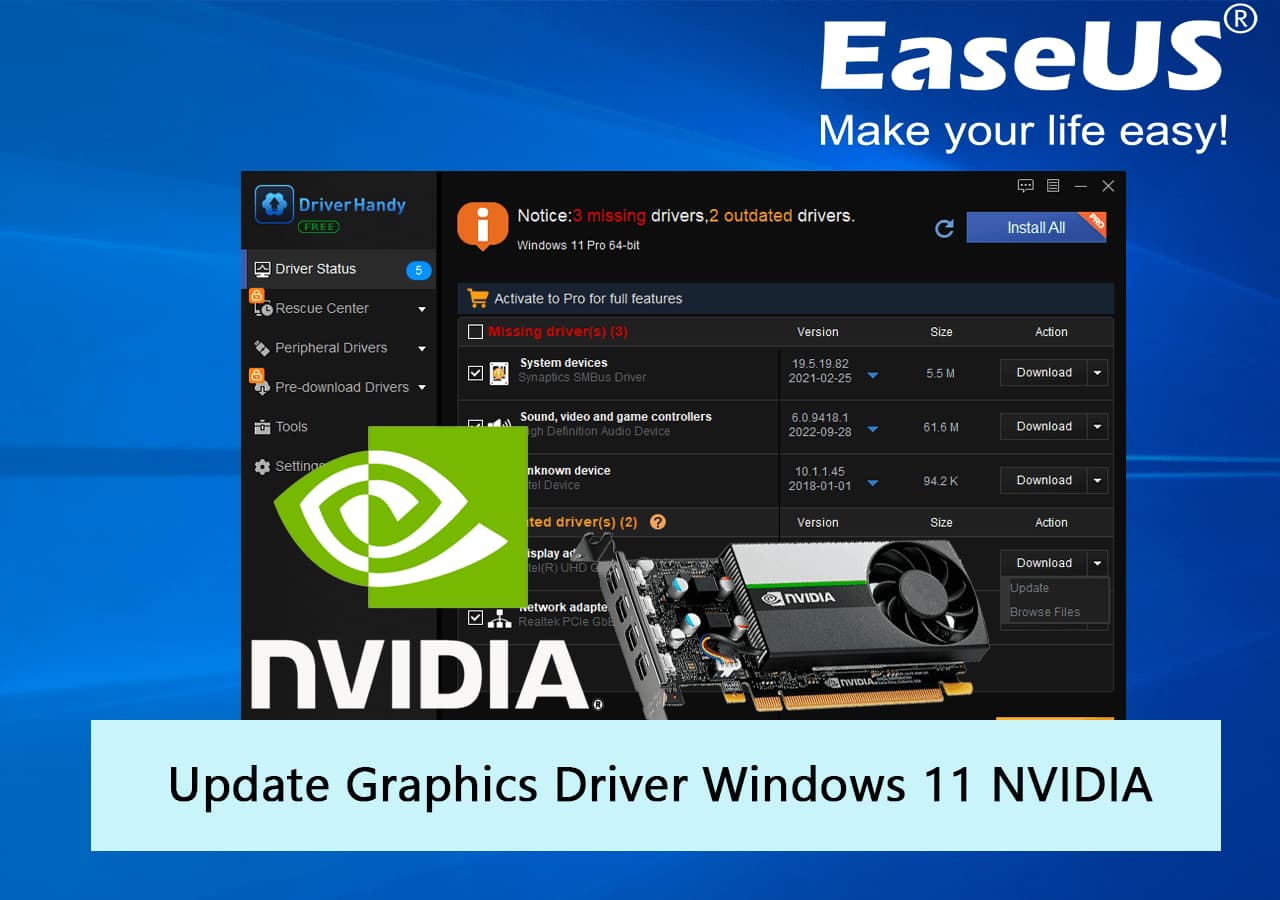
Once you have identified your hardware, the update process varies depending on the brand of your GPU. There are generally two ways to handle this: using proprietary management software or performing a manual installation.
NVIDIA: GeForce Experience and Manual Installation
NVIDIA remains the market leader in the GPU space, and they offer two primary paths for updates.
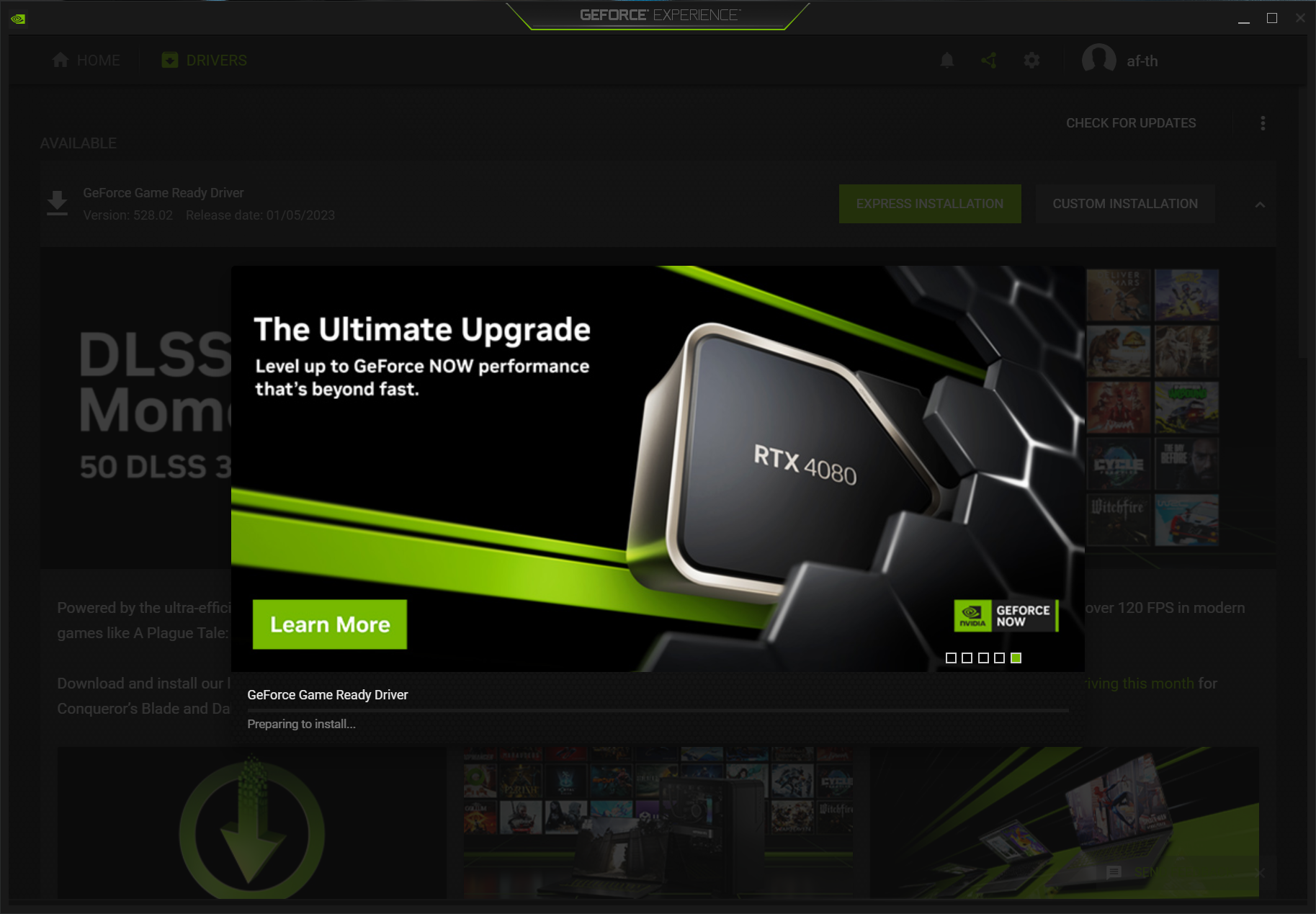
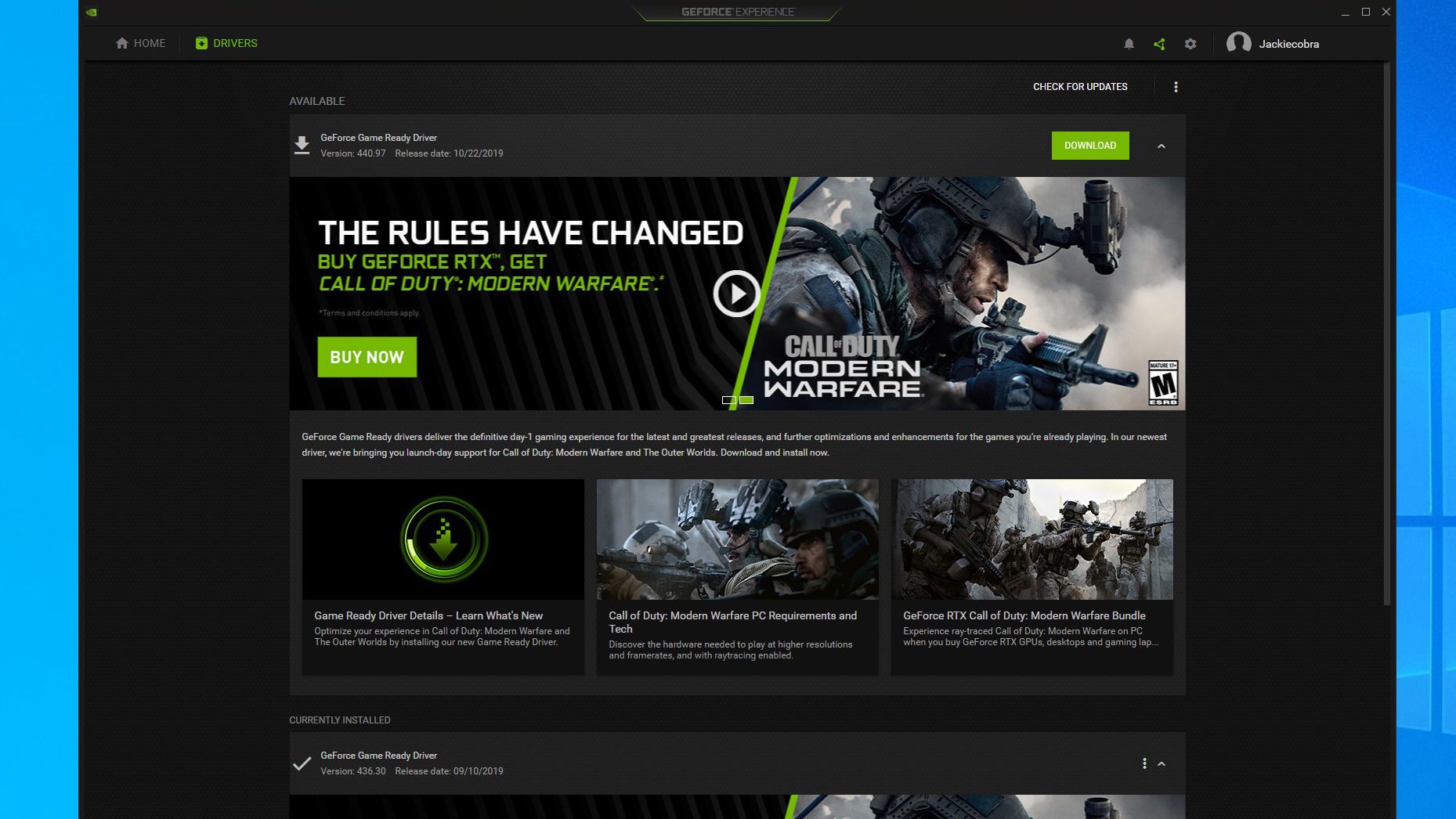
- GeForce Experience/NVIDIA App: This is the most user-friendly method. The software automatically notifies you when a new driver is available. With a single click, it downloads the package and performs the installation. It also allows for “Express Installation,” which keeps your settings intact.
- Manual Download: If you prefer a lean system without extra background software, you can visit the NVIDIA Driver Downloads page. You select your Product Type, Series, and Operating System. This is often the preferred method for workstations where stability is prioritized over convenience.
AMD: Radeon Adrenalin Edition
AMD’s software suite, known as Adrenalin, is highly regarded for its integrated features.
- To update, right-click on your desktop and open AMD Software: Adrenalin Edition.
- On the Home tab, look for the “Updates” section in the corner.
- AMD offers two types of drivers: “Recommended” (WHQL certified for stability) and “Optional” (usually containing optimizations for the very latest games). For most users, the Recommended path is the safest bet.
Intel: Arc and Iris Xe Graphics
With Intel’s entry into the high-end gaming market with “Arc” GPUs, their driver update cadence has become rapid. Intel users should use the Intel Driver & Support Assistant (DSA). This web-based tool scans your system and provides a customized list of updates not just for your GPU, but also for your chipset and Wi-Fi modules.
Advanced Maintenance: Clean Installations and Troubleshooting
Sometimes, a standard update isn’t enough. If you are experiencing frequent crashes (BSODs), or if you are switching from an NVIDIA card to an AMD card, a “dirty” install (simply installing the new driver over the old one) can cause major conflicts.
The Power of Display Driver Uninstaller (DDU)
When a system becomes unstable, the “Gold Standard” for tech enthusiasts is a tool called Display Driver Uninstaller (DDU). DDU is a lightweight utility that completely wipes every trace of existing graphics drivers from the Windows Registry and system folders.
To use it effectively, you should boot your computer into Safe Mode, run DDU to clean the drivers, and then restart and install the fresh driver package you downloaded beforehand. This ensures that no legacy files are interfering with the new software.
When to Roll Back a Driver
Newer is not always better. Occasionally, a new driver version might introduce a “regression”—a bug that affects a specific application or game you use. If you notice a performance drop immediately after an update, Windows provides a “Roll Back Driver” option in the Device Manager. Professional users often stay one or two versions behind the “bleeding edge” to ensure maximum uptime and reliability for their work.
Automating the Process and Future Trends in Driver Technology
As we look toward the future, the process of updating GPU drivers is becoming increasingly automated and intelligent. We are moving away from manual downloads and toward ecosystem-wide integration.
Windows Update vs. Proprietary Software
While Windows Update can automatically install graphics drivers, these are often “generic” or outdated versions meant for basic display functionality. For anyone using their PC for more than basic web browsing, relying on Windows Update is generally discouraged. The proprietary tools from NVIDIA, AMD, and Intel provide the specific “tuning” required for high-performance tasks.
AI and Cloud-Based Optimization
We are entering an era where drivers are becoming “smarter.” Future iterations of GPU software are expected to use AI to analyze your hardware configuration and the specific game you are playing to apply real-time tweaks to the driver settings. This “Cloud-Profile” system would mean that you no longer have to manually adjust settings; the driver, updated silently in the background, will know exactly how to balance power consumption and performance for your specific monitor resolution and thermal headroom.
In conclusion, knowing how to update your GPU drivers is a fundamental skill in the digital age. It is the simplest and most effective way to ensure your hardware remains secure, stable, and capable of handling the ever-increasing demands of modern software. By following the identification and installation steps outlined above, you can ensure that your machine continues to deliver the premium visual experience it was designed for.
aViewFromTheCave is a participant in the Amazon Services LLC Associates Program, an affiliate advertising program designed to provide a means for sites to earn advertising fees by advertising and linking to Amazon.com. Amazon, the Amazon logo, AmazonSupply, and the AmazonSupply logo are trademarks of Amazon.com, Inc. or its affiliates. As an Amazon Associate we earn affiliate commissions from qualifying purchases.