
Calculators are indispensable tools in education, engineering, finance, and daily life, simplifying complex computations and enabling quick problem-solving. While basic arithmetic operations like addition, subtraction, multiplication, and division are straightforward, inputting and manipulating fractions can sometimes pose a challenge, especially given the diverse range of calculator models and interfaces available. Understanding how to correctly input fractions is crucial for accurate calculations, whether you’re balancing equations, solving real-world problems, or simply checking homework.
This guide aims to demystify the process, offering a comprehensive look at how to effectively type fractions on various types of calculators. We’ll explore common methods, delve into brand-specific instructions, discuss operations with fractions, and provide troubleshooting tips to ensure you can confidently utilize your calculator’s full potential.
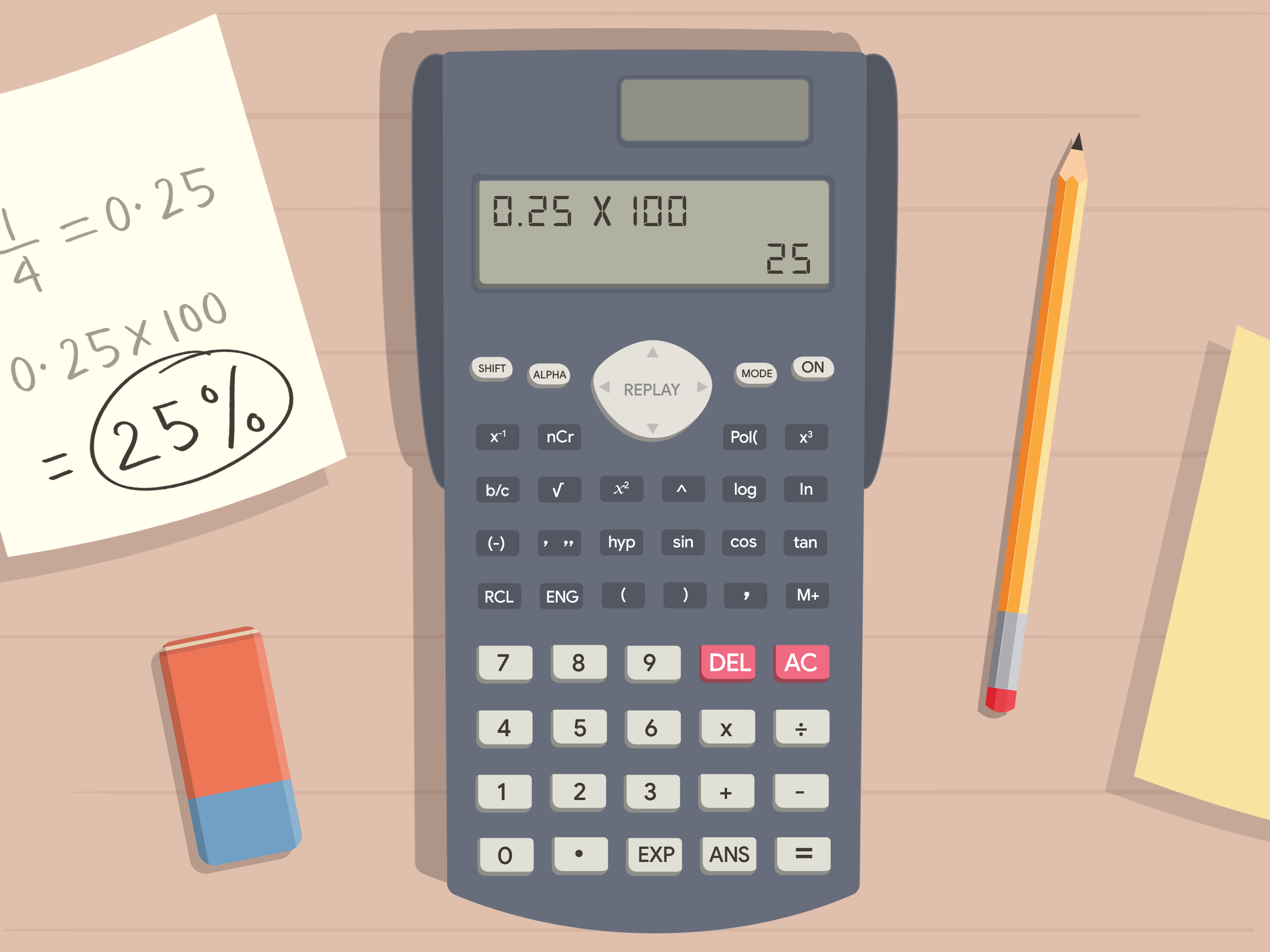
Understanding Calculator Types and Their Fraction Input Methods
Not all calculators are created equal, and their interfaces for handling fractions can vary significantly. Generally, calculators fall into a few broad categories, each with its own approach to fraction input. Recognizing your calculator type is the first step toward mastering fraction entry.
Basic Scientific Calculators
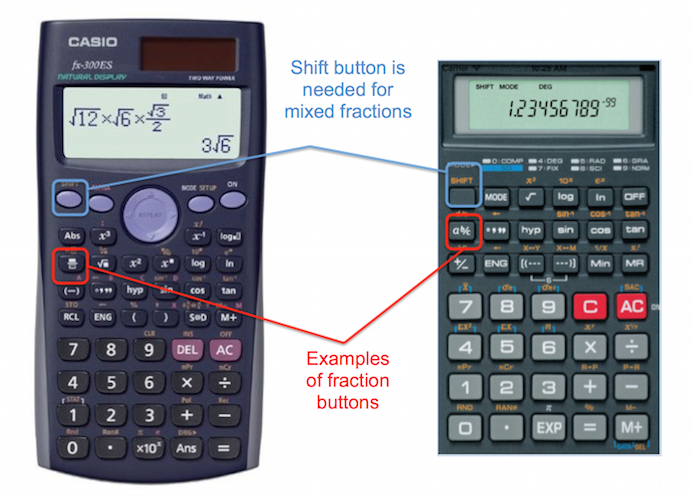
Basic scientific calculators, such as the TI-30Xa, Casio fx-260 Solar, or various budget-friendly models, are designed for high school students and general users. They typically feature a dedicated button for fractions, which greatly simplifies the input process.
- Dedicated Fraction Button (a b/c or similar): The most common method on these calculators involves a button labeled “a b/c”, “d/c”, or sometimes just a symbol resembling one fraction bar over another.
- Proper Fractions: To enter a proper fraction (e.g., 1/2), you typically press the numerator, then the fraction button, then the denominator. For example,
1->a b/c->2. - Mixed Numbers: For mixed numbers (e.g., 1 1/2), you would enter the whole number part first, then the fraction button, then the numerator, then the fraction button again, and finally the denominator. Example:
1->a b/c->1->a b/c->2. Some calculators might require a different sequence for mixed numbers, often using the samea b/cbutton repeatedly or in combination withSHIFT.
- Proper Fractions: To enter a proper fraction (e.g., 1/2), you typically press the numerator, then the fraction button, then the denominator. For example,
- Using the Division Symbol: While less common for direct fraction input, any fraction can inherently be represented as a division problem. For example, 3/4 can be entered as
3÷4. The result will initially be a decimal. Many basic scientific calculators have a function (often labeledF<>DorS<=>D) to toggle between fraction and decimal forms of the answer. This is useful for converting results, but not for entering a fraction as a single entity for further calculation.
Advanced Graphing Calculators
Graphing calculators like the TI-84 Plus series, Casio fx-9750GII, or HP Prime are powerful tools for advanced math, science, and engineering. These calculators often feature a “natural display” or “mathprint” interface that allows fractions to be displayed as they would appear in a textbook, making input and comprehension much more intuitive.
- Fraction Templates: The most user-friendly method on graphing calculators is using fraction templates. These templates create a visual structure on the screen with a numerator slot above a denominator slot.
- Accessing Templates: On TI calculators (like the TI-83/84 Plus), you usually find these under the
ALPHAkey combined withF1(forY=menu) or via theMATHmenu, selecting then/d(numerator/denominator) orFracoption. On Casio graphing calculators, a dedicated fraction button often directly brings up the template. - Inputting Fractions: Once the template appears, you navigate between the numerator and denominator using the arrow keys, typing in your values. For example, to enter 2/3, you’d activate the template, type
2, move down with the arrow key, type3, and then move out of the fraction template to continue your calculation.
- Accessing Templates: On TI calculators (like the TI-83/84 Plus), you usually find these under the
- Mixed vs. Improper Fractions: Graphing calculators easily handle both proper and improper fractions. Some even offer templates specifically for mixed numbers (e.g.,
_ _/_), allowing you to input the whole number, numerator, and denominator separately. Conversions between mixed and improper fractions are typically available through theMATHmenu.
Online Calculators and Software
The digital age has brought forth a plethora of online calculators and specialized software that often provide the most intuitive fraction input. Websites like Desmos, Wolfram Alpha, and even spreadsheet programs like Excel have their unique ways of handling fractions.
- Direct Input: Many online calculators allow you to type fractions using the forward slash
/directly (e.g.,1/2). They often render this input graphically as a stacked fraction. - Function Notation: More advanced platforms like Wolfram Alpha understand natural language or specific function notations. You might type “fraction 1/2” or use dedicated fraction input tools provided by the interface.
- Spreadsheets (Excel, Google Sheets): In spreadsheets, fractions can be tricky. To enter
1/2without it converting toJan 2nd, you must prefix it with a0(zero space), so0 1/2, or format the cell as “Fraction” before typing. This ensures the value is treated mathematically.
Step-by-Step Guides for Common Calculator Brands
While the categories above provide a general overview, specific steps can vary by brand. Here, we’ll focus on the two most dominant brands in the calculator market: Texas Instruments and Casio.
Texas Instruments (TI) Calculators
TI calculators are widely used globally, especially in educational settings.
- TI-30Xa/IIs (Basic Scientific):
- For a Proper/Improper Fraction (e.g., 3/4): Type
3, then press thea b/cbutton, then type4. PressENTERor=to evaluate or simply display. - For a Mixed Number (e.g., 2 1/3): Type
2, then press thea b/cbutton, then type1, then press thea b/cbutton again, then type3. PressENTERor=. The display will show2_1_3. - To Convert between Mixed/Improper: After a fraction is displayed, press
2ndthena b/c(which often hasd/cabove it) to convert between mixed and improper forms. - To Convert to Decimal: Press the
F<>Dbutton.
- For a Proper/Improper Fraction (e.g., 3/4): Type
- TI-83/84 Plus (Graphing Calculators):
- Using the Fraction Template (Recommended):
- Press
ALPHAthenY=(orF1) to bring up theFRACmenu. - Select
n/d(for numerator/denominator template). - An empty fraction template will appear. Type your numerator, use the down arrow key to move to the denominator, type your denominator.
- Use the right arrow key to exit the template if you need to continue the calculation.
- Press
- Using the
MATHMenu (Alternative):- Type the numerator, then the division symbol
/, then the denominator (e.g.,3/4). - After typing the expression, press
MATH. - Select
1: >Fracand pressENTER. The calculator will convert the previous answer or expression to its fractional form.
- Type the numerator, then the division symbol
- Using the Fraction Template (Recommended):
Casio Calculators
Casio offers a vast range of calculators from basic scientific to advanced graphing models. Many feature their “Natural Display” which mimics textbook notation.
- Casio fx-260/300ES/MS (Basic Scientific):
- For Proper/Improper Fractions (e.g., 5/6): Type
5, then press thea b/cbutton (often labeled with a square over a square), then type6. PressEXEor=. - For Mixed Numbers (e.g., 3 1/4): Type
3, then press thea b/cbutton, then type1, then press thea b/cbutton again, then type4. PressEXEor=. - To Convert between Mixed/Improper: Use
SHIFT+a b/c(often labeledd/c). - To Convert to Decimal: Press the
S<=>Dbutton.
- For Proper/Improper Fractions (e.g., 5/6): Type
- Casio fx-991EX (ClassWiz) / fx-CG50 (Graphing Calculators):
- Using the Fraction Button (Natural Display):
- Press the dedicated fraction button (often a square over a square). This immediately brings up a fraction template on the screen.
- Type your numerator, use the down arrow key to move to the denominator, type your denominator.
- Use the right arrow key to exit the template.
- To Convert to Decimal/Mixed Number:
- After a fraction is displayed, press the
S<=>Dbutton to toggle between decimal and fraction results. - For mixed numbers, often a
SHIFT+S<=>Doperation or a specific menu option will convert an improper fraction to a mixed number.
- After a fraction is displayed, press the
- Using the Fraction Button (Natural Display):
Working with Fractions: Operations and Conversions
Once you’ve mastered typing fractions, the next step is to use them in calculations and understand how to convert between different representations.
Performing Arithmetic Operations (+, -, *, /)
Fractions behave like any other number on a calculator once correctly input.
- Input the first fraction.
- Press the desired operation symbol (
+,-,×,÷). - Input the second fraction.
- Press
ENTERor=to get the result.
Example: (1/2) + (1/3)
- TI-84 Plus:
ALPHA F1->n/d->1down arrow2right arrow+ALPHA F1->n/d->1down arrow3right arrowENTER - Casio fx-991EX:
Fraction Button->1down arrow2right arrow+Fraction Button->1down arrow3right arrowEXE
The calculator will automatically perform the operation and typically display the result in its simplest fractional form (e.g., 5/6).
Converting Between Fraction Forms (Mixed, Improper, Decimal)
Most scientific and graphing calculators offer functions to convert between mixed numbers, improper fractions, and decimal representations.
- Fraction to Decimal: Look for buttons like
F<>D(Fraction to Decimal) orS<=>D(Standard to Decimal). Pressing this button after a fractional result will toggle it to a decimal. Pressing it again might revert it. - Improper to Mixed Number (and vice-versa): This function is often found as a secondary function on the
a b/cbutton (e.g.,SHIFT+a b/cor2nd+a b/c, labeledd/cor similar). On graphing calculators, these conversions might be found within theMATHmenu. For instance,MATH->2: Ab/con TI calculators will convert an improper fraction to a mixed number.
Solving Equations with Fractions
When solving equations involving fractions, parentheses become your best friend, especially if your calculator doesn’t have a natural display.
- Using Parentheses: To ensure correct order of operations, always enclose fractions in parentheses, especially when they are part of a larger expression or when multiplying/dividing by a fraction. For example,
(1/2) * (3/4)ensures that the fractions are treated as single entities before multiplication.
Troubleshooting Common Fraction Input Issues
Even with a good understanding of the methods, you might encounter issues. Here’s how to address some common problems.
Incorrect Display Format (Decimal vs. Fraction)
- Issue: Your calculator keeps giving you decimal answers even when you input fractions.
- Solution:
- Check Display Mode: Many calculators have different display modes (e.g., MathPRINT/Natural Display vs. Line/Linear). Ensure your calculator is set to a “Math” or “Natural Display” mode if available. This often provides results in fractional form. Refer to your calculator’s manual for specific instructions on changing display modes (often found under
MODEorSETUPmenus). - Use Conversion Button: Always remember the
F<>DorS<=>Dbutton to toggle between decimal and fraction display of your answer.
- Check Display Mode: Many calculators have different display modes (e.g., MathPRINT/Natural Display vs. Line/Linear). Ensure your calculator is set to a “Math” or “Natural Display” mode if available. This often provides results in fractional form. Refer to your calculator’s manual for specific instructions on changing display modes (often found under
Error Messages and Their Meanings
- Issue: You receive a
SYNTAX ERRORorDOMAIN ERRORwhen trying to input a fraction. - Solution:
- Syntax Error: This usually means you’ve entered something in an incorrect format.
- Check for missing parentheses, extra operation symbols, or incorrect button sequences for mixed numbers.
- Ensure you are using the correct fraction input method for your specific calculator model.
- Domain Error / Math Error: This typically occurs with mathematical impossibilities, such as division by zero (e.g.,
5/0). Double-check your denominator. - Insufficient Memory: For very complex expressions involving many nested fractions, you might run into memory limitations on older or simpler models. Break down the problem into smaller steps.
- Syntax Error: This usually means you’ve entered something in an incorrect format.
Dealing with Large or Complex Fractions
- Issue: Fractions are too large to fit the display, or calculations become unwieldy.
- Solution:
- Simplify First: Whenever possible, simplify fractions manually or use the calculator’s
simplifyfunction (if available) before inputting them into complex operations. - Use Memory Functions: For multi-step calculations, store intermediate fractional results in your calculator’s memory (using
STOandRCLbuttons) to avoid re-typing and potential errors. - Approximate When Appropriate: In fields where exact fractional answers are not strictly necessary (e.g., some engineering applications), converting to decimal might be more practical, but be mindful of rounding errors.
- Simplify First: Whenever possible, simplify fractions manually or use the calculator’s
Maximizing Your Calculator’s Potential with Fractions
Beyond basic input and operations, modern calculators offer features that can further enhance your work with fractions.
Understanding Natural Display vs. Line Display
- Natural Display (MathPRINT): Shows fractions, roots, and other mathematical expressions as they appear in textbooks. This is visually intuitive, reduces errors, and is standard on most newer scientific and all graphing calculators.
- Line Display (Linear): Shows everything on a single line, often using symbols like
/for fractions. It requires more careful use of parentheses but can be faster for simple entries. If your calculator has both, utilize Natural Display for clarity.
Storing and Recalling Fraction Values
Most scientific and graphing calculators have memory slots (often labeled A, B, C, X, Y, or M) where you can store numerical values. This is incredibly useful for fractions that appear multiple times in a problem or as intermediate steps.
- To Store: Input your fraction, then press
STO>(or->) followed by the memory variable (e.g.,STO> A). - To Recall: Simply type the memory variable (e.g.,
A) where you need the fraction in an expression.

Advanced Fraction Features
Higher-end scientific and graphing calculators come equipped with specialized functions that are particularly useful when dealing with fractions.
- Greatest Common Divisor (GCD) and Least Common Multiple (LCM): These functions can help in simplifying complex fractions or finding common denominators, often found in the
MATHorNUMmenus. - Fraction to Percent Conversion: Some calculators can directly convert a fraction to a percentage, or you can do it manually by converting to decimal and multiplying by 100.
- Complex Fractions: Graphing calculators can often handle nested fractions directly using their template functions, allowing you to input fractions within fractions without resorting to manual simplification.
Mastering how to type fractions on your calculator transforms it from a basic arithmetic tool into a powerful mathematical assistant. By understanding the specific features of your model, utilizing dedicated fraction buttons or templates, and knowing how to troubleshoot common issues, you can tackle a wide range of mathematical problems with greater confidence and accuracy. Keep your calculator’s manual handy, practice regularly, and explore its features to unlock its full potential in your academic and professional endeavors.
aViewFromTheCave is a participant in the Amazon Services LLC Associates Program, an affiliate advertising program designed to provide a means for sites to earn advertising fees by advertising and linking to Amazon.com. Amazon, the Amazon logo, AmazonSupply, and the AmazonSupply logo are trademarks of Amazon.com, Inc. or its affiliates. As an Amazon Associate we earn affiliate commissions from qualifying purchases.