
Your personal computer is a bustling metropolis of activity, even when it appears idle. Behind the sleek interface of your operating system lies a complex network of applications, background processes, and system services, all vying for a share of your hardware’s resources. Understanding what’s running on your PC isn’t just a technical curiosity; it’s a fundamental aspect of digital literacy that empowers you to optimize performance, enhance security, and safeguard your productivity and digital assets.
In an era where technology trends dictate much of our daily lives, from sophisticated AI tools to essential productivity apps, having a clear view of your PC’s internal operations is more crucial than ever. Unseen processes can silently consume CPU cycles, hog memory, drain battery life, and even compromise your digital security by sending data or mining cryptocurrencies without your consent. This comprehensive guide will walk you through the essential tools and techniques to unveil the hidden world within your PC, transforming you from a passive user into an informed and proactive digital manager.
Understanding Your PC’s Digital Ecosystem
Before diving into the “how-to,” it’s vital to grasp why monitoring your PC’s processes is so important and what exactly you’re looking for. Every click, every application launch, and countless invisible system operations contribute to a dynamic environment that constantly changes.
Why Monitoring Matters: Performance, Security, and Productivity
Imagine your PC as a finely-tuned machine. If certain parts are overworked or if extraneous components are running in the background, its overall efficiency suffers. Similarly, a computer plagued by unknown processes can experience significant performance degradation. This manifests as slow boot times, sluggish application responses, excessive fan noise, and reduced battery life – all direct hits to your productivity. For professionals relying on powerful software or individuals engaged in online income generation, every lost second due to a lagging PC translates into lost potential.
Beyond performance, digital security is paramount. The landscape of cyber threats is ever-evolving, with malware, spyware, and ransomware becoming increasingly sophisticated. Many malicious programs operate silently in the background, making it challenging to detect their presence without proper monitoring. By routinely checking what’s running, you can spot unusual processes that might indicate an infection, allowing you to take swift action before sensitive data is compromised or your machine is held hostage. For businesses, a breach originating from an unnoticed process can lead to significant financial loss and severe damage to brand reputation.
Finally, managing what’s running is about control. It allows you to identify resource hogs, troubleshoot application issues, and ensure that only necessary programs are consuming your system’s valuable resources. This proactive approach not only optimizes your current workflow but also extends the lifespan of your hardware, representing a wise investment in your technological future.
The Different Types of Processes: Applications, Background, and System
To effectively monitor your PC, it helps to understand the categories of processes you’ll encounter:
- Applications (Apps): These are the programs you directly interact with, like your web browser, word processor, video editor, or games. When you open a program, it appears as an application process.
- Background Processes: Many applications, even after you close them, leave components running in the background to speed up subsequent launches, sync data, or provide continuous services (e.g., cloud storage clients, messaging apps, antivirus software). The operating system itself also has numerous background processes essential for its functionality.
- Windows Processes (System Processes): These are core components of the Windows operating system itself. They are critical for everything from managing your hardware to displaying your desktop. Interfering with these without proper knowledge can lead to system instability or crashes.
Recognizing these distinctions will help you determine which processes are benign and which warrant further investigation.
Essential Built-in Tools for Process Monitoring
Windows provides several powerful, built-in tools that offer varying levels of insight into what’s running on your PC. These are your first line of defense and diagnosis, easily accessible and invaluable for everyday monitoring.
The Indispensable Task Manager: Your First Stop
The Windows Task Manager is arguably the most recognized and frequently used utility for monitoring system activity. It’s your quick glance dashboard into your PC’s current state.
How to Open Task Manager:
- Press
Ctrl + Shift + Esc. - Right-click an empty area on your taskbar and select “Task Manager.”
- Press
Ctrl + Alt + Deland then select “Task Manager.”
Key Tabs and What They Tell You:
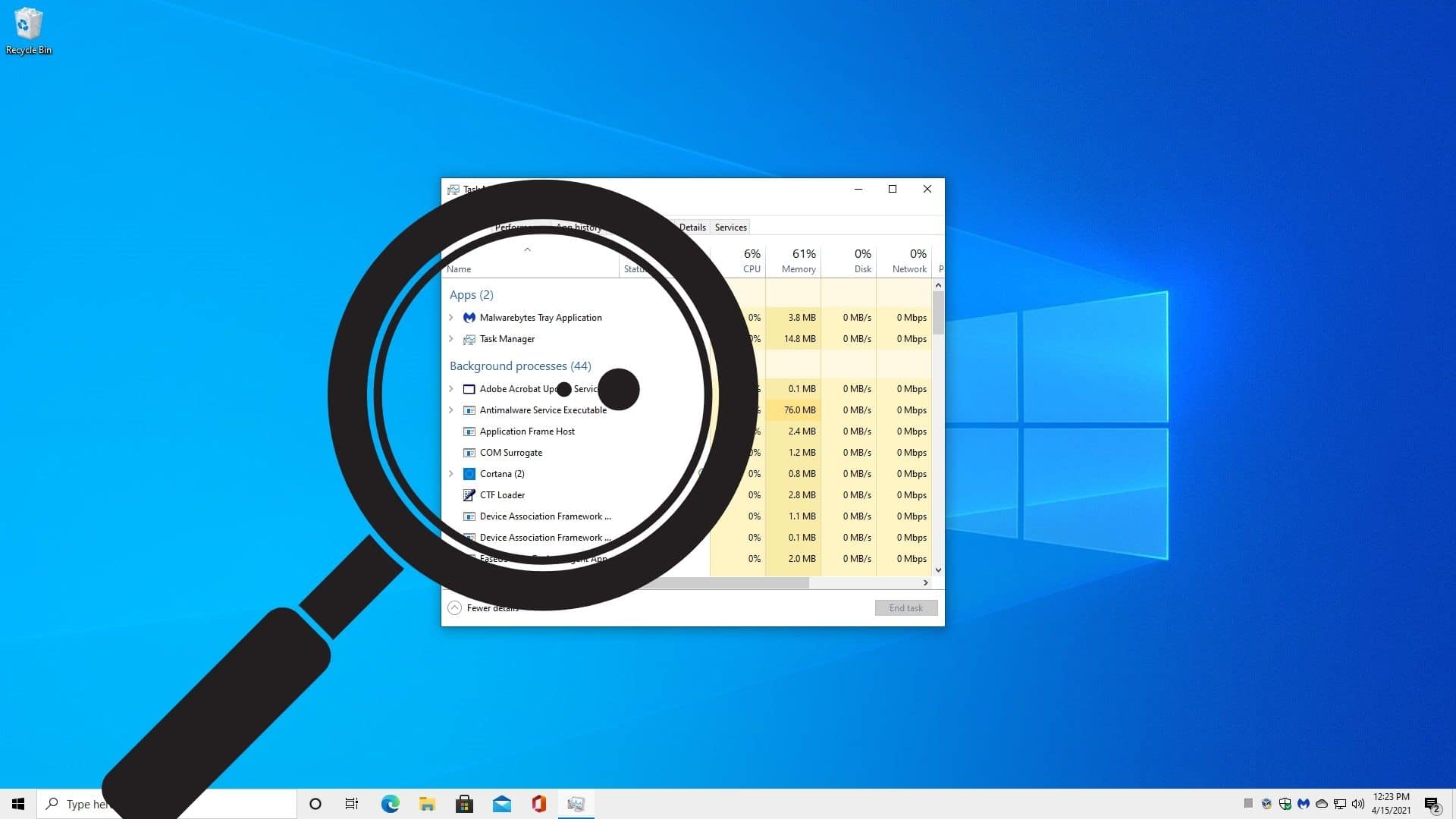
- Processes: This tab is where most users begin. It lists all running applications, background processes, and Windows processes. For each, you can see its CPU, Memory, Disk, Network, and optionally, GPU usage. This is where you can identify which programs are consuming the most resources. You can right-click on a process to “End task” (useful for unresponsive applications), “Go to details” (for more technical information), or “Search online” (to learn more about an unfamiliar process – an excellent digital security practice). Look out for processes with unusually high resource usage, especially when your PC is idle, or unfamiliar names.
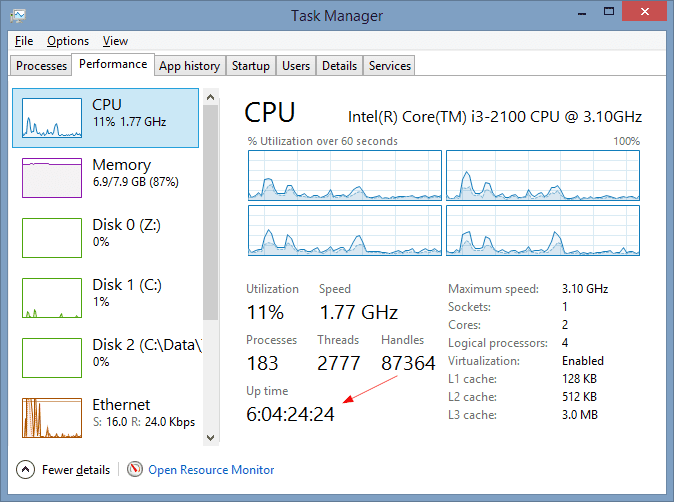
- Performance: This tab provides a graphical overview of your system’s CPU, Memory, Disk, and Network utilization. It’s great for spotting trends and overall system health. If your CPU or Memory is consistently high, it indicates a bottleneck, prompting you to investigate the “Processes” tab further.
- App History: Shows historical resource usage for Universal Windows Platform (UWP) apps. Useful for understanding an app’s long-term impact.
- Startup: This crucial tab lists programs configured to launch automatically when Windows starts. Too many startup programs can significantly increase boot times and consume resources immediately. You can disable unnecessary programs from starting here to boost your PC’s speed and improve productivity.
- Users: Shows resources consumed by each user logged into the PC.
- Details: Offers a more granular view of processes than the “Processes” tab, including Process ID (PID), username, CPU time, and more. This is where you can truly understand the technical specifics of each running item.
- Services: Lists all services running on your system, whether they are currently active or stopped. You can start, stop, or restart services from here, though caution is advised as some services are critical for system stability.
Task Manager is your immediate go-to for identifying and managing runaway applications or quickly disabling programs that hinder your PC’s startup performance. It’s an essential tool for maintaining digital security by providing an initial glance at potentially suspicious processes.
Deeper Insights with Resource Monitor
While Task Manager offers a good overview, Resource Monitor provides a far more detailed, real-time breakdown of your system’s resource usage across CPU, Memory, Disk, and Network for individual processes.
How to Open Resource Monitor:
- From Task Manager, go to the “Performance” tab and click “Open Resource Monitor” at the bottom.
- Search for “Resource Monitor” in the Windows search bar.
What Resource Monitor Offers:
Resource Monitor’s interface is divided into five tabs: Overview, CPU, Memory, Disk, and Network. Each tab provides an exhaustive list of processes and their specific resource consumption.
- CPU: Shows which processes are actively using your processor, including average CPU usage and service usage.
- Memory: Details how much physical memory each process is consuming, including hard faults (indicating data being swapped to disk, which slows performance).
- Disk: Crucial for identifying processes that are constantly reading from or writing to your hard drive, which can be a significant source of slowdowns.
- Network: Reveals which processes are actively sending or receiving data over your network connection, including TCP connections and listening ports. This tab is incredibly valuable for digital security, allowing you to spot unusual outbound connections or unknown applications acting as servers.
Resource Monitor is invaluable for troubleshooting specific performance bottlenecks, especially when diagnosing high disk activity or unexpected network traffic. It allows you to pinpoint the exact culprit behind system slowdowns, helping you make informed decisions about managing your software and potentially uncovering malware that communicates with external servers.
Navigating Services: Understanding Background Operations
Services are programs that run in the background without a user interface. They are often critical for system functionality, providing essential features like printing, networking, and security updates. While you can view services in Task Manager, the dedicated “Services” snap-in offers much greater control.
How to Open the Services Snap-in:
- Search for “Services” in the Windows search bar.
What You Can Do:
The Services window lists all services installed on your system, along with their status (running, stopped), startup type (automatic, manual, disabled), and a brief description.

- Startup Type: Understanding the startup type is key. “Automatic” services start with Windows, “Manual” services start only when needed or triggered, and “Disabled” services cannot be started.
- Starting/Stopping/Restarting: You can manually control services. For instance, if a specific application is misbehaving, restarting its associated service might resolve the issue. However, disabling critical services can render parts of your system inoperable, so proceed with caution and research unknown services before making changes.
- Identifying Suspicious Services: While less common than identifying suspicious processes, malware can sometimes install itself as a service. Look for services with strange names, missing descriptions, or those set to “Automatic” that don’t seem to belong to legitimate software.
Managing services intelligently can free up resources and enhance digital security by preventing unwanted programs from running persistently in the background.
Advanced Tools and Techniques for Comprehensive Analysis
While Windows’ built-in tools are excellent starting points, for deeper investigations, especially concerning digital security or complex troubleshooting, advanced utilities are indispensable.
Unleashing Sysinternals: Process Explorer and Autoruns
Microsoft’s Sysinternals Suite is a collection of powerful utilities that provide unparalleled insight into the Windows operating system. Two standout tools for process monitoring are Process Explorer and Autoruns. These are not built-in but are free to download from Microsoft’s website.
- Process Explorer: Often described as Task Manager “on steroids,” Process Explorer goes far beyond the native utility. It displays a hierarchical view of processes, showing parent-child relationships, which can be crucial for identifying how a malicious process launched. For each process, it provides extensive details including:
- DLLs and Handles: Lists all dynamic-link libraries loaded by a process and the system resources (files, registry keys, network connections) it has open. This can reveal hidden activity.
- Verified Signatures: Helps confirm the authenticity of executable files, a key digital security feature. Unverified signatures for critical system processes are a red flag.
- VirusTotal Integration: You can submit hashes of suspicious processes directly to VirusTotal for a comprehensive malware scan, leveraging AI tools for threat detection across multiple antivirus engines.
- Process Tree: Visually shows which processes launched other processes, making it easier to trace the origin of suspicious activity.
Process Explorer is an essential tool for advanced troubleshooting, rootkit detection, and in-depth digital security analysis. It allows you to peer into the inner workings of applications and identify anomalies that basic tools might miss.
- Autoruns: This utility is unparalleled in its ability to show you every single program, driver, and service configured to start automatically when Windows boots or a user logs in. From startup folders and Run keys in the registry to scheduled tasks, browser helper objects, and WMI entries, Autoruns presents an exhaustive list.
- Startup Optimization: It’s a goldmine for optimizing PC startup times and improving productivity by identifying and disabling unnecessary startup items.
- Malware Detection: Malware often attempts to establish persistence by adding entries to startup locations. Autoruns makes it incredibly easy to spot these hidden entries, especially those without publisher information or with suspicious file paths. Its “Hide Microsoft Entries” option helps filter out legitimate system components, focusing your attention on potentially malicious third-party additions.
For a thorough digital security audit and maximum PC startup efficiency, Autoruns is indispensable.
Event Viewer: The PC’s Diagnostic Logbook
Your PC constantly logs events – from successful logins and software installations to system errors and security failures. The Event Viewer aggregates these logs, offering a historical record of your system’s activities.
How to Open Event Viewer:
- Search for “Event Viewer” in the Windows search bar.
What Event Viewer Reveals:
Event Viewer categorizes logs into several areas:
- Windows Logs: Contains application, security, setup, system, and forwarded events.
- Application Log: Records events generated by applications (e.g., crashes, warnings).
- Security Log: Critical for digital security, logging successful and failed login attempts, file access, and other audit-related events.
- System Log: Records events generated by Windows system components, such as driver failures, hardware issues, and network problems.
Event Viewer is less about real-time process monitoring and more about forensic analysis and troubleshooting. If an application is repeatedly crashing, or you suspect unauthorized access, the logs can provide crucial clues, including timestamps and error codes, which can be invaluable for troubleshooting and post-incident analysis. For comprehensive digital security, regularly reviewing security logs can help identify suspicious patterns, such as multiple failed login attempts, that might indicate a brute-force attack.
Command Prompt and PowerShell: For the Power User
For those comfortable with command-line interfaces, Command Prompt (CMD) and PowerShell offer powerful, scriptable ways to interact with processes.
-
Command Prompt (
cmd.exe):tasklist: Lists all running processes with their Process ID (PID), session name, and memory usage.taskkill /PID [PID] /F: Terminates a process by its PID. The/Fswitch forces termination.taskkill /IM [ImageName] /F: Terminates a process by its image name (e.g.,chrome.exe).
These commands are excellent for quick automation or terminating processes when the GUI is unresponsive.
-
PowerShell: PowerShell is a more advanced command-line shell and scripting language that offers far greater control and flexibility.
Get-Process: Similar totasklistbut returns objects that can be filtered and manipulated. For example,Get-Process | Sort-Object -Property CPU -Descending | Select-Object -First 5 Name, CPUshows the top 5 CPU-consuming processes.Stop-Process -Name "program.exe": Stops a process by name.- PowerShell allows for complex scripting to automate monitoring tasks, generate reports, and even take automated actions based on process conditions, significantly boosting productivity for system administrators and power users.
These command-line tools are vital for IT professionals, developers, and users who prefer a more direct, scriptable approach to managing their PC’s processes.
Connecting Process Monitoring to Your Digital Life and Goals
Understanding what’s running on your PC isn’t an isolated technical skill; it’s a practice that directly impacts your daily productivity, digital security, and ultimately, your financial well-being and brand.
Optimizing for Performance and Productivity
Regularly monitoring your running processes allows you to maintain optimal PC performance. By identifying and managing resource hogs, you ensure your primary applications have the necessary CPU, memory, and disk I/O to run smoothly. Disabling unnecessary startup programs dramatically reduces boot times and frees up resources, making your machine feel snappier and more responsive from the moment you power it on. This directly translates into enhanced productivity, whether you’re working on a demanding project, managing online income streams, or simply enjoying your digital gadgets. A well-optimized PC means less waiting, fewer crashes, and a more efficient workflow.
Safeguarding Your Digital Security and Financial Well-being
Perhaps the most critical aspect of process monitoring is its role in digital security. Malicious software often disguises itself as legitimate processes or operates under obscure names. By knowing what “normal” looks like on your PC, you can quickly spot anomalies:
- Unfamiliar Process Names: Processes with strange, misspelled, or generic names, especially when consuming high resources or making unusual network connections.
- High Resource Usage When Idle: If your CPU or GPU spikes when you’re not actively using your PC, it could indicate a hidden crypto-miner or other malware.
- Suspicious Network Activity: Unknown processes sending large amounts of data, particularly to foreign IPs, can signal data exfiltration or botnet activity.
Identifying and neutralizing these threats is paramount. Malware can steal personal financial information, compromise your online banking, or encrypt your files for ransom. For online entrepreneurs and businesses, a data breach can destroy trust, damage brand reputation, and lead to significant financial and legal repercussions. Proactive process monitoring acts as an early warning system, protecting your personal finance, business finance, and overall digital safety.
A Proactive Approach to PC Health
In essence, understanding what’s running on your PC fosters a proactive approach to managing your digital life. It encourages you to not just react to problems but to anticipate and prevent them. Integrate regular checks into your routine: perhaps a quick glance at Task Manager each morning, or a deeper dive with Process Explorer if you notice performance dips. Combine these monitoring techniques with reputable antivirus and anti-malware software for a multi-layered defense. By embracing these tutorials and continually learning about your PC’s intricate operations, you gain greater control over your technology, ensuring it serves your goals rather than hindering them.
Ultimately, a PC that you understand and manage proactively is a more secure, more efficient, and more reliable tool. It empowers you to maximize your productivity, protect your valuable data, and secure your financial interests in an increasingly digital world.
aViewFromTheCave is a participant in the Amazon Services LLC Associates Program, an affiliate advertising program designed to provide a means for sites to earn advertising fees by advertising and linking to Amazon.com. Amazon, the Amazon logo, AmazonSupply, and the AmazonSupply logo are trademarks of Amazon.com, Inc. or its affiliates. As an Amazon Associate we earn affiliate commissions from qualifying purchases.