
In an increasingly digital world, our devices are extensions of ourselves, laden with applications, programs, and files that power our productivity, entertainment, and communication. Yet, how often do we truly pause to consider the invisible landscape of software residing within them? Understanding what’s installed on your computer, smartphone, or tablet is not merely a technical curiosity; it’s a critical practice for maintaining optimal performance, bolstering security, protecting your privacy, and even making smarter financial decisions regarding your digital assets.
From forgotten free trials to potentially malicious programs, the sheer volume and variety of software can be overwhelming. This comprehensive guide will demystify the process, showing you exactly how to uncover every piece of software on your various devices. We’ll explore methods across different operating systems, delve into the deeper layers of your system, and discuss why this knowledge is indispensable for everyone from casual users to IT professionals. Embracing this level of digital literacy empowers you to take full control of your technological environment, ensuring it serves your needs efficiently and securely.
Why You Need to Know What’s Installed: Beyond Mere Curiosity
The act of discovering installed software might seem like a niche technical exercise, but its implications span far wider, touching upon performance, security, financial prudence, and even your digital brand. A proactive approach to understanding your device’s software ecosystem is a cornerstone of responsible technology ownership in the 21st century.
Optimizing Performance and Storage
Every application, program, and background process consumes a share of your device’s resources—processor power, RAM, and storage space. Over time, an accumulation of unused or unwanted software can lead to significant slowdowns, sluggish boot times, and a perpetually full hard drive. Identifying what’s installed allows you to:
- Free up valuable storage: Uninstalling large, rarely used applications can dramatically increase available disk space, especially crucial for devices with limited storage like laptops and mobile phones.
- Improve system speed: Many applications launch processes or services at startup, even if you don’t actively use them. Identifying and disabling or uninstalling these can noticeably speed up your device’s performance, making everything from web browsing to complex tasks feel snappier.
- Extend battery life: Mobile apps, in particular, can be notorious battery drains, running processes in the background without your knowledge. Knowing what’s running empowers you to manage these apps effectively, preserving your device’s charge.
Bolstering Digital Security and Privacy
Perhaps the most critical reason to audit your installed software is for security and privacy. The digital landscape is rife with threats, and unknown software is often the vector for these attacks.
- Identify potential malware and viruses: Malicious software often disguises itself as legitimate applications or silently installs alongside desired programs. Regular checks can help you spot unfamiliar entries, prompting further investigation and removal. This is a crucial step in maintaining digital security and protecting your personal data.
- Prevent unauthorized data collection: Many applications, even legitimate ones, request extensive permissions or collect user data for various purposes. Knowing what’s installed allows you to review these permissions and decide if you’re comfortable with the level of access granted, directly impacting your privacy.
- Close security vulnerabilities: Outdated software often contains known vulnerabilities that hackers can exploit. Identifying all installed software enables you to ensure everything is up-to-date, minimizing your exposure to such risks. This proactive approach is fundamental to a robust digital security posture.
Troubleshooting and System Maintenance
When your device starts acting up—crashing, freezing, or behaving erratically—knowing what’s installed is often the first step in diagnosing the problem.
- Pinpoint conflicting software: New software installations can sometimes conflict with existing programs, leading to instability. A list of recently installed applications can quickly help you narrow down the culprit.
- Prepare for system upgrades: Before a major operating system update, it’s wise to know what software you have so you can check for compatibility or plan for necessary reinstalls.
- Facilitate clean reinstalls: If a complete system overhaul is necessary, having a comprehensive list of your essential software makes the reinstallation process smoother and quicker.
Managing Software Licenses and Subscriptions
In an era dominated by subscriptions and cloud services, managing your software inventory has direct financial implications.
- Avoid unnecessary expenses: You might be paying for software licenses or subscriptions to applications you no longer use or need. A regular audit can reveal these forgotten expenses, allowing you to cancel them and save money.
- Track software assets: For businesses and power users, knowing what software is deployed across multiple machines is essential for compliance with licensing agreements and efficient asset management. This ties into responsible business finance and prevents costly legal issues.
- Optimize software investments: By understanding your usage patterns and the software you truly rely on, you can make more informed decisions about future purchases, ensuring your money is spent on tools that genuinely enhance productivity or meet specific needs.
Unveiling Installed Software on Desktop Operating Systems
The methods for viewing installed software vary significantly across desktop operating systems. While the underlying goal remains the same—to provide you with a comprehensive list of applications—the interface and specific tools used will differ.
Windows: Control Panel, Settings, and PowerShell
Windows, being the most widely used desktop OS, offers several ways to view installed programs, catering to different user preferences and technical skill levels.
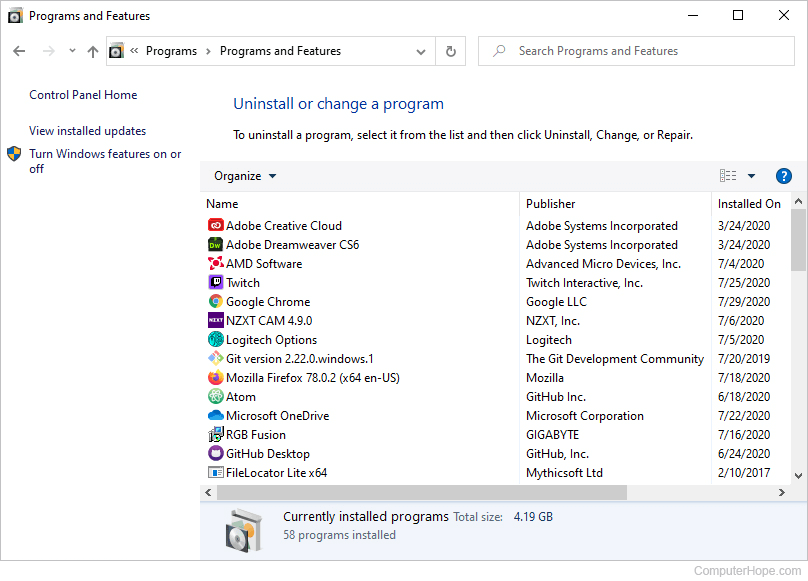
Control Panel (Windows 7, 8, 10):
This traditional method provides a clear, categorized list.
- Open Control Panel: Search for “Control Panel” in the Start Menu.
- Navigate to Programs and Features: Under the “Programs” section, click “Uninstall a program.”
- View and Manage: Here you’ll find a list of most desktop applications, along with their installation date, size, and publisher. You can sort this list to easily identify recent installations or large programs.
Settings (Windows 10, 11):
The modern Settings app provides a more streamlined interface, especially for apps downloaded from the Microsoft Store.
- Open Settings: Click the Start button, then the gear icon, or press
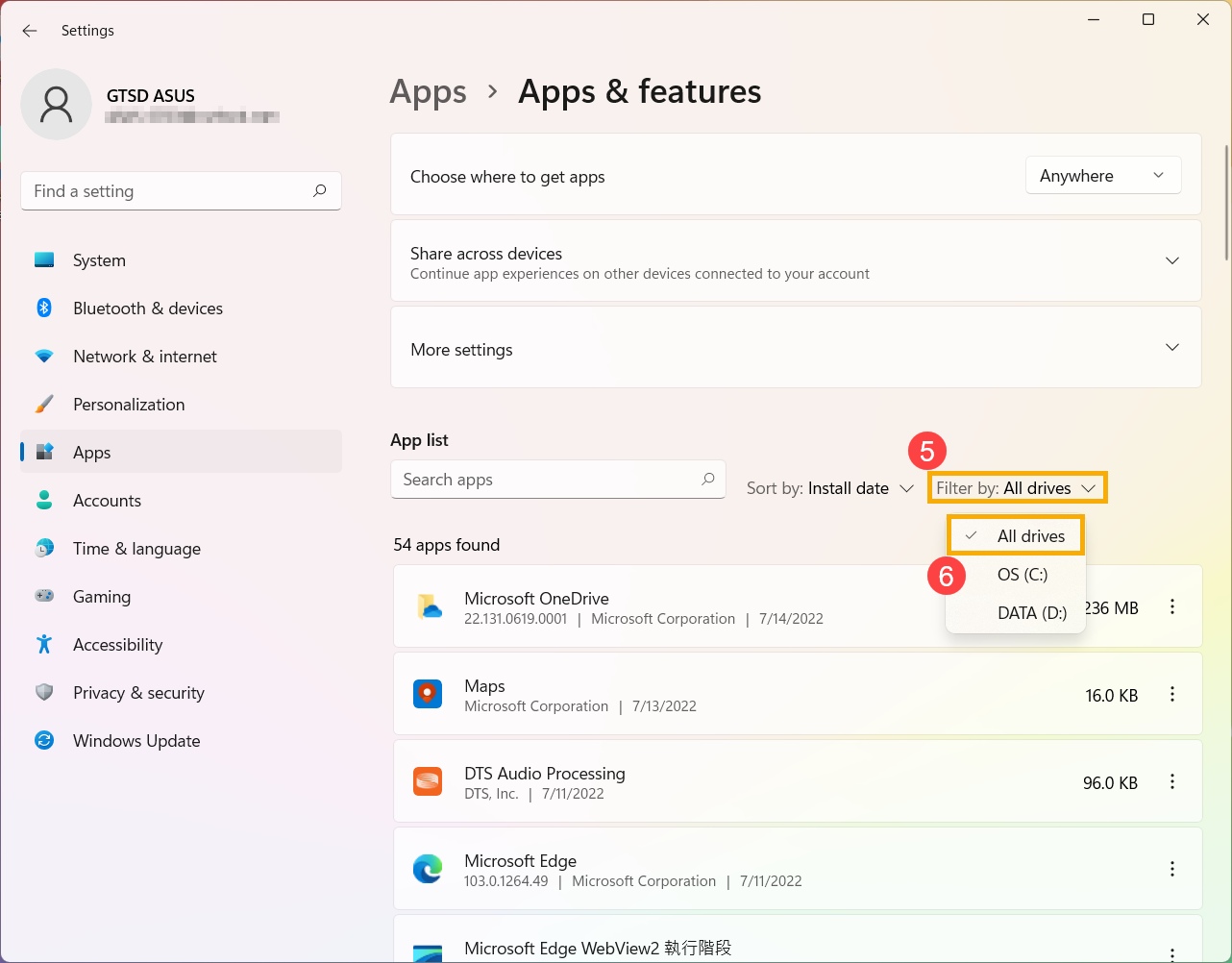
Windows key + I. - Go to Apps: Click on “Apps,” then “Apps & features.”
- Explore the List: This section lists both traditional desktop programs and modern Universal Windows Platform (UWP) apps. You can filter by drive, sort by size or installation date, and search for specific apps. This interface often provides quick actions like “Modify” or “Uninstall.”
PowerShell (Advanced Users):
For those comfortable with command-line tools, PowerShell offers powerful scripting capabilities to extract detailed information.
- Open PowerShell as Administrator: Search for “PowerShell” in the Start Menu, right-click, and select “Run as administrator.”
- List MSI-installed programs: Type
Get-WmiObject -Class Win32_Product | Select-Object Name, Version, Vendorand press Enter. This command queries Windows Management Instrumentation (WMI) for programs installed using the Windows Installer (.msi). - List Apps from Settings/Microsoft Store: For apps listed in “Apps & features,” you can use
Get-AppxPackage | Select Name, PackageFullName. - List all programs (including non-MSI): A more comprehensive, though potentially slower, method involves inspecting registry keys:
Get-ItemProperty HKLM:SoftwareMicrosoftWindowsCurrentVersionUninstall* | Select-Object DisplayName, DisplayVersion, Publisher, InstallDate | Format-Table –AutoSize. You might need to checkHKCU:SoftwareMicrosoftWindowsCurrentVersionUninstall*for user-specific installations as well.
macOS: Applications Folder, Activity Monitor, and Terminal
macOS provides an elegant and straightforward approach to managing applications, though deeper insights require a dive into System Information or the Terminal.
Applications Folder (Most Common):
Most applications on macOS are self-contained bundles installed directly into the Applications folder.
- Open Finder: Click the Finder icon in the Dock.
- Navigate to Applications: In the sidebar, click “Applications.”
- Browse and Organize: You’ll see a list of all installed applications. You can view them as icons, a list, or columns. Sort by Date Added to see recent installations or by Size to identify large applications. Dragging an app to the Trash is often sufficient for uninstallation (though some leave behind preference files).
Activity Monitor (Running Processes):
While not a list of installed apps, Activity Monitor shows you what apps and processes are currently running, consuming system resources.
- Open Activity Monitor: Go to Applications > Utilities > Activity Monitor, or search for it with Spotlight (
Command + Space). - View Processes: The “CPU,” “Memory,” and “Energy” tabs show you active processes, helping identify resource hogs. This is useful for performance troubleshooting and spotting unexpected background activity.
System Information (Detailed Overview):
For a more technical overview of your system’s software, including frameworks, extensions, and applications, System Information is invaluable.
- Access System Information: Hold
Optionkey, then click the Apple menu () in the top-left corner and select “System Information.” - Software Section: In the sidebar, under “Software,” you can find detailed lists for “Applications,” “Installations” (showing system updates and installers), “Extensions,” and more. This provides a granular view of your macOS software environment.
Terminal (Advanced Users):
For script-based listing of installed packages or applications, the Terminal offers powerful commands.
- Open Terminal: Go to Applications > Utilities > Terminal, or search with Spotlight.
- List installed applications:
ls /Applicationslists all applications in the primary Applications folder.mdfind "kMDItemKind == 'Application'" | grep '/Applications'provides a more comprehensive list by searching the Spotlight index for applications.pkgutil --pkgslists packages installed via macOS Installer, which can include system components and some third-party software.
Linux: Package Managers and Command-Line Tools
Linux distributions primarily manage software through package managers, which provide robust tools for installing, updating, and removing software. The command line is the most common interface for these tools.
APT (Debian/Ubuntu-based Systems):
- Open Terminal: Use your distribution’s terminal emulator (e.g., Ctrl+Alt+T).
- List installed packages:
apt list --installedprovides a comprehensive list of all installed packages from the APT repositories. - Filter for specific packages:
dpkg -lalso lists installed packages, offering more detail. You can pipe this togrepto search for specific software, e.g.,dpkg -l | grep firefox.
YUM/DNF (Red Hat/CentOS/Fedora-based Systems):
- Open Terminal.
- List installed packages:
yum list installed(for older systems) ordnf list installed(for newer Fedora/CentOS streams).
Pacman (Arch Linux-based Systems):
- Open Terminal.
- List installed packages:
pacman -Qlists all explicitly installed packages.pacman -Qscan be used to search for packages and their status.

Snap and Flatpak (Universal Package Managers):
These are increasingly popular for cross-distribution software.
- List Snap packages:
snap list - List Flatpak packages:
flatpak list
Discovering Apps and Files on Mobile Devices
Mobile operating systems have simplified app management, but understanding where to look for details, storage consumption, and permissions is still key for effective control.
Android: App Info, File Managers, and Google Play Store
Android offers a straightforward path to see installed apps and manage their data and permissions.
Settings > Apps:
This is your primary hub for app management.
- Open Settings: Tap the gear icon from your home screen or notification shade.
- Go to Apps & notifications (or Apps): The exact wording may vary slightly by Android version or manufacturer (e.g., “Apps,” “Applications,” “App Manager”).
- See All Apps: Tap “See all X apps” to view a comprehensive list.
- Manage Individual Apps: Tapping on an app reveals “App info,” where you can see its storage usage, data consumption, battery usage, permissions, and options to Force Stop, Uninstall, or Disable. This granular control is crucial for managing productivity and safeguarding digital security.
Google Play Store (Your Apps & Games):
The Play Store tracks all apps associated with your Google account.
- Open Google Play Store app.
- Tap your profile icon (top-right).
- Go to “Manage apps & device,” then the “Manage” tab.
- View and Filter: Here you can see a list of all apps currently installed on your device, and also those you’ve previously installed but are no longer on the device. This is excellent for reinstalling apps or checking your purchase history.
File Managers (Installed Apps’ Data):
While not directly listing installed apps, file managers (like Google Files, Solid Explorer, ES File Explorer) allow you to browse the internal storage where apps store their data. This can help identify large data caches or downloaded files associated with specific applications. Be cautious when deleting files here, as it can disrupt app functionality.
iOS/iPadOS: Settings, Storage Management, and App Store
Apple’s mobile ecosystem is tightly controlled, but it provides clear mechanisms for app management.
Settings > General > iPhone Storage (or iPad Storage):
This section provides a visual and detailed breakdown of your device’s storage by app.
- Open Settings: Tap the gear icon on your home screen.
- Go to General: Scroll down and tap on “iPhone Storage.”
- Review App List: You’ll see a list of all installed apps, ordered by the amount of storage they consume. Each app entry shows its size, along with its documents and data.
- Offload or Delete: Tapping an app gives you options to “Offload App” (removes the app but keeps its data, saving space) or “Delete App” (removes both app and all its data). This is vital for managing device space and can contribute to better device productivity.
App Store (Purchased Apps):
Similar to Google Play, the App Store tracks your app history.
- Open App Store app.
- Tap your profile picture (top-right).
- Go to “Purchased” (or “My Purchases” if Family Sharing is enabled).
- Review History: This list shows all apps ever downloaded with your Apple ID, whether currently installed or not. This helps you track your software investments and reinstall previously owned apps without searching.
Beyond Core Applications: Deeper Dives into Your System
Identifying standard applications is just the first step. A truly comprehensive understanding of your digital landscape requires looking at other types of software that might be lurking in less obvious corners. These often have significant implications for digital security, privacy, and productivity.
Browser Extensions and Add-ons
Browser extensions are small software modules that extend the functionality of your web browser. While many are benign and boost productivity, they can also be significant vectors for privacy breaches, ad injection, and even malware.
- How to check:
- Chrome:
chrome://extensionsor Menu (three dots) > More tools > Extensions. - Firefox:
about:addonsor Menu (three lines) > Add-ons and themes. - Edge:
edge://extensionsor Menu (three dots) > Extensions. - Safari: Safari > Settings (or Preferences) > Extensions.
- Chrome:
- Why it matters: Malicious extensions can steal data, track your browsing, inject unwanted ads, or redirect your searches. Regularly reviewing and removing unnecessary or suspicious extensions is a critical digital security practice.
Drivers and System Updates
Drivers are essential software components that allow your operating system to communicate with hardware devices. System updates (for the OS itself) are critical for stability and security.
- Drivers: While typically managed by the OS (Device Manager in Windows, System Information/About This Mac in macOS, various
lshw/lspci/lsusbcommands in Linux), knowing which drivers are installed ensures your hardware functions correctly and securely. Outdated drivers can lead to performance issues or security vulnerabilities. - System Updates: Regularly checking your OS settings for installed updates (e.g., Windows Update History, macOS About This Mac > Software Update,
apt-get upgrade/dnf updatein Linux) ensures you’re running the latest, most secure version of your operating system.
Identifying Hidden or Malicious Software
Sometimes, programs don’t want to be found. Rootkits, certain types of malware, and legitimate but intrusive software can be designed to evade standard detection methods.
- Antivirus/Anti-malware scans: Running full system scans with reputable security software is the primary way to detect and remove hidden threats. Always keep your security software updated. This is non-negotiable for digital security.
- Task Manager/Activity Monitor: Look for unfamiliar processes with high resource usage or unusual names. While this requires some technical savvy to distinguish legitimate processes from suspicious ones, it can be a good indicator.
- Specialized tools: For persistent threats, tools like Malwarebytes, Spybot Search & Destroy, or specialized rootkit detectors can provide deeper scans.
- Review startup programs: Many malicious programs automatically launch when your system starts. Reviewing startup items (Task Manager > Startup in Windows, Users & Groups > Login Items in macOS, various
systemctlcommands in Linux) can reveal unwanted background processes that impact productivity and security.
Best Practices for Managing Your Installed Software
Knowing what’s installed is just the beginning. Effective software management is an ongoing process that yields significant benefits for your device’s health, your digital security, and your overall digital experience. Implementing these best practices contributes not only to your personal productivity and digital security but can also indirectly support your personal branding by demonstrating a commitment to digital hygiene.
Regular Audits for a Healthier System
Make it a habit to periodically review your installed software.
- Frequency: Aim for a monthly or quarterly check-up for your primary devices. Mobile devices, with their frequent app installs, might benefit from more frequent scrutiny.
- Purpose: Look for applications you no longer use, unfamiliar programs, and outdated software. This process helps maintain optimal performance and reduces the attack surface for cyber threats.
- Benefit: A clean, optimized system enhances productivity by reducing slowdowns and frustrating crashes. It also contributes to a stronger digital security posture.
The Art of Uninstallation: When and How
Removing unwanted software is as important as identifying it.
- When to uninstall: If you haven’t used an app in months, don’t foresee using it, or if it’s causing issues, it’s a candidate for uninstallation. Be cautious with system-critical components, especially on Linux, unless you know what you’re doing.
- How to uninstall:
- Windows: Use “Apps & features” in Settings or “Programs and Features” in Control Panel.
- macOS: Drag apps from the Applications folder to the Trash. For apps with installers, use their dedicated uninstaller if available, or third-party cleaner tools.
- Linux: Use your package manager (e.g.,
sudo apt remove [package-name],sudo dnf remove [package-name],sudo pacman -R [package-name]). - Mobile: Long-press the app icon and select “Uninstall” or go through device settings.
- Cleanup: After uninstalling, some programs might leave behind residual files or registry entries. Tools like CCleaner (Windows/macOS), CleanMyMac (macOS), or dedicated app uninstallers can help with a more thorough cleanup.
Leveraging Third-Party Tools for Enhanced Control
While native OS tools are powerful, third-party utilities can offer enhanced features for software management.
- App uninstallers: Tools like Revo Uninstaller (Windows) or CleanMyMac (macOS) provide more thorough uninstallation processes, often removing associated files that native uninstallers miss.
- System optimizers: Software that monitors background processes, startup items, and disk usage can help you maintain an efficient system. Be selective and choose reputable tools to avoid installing bloatware.
- Software updaters: Tools that scan your system for outdated software and drivers (e.g., Driver Booster, Chocolatey/Scoop on Windows, Homebrew on macOS/Linux for package management) can simplify the update process, crucial for digital security.
The Intersection of Software Management and Brand Reputation
While seemingly indirect, effective software management can influence your personal branding and even corporate identity.
- Professionalism and efficiency: A clean, well-maintained system reflects professionalism. If you’re someone who presents work, collaborates digitally, or maintains an online presence, a device that runs smoothly and securely reinforces a positive perception of your competence and reliability. This is particularly true for those in tech or creative fields where digital tools are central to their brand strategy.
- Security and trust: For businesses, knowing what software is installed across all endpoints is vital for compliance and preventing data breaches. A security incident stemming from unknown or vulnerable software can severely damage a company’s reputation and customer trust. For individuals, a compromised personal device can reflect poorly on their personal branding, especially if it leads to spamming contacts or sharing sensitive information.
- Cost and resource management: Efficient software management, including tracking licenses and uninstalling unused paid software, showcases good resource management. For a business, this impacts the money saved and demonstrates fiscal responsibility, which is part of a strong corporate brand identity.
In conclusion, the ability to see everything installed on your computer and mobile devices is more than a technical trick; it’s a fundamental skill for modern digital living. By regularly auditing your software, actively managing what stays and what goes, and leveraging the tools at your disposal, you empower yourself to create a digital environment that is fast, secure, private, and financially prudent. This proactive approach not only safeguards your technology but also reinforces your digital security and personal brand in an interconnected world.
aViewFromTheCave is a participant in the Amazon Services LLC Associates Program, an affiliate advertising program designed to provide a means for sites to earn advertising fees by advertising and linking to Amazon.com. Amazon, the Amazon logo, AmazonSupply, and the AmazonSupply logo are trademarks of Amazon.com, Inc. or its affiliates. As an Amazon Associate we earn affiliate commissions from qualifying purchases.