
In an increasingly digital world, our devices – from powerful desktop PCs to sleek smartphones and tablets – have become extensions of ourselves. They are repositories of our work, memories, entertainment, and communication. With this pervasive integration comes an inevitable accumulation: apps. Lots and lots of apps. From productivity suites to social media, gaming, and niche utility tools, our digital landscapes can quickly become cluttered. This digital sprawl not only consumes valuable storage space but can also significantly impact system performance, compromise digital security, and even hinder our personal productivity.

The act of “removing installed apps” might seem straightforward – a simple tap or click – but true digital decluttering goes much deeper. It’s about understanding the implications, employing the right techniques for different platforms, and cultivating habits that ensure a lean, efficient, and secure digital environment. This guide delves into the essential strategies and practical steps for effectively uninstalling applications across your devices, transforming your digital experience for the better. We’ll explore not just how to remove apps, but why it’s a critical aspect of modern tech literacy, touching upon benefits that span performance, security, productivity, and even financial prudence.
Why Digital Decluttering Matters: The Benefits of App Uninstallation
Beyond the immediate satisfaction of a tidier app drawer or desktop, strategically removing unwanted applications yields a cascade of tangible advantages. It’s a proactive approach to maintaining the health and efficiency of your digital ecosystem, directly impacting your overall tech experience.
Boosting System Performance and Speed
Every application installed on your device, even when not actively in use, can consume resources. Background processes, startup items, cached data, and temporary files all contribute to system overhead. Over time, a multitude of these can lead to noticeable slowdowns, longer boot times, unresponsive applications, and a generally sluggish user experience. By removing unnecessary apps, you free up RAM, reduce CPU cycles consumed by background tasks, and lighten the load on your storage drive. This directly translates to a snappier, more responsive device, allowing your critical applications to run more smoothly and efficiently. For tech enthusiasts and professionals alike, optimizing performance is key to maximizing output and enjoying seamless operation.
Enhancing Digital Security and Privacy
Every app is a potential vector for security vulnerabilities. Unused or outdated applications may contain unpatched security flaws that malicious actors could exploit. Furthermore, many apps request extensive permissions – access to your location, contacts, camera, microphone, and even your personal files. While some permissions are legitimate for an app’s functionality, others are excessive and can lead to data collection practices that infringe on your privacy. The more apps you have, the larger your “attack surface” becomes, and the harder it is to track which apps are accessing what data. Regularly auditing and removing apps you no longer trust or use significantly shrinks this surface, mitigating risks of data breaches, malware infections, and unwanted surveillance. In an era where digital security is paramount, a lean app inventory is a secure one.
Freeing Up Valuable Storage Space
Modern applications, particularly those with rich features, large media assets, or extensive caching, can occupy gigabytes of storage space. Mobile games, photo editing suites, and complex software applications are prime examples. For devices with limited internal storage – a common challenge for many smartphones and entry-level laptops – this can quickly lead to “storage full” notifications, preventing you from downloading new content, taking photos, or updating your operating system. Freeing up storage space by uninstalling defunct apps is one of the quickest and most effective ways to reclaim precious digital real estate. This not only solves immediate storage crises but also prevents your device from suffering performance degradation often associated with near-full drives.
Improving Focus and Productivity
Digital clutter isn’t just a technical problem; it’s a cognitive one. A screen filled with countless app icons or an overflowing app drawer can be a source of distraction and decision fatigue. Each unused app represents a potential interruption or a visual cue pulling your attention away from your tasks. By streamlining your app collection to only those tools you genuinely use and need, you create a cleaner, more focused digital workspace. This intentional decluttering can significantly reduce digital noise, enhance your concentration, and ultimately boost your productivity. For individuals focused on achieving peak performance and leveraging digital tools effectively, a minimalist app environment is a strategic asset.
Managing Costs and Subscriptions
In today’s “as-a-service” economy, many apps operate on a subscription model. It’s surprisingly easy to sign up for trials, forget about them, and find yourself paying monthly or annually for services you no longer use. Conduct an app audit with an eye on recurring expenses. Removing an app often means canceling an associated subscription, directly translating to financial savings. Furthermore, for those with limited data plans or cloud storage subscriptions, less app usage can mean less data consumption and less cloud storage occupied by app backups, potentially saving money on those fronts too. This financial aspect links directly to the “Money” section of our website’s themes, highlighting how astute app management contributes to personal finance well-being.
The Universal Principles of App Removal: What to Know Before You Delete
Before diving into platform-specific instructions, it’s crucial to understand some foundational concepts that apply across all operating systems. A mindful approach to app removal ensures that the process is effective, safe, and doesn’t leave behind unwanted digital residue.
Understanding the Difference: Uninstall vs. Delete
This is perhaps the most critical distinction.
- Deleting an app, particularly on mobile devices, often means removing its icon from your home screen or just the core application files. However, it might leave behind user data, preferences, and cached files in obscure corners of your device or in cloud backups. This is akin to throwing a book away but leaving your notes scattered around the room.
- Uninstalling an app (the preferred method) is a more comprehensive process. It attempts to remove the main program files, associated data, configuration settings, and registry entries (on Windows). The goal is to revert your system to a state as if the app was never installed. While even uninstallation might not be 100% perfect, it’s significantly more thorough than mere deletion. Always aim for a proper uninstallation process.
Backing Up Important Data
Before removing any application, especially if it’s one you’ve used extensively for content creation or data storage, always ensure you’ve backed up any critical files associated with it. This could include documents, projects, game saves, photos, or specific settings you might want to retain. Many applications have their own export functions or store data in user-accessible folders. Verify what data will be removed with the app and what you need to preserve independently. Cloud storage solutions or external hard drives are excellent places for these backups.
Identifying Persistent Files and Registry Entries
Even after a proper uninstallation, some applications leave behind “orphan” files or registry entries. These remnants are usually harmless but can accumulate over time, contributing to minor clutter. On Windows, the Registry can become bloated with invalid entries. While modern operating systems and uninstallers are better at cleaning up, some notoriously sticky applications or poorly designed ones might leave traces. Advanced users might use system cleaners or registry editors (with extreme caution) to tackle these, but for most users, focusing on the primary uninstallation is sufficient. Be particularly wary of “optimizing” tools that promise to clean your registry, as some can cause more harm than good if not used correctly.
Navigating App Permissions and Data Privacy
When removing an app, remember that the data it collected while installed might still reside on its developer’s servers. Before uninstalling a privacy-sensitive app, consider reviewing its privacy policy and checking if there are options within the app or on the developer’s website to delete your account or associated data. For social media apps or those that handle personal information, simply uninstalling from your device doesn’t erase your online footprint. This step is crucial for maintaining your digital privacy and controlling your personal brand’s online presence, ensuring that your data isn’t lingering indefinitely on third-party servers.
Step-by-Step Guides: How to Remove Apps on Major Platforms
The process of uninstalling applications varies significantly across different operating systems. Understanding the native tools and methods for each platform is key to effective digital decluttering.
Windows: A Multi-faceted Approach
Windows offers several ways to remove applications, catering to different scenarios and user preferences.
-
Using Settings (Windows 10/11): This is the most modern and recommended method.
- Go to Start Menu > Settings (the gear icon).
- Click on Apps > Apps & features.
- Scroll through the list or use the search bar to find the app you want to remove.
- Click on the app, then select Uninstall. Follow any on-screen prompts. For some apps, particularly older programs or those installed from outside the Microsoft Store, this might redirect you to the Control Panel’s uninstaller or launch a dedicated uninstallation wizard.
-
Using Control Panel (Older versions & stubborn apps): This method is particularly useful for legacy software.
- Search for “Control Panel” in the Start Menu and open it.
- Under “Programs,” click on “Uninstall a program”.
- Locate the app in the list, right-click it, and select Uninstall/Change.
- Follow the uninstallation wizard that appears. Some programs require a restart after uninstallation.

-
From the Start Menu (Quick Uninstall): For apps installed from the Microsoft Store or pinned to the Start Menu.
- Right-click on the app icon in the Start Menu or search results.
- Select Uninstall. Confirm if prompted. This is often a quicker way for simpler apps.
-
Third-Party Uninstallers: For persistent programs or to ensure a more thorough cleanup (e.g., Revo Uninstaller, IObit Uninstaller). These tools often scan for leftover files and registry entries after the standard uninstallation process, offering a deeper clean. They can be particularly useful for “bloatware” or difficult-to-remove applications that don’t fully disappear via native methods. While effective, always download these from reputable sources to avoid introducing new malware.
macOS: Drag, Drop, and Beyond
Apple’s macOS offers a straightforward approach to app removal, though there are nuances to ensure a complete cleanup.
-
Using Finder (Standard Method):
- Open Finder.
- Navigate to the Applications folder.
- Locate the app you wish to uninstall.
- Drag the app icon to the Trash in your Dock.
- Alternatively, right-click (or Control-click) the app icon and select Move to Trash.
- You may be prompted for your administrator password.
- Once the app is in the Trash, right-click the Trash icon and select Empty Trash. This permanently deletes the app.
-
Using Launchpad (for Mac App Store apps):
- Open Launchpad (either by clicking its icon in the Dock or using a pinch gesture with thumb and three fingers on a trackpad).
- Find the app you want to remove.
- Click and hold the app icon until all icons begin to jiggle.
- Click the “X” icon that appears in the top-left corner of the app you want to delete.
- Confirm by clicking Delete. This method primarily works for apps downloaded from the Mac App Store.
-
Cleaning Leftover Files: While dragging to Trash removes the main app, some preference files, application support files, and caches might remain in your User Library folder (
~/Library).- In Finder, click Go in the menu bar, then hold down the Option (Alt) key and select Library.
- Look for folders named after the uninstalled app or its developer within
Application Support,Caches, andPreferences. - Exercise caution: Only delete files if you are absolutely sure they belong to the uninstalled app and are safe to remove. Incorrectly deleting files from the Library can affect system stability. AppCleaner and CleanMyMac are popular third-party tools that can automate this process more safely.
Android: Managing Mobile Real Estate
Android devices offer flexible ways to manage and remove applications, ensuring your mobile experience remains fluid and responsive.
-
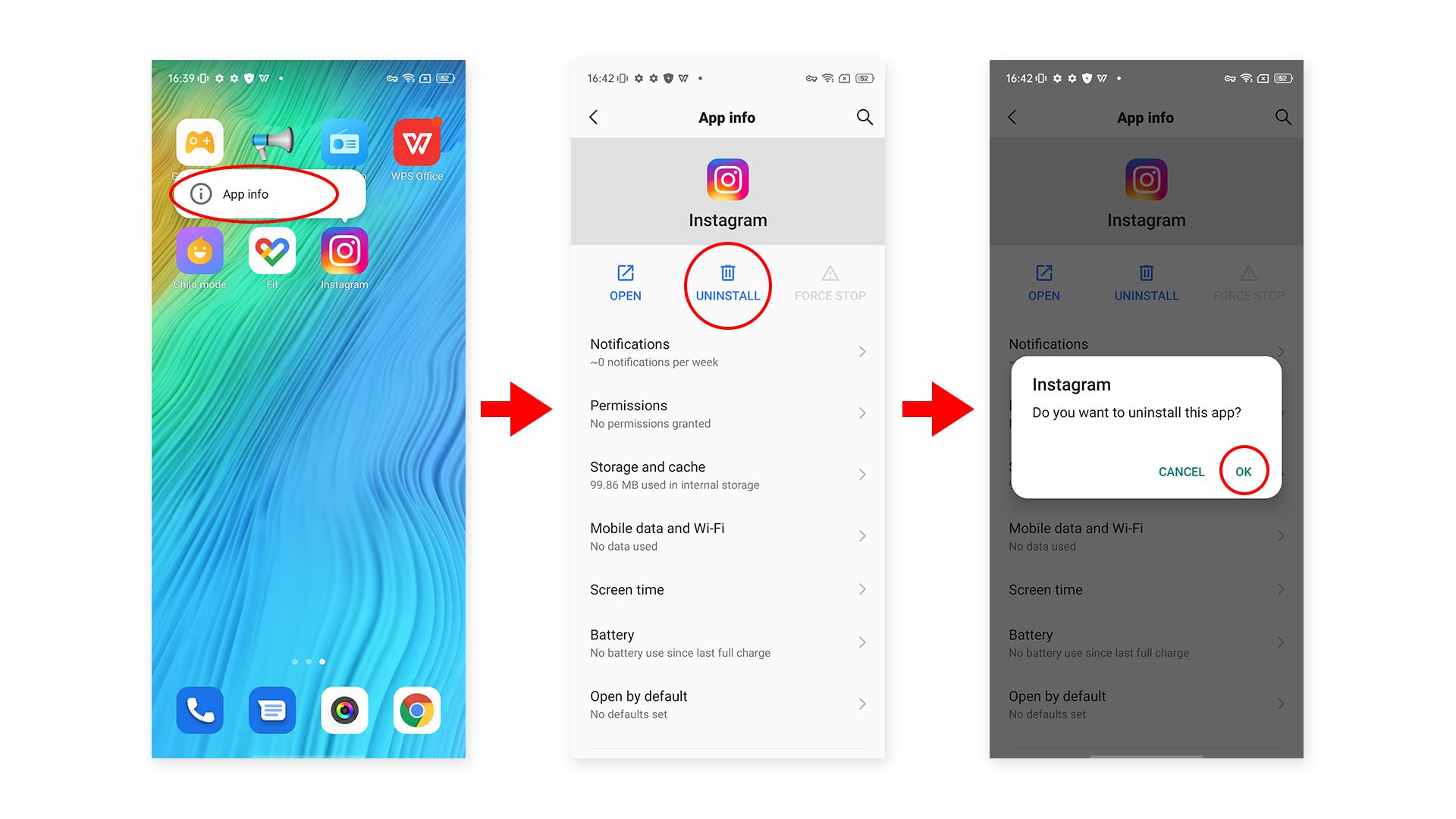
From the Home Screen/App Drawer (Quick Uninstall):
- Long-press on the app icon you want to remove.
- A menu will usually pop up with options like “App info,” “Remove,” or “Uninstall.” Drag the app to the “Uninstall” option that appears (often at the top of the screen).
- Confirm your choice when prompted.
-
Using Settings (More Control): This method also allows you to manage app permissions and data.
- Go to Settings (usually a gear icon).
- Tap on Apps or Apps & notifications (the exact wording may vary by Android version and manufacturer).
- Find the app in the list and tap on it.
- You’ll see options like “Force stop,” “Disable” (for system apps), and “Uninstall.” Tap “Uninstall” and confirm.
- Clear Cache/Data First: Before uninstalling, you might want to tap “Storage & cache” and then “Clear cache” and “Clear data.” This ensures that local data stored by the app is removed, freeing up more space.
-
Google Play Store:
- Open the Google Play Store app.
- Tap your profile icon (top right).
- Tap Manage apps & device, then select the Manage tab.
- Find the app you want to uninstall and tap its name.
- Tap Uninstall.
-
Dealing with Bloatware: Some pre-installed apps on Android (bloatware) cannot be fully uninstalled without rooting your device. In such cases, your best option is to “Disable” them via the App Info screen in Settings. This prevents them from running in the background and appearing in your app drawer, effectively rendering them inert.
iOS: Streamlining Your iPhone/iPad
Apple’s iOS makes app removal incredibly simple, though understanding the difference between “Offload” and “Delete” is important for storage management.
-
From the Home Screen (Quick Delete):
- Long-press on the app icon you want to remove until all icons begin to jiggle.
- Tap the minus (-) icon in the top-left corner of the app icon.
- Select “Delete App” from the options.
- Confirm your choice when prompted. This removes the app and all its data from your device.
-
Using Settings (Manage Storage): This method is particularly useful for identifying storage hogs and using the “Offload” feature.
- Go to Settings > General > iPhone Storage (or iPad Storage).
- You’ll see a list of your apps, sorted by the amount of storage they consume.
- Tap on an app to view its details. You’ll see two options:
- Offload App: This removes the app itself but keeps its documents and data. If you reinstall the app later (and it’s still available on the App Store), your data will be restored. This is great for apps you use infrequently but want to keep the data for.
- Delete App: This completely removes the app and all its associated data from your device. This is the equivalent of the Home Screen method.
- Choose the appropriate option and confirm.
-
Automatic Offloading: iOS has a feature to automatically offload unused apps when you’re low on storage.
- Go to Settings > General > iPhone Storage.
- Enable “Offload Unused Apps”. This automates the offloading process for apps you rarely use, keeping your data intact should you wish to reinstall them.
Advanced Strategies and Best Practices for a Clean System
Beyond the basic uninstallation steps, a proactive and systematic approach to app management ensures long-term digital hygiene, aligning with themes of digital security, productivity, and informed tech use.
Utilizing Third-Party Uninstallation Tools
While native operating system tools are effective for most apps, some programs, particularly those with complex installations or deeply integrated components, can leave significant traces. Third-party uninstallation software (e.g., Revo Uninstaller for Windows, CleanMyMac for macOS) is designed to go deeper. These tools often perform a more thorough scan of your system for residual files, folders, and registry entries after the primary uninstallation process. They can be invaluable for tackling “stubborn” apps or ensuring a truly clean slate. When considering such tools, always choose reputable, well-reviewed options to avoid introducing new vulnerabilities or unwanted software. These advanced utilities reflect the software review aspect of our tech topic, helping users make informed choices for robust system maintenance.
Tackling Bloatware and Pre-installed Apps
Many devices, especially new PCs and Android phones, come pre-loaded with “bloatware” – unwanted software installed by manufacturers or carriers. These apps often consume resources, send notifications, and sometimes even have questionable privacy practices. While some bloatware can be uninstalled normally, others (particularly system apps on Android) might only offer a “Disable” option. On Windows, you might need to use PowerShell commands (for advanced users) or third-party tools to remove some pre-installed UWP apps. Removing or disabling bloatware is a critical step in reclaiming control over your device and optimizing its performance from day one. It’s an important aspect of digital security, minimizing the attack surface from potentially insecure pre-installed software.
Regular App Audits and Maintenance Schedules
Effective digital decluttering isn’t a one-time event; it’s an ongoing process. Just as you might regularly clean your physical living space, scheduling periodic “app audits” for your digital devices is highly beneficial.
- Monthly or Quarterly Reviews: Take 15-30 minutes to scroll through your app lists on all devices.
- Ask Critical Questions: For each app, ask: “Do I use this regularly?” “Does it genuinely add value?” “Does it respect my privacy?” “Is there a better, more efficient alternative?”
- Identify Usage Patterns: Your needs and interests evolve. An app crucial six months ago might be redundant today. Unused apps are prime candidates for removal.
- Check for Subscriptions: During your audit, verify if any apps have active subscriptions you’ve forgotten about, tying into the “Money” aspect of our website.
This systematic approach helps maintain a lean, efficient, and secure digital environment, aligning perfectly with productivity best practices.
When to Seek Professional Help or Factory Reset
In rare cases, an app might be so deeply embedded or problematic that it resists all uninstallation attempts, potentially due to malware or severe system corruption. If you suspect an app is malicious, or if your system becomes unstable after an uninstallation attempt, it might be time to:
- Consult a Tech Professional: A specialist can diagnose complex issues, remove stubborn software, and restore system integrity without data loss.
- Perform a Factory Reset: As a last resort, a factory reset (reinstalling the operating system) will wipe your device clean, removing all apps, data, and settings. This is the most drastic but definitive way to eliminate persistent software issues and ensures a fresh, clean start. Always back up all essential data before considering a factory reset. This extreme measure underscores the importance of digital security and having robust recovery strategies.
Conclusion: Empowering Your Digital Journey
The journey to effectively removing installed apps is more than just a technical exercise; it’s a fundamental aspect of modern digital literacy and personal digital wellbeing. By understanding the “why” and “how” behind app uninstallation, you empower yourself to take control of your digital environment, transforming it from a cluttered, potentially vulnerable space into an optimized, secure, and productivity-enhancing tool.
From boosting system performance and safeguarding your digital security to freeing up precious storage and enhancing your focus, the benefits of mindful app management are undeniable. Moreover, by regularly auditing your app collection, you can uncover forgotten subscriptions, saving you money, and ensuring that your digital tools truly serve your needs rather than becoming unnecessary burdens. In a world increasingly driven by technology and digital interactions, mastering the art of app removal is a core skill for anyone looking to navigate their tech landscape with confidence, efficiency, and peace of mind. Embrace digital decluttering – your devices, and your focus, will thank you for it.
aViewFromTheCave is a participant in the Amazon Services LLC Associates Program, an affiliate advertising program designed to provide a means for sites to earn advertising fees by advertising and linking to Amazon.com. Amazon, the Amazon logo, AmazonSupply, and the AmazonSupply logo are trademarks of Amazon.com, Inc. or its affiliates. As an Amazon Associate we earn affiliate commissions from qualifying purchases.