
The transition from traditional cable to internet-based streaming services has fundamentally changed how we consume media. One of the most significant technological leaps in this transition is the move from hardware-based Digital Video Recorders (DVRs) to Cloud DVR systems. YouTube TV has emerged as a leader in this space, primarily due to its sophisticated, “limitless” approach to recording live television. Unlike the clunky set-top boxes of the past that relied on physical hard drives with limited storage, YouTube TV utilizes Google’s massive server infrastructure to provide a seamless, high-capacity recording experience.
Understanding how to record shows on YouTube TV is not just about clicking a button; it is about mastering a tech ecosystem designed for convenience, multi-device synchronization, and intelligent content discovery. This guide explores the mechanics of the YouTube TV Cloud DVR, the step-by-step processes for different devices, and how to manage your digital library effectively.
The Technology Behind YouTube TV’s Cloud DVR
Before diving into the “how-to,” it is essential to understand the “what.” The technology powering YouTube TV is distinct from traditional cable DVRs in several technical aspects.
Unlimited Storage Capacity
The most disruptive feature of YouTube TV’s recording tech is its unlimited storage. In the era of physical DVRs, users were constantly forced to delete old recordings to make room for new ones, often managing a “storage percentage” meter. YouTube TV eliminates this hardware bottleneck. Because the recordings are stored in the cloud, users can record thousands of programs simultaneously without ever running out of space. This shift from local storage to distributed cloud storage allows for a much more liberal “add to library” user behavior.
The Nine-Month Retention Policy
While the storage is unlimited in terms of volume, it is finite in terms of time. Every recording is kept for nine months from the date it was aired. Technically, YouTube TV tracks the metadata of the broadcast and associates it with your account. If a show is rebroadcast within that nine-month window, the timer essentially resets for that specific episode. This automated lifecycle management ensures that your library remains relevant without requiring manual purging of outdated files.
Cross-Platform Synchronization
Because your “Library” is tied to your Google account rather than a specific piece of hardware, the synchronization is instantaneous across the tech stack. If you mark a show for recording on your smartphone while on the train, that show will be waiting in your library when you turn on your smart TV at home. This seamless handoff is a hallmark of modern cloud architecture, ensuring that the user experience is consistent regardless of the operating system—be it iOS, Android, Roku, or web browsers.
How to Record Content: A Step-by-Step Technical Walkthrough
Recording on YouTube TV is referred to as “Adding to Library.” The platform does not use the traditional “Record” terminology because it isn’t just capturing a single instance of a show; it is subscribing to that content’s future airings.
Recording on Mobile Devices and Web Browsers
For those using a smartphone, tablet, or laptop, the interface is optimized for quick interaction.
- Search and Discover: Use the magnifying glass icon to search for a specific show, movie, or sports team.
- The “Add” Function: Once you land on the program’s page, look for the “+” (plus) icon labeled “Add to Library.”
- Confirmation: Once clicked, the icon will turn into a checkmark. From this point forward, YouTube TV’s algorithms will automatically track every airing of that show across all included networks and save them to your cloud storage.
Recording on Smart TVs and Streaming Sticks
The interface for devices like Apple TV, Amazon Fire Stick, and integrated Smart TV apps is designed for “10-foot UI” navigation (controlled by a remote).
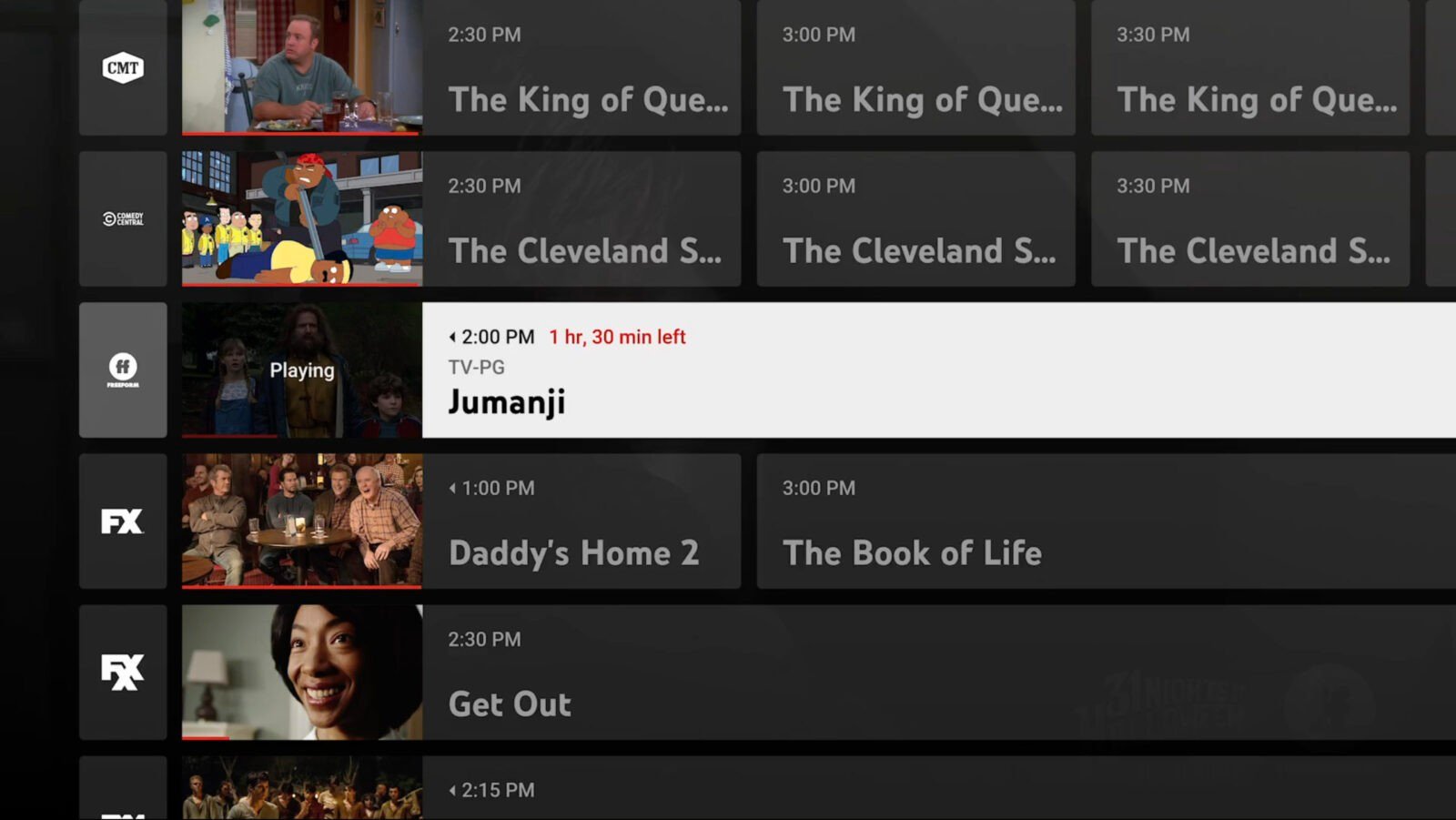
- Live Guide Interaction: While browsing the Live Guide, highlight the program currently airing or scheduled for later.
- Selection: Click the “Select” or “OK” button on your remote to bring up the program details.
- Library Addition: Navigate to the “+” button on the screen.
- Sports Specialization: One of the most powerful tech features for sports fans is the ability to follow an entire league. For example, by searching for “NFL” and adding it to your library, the system will record every televised game across all networks, utilizing automated scheduling to ensure no game is missed.
Managing and Navigating Your Digital Library
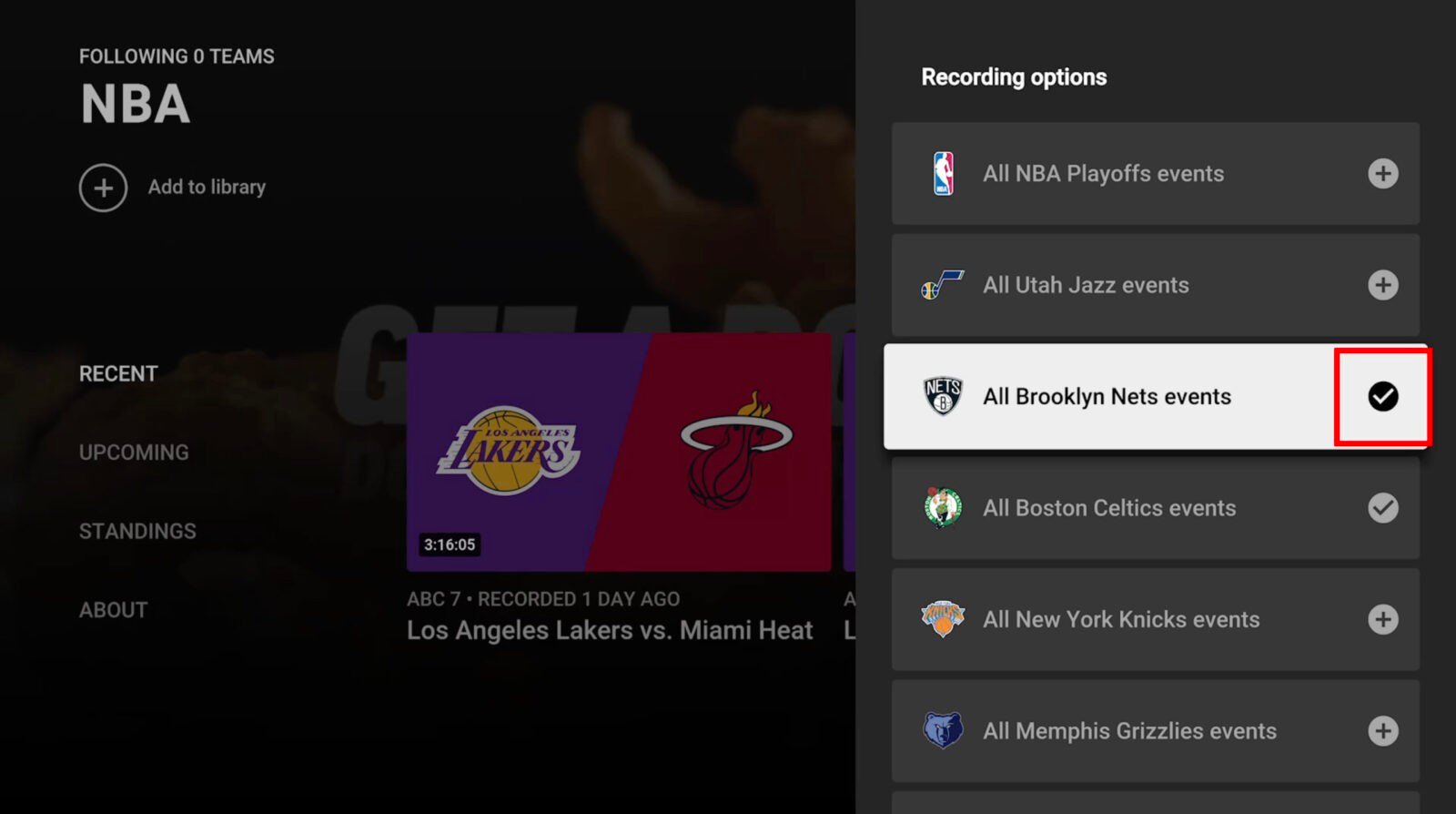
Once you have added several shows, the “Library” tab becomes the central hub of your viewing experience. Understanding how the software categorizes this content is key to efficient viewing.
Organization and Filtering
The Library is intelligently sorted into categories:
- New in Your Library: This section uses algorithmic sorting to prioritize recently aired episodes of shows you watch frequently.
- Most Watched: A data-driven category that surfaces the content you engage with most often.
- Scheduled: A technical view of what the Cloud DVR is set to record in the coming 24 hours.
- Categories (Shows, Movies, Sports): High-level filters that help you navigate large libraries.
Deleting and Removing Content
Unlike traditional DVRs where you delete a file to save space, “deleting” on YouTube TV is actually “unfollowing.” To remove a show, you navigate to the program and click the checkmark (Remove from Library). It is important to note that removing a show will stop future recordings, but previously recorded episodes may remain visible until you completely clear the association or the nine-month window expires.
Advanced Features and Technical Nuances
YouTube TV offers several advanced settings that differentiate it from other Over-The-Top (OTT) streaming services. These features leverage Google’s expertise in data management and user interface design.
Automatic Buffer Extensions for Sports
One of the historical failures of DVR technology was the “cutoff”—when a live game went into overtime and the recording ended exactly at the scheduled time. YouTube TV utilizes real-time data feeds to identify when a sporting event is running long. The Cloud DVR automatically extends the recording window for live sports, ensuring that users see the conclusion of the game regardless of delays.
DVR vs. Video On Demand (VOD)
A common technical point of confusion is the difference between a DVR recording and a VOD version of a show.
- DVR Recording: This is a digital copy of the live broadcast. The primary tech advantage here is the ability to fast-forward through commercials.
- VOD: Sometimes, networks provide their own versions of episodes. These are often higher quality (4K in some cases) but usually come with forced advertisements that cannot be skipped.
YouTube TV’s interface allows you to choose “Choose a version” on certain shows, giving you the technical flexibility to decide between the skippable DVR version or the high-definition VOD version.
Individual Profiles and Privacy
YouTube TV allows for up to six individual profiles per household. From a technical standpoint, this means each family member has their own distinct Cloud DVR library and personalized recommendations. Recordings are not shared across profiles, which prevents your library from being cluttered by other users’ viewing habits. This is managed through Google’s “Family Link” technology, providing a secure and private experience for each user.
Troubleshooting and Performance Optimization
While the Cloud DVR is robust, its performance is dependent on your digital environment.
Connection and Buffering
Since the recordings are streamed from the cloud rather than played from a local drive, your internet bandwidth is critical. For a smooth experience, especially when fast-forwarding through recordings, a stable connection of at least 25 Mbps is recommended for 4K content, though 13 Mbps is usually sufficient for standard HD. If you experience lag, it is often a result of local network congestion rather than an issue with the Cloud DVR itself.
The “Area” Limitation
YouTube TV’s recording capabilities are tied to your “Home Area.” Because of broadcast rights and FCC regulations, the local channels you record (like ABC, CBS, or NBC) are determined by your GPS or IP location. If you travel, you can still watch your recordings, but you cannot record local programming from a different city. The system uses geo-fencing technology to ensure compliance with these legal restrictions.

Conclusion
The ability to record shows on YouTube TV represents a significant milestone in the evolution of home entertainment technology. By leveraging the power of the cloud, YouTube TV has removed the physical and mental constraints of traditional recording. With unlimited storage, intelligent sports extensions, and multi-profile synchronization, the service provides a sophisticated toolset for the modern viewer. As long as users understand the nine-month retention logic and the distinction between DVR and VOD content, they can fully maximize the potential of this digital library. In the landscape of modern tech, YouTube TV’s Cloud DVR stands as a prime example of how cloud computing can simplify complex tasks and enhance our daily digital lives.
aViewFromTheCave is a participant in the Amazon Services LLC Associates Program, an affiliate advertising program designed to provide a means for sites to earn advertising fees by advertising and linking to Amazon.com. Amazon, the Amazon logo, AmazonSupply, and the AmazonSupply logo are trademarks of Amazon.com, Inc. or its affiliates. As an Amazon Associate we earn affiliate commissions from qualifying purchases.