
In the intricate world of Linux, package management systems are the unsung heroes that keep our operating systems running smoothly, installing, updating, and removing software with remarkable efficiency. Among these, dpkg stands as the foundational package management system for Debian-based distributions like Ubuntu, Mint, and itself, Debian. While most users interact with dpkg indirectly through higher-level tools like apt or apt-get, there are critical scenarios where understanding and performing a manual dpkg installation becomes not just useful, but absolutely essential.
This comprehensive guide will delve into the nuances of dpkg, walk you through the precise steps for its manual installation, and equip you with the knowledge to troubleshoot common pitfalls. Whether you’re a system administrator facing a broken package manager, a developer working in an air-gapped environment, or simply an enthusiast eager to deepen your understanding of Linux internals, mastering manual dpkg installation is a vital skill that enhances your command over your system, boosts your digital security posture, and ultimately, your productivity.
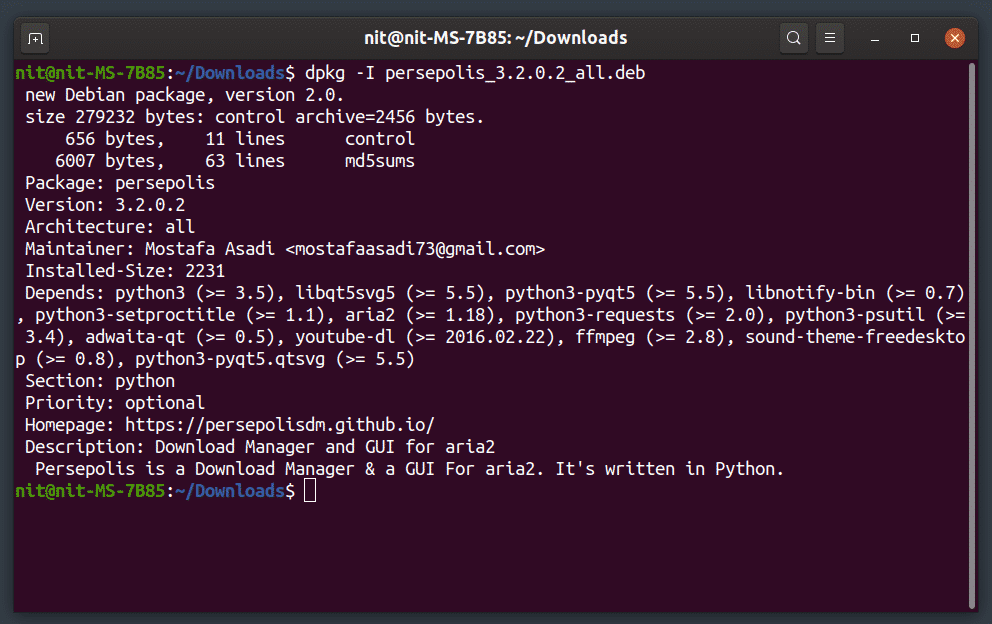
Understanding Dpkg and Why Manual Installation Matters
At its core, dpkg (Debian Package) is the low-level tool that handles Debian software packages (.deb files). It manages the installation, removal, and provision of information about these packages. Unlike apt, which is a higher-level tool that handles dependency resolution, repository management, and fetching packages from the internet, dpkg operates directly on individual .deb files residing on your local system. Think of dpkg as the engine and apt as the car’s automatic transmission and navigation system. Both are crucial, but one provides direct, granular control.
The Role of Dpkg in Debian-based Systems
Every piece of software you install via apt on a Debian or Ubuntu system is ultimately processed by dpkg. When you run sudo apt install <package_name>, apt first identifies the package, resolves all its dependencies (other packages it needs to function), downloads them from the configured repositories, and then passes these .deb files to dpkg for the actual installation, configuration, and integration into your system. This layered approach offers both convenience for everyday use and powerful, granular control for advanced scenarios.
Why Manual Installation Becomes Necessary
While apt simplifies package management immensely, there are distinct circumstances where direct, manual interaction with dpkg is indispensable:
- Offline Environments or Limited Connectivity: Imagine setting up a server or workstation in a location with no internet access. If you’ve pre-downloaded the necessary
.debfiles,dpkgallows you to install software without an active network connection, a common scenario for secure, air-gapped systems or environments with strict change control. - Recovering from a Broken Package Manager: This is perhaps the most critical scenario. If
aptitself becomes corrupted or misconfigured, perhaps due to a botched update, a power outage during an installation, or a fundamentaldpkgissue, you might find yourself unable to install or even remove packages. Manually reinstallingdpkgcan be the lifeline that restores your system’s package management capabilities. This directly impacts your “digital security” and “productivity” by preventing system downtime. - Installing Specific or Outdated Versions: Sometimes, a project or application requires a very specific version of a package that isn’t available in your distribution’s standard repositories or conflicts with newer versions. Manual
dpkginstallation allows you to bypass repository constraints and install the exact.debfile you need, assuming you can acquire it. - Resolving Dependency Conflicts Manually: In rare “dependency hell” scenarios,
aptmight struggle to resolve complex package interdependencies. Whileaptis usually excellent at this, advanced users might opt to manually download and install dependencies in a specific order usingdpkgto force a resolution. - Learning and System Mastery: For those interested in understanding the inner workings of Linux, manually installing core components like
dpkgprovides invaluable insight into the architecture and package lifecycle. This mastery contributes significantly to one’s “personal brand” as a competent tech professional.
Understanding these use cases highlights why venturing beyond apt into the realm of manual dpkg installation is a valuable skill for any serious Linux user or system administrator.
Preparing Your System for Manual Dpkg Installation
Before you dive into the commands, proper preparation is paramount. Manual package installation, especially of critical system components like dpkg, carries inherent risks. A misstep can destabilize your system. Therefore, meticulous preparation ensures a smoother process and provides a safety net if things go awry.
Prerequisites and Essential Tools
To successfully manually install dpkg, ensure you have the following:
- Terminal/Command Line Access: You’ll be executing commands, so access to a shell is fundamental.
- Sudo Privileges: Installing system-level packages requires root permissions. Your user account must have
sudoprivileges. - Basic Linux Command Knowledge: Familiarity with commands like
cd(change directory),ls(list files),mkdir(make directory),wgetorcurl(download files), andtar(extract archives) will be beneficial. - System Architecture Identification: You need to download the correct
.debpackage for your system’s architecture. Common architectures includeamd64(for 64-bit Intel/AMD processors),arm64(for 64-bit ARM processors, common in Raspberry Pis and newer mobile devices), andi386(for older 32-bit systems). You can check yours withdpkg --print-architecture(if dpkg is working enough) oruname -m. - Access to a Working Internet Connection (initially): Unless you’re in a truly air-gapped environment and already possess the files, you’ll need internet access to download the necessary
dpkg.debpackage and its dependencies. - Text Editor: A simple command-line text editor like
nanoorvican be helpful for editing configuration files if needed.
Safety First: Backups and Snapshots
This step cannot be overstressed. Modifying core system components without a safety net is akin to performing surgery without sterile tools – incredibly risky.
- Full System Backup: Before attempting a manual
dpkginstallation on a critical system, perform a complete system backup. Tools likersync,tar, or specialized backup solutions can help. This is your ultimate insurance policy, ensuring that even if the worst happens, you can restore your system to its previous state, preserving data and preventing prolonged downtime. This directly contributes to your “digital security” and ensures “productivity” isn’t halted. - Virtual Machine Snapshots: If you’re working within a virtual machine (e.g., VirtualBox, VMware, KVM), take a snapshot of the VM before proceeding. Snapshots allow you to instantly revert the VM to a previous state, making experimentation and troubleshooting much safer and faster. This is an invaluable tool for learning and testing without real-world consequences.
- Document Your Steps: Keep a log of every command you run. This documentation is invaluable for retracing your steps if an error occurs and helps in diagnosing the problem.
By adhering to these preparatory steps, you significantly mitigate the risks associated with manual system modifications, transforming a potentially daunting task into a controlled and manageable process.
A Step-by-Step Guide to Manual Dpkg Installation
With your system prepared and safety measures in place, you’re ready to proceed with the manual installation of dpkg. This process involves carefully identifying, downloading, and installing the core dpkg package along with its immediate dependencies.
Retrieving the Dpkg Package and its Dependencies
The first challenge is to obtain the correct .deb files. You’ll typically find these on official Debian or Ubuntu repository mirror sites.
-
Identify the Required Packages:
Thedpkgpackage itself usually has a few crucial dependencies. The exact list can vary slightly between distribution versions, but commonly includes:dpkg(the main package)dpkg-dev(development tools, often optional but good to have)debianutils(utilities essential for Debian systems)tar(for handling archives, often already installed)zlib1g(compression library, often a core dependency)
To get the most accurate list for your distribution and version, if your
dpkgis somewhat functional, you can try:apt-cache depends dpkgIf
apt-cacheisn’t working, you’ll need to rely on searching the official repository websites. -
Find and Download the
.debFiles:
Navigate to your distribution’s package archive. For example:- Debian:
https://packages.debian.org/stable/dpkg(replacestablewith your Debian release, e.g.,buster,bullseye) - Ubuntu:
https://packages.ubuntu.com/<your_ubuntu_release>/dpkg(e.g.,focal,jammy)
On these pages, look for the download links corresponding to your system’s architecture (e.g.,
amd64,arm64). Download thedpkgpackage and any listed essential dependencies.Example download using
wget:mkdir ~/dpkg_install cd ~/dpkg_install wget http://archive.ubuntu.com/ubuntu/pool/main/d/dpkg/dpkg_1.20.9ubuntu2.2_amd64.deb wget http://archive.ubuntu.com/ubuntu/pool/main/d/debianutils/debianutils_4.11.2ubuntu1_amd64.deb # ... and so on for other critical dependenciesNote: The URLs and package versions are examples. Always verify them from the official sources for your specific OS version.
- Debian:

- Verify Package Integrity (Optional but Recommended):
If the repository provides checksums (MD5, SHA256), compare them with your downloaded files usingmd5sumorsha256sum. This ensures the files haven’t been corrupted during download or tampered with, enhancing your “digital security.”
The Installation Process: Handling Dependencies Systematically
Once you have all the necessary .deb files in a single directory (e.g., ~/dpkg_install), you can begin the installation. The key is to install dependencies before the main dpkg package.
-
Install Core Dependencies First:
Identify the most fundamental dependencies (likedebianutils,tar,zlib1g) and install them one by one. If you’re unsure of the exact order,dpkgwill often tell you which dependency is missing.sudo dpkg -i debianutils_4.11.2ubuntu1_amd64.deb sudo dpkg -i zlib1g_1.2.11.dfsg-2ubuntu1_amd64.deb # ... install other base dependenciesYou might encounter errors about unmet dependencies initially. This is expected. The goal is to install the lowest-level components first.
-
Install the Main Dpkg Package:
After installing its core dependencies, proceed to install thedpkgpackage itself.sudo dpkg -i dpkg_1.20.9ubuntu2.2_amd64.debIf there are still unmet dependencies,
dpkgwill report them. You will then need to go back and download/install those missing.debfiles. This can sometimes be an iterative process, but typicallydpkgdoesn’t have an excessively deep dependency chain for its core functionality. -
Handle Post-Installation Configuration (if necessary):
Sometimes,dpkgpackages require post-installation scripts to run for proper configuration. Ifdpkg -iexits with an error indicating an unconfigured state, you can try to finish configuration:
bash

sudo dpkg --configure -a
This command tellsdpkgto configure all unpacked but unconfigured packages.
Verifying the Installation and Initial Configuration
After the installation completes without errors, it’s crucial to verify that dpkg is fully functional.
-
Check Dpkg Version:
dpkg --versionThis should output the version information for
dpkg, confirming it’s installed and executable. -
List Installed Packages (Basic Test):
dpkg -l | grep dpkgThis command lists all installed packages and filters for
dpkg. You should seeiinext todpkg, indicating it’s “installed” and “fully configured.” -
Perform a System Update (if applicable):
If youraptsystem was broken and you’ve now restoreddpkg, the next logical step is to attempt to restoreapt‘s functionality. This often involves:
bash

sudo apt update

sudo apt upgrade

sudo apt --fix-broken install
These commands will refresh your package lists, upgrade existing software, and attempt to resolve any lingering dependency issues that might have been caused by the previous broken state. This is a critical step to ensure system stability and “digital security” moving forward.
By carefully following these steps, you should successfully install or reinstall dpkg and be well on your way to restoring full package management capabilities to your system.
Troubleshooting Common Issues and Advanced Considerations
Despite meticulous planning, manual dpkg installation can present challenges. Knowing how to diagnose and resolve common problems is key to minimizing downtime and maintaining system integrity. Furthermore, understanding advanced considerations ensures you’re applying these powerful tools responsibly.
Resolving Dependency Hell and Broken States
The most frequent hurdle in manual package management is “dependency hell,” where a package requires other packages that are either missing, conflicting, or cannot be installed for various reasons.
- Iterative Dependency Resolution: If
dpkg -ireports unmet dependencies, note down the missing package names and their required versions. Go back to the package repositories, download those specific.debfiles, and attempt to install them before the package that required them. This iterative approach is fundamental to manual dependency resolution. - Forcing Installation (with caution): In desperate situations,
dpkgoffers a--forceoption (e.g.,--force-depends). This should be used with extreme caution as it can bypass dependency checks, potentially leading to a severely broken system. Only use it if you are absolutely certain of the implications and have a full system backup.
bash

sudo dpkg -i --force-depends your_package.deb
- Utilizing
apt --fix-broken install: Ifdpkghas been restored sufficiently foraptto partially function,sudo apt --fix-broken installis a lifesaver. This command attempts to download and install missing dependencies and configure any broken packages, leveragingapt‘s powerful dependency resolution capabilities. - Manual Extraction (Advanced and Risky): In extremely rare and dire circumstances, if
dpkgitself is so broken that it cannot even install its own package, an expert might resort to manually extracting the contents of thedpkg.debfile usingar x <package.deb>andtar xzvf data.tar.gz -C /to place files in their correct locations. This is an extremely advanced and highly risky maneuver, typically reserved for recovery experts, and should only be considered after all other avenues have been exhausted and with a robust recovery plan. - Corrupted Downloads/Checksum Mismatches: If
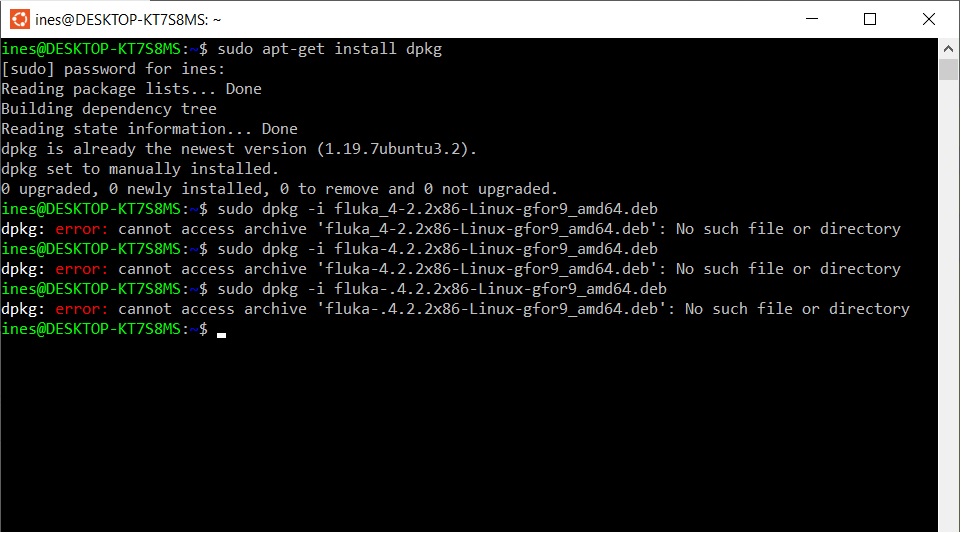
dpkg -ireports a package is corrupted or the checksum doesn’t match, re-download the.debfile, ensuring you’re getting it from a trusted, official source. Verify the checksum again if one is provided.
Security Implications and Best Practices
Manual package installation bypasses the trusted chain of apt repositories and cryptographic signatures that typically ensure the authenticity and integrity of software. This introduces significant security considerations.
- Download from Trusted Sources Only: Always obtain
.debfiles from official distribution repositories (e.g.,packages.debian.org,packages.ubuntu.com) or well-known, reputable mirror sites. Avoid third-party websites unless you absolutely trust the source and can verify package authenticity. - Verify Package Integrity: If available, always compare the downloaded
.debfile’s checksum (MD5, SHA256) against the one provided by the official repository. This protects against corrupted downloads and malicious tampering, a fundamental aspect of “digital security.” - Understand What You’re Installing: Be aware of the purpose of each
.debfile you’re installing. Installing unknown or untrusted packages can introduce vulnerabilities or malicious software into your system, compromising your “digital security” and potentially leading to significant data loss or system compromise. - Regular System Updates: Once
dpkgand potentiallyaptare restored, make it a priority to perform regularsudo apt update && sudo apt upgrade. This ensures your system receives the latest security patches and bug fixes, maintaining a strong security posture. - Keep Backups Current: The importance of regular, verifiable backups cannot be overstated. Should any issue arise, a recent backup is your best defense, allowing you to quickly recover and minimize disruption to your “productivity.”
When to Opt for Manual Installation vs. Standard Methods
While manual dpkg installation is a powerful tool, it’s not the default or preferred method for everyday package management.
- Prefer
aptfor Routine Tasks: For installing, updating, and removing most software, always rely onapt(orapt-get).apthandles dependency resolution, fetches packages securely, and manages repositories, making it efficient and less error-prone. This maximizes your “productivity” by automating complex tasks. - Reserve Manual
dpkgfor Specific Scenarios: Employ manualdpkginstallation only whenaptis unavailable, broken, or when you have a specific, justifiable need to install a.debfile directly (e.g., offline installs, specific version requirements, or system recovery). - The Learning Advantage: Even if rarely used in production, understanding manual
dpkgis an excellent learning exercise. It deepens your understanding of Linux internals, package structure, and system recovery, which is invaluable for any aspiring or seasoned IT professional and enhances your “personal brand” within the tech community.
By thoughtfully applying these troubleshooting strategies and adhering to best practices, you transform a potentially daunting task into a manageable process, ensuring your system remains robust, secure, and productive.
Conclusion: Mastering Your Linux Environment
The ability to manually install dpkg is more than just a technical trick; it’s a testament to a deeper understanding of your Linux system. While high-level tools like apt streamline our daily interactions, knowing how to descend into the foundational layers of package management empowers you with unparalleled control and problem-solving capabilities.
This journey through manual dpkg installation not only provides a lifeline in critical system recovery scenarios but also significantly enhances your “digital security” posture by fostering an awareness of package origins and integrity. It contributes to your “productivity” by equipping you to quickly resolve issues that would otherwise lead to prolonged downtime. Furthermore, for anyone building a “personal brand” in the tech world, demonstrating such core Linux system administration skills sets you apart as a truly competent and knowledgeable professional.
Embrace this knowledge as a vital part of your toolkit. It encourages a meticulous approach to system changes, emphasizes the importance of backups, and reinforces the value of understanding the underlying mechanisms of the software you rely upon. Mastering manual dpkg installation is a significant step towards truly mastering your Linux environment, making you a more resilient, secure, and effective user or administrator. Continue to explore, experiment, and learn, for the world of Linux is vast and endlessly rewarding for those who dare to delve beneath the surface.