
In the vast and ever-evolving digital landscape, WordPress stands as an undeniable titan. Powering over 43% of all websites, its versatility, user-friendliness, and extensive plugin ecosystem make it the platform of choice for everything from personal blogs to sprawling e-commerce sites and corporate portals. However, beneath the surface of its accessibility, traditional WordPress installations can sometimes present a labyrinth of environmental dependencies, version conflicts, and setup complexities, particularly for developers and businesses managing multiple instances.
Enter Docker – a revolutionary containerization technology that has transformed the way applications are developed, shipped, and run. By packaging an application and all its dependencies into a standardized unit called a container, Docker ensures consistency across different environments, from a developer’s local machine to a production server. When combined with WordPress, Docker doesn’t just simplify installation; it elevates the entire development and deployment workflow, offering unparalleled portability, scalability, and efficiency.
This guide will demystify the process of installing WordPress using Docker, focusing on how a thoughtfully constructed Dockerfile and Docker Compose configuration can create a robust, consistent, and easily manageable WordPress environment. We’ll explore the technical intricacies, connect them to broader technology trends, touch upon how a streamlined setup enhances your brand’s digital presence, and even highlight the financial efficiencies gained through modern containerization. By the end, you’ll not only have a functional Dockerized WordPress site but also a deeper understanding of why this approach is becoming the gold standard for web development.
Why Docker is a Game-Changer for WordPress Deployment
The traditional method of setting up WordPress often involves manually installing a web server (like Apache or Nginx), PHP, and a MySQL database directly onto your operating system. While this works, it can lead to “dependency hell,” where different projects require different versions of software, or where an update to one component inadvertently breaks another. Docker eliminates these headaches by isolating each component within its own container.
Understanding Docker: Containers vs. Virtual Machines
To truly appreciate Docker, it’s crucial to understand its core concept: containers. Unlike traditional Virtual Machines (VMs), which virtualize an entire operating system along with the application, Docker containers share the host operating system’s kernel. This makes them incredibly lightweight, fast to start, and resource-efficient.
Imagine a VM as a full house, complete with its own plumbing, electricity, and foundation, built on a plot of land. You can build many houses on that land, but each one is a significant undertaking. A Docker container, on the other hand, is like an apartment within a large building. It has its own isolated space and amenities, but it shares the building’s core infrastructure (the kernel). This means you can have many more apartments (containers) on the same plot of land (host server) with far less overhead.
For WordPress, this means your web server, PHP, and database each run in their own isolated container. They communicate with each other, but any change or problem in one container doesn’t spill over and affect the others. This isolation is a cornerstone of modern, reliable application deployment, aligning perfectly with contemporary Tech trends focused on microservices and distributed systems.
The Advantages for WordPress Users and Developers
The benefits of containerizing WordPress with Docker are profound and far-reaching, touching upon development efficiency, operational reliability, and even strategic brand management.
1. Consistent Development Environments: One of the biggest challenges in team development is ensuring everyone is working on the same environment. “It works on my machine!” becomes a relic of the past with Docker. A Dockerized WordPress site means that your local development environment precisely mirrors your staging and production environments, drastically reducing bugs related to environmental differences. This consistency saves countless hours in debugging and ensures that what you build locally will behave exactly the same once deployed, a critical factor for maintaining brand integrity and user experience.
2. Portability and Migration Made Easy: Moving a traditional WordPress site from one server to another can be a daunting task, often involving manual database exports, file transfers, and configuration adjustments. With Docker, your entire WordPress stack – including its dependencies – is encapsulated. You can literally move the Docker Compose file and associated Dockerfiles to a new machine, run a single command, and your WordPress site is up and running in minutes, regardless of the underlying operating system. This portability is invaluable for disaster recovery, easy scaling, and seamless migration, all of which contribute to uninterrupted service and a reliable brand presence.
3. Streamlined Team Collaboration: Developers can share their Docker configurations, allowing new team members to get up and running with a complete WordPress development environment in minutes, rather than hours or days. This accelerates onboarding and fosters a more collaborative and efficient workflow, contributing positively to project timelines and, ultimately, the bottom line.
4. Resource Efficiency and Cost Savings: Because containers are lightweight and share the host kernel, they consume fewer resources than traditional VMs. This means you can run more WordPress instances on a single server, optimizing your hosting costs. For businesses managing multiple WordPress sites for various brands or campaigns, this efficiency translates directly into Money saved on infrastructure, making Docker a smart financial investment.
5. Simplified Version Control and Rollbacks: Your Dockerfiles and Docker Compose configurations can be version-controlled alongside your WordPress code. This allows for easy tracking of environment changes and, crucially, effortless rollbacks to previous working configurations if an update introduces unforeseen issues. This level of control is essential for maintaining stability and security, protecting your brand from potential downtime or vulnerabilities.
Prerequisites: What You’ll Need Before You Start
Before diving into the practical steps of Dockerizing WordPress, it’s essential to ensure your system is prepared and you have a basic understanding of key Docker concepts. This foundation will make the entire process smoother and more intuitive.
Essential Software Installation
To embark on your Docker WordPress journey, you’ll primarily need Docker itself installed on your machine.
- Docker Desktop (for Windows and macOS): This all-in-one package includes Docker Engine, Docker CLI, Docker Compose, Kubernetes, and other essential tools. It provides a convenient graphical user interface (GUI) for managing your containers, images, and volumes, alongside the command-line interface. Installation is typically straightforward, much like any other application.
- Docker Engine (for Linux): If you’re on a Linux distribution, you’ll install Docker Engine directly. This provides the core Docker daemon and CLI. You’ll interact with it primarily through the terminal.
Beyond Docker, basic familiarity with your operating system’s command line or terminal is beneficial, as most Docker operations are executed via commands. A good text editor (like VS Code, Sublime Text, or Atom) will also be invaluable for creating and editing your Dockerfile and Docker Compose configuration.
Key Docker Concepts Explained
Understanding a few fundamental Docker terms will clarify the steps ahead:
- Dockerfile: This is a plain text file that contains a set of instructions used to build a Docker image. Think of it as a recipe. Each instruction (like
FROM,RUN,COPY,EXPOSE) creates a layer in the image. For WordPress, your Dockerfile might specify the base PHP image, copy custom configuration files, or install additional PHP extensions. - Image: An image is a read-only template with instructions for creating a Docker container. It’s like a blueprint for an application. Docker images are built from Dockerfiles and are stored in registries like Docker Hub. When you run an image, it becomes a container.
- Container: A container is a runnable instance of a Docker image. It’s a lightweight, isolated, and executable package of software that includes everything needed to run an application: code, runtime, system tools, system libraries, and settings. Each WordPress instance you run will be within one or more containers (e.g., one for WordPress, one for the database).
- Volume: Containers are ephemeral by default; any data written inside a container is lost when the container is removed. Volumes are the preferred mechanism for persisting data generated by and used by Docker containers. For WordPress, it’s critical to use volumes for the
wp-contentdirectory (where themes, plugins, and uploads reside) and for your database files, ensuring your content and data are safe even if containers are recreated. - Network: Docker networks allow containers to communicate with each other. By default, Docker creates a bridge network for containers, allowing them to communicate using their container names as hostnames. This is essential for your WordPress container to talk to your database container.
With these tools installed and concepts understood, you’re ready to build your Dockerized WordPress environment. This meticulous preparation ensures a secure and efficient setup, which is fundamental for any digital product or service that represents a brand, and ultimately, contributes to its long-term viability and financial success.
Step-by-Step Guide: Building Your WordPress Docker Environment
This section will walk you through the practical steps of setting up a WordPress installation using Docker Compose, which orchestrates multiple Docker containers (WordPress and MySQL in our case) that need to work together.
Setting Up Your Project Directory Structure
First, create a dedicated directory for your WordPress project. This helps keep everything organized.
mkdir my-docker-wordpress
cd my-docker-wordpress
Inside my-docker-wordpress, we’ll typically create the following files:
docker-compose.yml: This file will define and configure your multi-container Docker application (WordPress and database).Dockerfile(optional but recommended for customization): This will be used to build a custom WordPress image, if you need to install specific PHP extensions or add custom configurations..env(optional but highly recommended): This file will store environment variables, such as database credentials, keeping sensitive information out of yourdocker-compose.ymland making it easier to manage different environments (development, production).
Crafting the Dockerfile for WordPress (Optional but Recommended)
While you can use the official wordpress:latest image directly, creating your own Dockerfile allows for customization, such as installing additional PHP extensions required by certain plugins or themes. Create a file named Dockerfile (no extension) in your my-docker-wordpress directory:
# Use the official WordPress image as a base
FROM wordpress:latest

# Install any additional PHP extensions required by your themes or plugins
# For example, if you need the mysqli extension (often default but good to show)
# and a few others that might not be in the base image.
# You might need to add other extensions like php-gd, php-intl, php-zip, etc.
# Check your theme/plugin requirements.
RUN apt-get update && apt-get install -y
    vim
    mariadb-client
    git
    zip
    unzip
    && rm -rf /var/lib/apt/lists/*

# Copy a custom wp-config.php if you have one, or handle it via environment variables.
# For simplicity, we'll mostly rely on environment variables in docker-compose.yml.
# If you did have a custom wp-config:
# COPY wp-config-docker.php /usr/src/wordpress/wp-config.php

# Expose port 80 (WordPress default) - though docker-compose handles mapping
EXPOSE 80

# Define the volume for wp-content (critical for persistent data)
VOLUME /var/www/html/wp-content

This Dockerfile extends the official WordPress image, adding vim, mariadb-client, git, zip, and unzip which can be useful for debugging or specific plugin requirements. Remember to adjust the RUN command to include any PHP extensions specific to your needs. For most modern WordPress installations, the default wordpress:latest image comes with many common extensions pre-installed.
Configuring the Docker Compose File (docker-compose.yml)
This is the heart of your Dockerized WordPress setup. Create a file named docker-compose.yml in your my-docker-wordpress directory:
version: '3.8'

services:
  wordpress:
    # Use the image built from our Dockerfile (if you created one), or 'wordpress:latest'
    # If you made a Dockerfile in the same directory, use 'build: .'
    build: .
    # Or, if not using a custom Dockerfile:
    # image: wordpress:latest
    container_name: wordpress_app
    restart: always
    ports:
      - "80:80" # Map host port 80 to container port 80
    environment:
      # Link to the database service
      WORDPRESS_DB_HOST: db:3306
      WORDPRESS_DB_USER: ${MYSQL_USER}
      WORDPRESS_DB_PASSWORD: ${MYSQL_PASSWORD}
      WORDPRESS_DB_NAME: ${MYSQL_DATABASE}
    volumes:
      # Persist WordPress files (especially wp-content for themes, plugins, uploads)
      - wordpress_data:/var/www/html
      # You can also use bind mounts for local development if you want to sync code
      # - ./wp-content:/var/www/html/wp-content
    depends_on:
      - db

  db:
    image: mysql:8.0 # Or mariadb:latest for MariaDB
    container_name: wordpress_db
    restart: always
    environment:
      MYSQL_ROOT_PASSWORD: ${MYSQL_ROOT_PASSWORD} # Root password for MySQL server
      MYSQL_DATABASE: ${MYSQL_DATABASE}
      MYSQL_USER: ${MYSQL_USER}
      MYSQL_PASSWORD: ${MYSQL_PASSWORD}
    volumes:
      # Persist database data to avoid data loss
      - db_data:/var/lib/mysql

volumes:
  wordpress_data:
  db_data:
Explanation of the docker-compose.yml:
version: '3.8': Specifies the Docker Compose file format version.services: Defines the different containers that make up your application.wordpress:build: .: Tells Docker Compose to build an image from theDockerfilein the current directory. If you didn’t create aDockerfile, you’d useimage: wordpress:latest.container_name: A custom name for your WordPress container.restart: always: Ensures the container restarts automatically if it crashes or the Docker daemon restarts.ports: - "80:80": Maps port 80 on your host machine to port 80 inside the WordPress container. This means you can access your site by navigating tohttp://localhost(or your server’s IP) in a browser.environment: These variables are passed into the WordPress container and are crucial for connecting WordPress to the database. They correspond to settings found inwp-config.php. Note the use of${VAR_NAME}which pulls values from the.envfile.volumes: - wordpress_data:/var/www/html: This creates a named volumewordpress_dataand mounts it to/var/www/htmlinside the WordPress container. This is vital for persisting your WordPress core files,wp-contentdirectory, and any changes you make, even if the container is removed or updated.depends_on: - db: Ensures thedbservice starts before thewordpressservice.
db:image: mysql:8.0: Specifies the MySQL 8.0 image from Docker Hub. You could also usemariadb:latest.container_name: A custom name for your database container.restart: always: Ensures the database container is always running.environment: Sets up the database credentials for MySQL.MYSQL_ROOT_PASSWORDis for administrative access, whileMYSQL_DATABASE,MYSQL_USER, andMYSQL_PASSWORDare for the WordPress database itself. Again, these are pulled from the.envfile.volumes: - db_data:/var/lib/mysql: Creates a named volumedb_datato persist your database files. This is absolutely critical to prevent data loss.
volumes: Declares the named volumes used by your services (wordpress_dataanddb_data). Docker manages these volumes.
Initializing the WordPress Database (.env file)
To keep your sensitive database credentials secure and easily configurable, create a .env file in the my-docker-wordpress directory:
MYSQL_ROOT_PASSWORD=your_root_password_here
MYSQL_DATABASE=wordpress_db
MYSQL_USER=wordpress_user
MYSQL_PASSWORD=your_secure_password
Important:
- Replace
your_root_password_here,your_secure_passwordwith strong, unique passwords. - The
.envfile should never be committed to public version control systems (like GitHub). Add it to your.gitignorefile. For production, consider Docker secrets or other secure methods for managing credentials.
Bringing Your WordPress Stack to Life
With your Dockerfile, docker-compose.yml, and .env files in place, you’re ready to launch your Dockerized WordPress site.
- Open your terminal or command prompt and navigate to your
my-docker-wordpressdirectory. - Run Docker Compose:
bash

docker-compose up -d
docker-compose up: This command reads yourdocker-compose.ymlfile, builds the necessary images (if any, like from yourDockerfile), and creates and starts the services defined within it.-d: This option runs the containers in “detached” mode, meaning they run in the background, freeing up your terminal.
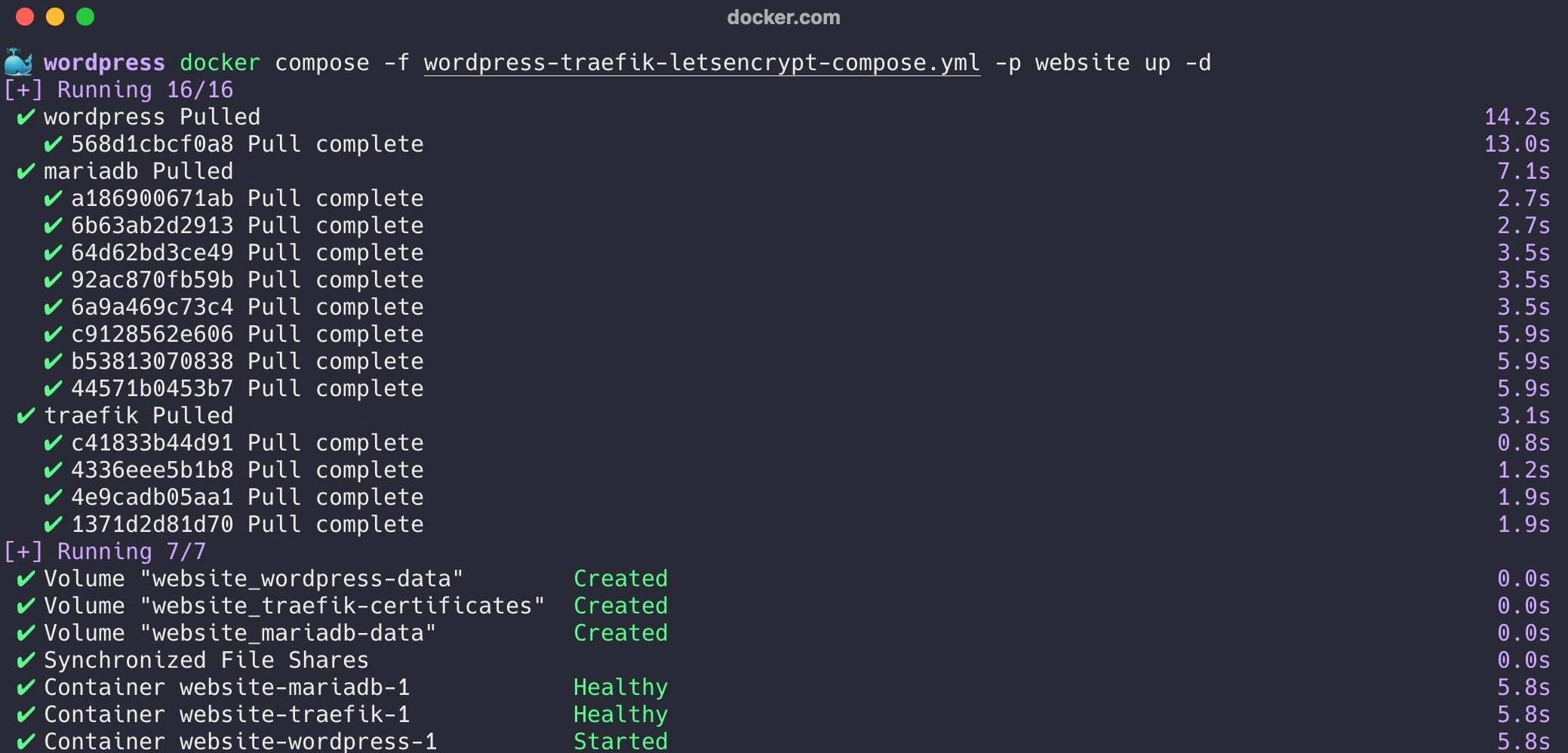
Docker Compose will download the necessary images (if not already present), create the networks and volumes, and start your WordPress and database containers. This process might take a few minutes the first time.
-
Verify that the containers are running:
docker psYou should see
wordpress_appandwordpress_dblisted with aStatusofUp. -
Access WordPress in your browser:
Open your web browser and navigate tohttp://localhost.You should now see the familiar WordPress 5-minute installation screen. Follow the on-screen prompts to select your language, enter your site title, admin username, password, and email address. Since you’ve already configured the database connection through environment variables, WordPress will automatically connect to your
dbcontainer.
Congratulations! You have successfully installed WordPress using Docker Compose and a Dockerfile. Your WordPress site is now running in an isolated, consistent, and portable environment, ready for development or deployment.
Advanced Docker Strategies for WordPress Development & Production
Successfully launching a Dockerized WordPress instance is a fantastic start, but the real power of Docker unfolds when you leverage its advanced features for robustness, security, and performance. These strategies are critical for anyone serious about managing a brand’s digital presence or running a financially viable online business.
Persistent Data with Docker Volumes
We’ve already touched upon volumes, but their importance cannot be overstated. For a WordPress site, there are two primary areas where data persistence is non-negotiable:
wp-contentdirectory: This is where all your themes, plugins, and media uploads reside. Without persistence, every time your WordPress container is rebuilt or replaced, you’d lose all your customizations and content.- Database files: The entire database for your WordPress site. Losing this means losing your posts, pages, users, and settings.
In our docker-compose.yml, we used named volumes (wordpress_data and db_data). These are managed by Docker and are the preferred way to persist data. Docker creates and stores these volumes in a specific location on the host system, making them highly reliable.
Another option, often used in development, is bind mounts. A bind mount maps a directory on your host machine directly into the container. For example, - ./wp-content:/var/www/html/wp-content would synchronize your local wp-content folder with the container’s. This is great for active theme/plugin development as changes you make locally are instantly reflected in the container. However, named volumes are generally recommended for production due to better performance and management by Docker.
Securing Your Dockerized WordPress
Security is paramount for any website, especially one representing a brand or generating income. Docker provides several layers of security:
- Environment Variables & Secrets Management: As demonstrated with our
.envfile, environment variables are excellent for passing credentials without hardcoding them. For production environments, consider using Docker’s built-in Docker Secrets or external secret management tools (like Vault) to handle sensitive data like database passwords and API keys more securely. These tools prevent secrets from being exposed as plain text in container environments. - Network Isolation: Docker Compose automatically creates a dedicated network for your services. This means your WordPress and database containers can communicate, but they are isolated from other containers on your host machine by default. Further enhancing this, you can configure firewalls on your host machine to only expose necessary ports (like 80 or 443 for HTTP/HTTPS) to the outside world, keeping your database port (3306) internal to the Docker network.
- Regular Image Updates: Always use the latest stable versions of official Docker images (e.g.,
wordpress:latest,mysql:8.0). These images are actively maintained and regularly patched for security vulnerabilities. Periodically rebuilding your images and restarting containers ensures you’re running the most secure versions. - HTTPS with a Reverse Proxy: Running WordPress behind an HTTPS certificate is non-negotiable for security, SEO, and brand trust. While you can configure SSL directly within the WordPress container, a more robust and scalable approach is to use a separate reverse proxy container (like Nginx or Caddy) with Let’s Encrypt integration. This container handles SSL termination, redirects, and potentially serves static content, acting as a secure gateway to your WordPress application.
Performance Optimization (Caching, CDN Integration)
Docker doesn’t inherently make WordPress faster, but it creates an environment where performance optimizations are easier to implement and manage.
- Caching Containers: You can introduce dedicated caching layers. For instance, an Nginx container can act as a reverse proxy and cache static assets. For dynamic content, you can easily integrate a Redis or Memcached container into your Docker Compose setup, allowing WordPress caching plugins to leverage these external, high-performance caching mechanisms.
- CDN Integration: While a CDN (Content Delivery Network) is external to Docker, a well-structured Dockerized WordPress setup makes it simpler to configure CDN plugins within WordPress, as your environment is consistent and predictable.
- Resource Allocation: Docker Compose allows you to define resource limits (CPU, memory) for each container, ensuring that no single service monopolizes resources and that your WordPress site remains responsive.
Integrating CI/CD for Seamless Deployments
For businesses and agencies managing multiple WordPress sites or continuous development cycles, integrating Docker with a Continuous Integration/Continuous Deployment (CI/CD) pipeline is the ultimate step.
- Automated Builds and Tests: A CI/CD pipeline can automatically build your Docker images whenever code changes are pushed to your version control system. It can also run automated tests against your Dockerized WordPress environment to catch issues early.
- One-Click Deployments: Once tests pass, the pipeline can automatically deploy your updated WordPress containers to your staging or production servers. This eliminates manual errors, speeds up deployment cycles, and ensures a consistent deployment process, critical for maintaining brand reputation and rapidly responding to market changes.
- Rollback Capabilities: In case of an issue after deployment, your CI/CD pipeline can also be configured to quickly roll back to a previous stable version of your Dockerized WordPress application, minimizing downtime and protecting your brand’s online presence and revenue.
By adopting these advanced Docker strategies, you transform your WordPress deployment from a mere website installation into a robust, scalable, secure, and highly efficient digital platform. This modernization of infrastructure directly contributes to technology leadership, strengthens your brand’s reliability and professionalism, and ultimately supports long-term financial growth by minimizing operational costs and maximizing uptime.

Conclusion
Installing WordPress with a Dockerfile and Docker Compose is more than just a technical exercise; it’s a strategic move towards a more efficient, reliable, and scalable digital infrastructure. We’ve journeyed from the basics of setting up your environment to crafting custom Dockerfiles and robust docker-compose.yml configurations, culminating in advanced strategies for securing, optimizing, and automating your WordPress deployments.
Embracing Docker for WordPress aligns perfectly with contemporary Tech trends, offering unparalleled consistency, isolation, and portability. For businesses and individuals, this translates into significant advantages: faster development cycles, reduced debugging time, and the ability to easily scale and migrate sites. From a Brand perspective, a stable, performant, and secure WordPress site is non-negotiable. Docker helps ensure your online presence is always reliable, fast, and protected, fostering trust and a positive user experience. And ultimately, these efficiencies and safeguards have a direct impact on your Money. By saving on hosting costs, reducing development overhead, and minimizing potential downtime, Docker becomes a financially astute investment, maximizing the return on your digital assets.
Whether you’re a developer seeking a cleaner workflow, a business aiming for rock-solid online performance, or an entrepreneur looking to leverage modern infrastructure for multiple online ventures, Dockerizing WordPress is a powerful solution. It empowers you to manage your websites with confidence, focus on content and growth, and build a digital empire that is both resilient and future-proof. Take the leap, embrace containerization, and transform the way you build and manage your WordPress sites.
aViewFromTheCave is a participant in the Amazon Services LLC Associates Program, an affiliate advertising program designed to provide a means for sites to earn advertising fees by advertising and linking to Amazon.com. Amazon, the Amazon logo, AmazonSupply, and the AmazonSupply logo are trademarks of Amazon.com, Inc. or its affiliates. As an Amazon Associate we earn affiliate commissions from qualifying purchases.