
In the intricate world of computing, where technological advancements redefine capabilities almost daily, understanding the core components of your personal computer (PC) is paramount. Among these components, the motherboard stands out as the unsung hero, the central nervous system that orchestrates every operation, connects every part, and dictates the fundamental capabilities of your machine. Yet, despite its critical role, many users remain unaware of its specific type or even its fundamental purpose. This article aims to demystify the process of identifying your motherboard, providing clear, actionable steps, and explaining why this knowledge is invaluable for every PC owner, from casual users to seasoned tech enthusiasts.
Whether you’re planning a critical upgrade, troubleshooting a persistent issue, ensuring digital security with the latest drivers, or simply seeking a deeper understanding of your system’s foundation, knowing your motherboard model is the first step. It’s the blueprint that tells you what components are compatible, what performance limits exist, and what future expansions are possible. Without this information, navigating the landscape of PC maintenance and optimization becomes a frustrating guessing game, potentially leading to costly mistakes or missed opportunities.
This guide will walk you through various methods – from leveraging built-in software tools to physically inspecting your hardware – ensuring you can confidently identify your motherboard regardless of your technical expertise. We’ll also delve into how this knowledge can empower you to make smarter tech decisions, protect your investment, and ultimately, get more out of your PC.
Why Your Motherboard Matters: More Than Just a Circuit Board
Before diving into how to identify your motherboard, it’s crucial to understand why this information holds such significance. The motherboard, often referred to as the “main board” or “system board,” is the primary printed circuit board (PCB) in general-purpose computers and other expandable systems. It holds and allows communication between many of the crucial electronic components of a system, such as the central processing unit (CPU) and system memory (RAM), and provides connectors for other peripherals.
The Hub of Your PC’s Ecosystem
Think of your motherboard as the nervous system and circulatory system combined for your PC. It’s the central hub that connects everything: the CPU that performs calculations, the RAM that stores temporary data, the graphics card that renders visuals, the storage drives (SSDs/HDDs) that house your operating system and files, and all your external peripherals through USB ports, audio jacks, and network connections. Every single piece of data that moves within your computer travels across this board. Its design, chipset, and connectivity options fundamentally determine the performance, stability, and expandability of your entire system. A robust motherboard ensures efficient data flow, stable power delivery, and reliable communication between components, directly impacting your PC’s overall productivity and user experience.
Unlocking Upgrade Potential and Compatibility
Perhaps the most common reason users need to identify their motherboard is for upgrades. Planning to boost your system’s performance with a new processor, more RAM, or a powerful graphics card? Your motherboard is the gatekeeper. It dictates:
- CPU Socket Type: Different generations of processors use different socket types (e.g., LGA 1700, AM5). You cannot install a CPU into an incompatible socket.
- RAM Type and Capacity: Motherboards support specific RAM types (DDR4, DDR5) and have a maximum memory capacity and number of slots. Upgrading RAM requires knowing these specifications.
- PCIe Slots: For graphics cards, network cards, and NVMe SSDs, the type and generation of PCIe slots (e.g., PCIe 4.0, PCIe 5.0) on your motherboard will determine compatibility and maximum performance.
- Storage Connectivity: The number and type of SATA ports, M.2 slots, and their supported protocols (SATA III, NVMe) dictate how many and what kind of storage drives you can add.
Without knowing your motherboard model, you risk purchasing incompatible components, leading to wasted money and frustration. This directly ties into the “Money” aspect of our website topics, as informed decisions save you from costly mistakes and help maximize your investment in your existing hardware.
Essential for Troubleshooting and Driver Management
When your PC encounters issues – be it system crashes, peripheral recognition problems, or performance bottlenecks – your motherboard is often a key piece of the puzzle for diagnosis. Identifying its model allows you to:
- Download Correct Drivers: Manufacturers regularly release updated drivers for chipsets, network controllers, and audio components integrated into the motherboard. Using the correct, up-to-date drivers from your specific motherboard’s support page ensures optimal performance, stability, and even digital security by patching vulnerabilities.
- Update BIOS/UEFI: The Basic Input/Output System (BIOS) or Unified Extensible Firmware Interface (UEFI) is firmware stored on your motherboard that initializes hardware components during startup. Updates can add support for new CPUs, improve stability, fix bugs, and enhance security. Applying the wrong BIOS update can render your motherboard inoperable, making accurate identification critical.
- Reference User Manuals: The manufacturer’s manual for your specific motherboard contains invaluable information on troubleshooting error codes, jumper settings, connector locations, and more.
In the realm of “Tech,” reliable troubleshooting and diligent driver management are cornerstones of a stable and secure computing experience.
Software-Based Methods: Quick and Convenient
For most users, the quickest and safest way to identify their motherboard is through software. These methods don’t require opening your PC case and are generally straightforward.
Using Built-in Windows Tools
Windows offers several native tools that can reveal your motherboard’s details without needing to download anything extra.
System Information (msinfo32)
This comprehensive utility provides a wealth of information about your system, including motherboard details.
- Press
Windows Key + Rto open the Run dialog box. - Type
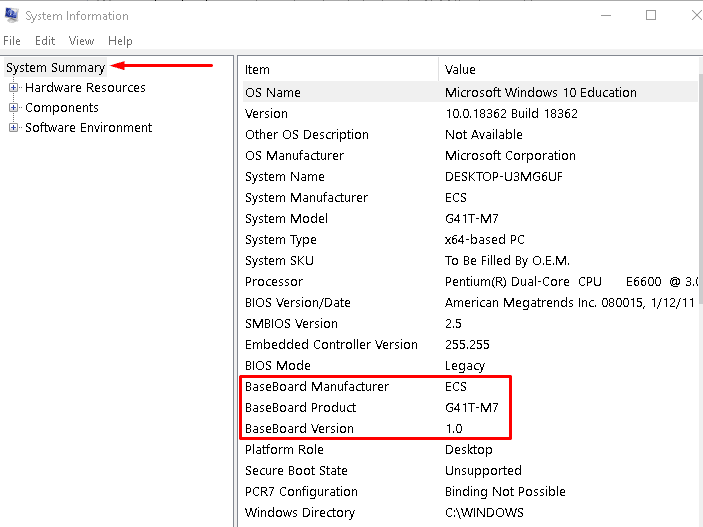
msinfo32and press Enter. - In the System Information window, look for “BaseBoard Manufacturer,” “BaseBoard Product,” and “BaseBoard Version” under the “System Summary” section. These entries will typically provide the manufacturer, model name, and revision number of your motherboard.
Command Prompt (CMD) or PowerShell
For those comfortable with command-line interfaces, these tools offer a quick and precise way to extract motherboard information.
For Command Prompt:
- Press
Windows Key + R, typecmd, and press Enter. - In the Command Prompt window, type the following command and press Enter:
wmic baseboard get product,manufacturer,version,serialnumber - The output will display the manufacturer, product name (model), version, and serial number of your motherboard.
For PowerShell:
- Right-click the Start button and select “Windows PowerShell” or “Windows Terminal (Admin)”.
- In the PowerShell window, type the following command and press Enter:
Get-WmiObject -Class Win32_BaseBoard | Format-Table Product,Manufacturer,Version,SerialNumber - This command will provide similar information to the Command Prompt method, often in a more readable table format.
These built-in tools are excellent starting points and often provide all the necessary information for common tasks.
Third-Party Utility Software
While Windows’ built-in tools are helpful, third-party utilities often provide more detailed information, a more user-friendly interface, and additional insights into other hardware components. Many of these are free and widely trusted within the tech community.
CPU-Z
CPU-Z is a lightweight, free utility primarily known for providing detailed information about your CPU, but it’s also excellent for identifying your motherboard.
- Download and install CPU-Z from its official website (cpuid.com).
- Launch CPU-Z.
- Navigate to the “Mainboard” tab. Here, you’ll find comprehensive details including the manufacturer, model, chipset, BIOS brand and version, and even the type of graphics interface.
Speccy
Speccy, developed by Piriform (the creators of CCleaner), offers a more holistic overview of your PC’s hardware, including real-time temperatures.
- Download and install Speccy from its official website (ccleaner.com/speccy).
- Launch Speccy.
- In the main interface, click on the “Motherboard” section in the left-hand navigation pane. This will display details like the manufacturer, model, chipset, BIOS version, and even physical properties like the operating temperature.
HWiNFO (or HWiNFO64)
HWiNFO is a powerful and highly detailed system information and diagnostics tool that provides an exhaustive overview of every component in your system.
- Download and run HWiNFO from its official website (hwinfo.com).
- Upon launching, you can either select “Sensors-only” for real-time monitoring or proceed to the main window.
- In the main window, under the “Motherboard” section in the left pane, or by navigating through the “System Summary” pane, you’ll find the manufacturer and model of your motherboard along with many other intricate details.
These tools are invaluable for gathering detailed system specifications, crucial for both planning upgrades and diagnosing performance issues, making them essential resources for anyone invested in tech optimization.
Physical Inspection: When Software Isn’t Enough
While software methods are convenient, there are situations where they might not provide complete or accurate information (e.g., if drivers are missing, or in the case of very old systems). In such scenarios, a physical inspection of the motherboard itself becomes necessary. This method, while requiring you to open your PC case, is definitive.
Opening Your PC Case
Important Safety Precautions:
Before opening your PC case, always:
- Shut down your PC completely (not just sleep or hibernate).
- Unplug the power cable from the wall outlet and the back of the PC.
- Discharge static electricity by touching a grounded metal object before touching any internal components. Using an anti-static wrist strap is recommended.
- Work in a well-lit, clean area.
To open the case, you typically need to unscrew a few thumbscrews or regular screws on the rear panel, then slide off or pivot the side panel. For most standard tower cases, the motherboard is mounted on the side opposite the removable panel, making it accessible once the panel is off.
Locating the Motherboard Model Number
Once the case is open, locate the large circuit board that all your other components (CPU cooler, RAM sticks, graphics card) are plugged into. This is your motherboard.
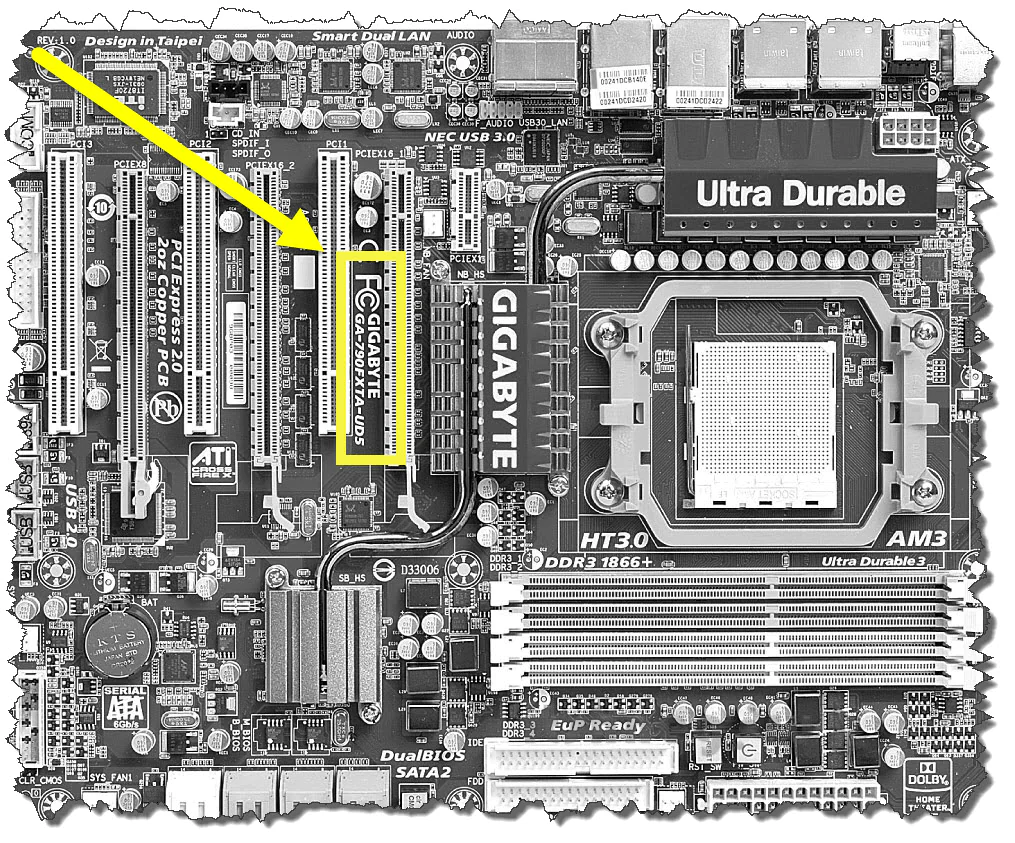
The model number and manufacturer’s name are typically printed directly onto the board. Common places to find this information include:
- Between the PCI Express (PCIe) slots: Often near where your graphics card plugs in.
- Near the RAM slots: Usually in an open space on the PCB.
- Near the CPU socket: Look for markings around the CPU cooler.
- Under a large heatsink: Some newer boards might have the model number subtly printed on a heatsink covering the chipset.
- Near the 24-pin ATX power connector: This is the large connector supplying power to the motherboard.
The manufacturer’s name (e.g., ASUS, MSI, Gigabyte, ASRock) will usually be prominently displayed, often alongside their logo. The model name will follow, for example, “ROG STRIX B550-F GAMING (WI-FI)” or “PRIME Z390-A.” Take a clear photo of any text you find, as some markings can be small or difficult to read.
Identifying Manufacturer and Key Features
Beyond the model number, a physical inspection can also help identify other key features:
- Form Factor: The size and shape of the motherboard (e.g., ATX, Micro-ATX, Mini-ITX) is often evident by its dimensions and screw hole patterns. This is crucial for selecting a compatible PC case if you ever decide to move your components.
- Chipset Heatsinks: These often have branding (e.g., Intel Z690, AMD B550) which can further narrow down specifications, even if the exact model number is hard to read.
- Connectivity Options: Visually inspect the number and type of RAM slots, PCIe slots, M.2 slots, and SATA ports to confirm compatibility for future upgrades.
While more involved, physical inspection provides an undeniable confirmation of your motherboard’s identity, especially useful for older systems or custom builds without documentation.
Other Avenues for Identification
Sometimes, the above methods might not be sufficient, or you might be dealing with a pre-built system where the motherboard is a custom OEM (Original Equipment Manufacturer) board.
Checking Your PC’s Documentation
If your PC was custom-built or purchased as a pre-built system, original documentation can be a goldmine of information:
- Motherboard Manual: If you or the builder kept the motherboard’s retail box and manual, these will explicitly list the model number and all its specifications.
- Original Invoice/Receipt: The invoice for a custom build will typically list every component, including the motherboard model. For pre-built systems, the manufacturer’s product page or the retail listing often specifies the core components.
- PC Manufacturer’s Website (for pre-built PCs): If you own a branded pre-built PC (e.g., Dell, HP, Lenovo, Acer), visit their support website. Enter your PC’s service tag, serial number, or product name. The website will usually list all original components, including the specific OEM motherboard model used in your configuration. These OEM boards might have slightly different names than retail versions, but the manufacturer’s site will clarify compatibility for updates and parts.
Online Databases and Support Forums
If you have partial information (e.g., just the manufacturer’s name and a few cryptic numbers) or are dealing with a very old or obscure board, online resources can help:
- Google Search: Type in any numbers or text you found on the board. You might find forum posts or product pages that match.
- Motherboard Manufacturer’s Websites: Once you have a manufacturer (e.g., ASUS, Gigabyte), browse their product archives.
- Tech Forums and Communities: Websites like Tom’s Hardware, Reddit’s r/buildapc, or dedicated manufacturer forums are excellent places to ask for help. Provide photos of your board and any markings you’ve found. The collective knowledge of these communities can often identify even the most elusive models.
Leveraging these resources ensures that even in challenging situations, you can pinpoint your motherboard’s identity, thereby gaining valuable insights into your system’s capabilities and limitations.
Leveraging Your Motherboard Knowledge for Better Tech Decisions
Knowing your motherboard isn’t just a technical exercise; it’s a strategic advantage that impacts your technology decisions, financial investments, and even digital security. This knowledge empowers you to move beyond being a passive consumer and become an active manager of your digital assets.
Smart Upgrades: Maximizing Performance and Investment
Armed with your motherboard’s precise model number, you can approach upgrades with confidence and intelligence. Instead of guessing, you can:
- Check Manufacturer Compatibility Lists: Visit your motherboard manufacturer’s website. They often provide detailed Qualified Vendor Lists (QVLs) for RAM and CPU compatibility lists, ensuring you purchase components that are guaranteed to work together.
- Plan a Balanced Upgrade Path: Understand your motherboard’s limitations (e.g., maximum RAM speed, PCIe generation) to avoid overspending on components whose full potential cannot be utilized. For example, buying a cutting-edge PCIe 5.0 NVMe SSD when your motherboard only supports PCIe 3.0 will result in significantly reduced performance, essentially wasting money on unused speed.
- Future-Proofing: Knowing your chipset and socket type gives you an idea of how much life is left in your upgrade path. If your board is on an older socket, it might make more sense to save for a platform upgrade (new CPU + motherboard + RAM) rather than piecemeal component upgrades. This strategic planning ensures you maximize your financial investment in technology.
Enhanced Troubleshooting and Digital Security
Beyond upgrades, knowing your motherboard is fundamental for maintaining a stable and secure computing environment:
- Accurate Driver Updates: As discussed, regularly updating your chipset drivers and other integrated component drivers (network, audio) from your motherboard’s support page is crucial for performance and stability. These updates often include important security patches, protecting your system from vulnerabilities that could be exploited.
- BIOS/UEFI Updates for Security and Features: BIOS updates can patch critical security flaws and introduce support for new hardware or features. Knowing your exact model ensures you download and apply the correct, safe firmware update, a critical aspect of “Digital Security.”
- Faster Problem Diagnosis: When seeking technical support or troubleshooting yourself, providing your motherboard model immediately gives a technician a crucial starting point, saving time and potentially money on diagnostics.
Informed Purchasing and Resale Value
Finally, understanding your motherboard contributes to more informed purchasing decisions and helps you assess the value of your existing hardware.
- Evaluating Pre-built Systems: When buying a new pre-built PC, research the motherboard model if listed. A robust motherboard ensures better stability and upgradeability, often justifying a slightly higher price.
- Assessing Resale Value: If you decide to sell individual components or your entire PC, knowing the specific model of your motherboard (and other components) allows you to accurately price them. A well-known, quality motherboard brand (part of “Brand Strategy” and “Corporate Identity” in the tech market) can add significant value to a used system. This directly ties into “Money” by helping you realize the full potential return on your technology investment.
In conclusion, identifying your motherboard is far more than a mere technicality. It’s a foundational step towards becoming a more informed, empowered, and efficient PC user. From seamless upgrades and robust troubleshooting to enhanced digital security and savvy financial planning, the knowledge of your motherboard’s identity unlocks a deeper connection with your technology. Embrace these methods, understand their implications, and take control of your computing experience. Your PC will thank you for it.
aViewFromTheCave is a participant in the Amazon Services LLC Associates Program, an affiliate advertising program designed to provide a means for sites to earn advertising fees by advertising and linking to Amazon.com. Amazon, the Amazon logo, AmazonSupply, and the AmazonSupply logo are trademarks of Amazon.com, Inc. or its affiliates. As an Amazon Associate we earn affiliate commissions from qualifying purchases.